How to Delete Your Match.com Account Permanently: Clear Steps
This guide shows how to delete your Match.com account permanently, cancel subscriptions, and ensure complete removal of personal data.

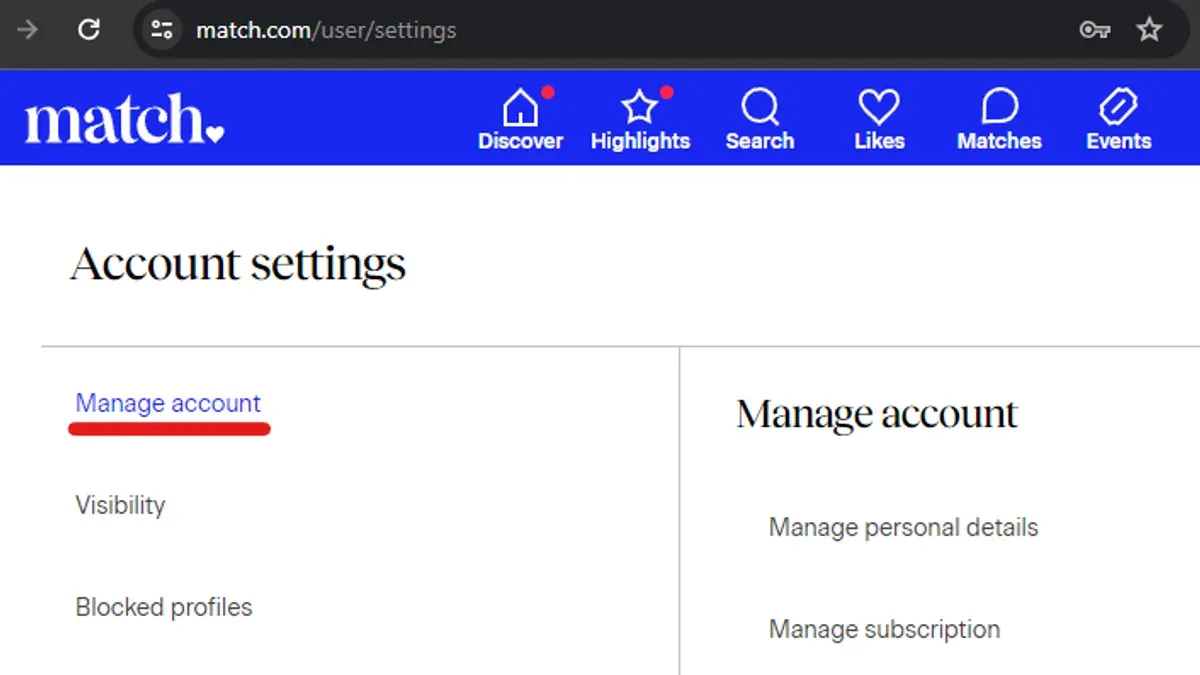
This article explains how to delete Match.com account permanently, covering every step needed to fully close an account and avoid ongoing charges.
Many users mistakenly deactivate their profile or cancel membership without deleting the account, leaving personal data and subscriptions active. Match.com separates profile deactivation from permanent deletion, and this guide clarifies that difference. It also details canceling MatchPay subscriptions linked to Match.com to ensure no further billing.
The instructions focus on exact menu paths and options within Match.com’s settings to guarantee complete removal of personal information and membership status. Following these steps prevents partial deletion, recurring charges, and lingering data.
Before you start: What is needed to delete a Match.com account
Prepare to have the Match.com login credentials ready, including the registered email address and password. Without these, access to the account and completion of the deletion process is impossible. Confirm if any active subscriptions exist, such as premium memberships or services linked to MatchPay, to avoid unexpected ongoing charges after account closure.
Many users overlook subscription cancellation, resulting in continued billing even after deleting their profile. It is crucial to identify and cancel all active subscriptions before initiating deletion. Also, note the distinction between deactivating an account, which temporarily hides the profile but retains data and billing, and permanent deletion, which irreversibly removes all information and ends all billing.
Backup any important messages, photos, or data from the account. Once deleted, Match.com does not retain personal information, and recovery is not possible. Failure to save essential content before deletion may result in permanent loss.
- Confirm access to the Match.com email and password; successful login leads to the account homepage.
- Review active subscriptions by navigating to Account Settings > My Subscription; active premium services or MatchPay links will be listed here.
- Download or save any desired messages or profile data from the Messages or Profile sections.
- Understand the difference between deactivation and permanent deletion by visiting the Help Center or Account Settings > Account Status.
Tip: Canceling subscriptions before deletion prevents unexpected charges that some users continue to pay for months after closing their account.
How to permanently delete Match.com account
- Log in to the Match.com account with valid credentials. Upon successful login, the homepage or dashboard should appear.
- Click on the profile icon or the user menu typically located at the top right corner of the page. This opens a dropdown menu with various account options.
- Select Settings from the dropdown menu. The settings page with multiple tabs or sections will load.
- Within Settings, navigate to the Account tab or section. Look specifically for options related to account management or closure.
- Scroll down to find the link or button labeled Delete Account or Close Account. This may be under a subsection such as "Account Preferences" or "Account Status." Click this option to begin the deletion process.
- The site will prompt for confirmation of identity by requesting the current account password. Enter the password accurately to proceed.
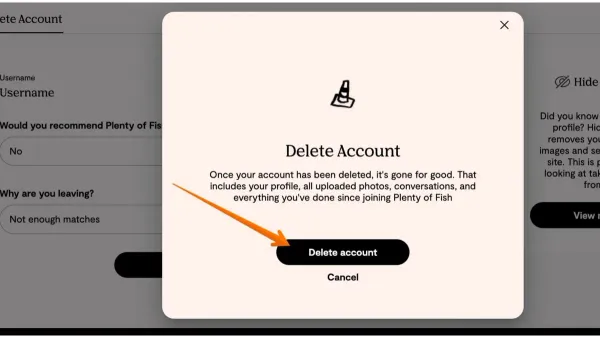
- After password confirmation, a final confirmation screen appears explaining the consequences of deletion, including permanent loss of profile data and matches. Confirm the decision by clicking the final Delete Account button.
- Once confirmed, the account enters the deletion process. The profile and all associated data will no longer be visible to other users. This process may take some time, typically up to 24 hours, before complete removal from the site.
Tip: If the Delete Account option is not immediately visible, check under privacy settings or contact Match.com support for assistance, as interface updates can relocate this feature.
How to cancel Match.com membership before deleting your account
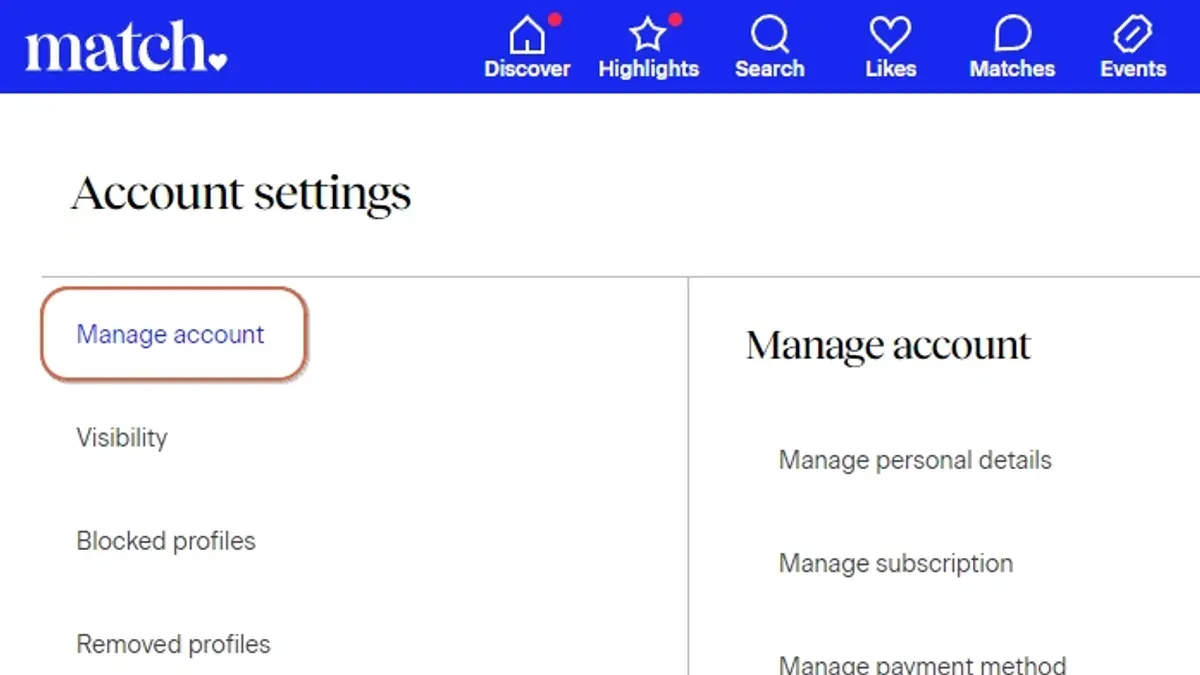
Canceling a Match.com membership properly prevents continued billing after account deletion. Membership cancellation must be done within the subscription or billing section of the account settings. Simply deleting the account without canceling the membership can result in unwanted charges.
- Log in to the Match.com account and click the profile icon in the top-right corner.
- Select Settings from the dropdown menu.
- Navigate to Subscription or Billing tab within the settings page.
- Find the Manage Membership or Cancel Subscription option and click it.
- Follow prompts to confirm cancellation. The system will display a message such as "Your subscription has been canceled and will not renew." This confirmation indicates successful cancellation.
- Check the registered email for a cancellation confirmation message from Match.com to verify the process is complete.
Memberships typically remain active until the end of the current billing cycle. Canceling early stops automatic renewal but allows access until the paid period expires. For example, canceling a monthly plan on day 10 of the cycle keeps the membership active until day 30 without further charges.
Tip: Cancel membership at least 24 hours before the next billing date to avoid accidental renewal.
Different payment methods, such as credit card or PayPal, may require cancellation through the respective service in addition to Match.com's interface. However, managing subscription through Match.com is the primary step.
Some memberships, like those purchased via mobile app stores, require cancellation through the app store’s subscription settings. Confirm cancellation there to prevent ongoing charges.
How to delete MatchPay account linked to Match.com
MatchPay is the payment system managing subscriptions and transactions related to Match.com services. Even after deleting the Match.com profile, active MatchPay subscriptions can continue billing if not properly canceled. Therefore, managing or deleting the MatchPay account is essential to stop future payments fully.
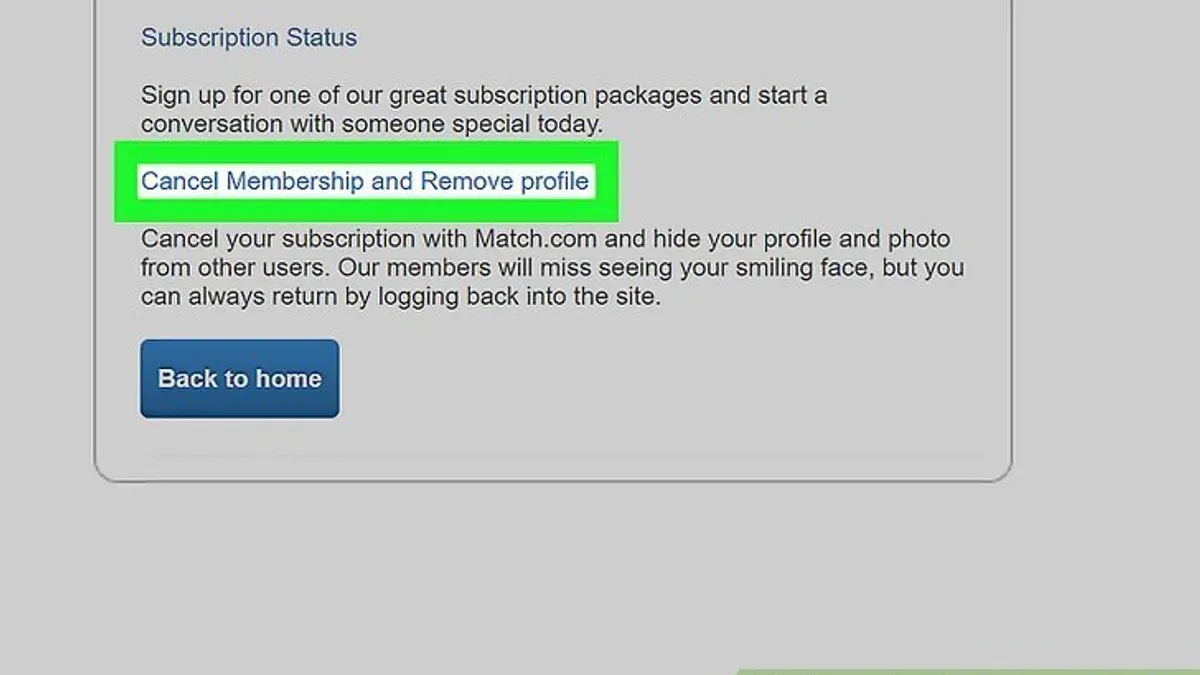
- Log in to the Match.com account and navigate to the "Account Settings" section. This is typically found under the profile icon or menu.
- Within Account Settings, select "Billing & Payments" or "Payment Methods" to access MatchPay options. The presence of MatchPay details confirms linkage.
- Click on the "Manage MatchPay" or "Subscription Management" link. This opens the MatchPay dashboard showing active subscriptions and payment methods.
- Locate the active MatchPay subscription(s) and select "Cancel Subscription" or "End Payments." A confirmation prompt will appear to finalize the cancellation.
- Confirm the cancellation. A confirmation message or email should verify that future payments will stop.
- Optionally, review the "Payment Methods" section and remove saved credit card or bank information associated with MatchPay to prevent accidental charges.
- Log out and monitor bank or card statements for at least one billing cycle to ensure no further charges occur.
Tip: Canceling MatchPay is separate from deleting the Match.com profile; skipping this step can lead to unexpected charges after account deletion.
Reports indicate some users experience continued MatchPay charges if subscriptions are not explicitly canceled, even after deleting their Match.com account. This occurs because deleting the profile does not automatically terminate the payment agreements within MatchPay.
How to deactivate Match account versus deleting it permanently
Deactivating a Match account temporarily hides the profile from other users while retaining all data on Match's servers. This means the profile, messages, and matches remain intact but inaccessible to others. The user can reactivate the account anytime by logging back in, restoring full visibility and access immediately.
Permanent deletion, on the other hand, irreversibly removes all personal information, matches, messages, and account data. Once deleted, this action cannot be undone, and the user must create a new account from scratch to return to Match. This is a final step to ensure complete removal of all traces on the platform.
Many users choose deactivation over deletion to pause their activity without losing connections or data. Common reasons include taking a break from dating, evaluating options, or avoiding immediate commitment to account closure. Deactivation offers flexibility and safeguards data, whereas deletion is suited for users certain they want no future interaction with Match.
Tip: Select deactivation if uncertain about permanently leaving Match, as it preserves account data and allows easy return.
How to delete Match.com profile completely to remove all personal information
Deleting a Match.com account does not automatically erase all personal profile information. To ensure complete removal, manually delete photos, profile details, and any personal data prior to or during the account deletion process.
- Log into the Match.com account and navigate to the Profile section via the main menu. Confirm access by seeing the full profile overview.
- Remove all uploaded photos one by one by selecting each photo and clicking Delete. After deletion, the photo should no longer appear in your profile gallery.
- Edit or clear all profile fields including About Me, interests, and personal details by selecting Edit Profile. Replace text fields with neutral placeholders or leave them blank. Save changes and verify fields show as empty or default.
- Check connected social media or external account links in Settings & Privacy and unlink them to avoid residual data connections.
- After clearing profile content, proceed with permanent account deletion. This ensures no readily visible personal information remains.
Match.com's privacy policy states that some data may be retained for legal, security, or operational reasons even after account deletion. This retention period and purpose are consistent with industry practices among dating sites, which often hold minimal necessary data to prevent fraud or comply with regulations.
For complete data removal requests beyond standard deletion, contact Match.com customer support directly via Help Center > Contact Us. Request explicit deletion of residual data according to privacy rights. Support response times vary, and full removal may require additional verification.
Tip: Clearing profile data manually before account deletion reduces the chance of personal information lingering in backups or caches.
Troubleshooting common issues when trying to close Match.com account
Some users report that the option to delete their Match.com account is missing or greyed out. This often occurs if there is an active subscription or unresolved payment. Ensure all memberships and MatchPay subscriptions are fully canceled and payments cleared, then refresh the account settings page. Logging out and back in or using a different browser can also reveal the delete option if it was temporarily inaccessible.
Login problems frequently block account deletion. If password resets fail or the login page is unresponsive, clear browser cache, try incognito mode, or reset the password via the registered email. If the account remains inaccessible, contacting Match.com support is necessary to regain access before proceeding with deletion.
Users sometimes report ongoing subscription charges even after cancellation or account deletion. Confirm cancellation via the "Membership" section under Account Settings and check for any linked MatchPay subscriptions. If charges persist, review bank statements for charge details, then contact support with transaction dates and amounts to request a refund or stop payments.
Contacting Match.com support effectively
When issues persist, reaching out to Match.com support requires clear communication. Provide the registered email, username, and a concise description of the problem. Example message: "I canceled my Match.com membership and deleted my account, but I am still being charged on my credit card. Please verify my cancellation and provide a refund if applicable." Use the support form on the website or email [email protected].
Frequently asked questions
How to delete match account permanently?
To delete a Match account permanently, log in and navigate to Settings > Account Settings > Delete Account. Confirm the deletion by entering the password and selecting the reason for leaving. This action removes the profile and ends all Match services, but ensure all subscriptions like MatchPay are canceled first to avoid charges.
How to delete my match.com profile?
Deleting a Match.com profile requires accessing Account Settings and choosing the Delete Account option. This removes the profile from public view and deletes personal information, but it is crucial to complete the process fully by confirming the deletion steps within the account settings.
How to cancel match account?
Cancelling a Match account involves two steps: first cancel any active subscriptions via the MatchPay or app store billing settings, then delete the account through Account Settings. Simply cancelling a subscription does not delete the profile, so both steps are necessary to stop membership and remove the account.
How to delete match profile completely?
Complete deletion of a Match profile means removing the account and all associated data. This is done by signing in, going to Account Settings, selecting Delete Account, and following the confirmation prompts. Check that all linked services like MatchPay are canceled to prevent ongoing charges or data retention.
How to close match account?
Closing a Match account is done through the Account Settings menu under Delete Account. This permanently removes the profile and stops membership billing. Deactivating the account is different—it hides the profile but keeps data and subscriptions active unless separately canceled.
What this advice does not cover
This guide does not cover deleting accounts linked through third-party login services such as Facebook login, as those deletion procedures differ and require managing settings on the respective platforms.
Some subscription cancellations may require contacting Match.com customer support directly, especially when payments are processed through external platforms like the Apple App Store or Google Play Store.
Complete removal of all personal data might require submitting formal privacy or data removal requests to Match.com's data protection team beyond the standard account deletion steps outlined here.
Next step after deleting your Match.com account
After completing account deletion and canceling any active subscriptions, verify that no active charges remain by reviewing recent bank or credit card statements. This final check helps ensure that the Match.com membership and any related billing, including MatchPay, have been fully terminated to avoid unexpected charges.
See also: Mastering Grindr Privacy Settings and Access Across Devices · How to Recognize, Secure, and Manage a Hacked Grindr Account