How to Manage Fortnite Privacy Settings and Game Preferences
Discover how to access and optimize Fortnite privacy settings to control your data and improve your gaming experience across devices.

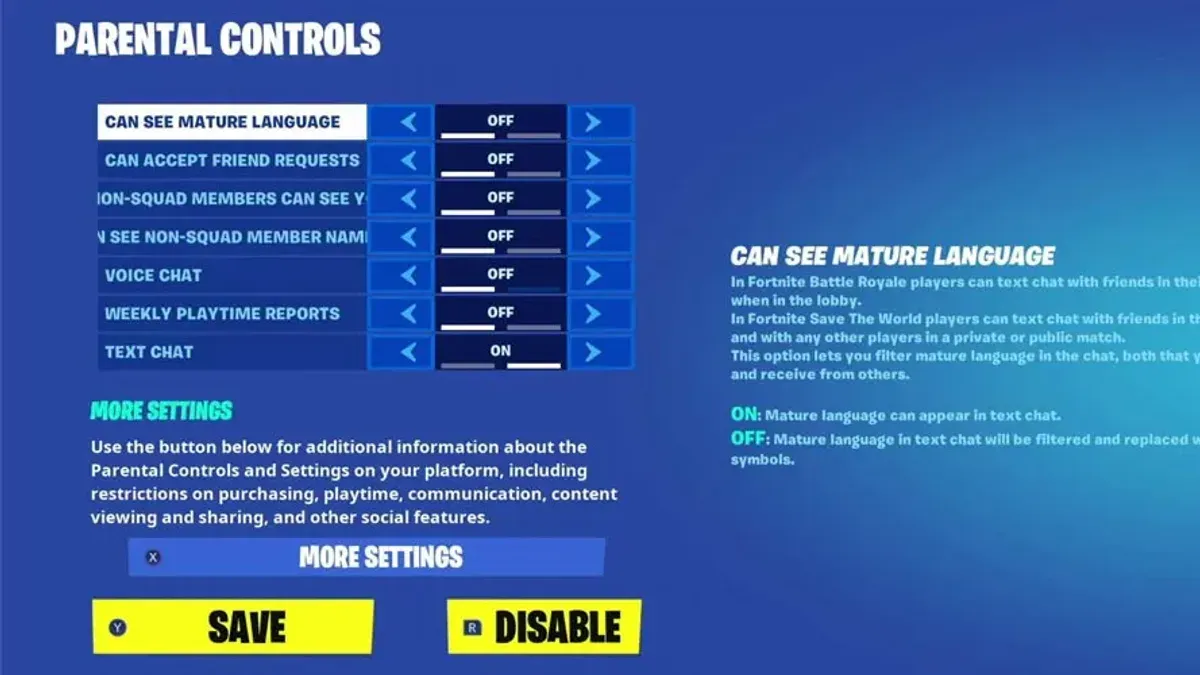
This article explains how to access and optimize Fortnite privacy settings to improve data control and gameplay experience across platforms. Fortnite privacy settings control who can see player profiles, communicate, and join games, which directly affects security and social interaction. Navigating these settings can be confusing, especially when changes fail to save or the game repeatedly asks for verification. Understanding the exact menu paths and options on PC, consoles, and mobile devices helps avoid frustration and ensures the intended privacy level is maintained. Additionally, this guide addresses common issues like settings not sticking and recurring verification prompts, which generic guides often overlook.
What are Fortnite privacy settings and why do they matter?
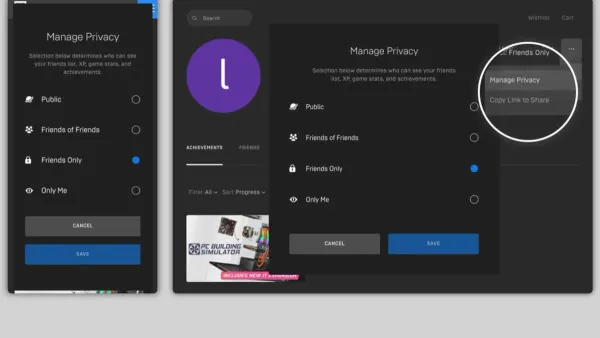
Fortnite privacy settings are controls within the game that allow players to manage how their personal information and gameplay data are shared and accessed. These settings govern data such as friend lists, voice chat permissions, matchmaking visibility, and data tracking preferences. For example, players can choose who can send them friend requests or see their online status, directly affecting their social experience in the game.
Managing these settings is essential for maintaining online safety and ensuring a tailored gameplay environment. Players who prefer a more private experience can restrict friend requests to "Friends of Friends" or "No One," reducing unwanted interactions. Conversely, open settings may increase social engagement but risk exposure to harassment or spam.
Privacy settings also influence matchmaking by controlling whether a player appears in public lobbies or only with approved friends. Additionally, data tracking options affect how Epic Games collects and uses gameplay data for analytics and personalized content. Epic Games emphasizes transparency in its privacy policies, aiming to give players control over their information.
Consider a player who sets their profile to "Private" and disables voice chat from strangers. This reduces the chance of receiving unsolicited messages or exposure to potentially harmful content, creating a safer and more comfortable gaming environment. Without adjusting these settings, players risk unwanted connections and less control over their data.
How to get to settings in Fortnite across platforms
On PC, access the settings menu by launching Fortnite and pressing the Esc key while in the main lobby or during a match. This opens the menu bar in the top right corner where a gear icon labeled Settings is visible. Clicking this icon reveals detailed tabs including Game, Audio, Video, and Account & Privacy. For example, pressing Esc during a game match, then selecting the gear icon, leads directly to privacy and gameplay options.
Mobile users should first open Fortnite and tap the three horizontal lines (menu button) in the upper right corner of the screen on the main lobby. This expands a sidebar where a gear icon Settings appears near the bottom. Tap it to see the categorized settings. The mobile interface condenses options but retains key privacy and gameplay controls. Some settings may require scrolling horizontally across tabs at the top.
On PS4 and other consoles, press the Options button on the controller while in the lobby or in-game. This opens a menu bar at the top of the screen; navigate right using the joystick or D-pad to highlight the gear icon labeled Settings. Press X to enter. Console settings are similar to PC but navigation relies on controller inputs, and some graphical settings are adjusted automatically to match hardware.
Tip: On all platforms, entering settings from the main lobby rather than in-game ensures all options load correctly and reduces the chance of unsaved changes.
How to adjust Fortnite settings for your privacy and gameplay
Fortnite's privacy and gameplay settings can be tailored to balance security with user experience. Start by navigating to the Privacy tab under the main Settings menu. Here, friend request permissions default to "Everyone," which risks unsolicited invites. Changing this to "Friends of Friends" or "No One" restricts interactions, reducing unwanted contacts but limiting opportunities to meet new players.
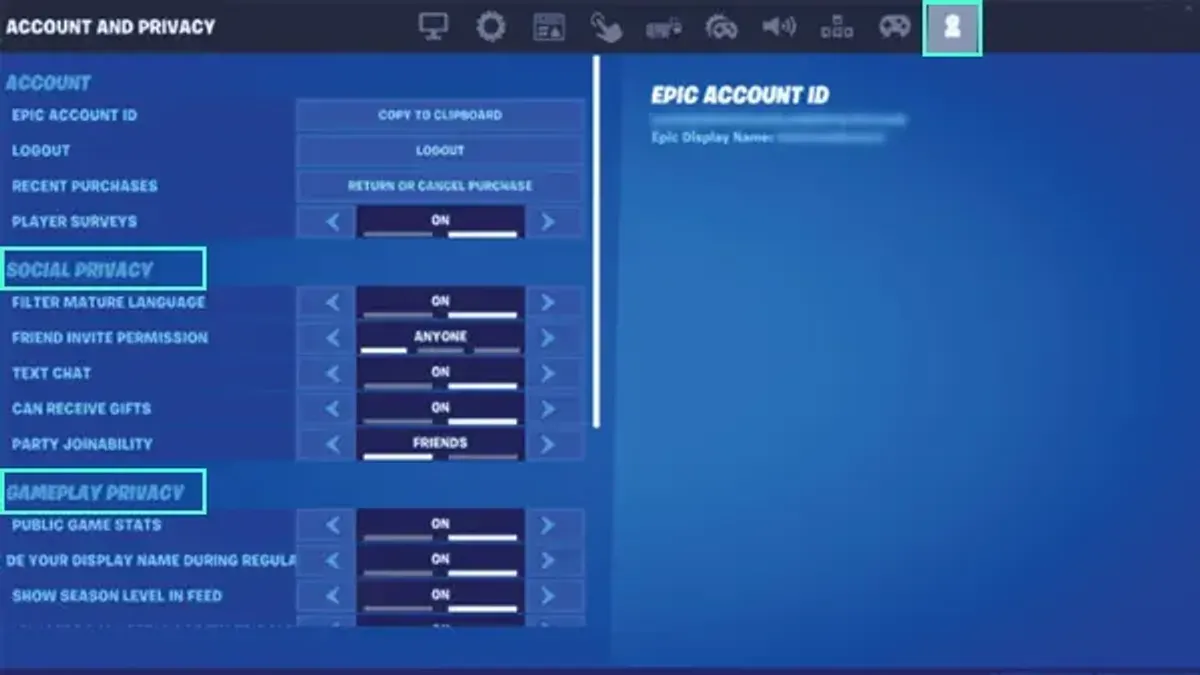
Under the Data Sharing section, players can disable options like "Allow Epic Friends to See Game Data" and "Personalized Ads." Turning these off enhances privacy but may reduce personalized content or social features. Some players accept this trade-off for greater control over their data.
Gameplay preferences impacting privacy include Voice Chat and Player Visibility. Voice Chat is enabled by default, which can expose conversations to all party members. Disabling it or setting it to "Push to Talk" limits accidental audio sharing. Player Visibility controls whether the user appears online to friends; setting it to "Invisible" hides online status but might hinder team coordination.
For example, a player seeking minimal social interaction could set Friend Requests to "No One," disable data sharing, turn off Voice Chat, and set Player Visibility to "Invisible." This configuration enhances privacy but may reduce social gameplay dynamics. Conversely, a player focused on team play might keep friend requests open, allow data sharing for better matchmaking, and enable Voice Chat.
Tip: After adjusting settings, save and restart Fortnite to ensure changes apply correctly, preventing common issues with settings reverting.
Why does Fortnite keep changing or not saving my settings?
Fortnite settings may not save or revert due to technical issues like server synchronization failures or corrupted configuration files. When settings are changed locally but fail to sync with Epic Games' servers, the game can overwrite preferences with default values upon launch. For example, a player adjusting voice chat settings in the Audio tab might find their changes lost after restarting the game if the local config file is damaged.
Game updates and patches sometimes reset settings or introduce conflicts that prevent proper saving. After a patch, some users report their key bindings or privacy options reverting to default, as new game versions occasionally overwrite existing config files. This is a known consequence of updating live services with frequent patches.
User account conflicts also contribute. Logging into Fortnite on multiple devices simultaneously or switching accounts without proper logout can cause settings to desynchronize. If a player changes settings on a console but then logs into the same account on PC without syncing, the last device’s settings might overwrite the others, leading to inconsistent preferences.
Troubleshooting steps include verifying game files via the Epic Games Launcher, clearing corrupted local config files located in the Fortnite installation directory (e.g., DefaultGameUserSettings.ini), and ensuring a stable internet connection for server syncing. Users should also avoid changing settings on multiple devices at the same time. Logging out fully before switching devices helps maintain consistent settings across platforms.
Example: A player adjusts their “Matchmaking Region” to avoid high latency but finds the setting resets to auto-select after launching Fortnite on a different device. This occurs because the region setting didn’t sync properly across devices, causing the last saved preference to overwrite the manual change.
Why does Fortnite keep verifying and what does it mean?
Verification in Fortnite is a process where the game checks the integrity of its files and confirms that the latest updates are properly installed. This ensures the game runs smoothly and securely by detecting corrupted files or incomplete updates. Verification typically occurs at launch or after updates, but repeated verification loops indicate persistent issues.
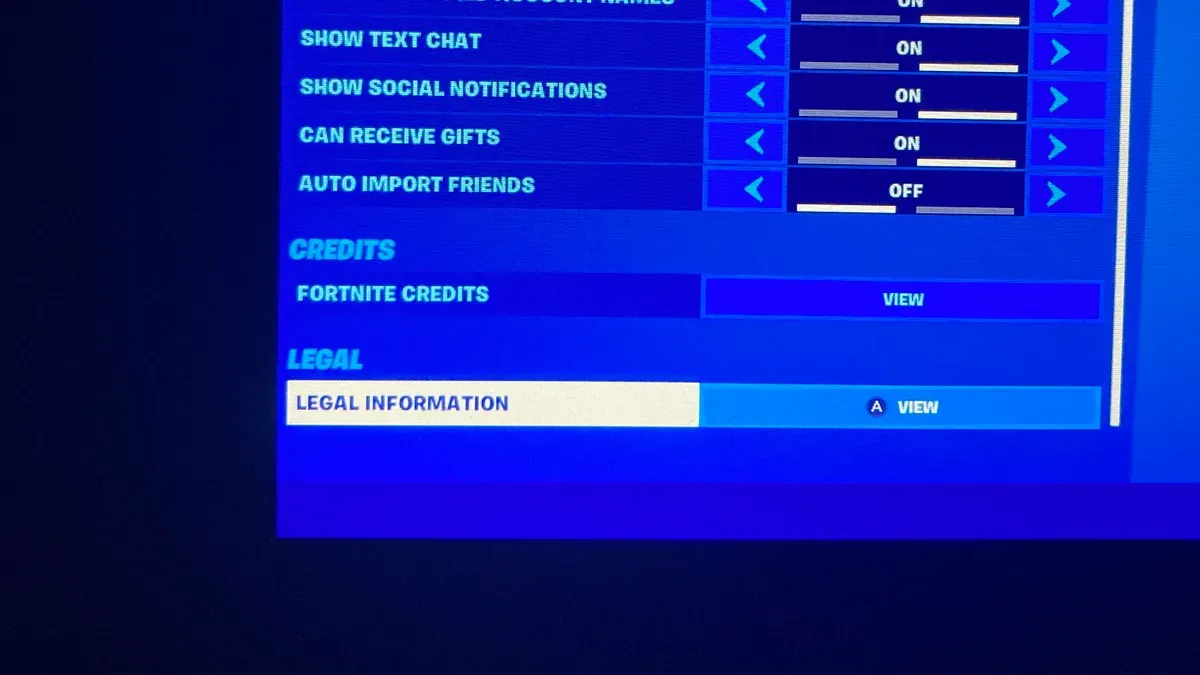
Common triggers for repeated verification include corrupted game files, interrupted update installations, or conflicts caused by third-party software. For example, if a player's internet connection drops during an update, Fortnite may repeatedly verify files to compensate for missing or damaged data. This repeated process disrupts gameplay, causing delays and frustration.
Verification affects user experience by prolonging wait times and can raise privacy concerns if verification repeatedly requests reauthentication or account checks. Frequent verification may also temporarily lock certain settings until the process completes, limiting gameplay customization.
To resolve persistent verification loops, players should first run the Epic Games Launcher’s built-in "Verify" tool found under the game’s settings menu. This scans and repairs corrupted files, often reducing verification time from several minutes to under one minute. Additionally, disabling interfering antivirus software during updates and ensuring a stable internet connection can prevent repeated triggers. Clearing the launcher cache or reinstalling Fortnite also helps if verification issues continue.
Tip: Always close Fortnite fully before running the verification tool to avoid conflicts.
How to manage Fortnite tracker settings to maintain privacy
Fortnite trackers collect data such as match statistics, performance metrics, and in-game behaviors. When tracker settings are set to public or unrestricted, this data can be visible to other players or third-party services, potentially exposing personal gameplay patterns and competitive strategies. This lack of privacy may lead to unwanted scrutiny or misuse of data outside the intended community.
To control tracker visibility within Fortnite, navigate to Settings > Privacy > Tracker Settings. Here, users can disable specific trackers like match stats sharing, friend activity visibility, or leaderboard data. For example, turning off “Share Match Stats” stops the game from broadcasting detailed performance data to external tracker platforms. This reduces data exposure but may limit features such as personalized stat tracking or friend comparisons.
Third-party tracker websites operate independently from Epic Games and often require explicit permission to access player data. Users should review which services are authorized via the Epic Games account’s connected apps page and revoke access if concerned about privacy. Since third-party trackers might collect more extensive data than Fortnite itself, limiting their permissions is a key privacy safeguard.
For instance, a player disabling all tracker sharing in Fortnite but authorizing a popular third-party site could still have detailed match data collected externally. Balancing convenience and privacy means selectively enabling trackers only when necessary and regularly auditing connected services.
Tip: Regularly check the Epic Games account settings under Connected Apps and Tracker Settings to maintain control over who accesses gameplay data.
Common mistakes to avoid when configuring Fortnite settings
Leaving default privacy settings unchanged is a frequent error that can unintentionally expose personal data. For example, the default "Who Can See Your Profile" setting often allows "Everyone," which lets strangers view gameplay stats and friend lists. A player reported repeated unsolicited friend requests and messages until this was adjusted to "Friends Only."
Ignoring platform-specific differences in settings causes confusion and inconsistent privacy. Settings available on PC, such as detailed voice chat controls, may not exist on consoles or mobile devices. A user who set voice chat to "Muted" on a console found it was still active when switching to PC, resulting in unwanted microphone use during streams.
Failing to verify settings after game updates or reinstallations can lead to unexpected privacy leaks or gameplay disruptions. Since updates sometimes reset configurations to defaults, a player who reinstalled Fortnite noticed their friend request filter reverted to "Everyone," increasing exposure until manually corrected.
Using unreliable third-party apps to manage settings risks data breaches or corrupted configurations. Some third-party tools promise streamlined privacy management but have caused account lockouts or forced repeated verification processes, as reported in community forums.
Tip: After any update or reinstall, always review and confirm privacy and gameplay settings to avoid surprises.
Frequently asked questions
How to get to fortnite settings?
Access Fortnite settings by launching the game and selecting the three horizontal lines icon in the top-right corner of the main lobby screen. From there, click the gear icon to open the full settings menu. This method works consistently across consoles, PC, and mobile devices.
How to go to fortnite game settings?
Inside the settings menu, navigate to the tabs labeled "Game" or "Gameplay" to find game-specific options. These include sensitivity, building preferences, HUD customization, and controller layout. Adjust these to tailor the gameplay experience to personal preferences.
How to open settings in fortnite pc?
On PC, press the Escape (Esc) key during gameplay or at the lobby to bring up the main menu, then click the gear icon to enter settings. Alternatively, use the three horizontal lines in the lobby screen's top-right corner, then select the gear icon. Both ways lead to the same settings interface.
Why aren't my fortnite settings saving?
Settings may fail to save due to unstable internet connections interrupting synchronization with Epic's servers. Another common cause is running the game without necessary permissions, preventing write access to configuration files. Ensuring a stable connection and launching Fortnite as an administrator can resolve most saving issues.
Why are my fortnite settings not saving?
Persistent failure to save settings often stems from corrupted configuration files or disk write errors. Additionally, cross-platform account syncing conflicts can overwrite local changes if devices have different settings cached. Clearing corrupted files and verifying account synchronization usually restores proper saving behavior.
What this advice does not cover and when to seek other resources
This guide does not cover advanced account security measures such as two-factor authentication or detailed parental controls, which require separate focused resources. Troubleshooting steps may vary depending on Fortnite updates or platform operating system versions. Users should verify current instructions from official Epic Games sources or platform support pages if settings do not behave as expected.
The single most useful next step is to access the Epic Games account settings directly via the official website, where privacy preferences and connected apps can be managed beyond the in-game menus. This central control point helps ensure consistent application of privacy and tracking settings across all devices, preventing synchronization issues and repeated verification prompts.
See also: How to Manage Twitch Privacy Settings for Safer Streaming · How to Use Signal Privacy Settings to Secure Your Conversations