
How to Manage Twitch Privacy Settings for Safer Streaming
This guide explains how to manage Twitch privacy settings to protect personal info and control audience access for safer streaming.

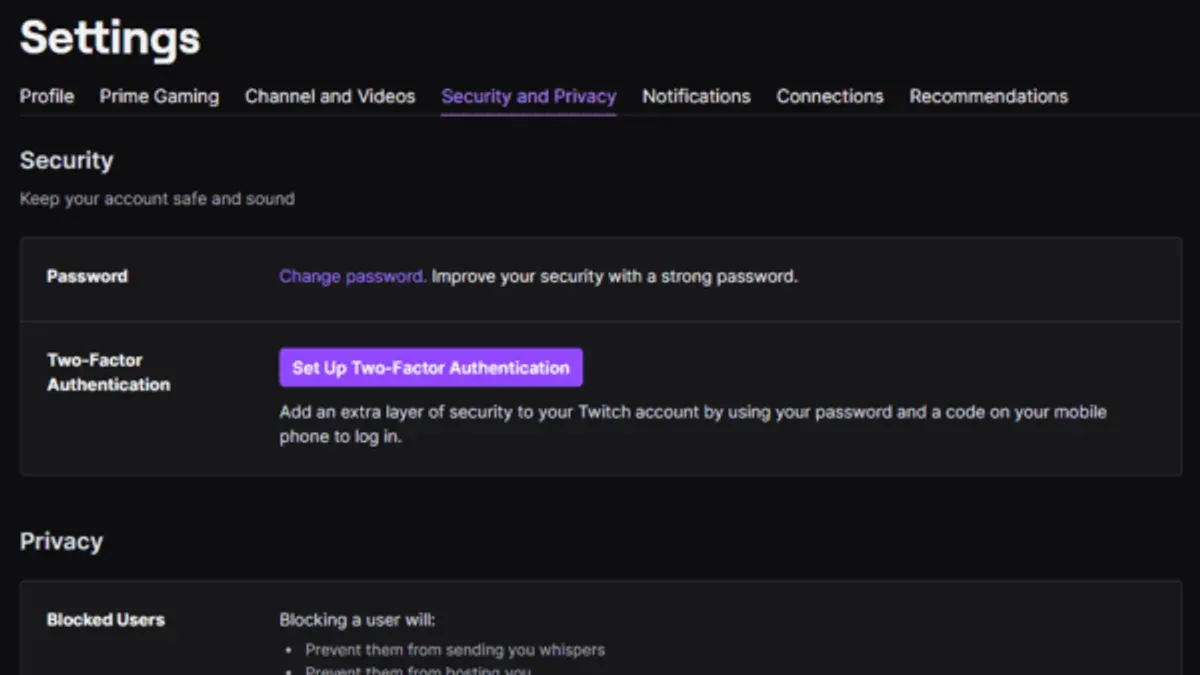
This guide explains how to manage Twitch privacy settings effectively to protect personal information and control audience access without compromising streaming quality. Twitch privacy settings cover multiple areas, including account visibility, follower permissions, and chat moderation, each influencing the overall streaming experience. Adjusting these settings properly ensures safer interactions for both streamers and viewers while maintaining performance.
Streamers can restrict who views live streams and past broadcasts by configuring the "Privacy" tab under "Settings," where options like "Followers-only chat" and "Subscribers-only mode" help limit access. Integrating privacy controls with quality and chat settings prevents unwanted exposure and keeps streams running smoothly despite bandwidth or moderation constraints.
What Are Twitch Privacy Settings and Why Do They Matter?
Twitch privacy settings encompass controls over account visibility, channel access, and chat interactions. These settings include options like managing who can follow or message a user, enabling two-factor authentication, and restricting chat participation through moderation filters. They also cover limiting the audience for both live streams and recorded videos on demand (VODs).
Neglecting these settings exposes users to risks such as unwanted followers, targeted harassment, and data leaks. Twitch reports numerous cases of harassment annually, and account breaches often occur when users do not enable security features like two-factor authentication. For example, a streamer who leaves their chat open without moderation can face abusive messages, disrupting the streaming experience and deterring community growth.
By configuring privacy settings, streamers control who can interact with their content and reduce unwanted exposure. Viewers benefit by filtering what appears in chat and avoiding disruptive behavior. This balance between openness and control creates a safer environment that maintains streaming quality and community engagement.
How Do I Change My Twitch Settings?
Accessing Twitch settings on desktop begins by clicking the user profile icon in the top-right corner, then selecting "Settings" from the dropdown menu. This opens a page with multiple tabs including "Security and Privacy," "Channel and Videos," and "Notifications." On mobile, tap the profile icon at the bottom right, then the gear icon in the top-right corner to reach these settings.
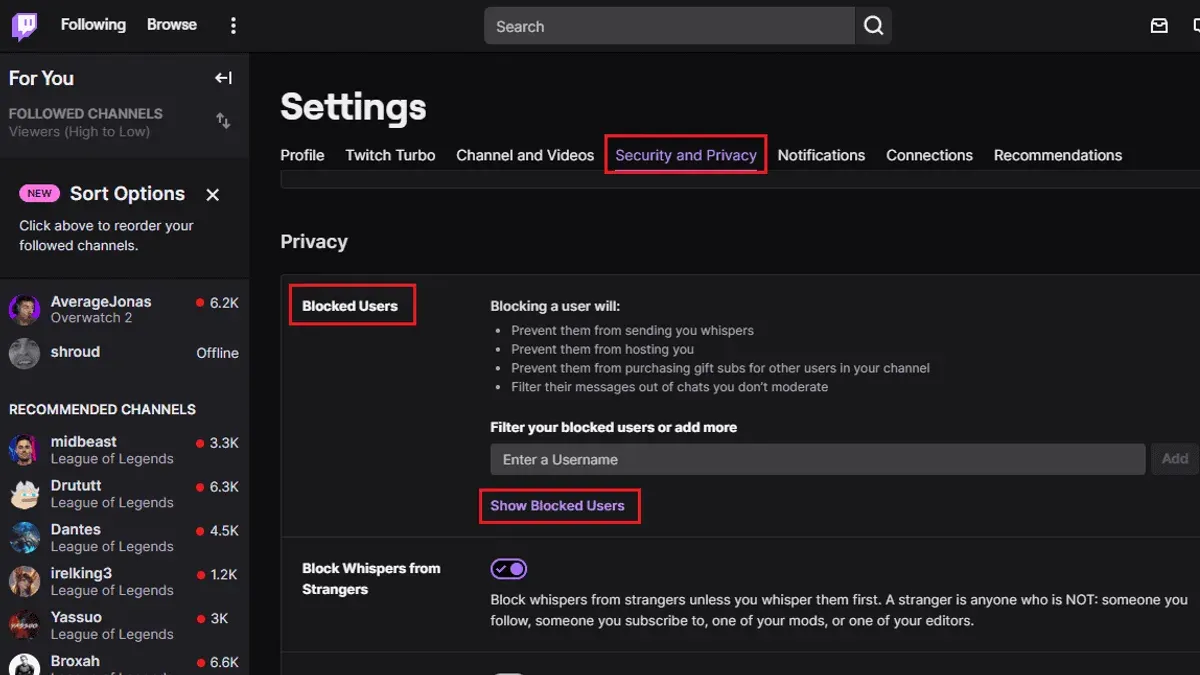
Within "Security and Privacy," users can update profile visibility by toggling options such as "Allow others to see when you are live" or "Show your followed channels." Blocking or unblocking users is done via the "Blocked Users" list under the same tab, enabling control over who can interact. Data sharing preferences, like personalized ads or sharing viewing activity, are also found here.
For example, a streamer wanting to restrict their channel visibility can go to "Channel and Videos," then adjust "Stream Privacy" settings to limit who can view live streams or past broadcasts. Notifications settings allow fine-tuning alerts about followers, subscriptions, or Twitch updates, helping reduce unwanted exposure.
Desktop navigation presents all options on a single page with tabs, while the mobile app condenses these into a scrollable menu; both methods provide the same settings but mobile users should note some options require tapping through additional screens. Missing the "Security and Privacy" tab is common for beginners, so double-check the menu if it’s not immediately visible.
How to Make Your Twitch Account Private or Limit Who Can See Your Content
Twitch does not offer a fully private account option; accounts and channel pages are publicly visible by default. However, streamers can restrict access to live content using follower-only and subscriber-only modes. These settings limit chat participation and stream access, controlling who can engage during broadcasts.
To enable follower-only mode, open the Creator Dashboard, navigate to Settings > Channel, and activate the “Followers-only chat” option. Streamers can specify how long a viewer must follow before joining the chat, such as 10 minutes to 1 day. Subscriber-only mode is similar but restricts chat to paying subscribers, providing a tighter access control layer.
For stream visibility, Twitch allows hosting streams as "Subscribers-only" through the channel’s stream settings or during stream setup by selecting the “Subscribers-only” option under the Stream Info panel. This mode ensures only subscribers can watch live and access VODs, effectively controlling the audience.
Blocking and moderation tools complement these settings by allowing streamers to ban specific users or filter chat content based on keywords. For example, if unwanted viewers persist despite follower-only mode, the streamer can block those users directly or employ AutoMod to prevent harmful messages.
Tip: Combining subscriber-only streams with aggressive moderation creates the most restricted environment, but it limits audience size and potential growth.
How to Private a Twitch Stream: Controlling Who Watches Live and VODs
To limit who can watch live streams and recorded videos (VODs), Twitch offers subscriber-only and followers-only broadcast modes. Enabling subscriber-only mode restricts the stream to paying subscribers, while followers-only mode allows anyone who follows the channel to view. These settings activate under Creator Dashboard > Settings > Channel & Videos, where “Subscribers-only Mode” or “Followers-only Mode” can be toggled on. For example, a streamer wanting to reward subscribers might enable subscriber-only mode during special events, ensuring only paying members access the content. The trade-off is a smaller audience and potential lower interaction from casual viewers.
Additional privacy controls include the “Hide Channel” option, which removes the channel from public browsing and search results, and “Disable VOD Storage,” which prevents Twitch from saving past broadcasts. Both are found in Settings > Channel & Videos. Using these, a streamer can limit exposure to only those with direct links to the live stream or clips. However, hiding a channel reduces discoverability and disables some Twitch promotional features.
For more exclusive access, third-party tools like Streamlabs’ private links or Discord integrations can restrict viewing to invited users. For instance, sharing a private link via Discord limits the audience but requires external management and may affect stream latency or quality. These options add complexity but offer the highest control over who watches.
Tip: Combine follower-only mode with disabling VOD storage to keep streams semi-private without completely cutting off community interaction.
How to Set Up Tips on Twitch While Protecting Privacy
Twitch’s built-in tipping system uses Bits, which are purchased and sent within the platform, keeping personal payment information hidden from streamers. This is the most privacy-secure method since Twitch handles all transactions and does not reveal donor details beyond the username. For more flexibility, third-party tip services like Streamlabs, StreamElements, and Ko-fi are popular. These platforms accept a wider range of payment methods but require linking external accounts, which can expose personal information if not configured carefully.
To protect privacy when using third-party tip services, disable public display of donor names in tip alerts by turning off or customizing the "Show Donor Name" option in alert settings. Enable anonymous donation options where available, and avoid sharing direct payment links in chat or panels. Use a dedicated email and payment account for streaming to limit exposure.
For example, setting up Streamlabs tips starts by connecting a Twitch account, then navigating to Alert Box > Donations > Settings. Here, the streamer can uncheck "Show Donor Name" and enable anonymous donations. Simultaneously, adjust chat moderation settings to filter unsolicited links or messages that might reveal private info. This dual approach maintains tip functionality while minimizing risk to streamer and viewer privacy.
Tip: Use Twitch Bits for simple, secure tipping and reserve third-party services for larger campaigns where privacy controls are thoroughly configured.
How to Change Quality on Twitch Settings for Limited Internet and Privacy
On the viewer side, Twitch allows manual selection of stream quality to manage bandwidth use and improve privacy by reducing data exposure. On desktop or the Twitch app, clicking the gear icon in the video player opens the quality menu. Options typically range from 160p to 1080p or higher. Selecting a lower resolution, such as 360p or 480p, can reduce data consumption from roughly 1.5–3 Mbps to under 0.5 Mbps, easing internet strain and limiting the amount of information transmitted.
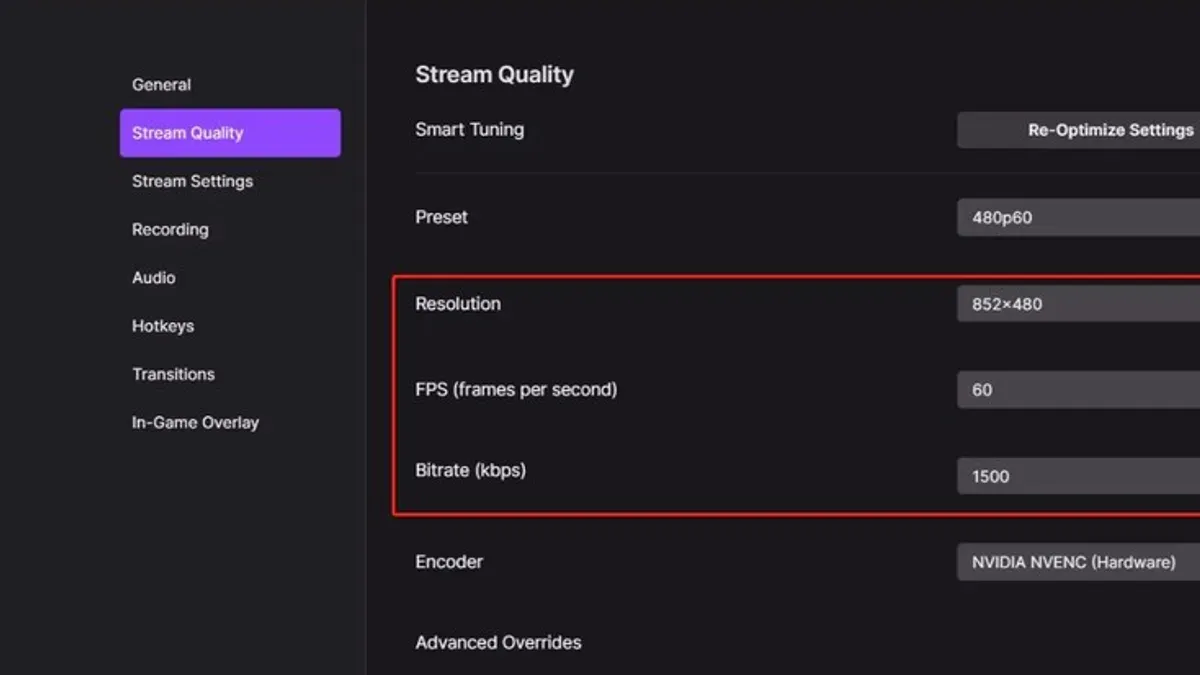
Streamers control output quality through their broadcasting software settings. Adjusting bitrate, resolution, and encoder presets directly affects stream performance and privacy. For example, setting a bitrate between 2500 and 3500 Kbps at 720p 30fps balances quality with moderate bandwidth use. Lower bitrates reduce upload demands and the data shared publicly, which indirectly enhances privacy.
Choosing faster encoder presets decreases CPU load but may increase bandwidth usage slightly, while slower presets improve compression efficiency at the cost of performance. This trade-off is crucial for streamers with limited hardware or internet capacity.
A practical scenario: a streamer with a 5 Mbps upload speed opts for 720p at 3000 Kbps bitrate with a fast x264 preset. This maintains stable streaming without buffering and limits unnecessary data flow. Viewers on restricted connections can then select 480p or lower to further control their data use and viewing privacy.
What Are Transparent Twitch Chat Settings and How to Use Them?
Transparent Twitch chat settings combine clear moderation rules with visible enforcement actions to maintain a respectful environment while protecting user privacy. Enabling chat filters through the "AutoMod" feature blocks inappropriate language automatically, with adjustable sensitivity levels found under Settings > Moderation. Custom banned words lists allow streamers to add specific terms that fit their community standards, preventing unwanted content before it appears.
Timeouts and bans help manage disruptive users without exposing personal information. Moderators can apply timeouts of varying lengths via chat commands such as "/timeout username 600" to temporarily mute offenders. Using moderation bots like Nightbot or Moobot further automates rule enforcement, offering spam detection, link filtering, and word bans. These bots operate transparently, showing users when actions are taken and why, which fosters trust.
For example, a streamer might set AutoMod to level 3 to filter out harsh language, add a ban on specific racial slurs, and enable a bot to block repeated spam messages. This setup reduces toxic comments visibly, encouraging positive interaction without revealing user data. Transparent moderation demonstrates consistent rule application, which can decrease harassment significantly, as active moderation often results in a calmer chat environment.
Tip: Review moderation logs regularly in the "Moderation" dashboard to ensure filters and bots are working effectively and adjust settings based on community feedback.
Common Mistakes to Avoid When Managing Twitch Privacy Settings
Assuming Twitch accounts can be fully private is a frequent error. Twitch does not offer a true private account setting; relying solely on follower-only or subscriber-only modes without active moderation leaves streams vulnerable. For example, a streamer who enabled subscriber-only chat but did not block disruptive users still faced harassment through direct messages and chat loopholes.
Neglecting to update privacy settings regularly also compromises security. Twitch frequently updates features and settings; failing to review the Security and Privacy tab in Settings can allow outdated preferences to expose personal data or enable unwanted interactions. An instance involved a user who kept outdated email notification settings, inadvertently revealing streaming schedules to a wider audience than intended.
Sharing personal information openly in chat or stream overlays undermines privacy despite settings. Streamers displaying real names, locations, or contact details in overlays or chat history risk doxxing. For example, a streamer who included a home address in a custom overlay drew unwanted attention despite having strict chat restrictions.
Ignoring Twitch’s built-in moderation tools and default settings is another common mistake. Features like AutoMod, block lists, and banned word filters are essential for controlling interactions. Expert advice highlights that activating AutoMod at a strict level and regularly updating block lists significantly reduces harassment risks.
Tip: Regularly audit privacy settings and combine them with active chat moderation and cautious personal data sharing to maintain a secure streaming environment.
Frequently asked questions
How to change privacy settings on twitter?
Access Twitter's privacy settings by selecting 'Settings and privacy' from the profile menu, then navigating to 'Privacy and safety.' Key options include controlling who can see tweets, manage direct message permissions, and control discoverability. Adjust settings like 'Protect your Tweets' to restrict content visibility to approved followers only.
How to private a twitch account?
Twitch does not offer a fully private account option, but privacy can be enhanced by disabling the 'Allow my channel to appear in recommendations' and adjusting who can follow or message. Additionally, blocking or timing out users helps control interaction. Streamers can limit personal information in their profile to reduce exposure.
Why do i twitch?
Twitch is a platform primarily for live streaming content such as gaming, music, or creative arts. People use it to broadcast their activities, engage with communities, or watch entertainment. It serves as a social media hub focused on real-time interaction between streamers and viewers.
How to private twitch stream?
Make a Twitch stream private by enabling the 'Subscribers-only' mode or using 'Friends-only' mode with the 'Stream Manager' settings. Another method is creating a 'Restricted Mode' stream by setting the stream to be accessible only to selected users or subscribers. This controls who can watch live broadcasts and access VODs.
Can you make your account private on twitch?
There is no option to make a Twitch account fully private like on some social networks. However, streamers can control privacy by limiting chat permissions, disabling hosting and raiding, and restricting follower or subscriber interactions. Managing profile visibility and stream access settings helps maintain a private experience without a dedicated private account feature.
What This Guide Does Not Cover and Who Should Look Elsewhere
This guide does not cover advanced third-party software configurations or legal advice related to Twitch privacy policies. Some privacy features depend on Twitch platform limitations and cannot guarantee complete anonymity or protection. Users with specific security concerns, such as targeted harassment or sensitive professional exposure, should consider additional tools beyond Twitch’s built-in settings, including VPNs, encrypted communications, or consulting cybersecurity professionals.
The single most useful next step is to regularly review the "Security and Privacy" section under the Twitch user settings menu. This allows streamers and viewers to adjust who can follow, whisper, or host content, and to manage data sharing permissions. Staying proactive with these settings ensures a balance between privacy, streaming quality, and audience engagement without sacrificing control over personal information.
See also: How to Manage Tumblr Privacy Settings for Complete Control · How to Manage Tinder Privacy Settings for Safer Dating · How to Use Signal Privacy Settings to Secure Your Conversations · How to Manage Quora Privacy Settings for Safe and Smart Use



