
How to Manage Tumblr Privacy Settings for Complete Control
This guide explains how to control Tumblr privacy settings to protect your posts, likes, and messages with clear, easy-to-follow steps.

This article explains how to manage Tumblr privacy settings to control who can view posts, likes, and messages. Tumblr privacy settings differ from those on other platforms, making it essential to understand their unique functions and limitations. Users often confuse Tumblr’s options with Facebook’s, but Tumblr focuses more on content visibility rather than detailed audience segmentation. Navigating to Settings > Privacy, users can adjust who sees their activity, but certain actions like likes remain publicly visible by default. This guide clarifies these distinctions and provides clear steps to confidently set privacy preferences without mixing up Tumblr with other social media platforms.
What Are Tumblr Privacy Settings and Why They Matter
Tumblr privacy settings control who can see posts, likes, messages, and how content is labeled on the platform. Users can limit post visibility through options like public, private drafts, or password-protected posts. Likes default to public but can be hidden from followers via account settings. Messaging privacy involves controlling who can send messages and who can see message history. Content labeling, such as marking posts as sensitive, also affects visibility and user interaction.
Controlling these settings is crucial for protecting personal content and managing the audience effectively. For example, a user sharing sensitive art may choose to mark the content as sensitive and restrict post visibility to avoid unwanted viewers, maintaining control over who accesses their work. This reduces the risk of harassment or exposure to unintended audiences, a common concern among Tumblr users.
Tumblr's privacy approach differs from networks like Facebook by focusing more on individual post controls rather than broad profile privacy. On Facebook, privacy settings often apply at the profile or post level with predefined audience groups like 'Friends' or 'Public,' whereas Tumblr emphasizes post-by-post choices and content labeling without extensive friend lists or follower restrictions.
| Privacy Feature | Tumblr | |
|---|---|---|
| Post Visibility | Public, Private Draft, Password-Protected | Public, Friends, Custom Lists |
| Likes Visibility | Public or Hidden via Settings | Visible to Friends or Custom Audience |
| Messaging Privacy | Followers or Anyone, No Read Receipts | Friends, Message Requests, Read Receipts |
| Content Labeling | Sensitive Content Tags | Content Warnings, Limited |
Privacy concerns are widespread among social platform users, with many expressing the need for clearer control over content visibility. Tumblr’s unique model addresses some of these needs by allowing granular post-level privacy but requires users to understand and actively manage these options to avoid accidental exposure.
How to Make Your Tumblr Account Private
Tumblr does not provide a single toggle to make an entire account private like some other platforms. Instead, privacy control is managed through a combination of settings and content management strategies. The main approach is to limit visibility on a post-by-post basis and control interactions through blocking and content restrictions.
Start by setting posts to private using drafts or by password-protecting content externally, as Tumblr lacks native password protection for posts. For example, creating posts as drafts keeps them entirely hidden from followers and the public until published. Alternatively, users can upload content to a third-party service with password protection and link to it within a Tumblr post.
To restrict who sees posts and likes, visit the Settings menu, select the blog, and adjust Visibility. Here, users can set the blog to Private to hide it from search engines and logged-out users, though followers will still see posts by default. To further control access, use the Blocked Users list to prevent specific accounts from viewing or interacting with content.
Additionally, posts can be tagged with content warnings to require clicks before visibility, which adds a layer of privacy from casual browsing. However, these do not restrict followers from seeing the post once clicked. Combining these settings helps approximate privacy control despite Tumblr’s platform limitations.
Example: A user who wants to share art only with close friends might keep posts as drafts until ready, block accounts they don’t trust, and avoid following or being followed by unknown users. This method prevents unintended viewers without a direct private account setting.
Tip: Regularly review the Blocked Users list and post visibility settings after updates to Tumblr’s interface, as privacy options may shift.
How to Change Tumblr Privacy Settings Effectively
Accessing Tumblr’s privacy settings differs slightly between desktop and mobile apps but follows a clear path. On desktop, click the user icon, select Settings, then scroll to find Content and Messaging options. In the mobile app, tap the profile icon, access Settings via the gear icon, and navigate to similar sections. These menus control content visibility, message permissions, and sensitive content filtering.
Adjusting content label settings helps manage who sees what. For example, enabling Mark my posts with content warnings categorizes posts under specific labels like "Graphic" or "Sensitive." Users can then activate or deactivate the Sensitive content filter in their dashboard settings to control exposure. By default, Tumblr shows most content unless filtered; customizing these labels allows selective hiding based on viewer preferences.
To control messaging, under Settings > Messaging, users can choose who can send messages: everyone, only followers, or no one. For example, setting messages to "Only followers" prevents non-followers from initiating contact, tightening privacy. Likes visibility is less flexible; while Tumblr does not offer a direct toggle to hide liked posts, blocking specific users prevents them from seeing a user’s activity, including likes.
Consider a user who wants to share art only with followers and avoid unsolicited messages. They would mark posts with appropriate content warnings, enable the sensitive content filter, and restrict messaging to followers. This combination effectively limits visibility and interaction without disabling public access entirely. Default settings allow broader visibility and open messaging, so tailoring these controls is key to desired privacy.
How to Turn On Privacy Settings on Tumblr and Facebook: Key Differences
On Tumblr, privacy settings are accessed primarily through the account menu under Settings > Privacy. Users can toggle options like "Allow others to find you by your email" and set content warnings via post-level controls. However, there is no universal privacy toggle to make an entire account private. Instead, privacy is shaped by selectively labeling posts as sensitive or NSFW and controlling who can message or interact. For example, a Tumblr user can mark a specific post as "Sensitive Content" to warn viewers but cannot restrict that post to only approved followers.
In contrast, Facebook offers a centralized Privacy Settings & Tools menu that provides granular controls across the entire account and individual posts. Users can specify who can see future posts—options include Public, Friends, Friends except..., Specific friends, or Only me. Facebook also lets users review past posts’ visibility in bulk and set strict message filtering. For instance, a Facebook user can make an album visible only to a select group of friends, a level of control Tumblr does not provide.
Comparing the two, Tumblr focuses privacy settings on content labeling and interaction permissions rather than account-wide visibility. Facebook’s structure centers on comprehensive audience controls by default, making it easier to manage privacy consistently across all content. Tumblr users managing both platforms should note that Tumblr’s privacy controls require more manual adjustment per post, while Facebook offers broader presets that apply globally.
Who Can See Private Posts on Tumblr and How Likes Visibility Works
A private post on Tumblr is typically one set as a "Private" or "Password-Protected" post at creation or later edited via the post settings menu. Such posts are only visible to the account holder and anyone explicitly given the password or link, depending on the privacy method used. Unlike public posts, these do not appear on followers’ dashboards or search results, restricting visibility strictly to authorized viewers.
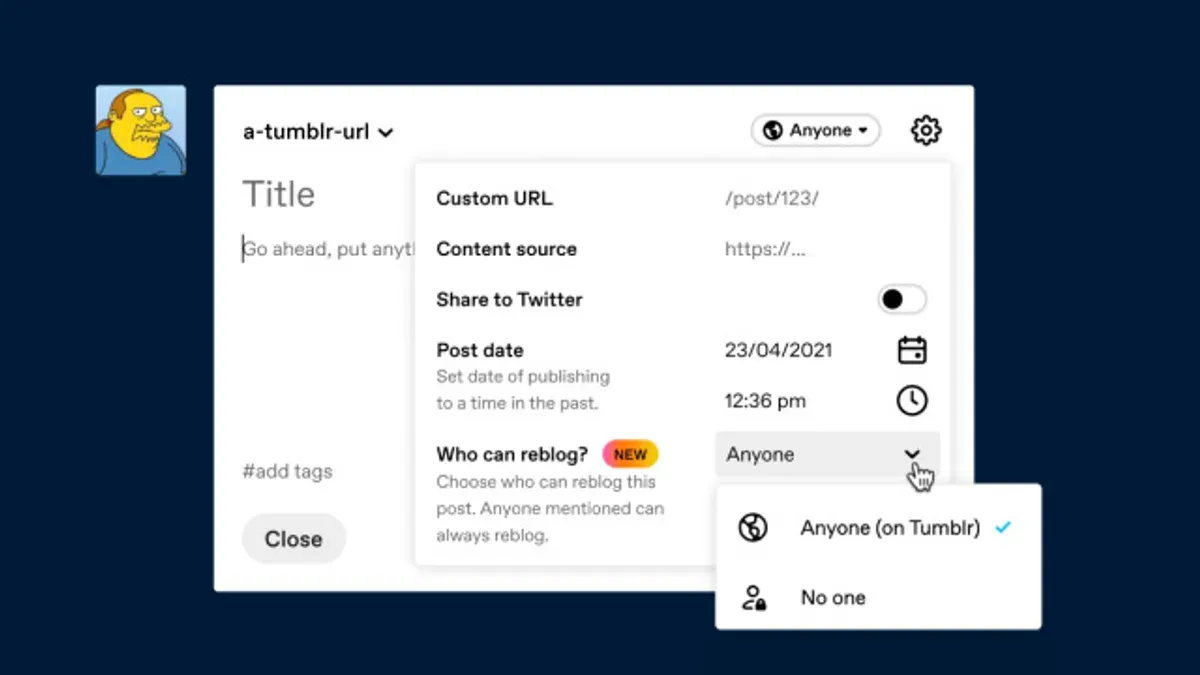
For example, choosing "Password Protect" from the post's "Edit Appearance" menu requires sharing the password with specific viewers. If a post is set to "Private," it remains hidden from all but the creator. This differs from drafting a post, which is invisible to everyone until published.
Regarding likes, Tumblr shows liked posts publicly on the user’s blog by default under the "Likes" tab, making them visible to anyone visiting the profile. Unlike platforms such as Facebook, Tumblr does not offer a native setting to hide likes entirely. However, users can limit visibility by disabling the "Show liked posts on blog" option found under "Settings > Blog > Likes." This prevents likes from appearing on their public blog but does not affect whether Tumblr internally tracks them.
Tip: To keep liked content more private, disable the public display of likes on the blog and avoid liking sensitive posts directly.
Are Tumblr Messages Private and How Messaging Privacy Works
Tumblr’s messaging system allows users to send direct messages to each other, but only if both parties follow each other or have previously interacted, limiting unsolicited contacts. Messages appear in the Inbox under the “Messages” tab and are visible to the sender and recipient only. However, Tumblr does not end-to-end encrypt these messages, meaning the platform technically stores message content on its servers, which could be accessed under certain circumstances as outlined in Tumblr’s privacy policy.
Unlike messaging apps designed specifically for secure communication, Tumblr’s direct messages serve more as a casual interaction feature rather than a private chat tool. For example, if a user sends a message to a follower, that message is stored on Tumblr’s servers and accessible to their moderation team if needed. This differs from platforms like Signal or WhatsApp, which encrypt messages so only participants can read them.
To maintain privacy, users should manage their messaging permissions by navigating to Settings > Privacy > Messages and selecting who can send messages—either "Everyone," "People You Follow," or "No One." Blocking unwanted contacts is crucial and can be done via the user’s blog page or the message thread itself. Users should also be cautious about sharing sensitive information through Tumblr messages given the lack of encryption.
Tip: Regularly review the blocked users list and adjust message permissions to minimize unwanted communication and protect privacy.
Common Mistakes When Managing Tumblr Privacy Settings and How to Avoid Them
A common error is assuming Tumblr offers a full private account toggle similar to other platforms. Users often expect a single switch to make their entire blog private, but Tumblr requires managing privacy at the post level, combining content labeling, blocking, and drafts. This misunderstanding leads to posts unintentionally visible to the public.
Another frequent mistake is neglecting to adjust the "Sensitive Content" setting under Settings > Filtering. Without properly labeling content as sensitive or enabling filters, posts that should be discreet may appear openly, exposing users to unwanted viewers. For example, a user sharing personal art might forget to mark it sensitive, resulting in unintended visibility.
Confusing Tumblr’s privacy controls with Facebook’s is also widespread. Tumblr’s granular post visibility differs from Facebook’s audience selectors, causing users to misapply settings. A user might disable likes visibility on Tumblr expecting all interactions to be private like Facebook’s “Friends only” option, but likes remain public unless explicitly hidden on the blog’s customization panel.
Tip: Always review the Content > Filtering and Privacy sections in Tumblr’s settings after posting to ensure the intended audience is correct.
Frequently asked questions
How to private a tumblr account?
Tumblr does not offer a traditional "private account" option like some other platforms. Instead, users can control who sees their content by making individual posts private through the "Private" post setting or by password-protecting blogs. To password-protect a blog, go to the blog settings, enable "Password Protection," and set a password. This restricts access to anyone without the password, effectively keeping the blog private.
How to do privacy settings on facebook?
Facebook privacy settings are accessed through the "Settings & Privacy" menu. Users can adjust who sees their posts, profile details, friend list, and activity by navigating to "Privacy" and selecting options like "Friends," "Only me," or custom lists. Additionally, there are controls for how people find and contact the user, as well as ad preferences for data usage.
How to access privacy settings on facebook?
On Facebook, privacy settings are found by clicking the downward arrow icon on the top right, then selecting "Settings & Privacy" followed by "Settings." From there, the "Privacy" tab offers options to manage visibility of posts, personal info, and account activity. The "Privacy Checkup" tool also guides users through key settings step-by-step.
How to make likes private on tumblr?
Likes on Tumblr are public by default and cannot be made fully private. However, users can disable the "Show liked posts on your blog" option in the blog settings to prevent likes from appearing on their public blog page. This limits visibility but does not hide likes from followers or Tumblr’s internal systems.
Who can see private post on tumblr?
Private posts on Tumblr are only visible to the user and those with the direct link if shared. They do not appear on the public blog feed or tag searches. If a blog is password-protected, only people with the password can see any posts, including private ones.
What This Guide Does Not Cover and Who Should Look Elsewhere
Tumblr does not offer a full private account mode; privacy control depends heavily on managing individual posts using options like "Private" or "Restricted" visibility and carefully labeling content. This guide focuses solely on content visibility and privacy settings—not on account security features such as two-factor authentication or password management. Users aiming for complete anonymity should recognize Tumblr’s inherent limitations and may need to use additional privacy tools or consider more privacy-focused platforms.
For those prioritizing total content concealment or advanced security, dedicated privacy applications or encrypted messaging services are recommended alongside Tumblr’s built-in settings.
Tip: Regularly review your blog’s settings under Settings > Privacy to confirm visibility matches your preferences, especially after app updates or platform changes.
The most useful next step is to audit recent posts and message settings directly in your Tumblr dashboard. Confirm each post’s visibility by clicking the gear icon on the post, choosing "Edit," and verifying the "Visibility" setting. For messages, check the "Inbox" settings to understand who can send or see messages. This hands-on review ensures content is shared only with intended audiences and avoids accidental oversharing.
See also: How to Use Signal Privacy Settings to Secure Your Conversations · How to Manage Quora Privacy Settings for Safe and Smart Use · How to Recover and Protect a Riot Games Account After a Hack · How to Manage Tinder Privacy Settings for Safer Dating



