How to Enable Two-Factor Authentication on Tumblr: A Clear Step-by-Step Guide
Learn how to turn on two-factor authentication on Tumblr with clear, precise steps to enhance your account security and avoid common setup issues.

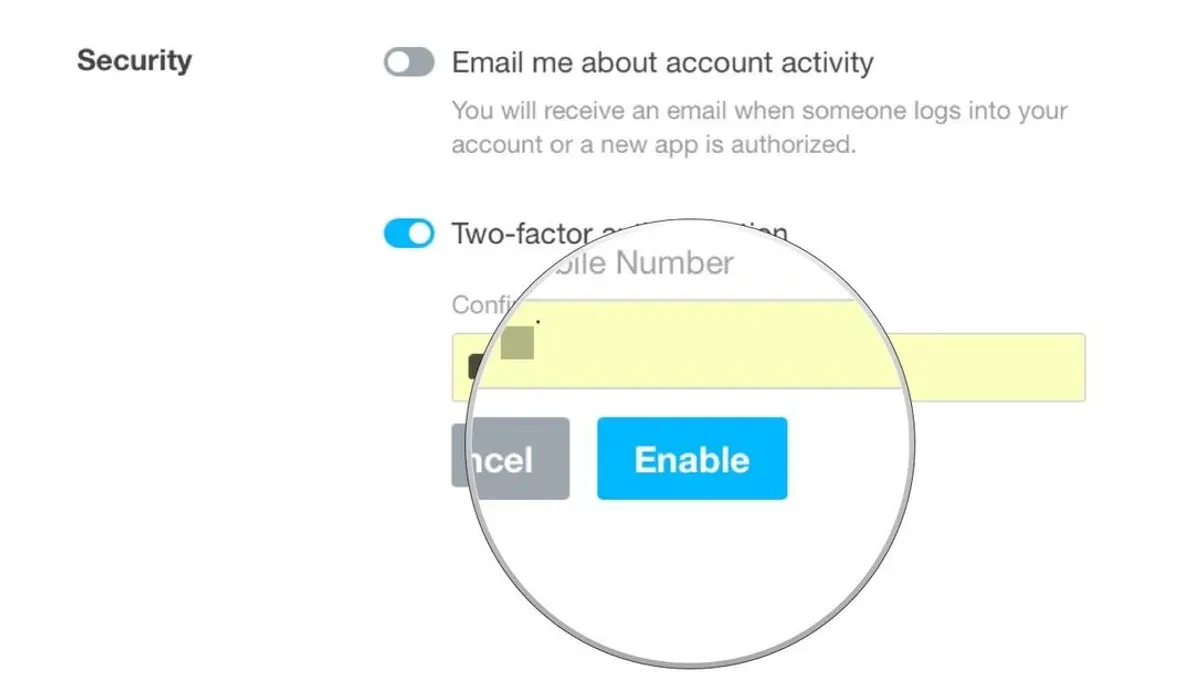
This guide explains how to turn on two-factor authentication on Tumblr, providing clear, precise steps tailored to Tumblr’s interface and common issues users encounter.
Two-factor authentication (2FA) adds a crucial security layer by requiring a second verification step beyond the password. Tumblr offers two primary methods: an authenticator app or SMS codes. Users must access the Settings menu, find the Security section, and follow Tumblr’s prompts carefully to avoid setup errors.
Expect to manage backup codes after initial setup and verify the chosen authentication method works as intended. This article avoids generic 2FA instructions and instead focuses on Tumblr-specific steps and troubleshooting tips that prevent common mistakes.
Before you start: What is needed to enable two-factor authentication on Tumblr?
To enable two-factor authentication (2FA) on Tumblr, a verified email address and password access to the Tumblr account are mandatory. Without these, access to security settings cannot be verified or changed. Users must also have a smartphone ready, either with an authenticator app installed (such as Google Authenticator, Authy, or Microsoft Authenticator) or a phone number capable of receiving SMS codes.
Understanding the difference between authentication methods is essential. Authenticator apps generate time-based one-time passwords and are generally more secure than SMS codes, which can be vulnerable to SIM swapping or interception. Despite this, SMS remains a convenient option for many users.
Many Tumblr accounts remain vulnerable because 2FA is not enabled by default. Activating 2FA significantly reduces the risk of unauthorized access.
Where to find the two-factor authentication settings on Tumblr
Accessing two-factor authentication (2FA) settings on Tumblr differs slightly between desktop and mobile platforms. On desktop, start by clicking the profile icon in the top-right corner of the dashboard. From the dropdown menu, select Settings. This opens the account settings page.
Scroll down to the Security section, where the Two-Factor Authentication option is located. Clicking this will lead to the 2FA setup interface.
On the Tumblr mobile app, access the profile tab at the bottom right. Tap the gear icon in the top-right corner to enter settings. Next, select Account Settings and then find Security. The Two-Factor Authentication toggle or option is here.
While both desktop and mobile routes lead to the same 2FA controls, desktop navigation provides a clearer layout with explicit labels, making it easier to locate security settings. The mobile app’s menus can be less intuitive, sometimes requiring extra taps to reach 2FA options.
- Log in to Tumblr and open the dashboard.
- Click the profile icon (top-right) and select Settings; the account settings page appears.
- Scroll to the Security section to find Two-Factor Authentication.
- On mobile, tap the profile tab, then the gear icon to open settings.
- Select Account Settings and then Security to access Two-Factor Authentication.
Tip: Bookmark the desktop settings page for quicker future access to 2FA options.
Step 1: Choosing the authentication method on Tumblr
Tumblr offers two primary methods for two-factor authentication (2FA): using an authenticator app or receiving SMS text message codes. Each method requires selection within the Security section of Account Settings under Two-Factor Authentication.
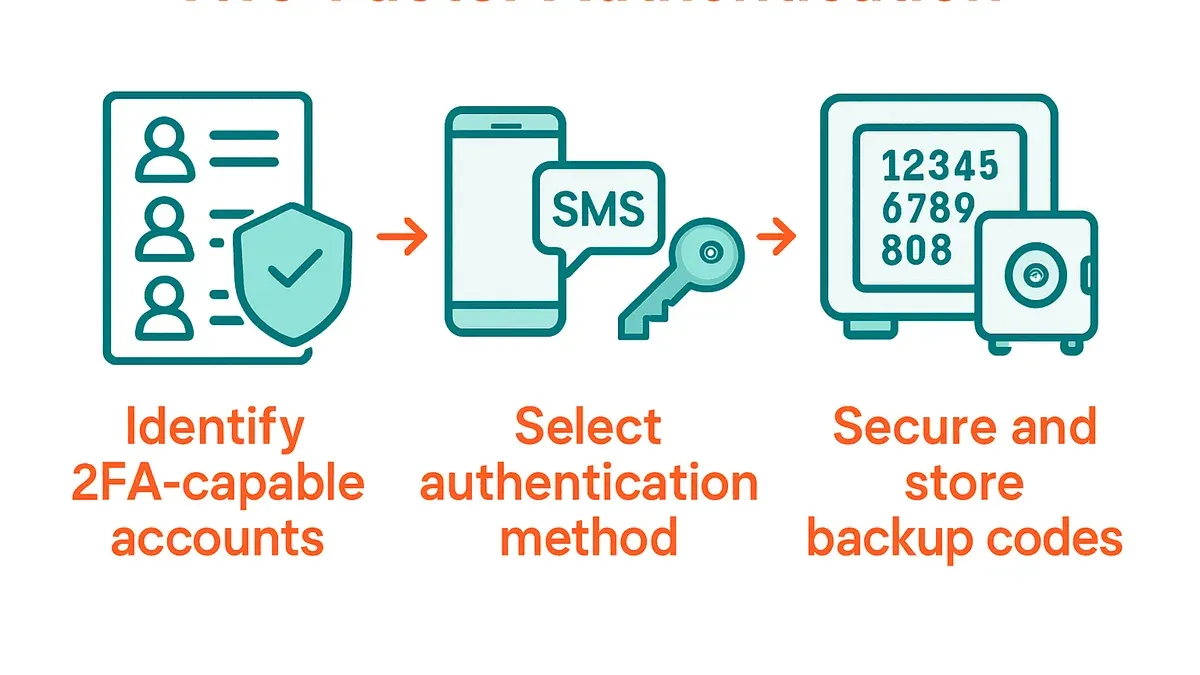
To use an authenticator app like Google Authenticator or Authy, select the option labeled “Authenticator App” or similar. This method generates time-based one-time codes on the smartphone, which are considered more secure because they are not vulnerable to SIM swapping or interception.
Alternatively, choosing “Text Message (SMS)” sends a verification code via SMS to the registered phone number. While easier to set up, SMS codes carry known security risks, including potential interception and delayed delivery, making them less secure than authenticator apps.
In Tumblr’s interface, selecting the authenticator app method immediately prompts scanning a QR code to link the app. Selecting SMS prompts entering and confirming the phone number. Users should consider the security trade-off: authenticator apps provide stronger protection, especially against common SMS attacks, while SMS codes offer simplicity at some security cost.
- Navigate to Account Settings > Security > Two-Factor Authentication.
- Select “Enable” then choose between “Authenticator App” or “Text Message (SMS).”
- If choosing authenticator app, scan the displayed QR code with the app; a six-digit code will appear in the app.
- Enter the six-digit code from the authenticator app into Tumblr to verify setup; a confirmation message should appear.
- If choosing SMS, enter the phone number and input the received text code into Tumblr; a confirmation message should appear.
Step 2: Setting up two-factor authentication with an authenticator app
- Open the authenticator app on the smartphone. If no app is installed, download one like Google Authenticator or Authy. The app must support Time-based One-Time Password (TOTP) generation.
- On Tumblr’s 2FA setup screen, select the option to use an authenticator app. A QR code and a manual key will appear.
- Scan the QR code using the authenticator app’s scan function. If scanning fails, enter the provided manual key into the app. The app will then generate a 6-digit verification code that changes periodically.
- Enter the current 6-digit code from the app into Tumblr’s verification field. Submit to confirm. Tumblr will validate the code and display a success message if correct.
- If the code is rejected, ensure the smartphone’s time settings are set to automatic. Time desynchronization is the most common cause of code errors.
Tip: If codes keep failing, re-scan the QR code or re-enter the manual key to reset the connection.
Step 3: Setting up two-factor authentication using SMS codes
- Navigate to the Two-Factor Authentication section under Security in Account Settings and select the SMS option. A prompt will appear to enter a phone number.
- Input a valid phone number where SMS codes can be received. Tumblr will send a verification code to this number.
- Check the phone for the SMS containing a six-digit verification code. Enter this code in the provided field on Tumblr. Successful verification will enable SMS-based 2FA.
SMS-based two-factor authentication is straightforward but has limitations. SMS delivery can be delayed due to network issues or carrier restrictions, sometimes taking several minutes or failing entirely. If the SMS does not arrive promptly, retrying or switching to an authenticator app is advisable.
Security risks include potential SMS interception or SIM swapping attacks, which can compromise account safety. Because of these vulnerabilities, SMS 2FA is less secure than authenticator apps but still better than no 2FA.
Tip: Ensure the phone number is current and accessible before enabling SMS 2FA to avoid lockout scenarios.
Step 4: Managing backup codes and recovery options
Backup codes on Tumblr provide a critical fallback to regain account access if primary two-factor authentication methods are unavailable. These codes are found under the Two-Factor Authentication section within Security settings. Users can generate a set of 10 single-use backup codes at any time by clicking "Generate Backup Codes". Once generated, the codes appear as a list of 8-digit numbers.
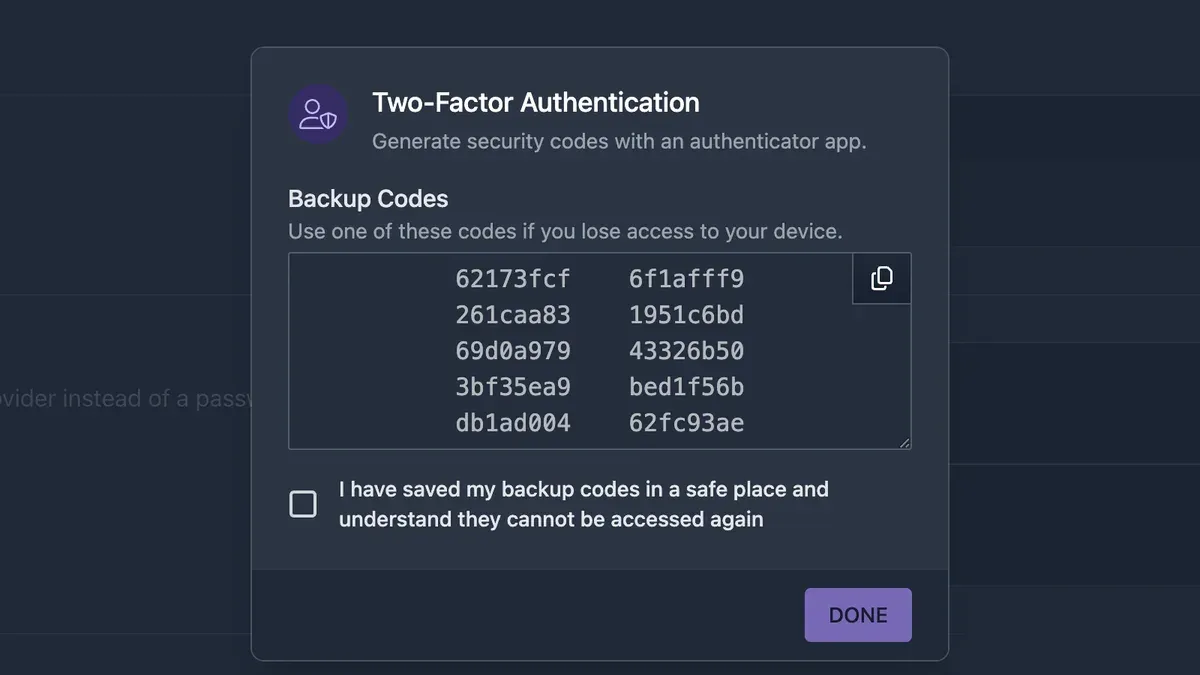
Tip: Save these codes in a secure location separate from your phone, such as a password manager or a locked physical safe.
- Log into Tumblr and navigate to Account Settings > Security > Two-Factor Authentication.
- Click the “Generate Backup Codes” button; a list of 10 codes will display.
- Download or copy the codes to a secure place; the interface will confirm with a message like “Backup codes generated successfully.”
If both primary and backup methods fail, Tumblr’s account recovery process requires contacting support with proof of identity, which can be time-consuming and is not guaranteed. Some users report delays or permanent lockout when backup codes were lost and devices unavailable. Therefore, maintaining multiple recovery options and safely storing backup codes is essential.
What to do if two-factor authentication on Tumblr isn’t working
When encountering issues with two-factor authentication (2FA) on Tumblr, start by verifying the source of the problem. Incorrect codes from authenticator apps often stem from time synchronization errors between the app and the device. If an error message such as "Invalid code" appears, check the device's clock settings and ensure automatic time sync is enabled. Adjusting this usually resolves the problem instantly.
If SMS codes do not arrive, confirm the phone number in Tumblr’s Security settings is correct and that the device has network coverage. Delays or missing codes can occur due to carrier issues or message filtering, so waiting a few minutes is advised before retrying. Tumblr support notes that some users need to request the code multiple times.
In cases of account lockout after repeated failed attempts, Tumblr recommends contacting their support team via the Help Center. Response times vary but typically range from several hours to a couple of days. Providing clear account details and error descriptions accelerates resolution. Avoid multiple retries during this period to prevent further lockouts.
- Verify device time settings and enable automatic sync. Successful sync means authenticator app codes are accepted.
- Check phone number accuracy in Tumblr Security settings and wait several minutes for SMS delivery. Receiving a code confirms connectivity.
- If locked out, visit Tumblr Help Center and submit a support request with account details and error messages. Receiving a support response indicates progress.
Frequently asked questions
Can two-factor authentication be enabled on Tumblr without a phone?
No. Tumblr's two-factor authentication requires either a phone number for SMS codes or a smartphone with an authenticator app to generate verification codes. Without one of these devices, enabling 2FA is not possible.
What happens if the phone with the authenticator app is lost?
If the phone with the authenticator app is lost, Tumblr users must rely on backup codes generated during setup to regain access. Without backup codes, account recovery can be difficult, so saving these codes securely is essential before losing access to the device.
Is SMS or authenticator app more secure for Tumblr accounts?
Using an authenticator app is more secure than SMS for Tumblr 2FA because apps generate time-based one-time codes that are less vulnerable to interception or SIM swapping attacks. SMS codes can be compromised more easily, making the authenticator app the preferred method.
Can two-factor authentication be disabled later on Tumblr?
Yes, two-factor authentication can be disabled at any time by going to Settings > Security on Tumblr. Users must enter their password and a current 2FA code to turn off the feature, ensuring only authorized changes to security settings.
What this guide does not cover and who should seek other help
This guide does not cover Tumblr account recovery beyond the use of two-factor authentication backup codes. It assumes access to the registered email address linked to the Tumblr account. Users who have lost access to both their authentication method and their email should contact Tumblr support directly, as this process falls outside the scope of standard 2FA setup and troubleshooting.
For those needing to disable two-factor authentication without access to backup codes or email, professional assistance from Tumblr support is necessary. Additionally, this guide does not cover third-party app-specific passwords or advanced security settings beyond the two primary 2FA methods.
After enabling two-factor authentication, the most practical next step is to securely store the backup codes provided by Tumblr. These codes are essential for account access if the primary authentication method becomes unavailable. Saving them in a secure, offline location prevents lockout and ensures smooth account recovery when needed.
See also: How to Turn On Two-Factor Authentication on Telegram: Step-by-Step Guide · How to See Where You're Logged Into Tumblr: A Step-by-Step Guide