
How to Log Out of Tumblr on All Devices: Step-by-Step Guide
This guide explains how to log out of Tumblr on all devices, manage account security, and resolve common login issues efficiently.

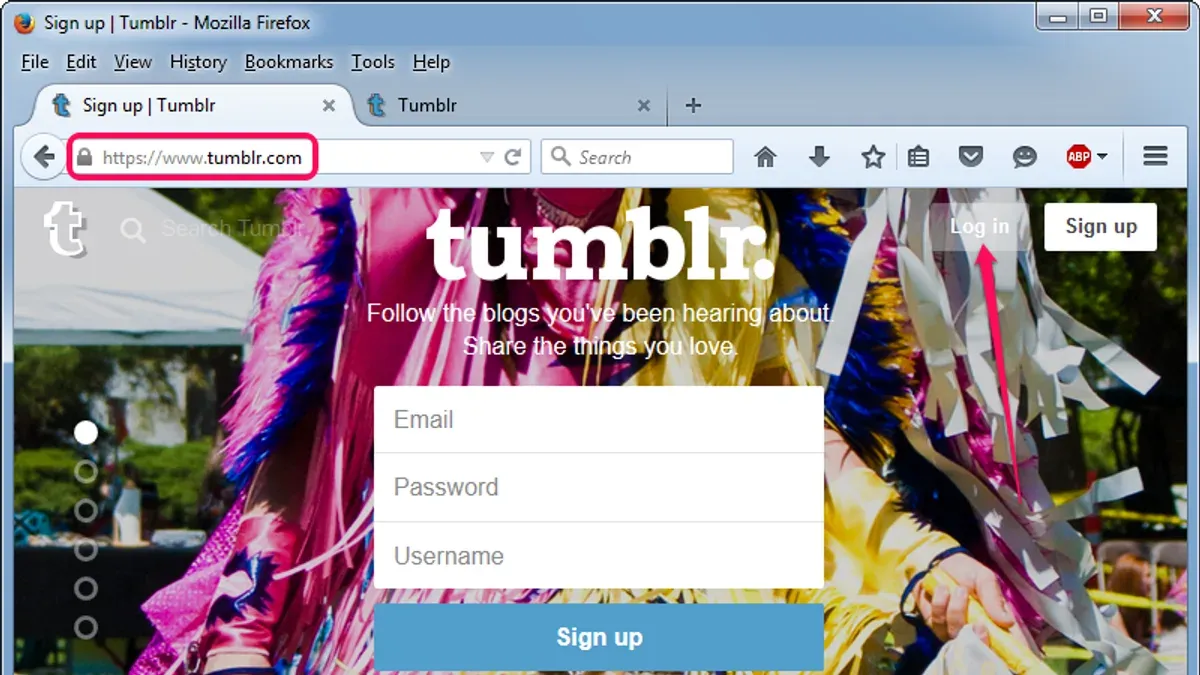
This article explains how to log out of Tumblr on all devices and addresses common login issues, account management, and related concerns. Understanding the process helps protect account security and privacy, especially when switching devices or suspecting unauthorized access. The guide includes instructions for logging out on PCs, mobile devices, and remotely through account settings, covering every practical scenario.
Additionally, it clarifies how Tumblr functions without logging in, how to access deactivated accounts, and solutions for login problems such as password errors or account lockouts. For those involved in Tumblr communities, the article also explains how to leave a community when needed. This comprehensive approach ensures users have a single resource for managing their Tumblr presence effectively.
Follow the step-by-step instructions below to learn how to log out of Tumblr on all devices and manage related account issues securely and efficiently.
Before you start: What is needed to log out of Tumblr on all devices
Logging out of Tumblr on all devices requires preparatory steps due to the platform’s lack of a direct 'log out of all devices' button. Access to the Tumblr account credentials or recovery options is essential before proceeding. Without the correct password or a verified recovery email, managing active sessions remotely becomes impossible.
Unlike some platforms that offer a simple session management interface, Tumblr requires users to log out from individual devices or force logout by changing the account password. Changing the password invalidates all active sessions, effectively logging out the user from every device. This method is a common security feature but requires access to the email tied to the Tumblr account for verification and recovery.
It is crucial to secure the email account associated with Tumblr to prevent unauthorized access. Users should confirm that they can receive emails from Tumblr and that no forwarding or suspicious activity exists. Additionally, differences exist between logging out on PC browsers, mobile apps, and browser sessions; these must be addressed separately when possible.
Tip: Before attempting remote logout, verify the current password and check the email account for security to ensure a smooth process.
How to log out of Tumblr on PC
- Open a web browser and go to tumblr.com. Sign in if not already logged in. The Tumblr dashboard will load.
- Locate the profile icon at the top-right corner of the dashboard. Click it to open the account menu.
- In the dropdown menu, select Log out. The page will refresh and redirect to the Tumblr homepage, indicating successful logout.
- To ensure complete logout, clear the browser’s cookies and cache. In most browsers, access this via Settings > Privacy & Security > Clear Browsing Data. Select cookies and cached images/files, then confirm.
- Understand that browsers often save session data, which can automatically log back in if cookies remain. Clearing these ensures no active sessions persist.
Tip: Regularly clearing cookies and cache helps prevent unintended automatic logins on shared or public computers.
How to log out of Tumblr on mobile devices
Logging out of Tumblr on the mobile app involves accessing the account settings within the app. Both iOS and Android versions have similar navigation paths to reach the logout option. It is important to note that uninstalling the app alone does not log out the account from other devices or end active sessions elsewhere.
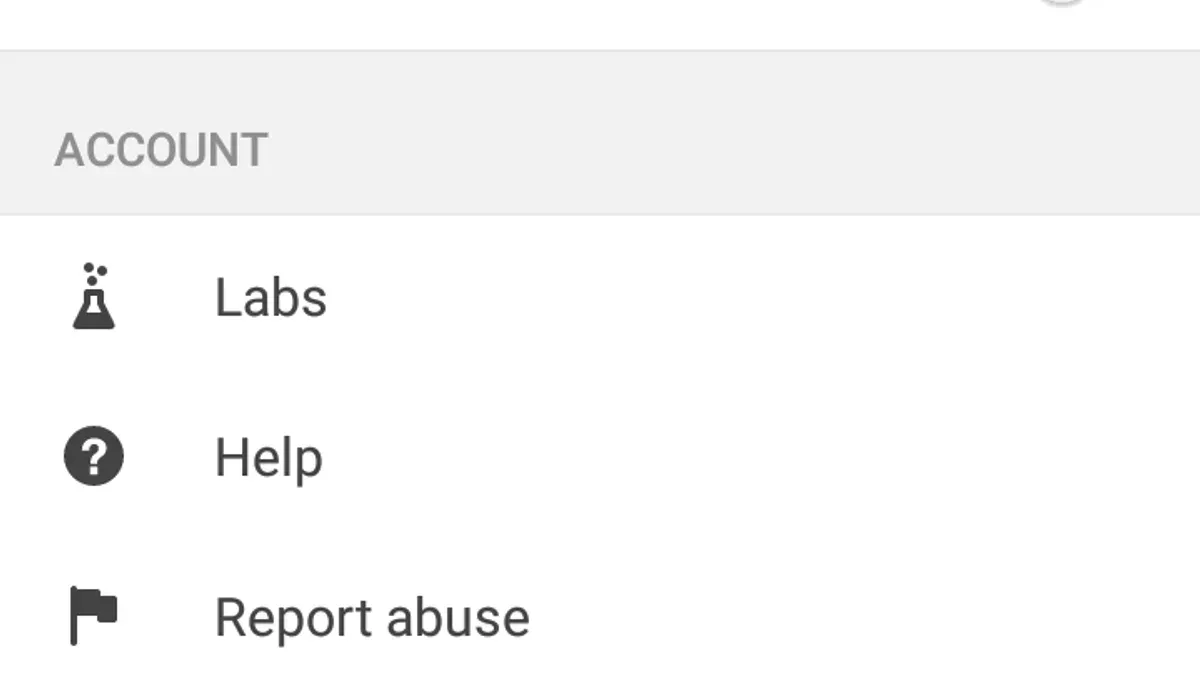
- Open the Tumblr app and tap the Account icon, typically located at the bottom right of the screen. This opens the account dashboard.
- Tap the Settings gear icon in the upper right corner. This opens the settings menu where account and app options are located.
- Scroll down to find the Log Out button near the bottom of the settings list. Tap it to initiate logging out.
- Confirm the logout action when prompted. After confirmation, the app returns to the login screen, indicating the session has ended locally.
Tip: Logging out on the app ends the session only on that device; active sessions on other devices remain unless the password is changed or sessions are revoked remotely.
Because Tumblr manages sessions independently per device, uninstalling the app without logging out does not terminate the session on that device or others connected to the account. Users should always log out explicitly before removing the app to ensure account security.
How to log out of Tumblr on all devices remotely
Tumblr does not offer a direct 'log out of all sessions' feature. To effectively log out of Tumblr on all devices, changing the account password is the primary method. This invalidates active sessions on other devices by requiring the new password for any subsequent login attempt.
- Access the Tumblr dashboard and click the profile icon in the upper right corner to open the account menu.
- Select "Settings" from the dropdown menu, then navigate to the "Account" section.
- Click on "Password" to begin the password change process. Enter the current password followed by a new strong password, then confirm the change.
- After the password update is successful, all other active sessions will be invalidated. Any device currently logged in will require the new password to regain access.
- Check the email associated with the Tumblr account for a notification confirming the password change and session termination.
- Optionally, review recent account activity in the security settings to verify that unauthorized sessions have been ended.
- Enable two-factor authentication (2FA) in the "Security" section of settings to add an extra layer of protection for future logins.
Tip: Changing the password immediately after suspecting unauthorized access is the most reliable way to log out all devices remotely on Tumblr.
How to use Tumblr without logging in
Most Tumblr blogs and their public posts are accessible without an account. This allows anonymous browsing of text posts, images, videos, and reblogs from a wide range of users. To view content, simply visit the Tumblr URL of a blog (for example, username.tumblr.com) or use the Tumblr search function on the homepage. Public content loads normally without requiring a login.
Browsing without an account comes with limitations. Interactive features like liking posts, reblogging, commenting, or following blogs are unavailable without logging in. Some blogs may restrict access to certain posts or features to logged-in users only, reducing full visibility.
Third-party Tumblr viewers and archive sites offer alternative ways to browse Tumblr content, often with additional search or organizational tools. These tools vary in reliability and may not display the most current posts or support multimedia content fully. Users should verify the credibility of such services before relying on them.
Example: Public blogs such as staff.tumblr.com or popular fan blogs can be viewed directly in a browser without signing in, showing most posts but disabling all engagement options.
How to view deactivated Tumblr accounts
Deactivating a Tumblr account means the user has temporarily disabled it, but the account and its content are not immediately deleted. According to Tumblr's official policy, deactivated accounts are put on hold, making them inaccessible for login and interaction. However, the content, such as posts and blogs, may remain publicly visible for a period unless the user deletes them before deactivation.
To confirm whether an account is deactivated rather than deleted, check the blog URL directly. If the page returns a placeholder message indicating the account is inactive or unavailable, it is likely deactivated. Conversely, a deleted account typically results in a 404 error or permanent removal of content.
Privacy considerations apply: deactivated accounts do not appear in search results or follower lists, reducing visibility. Additionally, some content might still be cached or visible to users with direct links, but interaction features are disabled. Tumblr’s policy states that permanent content removal only occurs after account deletion, not deactivation.
Case study: A known deactivated Tumblr blog remained accessible via its URL with a message that the blog is inactive, but posts could still be viewed, confirming that deactivation does not erase content immediately.
Why won't Tumblr let me log in and how to fix Tumblr login problems
Tumblr login failures commonly stem from incorrect passwords, account suspensions, or temporary server issues. Password errors are the most frequent cause; even small typos or outdated saved credentials can block access. Account suspensions occur when Tumblr detects policy violations, restricting login until resolved. Server downtime or maintenance may also prevent login, though these issues typically resolve quickly.
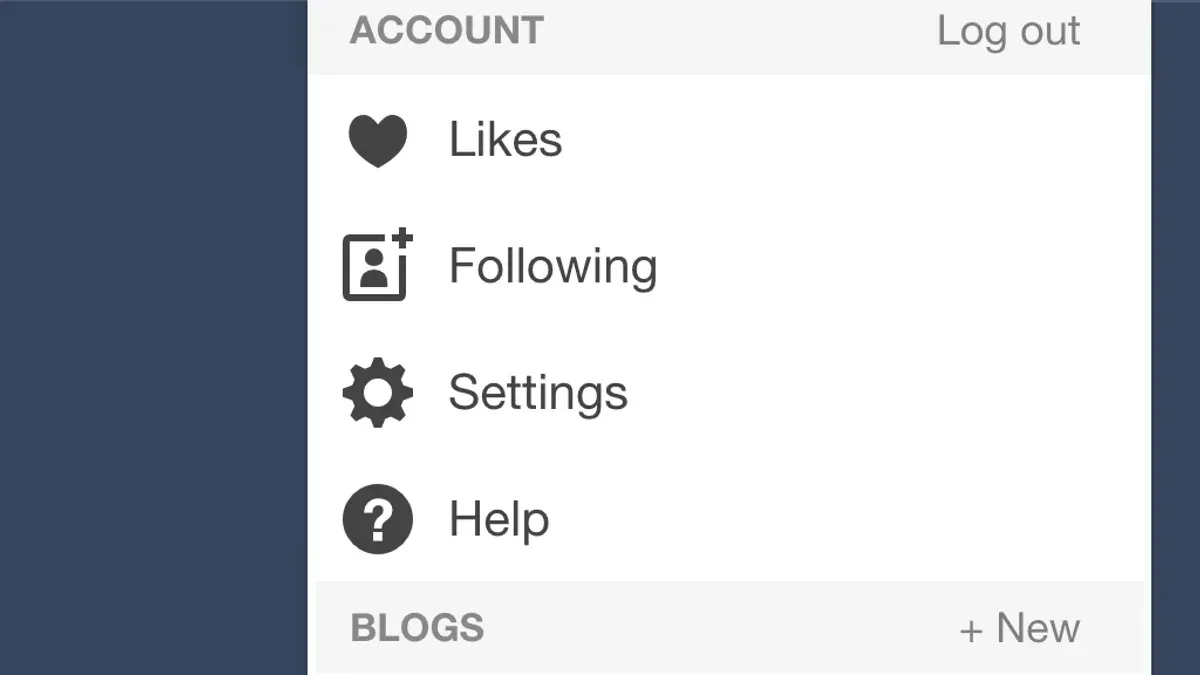
To regain access, start with a password reset. Use the “Forgot password?” link on the login page and follow email instructions to set a new password. Successful resets usually display a confirmation message and allow immediate login. If the password reset fails or no reset email arrives, verify email account access and check spam folders.
Browser compatibility can cause login problems. Clear cookies and cache, disable conflicting extensions, or try a different browser. Ensure the browser is updated to the latest version. Occasionally, Tumblr login pages may display errors due to ongoing updates or bugs; waiting and retrying later often resolves these.
When new login issues emerge, consult Tumblr’s official status page or community forums for updates. If all troubleshooting fails, contact Tumblr support through the Help Center with specific error messages and account details to expedite resolution.
- Go to the Tumblr login page and enter username and password. If login fails, proceed to step 2.
- Click “Forgot password?” and submit the registered email. Expect a reset link email shortly.
- Follow the reset link to create a new password. A success message confirms the update.
- Attempt to log in again with the new password. Successful login leads to the dashboard.
- If login still fails, clear browser cookies and cache, then retry. If problems persist, try another browser.
- Check Tumblr’s status page for reported outages or maintenance messages.
- If none of the above work, contact Tumblr support with detailed information about the issue.
How to leave a Tumblr community
Leaving a Tumblr community differs from unfollowing individual blogs or deleting an account. Unfollowing stops posts from a specific blog appearing in the dashboard, while leaving a community removes membership and related notifications without affecting followed blogs. Deleting an account is a permanent step that removes all content and memberships.
To leave a Tumblr community, first access the community’s page or group settings. Communities usually have a membership button or a settings gear icon where membership status is displayed. After leaving, the community’s posts will no longer appear in the dashboard, and notifications about that community will stop.
- Log in to Tumblr and navigate to the community page to be left. The membership status should show as “Member” or similar.
- Click the settings gear icon or the “Joined” button near the community name. A menu will appear with membership options.
- Select “Leave Community” or “Leave Group.” The page will refresh or update to show that the user is no longer a member.
- Verify the membership status changed to “Join” or that the membership indication is gone. Notifications related to the community should cease shortly after.
Tip: Unfollowing individual blogs within a community will stop their posts without leaving the entire group. Use leaving for full removal from the community’s activities and notifications.
Managing community memberships effectively means regularly reviewing joined groups and leaving those no longer relevant to reduce notification clutter and focus the dashboard on preferred content.
Frequently asked questions
How to log out of tumblr pc?
On a PC, click the profile icon at the top right of the Tumblr dashboard. Select "Settings" from the dropdown menu, then scroll down and click "Log out" at the bottom of the sidebar. Confirm the action if prompted to complete the logout process.
How to sign out of tumblr?
Signing out of Tumblr involves accessing the profile menu by clicking the avatar or profile icon, then selecting "Log out" or "Sign out". This option is available on both desktop and mobile apps under account settings or the main menu.
How to deactivate tumblr account?
To deactivate a Tumblr account, go to "Settings" on the web dashboard, then scroll to the bottom and click "Delete account." Follow the prompts to confirm deactivation, which effectively removes the account and its content from public view.
How to use tumblr without signing in?
Tumblr allows browsing most public content without signing in by visiting any blog's URL or searching via the homepage. However, posting, liking, or following blogs requires logging in. Some features and NSFW content may be restricted without an account.
How to log into tumblr with username?
Logging into Tumblr with a username requires entering the registered email address or username and the corresponding password on the login page. If the username is forgotten, users can use the email recovery option to regain access.
What this guide does not cover
This guide does not cover Tumblr account deletion or permanent data removal, which require separate processes within Tumblr's account settings and support channels. Tumblr does not currently offer a built-in feature to log out of all devices simultaneously; changing the account password is the closest available workaround to force logout across devices. Two-factor authentication options may be limited or vary depending on account type and region, so users should verify availability within their security settings.
For users seeking to permanently remove their account or data, or who require enhanced security features beyond logout management, contacting Tumblr support or consulting official Tumblr help resources is recommended.
The most effective next step for managing account security is to change the Tumblr account password through Settings > Account, which invalidates active sessions and ensures that all devices will require the new password to log back in.
See also: How to Log Out of TikTok on All Devices: Complete Step-by-Step Guide · How to Log Out of Threads on All Devices: Clear Step-by-Step Guide · How to Log Out of Telegram on All Devices: Clear Step-by-Step Guide · How to Log Out of Snapchat on All Devices: Clear Step-by-Step Guide



