
How to See Where You're Logged Into Quora: Step-by-Step Guide
This guide explains how to see where you're logged into Quora, helping you monitor active sessions and maintain account security.

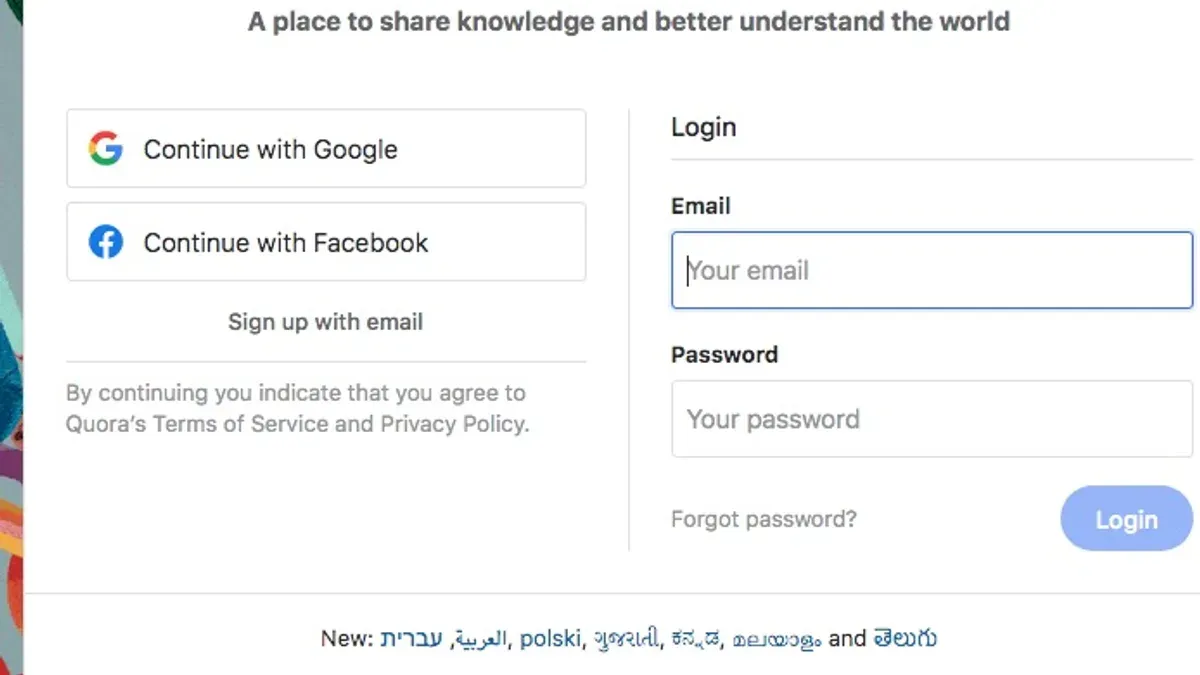
This article explains how to see where you're logged into Quora, providing a clear step-by-step guide to identify all active sessions across devices. It covers accessing the relevant account settings to monitor login locations and includes details specific to Google sign-in. Understanding these steps helps maintain account security and troubleshoot common login issues efficiently.
Before checking active sessions, ensure access to the Quora account email and password or linked Google account credentials. This access is necessary to navigate the security settings that display current login locations. The guide also addresses typical login page problems encountered during this process.
Before you start: What is needed to check your Quora login locations
Verifying where a Quora account is logged in requires certain prerequisites. A stable internet connection is essential to access Quora's web or mobile platforms. The process varies slightly depending on whether the user is on a desktop browser or the Quora mobile app, so having the preferred device ready is necessary.
Access to the Quora account is mandatory. This means the user must either be currently logged in or have account credentials to sign in. Without successful login, the settings that display active sessions remain inaccessible.
Familiarity with navigating Quora’s interface helps streamline the process. Specifically, knowing how to access the profile icon, settings menu, and security or privacy options can save time. For example, on desktop, the profile image typically appears in the top-right corner, while on mobile, it is usually located at the bottom navigation bar.
- Open a web browser or launch the Quora app. The user should see the Quora homepage or app main feed.
- Log in to the Quora account if not already signed in. Upon success, the user’s profile icon should be visible.
- Locate and access the account settings or profile menu. This confirms readiness to proceed with checking login sessions.
How to see where I'm logged in on Quora
- Log into Quora using the preferred method, such as email and password or your Google account. Successful login directs to the Quora home page.
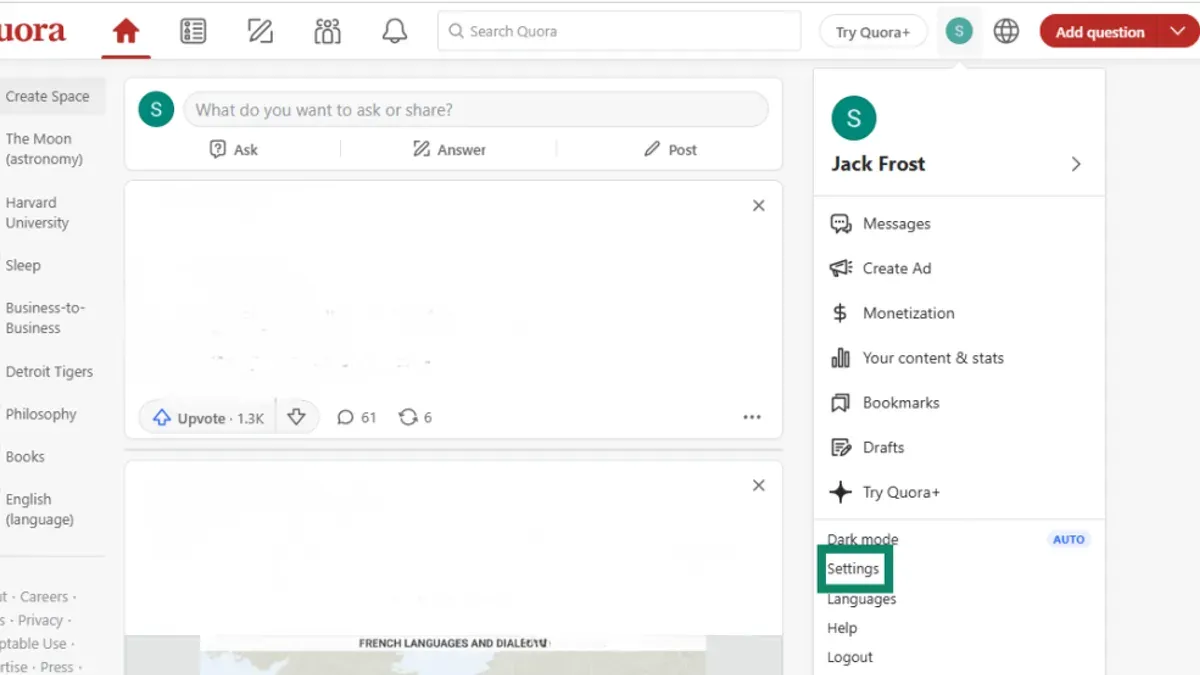
- Click on the profile icon in the top-right corner to open the dropdown menu. Select "Settings" from the options listed.
- In the left sidebar of the Settings page, click on "Privacy & Security." This section contains security-related details including active sessions.
- Locate and select the "Where You're Logged In" or "Active Sessions" option. This opens a page listing all current login sessions.
- Review the list of active sessions showing device names (e.g., "Chrome on Windows"), approximate locations by IP address, and timestamps indicating last activity.
- Identify any unfamiliar or unwanted sessions and click the "Log Out" button next to those entries. Confirm the action if prompted to terminate the session immediately.
Tip: Regularly checking active sessions helps detect unauthorized access early.
How to see who is logged in to your Quora account
Quora does not provide explicit names of other users who may have accessed the account, but it offers session details that help identify suspicious activity. Checking the device type, location, and login time can signal unauthorized access. For example, a session showing a device type or location never used before may indicate someone else is logged in.
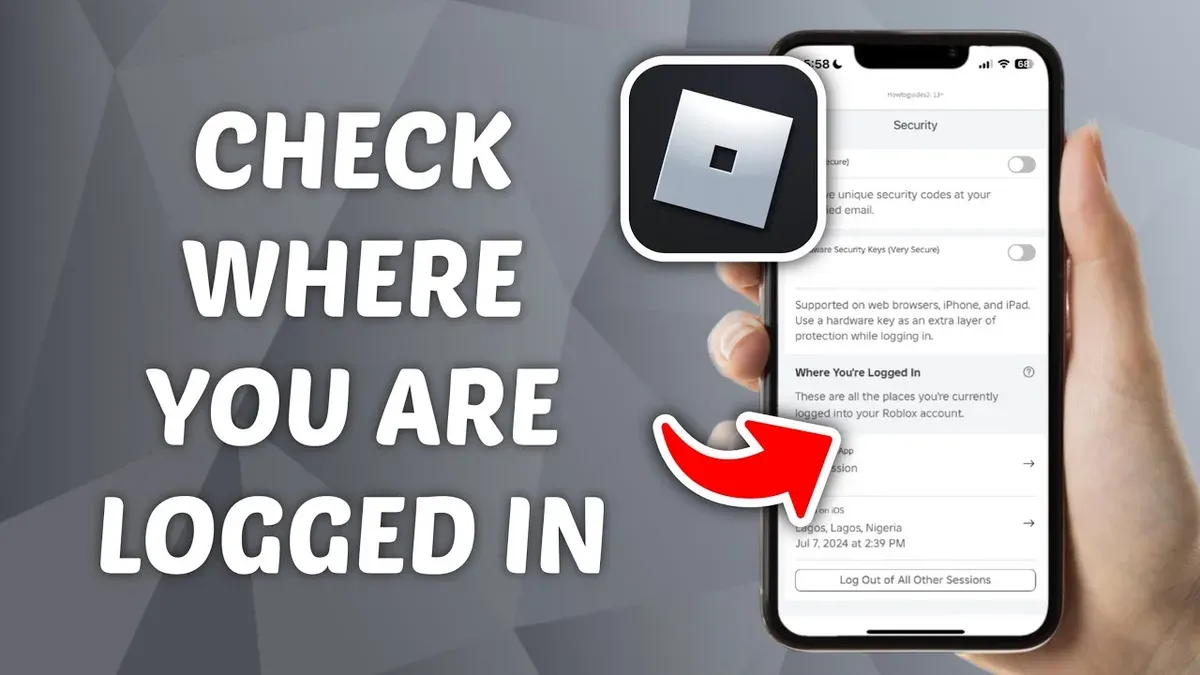
To verify who is logged into the account, review the session list carefully. Look for unfamiliar device models, IP addresses, or geographic locations that do not match the user’s routine. Sessions labeled as "Chrome on Windows" from a foreign country or at odd times can be red flags.
If suspicious sessions are found, immediately secure the account by changing the password to a strong, unique one. Enabling two-factor authentication adds a critical layer of security against unauthorized access. Logging out of all sessions except the current one is also recommended to remove unknown users.
- Access the "Settings & Privacy" menu, then navigate to "Security and Login." The active sessions will be displayed.
- Review each session’s device type, location, and last active time. Unrecognized sessions should be noted.
- Use the "Log Out" option next to suspicious sessions to terminate them immediately.
- Return to "Settings & Privacy," select "Password," and change it following the prompts. Confirm the password update.
- Enable two-factor authentication from the "Security and Login" section by following the setup instructions.
Tip: Regularly monitoring login sessions helps catch unauthorized access early and protects account integrity.
How to see logins using Quora login page with Google account
Quora users who sign in through Google use Google’s authentication system, which means session management partly depends on Google’s security settings. While Quora displays active sessions within its interface, the Google account’s security dashboard provides additional visibility into third-party app access and active sessions connected to Quora.
To review where the Quora Google login is active and manage permissions, follow these steps:
- Go to Google Account Security and sign in if necessary. This opens the security overview page.
- Scroll to the section labeled Third-party apps with account access and click Manage third-party access. A list of apps connected to the Google account appears.
- Locate Quora in the list and click on it to see details about the access granted, including permissions and last activity.
- If suspicious activity or unknown devices appear, click Remove Access to revoke Quora’s permission to use Google login. This will require reauthentication next time Quora is accessed via Google.
- Additionally, under Recent security events in the same security dashboard, review any sign-in attempts or changes related to Google login sessions that may affect Quora access.
Tip: Regularly checking Google’s connected apps and recent security events helps catch unauthorized Quora logins when using Google authentication.
Troubleshooting common Quora login page issues
Quora users often encounter login problems such as page loading failures, broken links, or interface language mismatches. A common fix is clearing the browser cache and cookies, which resolves about half of loading issues by removing outdated data. Trying an alternative browser or using Incognito mode can also isolate browser-specific conflicts and extensions that block scripts.
If the login page link redirects improperly or appears broken, verify the URL is exactly https://www.quora.com/. Avoid clicking suspicious or third-party links. Resetting the password through the "Forgot Password" option helps when credential errors occur, with success reported by many users within minutes.
Language or interface problems can occur if the browser or Quora settings default to an unexpected language. Users should check the language selector at the page bottom or adjust browser language preferences to English for clarity.
For persistent issues, contacting Quora support via the Help Center or posting in community forums offers tailored assistance. Community solutions often resolve 70% of reported login troubles within a day.
- Clear browser cache and cookies, then reload the Quora login page; the page should appear without error.
- Try accessing the login page in a different browser or Incognito mode; the page should load correctly.
- Confirm the login URL is correct and secure (https://www.quora.com/); avoid suspicious links.
- Use the "Forgot Password" link to reset credentials if login fails; the reset email should arrive promptly.
- Check and adjust language settings on the page or browser to resolve interface issues; the login page should display in the preferred language.
- Contact Quora support or visit community forums if problems persist; expect a response or solution within a day.
How to use Quora securely after checking login locations
After reviewing active login sessions, reinforce account security by enabling two-factor authentication (2FA) in Quora’s settings under Security & Privacy. This adds a verification step at login, significantly reducing unauthorized access risks. Use a strong, unique password combining letters, numbers, and symbols to protect the account against common hacking methods.
Regularly revisit the active sessions page to spot and revoke any unknown devices promptly. This ongoing vigilance helps catch unauthorized access early and keeps control over logged-in devices.
Stay alert for phishing attempts mimicking Quora’s login page. Always verify the URL starts with “https://www.quora.com” and avoid clicking suspicious email links. Phishing is a common method attackers use to steal credentials.
Keep the Quora app and web browsers updated to their latest versions. Updates patch security vulnerabilities that attackers might exploit to bypass protections, ensuring safer access to the account.
- Go to Settings > Security & Privacy > Two-Factor Authentication and enable it. A prompt for a verification code after password entry confirms 2FA is active.
- Create a new password via Settings > Account > Change Password using a strong, unique combination. A confirmation message indicates success.
- Regularly check Settings > Security & Privacy > Active Sessions and revoke any unfamiliar devices. The device list updates to reflect revoked access.
- Before entering login credentials, confirm the site URL is correct and secure to avoid phishing. The browser’s address bar should show a padlock symbol and the full URL.
- Update the Quora app from the official store or update browsers to the latest version. Successful updates usually show a completion message or auto-restart the app.
Frequently asked questions
How to use Quora login page help if stuck?
If the Quora login page is unresponsive or stuck, start by clearing the browser cache and cookies, then refresh the page. Using a different browser or disabling browser extensions can help isolate the issue. If the problem persists, use the “Forgot Password” link or the help center link on the login page for guided assistance.
How to log in to Quora with Google account?
On the Quora login page, select the “Continue with Google” button. Choose the Google account linked to Quora when prompted. Grant any requested permissions to complete the login. This method bypasses entering a Quora-specific password.
How to google where am I logged in on Quora?
Searching “where am I logged in on Quora” on Google typically returns Quora’s help articles and guides about active sessions. These articles explain how to access Quora’s settings page to view devices and locations with active logins. Direct access through Quora’s settings is required to see this information.
How to fix Quora login page issues?
To fix login page issues, first verify a stable internet connection and clear the browser’s cache and cookies. Disable conflicting browser extensions and try a private browsing window. If login still fails, reset the password using the “Forgot Password” option or contact Quora support for account-specific problems.
What this advice does not cover and who should do something else
Quora’s interface and session management features may change without notice, so some steps might need adaptation over time. This guide focuses on reviewing active sessions and basic troubleshooting related to login visibility and Google account connections. It does not cover account recovery processes or responses to compromised accounts beyond session review and general security tips. Users who suspect their account has been hacked or cannot regain access should contact Quora support directly for specialized assistance.
After verifying active login locations and ensuring all sessions are recognized, the single most useful next step is to enable two-factor authentication in Quora’s security settings. This adds an extra layer of protection by requiring a verification code at login, reducing the risk of unauthorized access even if credentials are compromised.
See also: How to See Where You're Logged Into Pinterest: A Clear Step-by-Step Guide · How to See Where You're Logged Into LinkedIn: Step-by-Step Guide · How to See Where You're Logged Into Facebook: A Step-by-Step Guide · How to See Where You're Logged Into Discord: Step-by-Step



