
How to See Where You're Logged Into Messenger: Step-by-Step Guide
Discover how to check active Messenger login locations through Facebook’s Security and Login settings to monitor your account activity effectively.

This article explains how to see where you're logged into Messenger by using Facebook’s centralized Security and Login tools. Messenger itself does not provide a direct list of active login locations, so users must access their Facebook account settings to view all active sessions linked to Messenger.
Accessing the Facebook Security and Login page reveals device types, locations, and timestamps for each active session. This method clarifies common misunderstandings about Messenger’s login session visibility and helps users identify unauthorized access effectively.
Following this guide will provide clear, actionable steps to check active devices, session durations, and how to respond if suspicious activity is detected on Messenger.
Before you start: What’s needed to check Messenger login locations
Messenger login sessions are managed through Facebook’s centralized security settings, not within the Messenger app itself. To view active login locations and devices, access to the Facebook account linked to Messenger is required. Without logging into Facebook, Messenger’s login information cannot be directly reviewed.
A device with internet connectivity capable of running the Facebook app or accessing Facebook’s website is necessary. This can be a smartphone, tablet, or computer. The Facebook account credentials must be available to sign in securely.
Basic familiarity with Facebook’s Security and Login settings will simplify the process. These settings contain the detailed information about active sessions, devices, and locations related to Facebook and Messenger usage. Understanding that Messenger’s login visibility is integrated within Facebook prevents confusion over missing data in the Messenger interface.
- Have the Facebook username and password associated with the Messenger account ready. After logging in, the Facebook homepage or app main screen should appear.
- Ensure the device has a stable internet connection, so Facebook’s security pages load without errors.
- Open the Facebook app or visit facebook.com, then navigate to Settings & Privacy > Settings > Security and Login. The Security and Login page should display active sessions and device info.
Tip: If two-factor authentication is enabled on the Facebook account, have the authentication method ready to complete login without interruption.
How to see where you’re logged in on Messenger via Facebook Security and Login
- Log into Facebook on a desktop browser or open the Facebook mobile app. Successful login leads to the main feed or home screen.
- Access the menu by selecting the profile icon or the three horizontal lines (hamburger menu) on mobile, or click the downward arrow at the top right on desktop.
- Navigate to Settings & Privacy, then select Settings.
- Within Settings, find and click Security and Login. This opens a page showing login-related information.
- Under the section labeled Where You're Logged In, view a list of all active sessions. Each entry shows device type, approximate location, and last active time.
- Identify Messenger sessions by looking for entries specifying the Facebook Messenger app or browser sessions linked to Messenger usage. Device models and locations help distinguish legitimate logins from suspicious ones.
- Click See More if available to expand the list for a complete view of all current sessions.
- Review session details carefully: device names often include model or OS (e.g., iPhone, Windows PC), locations are approximate based on IP geolocation, and timestamps show last activity.
Tip: Recognizing familiar devices and locations reduces false alarms; unfamiliar sessions merit immediate attention.
How to see what devices are logged into Messenger
Facebook's Security and Login page shows device-specific details for active sessions linked to Messenger. These details typically include device type (phone, tablet, or computer), operating system (iOS, Android, Windows, macOS), and sometimes the browser or app used. For example, a session labeled "iPhone - Messenger app" indicates Messenger use on an iPhone, while "Windows - Chrome" suggests Facebook accessed via a desktop browser.
Distinguishing Messenger sessions from other Facebook logins relies on the session label. Messenger sessions usually specify "Messenger app" or the mobile device’s OS, whereas Facebook web sessions mention browsers like Chrome, Firefox, or Safari. However, some entries may appear generic, such as "Android device" or "Unknown device," reflecting limited data availability.
Location information is often approximate, showing a city or region rather than exact coordinates. Typical device names include "John's iPhone," "Samsung Galaxy S21," or generic names like "Windows PC." Users should watch for unfamiliar device types, operating systems, or locations that don’t match usual activity.
- Open Facebook and go to Settings & Privacy > Settings > Security and Login.
- Scroll to the "Where You're Logged In" section.
- Review the list of active sessions; each entry displays device type, OS, and app/browser.
- Identify sessions labeled with "Messenger app" or a mobile device indicating Messenger activity.
- Check for unfamiliar or generic device names and approximate locations.
- If a session looks suspicious, note the details for further action.
How to check Messenger login history and session duration
The Facebook Security and Login page displays current active sessions, including those for Messenger, but it does not provide a comprehensive login history or detailed timestamps for past sessions. Users can see device types, locations, and last active times only for sessions that are currently open. Once a session ends, its details are removed from this view, limiting historical insight.
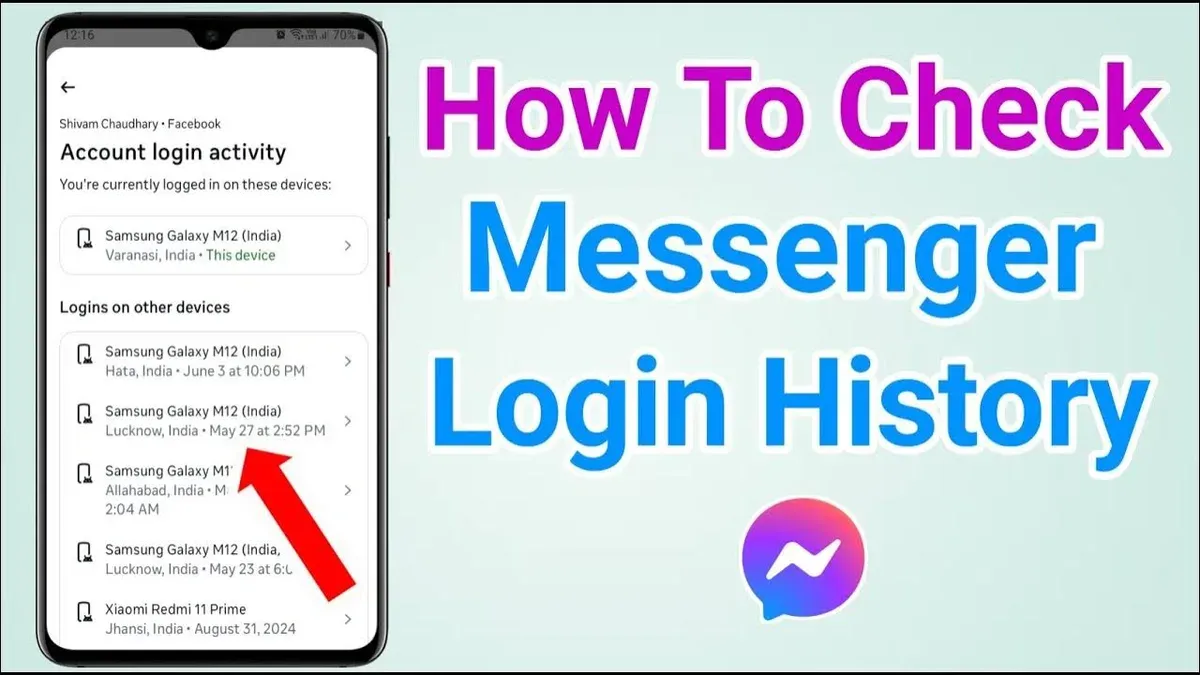
Unlike some platforms that offer full login histories with exact dates and times of every login event, Facebook centralizes session information but omits detailed past activity logs. This means users cannot review a complete timeline of Messenger logins or how long each session lasted.
To track suspicious activity over time, enabling Facebook's login alerts offers a practical alternative. These alerts notify users of new or unrecognized logins promptly, providing ongoing security awareness without relying on retrospective session data.
- Open Facebook and navigate to Settings & Privacy > Settings > Security and Login.
- Scroll to the "Where You're Logged In" section to view currently active sessions, including Messenger devices.
- Note that this list updates in real-time and does not archive past sessions once they end.
- To monitor future activity, go to "Setting Up Extra Security" and enable login alerts to receive notifications about new logins.
Tip: Use login alerts combined with regular session reviews to maintain ongoing awareness of Messenger account access.
How to see who’s logged into your Messenger account
Messenger accounts are linked to Facebook profiles, so identifying "who" is logged in means recognizing active devices and sessions rather than different users. If multiple people access one Facebook account, they share the same Messenger access. The best way to detect unauthorized access is by spotting unfamiliar devices or locations in Facebook’s Security and Login page under "Where You're Logged In." Suspicious sessions may show odd locations, unrecognized device types, or activity timestamps that don't align with known usage.
- Open Facebook and go to Settings & Privacy > Settings > Security and Login.
- Scroll to "Where You're Logged In" to view active sessions. Look closely for unknown devices or locations, such as a session labeled "Windows 10 - Chrome" from a city not visited.
- If a suspicious session is found, click the three-dot menu next to it and select "Log Out." The session should disappear from the list, terminating access from that device.
- Immediately change the Facebook password to a strong, unique one via Settings > Security and Login > Change Password.
- Enable two-factor authentication under the same Security and Login section to add a second verification step for future logins.
Example: A user noticed a session labeled "MacBook Air - Safari" from a city they never visited. They logged out that session and changed their password to prevent further unauthorized access.
Tip: Regularly review active sessions even without signs of compromise to maintain control over Messenger access.
How to see call logs in Messenger
Call logs in Messenger are accessible only within individual conversations, not through Facebook's Security and Login settings or any centralized location. Each Messenger chat retains its own history of calls made and received with that contact or group.
To view call history for a specific conversation, open the Messenger app or the web interface and locate the chat with the person or group. Call entries appear as call icons accompanied by timestamps integrated into the message thread, showing outgoing, incoming, and missed calls.
Follow these steps to find call logs:
- Open the Messenger app or go to messenger.com and sign in.
- Navigate to the conversation with the contact or group whose call history is needed.
- Scroll through the chat to find call icons and timestamps indicating past calls.
- Tap or click on a call entry to see details such as call duration and call type (voice or video), if available.
Tip: Use the search function within the conversation (look for a magnifying glass icon) and type "call" or "video call" to quickly locate call entries when a conversation is lengthy.
Call logs are not summarized across conversations, so reviewing call history requires checking each chat separately. Privacy settings ensure call information remains visible only to participants in the conversation, preventing access by others even if they can see the chat.
Troubleshooting: What to do if login sessions don’t appear or seem incomplete
Login session data in Facebook’s Security and Login settings can sometimes lag or fail to display all active Messenger sessions accurately. This delay occurs because session updates depend on device communication with Facebook servers, which may not be instantaneous. If the list appears incomplete or missing recent activity, refreshing the session data is essential.
Cached data in the Facebook app or browser often causes outdated session information to persist. Clearing the cache or using a different browser can help reveal the most current session details. Facebook’s mobile app may also require a full restart to update session listings.
To refresh session data, follow these steps:
- Log out of the Facebook app or website completely. Upon logout, the session list will no longer be visible.
- Clear the browser cache or app cache if possible; for browsers, use settings to clear cached images and files.
- Log back into Facebook. Upon successful login, navigate to Security and Login settings. The active Messenger sessions should refresh and display the latest information.
Tip: If the sessions still do not appear or show incomplete data, try accessing Facebook Security and Login from a desktop browser for more reliable results.
In cases where suspicious activity is suspected but does not appear in the session list, consult the Facebook Help Center for guidance on reporting and securing accounts. Direct support can be contacted if unauthorized access persists without appearing in session data.
Common error messages like “Unable to load sessions” or “Session list unavailable” often indicate connectivity issues or server-side delays, reinforcing the need for logout/login and cache clearing steps.
How to secure Messenger after identifying suspicious login activity
When unauthorized access is detected on Messenger, immediate action is essential to protect the account and personal data. The first step is to log out of all sessions except the current one through Facebook’s Security and Login settings. This prevents further access from unknown devices.
- Go to Facebook Settings > Security and Login > Where You're Logged In.
- Click “Log Out of All Sessions” except the current device. A confirmation message will appear showing all other sessions ended.
- Change the Facebook account password to a strong, unique combination of letters, numbers, and symbols by navigating to Settings > Security and Login > Change Password. A successful update will prompt a confirmation notification.
- Enable Two-Factor Authentication (2FA) by going to Settings > Security and Login > Use two-factor authentication and follow the setup instructions. Once enabled, Facebook will send a confirmation and require a second verification step at login, significantly reducing unauthorized access risk.
- Review connected apps and active devices regularly under Settings > Apps and Websites and Security and Login respectively, removing any unfamiliar or unused connections.
- Turn on login alerts in Security and Login settings to receive notifications of unrecognized logins, allowing prompt response to suspicious activity.
Tip: Accounts with 2FA enabled and regular session reviews experience notably fewer unauthorized access incidents, improving overall security resilience.
Frequently asked questions
How to see who's logged into your messenger?
Messenger does not show login sessions directly within its app. To see who’s logged into Messenger, users must check active sessions via Facebook’s Security and Login settings. This section lists all devices currently connected to the Facebook account, including Messenger sessions, with device type, location, and last active time.
How to see where you're logged into facebook messenger?
To view login locations for Facebook Messenger, open Facebook and navigate to Settings & Privacy > Settings > Security and Login. Under the "Where You're Logged In" section, all active sessions for Facebook and Messenger appear, showing device details and approximate geographic locations.
How to see where you're logged in on messenger?
Because Messenger uses Facebook’s centralized login system, login locations appear only in Facebook’s Security and Login page, not within Messenger itself. Access this page via Facebook settings to find detailed information about where the account is actively logged in, including Messenger sessions.
How to see where messenger is logged in?
Messenger login activity is managed through Facebook’s account security tools. To see where Messenger is logged in, visit Facebook’s Security and Login settings from any browser or the Facebook app. The list includes all devices with Messenger access under the active sessions.
How to see where you are logged in on facebook messenger?
Check Facebook’s Security and Login page to see all devices logged into the Facebook account, which covers Messenger as well. The list provides device types, locations, and times last active, offering a comprehensive view of login points for Messenger usage.
What this advice does not cover and who should do something else
This method relies on Facebook’s centralized Security and Login settings, so it does not cover Messenger sessions that may be active but not currently reported due to syncing delays or app bugs. Users who cannot access the linked Facebook account cannot independently view Messenger login sessions. Additionally, call logs are accessible only within individual Messenger conversations and cannot be reviewed or audited through login or security settings.
Tip: For users who suspect unauthorized access but lack Facebook account access, contacting Facebook support or resetting the password via the account recovery options is necessary.
The single most useful next step after reviewing active login locations and devices is to immediately change the Facebook account password and enable two-factor authentication under Settings > Security and Login. This action ensures any unauthorized sessions are logged out and adds a strong layer of protection to prevent future unauthorized access to Messenger and related services.
See also: How to See Where You're Logged Into Facebook: A Step-by-Step Guide · How to Recover a Messenger Account Without Phone Number or Email · How to See Where You're Logged Into Instagram: Step-by-Step Guide



