
How to See Where You're Logged Into Instagram: Step-by-Step Guide
This guide shows how to see where you're logged into Instagram to identify active sessions and protect your account from unauthorized access.

This article explains how to see where you're logged into Instagram, enabling users to identify all active sessions across devices and locations. Understanding these login details is essential for spotting unauthorized access and maintaining account security. Instagram provides clear session information through its mobile app and web interface, showing device type, approximate location, and login time.
Accessing this information requires a verified Instagram account and an active internet connection. Users should be logged in to their Instagram account before proceeding. This guide covers step-by-step instructions on checking login activity, interpreting session details, and logging out of unfamiliar devices.
Following these steps helps ensure the privacy and safety of Instagram accounts by allowing timely detection and removal of suspicious sessions.
Before you start: What is needed to check Instagram login locations
Accessing Instagram login locations requires an active Instagram account with valid login credentials—username and password. The process works through either the Instagram mobile app or the Instagram web interface, so a stable internet connection is essential. Users must understand basic device categories such as mobile phones, tablets, and desktop computers, since Instagram identifies sessions by device type. Additionally, login locations are estimated based on IP addresses, meaning the geographic information shown is approximate rather than exact.
Instagram displays current active sessions only, not every login ever made. This means the list reflects devices and locations where the account is presently signed in. Examples of device types include "Chrome on Windows," "iPhone 13," or "Samsung Galaxy S21." Locations might appear as city names or broader regions depending on IP accuracy. Screenshots commonly show a device name paired with a rough location like "New York, USA."
Before checking login locations, confirm the following:
- Have Instagram username and password ready. Successful login will be required to access session details.
- Ensure access to either the Instagram app or a web browser connected to the internet.
- Familiarize with basic concepts of device types and IP-based location to interpret session data correctly.
- Understand that only currently active sessions are displayed; past logins are not listed.
Tip: If multiple devices are used regularly, expect several active sessions showing different locations or device names.
How to check where you're logged into Instagram using the mobile app
- Open the Instagram app and tap the profile icon at the bottom right. The profile page will load, showing your posts and account details.
- Tap the menu icon (three horizontal lines) at the top right corner to open the side menu.
- Select Settings from the menu options that appear. This opens the main settings screen.
- Within Settings, tap Security. The Security menu contains options related to account protection.
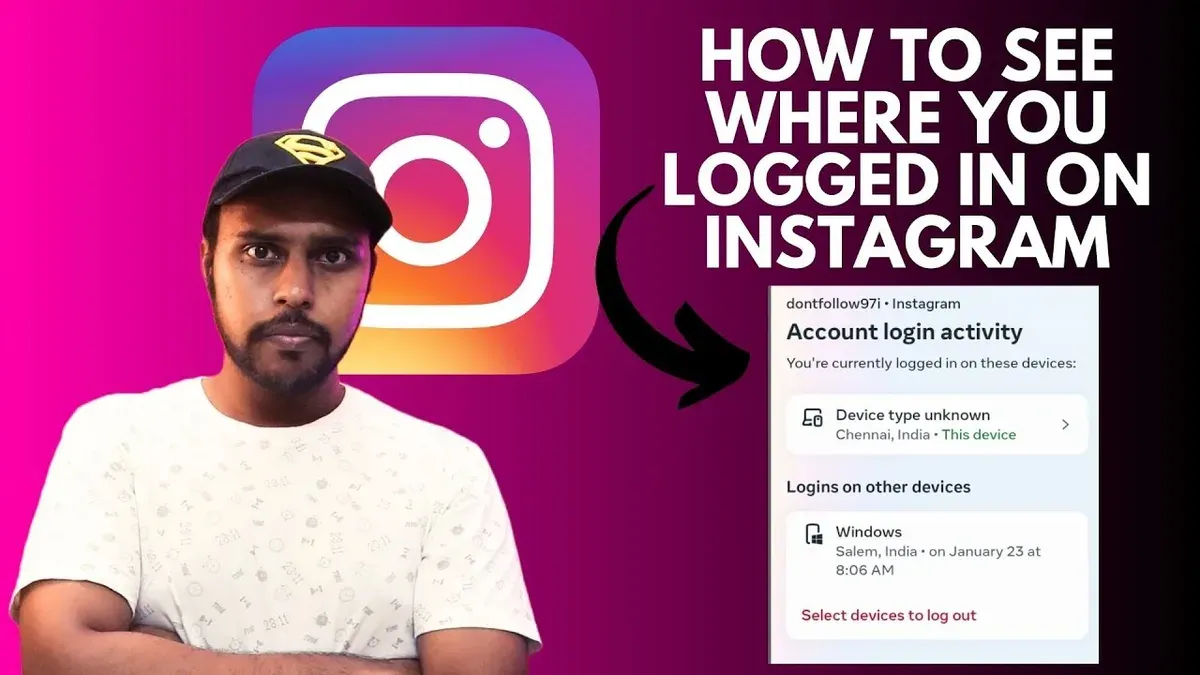
- Tap Login Activity. This screen displays a list of devices and locations where the account is currently logged in.
- Review the list carefully. Each entry shows the device type (e.g., "iPhone," "Chrome on Windows"), the approximate location based on IP address (city and country), and the most recent login time.
- Identify any unfamiliar devices or locations by comparing them with known devices and places. Suspicious entries may indicate unauthorized access.
The Login Activity screen typically displays device names and locations in a straightforward list. Device names reflect browser or device type, while locations are approximate and may show broad areas rather than exact addresses.
Tip: If a device or location seems unfamiliar, consider logging out of that session immediately from the same screen to secure the account.
How to see where you are signed in on Instagram via web browser
- Open a web browser and go to Instagram.com. Log in with valid credentials. Upon successful login, the Instagram homepage will appear.
- Click the profile icon in the top-right corner of the page to open a dropdown menu. The profile icon typically shows the user's profile picture.
- Select Settings from the dropdown menu. This opens the account settings page with a vertical menu on the left side.
- In the left sidebar, click Security. The security page will display several options related to account protection.
- Choose Login Activity under the Security section. The Login Activity page lists all active sessions with device type, approximate location, and login time.
- Review the list of sessions. Each entry shows the device name or type (e.g., iPhone, Windows PC), the approximate geographic location based on IP, and the date and time of last activity.
The web interface for Login Activity is more streamlined compared to the mobile app. It uses a vertical menu instead of nested menus, and session details are presented in a simple list without map visuals. Despite this, all essential information needed to identify active sessions is available.
Tip: Sorting sessions by date or device name is not available on the web, so review each entry carefully to spot unfamiliar devices or locations.
How to interpret Instagram login activity details
- Identify the device name listed for each session. It may be specific like “iPhone 13” or generic such as “Chrome on Windows.” Specific names usually indicate the actual device or browser used, while generic names can signal a browser or device type without precise identification.
- Check the location shown for each login. These locations are IP-based approximations and may differ from the exact physical place by several miles or more. For example, a login from "New York" might actually be from a nearby suburb.
- Look at the login time for each session, which represents the last active time on that device. Recent times mean active sessions, while older times could indicate dormant sessions that may still be logged in.
- Compare the device names, locations, and times to what is known. For instance, a session from "Chrome on Windows" in a city where the user never was or from a device not owned is suspicious. Another example is a login from a country far away without recent travel.
- Consider limitations: VPN use or mobile IP address changes can cause location shifts that appear unusual but are legitimate. An IP-based location showing a different city or region may not always mean unauthorized access.
Tip: When unsure about a session’s legitimacy, cross-check with recent activity on devices and consider the possibility of VPN or network changes before taking action.
How to log out of devices you don’t recognize on Instagram
To remove unauthorized access, start by opening the Login Activity screen within Instagram's Security settings. Locate the suspicious session, then tap the three-dot menu or options button next to it. This action reveals a menu where selecting Log Out immediately ends that device's access to the account.
Once logged out, the session will disappear from the list, confirming the device no longer has access. Repeat this process for any other unfamiliar sessions to fully secure the account.
Important: After logging out unknown devices, change the Instagram password right away. This prevents immediate re-entry by unauthorized users who might still have the old credentials.
For added protection, enable two-factor authentication in the Security settings. This extra layer requires a verification code on login attempts from new devices, significantly reducing the risk of unauthorized access.
- Open Instagram and go to Settings > Security > Login Activity. The active sessions list appears.
- Identify a suspicious session and tap the three-dot menu next to it. A menu pops up.
- Select Log Out. The session disappears from the list, confirming removal.
- Go to Settings > Security > Password and change the account password immediately.
- Navigate to Settings > Security > Two-Factor Authentication and activate it following the prompts.
How to see Instagram without logging in: limits and options
Instagram permits limited viewing of public profiles without requiring a login. Users can access public posts, bios, and profile pictures by visiting the Instagram website or app and searching for the desired username. However, private profiles, Stories, or any account-specific data such as login activity remain inaccessible without logging in.
Third-party tools or websites that claim to reveal login locations or private information without account access are unreliable and often pose significant privacy and security risks. These services may attempt to collect personal data or spread malware, so they should be avoided.
To view a public Instagram profile without logging in, follow these steps:
- Open a web browser and go to instagram.com/username (replace "username" with the actual Instagram handle). A public profile page will load if the account is public.
- Scroll through the visible posts, bio, and highlights. If the profile is private, the page will show a message indicating that the account is private, and no posts will be visible.
- Note that Stories, direct messages, and login activity are never accessible without signing in to the account.
Tip: Rely only on Instagram’s official platform for profile viewing to ensure privacy and security.
Troubleshooting: Common issues when checking Instagram login activity
When the Login Activity page fails to load or appears empty, it often results from app glitches or network instability. Restarting the app or switching from mobile data to Wi-Fi can resolve connectivity problems. If the issue persists, updating the Instagram app to the latest version or clearing the app cache usually restores normal function.
Locations shown in Login Activity may sometimes display unexpected or incorrect places. This frequently occurs due to VPN usage or the IP address assigned by mobile carriers, which can misrepresent the actual device location. Users should cross-check with known VPN settings or recent network changes before assuming unauthorized access.
After logging out of a device via Login Activity, the session may not disappear immediately due to server synchronization delays. Waiting a few minutes and refreshing the page typically reflects the updated session status. If sessions remain active beyond a reasonable time, re-logging out and changing the password is recommended.
Steps to fix Login Activity loading issues:
- Close and reopen the Instagram app; the Login Activity page should load properly.
- Switch internet connections (from Wi-Fi to mobile data or vice versa); connectivity problems should resolve.
- Update the Instagram app via the app store; the latest version fixes known bugs.
- Clear the Instagram app cache through device settings; this removes corrupted temporary files.
- Try accessing Login Activity from a different device or web browser; this determines if the problem is device-specific.
If suspicious activity persists despite troubleshooting, contacting Instagram support through the Help Center is necessary. Use the "Report a hacked account" or "Security issue" options to receive guided assistance in securing the account.
How to maintain ongoing security for Instagram login sessions
Maintaining Instagram account security requires proactive and consistent actions. Weak passwords and reused credentials are common causes of account breaches, making it essential to use strong, unique passwords and update them regularly. Enabling two-factor authentication (2FA) adds a vital security layer, requiring a second verification step that prevents unauthorized access even if the password is compromised.
Third-party apps connected to Instagram can pose security risks if they request excessive permissions or come from untrusted sources. Regularly review and revoke access to apps that are no longer needed or seem suspicious. Additionally, logging out immediately from shared or public devices prevents lingering sessions that others could exploit.
- Open Instagram and navigate to Settings > Security > Login Activity. Confirm the list shows only recognized devices and locations.
- Go to Settings > Security > Password and set a strong, unique password; look for confirmation that the password was updated successfully.
- Enable two-factor authentication by selecting Settings > Security > Two-Factor Authentication, choose your preferred method, and verify it's active with a confirmation message.
- Review connected third-party apps at Settings > Security > Apps and Websites; remove any unrecognized or unused apps and check for confirmation of removal.
- After using any shared or public device, manually log out by tapping the profile icon, then Log Out, ensuring the session is closed.
Tip: Schedule a monthly check of Login Activity and connected apps to catch unauthorized access early.
Frequently asked questions
How to see where you've logged into instagram?
Open the Instagram app and go to Settings > Security > Login Activity. This section lists all devices currently logged into the account, along with their locations and last active times. Reviewing this helps identify any unfamiliar sessions.
How to see where you logged into instagram?
Navigate to Profile > Menu > Settings > Security > Login Activity on the mobile app or web browser. Instagram displays all recent login locations and devices. If any location seems suspicious, the session can be ended immediately.
How to see devices you re logged into instagram?
Within Instagram's Settings, under Security > Login Activity, a list of devices with access to the account appears. Each entry includes device type, approximate location, and login time. This provides a clear overview of all active sessions.
How do i see where my instagram is logged in?
Access the Login Activity page through the Instagram app or browser by following Settings > Security > Login Activity. The page displays all current sessions by device and location. Ending unfamiliar sessions enhances account security.
Can you see where you're logged into instagram?
Yes. Instagram allows users to view all active login sessions under Settings > Security > Login Activity. This feature shows device details and locations, enabling users to monitor and manage access effectively.
What This Guide Does Not Cover
This guide explains how to view and manage active Instagram login sessions but does not cover forensic-level account investigations or hacking scenarios. Users facing persistent unauthorized access, account takeovers, or complex security breaches should contact Instagram support directly or seek assistance from cybersecurity professionals. This advice focuses on routine session management rather than deep incident response.
The most useful next step is to regularly review the "Login Activity" section within Instagram’s security settings and promptly log out of any unfamiliar devices. Regular session checks combined with enabling two-factor authentication provide the best ongoing protection against unauthorized access.
See also: How to See Where You're Logged Into Hinge: Step-by-Step Guide · How to See Where You're Logged Into Facebook: A Step-by-Step Guide · How to Report Impersonation on Instagram: A Clear Step-by-Step Guide



