
Moving from Blackboard to Schoology: Your Step-by-Step Checklist
This checklist guides you through moving from Blackboard to Schoology, ensuring a smooth transition with clear steps for managing courses and assignments.

Short answer: Moving from Blackboard to Schoology requires understanding new navigation, assignment submission processes, and course management features. This moving from Blackboard to Schoology checklist will guide you through the essential steps to smoothly transition your courses and assignments without losing track of deadlines or content.
This article covers how to log in to Schoology, keep using Blackboard during the overlap period, upload assignments correctly on Schoology, leave courses you no longer need, and avoid frequent pitfalls students encounter when switching platforms. You'll get clear, actionable instructions to minimize confusion and stay on top of your academic responsibilities throughout the transition.
Understand Why Moving from Blackboard to Schoology Matters
Blackboard has long been a staple in online learning, offering robust course management features like grade tracking and content organization. However, its interface can feel rigid and less intuitive, often requiring multiple clicks to access common tools.
Schoology, on the other hand, emphasizes collaboration and ease of use. Its streamlined dashboard integrates discussions, assignments, and notifications in a single view, making it easier for you to stay on top of your coursework. Mobile accessibility is improved, with the Schoology app providing smoother navigation and instant alerts, which is crucial if you rely on smartphones or tablets for study.
Institutions choose Schoology to support modern learning methods such as peer interaction and blended learning. For example, where Blackboard might separate forums and assignments into different sections, Schoology combines these elements to encourage active participation without extra navigation.
This shift affects your daily workflow by centralizing communication and deadlines, reducing confusion. Instead of toggling between multiple menus, you can quickly see upcoming tasks and class updates, helping you manage your time and responsibilities more efficiently.
How to Log in to Schoology for Students
Begin by locating your institution’s specific Schoology login page. Many schools use a unique URL, often found on your school’s main website or student portal. For example, your school might direct you to https://schoology.yourschool.edu rather than the general schoology.com homepage.
Most schools integrate Single Sign-On (SSO) for a seamless login experience. This means you use your regular school credentials—usually your student ID and password—to access Schoology without creating a new account. When you arrive at the login page, look for options like "Log in with Google," "SSO Login," or your school's name to initiate this process.
If you do not use SSO, enter your Schoology-specific username and password provided by your institution. Keep in mind that these may differ from your general school login credentials.
Common login issues include forgotten passwords, incorrect URLs, or browser compatibility problems. If your login fails, first verify the URL is correct and try clearing your browser cache. If problems persist, use the "Forgot Password" link or contact your school’s IT help desk.
For example, a student at Lincoln High School would visit https://schoology.lincolnhs.edu, click "Sign in with SSO," enter their school username and password, then access their courses without additional steps.
- Find your school-specific Schoology URL on your school’s website.
- Use SSO login with your school credentials when available.
- Enter Schoology username and password if not using SSO.
- Verify URL accuracy and clear the browser cache if login fails.
- Use password reset options or contact IT support for persistent issues.
How to Use Blackboard for Students During the Transition
During a phased migration from Blackboard to Schoology, you may need to access both platforms simultaneously. For example, if your institution schedules a two-month overlap, Blackboard remains active for current courses while new courses start appearing on Schoology.

To minimize disruption, first download any essential materials from Blackboard. Navigate to the course, select the "Course Content" tab, and download files such as syllabi, lecture notes, or readings. This ensures you have offline access if Blackboard becomes unavailable.
Keep track of assignment deadlines posted on Blackboard. Notify your instructors if you notice discrepancies or missing updates during the overlap, so they can clarify where to submit work.
For instance, if your Biology 101 course is on Blackboard until the end of the month but your History 202 course has already moved to Schoology, maintain Blackboard access for Biology materials and assignments while starting fresh in Schoology for History.
- Log in to Blackboard regularly during the overlap period.
- Download important course files via the "Course Content" section.
- Check assignment deadlines and communicate with instructors about submission platforms.
- Plan to transition fully once Blackboard access is discontinued.
How to Upload Assignments on Schoology
To submit assignments on Schoology, start by navigating to your course dashboard and selecting the specific assignment from the "Assignments" tab in the left-hand menu. Unlike Blackboard, where submissions often require multiple clicks through folders, Schoology displays assignments with clear due dates and instructions upfront.
Once on the assignment page, click the "Submit Assignment" button. You can upload files by dragging them into the upload area or by clicking "Attach Files" to browse your device. Schoology accepts common file types such as PDFs, Word documents, PowerPoint presentations, and image files, typically with a size limit around 100 MB. If you exceed this limit, the platform will notify you immediately.
After uploading, confirm your submission by clicking "Submit." Schoology will display a confirmation message stating "Your assignment has been submitted" along with a timestamp. You can revisit the assignment page to check grades and instructor feedback, which appear below the submission area once graded. For example, after submitting a term paper as a PDF, you might see a score of 92% with comments like "Well-argued thesis, minor formatting issues" directly accessible on the same page.
- Go to course dashboard > Assignments tab
- Select the assignment > click "Submit Assignment"
- Upload accepted file types (PDF, DOCX, PPT, images)
- Confirm submission > look for confirmation message
- Check grades and instructor feedback on assignment page
How to Leave a Course on Schoology
Leaving a course in Schoology removes it from your dashboard, helping you manage your learning environment by focusing on active courses. This action differs from unenrolling, which is typically controlled by your institution or instructor and fully revokes your access to course materials.
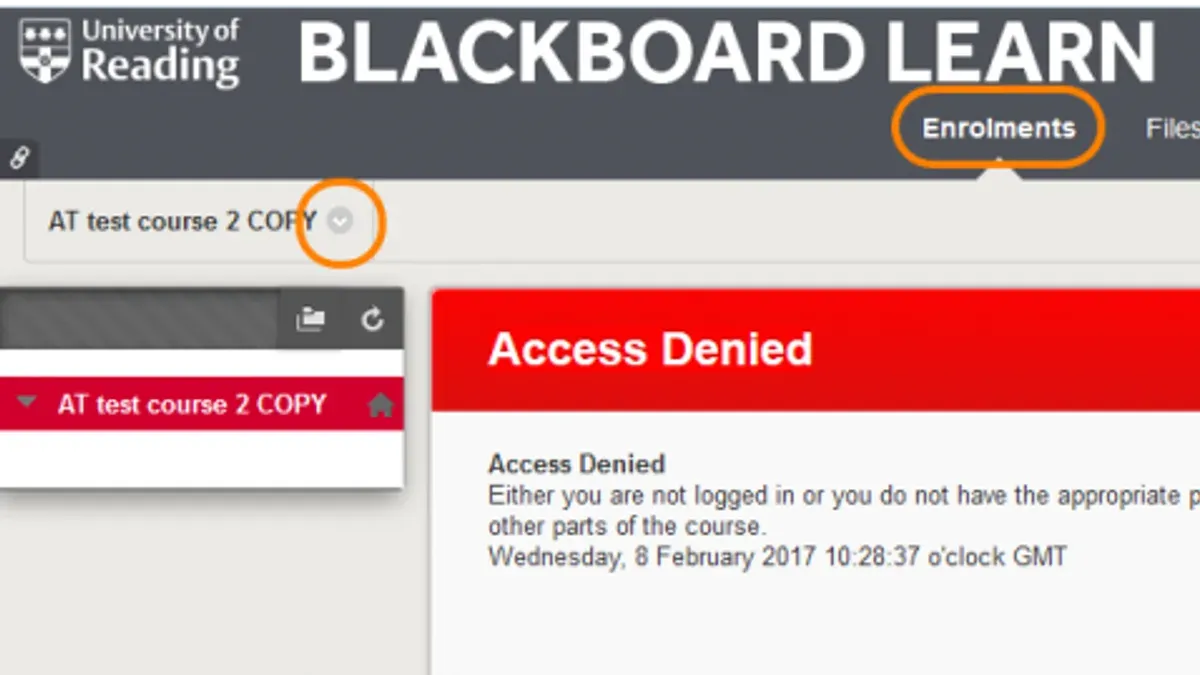
To leave a course, navigate to the course page, click the gear icon in the top-right corner, and select Leave Course. Confirm your decision in the pop-up dialog. After leaving, the course disappears from your dashboard, and you no longer receive notifications or updates related to it. However, you may still access some materials if your institution permits.
For example, if you are juggling multiple classes but have completed a summer course, leaving it declutters your dashboard without requiring administrative intervention, unlike Blackboard’s option where removing a course often means unenrolling and losing access entirely.
Remember, leaving a course is reversible only if your instructor re-enrolls you; otherwise, you must contact support to regain access.
- Go to the course page in Schoology
- Click the gear icon (settings) at the top right
- Select Leave Course and confirm
- Course is removed from your dashboard and notifications stop
- Contact your instructor if you need to rejoin later
Avoid Common Mistakes When Switching from Blackboard to Schoology
Many students struggle during the LMS switch because they underestimate the differences between platforms. One frequent issue is failing to download critical materials from Blackboard before the access cutoff. Imagine needing a lecture slide for an exam review and finding it inaccessible because it wasn’t saved locally in time.
Login methods often change with the new system. Students who ignore updated authentication steps may get locked out, leading to last-minute panic and support requests. Always verify your login process early on to prevent delays.
Schoology’s assignment submission process has nuances, such as confirming the upload and checking for submission status. Students who assume it works exactly like Blackboard risk missing deadlines or not realizing their work wasn’t properly submitted.
Lastly, course structures and navigation differ. Expecting identical layouts causes confusion and lost time. For example, folders and modules might be named or organized differently, so take time to explore each course’s setup.
- Download all essential Blackboard files before losing access
- Confirm your Schoology login credentials and method early
- Learn how to properly submit and confirm assignments in Schoology
- Familiarize yourself with each course’s organization on Schoology to avoid confusion
Read next
- Moving from Blackboard to Moodle: Your Complete Migration Checklist
- Moving from Blackboard to Google Classroom: Your Complete Checklist
- Moving from Blackboard to Canvas: Your Essential Checklist
- Switching from Blackboard to Brightspace: Your Expert Step-by-Step Guide
Frequently asked questions
How to log into schoology for students?
To log into Schoology as a student, go to your institution’s specific Schoology URL or the main site at schoology.com. Enter your username or email and your password provided by your school. If your school uses single sign-on (SSO), use your school credentials through the SSO portal to access your account.
How to access schoology?
Access Schoology by opening a web browser and navigating to your school’s designated Schoology login page or schoology.com. Use your assigned login credentials from your school district or institution. Alternatively, you can access Schoology via its mobile app available for iOS and Android devices.
How to get on schoology?
Getting on Schoology involves visiting the Schoology website or your school’s unique login page, then entering your student username and password. If you haven’t received login information, contact your school’s IT department. Once logged in, you can navigate your courses and assignments easily.
How to access Schoology?
To access Schoology, open your preferred browser and enter your school’s Schoology URL or the general site at schoology.com. Sign in with your student credentials provided by your school. If you’re using the mobile app, download it from the App Store or Google Play and log in similarly.
How to log into Schoology for students?
Students log into Schoology by entering their school-specific username and password on the login page. If your school uses a single sign-on system, use that method with your school credentials. Remember to check for any specific instructions your school provides about the login process.
Quick checklist
- Log in to Schoology using your institution-provided credentials and verify your profile details.
- Review your current courses on Blackboard and note any outstanding assignments or grades.
- Explore the Schoology dashboard to familiarize yourself with navigation and course layout.
- Practice uploading a test assignment in Schoology to confirm file compatibility and submission confirmation.
- Learn how to leave or hide courses you no longer need to keep your dashboard organized.
- Double-check assignment deadlines and notifications in Schoology to avoid missing important updates.
- Avoid common mistakes like relying solely on old Blackboard notifications or assuming all course materials have auto-transferred.
What this advice does not cover
This guide does not cover administrative migration steps or backend data transfer processes, which are managed by institution IT teams. If you encounter login issues beyond password resets or experience missing course content, contact your school’s IT support for resolution.
Transitioning between learning platforms can feel challenging, but focusing on hands-on use of Schoology and staying proactive about assignment deadlines will help you adjust confidently. Start by logging in today and exploring the courses you’re enrolled in to get comfortable navigating the new system.


