
Moving from Blackboard to Google Classroom: Your Complete Checklist
A comprehensive checklist to guide your successful transition from Blackboard to Google Classroom, covering migration, setup, and best practices.

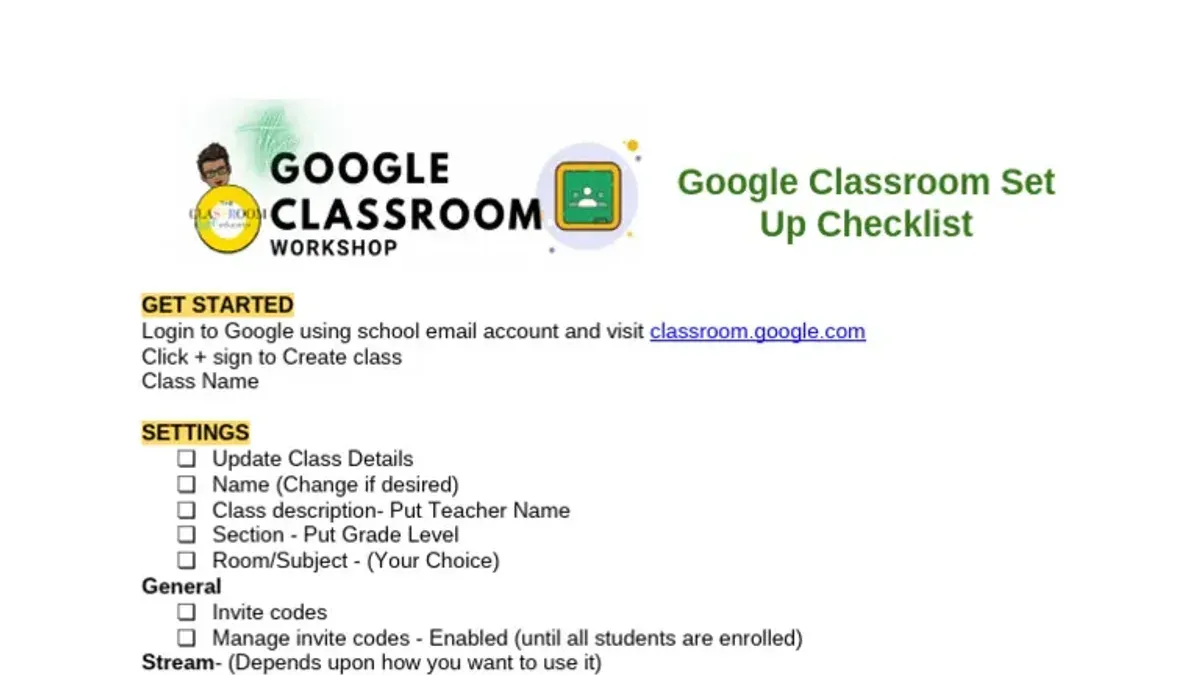
Short answer: Successfully moving from Blackboard to Google Classroom requires a detailed, step-by-step approach that addresses the specific challenges of migrating course materials and adapting to Google Classroom’s unique user engagement model. A moving from Blackboard to Google Classroom checklist helps ensure you don’t overlook critical steps like exporting data properly, setting up classes with the right permissions, and recreating interactive activities suited to Google’s platform.
This article guides you through understanding the fundamental differences between the two systems, preparing your existing Blackboard content for migration, configuring Google Classroom for your courses, and training faculty and students on best practices. You’ll also learn how to avoid common pitfalls that can disrupt the transition and how to maintain an optimized Google Classroom environment after migration, ensuring a smooth and effective switch for your institution.
Understand the Fundamental Differences Between Blackboard and Google Classroom
Blackboard offers a full-featured LMS with extensive course management tools, including detailed gradebooks, customizable assessment types, discussion boards, and a broad range of integrations. In contrast, Google Classroom emphasizes a streamlined, user-friendly interface tightly integrated with Google Workspace apps like Drive, Docs, and Meet, focusing on collaboration and simplicity over breadth of features.
This distinction influences how you design courses: Blackboard supports complex grading schemas and adaptive release of content, while Google Classroom requires a more linear, transparent approach to assignments and grading. For example, Blackboard’s Grade Center allows weighted categories and anonymous grading, but Google Classroom’s gradebook is straightforward, syncing grades directly with student accounts for immediate visibility.
Communication workflows differ as well. Blackboard’s announcements and discussion forums are contained within the LMS, whereas Google Classroom leverages Google Chat and email notifications, fostering real-time interaction but relying on external apps for extended conversations.
| Feature | Blackboard | Google Classroom |
|---|---|---|
| Course Setup | Modular content with adaptive release | Simple topic-based streams |
| Grading | Weighted grade center, anonymous options | Direct grade entry, real-time updates |
| Communication | Forums, announcements inside LMS | Google Chat, email notifications |
| Collaboration | Limited native tools | Full Google Workspace integration |
Imagine moving a course with intricate grading rules and multiple discussion boards from Blackboard: you'll need to simplify the grading structure and adopt Google Docs comments or Google Chat to replicate discussions. Recognizing these functional and pedagogical shifts helps set realistic expectations and guides effective course redesign for Google Classroom’s ecosystem.
Prepare Your Blackboard Data for Migration
Begin by auditing your Blackboard course materials to identify exportable content types. Assignments, grades, discussion posts, and uploaded files can typically be exported, but formats vary in compatibility with Google Classroom.
Blackboard allows you to export course packages via the Control Panel under Packages and Utilities > Export/Archive Course. Select the course components you want, such as Grade Center columns and content areas, then generate a ZIP package. Note that discussion posts export as part of the archive but cannot be directly imported into Google Classroom, requiring manual transfer.
Before export, organize your course by removing outdated files and consolidating materials into clear folders. This cleanup reduces clutter and simplifies re-uploading in Google Classroom’s streamlined interface.
For example, export your assignments and grades as part of the course package. The ZIP file contains XML and other files Blackboard uses internally. Google Classroom does not support direct import of these formats, so plan to recreate assignments and input grades manually or through Google Sheets integration.
Steps to export from Blackboard:
- Go to Control Panel > Packages and Utilities > Export/Archive Course
- Select Export Package and choose relevant content areas and Grade Center columns
- Click Submit and wait for the package to be created
- Download the ZIP file when available for reference and manual migration
Set Up Google Classroom for Your Institution or Course
Begin by ensuring your institution has a Google Workspace for Education account with appropriate admin privileges. This account is essential for managing users, permissions, and secure access within Google Classroom. Once confirmed, log into classroom.google.com using your institutional credentials.
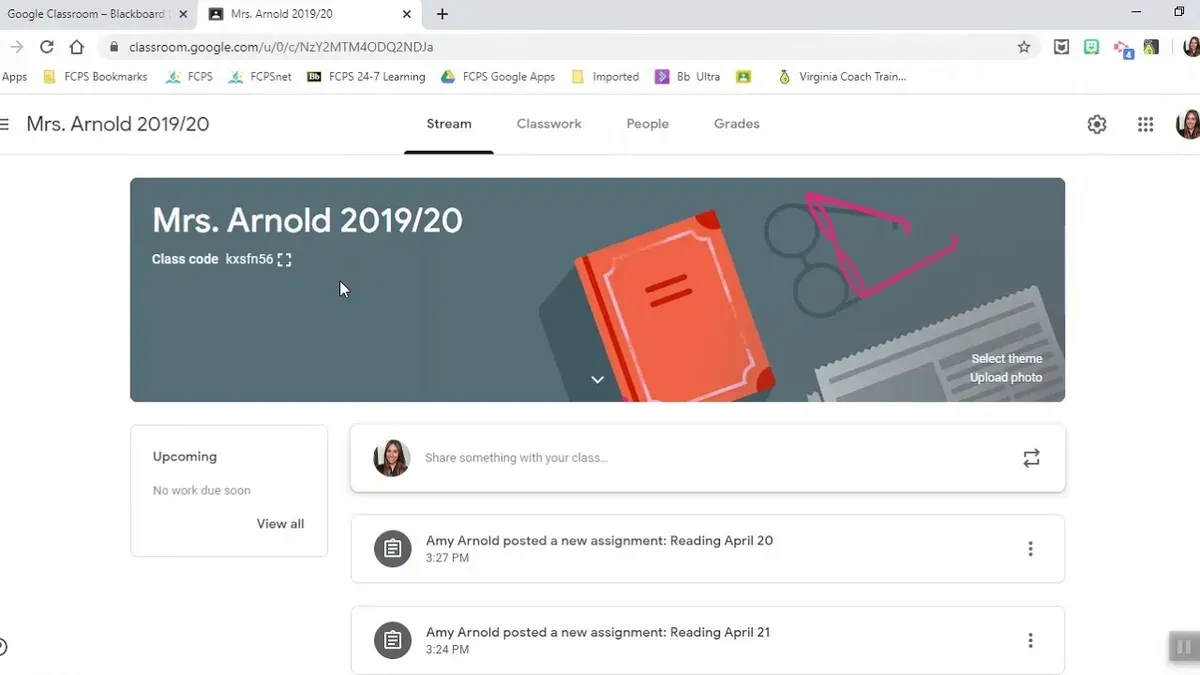
To create a new class, click the “+” icon and select “Create class.” Enter a clear, descriptive class name, such as “Biology 101 - Fall Semester,” and optionally add a section, subject, and room. Assign teacher roles by clicking the “People” tab within the class, then selecting “Invite teachers” to add co-instructors via their email addresses.
Invite students by sharing the class code displayed prominently on the class homepage or by sending direct email invitations through the “People” tab. Adjust notification settings by accessing the gear icon in the top-right corner; here, you can control email summaries and alerts to suit your communication preferences.
Integrate third-party apps by navigating to the Google Workspace Marketplace within Classroom settings, selecting apps that complement your course objectives, such as formative assessment tools or content libraries, and granting necessary permissions.
For example, when setting up a Literature class, create the class, invite two co-teachers for collaborative grading, share the class code with students via email, and configure notifications to send weekly digests to keep everyone informed without overwhelming inboxes.
- Verify Google Workspace for Education admin account access
- Create class with precise naming conventions
- Invite teachers via email under “People” tab
- Distribute student class code or email invitations
- Configure notification preferences via settings gear
- Install and authorize third-party apps as needed
Migrate Course Content and Recreate Key Activities
Transferring your course content to Google Classroom requires balancing manual effort with available automation tools. While Google Classroom lacks direct import functions for Blackboard packages, semi-automated tools like third-party migration services can speed up the process but often require cleanup afterward. For example, manually moving a 10-week course with 50 files and 10 quizzes might take several days, whereas semi-automated migration could cut that to a day or two but demands careful verification.
Recreate quizzes and assignments directly within Google Classroom using its native tools. Google Forms is an effective replacement for Blackboard quizzes, allowing you to set multiple choice, short answer, and checkbox questions, with automatic grading for certain types. Assignments can include grading rubrics created via the "Rubric" feature under assignment settings, which supports consistent grading and transparency.
Leverage Google Drive to organize and share course materials seamlessly. Upload your documents, presentations, and multimedia into shared Drive folders linked to the class stream or assignments. This substitutes Blackboard’s content areas and enables real-time collaboration and commenting.
- Decide between manual migration or a trusted third-party tool based on course complexity and timeline.
- Rebuild quizzes using Google Forms integrated within assignments for automatic grading.
- Create grading rubrics in assignments for clear assessment criteria.
- Organize course files in Google Drive folders shared with your class.
- Verify all migrated activities function as intended before launching.
Train Your Faculty and Students on Google Classroom Best Practices
Successfully adopting Google Classroom hinges on how well users understand its unique workflow. Faculty and students must grasp features like Stream for announcements, the Classwork tab for assignments, and the emphasis on Google Drive for file management. Without this, confusion can slow adoption and impede course progress.
Offer a mix of training formats to accommodate different learning styles: live webinars demonstrating key tasks, short video tutorials focusing on specific actions like creating assignments or grading, and quick reference guides highlighting menu paths such as "Classwork > Create > Assignment". This combination ensures users can learn at their own pace and revisit content as needed.
Encourage student engagement by showing how to comment on posts to ask questions and how to use private comments for direct communication with instructors. For example, a university that implemented structured training saw smoother transitions, with faculty reporting fewer help requests and students engaging more actively through the Stream and submission feedback.
- Explain Google Classroom’s structure: Stream, Classwork, People tabs
- Provide diverse training: live sessions, videos, quick guides
- Demonstrate interaction tools for student engagement
- Use real examples to build confidence and reduce friction
Avoid Common Mistakes That Derail Migration Success
One frequent pitfall is overlooking user role permissions and access controls in Google Classroom. For instance, if instructors are not assigned the correct roles under "People" > "Class Settings," students may gain unintended editing rights or be unable to submit assignments, causing confusion and potential data exposure.
Another common issue is failing to thoroughly test migrated content before a full rollout. Institutions have reported launching courses only to find broken links, missing attachments, or incorrectly formatted quizzes rebuilt from Blackboard, which disrupts the learning experience and wastes time resolving avoidable errors.
Finally, underestimating ongoing support needs during the transition can stall adoption. A university reported that without dedicated help desks or clear communication channels, faculty frustrated by unfamiliar Google Classroom workflows reverted to old methods, undermining the migration effort.
- Review and assign precise user roles and permissions within Google Classroom settings.
- Conduct comprehensive testing of migrated content, including quizzes and attachments.
- Establish continuous support resources for faculty and students during and after migration.
Maintain and Optimize Your Google Classroom Environment Post-Migration
After migrating, continuously monitor the Classroom usage dashboard under the Admin console to track metrics like student login frequency, assignment submissions, and comment activity. For example, spotting a dip in submission rates for a particular assignment can signal confusing instructions or technical barriers.
Gather user feedback regularly through surveys or informal check-ins, focusing on navigation ease and tool usefulness. Summaries of such feedback often reveal common pain points, like difficulty locating materials or challenges using the grading interface.
Use these insights to refine workflows—adjust assignment deadlines, reorganize materials in Classwork tabs, or clarify instructions. Additionally, explore advanced features like Guardian summaries to keep parents informed or integrate third-party apps such as Kaizena for richer feedback, enhancing engagement and support.
For instance, one institution improved participation by reorganizing content into thematic units after noticing low engagement on dispersed topics, as seen in their engagement analytics chart.
- Regularly review the Classroom usage dashboard for key engagement metrics.
- Collect and analyze user feedback to identify usability issues.
- Adjust workflows and content organization based on data and feedback.
- Incorporate advanced Google Classroom features and third-party integrations over time.
Read next
- Moving from Blackboard to Canvas: Your Essential Checklist
- Switching from Blackboard to Brightspace: Your Expert Step-by-Step Guide
- Blackboard Implementation Timeline: Your Step-by-Step Guide
Frequently asked questions
Can I import Blackboard gradebooks directly into Google Classroom?
Google Classroom does not support direct import of Blackboard gradebooks. You need to export your Blackboard gradebook as a CSV file, then manually enter grades or use third-party tools to facilitate partial data transfer. Keep in mind that grade categories and weighting may require adjustment to fit Google Classroom’s simpler grading structure.
What are the best tools to facilitate content migration between these platforms?
Currently, there is no official tool that fully automates migration from Blackboard to Google Classroom. Commonly used options include exporting course materials as IMS Common Cartridge packages or downloading files for manual upload. Third-party services like CourseCopy or specialized LMS migration consultants can help manage complex migrations but verify compatibility and data security beforehand.
How do I handle students who are unfamiliar with Google Classroom?
Provide students with an introductory orientation using Google Classroom’s built-in tutorial videos and step-by-step guides. Hosting a live walkthrough session or creating a FAQ document that highlights navigation, assignment submission, and communication features can ease the transition. Also, encourage students to explore the Google Classroom mobile app to increase engagement.
What should I do if some content formats are not supported in Google Classroom?
Identify unsupported content formats by testing uploads before migration. Convert unsupported files to Google Docs, Sheets, Slides, or PDFs for compatibility. For interactive or multimedia content that Google Classroom cannot host, consider linking to external platforms or embedding via Google Drive to maintain accessibility.
What this advice does not cover
This article does not cover migrating institutional-level administrative data or integrations beyond Google Classroom and Blackboard core features. If your transition involves complex SIS (Student Information System) integrations, third-party tool migrations, or custom API developments, consult specialized IT professionals or vendor support to manage those components effectively.
Quick checklist
- Review Blackboard course exports and organize files systematically before migration.
- Create Google Classroom classes and configure permissions according to your institution’s structure.
- Manually recreate or import key activities such as assignments, quizzes, and gradebooks using Google Classroom’s interface.
- Conduct training sessions focused on Google Classroom’s unique features like Topics for organization and Stream moderation.
- Establish a feedback loop with faculty and students to identify and resolve engagement or access issues early.
- Regularly monitor Google Classroom settings and update them to optimize user experience and security.
Start by exporting a single Blackboard course and importing its content into a test Google Classroom environment. This hands-on approach allows you to identify content gaps, understand Google Classroom’s workflow, and plan your migration strategy with clarity before scaling to full course transitions.


