
Blackboard Implementation Timeline: Your Step-by-Step Guide
Discover the key stages and best practices of a Blackboard implementation timeline to ensure a smooth LMS rollout and effective user adoption.

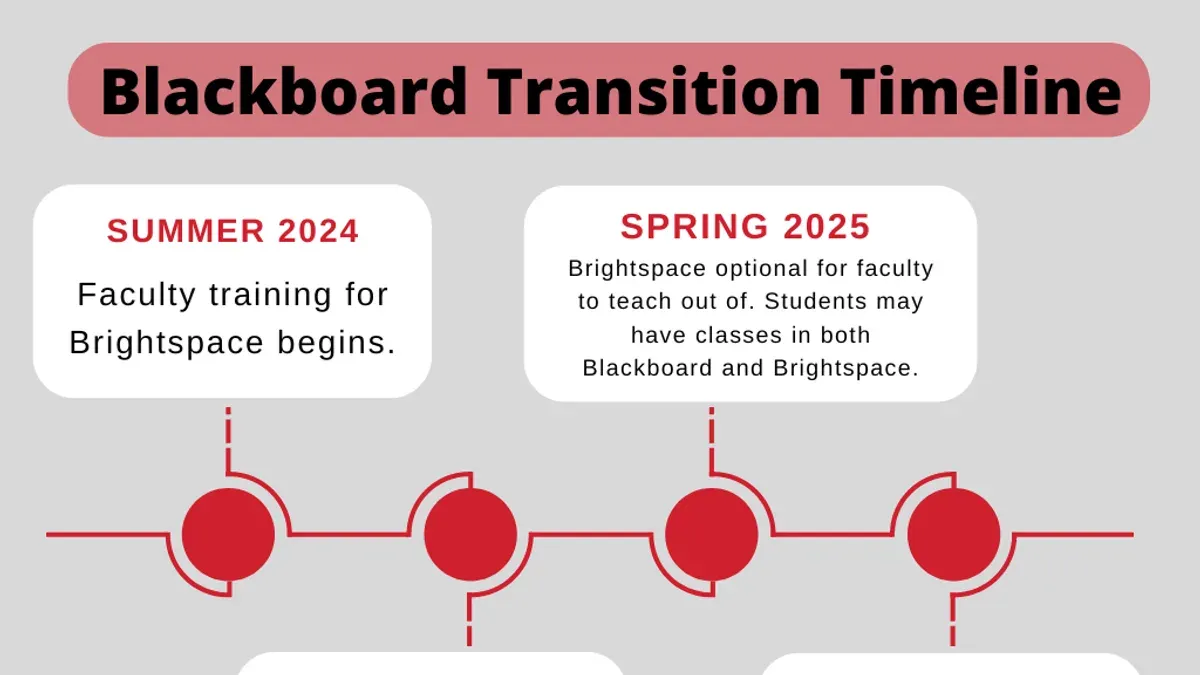
Short answer: A Blackboard implementation timeline outlines the key stages and milestones for planning, configuring, testing, and launching the Blackboard Learning Management System (LMS). It guides you through initial setup, system integration, user training, and final deployment to ensure a smooth transition for all stakeholders.
This article covers the Blackboard implementation timeline with an emphasis on practical steps and common challenges. You’ll learn about Blackboard’s origins to understand its design philosophy, how the system operates behind the scenes, and detailed scheduling best practices. The guide also highlights troubleshooting strategies and tips for managing Blackboard Collaborate sessions. Finally, it addresses frequent pitfalls in LMS deployment so you can avoid delays and user frustration during rollout.
Understand What Blackboard Is and Why It Matters
Blackboard is a comprehensive learning management system (LMS) that supports both online and blended learning environments. It acts as a centralized platform where educators can manage courses, deliver content, and engage students through various interactive tools. For example, instructors can upload syllabi, create assignments, host discussion boards, and track student progress all within the Blackboard interface.
Blackboard’s role extends beyond simple course delivery; it underpins institutional efforts to digitize and streamline education. By integrating attendance tracking, grading, and communication tools, Blackboard helps institutions move toward a more connected and efficient digital learning ecosystem. Many universities and colleges rely on Blackboard to serve tens of thousands of active users, demonstrating its widespread adoption in higher education.
Imagine a university where instructors schedule assessments through the “Grade Center,” students submit work via the “Assignments” tool, and both parties communicate through built-in messaging—all without switching platforms. This integration reduces administrative overhead and supports a consistent learning experience, which is crucial during transitions to remote or hybrid learning models.
Explore the Origins and Invention of Blackboard
Blackboard Inc. was founded by Michael Chasen and Matthew Pittinsky, who launched the company in 1997. Their vision was to create a digital platform that would streamline educational management and communication, addressing the growing need for online course delivery.
The journey from invention to market entry began in the mid-1990s, when both founders recognized the potential of the internet to transform education. The first Blackboard product was released shortly after the company's founding, focusing primarily on course management tools such as syllabus distribution, grade tracking, and basic discussion boards.
Compared to modern offerings, early Blackboard versions were relatively simple. For example, the original interface lacked the adaptive, intuitive design found in today's Blackboard Ultra experience, which integrates real-time collaboration, mobile-friendly navigation, and customizable learning paths. Early users had to navigate static menus and separate modules for communication and assessment.
Imagine an instructor initially using Blackboard to upload course documents via a basic file repository and manually email students for announcements. Today, the process is more seamless: announcements are posted to a centralized dashboard, accessible instantly by students on any device, reflecting the platform’s evolution from a digital filing cabinet to an integrated learning environment.
Learn How Blackboard Works Behind the Scenes
Blackboard operates through a modular architecture designed to streamline course management, assessments, and collaboration. Its core modules include Course Content Management, where you upload and organize materials via the Control Panel under "Packages and Utilities"; Assessment Tools, which let you create quizzes and assignments accessible from the "Tests, Surveys, and Pools" section; and Collaboration Tools like Discussion Boards and Blackboard Collaborate, integrated under "Course Tools." These modules work together to support a seamless learning experience.
Blackboard Ultra represents a modernized interface that improves navigation and responsiveness compared to legacy versions. Its streamlined design emphasizes a single-page layout with collapsible menus, making it easier for both instructors and students to find content quickly. For example, the Ultra Gradebook offers real-time grade visibility and faster input options, reducing administrative overhead.
Integration with institutional systems is critical. Blackboard connects with Student Information Systems (SIS) through secure APIs to synchronize course schedules, enrollments, and user roles automatically. This means that when a new semester begins, courses and student access are updated without manual intervention, ensuring accuracy and saving time.
Imagine setting up a new course: after importing the syllabus via the "Course Content" menu, you schedule quizzes in "Tests and Surveys," and enable collaboration through "Groups." Students then access the course directly from their dashboard, seeing only the content and deadlines relevant to their enrollment, thanks to the SIS integration.
- Navigate to Control Panel > Packages and Utilities to manage course materials.
- Create assessments under Tests, Surveys, and Pools.
- Enable collaboration tools via Course Tools.
- Use SIS integration to automate enrollment and scheduling.
- Leverage Ultra's streamlined interface for efficient course management.
Follow a Typical Blackboard Implementation Timeline
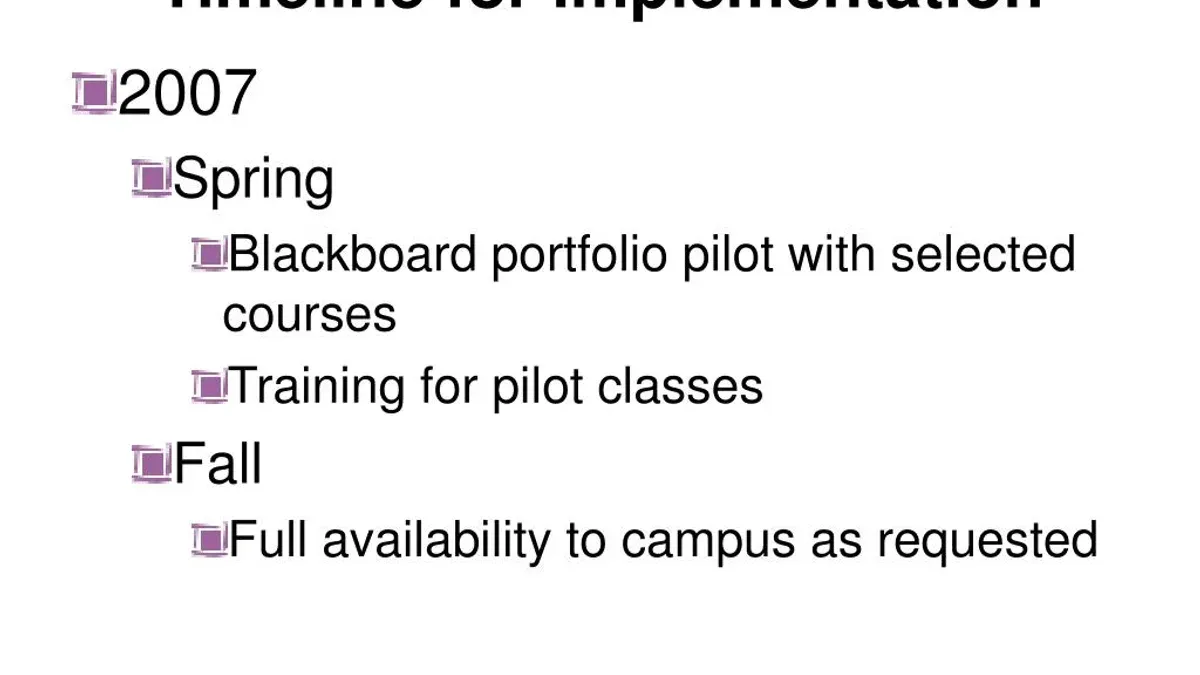
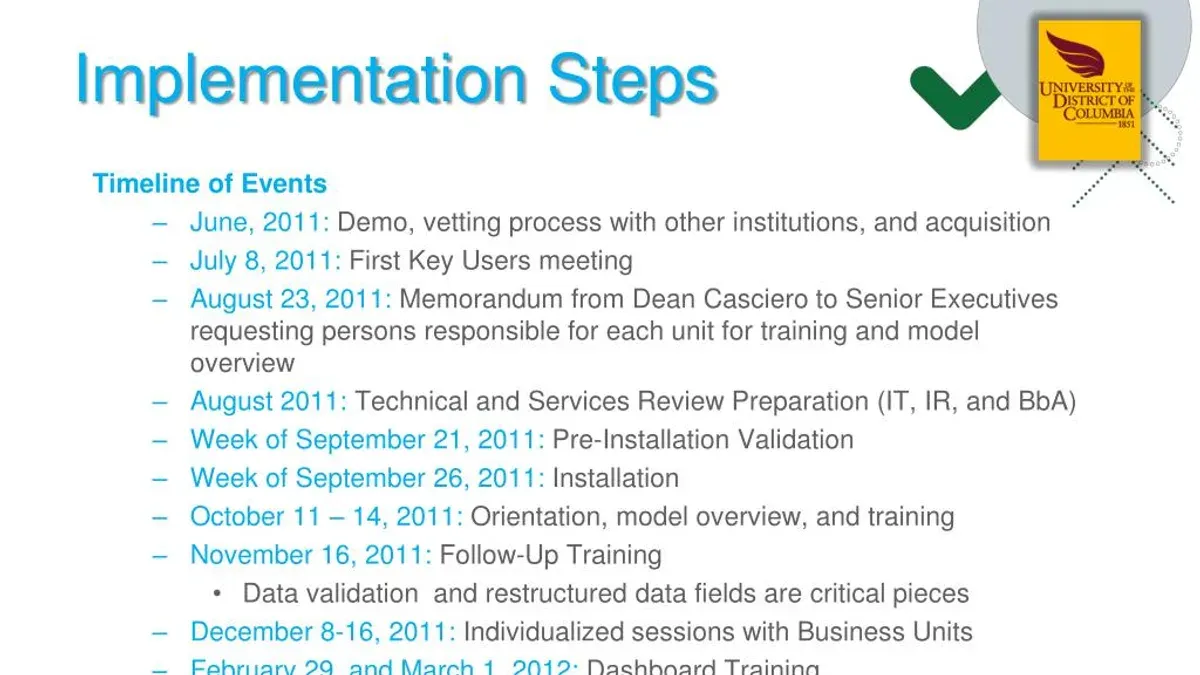
Implementing Blackboard requires a structured timeline aligned with your institution’s academic calendar to ensure a smooth transition. Start with a needs assessment phase lasting 4 to 6 weeks, involving stakeholders to identify functional requirements and integration priorities. This sets the foundation for selecting the right vendor and service package.
The vendor selection typically takes 3 to 4 weeks, during which you evaluate proposals, check references, and finalize contracts. Once selected, move quickly to the technical setup phase, usually 6 to 8 weeks, where system configuration, server provisioning, and SIS integration occur.
Before campus-wide deployment, run a pilot test for 4 to 6 weeks with a representative group of instructors and students. This phase surfaces usability issues and allows you to refine workflows and course templates.
Concurrent with pilot testing, initiate training programs for administrators, instructors, and support staff. Training should span 3 to 5 weeks with hands-on sessions covering course creation, grading, and collaboration tools.
Finally, plan the full rollout strategically during a low-activity period—often just before a new semester—to minimize disruption. Post-rollout support is critical for troubleshooting and user adoption.
For example, a mid-sized university began needs assessment in late spring, completed vendor selection by early summer, and finished technical setup by early fall. Pilot testing and training ran through fall, allowing a full rollout aligned with the spring semester start.
- Conduct needs assessment (4-6 weeks)
- Complete vendor selection (3-4 weeks)
- Execute technical setup and SIS integration (6-8 weeks)
- Run pilot testing with select users (4-6 weeks)
- Provide targeted training programs (3-5 weeks)
- Schedule full rollout aligned with academic calendar
Manage Blackboard Course Scheduling and Access
To view your course schedule in Blackboard, navigate to the My Courses module on your dashboard. Click on the course title to access detailed scheduling information, including session times and assignment due dates. For a comprehensive view, select the Calendar tool from the main menu, which consolidates all course-related events across your enrolled classes.
Blackboard integrates with your institution’s Student Information System (SIS) to automatically sync course enrollment and scheduling data. This integration ensures that course schedules and participant lists reflect real-time changes, reducing manual updates and errors. For example, if a student adds a course mid-semester, that course and its schedule will appear automatically in their Blackboard dashboard without manual intervention.
Instructors can manage course availability by adjusting the Course Settings > Set Availability option, controlling when students can access course materials and activities. Students should regularly check the Calendar and To Do list to stay updated on upcoming deadlines and sessions.
Compared to manual scheduling, automated SIS integration minimizes discrepancies and administrative workload. Manual updates risk missing critical changes, especially during add/drop periods. Using the integrated scheduling features also allows you to export course calendars in iCal or CSV formats for personal planning.
- Access My Courses on the dashboard to see enrolled classes.
- Use the Calendar tool for consolidated schedule view.
- Verify SIS sync status under System Admin > SIS Integration settings.
- Set course availability via Course Settings > Set Availability.
- Encourage students to monitor their To Do lists and calendar regularly.
Troubleshoot Common Blackboard Issues and Downtime
When Blackboard experiences an outage, users typically cannot access courses, submit assignments, or participate in discussions. During these periods, Blackboard’s servers may be undergoing maintenance or recovering from unexpected failures. To verify if there is a system-wide issue, you should first visit the official Blackboard Status page, accessible at status.blackboard.com, which provides real-time updates on platform availability.
Common causes of downtime include scheduled maintenance, network disruptions, database errors, or unexpected spikes in user traffic. Recovery procedures usually involve server restarts, database repairs, and load balancing adjustments, which can take from a few minutes to several hours depending on the issue’s complexity.
For example, in a past major outage, Blackboard was down for several hours due to a database failure affecting multiple institutions. During that event, administrators relied heavily on the status page updates and communicated estimated recovery times via institutional IT channels to manage user expectations.
To stay informed during an outage, bookmark the Blackboard Status page and subscribe to notifications if available. Additionally, coordinate with your institution’s IT department to receive tailored updates and mitigation advice.
- Check status.blackboard.com for live system updates
- Understand common causes: maintenance, network, database issues
- Expect recovery times ranging from minutes to hours
- Use institutional IT communication channels for localized info
- Prepare contingency plans for critical course activities during outages
Start and Manage Sessions Using Blackboard Collaborate
To begin a live session in Blackboard Collaborate, navigate to your course's Collaborate tool via the Course Tools menu. Select the "Create Session" button, then enter a clear, descriptive session name. Set the session duration and enable guest access if needed. Remember to configure permissions under "Session Settings," such as allowing participants to share audio and video or use chat.
Starting the session requires clicking the session name and pressing "Join Session." You will enter the virtual room where you can share your screen, use the whiteboard, and facilitate breakout groups. A common oversight is not checking microphone and camera settings before starting, which can delay engagement with participants.
For effective live collaboration, keep these tips in mind: test your audio and video beforehand, encourage use of chat for questions to minimize talking over each other, and use the polling feature for quick feedback. Also, record sessions for students who cannot attend live.
Common challenges include participants unable to join due to browser incompatibility or firewall restrictions. Advise users to use supported browsers like Chrome or Firefox and to check institutional network settings if issues persist.
Example: Before a weekly faculty meeting, you create a session named "Faculty Sync - Week 3," set it for 60 minutes, enable recording, and allow participant audio. You join 10 minutes early to test your setup and post a welcome slide. This preparation ensures a smooth start as attendees arrive.
Pre-Session Setup Checklist:
- Create session with clear name and accurate duration
- Configure participant permissions and guest access
- Test audio, video, and screen sharing
- Prepare material to share (slides, documents, whiteboard)
- Confirm recording is enabled if needed
- Ensure participants know supported browsers and access instructions
Avoid Common Mistakes in Blackboard Implementation
One of the most frequent setbacks in Blackboard adoption is skipping comprehensive training for faculty and staff. Institutions that invest in structured training programs see smoother transitions, while those that do not often face resistance, confusion, and increased support tickets. For example, a university that launched Blackboard without mandatory workshops found that over 40% of instructors struggled with basic content uploads, delaying course availability by weeks.
Another common pitfall is underestimating the importance of technical readiness and infrastructure. Blackboard’s performance depends heavily on reliable network capacity, server configurations, and integration with existing systems. Without thorough technical audits and readiness checks, unexpected downtime or slow response times can frustrate users and erode confidence.
Ignoring user feedback during pilot phases also leads to avoidable complications. Pilot users often uncover usability issues or workflow gaps that administrators may overlook. One college that skipped iterative pilot feedback had to halt the rollout mid-semester to fix access permissions and grading sync problems, disrupting both instructors and students.
To avoid these mistakes, ensure thorough training programs, conduct rigorous infrastructure assessments, and actively incorporate pilot user insights before full deployment.
- Implement mandatory, role-specific training for all users
- Perform detailed technical readiness audits ahead of rollout
- Gather and act on pilot user feedback systematically
Read next
- Screencastify Implementation Timeline: Your Step-by-Step Guide
- Master Your Google Sites Implementation Timeline: A Clear Step-by-Step Guide
- Master Canva for Education Implementation Timeline: A Step-by-Step Guide
- Create an Effective Book Creator Implementation Timeline
Frequently asked questions
What happened to blackboard?
Blackboard continues to evolve as a leading learning management system, but users may sometimes encounter scheduled maintenance, upgrades, or unexpected outages. These interruptions are typically communicated in advance via system status pages or institutional IT notices to minimize disruption.
When will blackboard be back up?
Blackboard service restoration times depend on the nature of the issue. Planned maintenance windows usually have specified end times, while unexpected outages are resolved as quickly as possible by technical teams. Checking your institution’s IT alerts or Blackboard’s status page provides the most accurate updates.
Who invented the blackboard?
Blackboard was developed by a team led by Michael Chasen and Matthew Pittinsky, who founded Blackboard Inc. Their goal was to create a comprehensive platform to support online learning and educational collaboration.
When was blackboard created?
Blackboard was created in the late 1990s, with the first version of the software launched commercially in 1997. Since then, it has undergone continuous enhancements to meet evolving educational needs.
When was the blackboard invented?
The concept of Blackboard as an LMS was invented during the mid to late 1990s, emerging from collaborative efforts to integrate technology into education. This invention marked a shift from traditional teaching tools to digital platforms supporting course management and communication.
Quick checklist
- Confirm stakeholder alignment and communicate clear goals before starting implementation.
- Set up Blackboard environment using the System Admin Panel, focusing on authentication and integration options.
- Schedule courses with accurate start/end dates and enroll users promptly via the Course Management menu.
- Test Collaborate sessions ahead of live use, checking audio/video settings and permissions.
- Establish a troubleshooting protocol for common issues like login errors, slow loading, and downtime.
- Train instructors and administrators on navigation and key features before rollout.
- Monitor user feedback during early weeks and adjust settings accordingly.
What this advice does not cover
This article does not cover detailed technical setup for IT specialists or custom Blackboard development; readers requiring in-depth system administration guidance should consult official Blackboard technical documentation. For complex integrations with enterprise systems or advanced security configurations, engage directly with Blackboard support or certified consultants.
To move forward confidently, begin by defining your institution’s specific needs and mapping those to Blackboard’s core features using the System Admin dashboard. This focused start ensures your implementation timeline aligns with achievable milestones and avoids common delays.


