
Screencastify Implementation Timeline: Your Step-by-Step Guide
Discover a practical Screencastify implementation timeline with step-by-step guidance to integrate the tool smoothly into your teaching or training workflow.

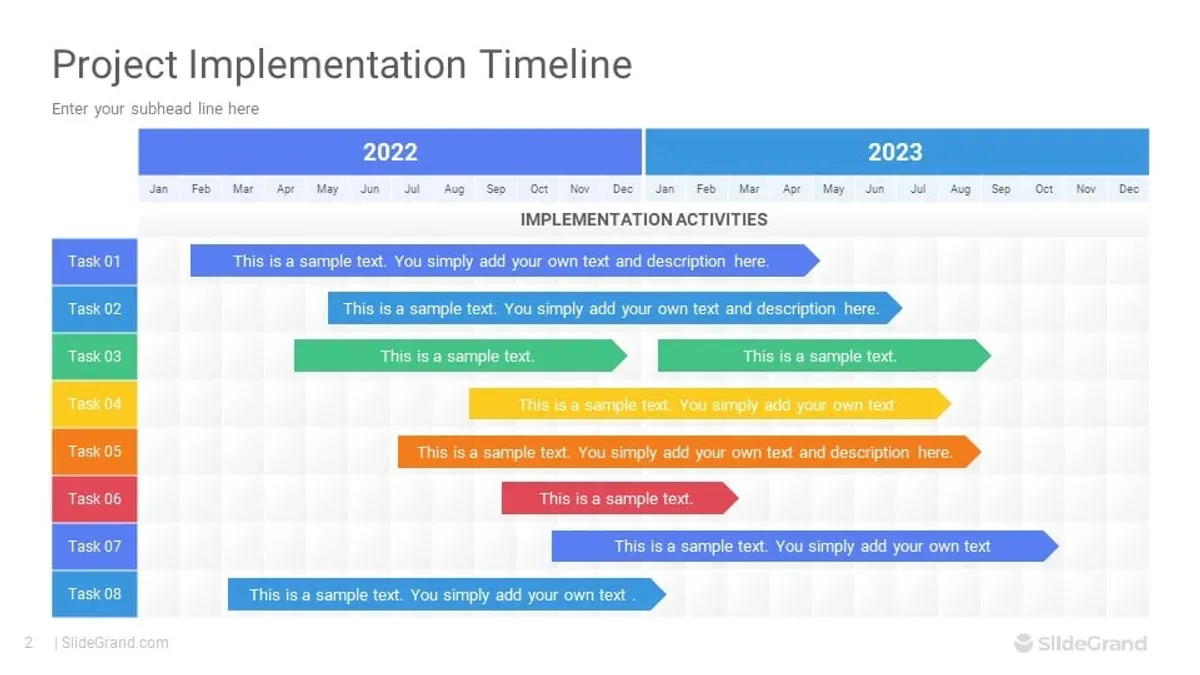
Short answer: A Screencastify implementation timeline involves clear stages, starting with understanding the tool's purpose, moving through setup, testing, and finally integrating it into your workflow. The process typically spans a few weeks, allowing time to troubleshoot common issues and train users effectively.
This article guides you through a practical Screencastify implementation timeline designed specifically for educators, trainers, and instructional designers. You will learn how to avoid common pitfalls, set realistic expectations, and follow a step-by-step plan to embed Screencastify smoothly into your classroom or training environment. The focus is on actionable strategies rather than generic feature overviews, so you can confidently plan your rollout and maximize Screencastify’s benefits without unnecessary delays.
Understand what Screencastify does and why it matters
Screencastify is a Chrome-based screen recording tool combined with an integrated video editor, designed to simplify capturing and sharing video content directly from your browser. Its accessibility through the Chrome Web Store means you can install it quickly without complex setups or software downloads, making it ideal for educators and trainers who need straightforward tools.
Popular in education and training, Screencastify allows you to record your screen, webcam, and microphone simultaneously, then trim or crop the recorded videos within the same interface. This seamless workflow helps you create engaging instructional videos or presentations without switching between multiple applications.
For example, imagine preparing a lesson on a math problem. You can record your screen as you solve it, narrate your steps, and then quickly edit out pauses before sharing the video with students. Compared to competitors that require separate editors or more complex configurations, Screencastify’s all-in-one approach reduces setup time and technical barriers.
Its growing adoption among educators stems from this simplicity combined with features like easy Google Drive integration and export options, supporting a smooth introduction into teaching workflows.
How does Screencastify work: the basics you need to start
Begin by installing the Screencastify extension from the Chrome Web Store. Once added, the extension requests permissions to capture your screen and access your Google Drive for saving files. Granting these is essential for full functionality.
When you start recording, you select from three main modes: Screen captures your entire desktop or a specific window, Webcam records only your camera feed, and Browser Tab captures the active Chrome tab's content. You can combine screen and webcam recording by enabling the webcam overlay option, which appears as a small movable window on your screen during capture.
After recording, Screencastify automatically saves the video to a dedicated folder in your Google Drive, ensuring easy access and sharing. You can directly share a link from Drive or download the file locally in MP4, GIF, or MP3 formats.
For example, recording a 5-minute tutorial involves clicking the Screencastify icon, choosing 'Screen' mode, selecting the window to capture, enabling webcam if desired, and pressing the red record button. Once you stop, the video uploads to Google Drive within moments, ready for review or distribution.
- Install Screencastify from the Chrome Web Store
- Allow screen capture and Google Drive permissions
- Choose recording mode: Screen, Webcam, or Browser Tab
- Record and stop using the extension toolbar button
- Find your video in the Screencastify folder in Google Drive
- Share via link or download locally as needed
How to use Screencastify effectively for your projects
Begin by clicking the Screencastify extension icon in Chrome and selecting your recording mode: Screen Only, Webcam Only, or Screen and Webcam. After setting your microphone and camera preferences in the pop-up, press the red record button to start. When your session ends, Screencastify automatically saves the video to your Google Drive.
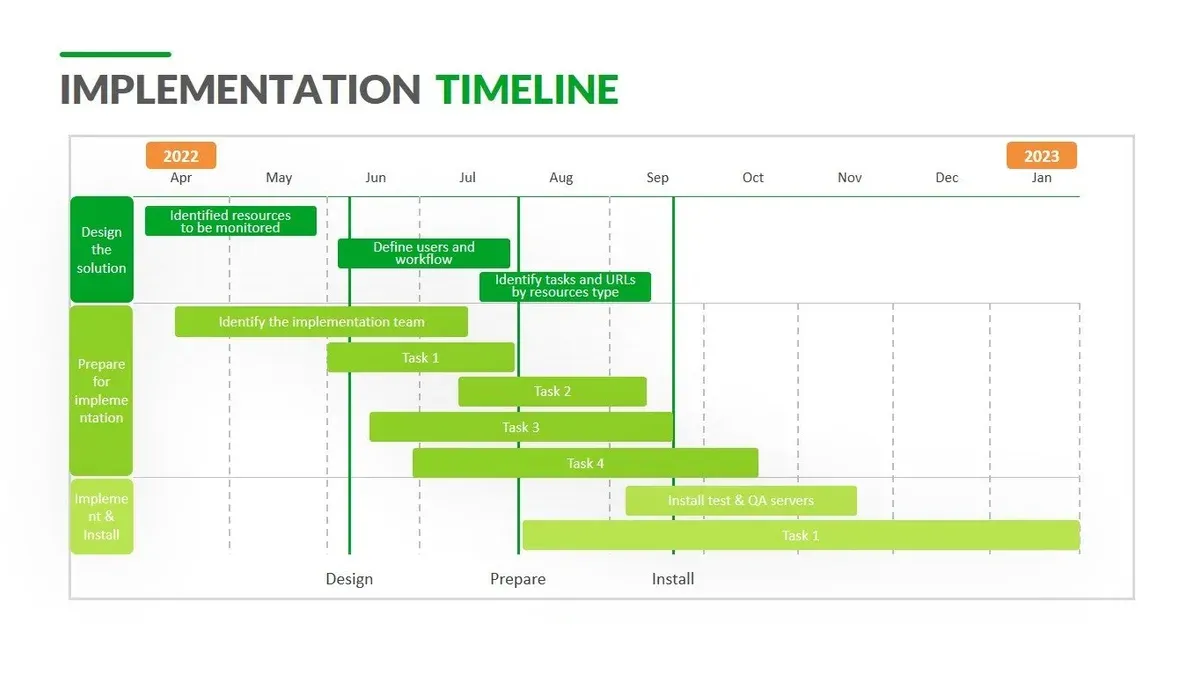
Use the built-in editor to trim unwanted sections by dragging handles on the timeline. Crop the video frame to focus on key content using the crop tool. Add annotations such as text, arrows, or highlights to emphasize important points—these are found under the "Annotations" tab in the editor.
For example, if recording a math lesson, trim the intro to remove setup time, crop to focus on the whiteboard area, and add arrows pointing to formulas as you explain. This improves clarity and keeps viewers engaged.
When sharing, choose between generating a direct Google Drive link or embedding the video in platforms like Google Classroom. Embed code is accessible via the "Share" menu, allowing seamless integration into lesson pages or training modules.
- Click Screencastify icon and select recording mode
- Set microphone and webcam preferences
- Press record and capture your session
- Use editor to trim, crop, and add annotations
- Share via Google Drive link or embed code
Why is Screencastify not working? Common issues and fixes
Technical glitches often stem from browser compatibility and permission settings. Screencastify requires Google Chrome with the correct permissions enabled under chrome://extensions, including microphone, camera, and screen capture access. A frequent issue is forgetting to grant these permissions, causing recordings to fail silently.
Storage errors typically involve Google Drive sync problems. If your Google Drive is near quota or temporarily disconnected, recordings may not save properly, leading to export failures. For example, a trainer once experienced consistent export errors because their Drive was full; freeing space resolved the issue immediately.
Connectivity issues can interrupt uploads and syncing. A dropped internet connection during recording or export can cause data loss or corrupted files. Users should verify a stable network before starting long sessions.
- Confirm all Screencastify permissions in Chrome's extension settings.
- Check Google Drive storage and sync status before recording.
- Ensure a stable internet connection during recording and export.
- Restart Chrome or the device if issues persist after these steps.
Avoid mistakes when implementing Screencastify in your workflow
One common pitfall is skipping training or pilot testing before a full rollout. For example, a school district that launched Screencastify across all classrooms without a pilot phase found many educators struggling with basic functions, delaying adoption by weeks. Running a small-scale test allows you to identify challenges early and tailor support.
Ignoring privacy and data management can also cause setbacks. Screencastify saves videos to Google Drive by default, so you must configure sharing permissions carefully to protect student data. Overlooking this led a training organization to unintentionally expose videos publicly, forcing them to halt use and reconfigure settings.
Underestimating editing needs and storage requirements often results in frustration. Videos can quickly consume Google Drive space, especially if you produce lengthy or high-resolution recordings. A university department that failed to plan for this had to delete archived videos prematurely, losing valuable content. Consider setting storage quotas and teaching basic trimming to manage space effectively.
- Conduct pilot tests with a small user group
- Review and set Google Drive sharing and privacy settings
- Plan for sufficient storage and editing time
- Train users on basic video trimming to save space
Plan your Screencastify implementation timeline step-by-step
Begin with an initial setup and pilot testing phase lasting 1-2 weeks. This involves installing Screencastify on a small group of devices, verifying settings like Google Drive integration, and testing recordings in real classroom or training scenarios. Expect to identify issues such as permission adjustments or bandwidth constraints during this phase.
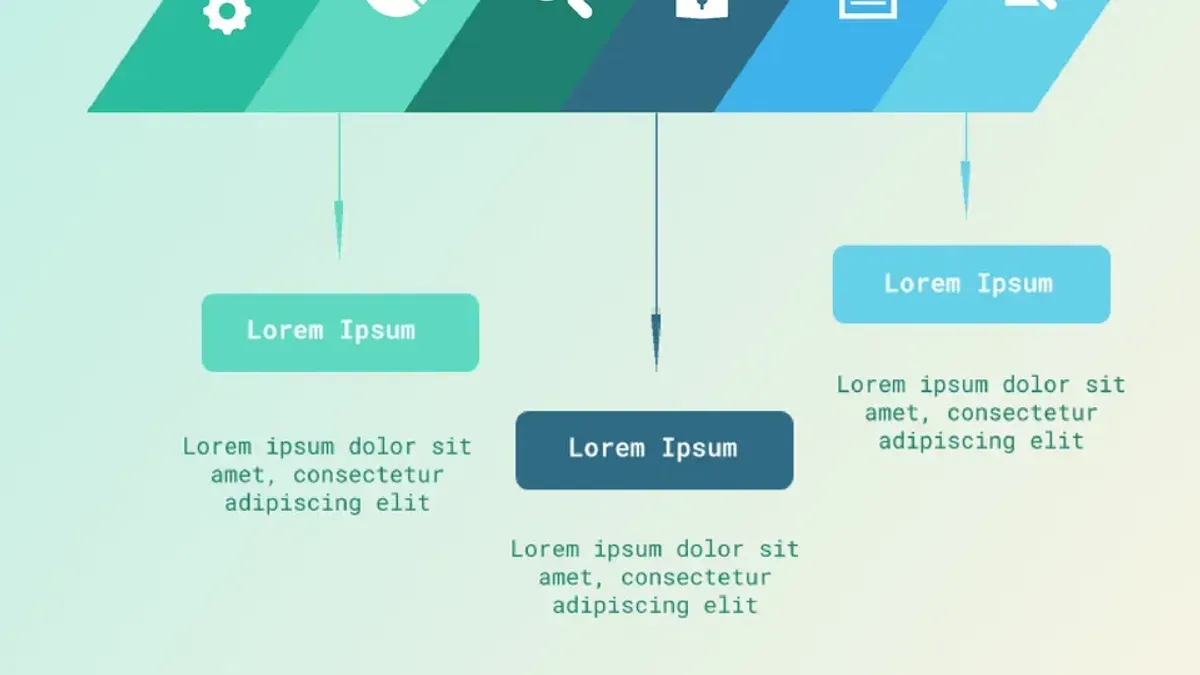
Next, allocate 2-3 weeks for training and user familiarization. Organize hands-on workshops or webinars where educators and trainers explore features beyond basics, including editing tools and sharing options. Encourage users to create test recordings to build confidence.
Following training, plan a full rollout over 1-2 weeks, allowing the wider team to adopt Screencastify in their workflows. Collect feedback actively and iterate on setup or guidance materials to address challenges promptly.
Lastly, establish ongoing support and evaluation checkpoints every 1-2 months to assess usage, troubleshoot emerging issues, and update training resources as needed.
For example, a mid-sized school district might pilot with 10 teachers, train 50 staff in workshops, then expand use district-wide over a month, ensuring manageable scaling and support.
- Initial setup and pilot testing: 1-2 weeks
- Training and user familiarization: 2-3 weeks
- Full rollout with feedback and iteration: 1-2 weeks
- Ongoing support and evaluation: every 1-2 months
Read next
- Switching from Loom to Screencastify: Your Expert Transition Guide
- Moving from Google Sites to Screencastify: Your Expert Transition Checklist
- Switching from Canva for Education to Screencastify: Your Expert Transition Guide
- Moving from Book Creator to Screencastify: Your Expert Checklist
Frequently asked questions
How to edit in screencastify?
To edit in Screencastify, open your recorded video in the Screencastify editor and use the timeline at the bottom to trim the beginning or end by dragging the handles. You can also add text annotations, draw with the pen tool, and insert blurs to obscure sensitive information. Export your edited video by clicking the "Save" or "Export" button once you finish your changes.
What does screencastify do?
Screencastify records your screen, webcam, and microphone input to create video tutorials, presentations, or feedback sessions. It also provides basic editing tools, easy sharing options, and direct uploads to platforms like Google Drive and YouTube, making it a streamlined solution for educators and trainers to communicate visually.
How to edit in Screencastify?
Editing in Screencastify involves opening your saved recording in the editor, trimming unwanted parts with the timeline slider, and enhancing the video using annotation features like text, drawing, or blurring. Remember to save your edits before exporting the final version to avoid losing your work.
How to use Screencastify?
Begin by installing the Screencastify extension in your Chrome browser, then select the recording mode: screen only, webcam only, or both. Adjust audio and video settings as needed, press the record button, and complete your session. After recording, review and edit your video in the built-in editor, then export or share it directly from the platform.
What is Screencastify?
Screencastify is a Chrome-based screen recording tool designed primarily for educators and trainers to capture instructional videos easily. It offers recording of your screen, webcam, and microphone with simple editing and sharing features, all integrated within the browser for seamless workflow integration.
Honest limits of this guide
This guide focuses on typical educational and training environments and may not cover advanced enterprise deployment or integration with non-Google ecosystems. If your institution requires single sign-on (SSO) integration, complex user management, or custom API workflows, consult your IT department or Screencastify’s enterprise support. This advice also does not address video editing beyond Screencastify’s built-in trimming tools or the use of third-party production software.
Quick checklist
- Confirm your browser supports Screencastify (Chrome or Edge preferred).
- Install the Screencastify extension from the official web store.
- Set up permissions for microphone, camera, and tab recording as needed.
- Run a test recording to check audio and video quality.
- Create a simple project to practice trimming and exporting.
- Plan a rollout schedule that includes user training and troubleshooting sessions.
- Document common issues and fixes for your team.
The most useful next step is to schedule your initial Screencastify session with your team or class. Use this opportunity to walk through setup together, identify any access issues early, and establish clear expectations for recording quality and content. Hands-on experience early in the process prevents common pitfalls and builds confidence in your implementation timeline.


