
Switching from Canva for Education to Screencastify: Your Expert Transition Guide
Learn how switching from Canva for Education to Screencastify enhances classroom engagement through interactive video creation and smooth content transition.

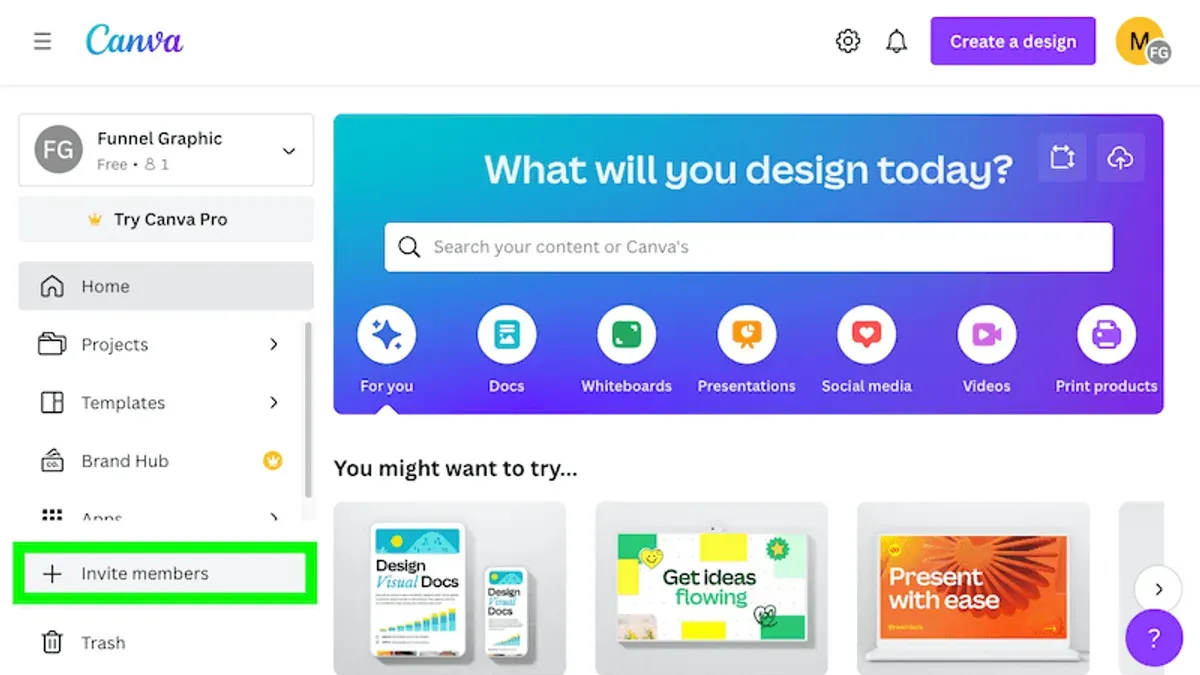
Short answer: Switching from Canva for Education to Screencastify offers you a shift from a design-focused platform to a video-centric tool that enhances student engagement through interactive video creation and streamlined feedback. Screencastify’s features like screen recording, video annotation, and integrated quizzes provide dynamic ways to capture and assess student understanding beyond static visuals.
This guide walks you through the fundamental differences between the two platforms, explains why Screencastify can amplify your classroom’s interactive potential, and details how to prepare your existing Canva content for transition. You’ll also learn how to set up and leverage Screencastify’s core tools effectively, integrate them into lesson plans, and avoid common pitfalls during the switch, ensuring a smooth and productive transition for you and your students.
Understand the Core Differences Between Canva for Education and Screencastify
Canva for Education centers on graphic design, presentation creation, and collaborative visual projects. It offers templates, drag-and-drop design tools, and shared folders, which enable students to co-create posters, infographics, and slideshows. This design-first approach works well for visual assignments but is limited for video-based instruction.
In contrast, Screencastify specializes in screen recording, video lessons, and interactive video feedback. It allows you to capture your screen, webcam, or both simultaneously, annotate recordings in real time, and embed quizzes or comments directly into videos. These features enhance how you deliver lessons and provide formative assessment through personalized video responses.
| Feature | Canva for Education | Screencastify |
|---|---|---|
| Main focus | Visual design and collaboration | Video recording and interactive feedback |
| Student interaction | Group design projects | Video comments and embedded quizzes |
| Lesson delivery | Static or animated visuals | Dynamic video explanations with narration |
| Assessment tools | Design rubrics and peer review | Video-based formative feedback |
Imagine you want students to explain a science concept: with Canva, they create a detailed infographic collaboratively; with Screencastify, they record themselves explaining the concept on screen, allowing you to assess both understanding and communication skills. This distinction influences how you engage students and measure learning outcomes.
Assess Why Switching to Screencastify Can Elevate Your Classroom Experience
Screencastify’s video-first approach directly addresses key challenges in engagement and assessment that static design tools cannot. Personalized video explanations allow you to demonstrate complex concepts with voice, visuals, and real-time annotations, making lessons clearer and more relatable. For example, a math teacher can record step-by-step problem-solving while narrating, enabling students to revisit the explanation at their own pace.
Additionally, Screencastify enhances formative assessment by enabling you to provide targeted video feedback and receive student video submissions. This dynamic interaction fosters deeper understanding and immediate correction of misconceptions. Teachers adopting video feedback often notice more meaningful student responses compared to written comments.
The platform's flexibility supports asynchronous teaching and flipped classroom models effectively. Students can engage with recorded lessons anytime, freeing class time for discussion and active learning. Schools that have integrated video tools report improved participation, as learners can absorb material in their preferred learning style and at their own speed.
Prepare Your Existing Canva for Education Content for Transition
Start by auditing your Canva projects to identify assets suitable as video backgrounds or visual aids. Look for static designs like infographics, charts, or slide layouts that can complement your Screencastify videos.
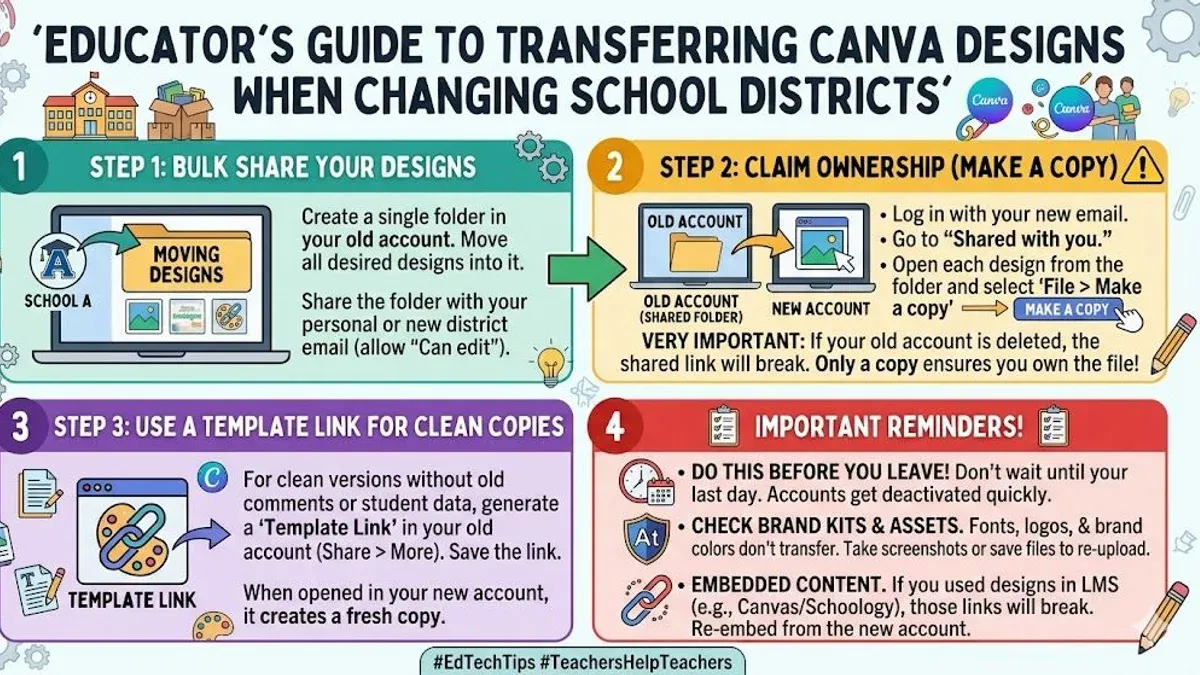
Export these assets by opening your Canva project, clicking Share in the top-right corner, then selecting Download. Choose PNG or JPEG for static images used as overlays, or MP4 Video if your design includes animations that enhance your video lessons.
For example, export a Canva infographic as a PNG to insert as a visual aid in your Screencastify recording. This preserves instructional value while adapting it for video format.
Plan your content migration by organizing exported files in clearly labeled folders. This ensures smooth integration into your Screencastify projects and prevents loss of key teaching materials during transition.
Step-by-step checklist:
- Review Canva projects to select static and animated assets
- Click Share > Download in Canva
- Choose PNG/JPEG for images or MP4 Video for animations
- Save exports in organized folders by lesson or topic
- Test imported assets in Screencastify to confirm quality and placement
Set Up and Master Screencastify Features Relevant to Former Canva Users
Start by installing the Screencastify extension from the Chrome Web Store and granting permissions for microphone, webcam, and screen recording. Navigate to the extension’s Settings via the toolbar icon to configure default recording modes—choose whether to capture your entire screen, a specific application window, or a browser tab.
During your recording session, enable Annotations to highlight or draw directly on the screen, a feature that replaces Canva’s design interactivity with live visual cues. Turn on the Webcam option to insert your video feed in a corner, enhancing personal connection, and ensure the Microphone is active for clear narration.
For example, when explaining a math problem, start recording your screen with annotations to circle key elements while narrating the steps. Use the webcam to maintain eye contact, simulating face-to-face teaching.
After recording, use Screencastify’s built-in editor to trim unwanted parts, add blur effects for sensitive data, or insert text overlays. Share videos directly to Google Classroom or export them as MP4 files for broader access.
- Install Screencastify extension and grant permissions
- Set default recording to screen, webcam, and microphone in Settings
- Use annotations during recording for live visual emphasis
- Record with webcam enabled to personalize lessons
- Edit videos post-recording to trim and add effects
- Share videos through Google Classroom or export as MP4
Integrate Screencastify into Your Lesson Plans and Student Activities
Start by creating video lessons that layer your Canva visuals as overlays or backgrounds within Screencastify recordings. For example, launch Screencastify, open the Canva images in another window, and use the "Tab Capture" feature to record your screen while you narrate, switching focus between visuals and live explanations. This method maintains the design quality of Canva while leveraging Screencastify’s video engagement.
Assign video-based tasks where students create their own Screencastify videos responding to prompts or explaining concepts, then set up peer reviews through shared Google Classroom links. This encourages active learning and communication skills.
Use Screencastify’s timestamped video feedback to personalize instruction. Instead of generic comments, record targeted feedback addressing specific moments in student work, making it easier for students to understand improvements.
Worked example lesson plan: In a history lesson on the Civil Rights Movement, you prepare a Canva slide deck with key images and dates. Record a Screencastify video overlaying these slides while narrating key points. Assign students to create their own videos analyzing a particular event, then have them share videos for peer review using Screencastify links embedded in Google Classroom.
- Open Canva visuals alongside Screencastify for layered video lessons.
- Assign student video projects with peer review through shared links.
- Provide personalized video feedback using timestamps.
- Embed Screencastify videos directly into lesson plans and platforms.
Avoid Common Pitfalls When Transitioning From Canva for Education to Screencastify
One frequent mistake is underestimating the video editing skills necessary to maximize Screencastify’s potential. Unlike Canva’s drag-and-drop simplicity, Screencastify requires familiarity with trimming clips, adding voiceovers, and inserting annotations. Without basic editing proficiency, your videos may lack polish, reducing student engagement.
Bandwidth and device compatibility can also disrupt smooth adoption. Screencastify relies on stable internet connections and updated browsers like Chrome. If devices used by students or staff are outdated or have limited processing power, video recording and playback might lag or fail.
Finally, overlooking thorough training for both students and colleagues creates frustration and underuse. For example, a teacher who skips a walkthrough on how to submit video assignments might see many students struggle or miss deadlines.
- Invest time in learning Screencastify’s editing tools through tutorials within the app.
- Check that all devices meet Screencastify’s system requirements and have Google Chrome installed.
- Schedule dedicated training sessions covering recording, editing, and sharing workflows.
- Provide students with clear instructions and practice assignments before full implementation.
Read next
- Switching from Canva for Education to Loom: Your Expert Transition Guide
- Switching from Canva for Education to Book Creator: Your Expert Transition Guide
- Moving from Book Creator to Screencastify: Your Expert Checklist
- Your Expert Checklist for Moving from Adobe Express to Screencastify
Frequently asked questions
Can I still use Canva designs within Screencastify videos?
Yes, you can incorporate Canva designs into Screencastify videos by exporting your Canva projects as image or video files (such as PNG, JPEG, or MP4) and then importing them into Screencastify. Use the Screencastify editor to add these assets as overlays or background visuals to enrich your recordings. This method lets you retain Canva’s design strengths while leveraging Screencastify’s video tools.
What are the main limitations of Screencastify compared to Canva for Education?
Screencastify is primarily a video creation and screen recording tool, so it lacks Canva’s extensive graphic design and layout features like drag-and-drop templates for posters, presentations, and infographics. You won’t find built-in vector editing, font libraries, or collaborative design workspaces in Screencastify. Its strength lies in video capture and annotation, so design customization is more limited.
How do I manage student video submissions securely in Screencastify?
Secure management of student submissions requires configuring Screencastify’s sharing settings carefully. Set videos to "Private" or "Restricted" access within Google Drive and share them only with specific email addresses or groups. Avoid public links and use Google Classroom integration to collect submissions directly, ensuring only authorized users can view or comment on the content.
Is Screencastify compatible with major learning management systems?
Yes, Screencastify integrates well with popular LMS platforms such as Google Classroom, Canvas, and Schoology. You can easily share videos or submit assignments through these systems using direct links or embed codes. The built-in Google Drive integration simplifies file management and streamlines the workflow between Screencastify and your LMS.
Know the limits of this guide
This guide does not cover in-depth video editing software beyond Screencastify’s built-in tools, which may be necessary for advanced production needs. If your classroom projects require multi-layered video editing, special effects, or professional-grade post-production, consider supplementing Screencastify with dedicated video editors like Adobe Premiere Pro or DaVinci Resolve. Additionally, this guide assumes a basic familiarity with both Canva for Education and Screencastify’s core interfaces but does not address district-level IT policies or integration with third-party learning management systems.
Quick checklist
- Review your existing Canva content and decide which assets to export or recreate as videos
- Install Screencastify and connect it with your Google Workspace for Education account
- Explore Screencastify’s recording modes: Tab, Desktop, and Webcam to best fit your lesson goals
- Practice using Screencastify’s annotation tools during recordings to increase student engagement
- Embed Screencastify videos into your lesson plans and assignments to facilitate formative assessments
- Communicate the change to students and provide clear instructions on how they will submit video-based work
- Prepare backup plans in case of technical issues and monitor feedback for continuous improvement
Start by creating a simple lesson video using Screencastify’s Desktop + Webcam mode, incorporating annotations and narration. This hands-on step helps you become comfortable with the tool’s unique capabilities while evaluating how it complements or replaces your Canva content. From there, iteratively build video components into your teaching workflow to maximize student interaction and feedback opportunities.


