
Switching from Blackboard to Brightspace: Your Expert Step-by-Step Guide
Learn the essential steps to switch from Blackboard to Brightspace smoothly, focusing on navigation, course setup, and troubleshooting.

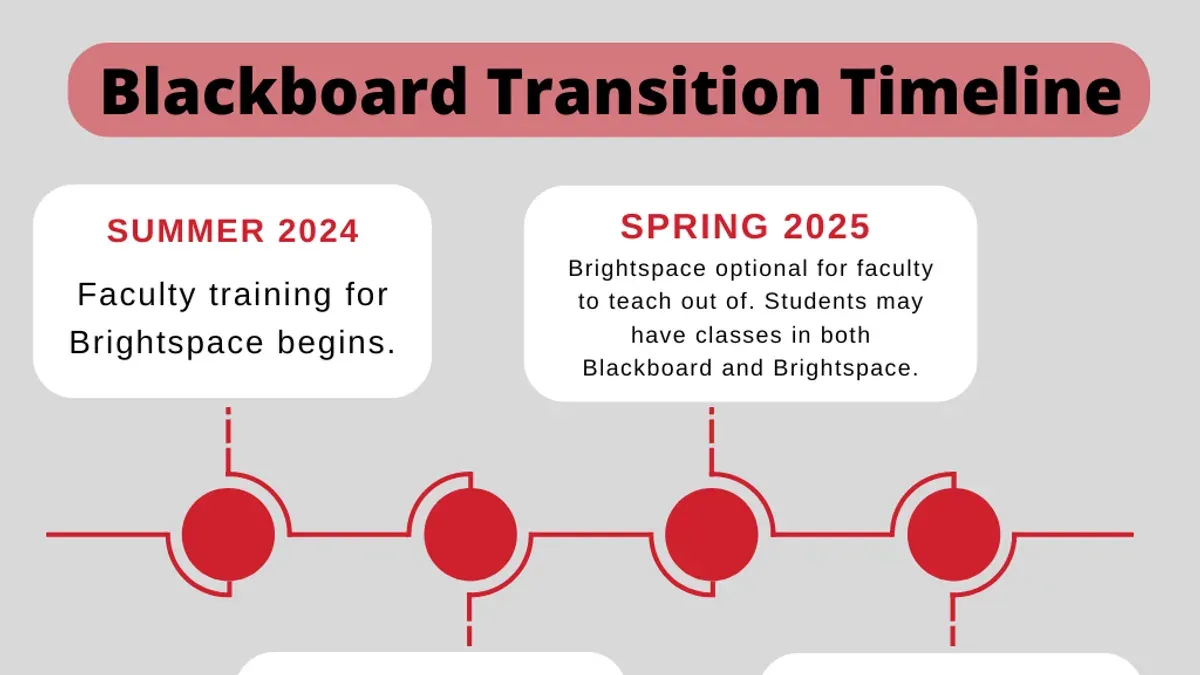
Short answer: Switching from Blackboard to Brightspace involves familiarizing yourself with Brightspace’s streamlined interface, understanding its unique course management features, and adjusting to differences in navigation and content handling. This guide walks you through these vital steps to ensure a smooth transition.
This article covers the transition from the user’s perspective, focusing on practical navigation, course setup, student enrollment, and common pitfalls specific to Brightspace that often go unnoticed. You’ll find clear instructions on logging in, copying course content, troubleshooting typical issues, and managing text formatting differences, all designed to help you optimize your Brightspace experience without getting bogged down in technical jargon or generic comparisons.
Understand the key differences between Blackboard and Brightspace
Switching from Blackboard to Brightspace matters because the platforms differ significantly in design, functionality, and user experience. Brightspace offers a cleaner, more intuitive interface focused on quick access to essential tools, unlike Blackboard’s denser, menu-driven layout. For example, Brightspace’s course homepage uses customizable widgets, allowing you to prioritize announcements, content, or grades at a glance.
Course management also shifts: Brightspace streamlines content organization through its Content tool, which uses topics and modules that you can reorder easily, whereas Blackboard’s structure relies heavily on folders and nested menus. Grading workflows improve with Brightspace’s Grades tool, offering rubrics and grade schemes embedded directly alongside assignments, facilitating faster, more consistent evaluation.
Communication tools differ as well; Brightspace integrates announcements, email, and discussions within a central Activity Feed, enhancing visibility and reducing missed messages. Integration flexibility is broader in Brightspace, supporting LTI tools and third-party apps with more straightforward setup, while its mobile app delivers a more responsive experience than Blackboard’s mobile version.
Brightspace’s analytics provide detailed learner progress dashboards that personalize insights, enabling timely interventions. A side-by-side feature comparison chart and screenshots highlight these distinctions clearly, helping you set realistic expectations for the transition.
| Feature | Blackboard | Brightspace |
|---|---|---|
| Interface | Menu-driven, dense layout | Widget-based, customizable dashboard |
| Course Management | Folder-centric content organization | Topic and module-driven with drag-and-drop |
| Grading | Separate rubric tool, manual linking | Embedded rubrics and grade schemes |
| Communication | Separate announcements, emails, discussion boards | Unified Activity Feed for all communications |
| Integration | Supports LTI but setup complexity varies | Broad LTI support with simpler integration |
| Mobile Access | Basic mobile app with limited functions | Responsive mobile app with full feature access |
| Analytics | Basic reporting tools | Detailed learner progress dashboards with personalization |
Imagine needing to post a course announcement and attach a rubric for an assignment. In Blackboard, you’d navigate separate menus for announcements and rubric creation, then link them manually. In Brightspace, you create the announcement directly in the Activity Feed while attaching the rubric within the assignment’s grading interface—saving time and reducing error.
How to access Brightspace and log in effectively
Start by navigating to your institution's Brightspace portal, often accessible via a custom URL like akron.brightspace.com or through the university's main login page. For example, at Akron University, you first log in to the university portal with your student or faculty credentials, then select the Brightspace link to enter the platform.
Brightspace commonly uses Single Sign-On (SSO) authentication, meaning your institutional username and password grant access. If you encounter a "Login failed" or "Unable to authenticate" error, verify your credentials first and ensure your browser allows cookies and pop-ups for the site.
If you see a message like "Account locked" or "Password expired," contact your institution's IT help desk to reset your password. Clearing your browser cache or trying a different browser can resolve persistent login issues.
Once logged in, to change your Brightspace email, go to Account Settings > Personal Information > Email Address. Update your email and save changes; note that some institutions restrict this option, in which case you must request changes through IT support.
Visual cues on the login page typically include your institution's logo and a clear SSO button or input fields for username and password. Missing these may indicate you are on the wrong portal.
- Access Brightspace via your institution’s designated portal or URL
- Use your institutional credentials with SSO authentication
- Check for common error messages like "Login failed" and clear cache or try another browser if needed
- Change your email in Account Settings unless restricted
- Contact IT support for locked accounts or password resets
How to navigate Brightspace for day-to-day tasks
Upon logging into Brightspace, your main dashboard provides a clear overview divided into key components: the course list panel on the left, the central announcements feed, and quick links at the top. The course list displays all active courses; clicking a course name takes you directly to its homepage. This homepage contains modules organized sequentially, visible in the “Content” area accessible via the top navigation bar.
To find announcements, use the “Announcements” link in the course navigation bar; these often include important updates or reminders. Navigation shortcuts appear as icons on the left sidebar, including links to Grades, Discussions, and Dropbox, enabling quick access without returning to the homepage.
You can personalize your dashboard by clicking your avatar in the upper right corner and selecting “Settings.” Here, adjust notification preferences and reorder courses for faster access. If you need to leave a module or class, use the “Course Selector” dropdown at the top left to switch to a different course or return to the dashboard.
For example, if you want to review a student’s assignment submission quickly, navigate from the dashboard to the specific course, select “Dropbox” from the sidebar, and then open the relevant assignment folder.
- Use the course list panel to access courses quickly
- Check announcements via the course navigation bar
- Leverage sidebar shortcuts for frequent tools
- Personalize your dashboard in Settings
- Use the Course Selector dropdown to leave or switch classes
How to add students to Brightspace courses
Adding students to your Brightspace course can be done manually or through an institutional enrollment sync. To add students manually, navigate to your course homepage, select Course Admin from the dropdown menu, then click Enroll Users. Here, you can search for students by name or ID, select the appropriate role—usually Student—and add them to the course. For example, if your initial enrollment list shows 25 students, manually adding 5 more will update the roster to 30.
If your institution uses an automated enrollment sync, student lists update automatically based on official registration data. This method ensures accuracy and saves time, especially for large cohorts exceeding 100 students.
Keep in mind that only users with Instructor or Administrator roles can add students. When managing large classes, using the enrollment sync reduces errors and administrative overhead.
Example: Before adding students manually, your enrollment list displays:
| Name | Role |
|---|---|
| Jane Doe | Student |
| John Smith | Student |
After adding new students manually, the list updates to:
| Name | Role |
|---|---|
| Jane Doe | Student |
| John Smith | Student |
| Emily Johnson | Student |
| Michael Brown | Student |
Checklist:
- Go to Course Admin > Enroll Users
- Search and select students by name or ID
- Assign correct user roles (typically Student)
- Use enrollment sync for large cohorts when available
- Verify enrollment list updates after additions
How to copy content from one Brightspace course to another
Brightspace’s Course Copy tool helps you efficiently migrate content, saving time and ensuring consistency across courses. To start, go to the target course, select Course Admin, then Import/Export/Copy Components, and choose Copy Components from Another Org Unit. Select the source course and click Search for Components.
You can selectively copy specific modules, assignments, quizzes, or all content. For example, to copy a module, expand Content and check the box next to the desired module name. Then, include assignments or quizzes by selecting them under their respective categories.
Be aware of limitations: linked content like external URLs or third-party tools may not transfer properly. For instance, copying a module containing a quiz with external LTI tools often triggers an error message stating, "External tool link not copied. Please verify manually." When this happens, you need to reconfigure those links in the new course.
Example: Copying the "Week 3: Research Methods" module along with its quiz requires selecting both under Content and Quizzes. After the copy, check that all links work and re-link any external tools if errors appear.
- Access target course's Course Admin > Import/Export/Copy Components
- Select source course and search for components
- Choose specific modules, assignments, and quizzes to copy
- Complete the copy and verify all content, especially external links
- Manually fix or re-link any external tool errors
Why is Brightspace not working? Common issues and fixes
Brightspace users frequently report issues related to platform outages, browser incompatibility, and slow loading times. A common scenario involves a frozen dashboard or features not responding after login. These problems often stem from outdated browsers or corrupted cache data.
To troubleshoot, start by clearing your browser cache and cookies. In Chrome, navigate to Settings > Privacy and security > Clear browsing data, selecting cached images and files plus cookies, then restart the browser. Ensure your browser is updated to the latest version; Brightspace performs best on the current versions of Chrome, Firefox, Edge, or Safari.
Network instability can also cause loading failures. Test your internet connection speed and switch to a wired connection if possible. If Brightspace remains unresponsive after these steps, check your institution’s IT status page for known outages.
When persistent issues occur, such as inability to submit assignments or access course materials despite troubleshooting, contact your institutional IT support. Provide detailed information including browser type, error messages, and steps already taken to speed resolution.
- Clear browser cache and cookies regularly
- Keep your browser updated to the latest release
- Check your internet connection and switch to a wired network if needed
- Consult your institution’s IT status page for outages
- Contact IT support with detailed issue descriptions when problems persist
How to handle text formatting differences: double spacing on Blackboard vs Brightspace
Blackboard’s text editor often inserts extra line breaks when you press Enter twice, resulting in double spacing that appears uniform across browsers. Brightspace, however, uses a different HTML structure where pressing Enter creates a new paragraph (
), while Shift+Enter inserts a line break (
), leading to less obvious spacing by default.
To achieve consistent double spacing in Brightspace, avoid relying on multiple Enters. Instead, use the paragraph spacing settings in the HTML editor. Click the HTML Source button (found under the text editor toolbar), and add CSS such as style="margin-bottom:1em;" to your paragraphs to simulate double spacing.
For example, when preparing an assignment instruction, instead of pressing Enter twice after each line, wrap each line in a <p> tag with margin-bottom set to 1em. This ensures spacing looks similar to Blackboard’s double spaced text on all devices.
If you need quick spacing without HTML, press Enter once and then Shift+Enter for a line break, mimicking single-spaced lines with gaps.
Checklist:
- Use Shift+Enter for line breaks inside paragraphs.
- Apply paragraph margin styles in the HTML editor for consistent spacing.
- Test formatting in preview mode to confirm appearance.
- Educate users on Brightspace’s paragraph vs line break behavior.
- Consider creating template content blocks with correct spacing for reuse.
Comparing Brightspace, Canvas, and Blackboard for informed decision-making
When evaluating Brightspace alongside Canvas and Blackboard, understanding each platform's strengths and limitations is key to choosing the right LMS for your institution. Brightspace stands out with its robust analytics and customizable learning paths, making it ideal for data-driven course management. Canvas offers a clean, user-friendly interface with extensive third-party integrations, favored by educators prioritizing ease of use and app flexibility. Blackboard remains a solid choice for institutions needing comprehensive feature sets, though its interface can feel cluttered.
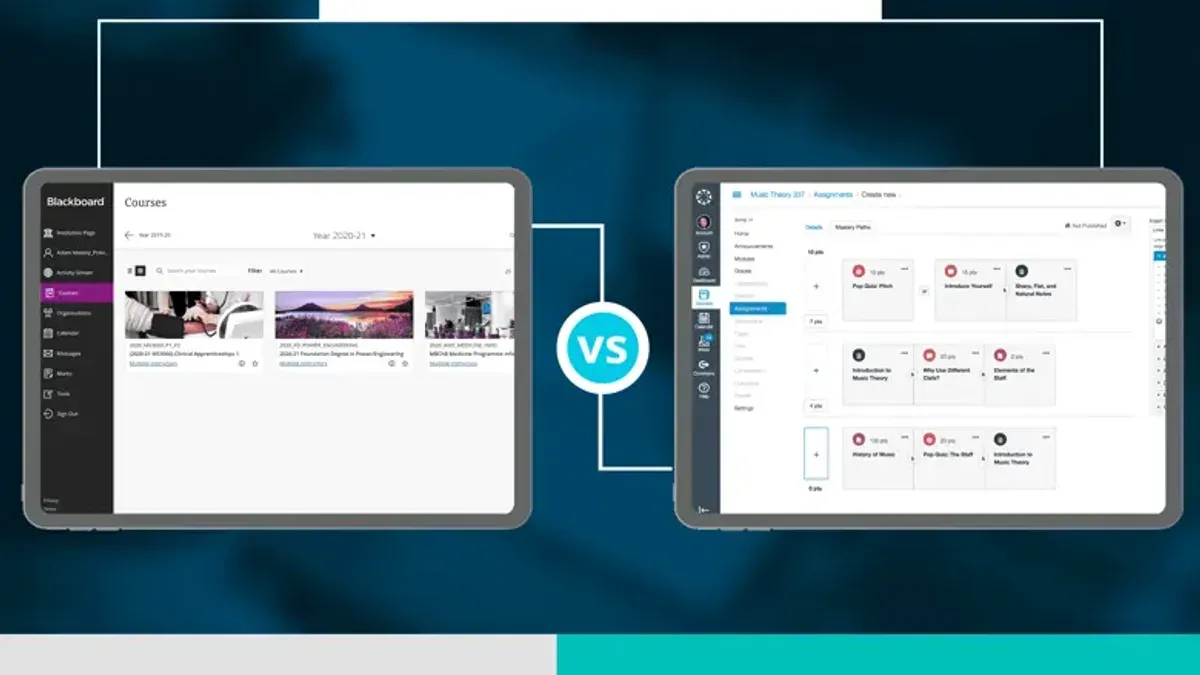
| Feature | Brightspace | Canvas | Blackboard |
|---|---|---|---|
| User Interface | Intuitive, customizable dashboards | Minimalist, highly accessible | Feature-rich but complex |
| Support | Responsive with dedicated training resources | Strong community and vendor support | Extensive but sometimes slower response |
| Customization | Flexible learning paths and analytics | Wide range of integrations | Deep feature customization options |
| Best For | Data-driven course management and compliance | Simple course creation and mobile use | Large institutions needing comprehensive tools |
Consider a scenario where you need to track student progress meticulously for accreditation: Brightspace’s analytics dashboard lets you drill down by competency and time spent, a level of detail less accessible in Canvas or Blackboard. However, if your priority is seamless integration with numerous third-party apps and a straightforward design, Canvas might serve you better. Blackboard can accommodate complex institutional needs but may require more training to navigate effectively.
- Review your institution’s priorities: analytics, integrations, or comprehensive features.
- Test each LMS with sample courses focusing on your typical workflows.
- Evaluate available support and training resources for your team.
- Consider long-term scalability and user adoption challenges.
Avoid these common mistakes when switching to Brightspace
Rushing the transition without thorough training often leads to confusion and delays. For example, an institution that launched Brightspace mid-semester without dedicated training saw instructors struggle to find key tools like the Class Progress and Discussions pages, resulting in lost engagement.
Ignoring platform-specific workflows and terminology can cause missteps. Brightspace uses "Content Modules" and "Release Conditions" differently than Blackboard’s folders and adaptive release, so assuming identical functionality causes setup errors and frustrated users.
Neglecting to test course copies or integrations before going live is another pitfall. One college faced broken external tool links and grade sync failures after copying courses without verifying LTI connections, disrupting grading and student access.
Overlooking available user support channels and resources can leave you stranded. Brightspace offers extensive Help menus, community forums, and institutional support teams that can resolve issues quickly if utilized early.
- Schedule comprehensive training sessions before launch
- Familiarize yourself with Brightspace-specific terms and workflows
- Test course copies and linked tools thoroughly before release
- Leverage Brightspace support resources proactively
Read next
- Blackboard Rollout Plan for Small Rural Schools: A Practical Guide
- Blackboard Implementation Timeline: Your Step-by-Step Guide
Frequently asked questions
How to use brightspace?
To use Brightspace, start by logging in through your institution's portal. Navigate the main dashboard to access courses, assignments, and communication tools. Use the navbar to manage content, track grades, and participate in discussions, focusing on the Course Admin and Content areas for most teaching and learning activities.
How to log in to brightspace?
Log in to Brightspace by visiting your institution's dedicated Brightspace URL. Enter your institutional username and password, which usually align with your campus credentials. If you face login issues, verify your credentials or contact your IT support for account recovery.
How to double space on blackboard?
Blackboard does not have a direct double-spacing button, but you can create double-spaced text by adjusting the paragraph formatting in the text editor. Highlight your text, select the paragraph options, and set the line spacing to 2.0. Alternatively, use Shift+Enter for manual line breaks to increase spacing.
How to change brightspace email?
To change your email in Brightspace, go to your profile by clicking your name in the top-right corner, then select 'Account Settings.' Under 'Contact Information,' update your email address and save changes. Note that some institutions may restrict this and require changes through their central IT service.
How to leave a module on brightspace?
Leaving a module directly is not typically an option for students; instead, you can hide the module from your view. Expand the module, click the settings gear icon, and select 'Hide from view.' For formal withdrawal, contact your course administrator or registrar to update your enrollment status.
Quick checklist
- Confirm your institution’s Brightspace URL and bookmark it for quick access.
- Log in using your institutional credentials, noting any two-factor authentication steps.
- Familiarize yourself with the Course Admin and Content tools for managing materials.
- Use the Classlist tool to add or verify students in your course roster.
- Copy course content via the Course Import/Export tool, checking for formatting changes post-import.
- Review common troubleshooting steps: clearing cache, checking browser compatibility, and verifying network connectivity.
- Adjust text formatting manually after import to fix double spacing or font inconsistencies.
- Compare Brightspace features with other LMS platforms only after mastering core navigation and management tasks.
- Avoid skipping the orientation modules Brightspace offers to minimize common onboarding errors.
What this advice does not cover
This guide focuses on Brightspace’s core features and common institutional setups; highly customized or integrated deployments may require additional vendor-specific training and support. If your institution has unique plugins, third-party integrations, or custom workflows, consult your LMS administrator or Brightspace support for tailored guidance.
To get started confidently, prioritize accessing your Brightspace course and exploring the Course Admin panel. This is where you control key settings, manage users, and begin building your course structure—mastering this will smooth your entire transition process.


