How Metro by T-Mobile Port Out Protection Works and How to Manage It
Metro by T-Mobile port out protection blocks unauthorized transfers and requires the primary account holder to disable it before porting a number.

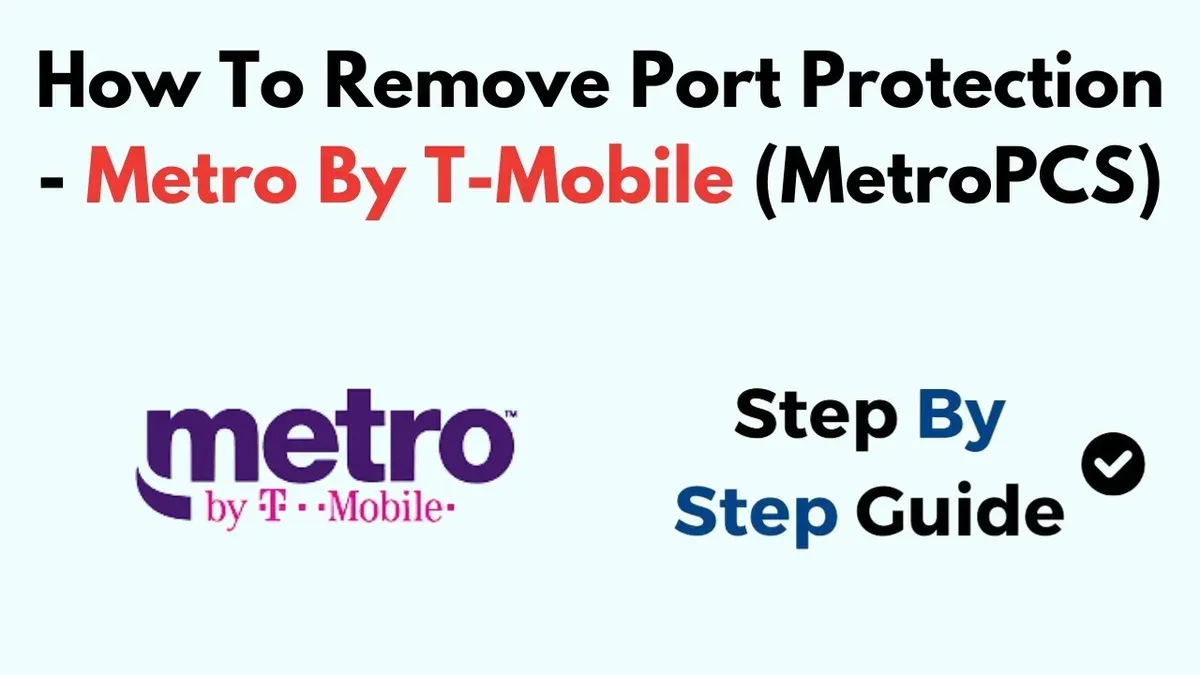
Metro by T-Mobile customers planning to transfer their phone number to another carrier must first address Metro by T-Mobile port out protection. The process hinges on two key steps: turning off Port Out Protection through the Account Protection option in the myMetro app and then generating a Transfer PIN.
Only the Primary Account Holder can disable this protection, making proper account permissions critical. After disabling Port Out Protection, obtaining the Transfer PIN is essential for a successful number transfer.
Understanding and following the correct sequence ensures a smooth number port without unexpected blocks or errors.
Last verified November 2026 against PortingInfo.com, Tekzoid.
Can you port from Metro to T-Mobile and how does Port Out Protection affect this?
Metro accounts have a security feature called Port Out Protection that blocks unauthorized transfers. This protection must be disabled before starting the porting process; otherwise, the transfer will fail.
Disabling Port Out Protection ensures the number can be released for transfer. The primary account holder must turn off this protection to proceed. After disabling it, the account holder needs to generate a Transfer PIN, which the new carrier uses to verify the request.
The actual porting can take as little as 10 minutes or up to 2 days once the Transfer PIN and account details are provided to the recipient carrier. For example, if the protection remains enabled, the port will be rejected immediately, causing delays and requiring the protection to be turned off before retrying. Following the proper sequence—disabling protection first, then generating the PIN—is essential for a smooth port.
What is T-Mobile Port Out Protection and why is it important?
T-Mobile’s This protection ensures that no one can port a number away without explicit permission from the Primary Account Holder. It acts as a barrier against identity theft and fraudulent account access by requiring a deliberate action to disable it before any port-out process can begin.
This restriction ensures that unauthorized users cannot bypass security by disabling Port Out Protection. Once disabled, the change takes effect immediately or within a few minutes, allowing the porting process to proceed without unnecessary delays.
For example, if an unauthorized person tries to transfer a number protected by this feature, the attempt will fail instantly. The account holder must first disable Port Out Protection, which prevents accidental or fraudulent number transfers and protects the account’s integrity throughout the porting process. More details.
How to generate and use the Transfer PIN for porting out
This PIN, together with the Metro account number, verifies authorization for the transfer. Without a valid Transfer PIN, the port request will be denied.
To obtain the Transfer PIN, log in to the Metro online account portal and navigate to My Account > Profile > Line Settings. From there, select the option to request a Transfer PIN. This PIN is generated instantly and remains valid for the porting process.
For example, after disabling Port Out Protection, a Metro customer logs into their online account, requests the Transfer PIN under Line Settings, and provides this PIN along with their account number to the new carrier. The new carrier uses these credentials to validate and complete the number transfer.
Ensuring the Transfer PIN is current and correctly submitted prevents porting delays and failures. This step is critical and must always follow the disabling of Port Out Protection.
Common mistakes that cause Metro by T-Mobile number porting to fail
If protection remains enabled, the port request will be denied immediately. For example, a user who tries to transfer their number without first turning off Port Out Protection will see an error message stating the transfer cannot proceed due to account restrictions.
Using an expired or incorrect Transfer PIN is another common failure point. Since the Transfer PIN is essential to authorize the port, any mismatch or outdated PIN will block the process. Generating a fresh PIN only after disabling Port Out Protection is crucial.
Lack of Primary Account Holder access often prevents disabling Port Out Protection or generating the Transfer PIN. Without these permissions, attempts to change account settings or obtain necessary codes will fail, typically with access denied or unavailable option errors.
Lastly, the Metro service must remain active during the entire porting process. Cancelling or suspending the account before the port completes stops the Transfer PIN generation and voids the transfer. Keeping service active ensures uninterrupted authorization steps and successful number transition.
| Symptom | Cause | Fix |
|---|---|---|
| Port request denied with account restriction error | Port Out Protection still enabled | Disable Port Out Protection via the myMetro app or customer care before porting |
| Transfer fails citing invalid PIN | Expired or incorrect Transfer PIN used | Generate a new Transfer PIN after disabling Port Out Protection |
| Settings change blocked; option unavailable | Not Primary Account Holder | Contact Primary Account Holder to disable protection and generate PIN |
| Porting stops midway or PIN cannot be generated | Service canceled or suspended during porting | Keep Metro service active until port completes |
Following the correct order—disabling Port Out Protection first, then generating a valid Transfer PIN—and ensuring Primary Account Holder involvement and active service prevents these common failures and streamlines the number porting process.
How to port from Metro PCS or Metro by T-Mobile to another carrier
Service must remain active to disable Port Out Protection and obtain the Transfer PIN. Cancelling or suspending service before porting will prevent generating the necessary credentials.
First, disable Port Out Protection via the Account Protection option in the myMetro app or through customer care. This step is mandatory and must be completed before requesting a Transfer PIN. Disabling protection removes the block that prevents unauthorized number transfers.
Once protection is off, generate the Transfer PIN from the Metro online portal. This PIN, combined with the Metro account number, authorizes the new carrier to initiate the port. Submit both to the new carrier to start the transfer.
The transfer typically completes between 10 minutes and 2 days after submission. Any deviation in the order—such as requesting a PIN before disabling protection or having inactive service—will cause the port to fail. For example, if a customer disables Port Out Protection but cancels service before generating the PIN, the process cannot proceed.
Following these steps in precise order ensures a smooth number port from Metro PCS or Metro by T-Mobile to another carrier.source
How to remove or disable Port Out Protection on T-Mobile accounts
This restriction prevents unauthorized number transfers. Attempting to disable this feature without the right permissions will fail.
To disable Port Out Protection using the T-Mobile T-Life app, open the app and sign in. Navigate to Manage, then select either See Plans or My Account. Choose the phone line in question, go to Manage Add-ons, locate Port Out Protection, toggle it off, and confirm by saving the changes. These changes take effect immediately or within a few minutes.
Alternatively, the T-Mobile website on desktop can be used. Sign in to the account, open the Account section, then go to Lines & Devices. Select the phone line, click on Manage Add-ons, scroll to the Services section, turn off Port Out Protection, and save the settings. This method also applies changes immediately or within minutes.
For example, a Primary Account Holder wanting to port their number out must first disable Port Out Protection using one of these methods before generating a Transfer PIN. Skipping this step or lacking the necessary permissions will block the porting process.
What to do after porting your Metro by T-Mobile number out
Attempt calls or texts to ensure full functionality. Keep the old Metro or T-Mobile service active until the transfer is confirmed to avoid service interruptions.
If the old account remains open, immediately re-enable Port Out Protection to prevent unauthorized transfers. This setting is found under Account Protection in the myMetro app for Metro accounts or the T-Mobile app for T-Mobile accounts. Re-enabling acts as a security barrier against fraud or accidental number loss.
Monitor the old account for any suspicious activity post-transfer. Regularly check billing and service status to catch any unauthorized changes quickly. If the service is no longer needed, cancel it after confirming the port is successful to avoid unnecessary charges.
For example, after porting a number from Metro to another carrier, the user should log into the myMetro app, navigate to Account Protection, and toggle Port Out Protection back on. This locks the old account and guards against any attempts to transfer the number again without permission.
Can I connect a T-Mobile phone to Metro, and how does porting affect device compatibility?
A T-Mobile phone can usually be activated on Metro without hardware issues, provided it is unlocked and supports the required bands. Porting a number from Metro to T-Mobile or vice versa does not automatically trigger any changes in device compatibility or network settings. The device remains the same; only the service provider linked to the SIM changes.
For example, if a T-Mobile phone is brought to Metro, the Metro SIM must be inserted and activated. The phone’s network access depends on completing this activation, not on the porting process itself. It is a security feature separate from device protection services, which must be managed independently through carrier apps or support.
This separation means disabling Port Out Protection ensures number transfer ability but does not alter device lock status or compatibility. Customers should handle device protection and port protection as distinct tasks to avoid confusion during porting or device changes. Port Out Protection prevents unauthorized transfers, but it does not impact whether a T-Mobile phone works on Metro.
Who cannot disable Port Out Protection and what to do instead
Users without these rights cannot turn off this protection themselves. Any attempt to disable it without proper authorization will fail, blocking the number porting process.
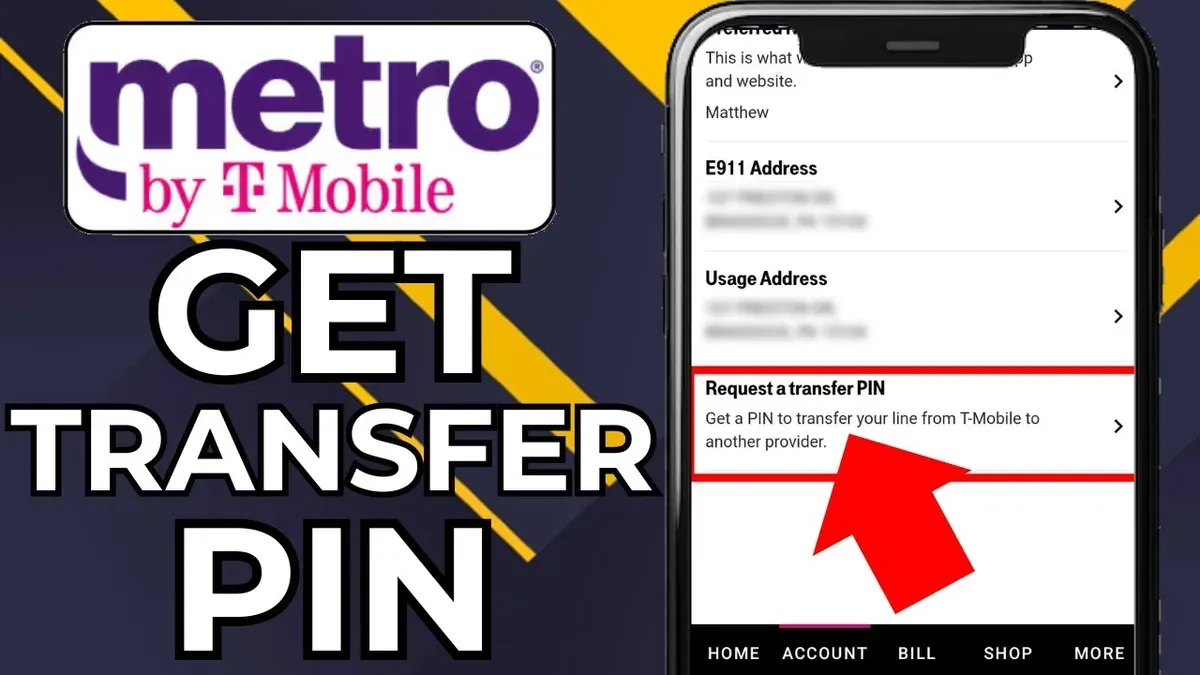
Non-primary users must contact the Primary Account Holder to request disabling Port Out Protection. If the Primary Account Holder is unreachable, contacting Metro or T-Mobile customer support is the next step. Support can verify identity and assist, but cannot bypass account permission rules.
Maintaining active Metro service is crucial during porting. The Primary Account Holder must keep the service active to generate the Transfer PIN needed for porting. A cancelled or suspended account prevents PIN generation and halts the process.
For example, a secondary user trying to port out a number will see failure messages when Port Out Protection remains active. They must either coordinate with the Primary Account Holder or seek help from carrier support to proceed. Without this, porting cannot complete successfully.
More details on permission requirements and disabling Port Out Protection are available here.
Frequently asked questions
Can you port from metro to tmobile?
Porting a number from Metro by T-Mobile to T-Mobile is possible. Port Out Protection must be disabled on the Metro account first via the myMetro app, and then a Transfer PIN generated. Only the Primary Account Holder can perform these steps to avoid porting failures.
What is port out protection t-mobile?
Port Out Protection is a security feature that prevents unauthorized transfer of a phone number to another carrier. It requires disabling the protection and generating a Transfer PIN from the account before porting can proceed.
How to turn on port out protection metro by t mobile?
Port Out Protection on Metro by T-Mobile is enabled by default and can be managed in the myMetro app under the Account Protection settings. Enabling it ensures an extra layer of security against unauthorized number ports.
How to remove port protection t mobile?
To remove Port Out Protection on T-Mobile accounts, the Primary Account Holder must access the account settings and disable the protection. For Metro by T-Mobile, this is done specifically via the Account Protection option in the myMetro app. After disabling, a Transfer PIN must be generated to complete number porting.
Common Mistakes When Managing Metro by T-Mobile Port Out Protection
- Disabling Port Out Protection after generating the Transfer PIN. The PIN must be created only after Port Out Protection is turned off via the Account Protection option in the myMetro app.
- Attempting to disable Port Out Protection without being the Primary Account Holder. Only the primary holder has permission to change this setting, so others cannot complete the port out.
- Ignoring the order of steps in porting out. Failing to disable Port Out Protection before requesting the transfer leads to port failures or rejection messages.
- Using a Transfer PIN generated before disabling Port Out Protection. Such PINs become invalid and cause the port to fail.
- Assuming Port Out Protection disables automatically after initiating a port. It requires manual deactivation first to allow number transfer.
When This Advice Does Not Apply and Alternative Actions
This article does not cover porting failures caused by billing disputes, account suspensions, or if service is canceled before the port is complete. In such cases, resolving account issues with Metro by T-Mobile customer support is necessary before porting can proceed.
If the account holder cannot disable Port Out Protection due to account restrictions or lack of permissions, contacting Metro by T-Mobile support or the primary account holder is essential to manage the port out process.
Users porting to or from carriers other than Metro or T-Mobile with additional security layers should consult their specific carrier’s procedures, as these steps apply strictly to Metro and T-Mobile accounts.
Those unsure about their account status or permissions should verify their role on the account and the state of Port Out Protection in the myMetro app before attempting to port.
Sources checked
- How to Get Your Metro by T-Mobile Port Out PIN - PortingInfo.com — PortingInfo.com
- How to Remove Port Protection on T-Mobile (Step-by-Step Guide) — Tekzoid
See also: How to Manage and Optimize LINE Privacy Settings for Stronger Protection · How to Manage and Troubleshoot Match.com Privacy Settings · Understanding and Managing AT&T Port Out Protection