
Moving from Blackboard to Canvas: Your Essential Checklist
This checklist guides educators through a smooth transition from Blackboard to Canvas, covering technical migration and user customization.

Short answer: Successfully moving from Blackboard to Canvas requires a clear, step-by-step approach that covers both technical migration and user experience customization. This moving from Blackboard to Canvas checklist guides you through evaluating platform differences, planning content transfer, and tailoring Canvas to meet your instructional needs.
This article provides a practical explainer guide designed for educational administrators and instructors managing this transition. It covers understanding key distinctions between Blackboard and Canvas, assessing Canvas functionality against your current requirements, executing content and quiz migration smoothly, customizing Canvas settings to enhance teaching and learning, and avoiding common pitfalls that can disrupt your migration process.
Understand what Blackboard and Canvas are and how they differ
Blackboard and Canvas are both comprehensive Learning Management Systems (LMS) designed to facilitate online education and course management. Blackboard has long been established as a robust platform with extensive features aimed at large institutions, while Canvas offers a more modern, streamlined user experience favored for its intuitive design.
The user interface is a major point of distinction. Blackboard's navigation often involves multiple nested menus and tabs, such as the "Course Management" panel and the "Control Panel" where instructors manage content. Canvas, by contrast, uses a simplified sidebar menu with direct access to modules, grades, and discussions, reducing the number of clicks to reach core tools.
Feature-wise, Blackboard includes built-in tools like detailed grade center reports and advanced test accommodations, but can feel complex to new users. Canvas emphasizes ease of use and mobile responsiveness, with features like the "Modules" tool allowing drag-and-drop content organization and integrated third-party apps through its App Center.
These differences affect teaching workflows significantly. For example, an instructor accustomed to Blackboard’s Grade Center may need to adapt to Canvas’s Gradebook interface, which displays student progress alongside assignment statuses more visually. Student engagement tools also differ, with Canvas supporting real-time collaboration through integrated apps such as Zoom or Google Docs more seamlessly.
A common misconception is that Canvas is simply a newer version of Blackboard. In reality, they are distinct platforms with unique designs and priorities. While Canvas often receives higher marks for user satisfaction due to its simplicity and flexibility, Blackboard’s depth of features still serves institutions requiring complex customization and legacy support.
| Feature | Blackboard | Canvas |
|---|---|---|
| User Interface | Multi-layered menus, Control Panel navigation | Sidebar with direct access, drag-and-drop modules |
| Gradebook | Detailed Grade Center with custom reports | Visual Gradebook with progress tracking |
| Integration | Supports LTI but fewer modern app integrations | Robust App Center with seamless third-party tools |
| Mobile Experience | Separate apps for students and instructors | Unified responsive design and mobile app |
| Customization | Extensive but complex options | User-friendly customization with templates |
For example, an instructor migrating a course with multiple quizzes will find Blackboard’s quiz settings comprehensive but intricate, requiring several steps under the "Tests, Surveys, and Pools" menu. In Canvas, quiz creation is integrated within the "Assignments" section with straightforward options for time limits and question types, speeding up course setup and reducing errors.
Assess if Canvas offers better functionality for your Blackboard needs
Canvas excels in usability with a modern, intuitive interface that reduces the learning curve for both instructors and students. Its mobile app consistently receives high ratings for accessibility and seamless interaction, making course management and participation easier on the go. While Blackboard provides extensive customization options through complex settings menus, Canvas opts for a streamlined design that focuses on essential tools enhanced by a rich ecosystem of third-party extensions.
One strong example is the migration of quizzes and content. Canvas supports direct imports of Blackboard quizzes via the "Import Quiz" feature found under "Settings > Import Content into Course." This process preserves question banks, metadata, and settings, often cutting migration time by more than half compared to manual recreation. For instance, an institution reported reducing quiz migration from several days to a few hours, enabling instructors to focus on refining assessments rather than rebuilding them.
Canvas extensions available in the App Center can replicate or enhance Blackboard capabilities such as plagiarism detection, video conferencing integrations, and analytics dashboards. This flexibility allows you to tailor the platform without overwhelming complexity, balancing Blackboard’s deep customization with Canvas’s user-friendly approach. When evaluating, consider your priorities: if ease of use, mobile readiness, and efficient content migration top your list, Canvas offers clear advantages.
- Review Canvas’s mobile app features and user feedback
- Test importing a sample Blackboard quiz using the “Import Quiz” tool
- Explore Canvas App Center extensions relevant to your institution’s needs
- Compare the time and effort required for customization in both systems
Plan how to move content and quizzes from Blackboard to Canvas
Begin your migration by exporting course content and quizzes directly from Blackboard. Navigate to the Control Panel, select Packages and Utilities, then Export/Archive Course. Choose to export the entire course or selected content areas, saving the package as a ZIP file. For quizzes, ensure you export them as part of the course package or individually through the Tests, Surveys, and Pools area.
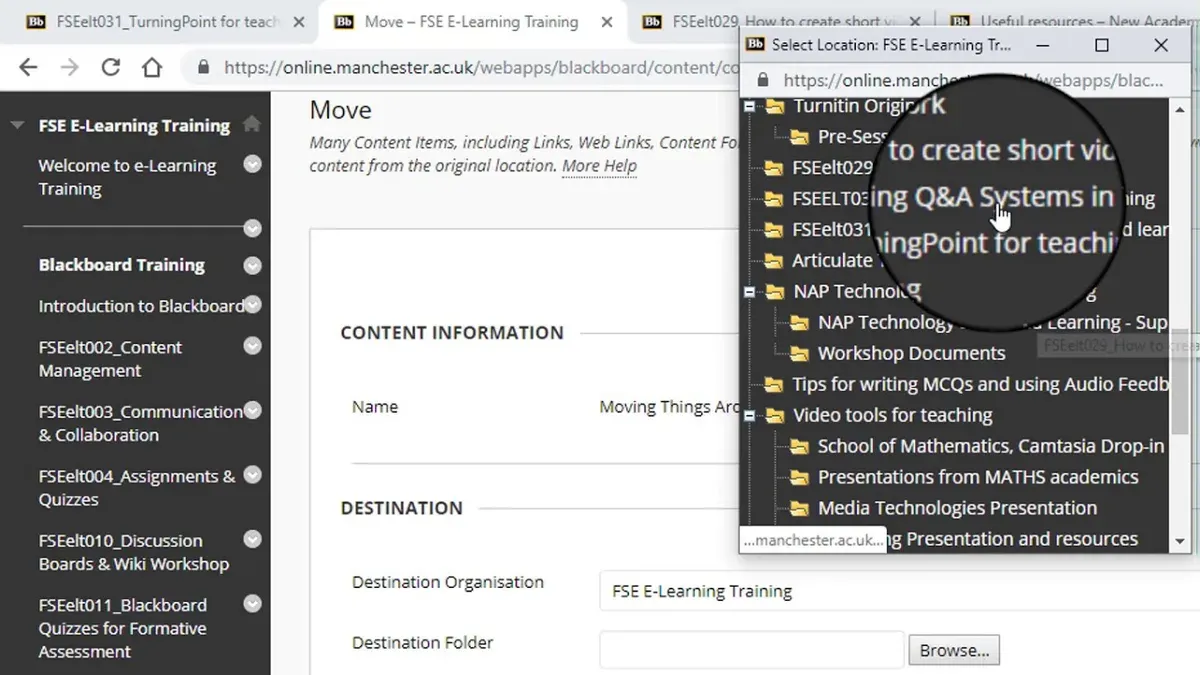
Next, import these files into Canvas using the Course Import Tool found under Settings > Import Course Content. Select 'Blackboard 6/7/8/9 export package' as the content type, then upload the ZIP file. Canvas supports this format for a smooth transfer, but note that some question types or media may not convert perfectly.
Once imported, verify all content and quizzes thoroughly. Check quiz question formatting, point values, and any embedded multimedia. Run sample attempts for quizzes to confirm functionality and grading accuracy. Address compatibility issues by manually editing questions or re-uploading missing files.
Plan your migration timeline over several weeks. For example, Week 1: export and backup Blackboard course; Week 2: import content into Canvas and conduct initial checks; Week 3: refine quizzes and conduct pilot testing with a small user group; Week 4: finalize and communicate transition to instructors and students.
- Export course and quizzes from Blackboard via Control Panel > Packages and Utilities > Export/Archive Course
- Import ZIP package into Canvas using Settings > Import Course Content with 'Blackboard export package' option
- Verify and test imported quizzes and content thoroughly, fixing any formatting or media issues
- Schedule migration milestones over several weeks to allow for testing and adjustments
Customize Canvas to fit your teaching style and student needs
Canvas offers a flexible environment to tailor your course interface and notifications in ways that can both replicate and improve upon Blackboard’s customization options. Unlike Blackboard’s often complex settings buried under multiple menus, Canvas centralizes customization under Account > Settings > Feature Options and Course Settings > Navigation, making changes more accessible.
Start by personalizing your course navigation to highlight tools crucial for your teaching approach. For example, if you prioritize discussions over assignments, you can reorder or hide tabs such as "Assignments" or "Grades" via Settings > Navigation. This reduces clutter for students and directs their focus where you want it.
Students can customize their own dashboards by reordering course cards and enabling or disabling notifications under Account > Notifications. This empowers them to stay engaged on their terms, improving their learning experience compared to Blackboard’s more rigid notification system.
To enhance functionality, Canvas supports numerous integrations like Turnitin for plagiarism checks or Flipgrid for video discussions. Adding these via Settings > Apps allows you to extend Canvas’s native capabilities without complicated configurations.
Consider a concrete example: if you want to replicate Blackboard’s course announcements but with richer media, enable the "Announcements" tab and embed videos or images directly in posts. This simple step can increase student engagement more than Blackboard's text-heavy announcements.
Use screenshots comparing Blackboard’s multi-layered customization menus with Canvas’s streamlined interfaces to visually guide users through these steps.
- Access Course Settings > Navigation to reorder or hide tools
- Encourage students to personalize their dashboard and notifications under Account
- Add useful apps and extensions via Settings > Apps
- Use media-rich announcements to boost student engagement
Avoid common mistakes during the Blackboard to Canvas transition
Neglecting user training and communication can severely impact adoption rates. Institutions that provide comprehensive onboarding see fewer support tickets and smoother transitions. For example, if instructors and students aren’t guided through Canvas’s interface changes or new login procedures like the 'Canvas UM login Black Board' integration, confusion and frustration can spike.
Incomplete content transfer is another frequent pitfall. Overlooking compatibility issues—such as embedded multimedia formats or quiz question types unsupported in Canvas—can leave courses partially functional. Always verify every content item post-import and address errors promptly to prevent instructional gaps.
Login and authentication setup challenges often cause delays. Misconfigured single sign-on (SSO) or federated login services can lock users out or require multiple credentials, undermining user confidence. Collaborate closely with IT teams to ensure 'Canvas UM login Black Board' or equivalent systems are correctly linked before going live.
Finally, establishing ongoing support and feedback channels post-migration is essential. Transition-related questions and technical issues don’t end at launch. Providing clear helpdesk contacts, scheduled training refreshers, and mechanisms for collecting user feedback can dramatically reduce long-term disruption.
- Develop and execute a detailed user training plan before migration
- Perform thorough content validation after each import
- Test and confirm login/authentication configurations with IT
- Set up continuous support and feedback loops post-launch
Read next
- Switching from Blackboard to Brightspace: Your Expert Step-by-Step Guide
- Blackboard Rollout Plan for Small Rural Schools: A Practical Guide
Frequently asked questions
Does better canvas work for blackboard?
If you mean whether Canvas offers improved functionality compared to Blackboard, many institutions find Canvas provides a more intuitive interface and modern tools for course creation, grading, and communication. However, the best choice depends on your specific needs; Canvas may work better for user experience and mobile access, while Blackboard might have features tailored to certain workflows.
How to decorate blackboard?
Decorating a physical blackboard typically involves using colored chalk or chalk markers to create borders, headings, or illustrations that enhance visual appeal and engagement. For digital Blackboard platforms, customization is limited to course design elements like banners, themes, and module arrangements rather than decorative graphics.
How to customize blackboard?
In the Blackboard learning management system, customization involves adjusting course settings such as layout, tool availability, and content organization. You can access these options through the Control Panel under Course Tools and Module Management. Additionally, instructors can personalize grade center columns, notifications, and availability dates to fit their course structure.
Is blackboard like canvas?
Blackboard and Canvas are both learning management systems designed to facilitate online education, but they differ in interface, features, and usability. Canvas is known for its clean design and straightforward navigation, while Blackboard offers robust enterprise features and extensive customization options. Both support content delivery, assessments, and communication but cater to different institutional preferences.
What is blackboard and canvas?
Blackboard and Canvas are software platforms used by educational institutions to manage online courses, distribute materials, and track student progress. Blackboard has been a longstanding LMS with comprehensive tools, while Canvas, developed more recently, emphasizes ease of use and integration capabilities. Both serve to support teaching and learning in digital environments.
Quick checklist
- Confirm you have institutional administrative rights for both Blackboard and Canvas.
- Inventory your current Blackboard course content and quizzes for migration suitability.
- Use Canvas's Course Import Tool via Settings > Import Course Content for transferring materials.
- Customize your Canvas course homepage with Modules and Pages to match your teaching style.
- Set up Canvas user roles and permissions to mirror your institution's structure.
- Test migrated quizzes for question formatting and grading accuracy.
- Train instructors and students on Canvas navigation and features before the full transition.
- Monitor migration progress and collect user feedback early to resolve issues promptly.
What this advice does not cover
This advice assumes access to institutional administrative rights and may not cover highly customized Blackboard environments or integrations specific to certain organizations. If your Blackboard instance includes complex third-party integrations, custom plugins, or proprietary grading systems, consult your IT department or a migration specialist for tailored solutions.
For instructors without administrative access, coordinate closely with your institution's LMS administrators to ensure your courses migrate smoothly and receive the necessary support during the transition.
Remember, the transition involves both technical migration and adapting workflows, so allocate sufficient time for testing and training to minimize disruption.
Begin by scheduling a pilot migration of one or two courses, allowing you to identify challenges early and refine your process before scaling up.


