
Moving from Blackboard to Moodle: Your Complete Migration Checklist
This checklist guides you through migrating from Blackboard to Moodle, covering core differences, data transfer, and key teaching function adaptations.

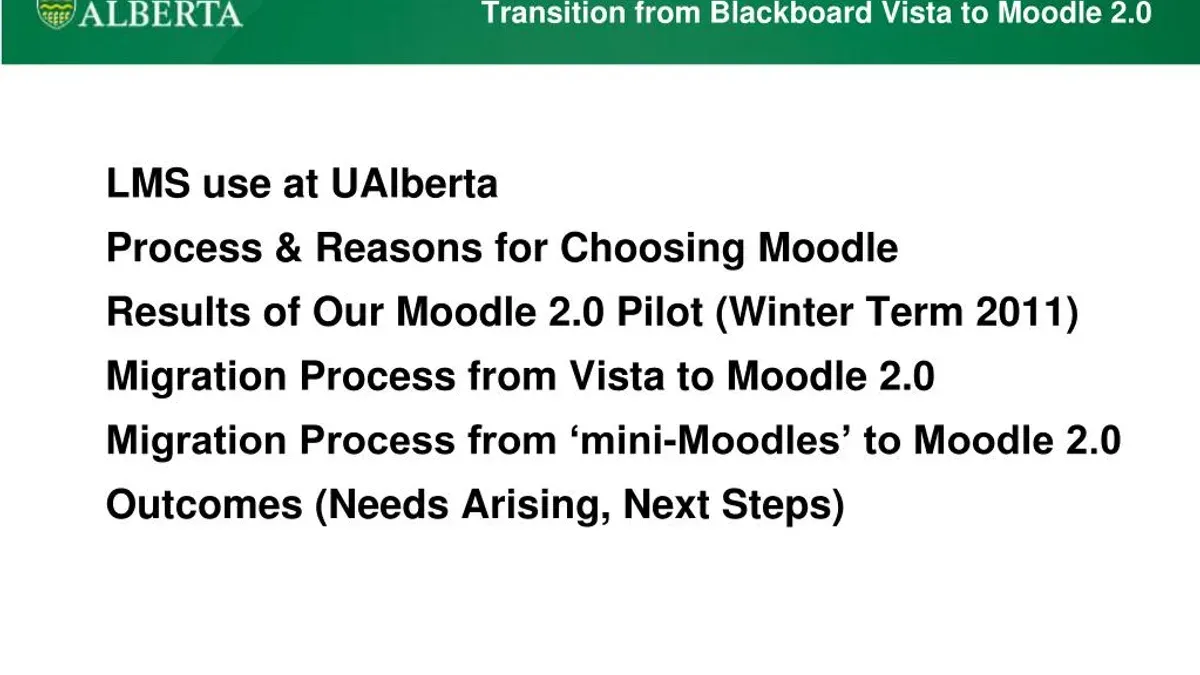
Short answer: Successfully moving from Blackboard to Moodle requires more than copying files; it means adapting your courses to a different system architecture and workflow. This moving from Blackboard to Moodle checklist guides you through accessing your Blackboard data, translating course structures, and ensuring your content and activities function properly in Moodle.
This article covers the core differences between the two platforms, how to export and import course materials, and how to replicate key teaching functions like enrollment and course availability. You’ll find practical advice on what must be adjusted rather than simply transferred, highlighting technical nuances and pedagogical considerations. Follow this guide to anticipate common pitfalls and streamline your institution’s LMS migration with confidence and precision.
Understand the core differences between Blackboard and Moodle
Blackboard operates as a commercial, closed-source LMS platform, which means its features, updates, and customizations are controlled by the vendor. Moodle, in contrast, is open-source and highly customizable, allowing institutions to tailor functionality through community-developed plugins and direct code modifications.
Course structures differ notably: Blackboard organizes content primarily through folders and learning modules with a linear progression, while Moodle uses a more flexible format with topics or weekly sections that can be rearranged easily. User roles also vary; Blackboard typically uses predefined roles like Instructor, TA, and Student with fixed permissions, whereas Moodle offers granular role definitions that can be customized to fit specific institutional needs.
The plugin ecosystem reflects these models. Blackboard’s add-ons are vetted and provided through its marketplace, limiting user control, whereas Moodle’s vast repository of plugins—from attendance trackers to advanced quiz types—provides diverse options but requires careful selection and testing.
| Feature | Blackboard | Moodle |
|---|---|---|
| Course Structure | Folders and learning modules; linear navigation | Topics or weekly sections; flexible layout |
| User Roles | Predefined, fixed permissions | Customizable roles and capabilities |
| Plugins | Vendor-controlled marketplace | Open repository; community-driven |
| Content Compatibility | Proprietary formats; requires export tools | Standard formats; supports IMS and SCORM |
For example, a common Blackboard tool like the "Test Manager" translates in Moodle to the "Quiz" activity, which offers more varied question types and flexible grading options but requires reconfiguration of question banks and grade settings. Understanding these platform distinctions prepares you to adapt workflows and content rather than expecting a direct one-to-one transfer.
How to get to Blackboard and access your current course data
Start by logging into your institution’s Blackboard portal using your official credentials. Once logged in, navigate to the Courses tab located in the main menu or dashboard. Here, you will see a list of all your active and past courses.
To export course content, open the course you want to migrate and select Packages and Utilities from the course management panel on the left. Then click on Export/Archive Course. Choose Export Package to create a file that contains course materials without user data, or Archive Package if you want to include gradebooks and user information.
After selecting export, Blackboard will prepare a zip file containing all the course elements—content folders, assignments, quizzes, and gradebook data if included. This file can take several minutes to generate, depending on course size. An example filename might be course_export_12345.zip.
Download the exported package and organize it clearly on your local drive, creating separate folders for content, grades, and user lists. This organization simplifies the next step in Moodle, where you will import these resources into corresponding modules.
Checklist:
- Log in to Blackboard and open the desired course
- Go to Packages and Utilities > Export/Archive Course
- Select Export Package (or archive if user data required)
- Wait for Blackboard to prepare the export file
- Download and save the zipped package in an organized folder on your computer
How to use Blackboard for teaching and how that translates in Moodle
Blackboard organizes teaching through tools like Assignments, Tests, and Discussion Boards, each accessed via the Course Content menu. Assignments in Blackboard typically involve uploading files or submitting text with due dates and grading options configured under the Assignment Settings panel. Tests use the Test Manager to build question pools with timed availability, automatic grading, and multiple attempt settings. Discussion Boards facilitate threaded conversations organized by topics.
In Moodle, you replicate these using the corresponding activities: Assignment, Quiz, and Forum. The Assignment activity supports file submissions and online text, with flexible grading methods and feedback options. Moodle’s Quiz module offers extensive question types, adaptive mode, and detailed timing controls, often surpassing Blackboard’s Test Manager in customization. Forums allow subscription options and grading, supporting varied interaction modes.
For example, when migrating a Blackboard quiz, export the test as a QTI package, then import it into Moodle’s Quiz activity via the Question bank. Blackboard’s “One question per page” setting translates to Moodle’s "Layout" setting with "New Page" after each question. Timed availability and multiple attempts are set under Moodle’s Quiz settings in the 'Timing' and 'Attempts allowed' sections. Note that while Blackboard’s automatic feedback is basic, Moodle allows detailed feedback per answer and overall attempt, enhancing formative assessment.
Adapting teaching workflows means not just copying but rethinking how Moodle’s modular and open settings can serve pedagogical goals more flexibly than Blackboard’s linear tools.
How to add a student to Blackboard versus Moodle
Blackboard typically manages student enrollment either manually by instructors or through automated integration with a Student Information System (SIS). Manual enrollment involves navigating to the Users and Groups section, selecting Users, and using the Enroll User option to add students individually by their institutional email or username. SIS integration automates this process, syncing course rosters regularly to keep enrollments up-to-date.
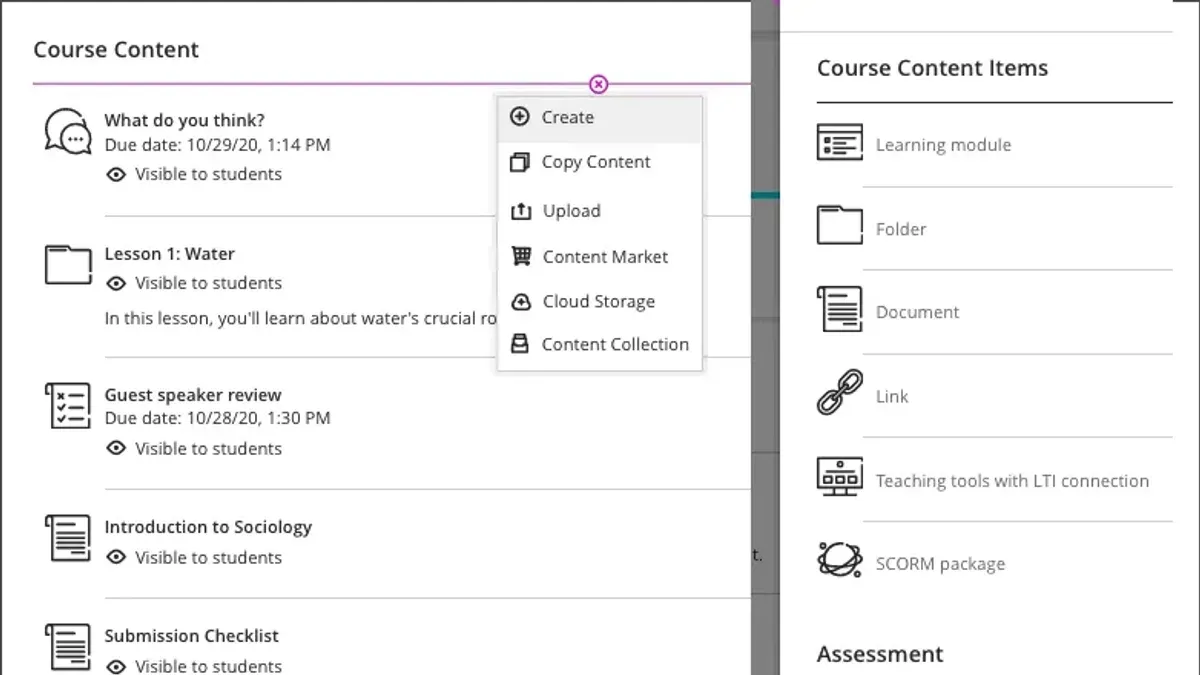
In contrast, Moodle offers more flexible enrollment methods. You can manually enroll users by going to Participants > Enroll users, choosing the role (usually Student), and selecting users from the site database. Moodle also supports bulk user upload through CSV files formatted with fields like username, password, firstname, lastname, and email. This file can then be imported via Site administration > Users > Upload users, streamlining mass enrollment.
Best practice during migration is to synchronize user accounts first by exporting a CSV from Blackboard’s SIS or user list and preparing it for Moodle’s upload format. For example, if Blackboard’s export includes usernames and emails, ensure these fields align with Moodle’s required CSV columns. Then, import this file into Moodle to create or update user accounts before enrolling them in courses.
- Blackboard manual enrollment: Users and Groups > Users > Enroll User
- Blackboard SIS integration: automatic roster sync
- Moodle manual enrollment: Participants > Enroll users with role selection
- Moodle bulk upload: Site administration > Users > Upload users using CSV
- Synchronize user data via export/import between systems before enrolling
How to make a Blackboard course available and the Moodle equivalent
In Blackboard, making a course available to students is controlled via the Course Availability setting found under the Properties panel in the course control menu. By default, a new course is unavailable to students until you manually toggle this setting to "Yes." This ensures you can finalize course content before student access. For example, you might set your course unavailable during content creation and then enable availability at the official semester start date.
In Moodle, course availability is managed on the Edit Settings page within the course administration. The key setting is Course visibility, which you toggle between "Show" and "Hide." Unlike Blackboard, Moodle also allows you to schedule availability using the Restrict access feature, where you can set precise date conditions for when students can access the course or specific activities. For instance, you can configure the entire course to become visible on September 1st and archive or hide it automatically after the semester ends.
Consider using Moodle's Enrollment period settings to control when students can join the course, which complements visibility controls and helps manage course lifecycle efficiently.
- In Blackboard: Go to Course Control Panel > Customization > Properties > Set Course Available to "Yes" to enable student access.
- In Moodle: Navigate to Course Administration > Edit Settings > Set Course Visibility to "Show" for immediate availability.
- Use Moodle's Restrict Access > Date conditions to schedule when the course or content becomes available or hidden.
- Set enrollment start and end dates in Moodle to manage student access alongside course visibility.
How to leave or drop a class on Blackboard and Moodle
In Blackboard, students typically cannot unilaterally drop courses; this action is governed by institutional policies and handled through the registrar’s office or administrative staff. Students wishing to leave a class must submit a formal request, often via an online portal or email, after which administrators remove the enrollment within Blackboard’s Control Panel under Users and Groups > Users. This centralized control ensures compliance with academic policies and accurate record-keeping.
Conversely, Moodle offers greater flexibility for administrators but generally restricts students from self-dropping courses to maintain data integrity. Administrators manage enrollment changes through the Participants list by selecting the user and choosing Unenrol selected users from course. Some sites may enable self-unenrollment via specific plugin settings, but this is uncommon and usually disabled by default.
For example, at a university transitioning to Moodle, an IT coordinator might receive student drop requests via email. They would log into Moodle’s course, navigate to Participants, find the student, and execute unenrollment, ensuring the student no longer accesses course materials or submits assignments.
During migration, administrators should audit enrollments carefully to reflect official drop/add records from the registrar’s system, preventing discrepancies. Clear communication with both students and faculty about how course withdrawal is handled in Moodle versus Blackboard reduces confusion and supports a smooth transition.
- In Blackboard, students request drops via registrar; admins remove enrollments in Control Panel.
- In Moodle, admins unenroll students via Participants; self-unenrollment is rare.
- During migration, reconcile enrollment data with registrar records.
- Communicate withdrawal procedures clearly to users.
Moving content in Blackboard: practical tips for a smooth transfer
Start by exporting your Blackboard course as a ZIP package via Control Panel > Packages and Utilities > Export/Archive Course. This file bundles most course materials, including documents, tests, and basic settings. When importing into Moodle, use the Restore function under Course Management to upload this ZIP file. Moodle will attempt to map Blackboard content into its format, but expect some elements—like embedded multimedia, proprietary tools, or interactive widgets—not to transfer seamlessly.
For non-compatible content, prepare to manually migrate. For example, videos embedded with Blackboard’s media player should be downloaded and re-uploaded to Moodle’s repository or embedded via URL links. Similarly, interactive tools like Blackboard Collaborate require setting up equivalent Moodle plugins or external integrations.
After import, rigorously verify content integrity. Check that quizzes function as intended, files open correctly, and links are not broken. For instance, after restoring a course archive, open the quiz settings to confirm question types and timing match the original. Pay special attention to multimedia playback and embedded tool access.
- Export course archive from Blackboard via Control Panel > Packages and Utilities > Export/Archive Course
- Import ZIP file into Moodle using Restore in Course Management
- Manually transfer multimedia and embedded tools by downloading and re-uploading or configuring Moodle equivalents
- Verify quizzes, files, links, and multimedia for full functionality post-import
Online Blackboard learning tips and how they adapt to Moodle
Blackboard’s discussion boards and inline assignment grading tools are widely used to engage students and provide timely feedback. In Moodle, you replicate this engagement using the Forum activity, which supports threaded discussions and allows instructors to grade contributions with rubrics or simple point scales. Unlike Blackboard’s inline grading, Moodle’s Feedback and Assignment modules offer detailed annotation and workflow features, but require configuring submission types under Assignments > Settings > Submission types.
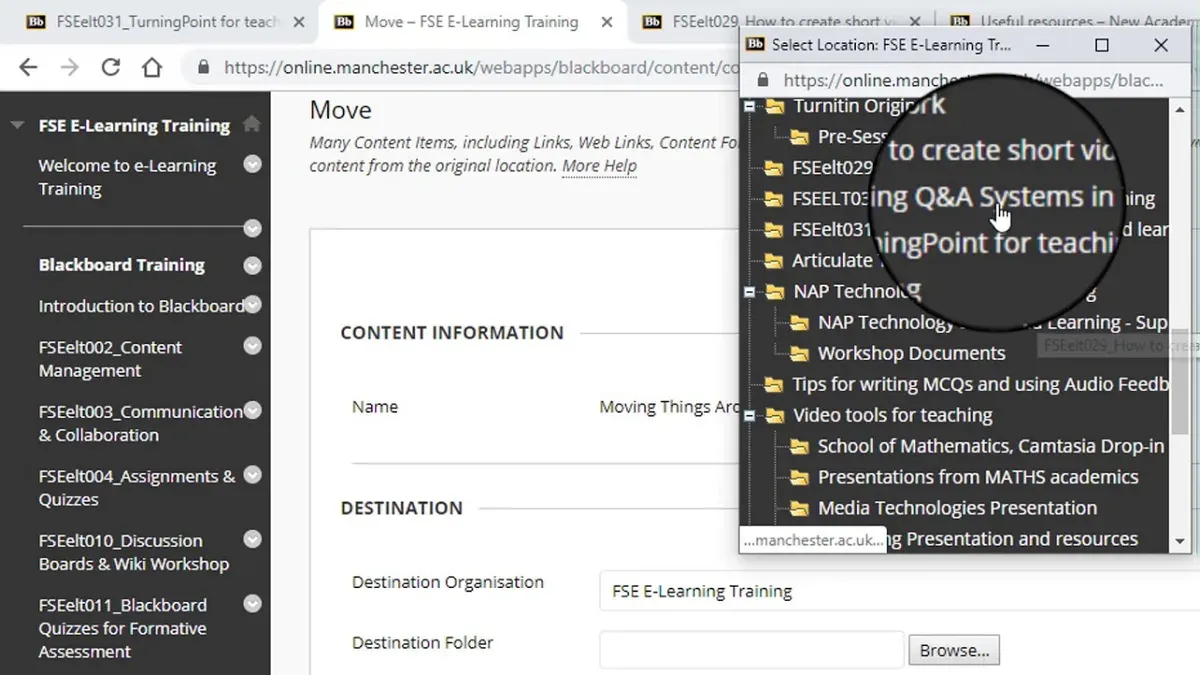
Blackboard’s adaptive release settings enable content to appear based on student performance or dates. Moodle’s conditional activities serve a similar purpose but demand explicit setup via Course administration > Edit settings > Activity completion, where you define prerequisites for each item. Missing this step often causes unintended content visibility.
A concrete example: an instructor using Blackboard’s Self and Peer Assessment tool to foster collaborative learning can switch to Moodle’s Workshop module, which requires enabling Workshop under Site administration > Plugins. This module supports anonymous peer reviews but involves a multi-phase setup that must be communicated to students early.
Transition often challenges users unfamiliar with Moodle’s modular design. Institutions that provided targeted training sessions focusing on Moodle’s navigation and activity settings noted smoother adoption and sustained learner engagement post-migration.
- Leverage Moodle Forums to replace Blackboard discussion boards, enabling graded, threaded conversations
- Set up conditional activities carefully to control content release in Moodle
- Use Moodle Workshop for peer assessments, ensuring students understand the multi-step process
- Provide focused training on Moodle’s core tools to ease the transition for instructors and students
Common mistakes to avoid when moving from Blackboard to Moodle
Assuming direct content compatibility between Blackboard and Moodle often leads to broken links, missing files, or lost quiz settings. For example, a course exported as a Blackboard ZIP may import into Moodle, but complex question pools or adaptive release rules frequently fail to transfer intact, requiring manual rebuilding.
Neglecting user training and communication plans can cause confusion and frustration. If instructors and students aren't familiar with Moodle’s interface and workflows—such as enrolling students via bulk CSV uploads or setting activity completion conditions—the migration disrupts learning continuity and increases support requests.
Underestimating the need for thorough testing and quality assurance before going live results in overlooked errors. A common scenario is launching a course without verifying gradebook calculations or conditional activities, which can lead to inaccurate final grades or inaccessible materials.
- Do not expect one-to-one content transfer; plan for content adaptation.
- Develop and execute comprehensive training and communication strategies.
- Conduct detailed testing of all course components, including quizzes, gradebooks, and user enrollments.
Read next
- Moving from Blackboard to Google Classroom: Your Complete Checklist
- Moving from Blackboard to Canvas: Your Essential Checklist
- Switching from Blackboard to Brightspace: Your Expert Step-by-Step Guide
- Blackboard Rollout Plan for Small Rural Schools: A Practical Guide
Frequently asked questions
How to use blackboard for online classes?
To use Blackboard for online classes, instructors start by creating a course shell and organizing content using the Course Content menu. Utilize tools like Announcements, Assignments, and Discussion Boards to engage students asynchronously. For live interaction, integrate Collaborate Ultra sessions available under the Tools menu, scheduling real-time classes or office hours.
How to use blackboard for students?
Students access their courses via the Blackboard Dashboard after logging in. They navigate to individual courses to view content, submit assignments through the Assignment tool, participate in Discussion Boards, and check grades under the My Grades section. Regularly checking Announcements ensures they stay updated on course changes.
How to leave a class on blackboard?
Leaving a class on Blackboard usually requires contacting your institution's registrar or help desk, as students cannot self-drop courses through Blackboard. Some institutions provide a “Withdraw” or “Drop” option in their student portals, but this action is not controlled within the Blackboard interface itself.
How to log in to blackboard?
To log in, go to your institution’s Blackboard URL, typically formatted as [institution].blackboard.com. Enter your institutional username and password on the login page. If you have trouble, use the “Forgot Password” link or contact your IT support for credential recovery.
How to access blackboard?
Access Blackboard by visiting your institution’s specific Blackboard web address via a desktop browser or the Blackboard app. Use your institutional credentials to sign in. Ensure your internet connection is stable and your browser is supported to avoid access issues.
What this advice does not cover
This guide does not cover custom integrations or institution-specific Blackboard plugins that may require specialized migration approaches. If your institution uses third-party tools tightly integrated with Blackboard, consult your IT department or a migration specialist to evaluate compatibility and necessary redevelopment in Moodle.
Additionally, this checklist focuses on core course content and user workflows; complex data analytics, grading schemas beyond standard settings, and advanced assessment types may need tailored solutions not fully addressed here.
Quick checklist
- Review core functional differences between Blackboard and Moodle before migrating.
- Export course data via Blackboard’s Course Copy or Export functions.
- Map teaching tools and activities from Blackboard to Moodle equivalents.
- Use Moodle’s Enrollment methods to add or manage students properly.
- Set course availability in Moodle through Course Settings > Edit Settings > Course visibility.
- Plan content migration carefully; adapt files and resources to Moodle's supported formats.
- Replicate communication channels like announcements using Moodle forums or messaging.
- Avoid common pitfalls such as assuming direct one-to-one feature parity or ignoring user role configurations.
Start by exporting a single course from Blackboard and importing it into Moodle’s Import feature under Course Administration. This practical step helps you identify unexpected challenges early and adapt your migration strategy with real examples rather than theory alone.


