How to Manage and Secure Rumble Privacy Settings
Discover actionable steps to manage and secure your Rumble privacy settings, controlling personal data and account visibility effectively.

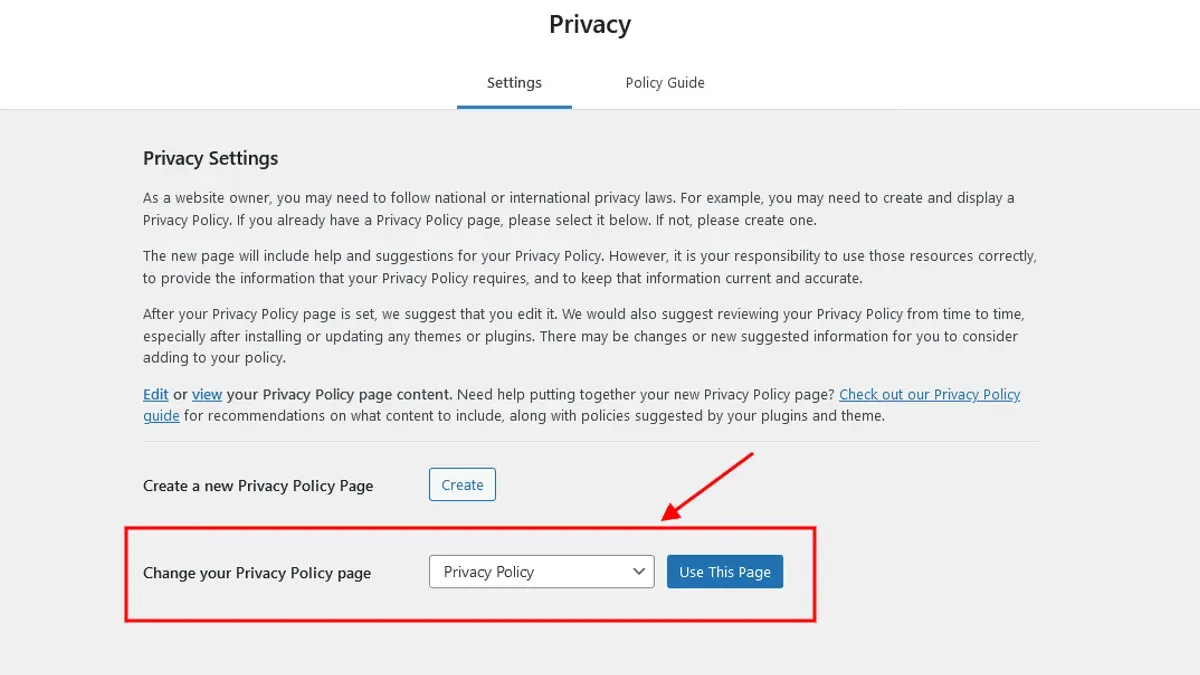
Managing these details within the profile and security menus directly affects account safety and what others can see.
It focuses on actionable steps to strengthen privacy and security without generic advice.
Overview of Rumble privacy settings
- Personal data collected includes real name, contact info, username, and device usage.
- 2FA setup is available only on the desktop site under Security Settings; mobile app sign-in with 2FA is not supported yet.
- Profile editing can remove or update personal information but deleting all data may deactivate the account.
- Browser settings control cookie and tracking preferences to limit data collection.
Every limit and setting name below comes from Rumble, Rumble FAQ, Rumble IR (full list at the end), as of November 2026.
How to set up a Rumble account and access privacy controls
Begin by visiting the Rumble website and selecting the option to create a new account. The registration requires entering a real name, a valid email address, a phone number, and choosing a unique username. These data points fall under Rumble’s personal information categories, which include direct identifiers and usage data. After completing registration, the account is active and ready for customization.
To manage privacy settings, open the User Menu located at the top-right corner of the desktop website. From there, navigate to Profile Settings and then select Edit Personal Information. This menu path leads to all editable personal details where users can update or remove information as needed. For example, changing the email or phone number can be done here to control how Rumble contacts the user.
This safeguard ensures that accounts maintain at least minimal identifying data. Users who want to maintain their presence but limit exposure should selectively edit details rather than deleting everything. Managing these settings is essential for controlling visibility and protecting personal data on the platform.
Privacy controls are centralized under this profile editing section. Other related options, such as notification preferences or connected apps, may also link from here but have separate menus. Navigating precisely to User Menu → Profile Settings → Edit Personal Information is the key step to start controlling what Rumble stores and displays about the user. This direct path is consistent on the desktop website interface.
How do I verify my Rumble account and why it matters for privacy
Account verification on Rumble primarily involves confirming the email address and phone number linked to the account. This step is essential for confirming identity and enabling certain security features.
Rumble collects several categories of personal information, including real name, email, phone number, account username, device details, and browsing behavior, which supports verification and security processes. The verification process typically requires users to access the account settings and confirm contact details via a link or code sent by Rumble. Without verification, some privacy controls and security options may remain limited or inactive.
Verification methods depend on the platform used. Email confirmation is standard across devices, while phone verification may not be available in every region or on all devices. Mobile app users should verify through the web interface, as certain verification steps are not supported directly in the app. For example, failing to verify a phone number may prevent enabling multi-factor authentication or receiving account recovery options.
Completing verification enhances privacy by linking the account to confirmed contact points, which supports secure communication and reduces the risk of account compromise. Verification also demonstrates legitimacy to other users and the platform, ensuring interactions occur with authenticated accounts.
To initiate verification, navigate to User Menu > Profile Settings > Account Verification. From there, follow the prompts to confirm email and phone details. If verification options are missing or limited, switching to the desktop website often provides full access to all verification methods and related privacy features.
How to enable and manage Two-Factor Authentication (2FA) on Rumble
Two-Factor Authentication (2FA) adds a vital security layer by requiring a verification code during sign-in. It can be activated only through the desktop website. Access User Menu → Security Settings → Enable Two-Factor Authentication to begin setup.
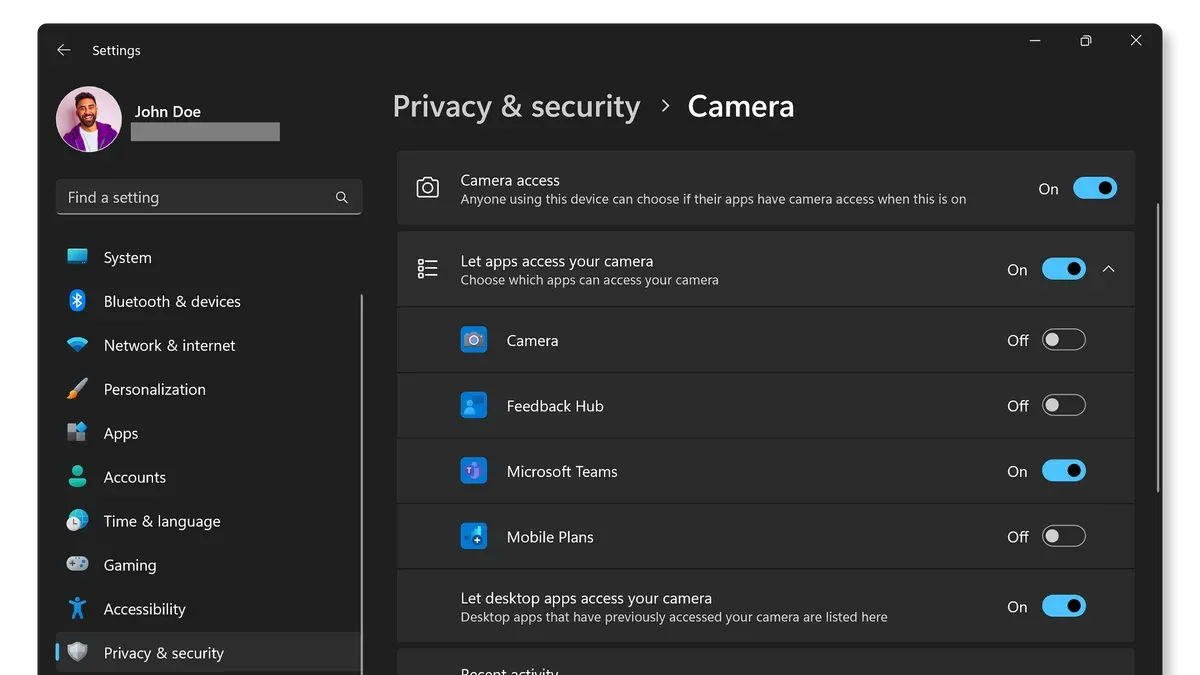
Users can choose from three 2FA methods: the default email code, SMS text message, or an authenticator app such as Google Authenticator. These codes must be stored securely outside the phone, for example, in a password manager or on paper, to regain access if primary authentication methods fail.
For example, enabling 2FA on the web and then attempting to log in via Roku will block access until 2FA is disabled or a different device is used.
After enabling 2FA, it is critical to verify successful login on desktop and alternative devices soon after. Check recovery code availability and store them securely. Users can disable 2FA anytime via the same Security Settings menu if needed, but this removes the extra security layer. Regularly reviewing 2FA settings ensures continued protection and account access readiness.
How to adjust Rumble privacy settings to control what others see
Rumble public profiles automatically display the username and number of followers, known as 'Rumblers.' These elements are visible to everyone, including non-followers. Beyond this default, users have control over which additional personal details appear publicly by editing the profile under Profile Settings.
To change visibility, navigate to Profile Settings and select Edit Personal Information. Here, users can add or remove details such as biography, location, or website links. Removing sensitive information limits exposure but deleting all personal information triggers automatic account deactivation, so balance is crucial.
Users can control who can comment, send messages, or follow by adjusting these options in Settings → Privacy. Limiting alerts from followers or unknown users reduces unwanted attention without affecting account visibility. This targeted control helps maintain a manageable public presence without sacrificing account functionality.
In practice, a user concerned about privacy might remove all optional personal details while retaining the username and follower count. They would then restrict messages to followers only and disable alerts for new followers. This combination keeps the profile visible but minimizes personal data and social contact. Note that full deletion of identifiable personal data is not possible without risking account deactivation.
This approach ensures the profile stays active and searchable, while tailoring exposure and interaction limits to the user’s comfort level. For detailed editing, visit the profile privacy section directly through the user menu under Profile Settings → Edit Personal Information. More details.
How to limit tracking and manage cookies on Rumble
These data help tailor content, recommend videos, and personalize ads to each user’s interests. Cookies are small text files temporarily stored on devices to enable these functions.
To limit tracking, users can adjust browser settings to block or restrict cookies. For instance, in Chrome, navigate to Settings → Privacy and security → Cookies and other site data, then select options such as "Block third-party cookies" or "Clear cookies on exit." This reduces the data Rumble can gather, limiting content personalization and ad targeting.
Users seeking to avoid personalized recommendations should also look for opt-out options within Rumble’s interface or account settings, if available. Disabling cookies entirely may affect site functionality, such as automatic login or video playback history, so selective blocking is usually preferable.
This combination restricts data shared with advertisers and reduces tracking without fully disabling essential site features.
These controls depend on the browser used and do not require changes inside the Rumble app or website beyond opting out where possible. Managing cookies via browser settings remains the primary method to control tracking on Rumble.
Why is Rumble not working and how to troubleshoot common access issues
Forgotten passwords or usernames remain the most straightforward issues; using the password recovery option on the desktop site resolves these. When Two-Factor Authentication (2FA) is enabled, users may encounter lockouts if their 2FA device is unavailable or recovery codes are lost. Without backup methods, regaining access requires contacting support and verifying identity, which can delay resolution.
Sign-in issues also occur on certain devices. For example, Roku users with 2FA enabled will find that signing in on the Roku interface fails, since 2FA management and login require the desktop web interface. Mobile and TV apps do not support setting up or managing 2FA, so any changes must be performed on a desktop browser.
| Symptom | Cause | Fix |
|---|---|---|
| Forgot password or username | User cannot recall login credentials | Use password or username recovery on desktop site |
| Locked out due to missing 2FA device or lost recovery codes | No backup 2FA methods available | Contact support for identity verification to regain access |
| Roku sign-in fails with 2FA enabled | 2FA not supported on Roku app login | Sign in via desktop website; disable 2FA if necessary |
| Unable to manage 2FA via mobile or TV app | 2FA management only available on desktop | Use desktop browser Security Settings to manage 2FA |
The problem stems from Roku's lack of support for 2FA during sign-in. The user must either disable 2FA via the desktop site or sign in on a desktop browser to regain full access. Users locked out after losing both their 2FA device and recovery codes must undergo support-assisted identity verification, as no automated recovery is possible.
Why are Rumble videos censored and what controls users have
Videos violating guidelines may be restricted or removed, impacting both on-demand content and live streams. Users cannot override these censorship decisions, as moderation is governed by platform rules rather than individual account settings.
Privacy and account settings influence who can view uploaded content, but they do not affect whether a video is censored. For example, setting a video to private limits its audience but does not prevent Rumble’s moderation algorithms from flagging inappropriate material. Awareness of this distinction is crucial for managing content effectively.
Live stream management requires special attention. Testing settings on the main live stream can inadvertently expose test content to the public because all main streams are recorded and available for playback. To avoid this, users should use a separate test stream for adjustments, preventing unintended audience impact and ensuring professional presentation.
Rumble’s censorship mechanisms are automatic or manual but always outside user control. Users must focus on compliance with content guidelines and use platform tools correctly to maintain visibility. Missteps in streaming setup or misunderstanding of moderation limits lead to unexpected content removal or restriction.
How to stop Rumble.com if you want to block or limit its presence
On browsers, users can block the website by adding Rumble.com to the blocked sites list in settings. For example, in Chrome, navigate to Settings → Privacy and security → Site Settings → View permissions and data stored across sites → Add "rumble.com" under "Blocked". This prevents page loading and content display.
On devices, parental controls or app restriction features allow blocking the Rumble app or website. For instance, Android users can use Digital Wellbeing or third-party apps to block Rumble, while iOS users rely on Screen Time settings to restrict app or website usage. These methods stop notifications and prevent launching the app or loading the site.
Adjusting browser settings to restrict notifications and alerts from Rumble is essential. Notifications can be disabled by going to browser settings under Site Settings → Notifications and removing Rumble.com from allowed senders. This stops pop-ups and alerts without blocking the site completely.
Blocking Rumble impacts account access and content consumption. Account features requiring site access become unavailable. Blocking cookies also limits tracking and personalized ads but may reduce site functionality and user experience.
For example, if a user blocks cookies from Rumble in their browser, personalized content recommendations stop, but some video playback or login persistence might fail. Users should weigh the trade-off between privacy and usability when applying these restrictions.
These steps help control Rumble's presence on devices and networks with clear consequences for account usage and content access. Users can use standard browser and device settings to implement these blocks and limitations effectively.
Those prioritizing account protection should enable Two-Factor Authentication via the desktop Security Settings, since mobile app 2FA support is pending. Users concerned about data tracking must decide between strict cookie controls or more permissive settings that enable smoother site functions. Troubleshooting access issues requires matching symptoms with exact fixes using the failure map provided. Finally, adjusting content visibility hinges on selecting precise audience options under privacy controls to balance exposure and control.
References
- Privacy Policy — Rumble
- Two-Factor Authentication (2FA) — Rumble FAQ
- Privacy Policy - Rumble IR — Rumble IR
- ((( Rumble ))) Privacy Policy — Rumble
- Recommended Settings For Live Streaming on Rumble — Rumble FAQ
See also: How to Manage PlayStation Privacy Settings Effectively · How to Manage Plenty of Fish Privacy Settings for Better Control · How to Recover and Secure a Rumble Account After a Hack · How to Manage X (Twitter) Privacy Settings for Better Account Control