How to Manage X (Twitter) Privacy Settings for Better Account Control
This article explains how to manage X (Twitter) privacy settings to help users control account visibility and data security effectively.

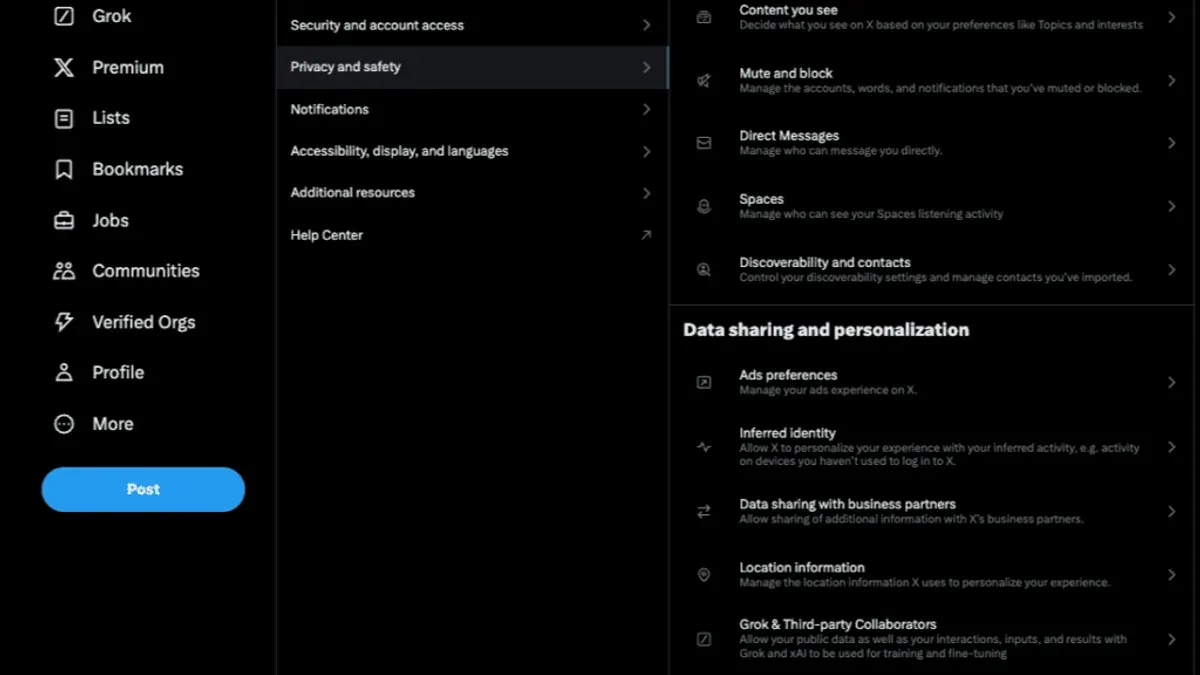
This article explains how to manage X (Twitter) privacy settings to help users control their account visibility and data security effectively.
X’s privacy settings determine who can see tweets, direct messages, and personal information, making them essential for tailoring the social media experience to individual comfort levels. The platform’s rebranding from Twitter to X introduced changes in terminology and user interface, but the core privacy tools remain accessible through the "Settings and privacy" menu under "Privacy and safety."
Understanding these settings alongside those of other platforms like Instagram clarifies the balance between openness and confidentiality that X offers. Practical guidance in this article covers how to customize settings based on user intent, the implications of making an account private, and the trade-offs between discoverability and security.
What X (Twitter) privacy settings are and why they matter
Privacy settings on X are tools designed to give users control over who can see their posts, interact with them, and access personal information. These settings help manage the visibility of tweets, profile data, and activity, enabling users to tailor their experience based on comfort levels and security needs.
Privacy controls exist primarily to protect users from unwanted interactions such as harassment, spam, or exposure to sensitive information. For example, enabling the “Protect your Tweets” setting restricts tweet visibility to approved followers only, reducing the risk of public criticism or data scraping. This control is essential given that social media platforms often face challenges related to user data privacy.
X’s privacy and safety policies aim to balance open communication with user protection. Features like muting, blocking, and controlling direct message permissions complement these settings to help users avoid unwanted contacts. However, limitations remain, as no platform can guarantee complete privacy or prevent all forms of misuse.
Concerns about social media privacy are widespread, with many users wary of how their data is collected and shared. High-profile incidents on Twitter before its rebranding, involving unauthorized data access or misuse of personal information, highlight the need for robust privacy controls. For instance, users who left their accounts public during such incidents risked exposing personal conversations or locations.
Tip: Regularly reviewing and updating privacy settings on X ensures alignment with changing preferences and platform updates, enhancing control over personal information.
Why Twitter changed to X and what that means for privacy
The transition from Twitter to X marked a significant rebranding effort aimed at transforming the platform's identity beyond microblogging. The change reflects the owner’s vision of creating an "everything app," encompassing messaging, payments, and other digital services under a single brand. Despite this broadening scope, the rebrand itself did not fundamentally alter the platform’s core privacy policies or the available privacy settings.
Official statements from X emphasize that existing privacy controls, such as visibility options, data sharing preferences, and account security features, remain intact and continue to operate under the same principles as before the rebrand. Users retain the ability to manage tweet visibility by toggling the "Protect your Tweets" setting found under Settings and Privacy > Privacy and Safety, controlling who can see their content.
However, the shift to the name X has influenced user perception of privacy. Surveys conducted after the rebranding indicate mixed feelings: some users associate the new brand with innovation and increased platform capabilities, while others express concern about potential data integration across services under the X ecosystem, which could affect privacy expectations.
For example, a user who previously trusted Twitter's straightforward approach to public and protected tweets might now question how data from varied X services is combined and protected. This highlights the importance of reviewing account settings regularly, especially as new features roll out under the X umbrella.
Tip: After major platform changes like rebranding, reviewing the "Privacy and Safety" settings helps ensure personal preferences remain aligned with current policies and features.
How to change privacy settings on X (Twitter)
To adjust privacy settings on X, users must first access the “Settings and Privacy” menu. On the desktop site, click the “More” option in the navigation sidebar, then select “Settings and Privacy.” On the mobile app, tap the profile icon or the navigation menu button, then choose “Settings and Privacy.”
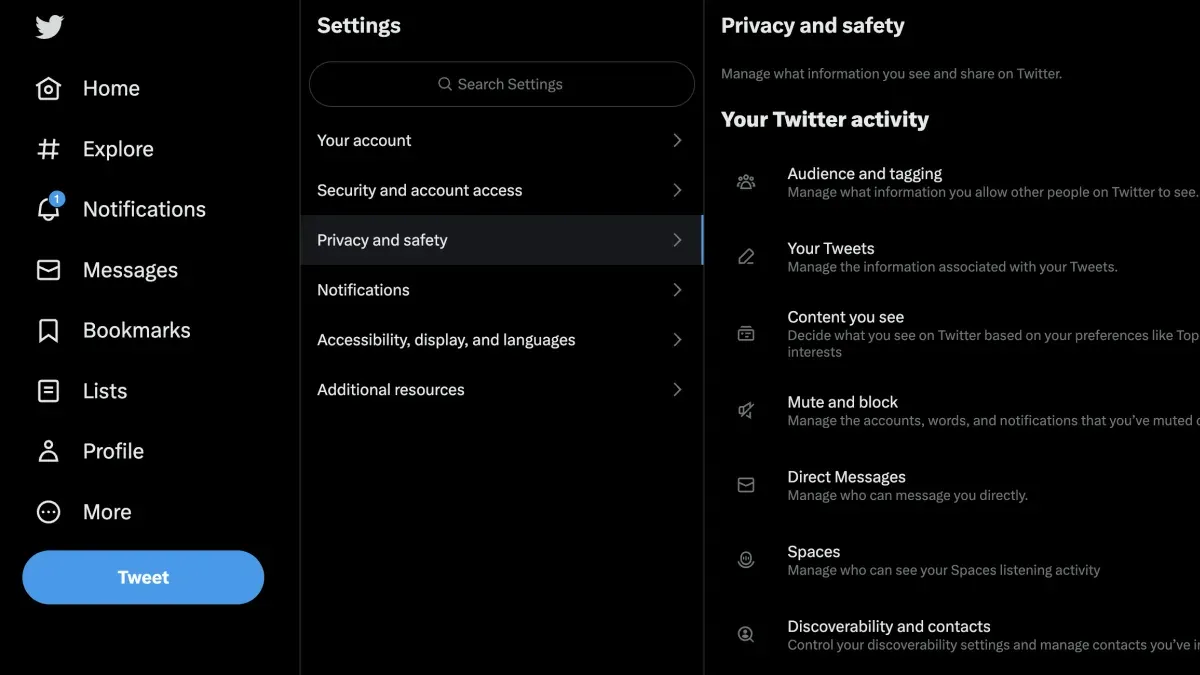
Within this menu, key privacy options include “Audience and Tagging,” “Direct Messages,” and “Tweet Privacy.” The “Protect your Tweets” setting under “Audience and Tagging” determines whether tweets are public or limited to approved followers. Enabling this setting makes the account private, allowing only followers accepted by the user to see tweets, while disabling it means tweets are publicly visible.
For example, setting an account to private restricts tweet visibility to followers only, which is useful for users sharing personal updates or sensitive content. Conversely, keeping tweets public maximizes reach but reduces control over who views the content.
Direct message controls can be customized under “Direct Messages.” Users can choose whether to receive messages from anyone or only from accounts they follow. Adjusting this setting can help manage unwanted contact.
One often overlooked step is reviewing the “Discoverability and contacts” section to control whether others can find the account via email or phone number. This can prevent unwanted connections.
Tip: Regularly revisiting privacy settings ensures they align with changing preferences and helps maintain desired levels of visibility and security on the platform.
How to set your X (Twitter) account private and when to do it
Setting an account to private on X means that only approved followers can see tweets, replies, and media. This setting restricts visibility beyond accepted followers, providing tighter control over who accesses posted content. To activate this, navigate to Settings & privacy > Privacy & safety > Audience and tagging, then toggle on “Protect your Tweets.”
Private accounts often see lower public engagement but gain enhanced control over audience reach. Public accounts may attract more followers and interactions, making them suitable for those seeking broad visibility. However, private accounts can reduce exposure to unwanted attention, spam, or harassment. For example, a user frequently targeted with unsolicited messages found that switching to a private account significantly lowered such incidents by limiting access to known followers only.
The decision to make an account private depends on personal priorities: privacy and safety versus maximum reach. Private accounts are particularly useful for individuals sharing personal updates, sensitive opinions, or managing public harassment. Conversely, public accounts benefit brands, influencers, or users aiming to maximize content dissemination and engagement.
Tip: Review your follower list regularly when your account is private to ensure that only trusted individuals have access.
How X protects user privacy compared to other social platforms
X offers privacy controls that differ notably from platforms like Instagram, especially in follower management and content visibility. On X, users can protect their Tweets by enabling the “Protect your Tweets” option under Settings & privacy > Privacy and safety > Audience and tagging. This limits content visibility solely to approved followers. Instagram’s closest equivalent is the "Private Account" setting, which similarly restricts posts to approved followers but integrates with Stories, Reels, and direct messaging in a more intertwined way.
| Feature | X (Twitter) | |
|---|---|---|
| Private Content Visibility | Protected Tweets limit visibility to followers only | Private Account hides posts, Stories, Reels from non-followers |
| Follower Management | Manual approval required for follower requests on protected accounts | Manual approval for follower requests on private accounts |
| Content Tagging | Option to allow others to tag user in Tweets | Control over tagging in posts and Stories |
| Discoverability | Option to control whether account appears in searches and suggestions | Similar controls for account visibility in search and recommendations |
Tip: Reviewing "Audience and tagging" settings regularly can prevent unintended content exposure on X.
Regarding privacy-related extensions, X supports third-party browser add-ons that enhance user privacy, such as those that block trackers or hide read receipts in direct messages. User reviews suggest these extensions vary in reliability and can occasionally interfere with platform functionality, so cautious selection and regular updates are advised.
Official privacy policies on X emphasize transparency about data collection, use, and sharing, similar to Instagram’s policies. Both platforms outline data handling for targeted advertising and third-party integrations but differ in the specifics of data retention and user data export options. For example, X’s policy explicitly details how tweet content may be used for service improvement, whereas Instagram focuses more on content sharing within Facebook’s ecosystem.
A concrete example: A user switching from Instagram to X might expect similar privacy control by setting their account private. However, on X, enabling protected Tweets impacts discoverability more significantly, as protected accounts are excluded from public search results and trending topics, limiting wider audience reach compared to Instagram’s private account, which still allows some discoverability via mutual followers.
Common mistakes people make with X privacy settings
A frequent error on X is unintentionally leaving accounts public. Users may believe they have restricted visibility but have not enabled the Protect your Tweets option found under Settings > Privacy > Audience and tagging. This oversight can expose all posts to anyone on or off the platform, increasing risks of unwanted attention or data scraping.
Misunderstanding direct message controls is another common pitfall. For example, the setting Allow message requests from everyone can remain enabled by default, allowing unsolicited DMs from unknown users. Similarly, users often overlook the Tagging option, which controls who can tag them in photos, potentially leading to unwanted exposure in posts.
Many users also neglect to review connected apps and third-party permissions accessible via Settings > Security and account access > Apps and sessions. Outdated or unnecessary app connections may retain access to personal data, increasing vulnerability to breaches. Cases have been reported where third-party apps with excessive permissions leaked user information.
Finally, ignoring updates to privacy policies and settings contributes to privacy lapses. X periodically revises its terms and introduces new controls, but users frequently fail to revisit or adjust settings accordingly. This lack of attention can result in mismatches between user expectations and actual data usage or sharing practices.
Tip: Regularly audit privacy settings and connected apps to maintain desired control over account visibility and data sharing.
How to use privacy and safety settings on X effectively
Maximizing control over privacy and safety on X involves strategic use of its settings and tools. Begin by customizing content visibility through Settings & Privacy > Privacy & Safety > Audience and Tagging. Here, enabling "Protect your Tweets" restricts content to approved followers, while managing who can tag or mention the account helps limit unwanted interactions.
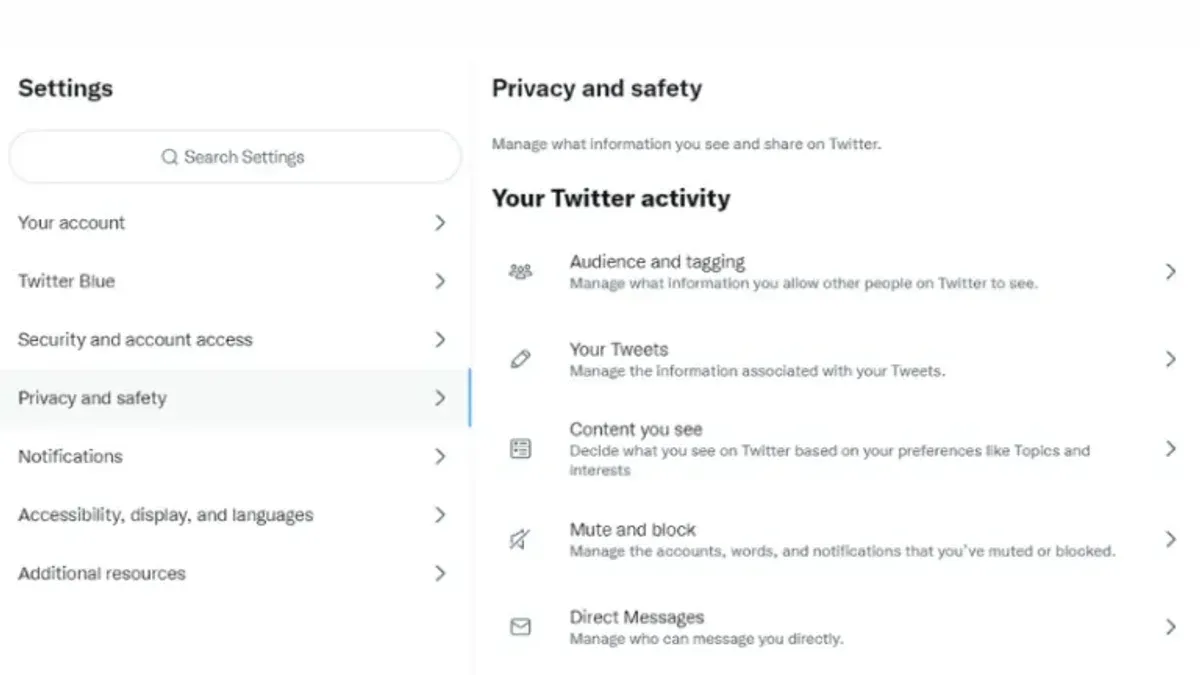
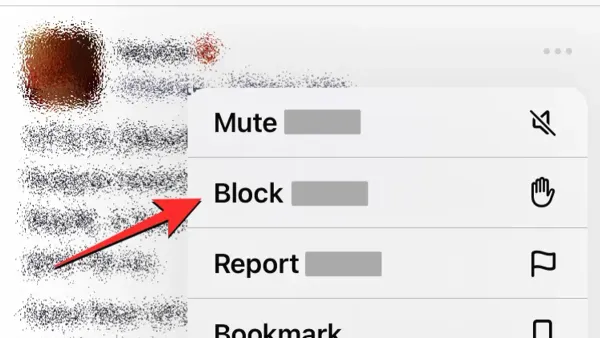
Interaction limits can be fine-tuned with the "Quality filter" and "Mute and block" features found under Privacy & Safety. Muting specific words, phrases, or accounts reduces exposure to unwanted content without alerting others, while blocking prevents any interaction from selected accounts entirely. Reporting harmful behavior is accessible via the report button on tweets or profiles, critical for maintaining a safe environment.
Regularly reviewing connected third-party apps is essential. This is done under Settings & Privacy > Security and account access > Apps and sessions. Revoking access for unused or suspicious apps minimizes data sharing risks and potential breaches.
Users often overlook browser extensions or mobile apps designed to enhance privacy on X. Extensions that block trackers or manage content filters can supplement native settings, providing an extra layer of control. For example, after enabling "Protect your Tweets" and muting a list of harassing accounts, one user reported a significant decrease in unsolicited messages, improving overall experience.
Tip: Periodically revisiting privacy settings ensures they align with evolving personal comfort levels and platform updates.
Further reading
- Comprehensive Guide to WhatsApp Privacy Settings and How They Work
- Understanding and Managing TikTok Privacy Settings for Better Control
- How Telegram Privacy Settings Protect Your Chats and Data
- Facebook Privacy Settings Explained: How to Control Your Account Security
Frequently asked questions
How to use x twitter?
X (formerly Twitter) is a social media platform where users can post short messages called tweets, follow other accounts, and engage through likes, retweets, and replies. To use X effectively, create an account, customize your feed by following interests, and interact with content while managing visibility and privacy through the settings menu under "Privacy and safety."
Why x instead of twitter?
The rebranding from Twitter to X reflects a strategic shift toward a broader platform vision beyond microblogging, aiming to integrate various services like payments and communication. The change also signals a new identity and direction, influencing how privacy and data policies evolve under the new brand.
Why twitter change to x?
Twitter changed to X to reposition itself as a multifunctional platform, moving beyond the traditional microblogging model. This rebranding represents efforts to innovate and expand services while updating the platform's privacy approach to align with its new features and business goals.
How to set privacy settings on instagram?
On Instagram, privacy settings can be adjusted by accessing the profile, tapping the menu, selecting "Settings," then "Privacy." Users can switch their account to private, control story visibility, manage who can comment, and restrict interactions to maintain desired levels of privacy.
How to turn on privacy settings?
To turn on privacy settings on X, navigate to the profile menu, select "Settings and privacy," then "Privacy and safety." Here, users can enable options like protecting tweets (making the account private), controlling who can tag or message, and limiting discoverability by email or phone number for enhanced privacy.
Limits of this guide and when to seek more
This guide focuses exclusively on managing privacy settings within X (Twitter) and does not cover broader security measures such as enabling two-factor authentication or handling account recovery options. Users aiming to fully anonymize their online presence or prevent data collection beyond platform-provided settings may need to explore additional privacy tools like VPNs, encrypted messaging, or specialized browser extensions.
The most practical next step is to regularly review and customize the “Audience and tagging” and “Data sharing and personalization” sections in X’s Settings & privacy menu. Adjusting these settings helps balance visibility with control over personal data and interactions, reflecting the user's current preferences without compromising account accessibility.