
Complete Guide to Instagram Privacy Settings for Account Control
This guide explains how to navigate Instagram privacy settings to control who sees your content and manage your data securely.

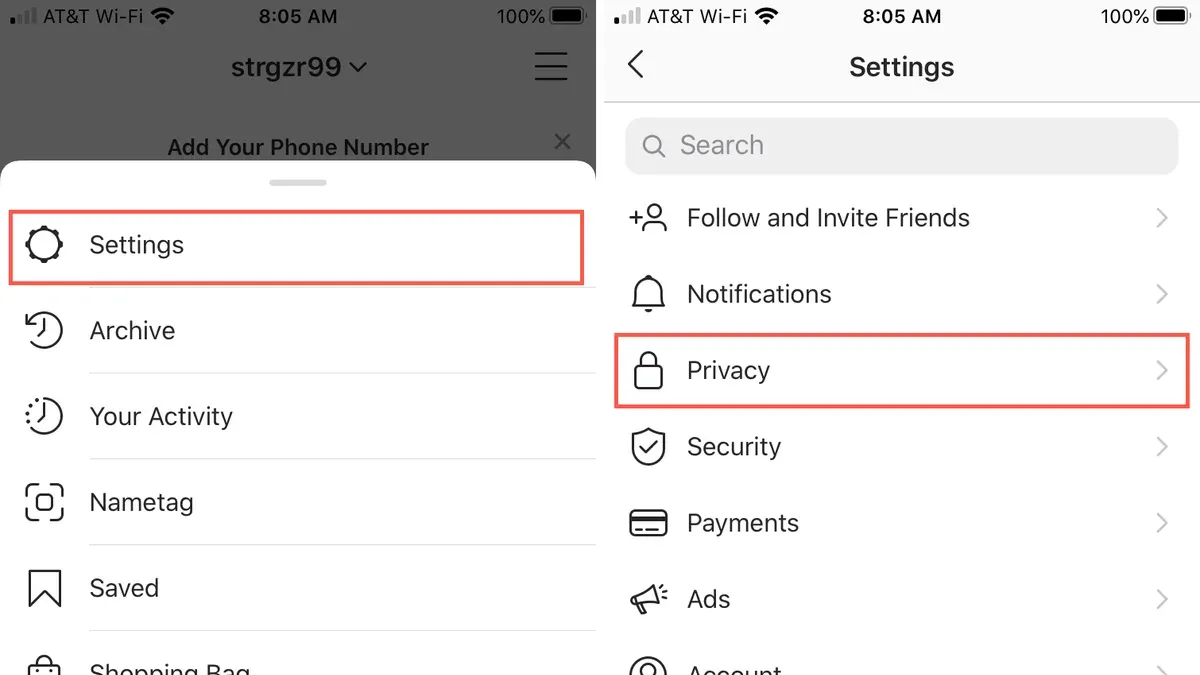
This guide explains how to navigate Instagram privacy settings to control who sees personal content and how data is managed.
Instagram privacy settings allow users to customize visibility of posts, stories, and profile information, balancing openness with protection. Accessing these options requires navigating to the menu under Settings > Privacy, where controls are grouped by content type and interaction. For example, setting the account to Private restricts posts to approved followers only, while Story controls enable hiding from specific users or sharing with Close Friends lists.
Understanding these settings helps users make informed choices about their online presence and data sharing. This article also addresses Instagram’s privacy policy framework and highlights practical trade-offs, such as limiting engagement versus discoverability.
What Instagram Privacy Settings Are and Why They Matter
Instagram privacy settings are a suite of tools that allow users to control who can view their posts, stories, and profile information. These settings determine visibility—from allowing everyone on the platform to see content to limiting it exclusively to approved followers. Managing these settings is essential for protecting personal data and controlling how content is shared.
Privacy settings directly affect personal security and reputation. For example, a public account can be viewed and followed by anyone, increasing exposure but also the risk of unwanted interactions or misuse of posted content. Conversely, a private account restricts access, granting control over who sees posts but potentially limiting audience reach and engagement.
Instagram, owned by Meta, operates within a broader ecosystem where data privacy expectations are shaped by the parent company's policies and industry standards. Users often express concerns about data collection and sharing, with many seeking greater control over their digital footprint. Statistics from various surveys show a significant portion of Instagram users prioritize privacy and adjust settings accordingly.
Consider a user sharing vacation photos. If the account is public, those images could be seen by anyone, including strangers or third parties, which may raise privacy risks. If the account is private, only approved followers can view these moments, offering greater peace of mind but less public interaction.
Where to Find Settings and Privacy on Instagram
Accessing Instagram’s privacy controls begins with locating the Settings & Privacy menu, which serves as the gateway to managing account visibility, data permissions, and security options. On mobile devices, this menu is integrated within the profile tab.
On both iOS and Android apps, start by tapping the profile icon at the bottom right of the screen. Next, tap the hamburger menu (three horizontal lines) at the top right corner to open a side panel. From there, select Settings & Privacy. This consolidated menu includes sections such as Privacy, Security, and Account, providing direct access to relevant controls.
Recent interface updates have streamlined navigation by grouping privacy-related settings under a single umbrella rather than scattered options. For example, the Privacy section now clearly lists controls for account privacy, interactions, and story sharing in one place.
On the web interface, access is less centralized. After logging in, click the profile icon in the top right corner, then choose Settings. Privacy options here are more limited compared to the app and may require visiting different tabs or pages for specific controls.
Example: To adjust who can see posts, a user on Android taps profile → hamburger menu → Settings & Privacy → Privacy → Account Privacy, then switches from Public to Private. This flow is nearly identical on iOS, with minor button design differences but consistent labeling.
Tip: If the hamburger menu is missing or Settings & Privacy is hard to find, updating the app often restores the latest interface layout and feature groupings.
How to Set Privacy Settings on Instagram
To set an Instagram account to private, access the profile page and tap the menu icon, then navigate to Settings & Privacy > Account Privacy. Here, toggle on Private Account to restrict content visibility exclusively to approved followers. Before switching, the account is public, allowing anyone to view posts and stories, but after activation, only confirmed followers can see content.
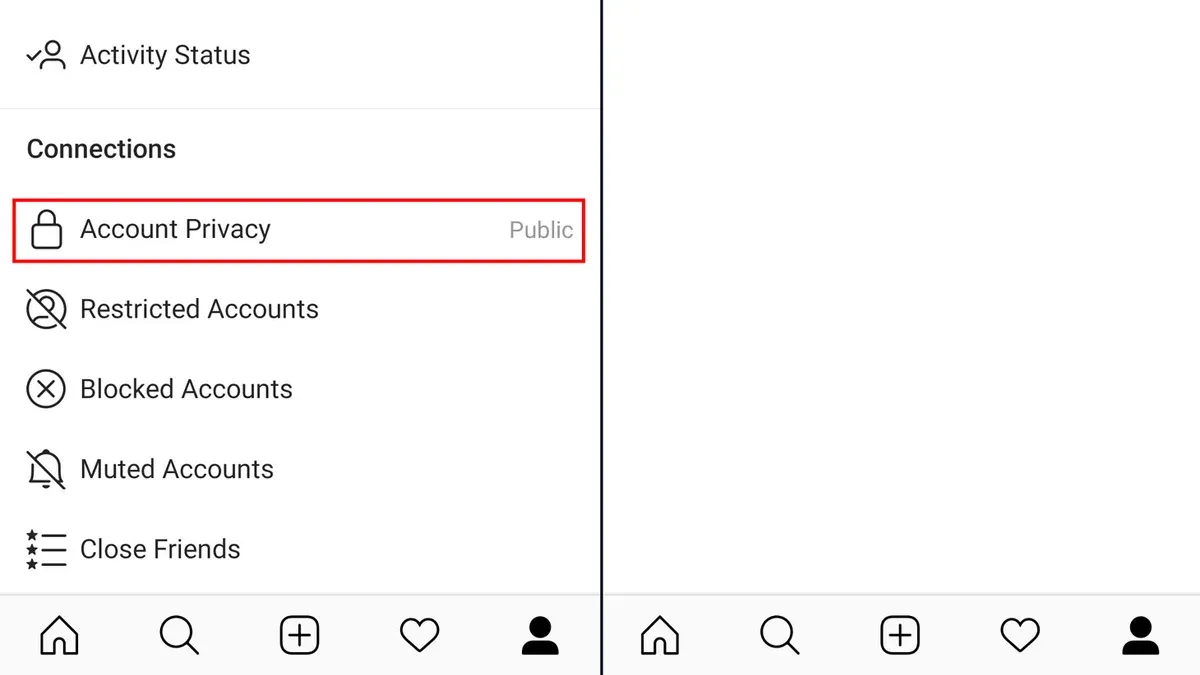
For example, a user with 500 followers who switches to private will prevent new users from viewing posts unless they send and have their follow requests accepted. This change prompts a transition where follower requests must be manually approved.
Managing follower permissions is done via the Followers list under profile settings. Incoming requests appear in the Follow Requests section, allowing users to accept or deny access. Existing followers can be removed by selecting their profile from the followers list and choosing Remove Follower, which does not notify the removed user but restricts their access to posts and stories.
Common scenarios include users switching to private to control new follower influx or removing followers who are no longer trusted. However, making an account private limits discoverability and can reduce engagement from new audiences.
Tip: Review pending follow requests regularly to maintain control over who sees personal content.
How to Change Privacy Settings on Instagram for Stories and Posts
Instagram allows separate customization of privacy for stories, posts, and reels, enabling precise control over who sees different content types. To adjust story privacy, navigate to Settings & Privacy > Story. Here, users can create a Close Friends list, limiting story visibility to a select group. This is useful for sharing more personal moments without exposing them to all followers. Additionally, stories can be hidden from specific users by selecting Hide Story From and choosing individuals, preventing their view without blocking or removing them.
For posts, privacy customization focuses on controlling comments and audience. Under Settings & Privacy > Posts, the Who Can Comment option lets users restrict commenting to everyone, people they follow, followers, or both. This reduces unwanted interactions while maintaining post visibility.
Post visibility itself can be managed by creating Close Friends lists or using the Restricted account feature to limit interaction without fully blocking users. However, unlike stories, posts cannot be hidden from specific followers individually; the account’s overall privacy setting governs post visibility. For example, a private account ensures only approved followers see posts, while a public account broadcasts posts to all.
Example: A user wanting to share a weekend trip story only with close friends can add those contacts to the Close Friends list, ensuring others do not see it. Meanwhile, the same user can restrict post comments to followers only, minimizing spam without affecting post reach.
Tip: Regularly review Close Friends and hidden story lists to keep privacy aligned with current relationships.
Understanding Instagram’s Privacy Policy and Data Handling
Instagram collects a range of personal data including profile information, content shared, interactions with other users, device information, and location data. According to Instagram’s privacy policy, this data collection supports core functions such as account operation, content personalization, and security measures.
The platform uses collected data to create personalized experiences, tailoring content and advertisements to user interests. For example, if a user frequently engages with fitness-related posts, Instagram’s algorithms may prioritize similar content and relevant ads in their feed. This targeted approach aligns with practices on comparable platforms like Facebook and Twitter, which also rely heavily on user data for advertising revenue.
Users retain control over much of their data through settings like Ad Preferences and Data Download found in the Settings & Privacy menu. These controls enable users to limit ad personalization, view data Instagram holds, and manage permissions for third-party integrations. However, full data deletion is complex, as Instagram notes it may retain certain information for legal compliance or safety reasons.
Tip: Regularly reviewing the Privacy and Security section within Instagram’s settings helps maintain awareness of data use and available controls.
How to Check and Manage Instagram Data Privacy Settings
Instagram users can audit and control data sharing by reviewing connected third-party apps and adjusting ad preferences. To check connected apps, navigate to Settings & Privacy > Security > Apps and Websites. Here, active apps with access to Instagram data are listed. Revoking access is done by selecting an app and choosing Remove. This is crucial as many users unknowingly grant permissions to apps that may misuse data or remain connected long after use, increasing privacy risks.
Example: A user discovers a fitness app linked to Instagram that posts workout summaries automatically. If this sharing is no longer desired, removing the app prevents further data exchange and posting.
Ad settings can be managed under Settings & Privacy > Ads > Ad Preferences. Instagram shares data with Meta to personalize ads, but users can limit categories of data used or opt out of some targeting methods. This reduces ad relevance but enhances privacy.
Instagram also offers Access Data and Download Data features in Settings & Privacy > Security > Access Data. Access Data displays account activity and information Instagram holds, such as login history and profile changes. Download Data allows users to request a file containing all shared content and profile data, enabling comprehensive review.
Tip: Regularly checking connected apps and ad preferences helps maintain control over personal information and reduces unwanted data sharing.
Common Mistakes and How to Fix Instagram Privacy Settings
One frequent error is leaving an Instagram account unintentionally public. Users may believe their content is restricted when the "Private Account" toggle under Settings & Privacy > Privacy > Account Privacy remains off. This exposes posts and stories to anyone, increasing the risk of unwanted viewers. To fix this, switching the toggle on immediately limits visibility to approved followers only.
Another common oversight involves neglecting story and post-specific privacy controls. For example, users might share stories without adjusting the "Hide Story From" list or fail to use the Close Friends feature, leaving content accessible to a broader audience than intended. Regularly reviewing these settings ensures stories and posts align with personal sharing preferences.
Reviewing data sharing and app permissions is often overlooked but essential. Connected third-party apps may retain access to personal data long after initial approval, posing privacy risks. Users should navigate to Settings & Privacy > Security > Apps and Websites to review and remove any outdated or unnecessary connections.
Consider a case where a user kept their account public and shared stories broadly, unintentionally exposing personal moments. After switching to a private account and customizing story privacy, unwanted views dropped significantly, improving their sense of control and security.
Tip: Periodically audit all privacy options and connected apps to maintain desired control over account visibility and data sharing.
Managing Privacy and Security Settings Together for Stronger Protection
Privacy and security settings on Instagram work hand in hand to protect user accounts from unauthorized access and data exposure. Security features like two-factor authentication (2FA) and login alerts complement privacy controls by adding layers of defense that prevent intrusions potentially compromising personal information.
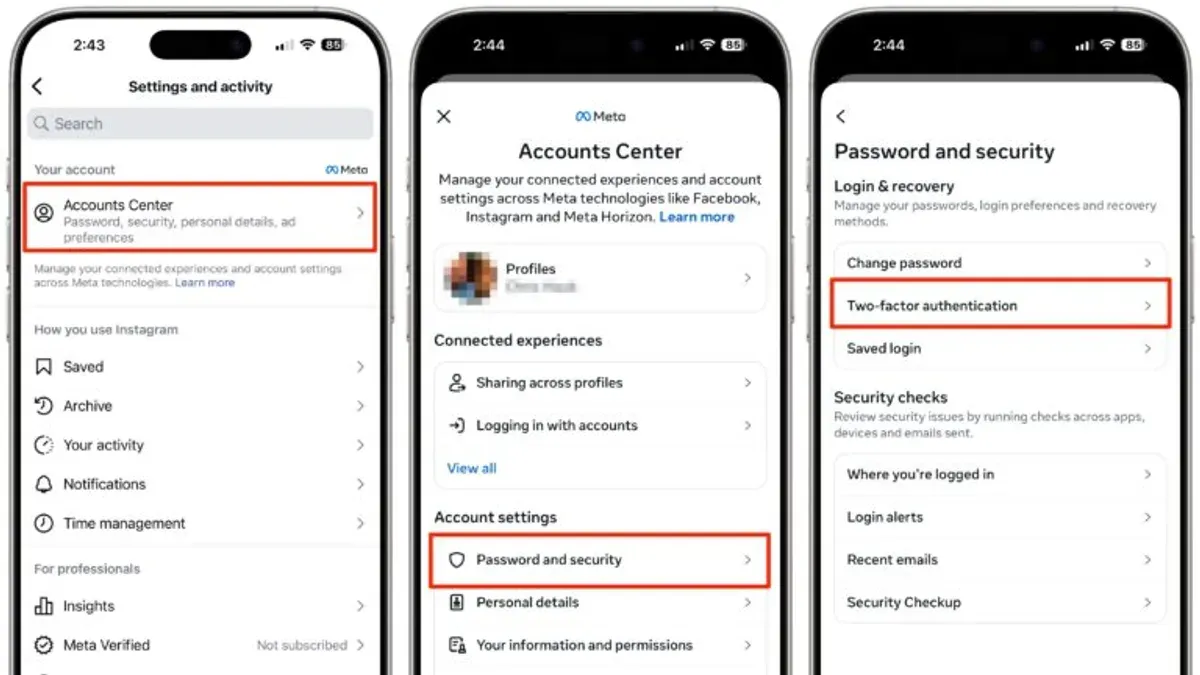
Two-factor authentication requires users to provide a second verification step, such as a code sent via SMS or an authenticator app, after entering their password. This additional barrier significantly reduces the risk of unauthorized login attempts even if login credentials are stolen. Instagram reports that enabling 2FA can stop many common hacking methods, protecting accounts from breaches that might expose private content or follower information.
Login alerts notify users when their account is accessed from an unrecognized device or location, allowing quick responses to suspicious activity. Together with privacy settings like account visibility and follower approvals, these security features reduce the likelihood of data leaks or identity misuse.
Tip: Activate two-factor authentication via Settings > Security > Two-Factor Authentication, and enable login notifications under the same menu to monitor access in real time.
Combining strict privacy controls with robust security measures creates a more resilient shield around an Instagram account. For example, even a private account can become vulnerable if a password is compromised and 2FA is not enabled. Conversely, security features alone cannot limit content visibility without appropriate privacy settings. A balanced approach involves regularly reviewing both sets of options, using strong passwords, and staying alert to Instagram’s security alerts and updates.
Further reading
- How to Change Instagram Password: Step-by-Step Guide for All Devices
- How to Delete an Instagram Account Permanently: Clear Steps for Every Device
Frequently asked questions
What is instagram's privacy policy?
Instagram's privacy policy outlines how the platform collects, uses, and shares user data. It explains the types of information gathered, including content posted, interactions, and device details, and clarifies how this data supports features, advertising, and security. The policy also describes user rights and controls available to manage personal information.
How to set privacy on instagram?
To set privacy on Instagram, open the app and go to the Profile tab, then tap the menu icon and select Settings > Privacy. Users can switch their account to Private, control who can see their content, manage story sharing, and restrict interactions. Adjusting these settings helps limit exposure and control who views posts and stories.
Does instagram have privacy settings?
Yes, Instagram offers a range of privacy settings, including options to make an account private, control who can comment or message, limit story visibility, and manage activity status. These settings allow users to customize their account's visibility and interaction level to better protect their personal content.
Where is settings and privacy on instagram?
Settings & Privacy on Instagram is found by tapping the profile icon in the bottom right, then the menu icon (three horizontal lines) in the top right. From there, select Settings & Privacy to access all privacy, security, and account controls in one place.
How to instagram privacy settings?
To adjust Instagram privacy settings, navigate to Settings > Privacy after opening the app. From here, users can enable Private Account, manage story and post visibility, restrict messages, and review blocked accounts. It is important to review these settings regularly, as default options may allow broader sharing than intended.
Limits of This Guide
This guide does not cover legal privacy protections or how privacy settings affect data shared outside Instagram’s platform, such as data used by Meta across its services. Users seeking comprehensive legal advice or wishing to control data usage beyond Instagram should consult privacy professionals or review Meta’s broader data policies.
For those aiming to enhance account privacy effectively, the most practical next step is to regularly review and adjust the “Account Privacy” setting found under Settings > Privacy. Switching to a Private Account restricts content visibility to approved followers, which is the foundation of controlling who sees posts and stories.
Tip: Many users overlook the “Close Friends” list for stories, which allows sharing content selectively without changing overall account visibility.



