How to Log Out of League of Legends on All Devices Efficiently
Discover the exact steps to log out of League of Legends on all devices and protect your account from unauthorized access.


The dialog offers 'Exit' and 'Sign Out' options with different effects: 'Sign Out' logs the user out and returns to the login screen, while 'Exit' merely closes the window, leaving the session active. This distinction is crucial when learning how to log out of League of Legends on all devices because merely closing the client or launcher often leaves accounts logged in, exposing them to unauthorized access.
The Riot Games launcher behaves differently, minimizing to the system tray when closed via the X button and requiring a manual 'Exit' from the tray menu to fully close and log out. Additionally, the Riot account website offers a 'LOG OUT EVERYWHERE' button that revokes trusted device status and ends sessions across all devices, a step often overlooked but essential for comprehensive logout.
Failing to follow the exact logout sequence or misunderstanding these client quirks is the main reason players remain unknowingly logged in elsewhere.
Every limit and setting name below comes from LoLTheory Blog, Riot Games, TheSpike.gg (full list at the end), as of November 2026.
What Happens When Closing the League Client: Sign Out vs Exit
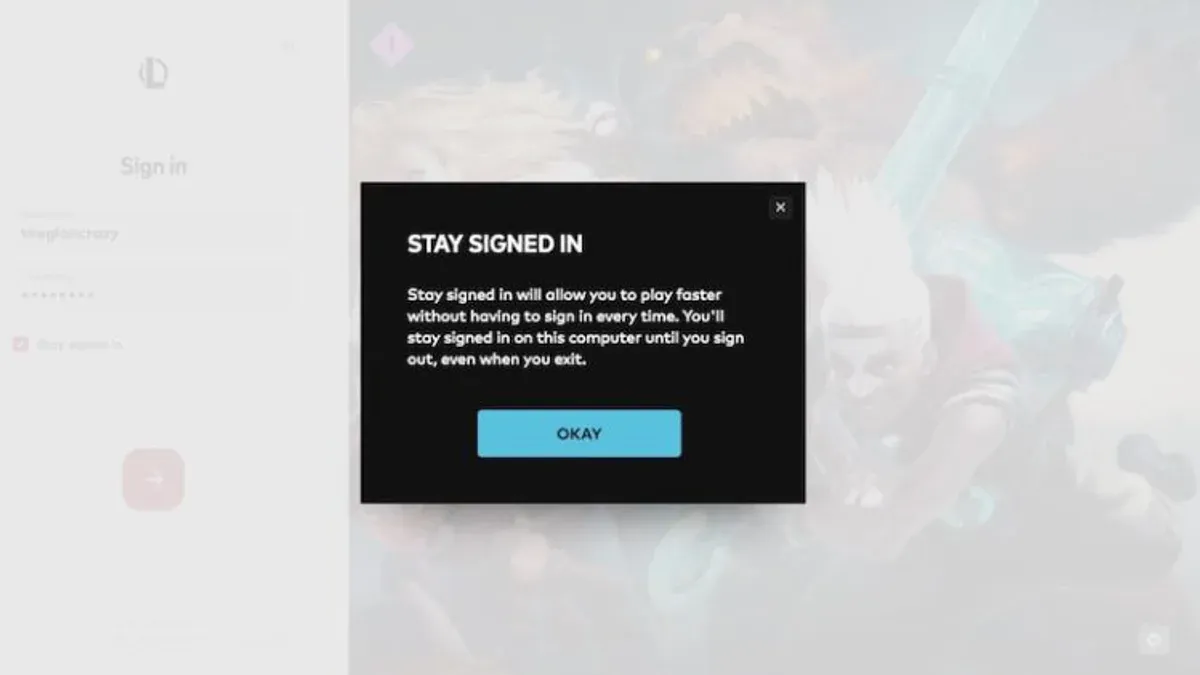
Clicking the X button at the top-right corner of the League of Legends client prompts a dialog with two options: Sign Out and Exit. Choosing Sign Out logs the account out and returns the user to the login screen, ensuring the session ends. Selecting Exit merely closes the client window without logging out, leaving the session active if the Stay logged in option was enabled during sign-in.
If Stay logged in was checked, clicking Exit does not terminate the login session; the account remains accessible on that device. To fully log out, the Sign Out option must be used instead of Exit. This distinction prevents accidental persistent logins that might expose the account.
The Riot Games launcher behaves differently. Clicking its X button does not close the application but minimizes it to the system tray. To completely exit and log out from the launcher, the user must right-click the Riot Games icon in the system tray and select Exit. Simply clicking the X on the launcher window is insufficient for logging out or closing the app.
Step-by-Step: Logging Out from the Current Device Properly
- Open the League of Legends client. The main game interface will appear.
- Click the X button in the top-right corner of the client window. This triggers a confirmation dialog with two options: 'Exit' and 'Sign Out'.
- Select 'Sign Out' in the confirmation dialog. This logs the account out locally and returns the interface to the login screen, ensuring the session ends on this device.
- Locate the Riot Games launcher icon in the system tray (usually bottom-right corner of the desktop). Right-click this icon to open the context menu.
- Choose 'Exit' from the system tray menu. This fully closes the Riot Games launcher and completes the logout process on the device, preventing any background session from persisting.
Clicking 'Exit' on the client’s X button alone only closes the window without logging out, which leaves the session active. Similarly, closing the launcher window without using the system tray 'Exit' command only minimizes it, leaving the account logged in.
How to Log Out Remotely from All Devices via Riot Account Website
To log out of all devices at once, sign in to the Riot account website with the account credentials. After signing in, navigate to the Security section from the main menu. Within Security, locate the Login Management card, which provides controls related to active sessions and trusted devices.
Click the 'LOG OUT EVERYWHERE' button found in the Login Management card. This action immediately logs out the Riot account from all devices currently signed in. It also revokes the trusted device status for those devices, ensuring they must re-authenticate upon the next login attempt.
This method is the most direct way to terminate all active sessions remotely, including those on devices that may not respond to standard logout commands. It is particularly useful if there is suspicion of unauthorized access or if access to some devices has been lost.
- Sign in to the Riot account website.
- Go to the Security section.
- Find the Login Management card and click the 'LOG OUT EVERYWHERE' button.
- Confirm the action if prompted; the account will then be logged out from all devices and trusted device statuses revoked.
Using Password Change to Force Logout from All Devices
Changing the Riot account password forces a logout on all devices currently logged into the account. This method is essential if the remote logout option is inaccessible or if the user suspects unauthorized access from a shared or public computer. Performing a password change revokes session tokens and ends active sessions, ensuring no device remains logged in without the updated credentials.
To change the password, first sign in to the Riot account website. Hover over the username in the top-right corner and select 'Settings' from the dropdown menu. In the 'Riot Account Sign-In' section, locate the password change option and enter the new password. Completing this action immediately forces all devices to require the new password for login, effectively terminating all current sessions.
This approach is a reliable security measure when remote logout fails or is not available. It is recommended to update the password promptly after suspecting any security breach or when unable to manually log out from all devices.
- Sign in to the Riot account website and hover over the username.
- Click on 'Settings' from the dropdown menu that appears.
- Navigate to the 'Riot Account Sign-In' section.
- Enter and confirm the new password following the on-screen instructions.
- Submit the change and observe confirmation that the password update was successful.
What Logging Out Looks Like on Different Platforms and Versions
The League client’s X button presents two options: 'Exit' and 'Sign Out'. Selecting 'Sign Out' logs the user out and returns to the login screen, while choosing 'Exit' simply closes the window without ending the session.
The Riot Games launcher behaves differently. Clicking its X button only minimizes it to the system tray. To fully log out, the launcher must be exited from its system tray icon menu by right-clicking and selecting 'Exit'.
On the League of Legends website, logging out requires clicking the summoner name in the top-right corner and selecting 'Logout' from the drop-down menu.
| Platform | Logout Method | Result | Account Switching |
|---|---|---|---|
| League Client (desktop) | X button → 'Sign Out' | Logs out, returns to login screen | No; must sign out first |
| Riot Games Launcher (Windows desktop) | System tray icon → Right-click → 'Exit' | Fully exits and logs out | Not applicable |
| League of Legends Website | Click summoner name → 'Logout' | Logs out from web session | Not applicable |
Common Mistakes That Cause Logout to Fail and How to Fix Them
The session remains active on that device, creating a false sense of security. Always choose 'Sign Out' from the client’s X button dialog to end the login session properly.
The current client does not offer an account-switcher feature. To change accounts, sign out fully, then log in with the new credentials. Skipping this step keeps the original account active.
Logging out completely on these devices is critical to prevent misuse.
This action removes local settings and cached login data but should only be used if standard logout methods fail.
- Always select 'Sign Out' instead of 'Exit' to close the client and end the session.
- Sign out before switching accounts; do not rely on switching within the client.
- Log out fully from any public or shared computer to protect the account.
- Delete the 'Config' folder only if logout fails through normal procedures.
Verifying Logout Success and Next Steps if It Didn’t Work
This confirms the current device has ended the session. To verify logout across all devices, sign in to the Riot account website, navigate to the Security section, and locate the Login Management card. Confirm no active sessions remain there.
This revokes all session tokens and trusted device statuses remotely. This action forces logout on all devices, including those that do not respond to remote commands.
Deleting the 'Config' folder in the League of Legends installation directory is a last resort to force logout and repair client issues. This step should only be taken if all other methods fail and the client exhibits abnormal behavior or persistent login states.
- Open the League client and check for the login screen instead of the game lobby, confirming local logout success.
- Log in to the Riot account website, go to Security > Login Management, and verify no active sessions remain.
- If needed, press the 'LOG OUT EVERYWHERE' button to revoke all sessions and trusted devices remotely.
- For maximum security or unresolved login issues, change the Riot account password to force logout on all devices.
- If logout still fails and the client behaves oddly, delete the 'Config' folder in the installation directory as a last resort.
Key Actions to Log Out from League of Legends on All Devices

Situations Beyond This Logout Process
Handling hacked accounts requires additional security measures such as contacting Riot Games support and enabling two-factor authentication. Players needing to regain access or secure a breached account should follow Riot’s official recovery and security protocols separately.
Sources
- How to Log Out of League of Legends — LoLTheory Blog
- Multi-Factor Authentication How-to & FAQ - Riot Games Support — Riot Games
- How to log in and log out of League of Legends? — TheSpike.gg
- How To Log Out Of League Of Legends? (Updated) - LeagueFeed — LeagueFeed
See also: How to Log Out of Call of Duty on All Devices Quickly and Securely · How to Log Out of Viber on All Devices: Step-by-Step Guide · How to Log Out of WhatsApp on All Devices: Step-by-Step Guide · How to Recover and Secure a Hacked League of Legends Account