How to Delete a Truth Social Account Permanently: Clear Steps
This guide provides clear, step-by-step instructions on how to delete your Truth Social account permanently and avoid common pitfalls.


This guide explains how to delete Truth Social account permanently with clear, direct instructions tailored to the platform's specific process. Truth Social requires multiple verification steps before allowing permanent deletion, which can differ from other social networks. Users must navigate through precise menu options in the app or website, confirm identity, and understand what happens once the account is deleted.
Common obstacles include verification failures and misunderstanding the delay between deactivation and permanent deletion. This article covers each step in detail, highlights pitfalls that generic guides overlook, and offers troubleshooting tips to ensure the deletion process completes smoothly.
Before You Start: What Is Needed to Delete a Truth Social Account
To delete a Truth Social account, access to the platform via the app or website with valid login credentials is mandatory. These credentials typically include the registered email or phone number and the account password. Users often encounter errors when attempting deletion without updated or correct login information, resulting in failed verification.
Ensure the account is active—accounts that are suspended, locked, or deactivated cannot be deleted until restored or unlocked. Deletion is permanent, removing all posts, followers, and personal data irreversibly. Backing up important posts or information beforehand is essential, as Truth Social does not offer a native export tool. Users commonly save screenshots or copy content externally.
- Confirm login credentials by successfully signing into the Truth Social app or website. Successful access will display the user’s home feed or profile page.
- Check account status by navigating to Settings & Privacy > Account to verify the account is active. If the account is suspended or locked, a notification will appear here.
- Backup any important data manually, such as screenshots or copied text, stored securely outside the app.
How to Navigate to the Account Deletion Option
- Log in to the Truth Social app or web interface and tap on the profile icon located at the top-right corner of the home screen. This opens the main profile menu.
- From the profile menu, select Settings. The Settings page lists various configuration categories.
- Scroll down within Settings to find the Privacy & Account section. This area contains controls related to account security and management.
- Within Privacy & Account, locate and tap Account Management. This submenu includes options for account status changes.
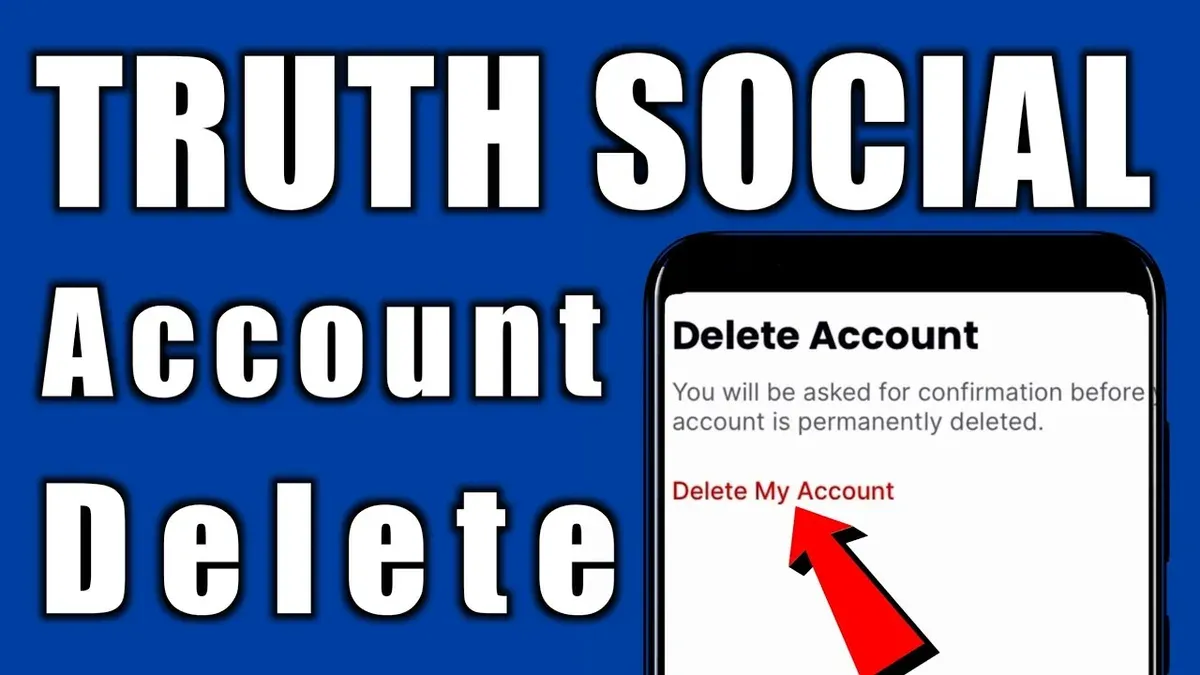
- Find the Delete Account option at the bottom of Account Management. Note that this is distinct from Deactivate Account, which temporarily disables the account without permanent data removal.
- Select Delete Account to proceed to the confirmation screen explaining the consequences of permanent deletion and verification steps.
Tip: Be sure to distinguish between Deactivate (temporary) and Delete (permanent) to avoid unintended loss of access.
How to Confirm and Complete the Permanent Deletion Process
- Select the “Delete Account” option on the confirmation screen. A prompt will appear requesting the account password to verify identity. Enter the current password and submit; the system will validate the credentials before proceeding.
- If two-factor authentication (2FA) is enabled, a verification code will be sent via SMS or authenticator app. Enter the code promptly to confirm the request. Failure to provide the code will halt the deletion process.
- Review the detailed warnings presented on the screen. These include permanent loss of all content, messages, and followers, and the inability to recover the account once deleted. Acknowledge these warnings by checking the confirmation box to enable the final deletion button.
- Click the final “Confirm Deletion” button. In some cases, an additional confirmation email will be sent to the registered email address with a link that must be clicked within 24 hours to finalize the deletion.
- After confirmation, the account enters a deletion process that typically completes within a few days. During this period, the account is inaccessible and will be permanently removed from the platform once the process finishes.
Tip: Missing the 2FA code or final email confirmation is a common point of failure; ensure all steps are completed promptly.
What Happens After Deleting a Truth Social Account
Once the permanent deletion process is completed, access to the Truth Social account is immediately revoked. All content associated with the account, including posts and profile information, becomes invisible to other users. However, the platform’s data retention policy indicates that some user data may remain on servers for a limited period to comply with legal obligations and ensure system integrity.
Truth Social does not specify an exact timeframe for complete data removal, but users should expect a delay before all personal information is fully erased from backup systems. Linked services or third-party applications that used the Truth Social account for authentication or data sharing will lose access and may require reconfiguration or disconnection.
Importantly, account deletion is irreversible. There is no option to reactivate or restore the deleted account once the process is finalized. Users must create a new account if they wish to return to the platform.
Troubleshooting: What to Do If Account Deletion Fails
When account deletion fails, the first step is to ensure login credentials are correct. If the password is forgotten or the account is locked, use the “Forgot Password?” option on the login screen to reset it. Successful password reset allows access to the account deletion settings.
If encountering error messages such as “Deletion Failed: Try Again Later” or “Unable to Process Request,” clear the app cache or browser cookies, then restart the app or refresh the page. An unresponsive deletion button may indicate a temporary server issue or app glitch; waiting a few minutes before retrying often resolves this.
If the app or website interface has changed due to updates and the deletion option cannot be found, check the Truth Social Help Center or community forums for updated instructions. When all else fails, contact Truth Social support via the in-app “Help & Support” menu or the official website’s contact form. Provide account details and a description of the issue for faster assistance.
- Attempt login with current credentials; if unsuccessful, select “Forgot Password?” to reset.
- After login, navigate to the account deletion section and try again.
- If errors persist, clear cache/cookies and restart the app or browser.
- Check for interface changes; consult official support resources if necessary.
- Contact Truth Social support if deletion still cannot be completed.
Tip: Keep the app updated to avoid interface inconsistencies that block account deletion.
How to Protect Privacy After Deletion
Deleting a Truth Social account does not guarantee complete removal of personal data from all devices and connected services. To secure privacy fully, manual steps are necessary beyond the platform’s deletion process.

- Uninstall the Truth Social app from all devices. Successful removal is confirmed when the app no longer appears on device home screens or app lists.
- Clear browser history, cookies, and cached data related to Truth Social. This action ensures no residual login tokens or personal information remain accessible in browsers.
- Revoke permissions granted to third-party apps via Truth Social. Navigate to the account’s connected apps section before deletion or check third-party app settings directly; revoked access should prevent further data sharing.
- Monitor the email address linked to the account for residual communications or password reset attempts. Ceasing of such emails typically indicates no active account linkage remains.
- Recognize that some data may persist on servers or in backups beyond user control. Manual privacy measures reduce exposure but cannot guarantee absolute data erasure outside platform policies.
Tip: Regularly reviewing connected apps and clearing device data limits long-term privacy risks even after account deletion.
Frequently asked questions
Can a Truth Social account be recovered after permanent deletion?
Once a Truth Social account is permanently deleted, it cannot be recovered. The deletion process is irreversible, meaning all data and account access are lost. Users should be certain before confirming the permanent deletion.
How long does it take for the account to be fully deleted?
The full deletion process typically completes within a few days after confirmation. However, some residual data may remain temporarily in backups or caches before being fully purged. Users should allow up to a week for complete removal.
Will my posts and data be immediately removed from Truth Social?
Posts and data are not removed immediately after initiating deletion. They remain accessible during the processing period until the account is fully deleted. After completion, all content linked to the account is removed from public view.
What if I don’t remember my password but want to delete the account?
Deleting an account without the password requires resetting it first. Use the “Forgot Password” option on the login screen to regain access through email verification. Without account access, permanent deletion cannot be completed.
What This Guide Does Not Cover
This guide does not cover account suspension or legal requests for data removal. Users who need to address account suspensions or submit formal requests regarding data privacy or legal takedowns should contact Truth Social support directly. These processes involve different channels and may require verification beyond the standard account deletion steps outlined here.
Deleting the account permanently removes access and data as per the platform’s policy but does not guarantee immediate removal from all backups or third-party caches.
Next Step: Verify Deletion Status
After completing the deletion process, monitor the account status by attempting to log in after a few days. If access remains possible, repeat the deletion steps or reach out to Truth Social support for confirmation. Ensuring that the account is fully deactivated is crucial to prevent unintended data exposure or continued notifications.
See also: How to Delete a Steam Account Permanently: Clear Steps and What to Expect · How to Delete Plenty of Fish Account Permanently: Step-by-Step Guide · How to Delete Your Match.com Account Permanently: Clear Steps · How to Change Your Truth Social Password: Step-by-Step Guide