How to Delete a Steam Account Permanently: Clear Steps and What to Expect
This guide explains how to delete a Steam account permanently, covering key steps, requirements, and what to expect during the process.

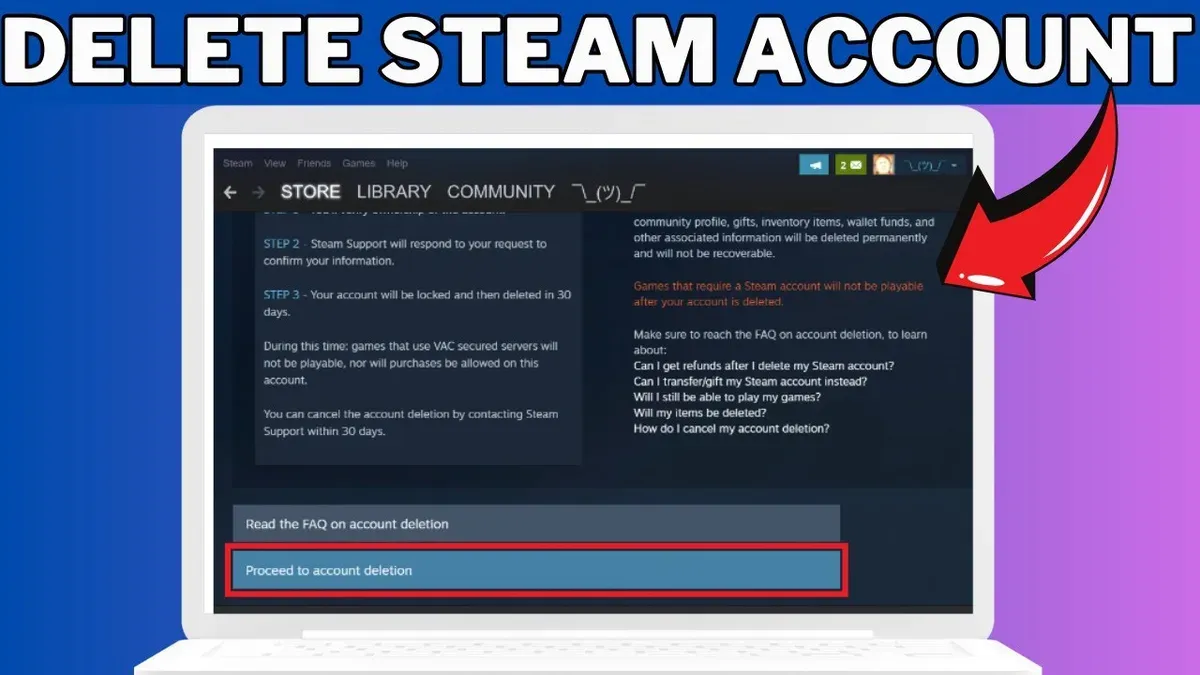
This article explains how to delete Steam account permanently, detailing the exact steps and key considerations involved. Permanently deleting a Steam account is a serious action that results in losing access to the entire game library, community data, and purchase history. Steam does not offer a simple "delete account" button within the client, so the process requires contacting Steam Support and following specific procedures.
Understanding what is needed before starting, the irreversible consequences, and how to navigate common issues will help users avoid unexpected problems. This guide covers the official Steam policies that many general articles overlook, ensuring a clear and accurate approach to account deletion.
Before you start, what is needed to delete a Steam account
Deleting a Steam account is a permanent action that removes access to all games, content, and community data linked to that account. Users must confirm full access to the account’s registered email address and password to proceed. Without these credentials, Steam Support cannot verify ownership, which blocks the deletion process.
Steam does not provide a direct self-service option to delete accounts. Instead, account holders must contact Steam Support to request deletion. This interaction requires submitting a support ticket from the linked email address for verification. Steam’s official policy highlights that account deletion is irreversible. Once completed, all game licenses, purchases, friends lists, and community content tied to the account are permanently lost.
Before initiating deletion, consider backing up any important game data, screenshots, or other personal content stored within Steam. These files will not be recoverable post-deletion. Preparing backups ensures no unintended loss of valuable information.
- Verify access to the Steam account email and password. Successful login to the Steam client or website confirms this.
- Review Steam Support’s account deletion policy, which states that deletion is final and cannot be undone.
- Decide whether to back up game saves, screenshots, and other data locally, as these will be deleted with the account.
- Prepare to submit a ticket to Steam Support from the registered email to initiate the deletion request.
Tip: Double-check that no recurring subscriptions or linked services depend on the Steam account before starting deletion.
Is it possible to delete a Steam account
Permanent deletion of a Steam account is possible but not through any direct user interface options. Valve requires users to submit a request to Steam Support to initiate the deletion process. Unlike some major digital platforms that offer instant or self-service account deletion, Steam's policy mandates manual intervention by support staff. This approach helps Valve verify the identity of the account holder and prevent accidental or fraudulent deletions.
Steam does not provide any temporary deactivation or suspension options for accounts. The only alternative to deletion is simply to stop using the account. The permanent deletion process results in irreversible loss of the entire game library, community content, and account data.
According to the official Steam FAQ, account deletion requests must be submitted via a support ticket where the user confirms ownership and intention to delete. After submission, Steam Support handles account closure, ensuring the process is deliberate and secure.
Tip: Prepare to provide proof of account ownership when contacting Steam Support to avoid delays.
- Log in to the Steam Support website with the account to be deleted.
- Navigate to the "My Account" section and select "Account Deletion" or "Delete Account" option.
- Fill out the deletion request form, confirming understanding of permanent data loss.
- Submit the request and wait for a response from Steam Support confirming initiation of the deletion process.
- Follow any additional verification steps if requested by Steam Support until the account is permanently deleted.
How to delete a Steam account
- Log into the Steam account intended for deletion using the official Steam client or website. Successful login grants access to personalized account settings and support options.
- Navigate to the Steam Support page by selecting 'Help' from the top menu, then clicking 'Steam Support.' This opens the main support portal.
- Within Steam Support, choose 'My Account' to access account-related issues, then select 'Data Related to Your Steam Account.' This category contains privacy and account data management options.
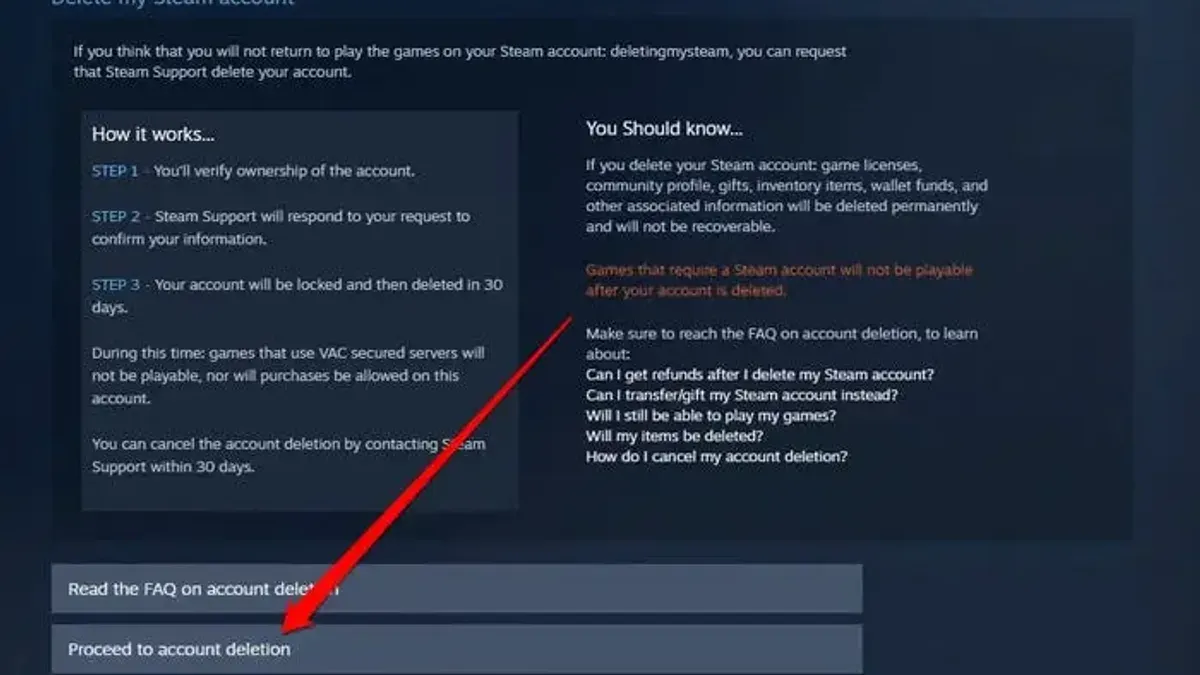
- Click on 'Delete my Steam account' to open the deletion request form. This section explains the consequences and asks for confirmation to proceed.
- Complete the deletion request form by following on-screen prompts. Provide required identity verification details, such as confirmation codes sent to the registered email or answers to security questions. This step ensures the requester is the legitimate account owner.
- Submit the deletion request. Upon submission, Steam Support will display a confirmation message outlining the waiting period before final deletion. The account enters a pending deletion state during this time.
- Monitor the registered email for a final confirmation request from Steam Support. Confirm the deletion as instructed to complete the process. If no action is taken during the waiting period, the account remains active.
Tip: Keep a record of the support request number and any email correspondence to track the deletion process efficiently.
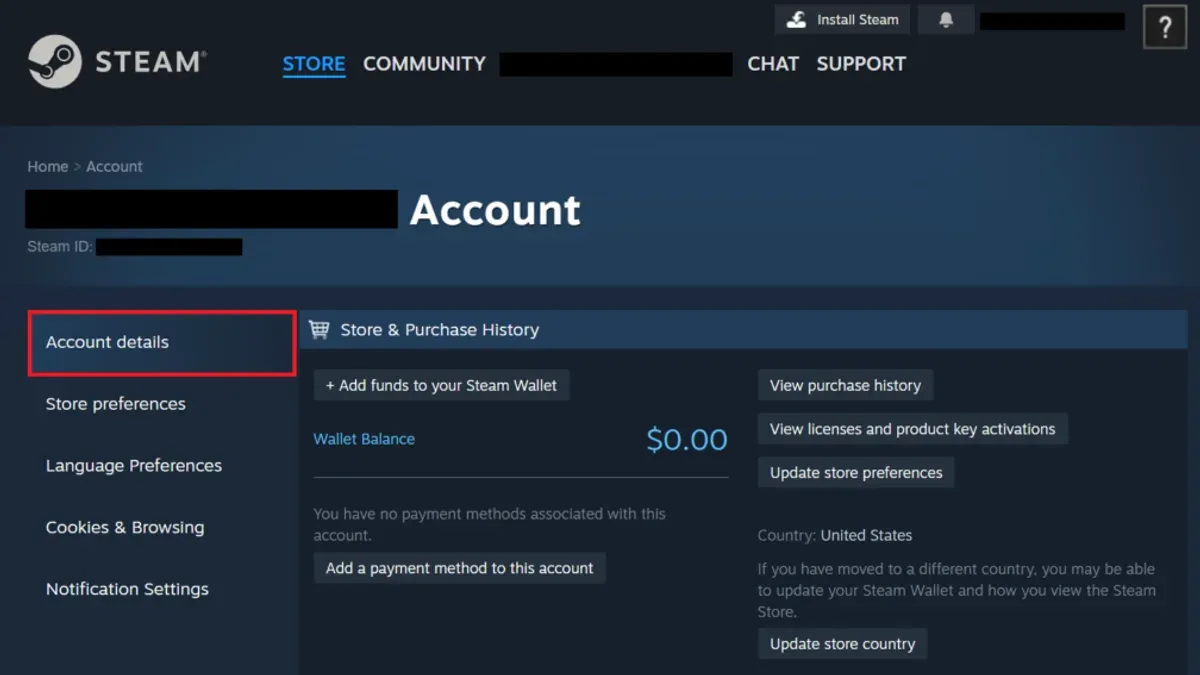
How to delete Steam account immediately or instantly
Steam does not support immediate or instant account deletion. The platform enforces a mandatory verification and hold period to prevent abuse, accidental deletions, and security breaches. This means that once a deletion request is submitted, the account enters a waiting phase before permanent removal.
Steam Support confirms that the hold period can last several days, during which the account remains accessible but flagged for deletion. This delay allows users to cancel the request if needed and provides time for Steam to verify the legitimacy of the deletion. There is no official method to bypass this waiting time.
To minimize the waiting time, ensure all account credentials and recovery options are up to date before submitting the deletion request. This reduces delays caused by verification problems or additional identity checks. Additionally, promptly responding to any Steam Support communications can help avoid extended processing.
Tip: Prepare necessary documents and account information beforehand to streamline identity verification and avoid prolonging the deletion timeline.
- Log in to the Steam account and navigate to Steam Support > My Account > Data Related to Your Steam Account > Delete Steam Account.Confirmation page should indicate the start of the deletion process.
- Complete the identity verification steps by providing requested information such as payment method details or proof of ownership.Verification success message or prompt to confirm deletion request appears.
- Submit the deletion request and note any confirmation emails from Steam Support.The account status will change to pending deletion, with estimated wait time provided.
- Monitor email and Steam Support messages for any required follow-up actions.Timely responses help keep the deletion process on schedule.
What happens if I delete my Steam account
Deleting a Steam account results in the permanent loss of access to all games, downloadable content (DLC), and any other digital purchases tied to that account. All licenses to software and content are non-transferable, so they cannot be recovered or used on another account after deletion.
The account owner will lose the entire friends list, including all friend connections and communications. Badges, achievements, and profile customization data will be erased. Additionally, any remaining Steam Wallet balance is forfeited without refund, in line with Steam's Terms of Service.
Steam’s official policy clearly states that purchases are non-refundable upon account deletion. User testimonials often highlight the finality of this action, emphasizing that attempts to recover deleted accounts or content are unsuccessful.
In summary, account deletion is irreversible and results in complete loss of purchased content, community data, and wallet funds without any compensation.
How to remove an account from Steam on a device
Removing a Steam account from a device signs the user out without deleting the account itself. This action clears the login credentials saved on that device and prevents automatic login while keeping the account intact for future use. It is useful when switching users or securing the device.
- Open the Steam client on the device. The main window should display the logged-in account name in the top-right corner.
- Click on the account name to open the account menu. Select Logout. The client will close or return to the login screen, confirming the sign-out.
- To clear saved login credentials and cache, close the Steam client completely. On Windows, navigate to C:\Program Files (x86)\Steam\config and delete the loginusers.vdf file. On Mac, go to ~/Library/Application Support/Steam/config and remove the same file. This prevents automatic re-login.
- Restart the Steam client. The login screen will prompt for username and password, confirming credentials have been cleared.
Difference between device removal and account deletion: Removing an account from a device only logs out the user and clears local data. The Steam account remains active and accessible from other devices or after re-login. Permanent deletion removes all account data from Steam servers and cannot be undone.
How to delete Steam games permanently from library and devices
Uninstalling Steam games removes them from the local device, but does not affect the licenses attached to the account. Licenses remain linked to the Steam account and will disappear only when the account is permanently deleted. Removing games from the library before account deletion does not revoke ownership or delete licenses.
- Open the Steam client and navigate to the Library tab. The list of installed and uninstalled games will appear.
- Find the game to uninstall, right-click it, and select "Manage" > "Uninstall." The client will prompt for confirmation.
- Confirm the uninstallation. The game files will be removed from the device, and the status in the library will change to uninstalled.
- Optionally, use system tools like Windows "Add or Remove Programs" or macOS Finder to remove leftover files if needed.
According to Steam Support, game licenses are irrevocably tied to the account and cannot be transferred or deleted individually. Only permanent deletion of the Steam account removes all associated licenses. Uninstalling games locally only frees device space and does not delete ownership records.
Tip: To free up device storage before account deletion, uninstall games via the Steam client rather than deleting files manually to avoid leftover data.
Troubleshooting common issues when deleting a Steam account
Not having access to the registered email or phone number is a frequent barrier. Steam Support requires verification through these channels to confirm identity. If access is lost, submit a support ticket explaining the situation and provide alternative proof of account ownership such as previous purchase receipts or CD keys. Expect additional verification requests before deletion proceeds.
Mistakenly submitting deletion requests for the wrong account can delay the process. Confirm the account username and associated email before contacting support. If a wrong request is made, immediately notify Steam Support to cancel the deletion. A typical support reply will acknowledge the cancellation and advise re-submitting for the correct account.
Delays or lack of response from Steam Support can occur during high volume periods. Users should check their spam folder for replies and wait up to several weeks. Persistently delayed cases may require reopening a ticket or escalating the issue through Steam’s help site. Responses generally confirm the deletion status or request further information.
If the account is banned or under investigation, deletion requests may be paused. Steam Support will notify users if the account cannot be deleted at that time. The recommended action is to resolve any outstanding issues or wait for investigation closure before proceeding with deletion.
- Verify access to registered email or phone; if unavailable, prepare alternative ownership proof and submit a detailed support ticket. Successful submission receives a confirmation response.
- Double-check account details before submitting deletion requests. If wrong, contact support immediately to cancel, and wait for confirmation.
- If no response from Steam Support within weeks, check spam folders, then reopen or escalate the ticket using Steam’s support website. Successful follow-up yields status updates.
- If account is banned or flagged, wait for official notice from Steam Support regarding deletion eligibility. Compliance with instructions leads to eventual account deletion.
Frequently asked questions
Can you delete a steam account?
Yes, a Steam account can be deleted, but the process requires contacting Steam Support directly. The deletion is permanent and irreversible, removing access to all games, wallet funds, and community data tied to the account.
How to remove steam account?
To remove a Steam account from a device, log out of the Steam client and clear saved login credentials under Steam > Settings > Account > Manage Steam Guard. This only removes the account from that device but does not delete the account itself.
How to permanently delete steam?
Permanent deletion requires submitting a request through Steam Support’s official website. After verification, Valve processes the deletion, which permanently erases the account and all associated data. There is no immediate or instant deletion option.
Is it possible to delete a steam account?
Yes, deleting a Steam account is possible, but it is a manual process initiated by the user submitting a deletion request to Steam Support. The process involves waiting for Steam’s confirmation and cannot be undone.
Can you delete a steam account?
Deleting a Steam account is allowed but requires contacting Steam Support and requesting account closure. The process permanently removes access to purchased games, wallet funds, and community contributions.
What this guide does not cover and who should do something else
This guide does not cover recovering lost, stolen, or hacked accounts. Users who cannot access their Steam account should use Steam’s official account recovery procedures before considering account deletion. Additionally, this article does not address refund policies, billing disputes, or issues related to third-party software connected to Steam accounts. Deleting an account is irreversible and should only be done when certain that no recovery or alternative solutions are viable.
Tip: Always double-check account access and consider contacting Steam Support if the goal is to regain access rather than permanent deletion.
For users ready to proceed, the most useful next step is to visit Steam’s official support page and initiate the account deletion request following the outlined steps. This ensures the process is handled through the correct channels and reduces the risk of errors or incomplete deletion.
See also: How to Recognize, Recover, and Secure a Hacked Genshin Impact Account · How to Recognize, Prevent, and Recover a Hacked Call of Duty Account · How to Secure, Access, and Manage a Dropbox Account Safely