How to Secure, Access, and Manage a Dropbox Account Safely
This guide explains how to secure, access, and manage a Dropbox account safely to prevent and respond to hacking risks.

This article explains how to secure, access, and manage a Dropbox account safely, focusing on preventing and responding to hacking risks. Concerns about a Dropbox account hacked arise when unauthorized activity is detected, making understanding security measures essential for all users.
Dropbox is a popular cloud storage service used for file sharing and backup, but like any online platform, it can face security challenges. This guide covers practical steps such as creating a strong password, enabling two-factor authentication, recognizing phishing attempts, and managing devices linked to an account. Clear instructions also address troubleshooting common login problems and safely deleting or unlinking an account.
What Dropbox is and why account security matters
Dropbox is a cloud-based file storage and sharing platform that allows users to save documents, photos, videos, and other data remotely. This enables access from multiple devices and easy collaboration with others. Many individuals and businesses rely on Dropbox to keep important files organized and available without physical storage devices.
Because Dropbox stores both personal and professional information, securing accounts is critical. Unauthorized access can lead to data theft, privacy breaches, and loss of sensitive information. For example, a hacked Dropbox account containing financial records or client contracts could be exploited for fraud or identity theft.
Cloud storage services face ongoing risks from cyberattacks and vulnerabilities. While Dropbox implements security measures, general statistics show that cloud storage breaches and data leaks occur regularly across the industry. Users who do not take precautions increase the chances of falling victim to hacking incidents.
Consider a scenario where an employee’s Dropbox account is compromised due to a weak password reused on another site. The attacker might gain access to company files, potentially disrupting operations or exposing confidential data. This illustrates why strong security practices are essential when managing Dropbox accounts.
Is Dropbox safe from hackers and has Dropbox ever been hacked
Dropbox employs multiple security measures designed to protect user accounts from unauthorized access. These include AES 256-bit encryption for data at rest and TLS for data in transit. Users can enable two-factor authentication (2FA) through the account settings under Security > Two-step verification, adding an extra layer of protection beyond passwords. Dropbox also maintains continuous monitoring for suspicious activity and has a dedicated security team to respond to potential threats.
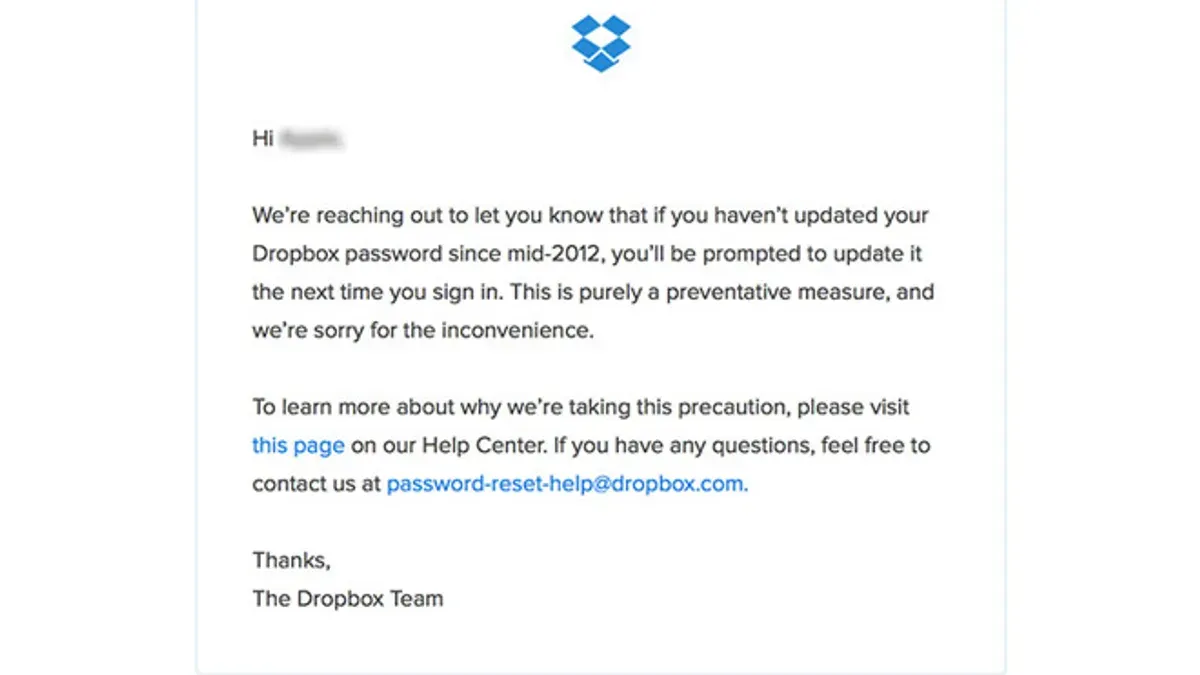
Regarding past incidents, Dropbox experienced a notable breach in 2012 when a database containing user email addresses and hashed passwords was compromised. The company responded by prompting password resets for affected users and enhancing its security infrastructure. Since then, no major public breaches have been reported, reflecting ongoing improvements in Dropbox’s security posture.
Compared to competitors like Box, Dropbox offers a similar level of enterprise-grade security features, including encryption, multi-factor authentication, and compliance with standards such as SOC 2 and ISO 27001. However, both platforms emphasize that no cloud service can guarantee absolute invulnerability, making user vigilance essential.
For example, a Dropbox user who enabled 2FA and uses a unique, strong password significantly reduces the risk of account compromise even if phishing attempts or password leaks occur elsewhere.
Tip: Enabling two-step verification in Dropbox settings is a critical step users often overlook, but it can prevent unauthorized access even if a password is stolen.
How to create and get a Dropbox account securely
Begin by visiting the official Dropbox website and clicking the "Sign up" button. The registration form requires a full name, email address, and a password. Use a strong password combining at least 12 characters, including uppercase and lowercase letters, numbers, and special symbols. Avoid using common words or easily guessed information.
After filling in the details, agree to Dropbox’s terms and privacy policy, then submit the form. A verification email will be sent to the provided address. Open this email and click the verification link to confirm ownership of the email account and activate the Dropbox account.
Tip: Check the sender’s email address carefully to ensure the verification message is genuinely from Dropbox and not a phishing attempt.
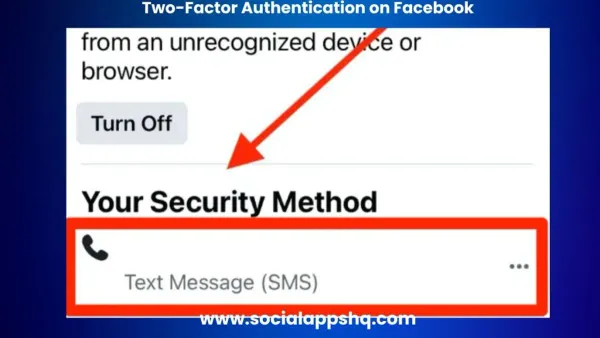
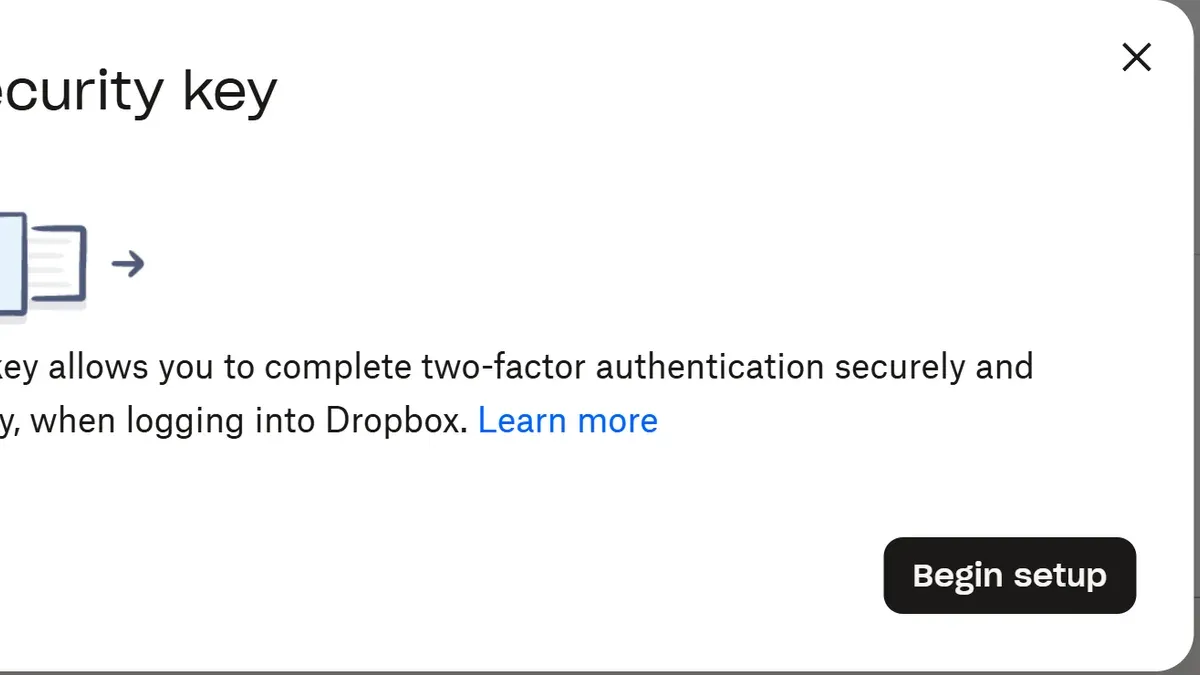
Once the account is active, immediately enable two-factor authentication (2FA). Navigate to the account settings, select "Security" and then "Two-step verification." Follow the prompts to set up 2FA using a mobile authenticator app or SMS codes. This adds an extra layer of protection beyond the password.
Example: After signing up, a user named Alex chooses a passphrase like “S3cure!Files2026#” and verifies the email by clicking the link received. Then, Alex enables two-step verification using an authenticator app to prevent unauthorized access.
New users should also be cautious of fake Dropbox websites and emails offering free storage or urgent account actions. Always access Dropbox by typing the URL directly or using official apps to avoid scams.
How to access a Dropbox account safely and troubleshoot login issues
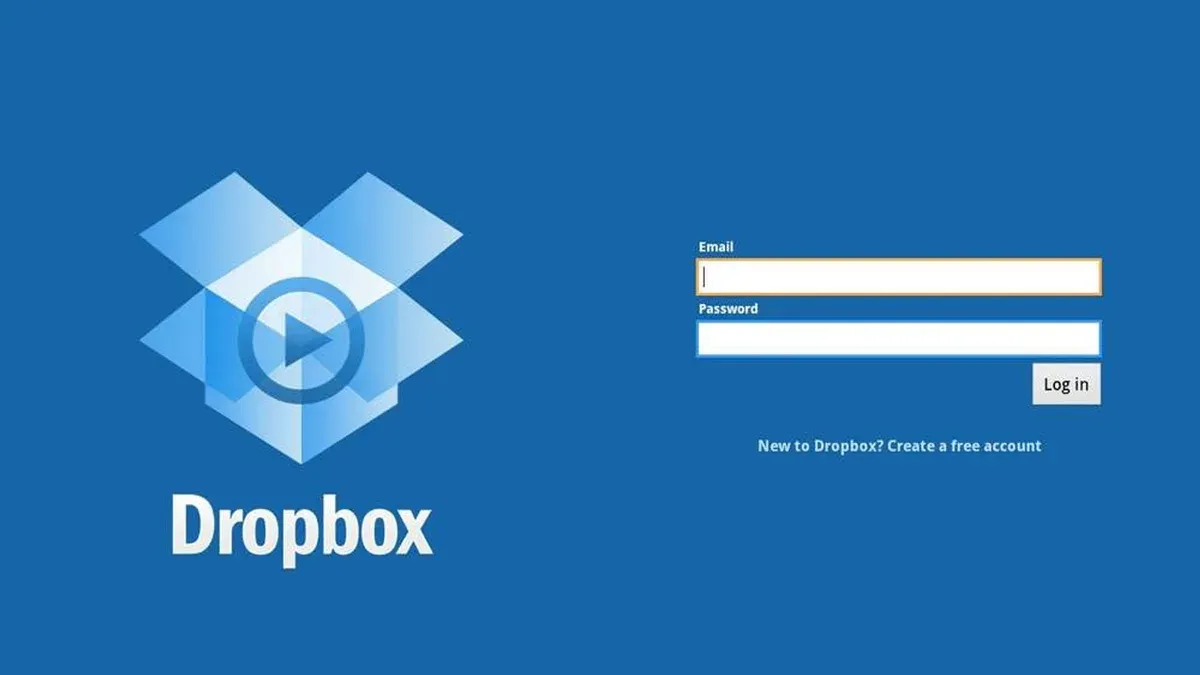
Accessing a Dropbox account securely begins with entering the correct email address and password on the official Dropbox login page at dropbox.com/login. It is essential to verify the URL to avoid phishing sites. Password managers can assist in entering credentials accurately and safely.
Enabling two-factor authentication (2FA) adds a critical security layer. After submitting the password, users receive a time-sensitive code via an authenticator app or SMS. If the primary device is unavailable, backup codes generated during 2FA setup can be used to regain access.
Common login errors include "Incorrect password" or "Account not found." For an "Incorrect password" message, users should verify caps lock and keyboard layout settings, then use the "Forgot password" link to reset credentials securely. If the email is not recognized, checking for typos or attempting alternate email addresses associated with the Dropbox account is advisable.
In cases where 2FA codes are not accepted, ensuring the device’s time settings are correct can resolve synchronization issues with authenticator apps. If all login attempts fail, contacting Dropbox support with proof of identity and account ownership is the recommended next step.
For example, if a user enters the correct password but sees "Two-step verification code invalid," they should confirm the authenticator app's time is accurate or try a backup code. Ignoring this can lead to repeated lockouts.
Tip: Regularly update backup codes and store them in a secure location separate from the primary device.
How to remove or delete a Dropbox account and unlink from devices
Unlinking Dropbox from a computer disconnects the device from the account without deleting any files stored online. To unlink Dropbox on a PC or Mac, open the Dropbox desktop app, click the profile icon or initials in the top-right corner, then select Preferences. Under the Account tab, click Unlink This Dropbox. Confirm the action when prompted. This removes the local Dropbox folder’s connection to the account but leaves files intact on the Dropbox servers.
For example, if a user wants to stop syncing a shared work computer, unlinking the account prevents further file synchronization without affecting their Dropbox content.
To permanently delete a Dropbox account, sign in on the Dropbox website and go to Settings via the profile icon. Under the General tab, scroll down and click Delete account. Dropbox will ask for the account password and confirmation of deletion.
Deleting an account is irreversible and removes all files, shared folders, and account data from Dropbox servers after a brief grace period. Users should ensure any important data is backed up locally or transferred before proceeding.
Tip: Unlinking a device is a safer first step if unsure about deleting an account, as it preserves files online while stopping sync on that device.
Recognizing Dropbox scams and protecting against phishing
Phishing emails pretending to be from Dropbox often urge immediate action, such as confirming account details or clicking a link to avoid suspension. These messages may contain urgent language, generic greetings like "Dear user," and suspicious sender addresses that do not end with “@dropbox.com.” For example, a phishing email might claim a user’s shared file has been deleted and direct them to a fake login page designed to steal credentials.
To verify legitimate Dropbox communications, check the sender's email domain carefully and look for personalized information such as the user’s name. Official Dropbox emails typically come from addresses ending in “@dropbox.com” and include clear details about the action required. Hovering over links without clicking reveals the actual URL, which should lead to a dropbox.com domain.
Best practices to avoid scams include never entering Dropbox credentials on sites accessed through email links, enabling two-factor authentication, and regularly reviewing connected devices via Settings > Security > Devices in the Dropbox app or web. Users should also avoid downloading unexpected attachments or files from unknown sources claiming to be Dropbox notifications.
Tip: When in doubt, type dropbox.com directly into the browser rather than following email links to access the account.
Common mistakes to avoid with Dropbox account security
One frequent security error is using weak or reused passwords. Many users select simple passwords or recycle credentials from other accounts, increasing vulnerability to credential stuffing attacks. For example, if an attacker obtains leaked passwords from unrelated breaches, they might gain access to Dropbox accounts sharing the same password.
Another common oversight is ignoring two-factor authentication (2FA). While Dropbox offers 2FA options like authentication apps or SMS codes, many users skip enabling it, leaving accounts more exposed to unauthorized access even if passwords are compromised.
Leaving Dropbox accounts logged in on shared or public computers also presents a significant risk. For instance, a user accessing Dropbox on a library computer without logging out can inadvertently allow the next person to access sensitive files. This mistake can lead to data theft or account misuse.
Tip: Regularly review devices linked to a Dropbox account by visiting Settings > Security > Devices and remove any that are unfamiliar or no longer in use.
These mistakes often contribute to unauthorized Dropbox account access incidents. Taking preventative steps by using unique, strong passwords, activating 2FA, and logging out from shared devices can greatly reduce the risk of being hacked.
What to do if a Dropbox account got hacked
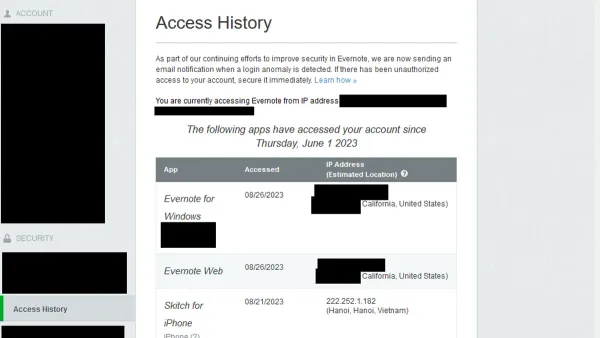
Detecting unauthorized access often begins with unusual account activity such as unfamiliar device logins, unexpected file changes, or notification emails about password resets not initiated by the user. Dropbox’s security page allows reviewing recent sign-in locations and linked devices to spot suspicious behavior promptly.
Once unauthorized access is suspected, immediately reset the Dropbox password through the account settings under Security > Password. Choose a strong, unique password that hasn’t been used elsewhere. After changing the password, review the list of connected devices and revoke access to any unrecognized devices via Security > Devices.
Enabling two-factor authentication (2FA) if not already active adds an essential security layer and should be set up right after regaining control. It is also advisable to generate new app passwords for third-party integrations in Security > App passwords to prevent further unauthorized access.
Contacting Dropbox Support is recommended if any files have been altered or deleted without permission. Dropbox’s support team can assist in recovering lost data or investigating account breaches. Recovery timelines vary but often begin with immediate password resets and device unlinking, followed by support responses within a few days.
For example, a user noticing an unknown login from a foreign country promptly changed their password, revoked all devices except their own laptop, and enabled 2FA. They then contacted Dropbox Support to restore files deleted during the breach. Following these steps minimized data loss and secured the account within a 48-hour period.
Further reading
- How to Recognize, Prevent, and Recover a Hacked Call of Duty Account
- How to Understand, Protect, and Recover an AOL Mail Account After Hacking
- How to Recognize, Report, and Recover a Hacked YouTube Account
- How to Recognize, Respond to, and Recover from a WhatsApp Account Hack
Frequently asked questions
How to remove dropbox account from computer?
To remove a Dropbox account from a computer, open the Dropbox desktop app, click the profile icon or initials at the top right, select "Preferences," then navigate to the "Account" tab. Click "Unlink This Dropbox" to disconnect the account from the device. This stops syncing files but does not delete the Dropbox account itself.
How to remove dropbox account from pc?
Removing a Dropbox account from a PC involves unlinking the account via the Dropbox desktop application under "Preferences" > "Account" > "Unlink This Dropbox." After unlinking, users may also uninstall the Dropbox app via the system's Control Panel or Settings to fully remove the program from the PC.
How to remove dropbox account?
Removing a Dropbox account permanently requires logging into the Dropbox website, accessing "Settings," then the "Account" tab, and selecting "Delete Account." This action erases all data stored on Dropbox servers and cannot be undone, so users should back up important files beforehand.
How to access dropbox account?
Access a Dropbox account by visiting the Dropbox website or opening the app and entering the registered email address and password. For added security, two-factor authentication may be required. If login issues occur, resetting the password through the "Forgot password?" link is an available option.
Do i have a dropbox account?
To determine if a Dropbox account exists, attempt to log in using an email address or username via the Dropbox sign-in page. If unsure about the email associated, check email inboxes for Dropbox-related messages or try the "Forgot password?" option to see if an account is linked to that email.
Limits of this advice and when to seek specialized help
This article focuses on individual Dropbox account security and general user-level precautions. It does not cover enterprise-level Dropbox Business security configurations, such as team management, admin controls, or data governance policies. Additionally, this guide does not address advanced forensic recovery procedures that may be necessary after severe breaches or targeted cyberattacks. Users experiencing complex hacking incidents or those managing multiple accounts in a corporate context should consult IT security professionals or Dropbox support channels specialized in business environments.
For most everyday users, the single most effective next step is to enable two-step verification (2SV) within the Dropbox security settings. This adds a robust layer of protection by requiring a time-sensitive code from an authenticator app or SMS in addition to the password. Activating 2SV reduces the risk of unauthorized access even if login credentials are compromised.