
How to Block Someone on Twitch: Clear Steps for All Devices
This guide shows how to block someone on Twitch across all devices to manage interactions and prevent unwanted messages or chat.

This article explains how to block someone on Twitch with clear, step-by-step instructions for all devices and scenarios. Blocking users on Twitch helps control interactions by preventing the blocked person from sending whispers, chatting in streams, or following the blocker’s channel.
Understanding how to block someone on Twitch across the app, desktop site, desktop app, and even when offline offers a comprehensive approach to managing unwanted contact. The guide also covers managing blocked users and clarifies what blocking does and does not accomplish on the platform.
Before you start: What is needed to block someone on Twitch
Blocking on Twitch requires a registered account and active login. The blocking feature is accessible across Twitch’s desktop website, desktop app, and mobile app, ensuring users can manage interactions from any platform.
When a user is blocked, their chat messages and whispers are hidden, and their content becomes less visible. However, blocking does not extend beyond Twitch’s environment; it does not prevent someone from viewing public content outside Twitch or offline stalking.
To prepare for blocking someone on Twitch, follow these steps:
- Log in to a registered Twitch account. Successful login is indicated by the user’s profile icon appearing in the top-right corner.
- Navigate to the Twitch platform of choice—desktop site, desktop app, or mobile app—where blocking options are available.
- Identify the user to block via chat, user profile, or whispers, as blocking requires direct interaction with the user’s Twitch presence.
Tip: Ensure the Twitch app or browser is updated to the latest version to access all blocking features smoothly.
How to block someone on Twitch app
- Open the Twitch app on the mobile device and locate the user to be blocked by either navigating to their profile through search or tapping their name in chat.
- On the user’s profile page, tap the three vertical dots icon (iOS) or the three horizontal dots icon (Android) in the top-right corner to open the options menu.
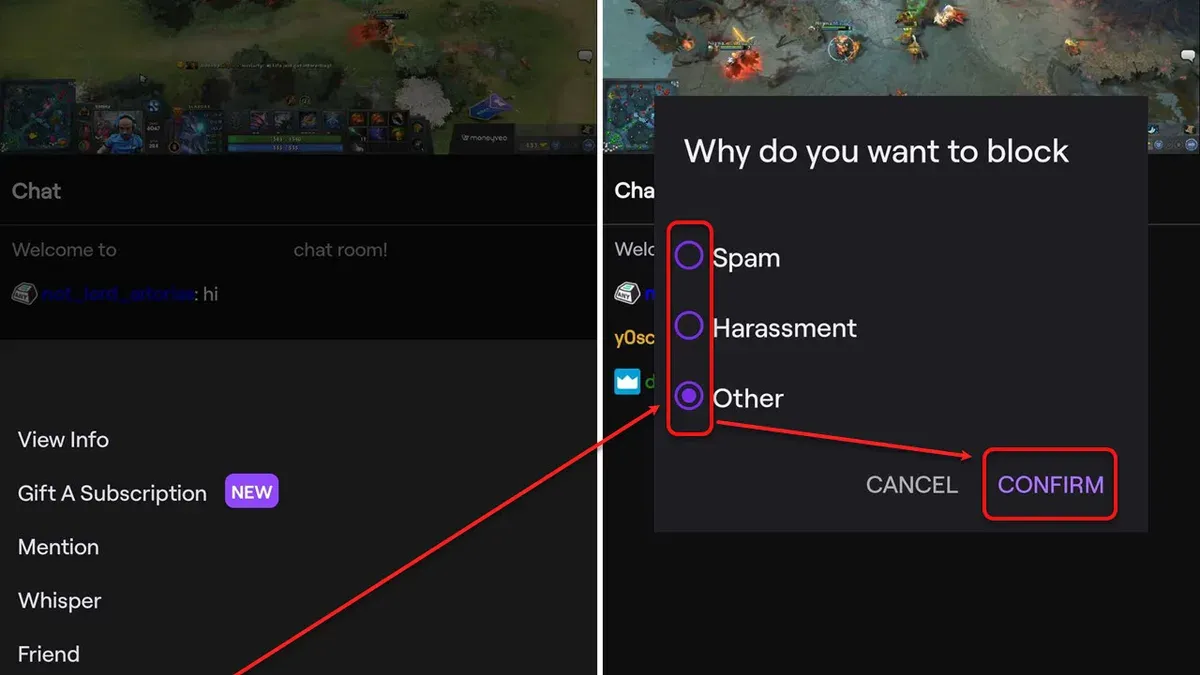
- From the menu, select Block. A confirmation prompt will appear asking to confirm the action.
- Confirm the block by tapping Block again. Immediately, the user will be prevented from sending whispers or chat messages, and their content will be hidden from view.
- To unblock, revisit the user’s profile, open the same menu, and select Unblock. The user’s interactions will be restored.
Tip: Blocking a user on the Twitch app also blocks them from interacting with the account on the desktop site and other devices, as blocking is tied to the account, not the device.
How to block someone on Twitch on PC (desktop site and desktop app)
Blocking a user on Twitch via desktop can be done through both the browser site and the desktop app, with similar steps for each platform.
- Open Twitch in a desktop browser or launch the Twitch desktop app.
- Locate the user to block by using the search bar at the top or by clicking their username in chat.
- Click on the username to open their profile page.
- On the profile page, find the three-dot menu icon (more options) near the user’s name or profile picture.
- Select "Block" from the dropdown menu. A confirmation prompt will appear.
- Confirm the block action. The user will be added to your blocked list, and you will no longer see their messages or receive whispers from them.
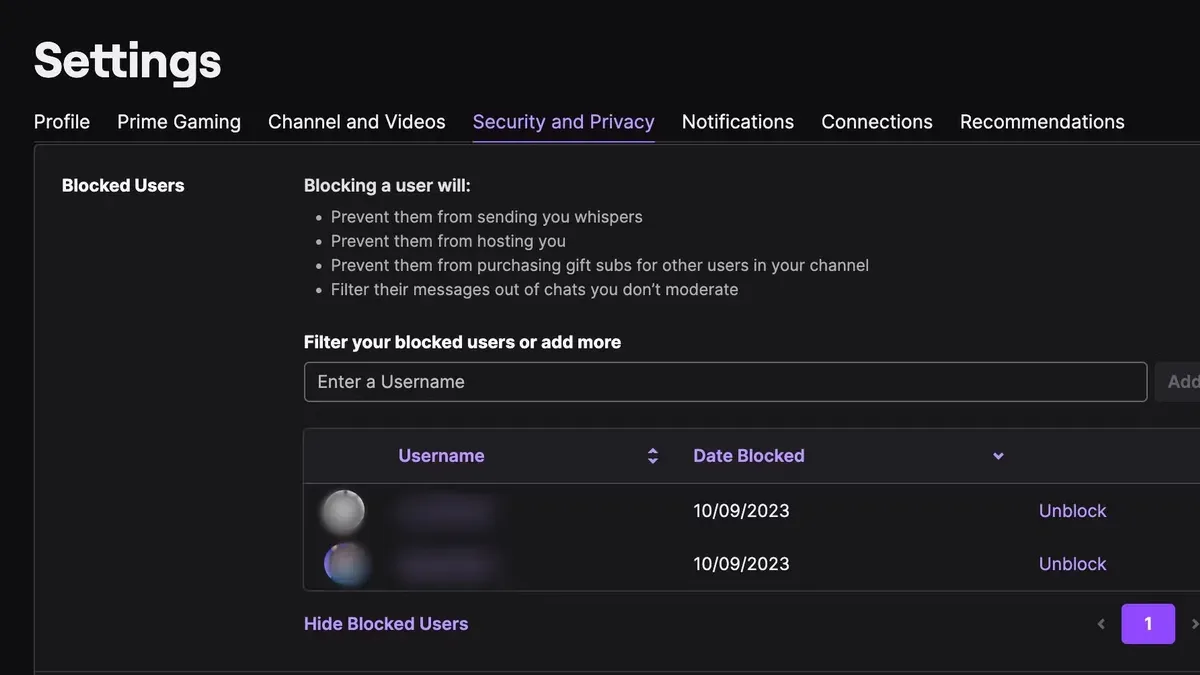
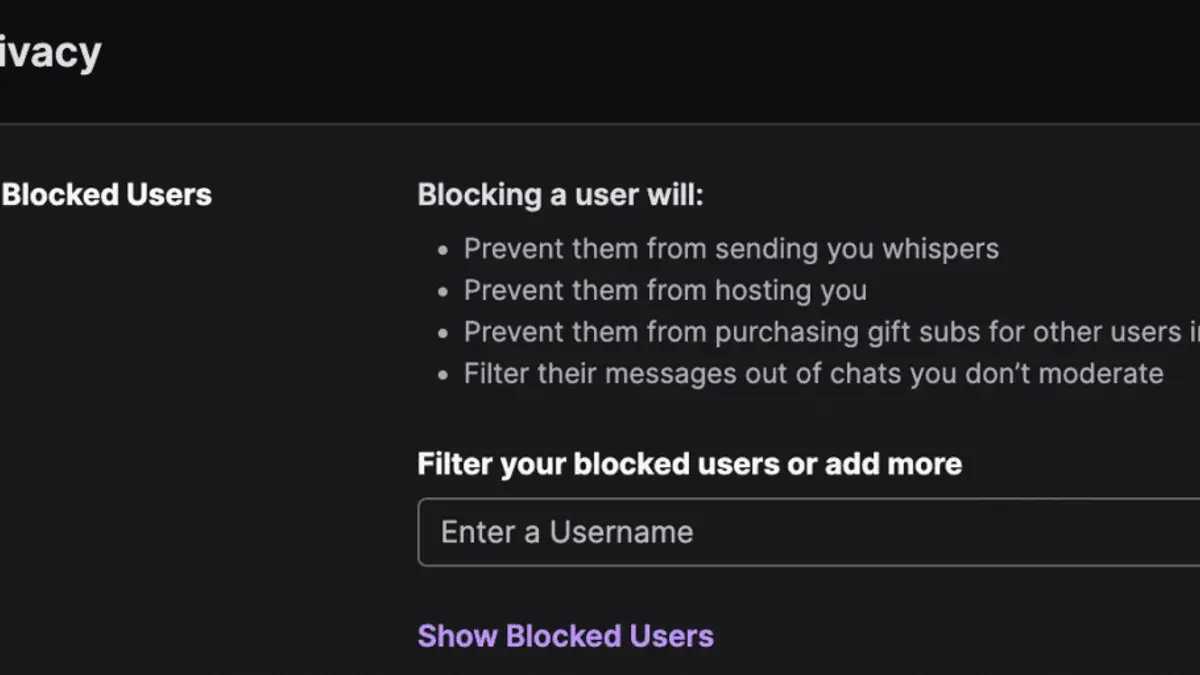
- To verify, go to your settings by clicking your profile icon in the top-right corner, then select "Settings" > "Security and Privacy" > "Blocked Users". The user should appear in this list.
The process is virtually the same on both desktop browser and app, with only slight UI differences in menu placement. Blocking from chat uses the username menu, while profile blocking uses the profile’s options menu. Both methods effectively prevent unwanted interactions on Twitch’s platform.
Tip: If the block option is not immediately visible, ensure the profile page has fully loaded or try right-clicking the username in chat for alternate blocking options.
How to block someone on Twitch from their profile
Blocking a user directly from their Twitch profile page is a straightforward process that prevents them from interacting with the blocker across Twitch features such as chat, whispers, and following. This method is particularly useful when encountering users outside of active chat sessions.
- Navigate to the user’s Twitch profile by clicking their username anywhere on Twitch or by searching their name in the search bar. The profile page will display their channel banner, bio, and streaming details.
- Locate the three-dot menu button (also called the "More" button) positioned near the top right of the profile header, next to the "Follow" and "Subscribe" buttons. Clicking this reveals additional options.
- Select "Block" from the dropdown menu. A confirmation prompt appears to verify the decision.
- Confirm the block action by clicking "Block" in the prompt. The user is now blocked, and a notification or message confirms the successful block.
Blocking from the profile affects all interactions across Twitch, similar to blocking from chat; however, the profile method is better for blocking users not currently active in chat or when encountering them through other Twitch sections. Unlike blocking directly in chat, which focuses on immediate conversation control, blocking from the profile provides a broader scope without needing to be in a live chat window.
How to block someone on Twitch while offline or not in chat
Blocking a user who is not currently active or present in a chat room involves searching for their profile directly. This method allows restriction of interactions without needing to be in the same chat session.
- Use the Twitch search bar at the top of the app or website to enter the username of the person to block. When their profile appears in the search results, click or tap to open it. The profile page will load with the user’s streams, clips, and information.
- Locate the three-dot menu icon (more options) on the user’s profile page, typically near the Follow button or at the top-right corner. Click or tap this icon to open a dropdown menu.
- Select the “Block” option from the dropdown. A confirmation prompt will appear asking to confirm the block action.
- Confirm the block by selecting “Block” in the prompt. The page may refresh or display a notification indicating the user has been blocked.
Worked example: Searching for a user named “SilentViewer42” who is not currently streaming or in any chat, then following the steps above results in a confirmation message such as “You have blocked SilentViewer42.”
Blocking users this way prevents them from interacting with the blocker’s channel or chat. However, if the blocked user is not part of any active chat or channel where the blocker is present, no immediate chat blocking effects will be visible until the user attempts to join or interact.
Tip: Blocking from a profile bypasses the need to find the user in chat and is useful for managing unwanted interactions with infrequent or absent users.
Managing blocked users on Twitch: Viewing and unblocking
To review and manage users blocked on Twitch, access the block list through the settings menu. This list displays all accounts currently blocked, allowing users to keep track and make adjustments as needed.
- Open Twitch and log into the account.
- Click the profile icon in the top-right corner to open the dropdown menu.
- Select Settings from the menu options.
- Navigate to the Security and Privacy tab within Settings.
- Scroll down to find the Blocked Users section, where all blocked accounts are listed.
To unblock a user, locate their username in the blocked list and click the Unblock button next to it. A confirmation prompt may appear; confirm the action to remove the block.
- After unblocking, the user will regain the ability to interact through chat, whispers, and following, depending on prior settings.
- Note that unblocking does not restore any previous messages or interactions that were hidden while the block was active.
Tip: Regularly reviewing the blocked users list can help maintain a positive Twitch experience by ensuring only currently unwanted interactions are restricted.
Troubleshooting common issues when blocking on Twitch
Blocking on Twitch may sometimes appear ineffective due to app glitches, outdated software, or misunderstandings about what blocking controls. Users have reported situations where blocked accounts still seem to show up in chat or in follower lists, often leading to confusion.
One common reason blocking may fail is an outdated Twitch app or browser cache. Twitch occasionally updates its blocking features, so using the latest version is essential. Refreshing the app or clearing the browser cache can resolve many temporary issues.
- Close the Twitch app or browser tab completely.
- Restart the device or refresh the browser window.
- Check for updates in the app store or browser extensions and install any available updates.
- Log back into Twitch and verify if the block is effective by revisiting the blocked user’s profile or chat.
Tip: If an error message appears—such as "Unable to block user"—this often indicates a temporary server issue; waiting a few minutes before retrying usually helps.
It is important to understand that blocking does not prevent a user from viewing public clips, channel pages, or offline content; it primarily restricts chat messages, whispers, and follows.
According to Twitch support clarifications, blocked users cannot send whispers or chat messages to the blocker, but they can still see public content and clips. Moreover, blocking does not stop users from following a channel, but it limits direct interaction.
What blocking on Twitch does and does not do
Blocking on Twitch effectively restricts direct interactions with the blocked user within the platform. According to Twitch’s official policy, blocking prevents the user from sending chat messages and whispers, and stops them from following the blocker’s channel. This ensures a basic level of privacy and control over unwanted communications.
However, blocking does not extend to all types of content or external interactions. Clips, highlights, and other publicly available content created by the blocked user remain visible. Twitch’s block feature also does not prevent harassment or contact outside the platform, such as on social media or other websites.
Users experiencing persistent harassment should consider additional moderation tools like AutoMod filters, channel moderators, or reporting mechanisms. Blocking serves as a first line of defense but is limited to controlling direct engagement within Twitch’s environment.
Further reading
- How to Block Someone on YouTube: Step-by-Step Guide
- How to Block Someone on Discord: Step-by-Step Guide
- How to Block Someone on Telegram: Step-by-Step Guide
- How to Block Someone on Reddit: Step-by-Step Guide
Frequently asked questions
Can you block someone on twitch?
Yes, Twitch allows users to block others to prevent unwanted interactions. Blocking restricts the blocked user's ability to send whispers, chat messages, or follow the blocker. The feature is accessible across the app, desktop site, and desktop app.
Can i block someone on twitch?
Anyone with a Twitch account can block another user through the app or website. The process involves accessing the user's profile or chat message and selecting the block option. This helps control who can communicate directly.
How to block users on twitch?
Blocking users can be done by navigating to their profile and selecting 'Block' from the user options menu. On the Twitch app, tapping the three-dot menu near their username also reveals the block option. Blocking works whether the user is active in chat or not.
Can you block someone on Twitch?
Blocking is a built-in Twitch feature that stops a specific user from interacting with the blocker. This includes hiding their messages and preventing whispers. It is a useful tool to manage community interactions.
Can I block someone on Twitch while offline?
Blocking someone while offline is possible by visiting their profile on the Twitch website or app and selecting block, even when not currently chatting or online. Twitch does not require an active chat session to apply a block.
Limits of blocking on Twitch and when to seek other solutions
Blocking someone on Twitch restricts their interactions with the user within Twitch’s platform, such as preventing chat messages and whispers from that individual. However, this action does not guarantee complete privacy or protection from harassment outside Twitch’s ecosystem, including other social media or external communication channels. Users facing severe or persistent harassment may need to consider additional measures such as reporting to Twitch’s Trust & Safety team, adjusting broader privacy settings, or seeking legal advice if necessary.
For those looking to manage interactions beyond blocking, exploring Twitch’s moderation tools, channel-specific bans, or community guidelines enforcement can provide further control over the viewing and participation environment.
To maintain the desired experience on Twitch, regularly reviewing the blocked users list and updating it as interactions change is the single most practical next step. This helps ensure that blocking remains effective and relevant over time.



