
How to Turn On Two-Factor Authentication on WeChat: Step-by-Step Guide
Learn how to enable two-factor authentication on WeChat with simple steps to enhance your account security and prevent unauthorized access.

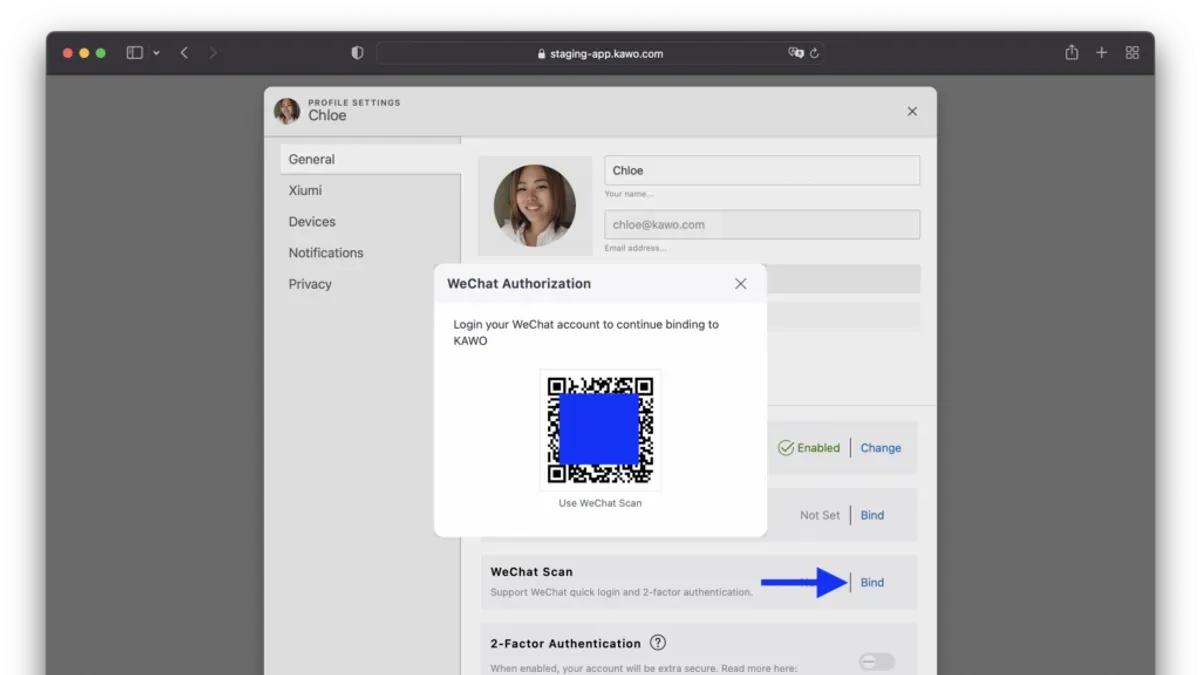
This article explains how to turn on two-factor authentication on WeChat, providing clear, step-by-step instructions tailored to its unique security setup. Two-factor authentication on WeChat adds a crucial layer of protection by requiring a second verification step, typically via SMS or the WeChat Security Center app, before account access. Unlike many apps, WeChat’s 2FA relies heavily on its integrated security ecosystem, which can cause confusion without precise guidance.
Before enabling two-factor authentication, users must confirm their phone number is linked to the WeChat account and that the WeChat Security Center app is installed and updated. This process involves navigating through the WeChat settings to the account security section, where the two-factor authentication option is available. Understanding these preliminary requirements prevents common setup errors and ensures smoother activation.
What is needed before enabling two-factor authentication on WeChat?
Enabling two-factor authentication (2FA) on WeChat requires a verified account linked to a current mobile phone number. This number must be accessible to receive SMS verification codes during setup. Without access to the registered phone, the 2FA process will fail to verify identity, causing common setup errors. Additionally, ensure the WeChat app is updated to the latest version available in the app store, as older versions may lack necessary security features or display outdated menus.
Optionally, installing the WeChat Security Center app can enhance verification by providing additional identity confirmation methods. This app supports more secure authentication steps beyond SMS, useful for users who want stronger account protection.
- Confirm the WeChat account is verified with a linked mobile number. Success is indicated by access to account settings showing the registered phone number.
- Verify access to the registered phone number by receiving a test SMS code outside WeChat. Receiving the code confirms readiness for SMS-based 2FA.
- Update the WeChat app to the latest version through the device’s app store. After updating, opening WeChat should show the current version number in About or Settings.
- (Optional) Download and install the WeChat Security Center app. Opening it should prompt login with the WeChat account for additional setup.
How to access the two-factor authentication settings in WeChat?
- Open the WeChat app. The home screen displays several tabs; tap the Me tab located at the bottom-right corner. This leads to personal account options.
- Within the Me tab, scroll down and tap Settings. The Settings menu contains various configuration options.
- From Settings, select Account Security. This section manages login and security settings.
- Look for Two-Step Verification or similar options such as Two-Factor Authentication. Note that in some regions or app versions, this option may be labeled differently or nested under Login Protection.
- Tapping this option opens the two-factor authentication setup interface, where SMS verification and linked devices can be managed.
Tip: If the two-factor authentication option is not visible, ensure the WeChat app is updated to the latest version, as security features vary by region and app release.
How to enable two-factor authentication on WeChat step-by-step?
- Open WeChat and go to Me > Settings > Account Security > Two-Step Verification. Tap Enable to start the activation process. A screen prompting phone number verification appears.
- Enter the phone number linked to the WeChat account if not already filled. Tap Send SMS Code. A 6-digit verification code will be sent via SMS to that number. Enter the code exactly as received and tap Verify. On success, a confirmation message displays: "Phone number verified."
- Set up backup verification methods if prompted. Options may include linking an email address or answering security questions. Complete at least one backup method to ensure account recovery options. A confirmation screen states: "Backup verification method set."
- Review the summary screen confirming Two-Step Verification is active. Tap Confirm to finalize. The Two-Step Verification toggle switches to "On" in the security settings.
Tip: Keep the linked phone number current to avoid losing access during future logins.
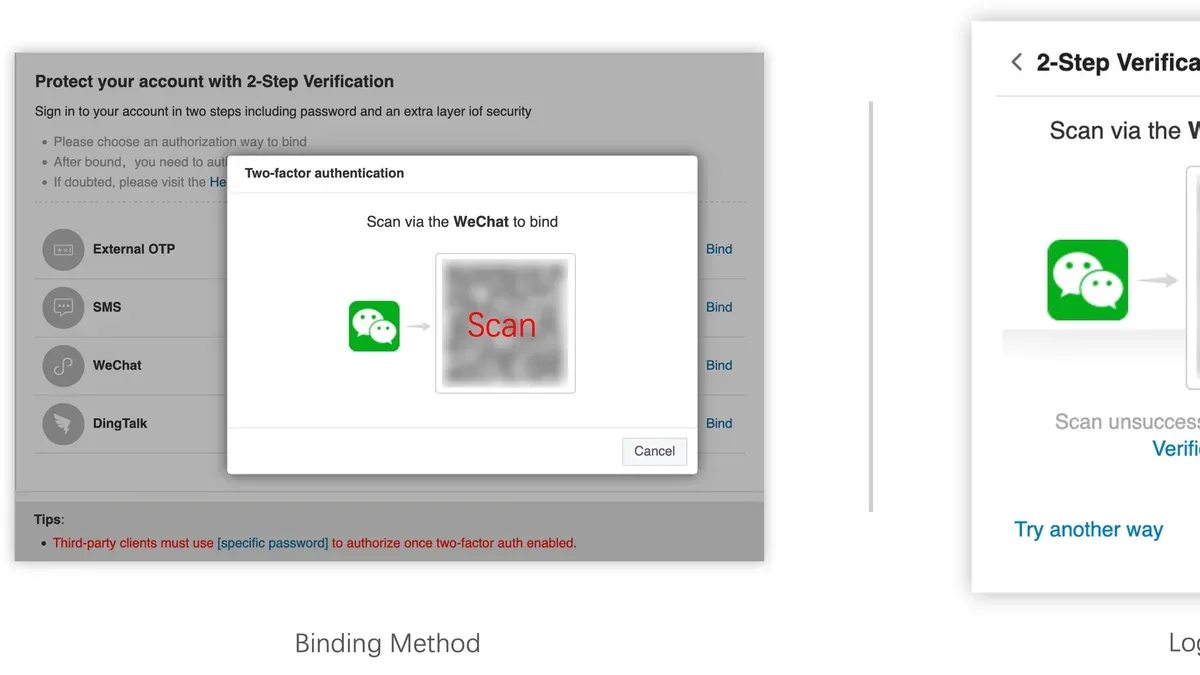
What are the common troubleshooting steps if two-factor authentication fails?
Failure to receive SMS verification codes is the most common issue. First, verify that the linked phone number is correct and active. Ensure the device has a strong cellular network connection and that SMS messages from unknown senders are not blocked by the phone or carrier settings. Some users experience delays or non-delivery due to carrier filtering or regional restrictions.
App version incompatibility or bugs can also cause setup failures. Confirm that the latest WeChat version is installed by checking the official app store. If issues persist, reinstalling the app can resolve corrupted files or caches that interfere with the process.
The WeChat Security Center app, used for backup verification, may present problems if outdated or improperly configured. Updating this app and ensuring it is linked correctly to the WeChat account is essential. If the Security Center app fails to function, temporarily disabling two-factor authentication and re-enabling it after fixing the app often helps.
If locked out after enabling two-factor authentication, account recovery is necessary. Use the "Forgot Password" option on the WeChat login screen and follow the prompts to verify identity via linked phone number or email. This process can take several minutes but is the primary method to regain access.
- Check phone number and network status: Successful receipt of SMS code.
- Update or reinstall WeChat app: App runs without errors during 2FA activation.
- Update and verify WeChat Security Center app settings: Backup verification works.
- Use account recovery options if locked out: Access to account restored.
Tip: Temporarily disable SMS spam filters or switch to a different network if SMS codes are not arriving.
How to manage two-factor authentication settings after activation?
To modify two-factor authentication (2FA) settings on WeChat, open the app and go to Me > Settings > Account Security > Two-Step Verification. This section allows updating backup methods, changing the linked phone number, or disabling 2FA entirely. Changes require verifying the current phone number via SMS to ensure secure access.
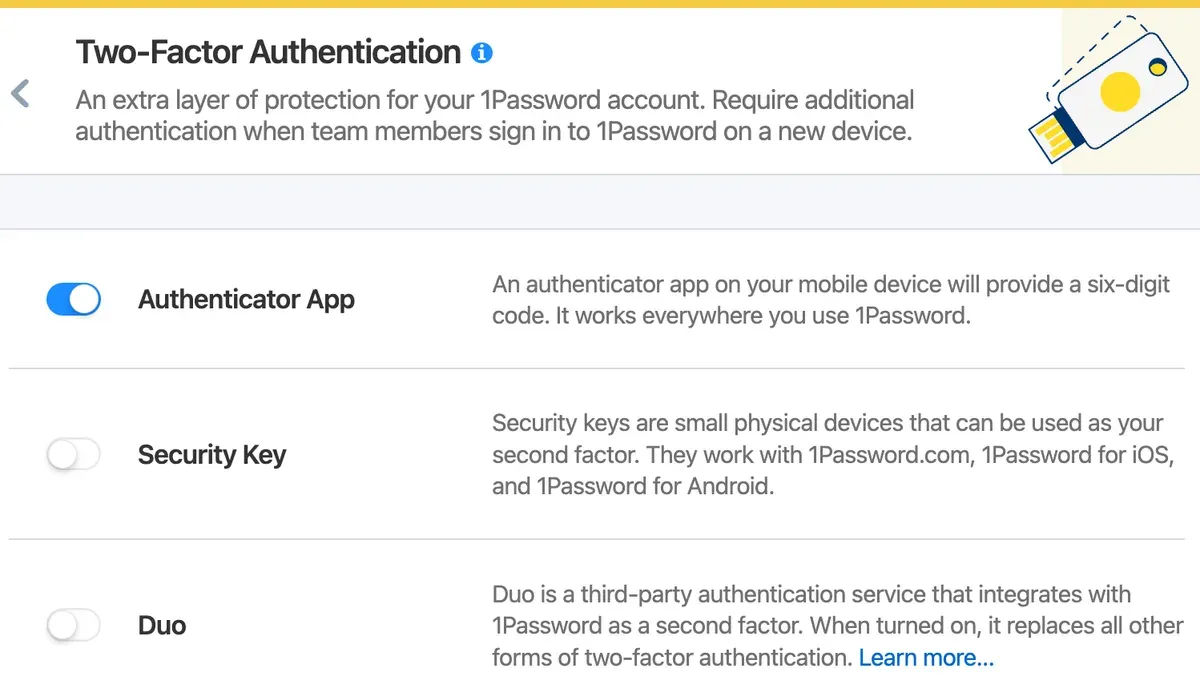
- Select the option to change the linked phone number. A verification code will be sent to the existing number to confirm identity. Upon successful verification, enter the new phone number and verify it with a new SMS code.
- To update backup verification methods, such as adding the WeChat Security Center app or email verification, follow prompts in the Two-Step Verification menu to add or replace methods securely.
- Disabling 2FA requires confirming the current phone number through SMS verification. After disabling, a notification will inform that the account reverts to single-factor authentication, increasing vulnerability to unauthorized access.
Tip: Regularly review and update the linked phone number and backup methods to prevent lockouts and maintain protection.
Disabling 2FA significantly raises security risks by removing the extra verification layer, making accounts more susceptible to hacking. Maintaining active 2FA with updated contact methods ensures stronger account defense against unauthorized access.
How does WeChat’s two-factor authentication compare to other apps?
WeChat’s two-factor authentication (2FA) primarily relies on SMS verification and the WeChat Security Center app, differing from many apps that use dedicated authenticator apps or hardware keys. This SMS-based method simplifies setup and recovery but can be less secure due to potential SIM swapping or SMS interception risks. The Security Center app adds a layer of device-based verification but is not as widely adopted as standard authenticator apps.
In contrast, apps like WhatsApp and Telegram often use app-based authenticators or push notifications, while Google Authenticator and hardware keys provide time-based, device-specific codes that are less vulnerable to interception. These methods offer stronger security but may require more user effort during setup and recovery.
| Feature | WeChat 2FA | Google Authenticator | Hardware Keys (e.g., YubiKey) | WhatsApp/Telegram 2FA |
|---|---|---|---|---|
| Verification Method | SMS + Security Center app | Time-based codes | Physical device tap | App-based codes or push |
| Setup Complexity | Low | Moderate | High | Low to moderate |
| Security Level | Moderate | High | Very high | High |
| Recovery Options | SMS and linked phone | Backup codes | Backup keys | Recovery email/password |
Tip: Combine WeChat’s 2FA with strong passwords and device security to mitigate SMS vulnerabilities.
Frequently asked questions
Can two-factor authentication be enabled without a phone number on WeChat?
No, WeChat requires a verified phone number to enable two-factor authentication. The process relies on SMS verification codes sent to the linked phone number, making a valid number mandatory for activation.
What should be done if the phone number linked to WeChat is no longer accessible?
If the linked phone number is no longer accessible, account recovery is necessary before enabling or managing two-factor authentication. Users must update their phone number through the WeChat Security Center app or contact WeChat support to regain access and update verification details.
Does enabling two-factor authentication affect login on multiple devices?
Enabling two-factor authentication adds an extra verification step when logging into WeChat on any device. Each new login requires the SMS verification code or confirmation via the WeChat Security Center app, but it does not restrict the number of devices that can be used.
Is WeChat’s two-factor authentication vulnerable to SIM swapping attacks?
Since WeChat’s two-factor authentication depends on SMS codes, it can be vulnerable to SIM swapping if the attacker gains control of the phone number. Users should secure their mobile accounts with carrier-level protections and monitor for any unauthorized SIM-related activity.
What this guide does not cover and who should seek other options
This guide focuses solely on enabling and managing the standard two-factor authentication feature available to everyday WeChat users. It does not cover advanced enterprise security setups, developer API protections, or custom security protocols that some businesses may require. Organizations needing complex multi-layered authentication or integration with corporate identity providers should consult specialized IT security professionals or WeChat’s official enterprise solutions. Users with lost access to their phone number or without linked backups may require WeChat support intervention beyond typical 2FA troubleshooting.
For the majority of users, the most practical next step after enabling two-factor authentication is to verify that account recovery methods are current and accessible. This includes confirming the linked phone number is active for SMS verification and installing the WeChat Security Center app if not already done. Maintaining updated recovery options ensures uninterrupted account access when 2FA prompts occur, reducing lockout risk and reinforcing overall security.
See also: How to See Where You're Logged Into WeChat: Step-by-Step Guide



