
How to Set Location Reminders in Reminders on Mac: A Step-by-Step Guide
Discover how to create accurate location-based reminders in Reminders on Mac to get alerts when arriving or leaving specific places.

You want to be reminded to pick up groceries as you leave work or get an alert when you arrive home, but setting location reminders on Mac can feel confusing at first. Understanding how to set location reminders in Reminders on Mac helps you automate tasks based on your physical location, making your daily routines smoother.
This article guides you through each step to create accurate location-based reminders, covering how to choose precise locations, select arrival or departure triggers, and optimize settings for reliability. You will also learn how to test and troubleshoot your reminders to ensure they work exactly when you need them.
Key takeaways
- Enable Location Services and grant Reminders permission before setting location-based alerts.
- Choose between "Arriving" or "Leaving" triggers to match your reminder's purpose.
- Use specific addresses or saved locations for better accuracy in your reminders.
- Test reminders by simulating location changes or visiting the set location.
- Adjust geofence radius and check settings if reminders don’t trigger reliably.
Before You Start: What You Need to Set Location Reminders on Mac
To create reliable location-based reminders on your Mac, there are a few essential requirements and settings to verify first. You need to be signed in to iCloud with your Apple ID, and Reminders must be enabled in your iCloud settings. This ensures your reminders sync across your devices and can use location triggers effectively.
Next, confirm that Location Services are enabled for both the Reminders app and System Preferences. Without this permission, your Mac cannot access location data needed to trigger the alerts. To check this, open System Preferences, select Security & Privacy, then Privacy tab, and click Location Services. Make sure Location Services is active and that Reminders is checked in the app list.
Your Mac must support location-based notifications, which generally requires a model with Wi-Fi or GPS capability. Most modern MacBooks and iMacs running macOS Monterey or later support these features. Have the address, landmark, or location name ready for the reminder; precise input improves the accuracy of your location triggers.
- Open System Preferences on your Mac. You should see a window with various settings categories.
- Click Security & Privacy, then go to the Privacy tab. This section manages your app permissions.
- Select Location Services from the sidebar. You should see a list of apps with checkboxes.
- Ensure the checkbox next to Enable Location Services is checked at the top.
- Scroll down and check the box next to Reminders. This allows the app to use your location.
- Confirm you are signed into iCloud by going back to System Preferences and clicking Apple ID. Your Apple ID should be displayed at the top left.
Open Reminders and Create a New Reminder
- Open the Reminders app on your Mac by clicking its icon in the Dock or finding it via Spotlight search (press Command + Space, then type "Reminders" and press Enter). You should see your existing reminder lists or a blank view if none are created yet.
- Click the '+' button located at the top-right corner of the Reminders window to create a new reminder. Alternatively, press Command + N on your keyboard. A new, editable reminder entry appears in the current list.
- Type a clear description of your task or alert in the new reminder field. For example, enter "Pick up groceries" or "Check mailbox" to make the reminder’s purpose explicit. This text will appear when the reminder notifies you.
When you complete these steps, you will have a new reminder ready to be assigned a location trigger. The interface should show your typed reminder text highlighted or ready for further editing. Look for the small info button (an “i” in a circle) next to your reminder, which you will use to set the location in the next step.
Set the Location Trigger for Your Reminder
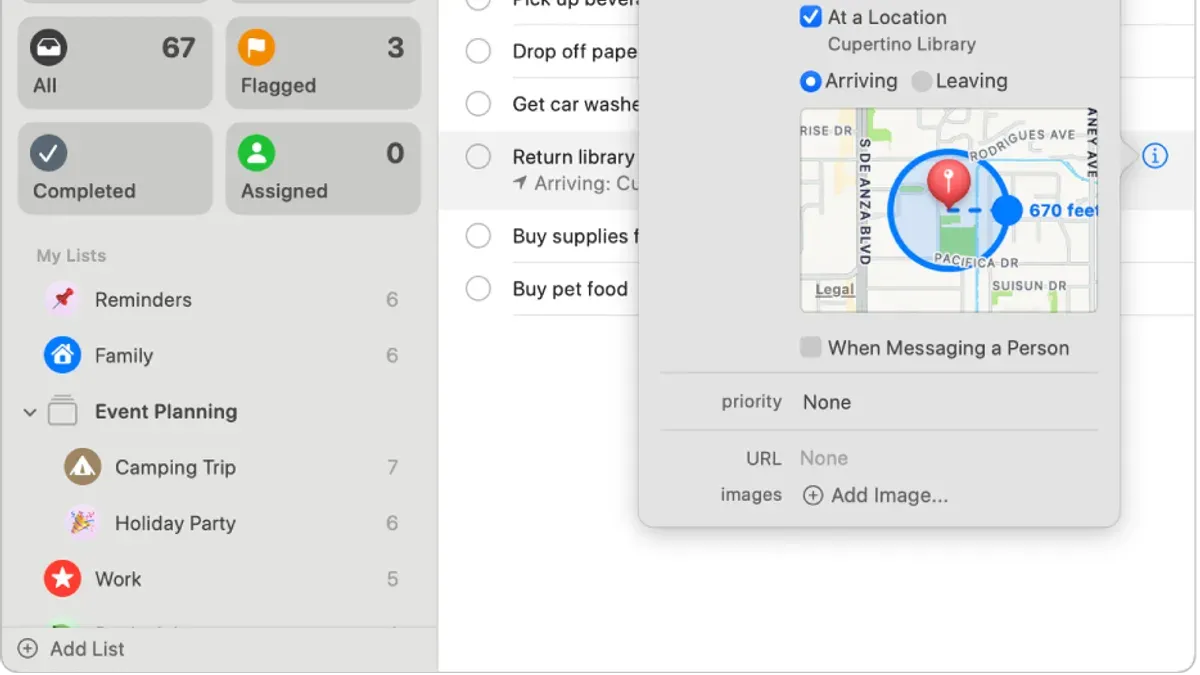
- Click the i button next to the reminder you created. You should see a detailed view of the reminder’s options.
- Enable Remind me at a location by checking its box. This reveals the location input field and trigger options.
- In the location field, type the address or place name you want to use. For example, enter Home if you have your home location saved in Maps. You will see suggestions appear as you type; select the correct one.
- Choose whether the reminder triggers When I arrive or When I leave the specified location by selecting the corresponding radio button. For instance, set it to When I arrive for a reminder that activates upon reaching home.
- If available, adjust the geofence radius to control how close you need to be before the reminder triggers. A smaller radius means the reminder will alert you closer to the location, which can increase accuracy but may cause delays if GPS signal is weak. A larger radius triggers earlier but might activate prematurely in nearby areas.
For example, setting a reminder titled "Take out trash" with Home as the location and When I arrive trigger will notify you as soon as you get near your home. If you set a smaller radius, the alert will come just before you enter the house area, while a larger radius might notify you when you are still on the street.
Test Your Location Reminder Setup
After setting a location-based reminder, it's essential to confirm that the location you've entered is precise. Open the Maps app on your Mac and enter the address or place name exactly as you did for your reminder. This confirms the location exists and matches your intended spot.
To test your reminder, try physically moving to the location or, if unavailable, use location simulation tools compatible with your Mac to mimic arrival or departure. For example, if you set a reminder to alert you when arriving at your local coffee shop, ensure you are near or simulate being near that spot.
Once at or near the location, observe if the reminder notification appears. Typically, location reminders take a few seconds up to a couple of minutes to trigger depending on GPS accuracy and network conditions. If you do not see the alert promptly, double-check your settings and location permissions.
- Open Maps and search for the exact location used in your reminder. You should see the correct location pin on the map.
- Go to the location physically or simulate it. When you arrive, wait for the reminder notification.
- Confirm the reminder notification appears within a few minutes. If it does, your setup is working correctly.
- If no notification appears, revisit the location trigger settings, ensure Location Services are active, and verify your Mac's network connection.
Manage and Edit Location Reminders for Better Accuracy
To improve the reliability of your location reminders, start by editing the reminder’s location or trigger type. Open the Reminders app, select the reminder, and click the info button (the “i” icon). Here, you can update the address or switch between "When I Arrive" and "When I Leave" triggers to better match your needs. Changes you make will immediately affect when the alert activates.
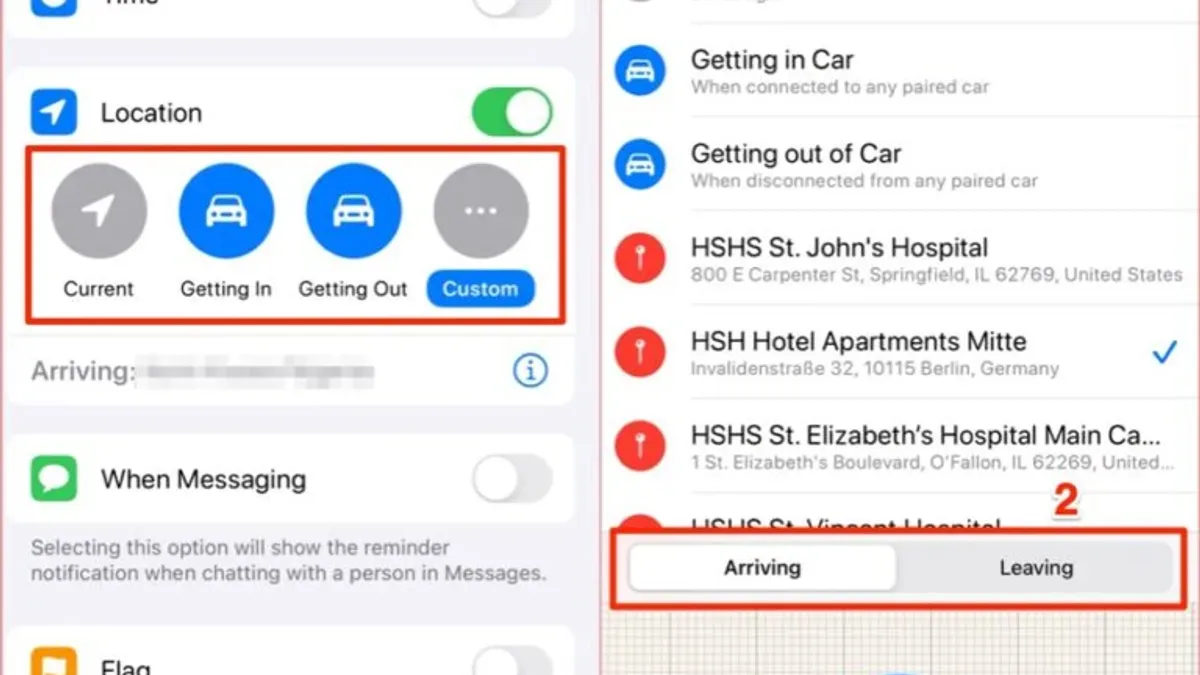
If a reminder consistently triggers inaccurately, consider deleting it and creating a new one. Sometimes, subtle location data errors cause persistent issues that a fresh setup can resolve. When setting a new location, use precise addresses or recognizable landmarks instead of vague area names to tighten the geofence and reduce false alerts.
Syncing your reminders across your Apple devices, like your Mac and iPhone, ensures the location triggers and edits stay consistent. For example, a reminder edited on your Mac will update on your iPhone, enabling you to receive alerts no matter which device you carry. This synchronization is automatic when signed into the same iCloud account and connected to the internet.
Troubleshoot Common Issues with Location Reminders on Mac
If your location reminders are not working as expected, several common issues could be the cause. Start by checking if Location Services are enabled specifically for the Reminders app. Go to System Settings > Privacy & Security > Location Services, then ensure Reminders is allowed to access your location. A disabled setting here will prevent location triggers from activating.
Another frequent problem is your Mac's inability to accurately detect your location. This can happen if Wi-Fi is off or the hardware lacks GPS capabilities. Make sure Wi-Fi is enabled even if you’re not connected to a network, as it helps improve location accuracy.
Notifications need to be active for Reminders. Check System Settings > Notifications & Focus > Reminders and confirm alerts are allowed. Also, verify that Do Not Disturb or any Focus mode is not suppressing notifications during your expected reminder times.
Incorrect or ambiguous locations in your reminder can cause it not to trigger. Double-check the address or place name you entered, and consider using the map pin to confirm the exact spot.
Finally, iCloud syncing issues can delay or prevent reminders from updating across devices. Ensure you are signed into iCloud and that Reminders syncing is enabled in System Settings > Apple ID > iCloud. Restarting your Mac or signing out and back into iCloud can resolve syncing glitches.
- Open System Settings > Privacy & Security > Location Services and confirm Reminders is toggled on. You should see a checkmark next to Reminders.
- Enable Wi-Fi from the menu bar; no connection is needed but the icon should be active.
- Navigate to System Settings > Notifications & Focus > Reminders and ensure notifications are set to Alerts or Banners.
- Check that Do Not Disturb or any Focus mode is off by reviewing the Control Center status.
- Review the location set in your reminder by editing it and verifying the map pin is accurate.
- Go to System Settings > Apple ID > iCloud and confirm Reminders syncing is active.
- If syncing issues persist, sign out of iCloud and sign back in, then restart your Mac.
Frequently asked questions
Can I set location reminders on my Mac without an internet connection?
You can set location reminders on your Mac without an active internet connection, but the accuracy and triggering depend on location services. Your Mac uses GPS, Wi-Fi, and Bluetooth to determine location, which may be limited offline. For best results, ensure Location Services are enabled in System Settings > Privacy & Security > Location Services, and that the Reminders app has permission to use your location.
Why don’t my location reminders trigger when I arrive or leave a place?
Location reminders may fail to trigger due to several common reasons. Check that Location Services are enabled and that Reminders has access to your location. Also, verify your Mac’s Wi-Fi is on, as it helps with location accuracy. Ensure the specific location is saved correctly with an address or recognizable place, and the trigger is set to 'Arriving' or 'Leaving' as intended.
Can I use location reminders for places without a specific address?
Yes, you can set location reminders for places without a formal address by selecting a point on the map or using landmarks. When setting the location, you can search for nearby businesses, intersections, or drop a pin manually. This flexibility allows reminders around areas like parks or parking lots, even if they lack a precise street address.
How do I delete or turn off a location reminder after it has triggered?
After a location reminder triggers, you can delete it by selecting the reminder in the Reminders app and pressing the Delete key or right-clicking and choosing Delete. To turn off location triggers without deleting the reminder, open the reminder, click the location icon, and uncheck "Remind me at a location." This keeps the reminder but disables the location-based alert.
What This Guide Does Not Cover
Location reminders rely on Wi-Fi, GPS, or network data, so their reliability can decrease indoors or in locations with poor signal strength. If you often find yourself in such environments, location-based reminders may not trigger as expected. This guide focuses solely on setting location reminders on Mac computers and does not cover iPhone or iPad, which have different interfaces and additional features for location alerts. Additionally, older Mac models that lack the necessary location hardware may not support location-based reminders fully or at all. If you use those devices or need reminders on other Apple devices, exploring device-specific guides is recommended.
To get the most out of location reminders on your Mac, your next step should be to regularly review and adjust the geofence radius in the reminder’s location settings. This fine-tuning helps balance timely alerts with avoiding false triggers, especially if you frequently move near the set location without needing the reminder every time. Keeping your macOS updated also ensures you have the latest improvements for location services, which can enhance accuracy and reliability.
See also: How to Use Smart Lists in Reminders on Mac: A Step-by-Step Guide · How to Share a Reminders List in Reminders on Mac · How to Create a Grocery List in Reminders on Mac: Step-by-Step Guide



