How to Roll Out a New Password Policy Successfully
Start with configuring password settings and follow a phased rollout plan to ensure smooth adoption and minimize helpdesk issues.

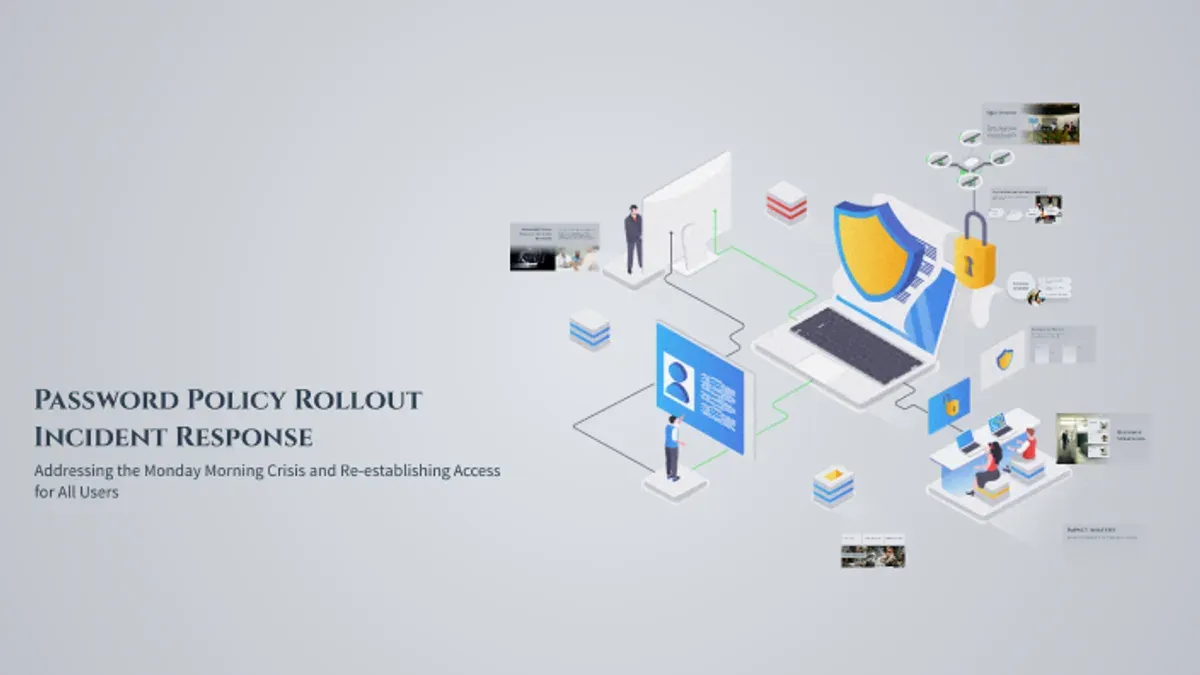
Start by configuring the policy settings in your system before communicating changes to users. Timing is crucial: changing rules abruptly or without phased prompts can lead to increased helpdesk tickets and user resistance.
overview of the new password policy rollout
- Set password policy parameters first in your directory service or identity platform.
- Understand password reuse restrictions by platform and account type for proper enforcement.
- Follow the recommended sequence: pilot test, communicate, then enforce, to minimize disruption.
- Use Azure AD or Exchange Online portals for Outlook account password policies, not the Outlook client.
How to set password policy in your system
Start by accessing the Group Policy Management Console (GPMC) if using Active Directory. Navigate to Computer Configuration > Policies > Windows Settings > Security Settings > Account Policies > Password Policy. Here you can set parameters such as minimum password length, password complexity requirements, maximum password age, and password history to prevent reuse.
For example, to enforce length and complexity, set Minimum password length to 12 characters and enable Password must meet complexity requirements. Complexity requires passwords to include characters from at least three categories: uppercase, lowercase, digits, or symbols. Adjust Maximum password age to define expiration intervals, commonly 60 to 90 days.
Integration with account lockout policies is critical. Under Account Lockout Policy, configure thresholds such as lockout duration and threshold to block repeated failed login attempts, mitigating brute force attacks. Ensure that these policies are linked to the correct organizational unit or domain to apply them effectively.
What is the policy on password reuse and how to enforce it
A common standard is disallowing reuse of the last 5 passwords, which means the system keeps a history of previous passwords and blocks any attempt to set one that matches those in the stored list.
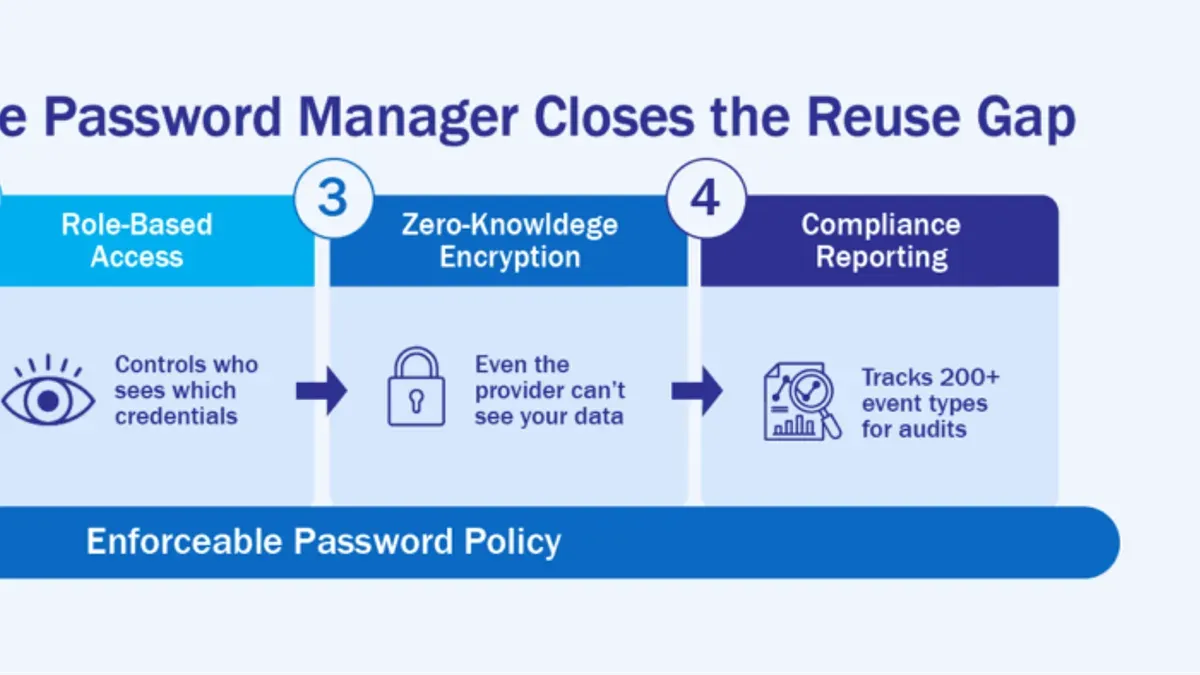
When a password change is requested, the new password is compared against this history to ensure compliance.
| Platform/Service | Reuse Limit Setting |
|---|---|
| Active Directory (Group Policy) | Enforce password history: 24 passwords |
| Azure AD (Cloud) | Password history count: 24 passwords |
| Google Workspace | Password reuse prevention: last 24 passwords |
| Okta | Password history count: configurable, commonly 5–10 |
| Exchange Online | Follows Azure AD policy, 24 passwords |
For example, if you set reuse to 5, a user cannot change their password to any of their previous five passwords. Trying to do so will result in an error prompting them to choose a new, unique password. This helps maintain password freshness and organizational security.
How to change password policy without disrupting users
Use email announcements, internal portals, and team meetings to inform users about what will change and why it matters. Early communication helps set expectations and reduces confusion.
This helps identify potential issues before a full rollout. Select a department or team that can provide feedback on user experience and technical challenges.
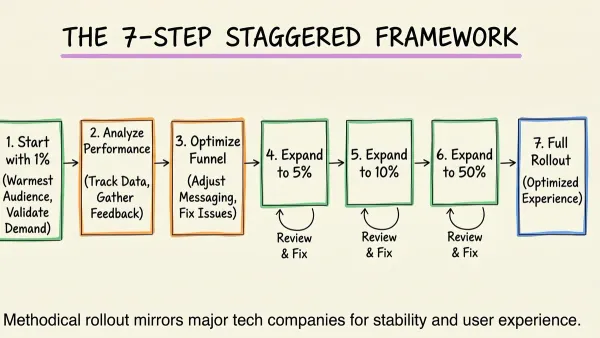
For example, start with non-critical departments, then move to core teams over several weeks. This phased approach allows IT support to manage requests more effectively.
This helps ensure users have time and support to comply without interrupting business operations.
A well-informed support team can resolve issues quickly, minimizing user frustration.
For instance, a typical timeline might include: week 1—notify all users; week 2—pilot group activation; weeks 3 to 5—phased rollout by department; week 6—full enforcement and ongoing support. Following this order prevents premature lockouts and maintains user productivity throughout the transition.
What is the password policy for Outlook accounts and related specifics
Outlook accounts, particularly those used within organizational environments, rely on password policies managed through Azure Active Directory (Azure AD) or Exchange Online rather than settings within the Outlook client itself. Password complexity requirements, expiration intervals, and lockout thresholds are defined centrally in these services.
For example, if your organization enforces a policy requiring passwords to be at least 12 characters with a mix of upper and lowercase letters, numbers, and symbols, these rules are applied via Azure AD. If a user attempts to sign in to Outlook with a password that does not comply, the authentication will fail according to those backend policies.
Account lockout settings also play a critical role: after a configurable number of failed sign-in attempts—often set through Azure AD or Exchange Online—the account is temporarily locked. This lockout prevents brute-force attacks but can lead to user frustration if thresholds are too low or lockout durations are excessive.
It is important to note that you cannot adjust these password or lockout policies directly within Outlook. Instead, you must use the Microsoft 365 admin center or PowerShell cmdlets targeting Azure AD or Exchange Online to configure and enforce these controls.
How to prompt users to change passwords effectively during rollout
Start by configuring system-generated password change prompts to appear at user login or session start. Within Active Directory environments, use Group Policy settings under Computer Configuration > Policies > Windows Settings > Security Settings > Account Policies > Password Policy to enforce expiration notices. These prompts provide immediate, contextual reminders without requiring extra user action beforehand.
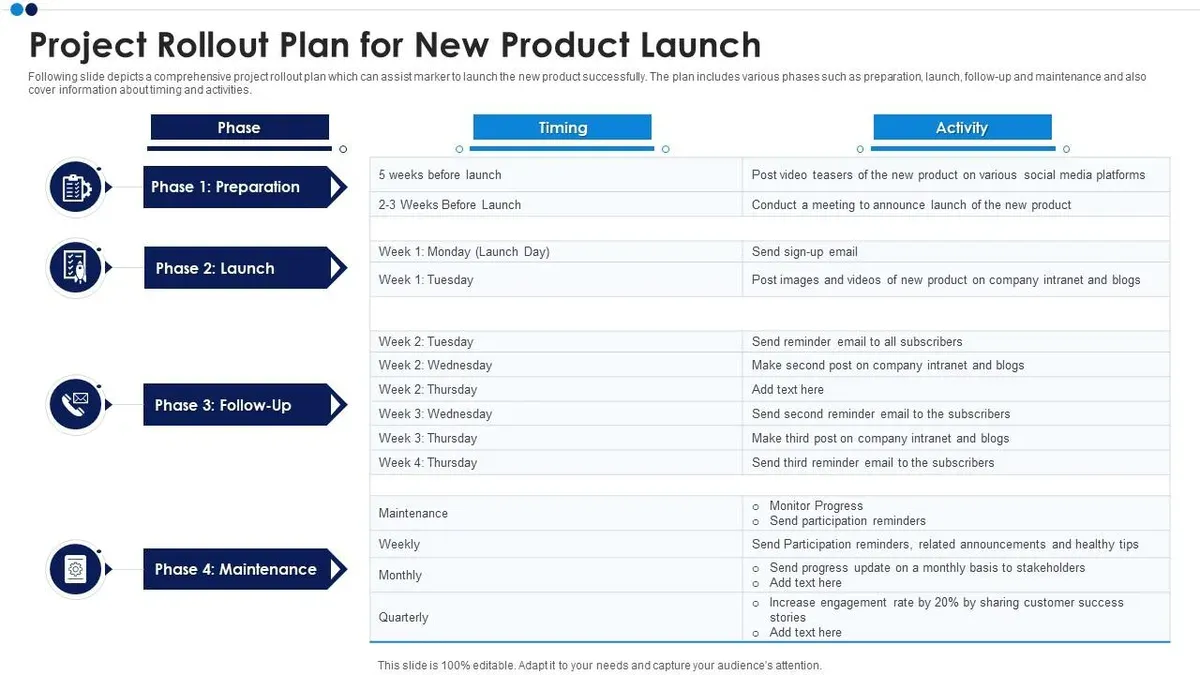
Complement system prompts with email and intranet announcements sent at least two weeks before enforcement. A clear schedule helps users plan their password updates. For example, an email might read: "Your password will expire on December 10. Please update it before then to maintain access."
Implement automated reminder sequences escalating in frequency—initially weekly, then daily in the final three days before expiration. Non-compliant users may receive targeted notifications or be guided through helpdesk support.
Avoid forcing immediate resets upon rollout start, which can lock users out unexpectedly. Instead, allow a grace period where logins remain active but trigger reminder prompts. This phased prompting reduces frustration and supports a smoother transition.
After the rollout: verifying success and handling issues
Once your new password policy is active, start by monitoring system reports and audit logs. Use tools like Azure AD Sign-in Logs or Windows Event Viewer to confirm policy enforcement, such as password expiration events or failed login attempts due to policy violations. These dashboards help you verify that the policy applies correctly across user accounts.
Next, watch helpdesk metrics for spikes in password-related tickets. An unexpected increase may indicate user confusion or technical issues in the rollout. Promptly analyze ticket trends to address common problems and update your user support documentation accordingly.
Gather user feedback through surveys or direct communication to detect resistance or misunderstandings. Feedback can reveal if prompts are timely or if users struggle with complexity requirements, allowing you to fine-tune communication and training.
Prepare rollback or adjustment plans before rollout completion. If critical failures arise—such as widespread lockouts or incompatible client behavior—revert settings cautiously via your policy management console. This contingency minimizes disruptions while you troubleshoot.
For example, after enforcing a stricter password expiration policy, you might see audit logs with frequent password change events alongside an uptick in helpdesk calls about expired passwords. This signals compliance with the policy but also a need for clearer user instructions or extended notification periods.
- How to Change Your Webull Password: Complete Step-by-Step Guide
- How to Change Your Walmart Password: Step-by-Step Instructions
Frequently asked questions
How to set password policy?
Setting a password policy typically involves accessing your directory or identity management system's security settings. For instance, in Azure AD, navigate to the Security > Authentication methods > Password protection section to configure complexity, length, and lockout parameters. Ensure you apply the policy to the correct user groups and test changes in a controlled pilot before full deployment to catch potential conflicts or user impact.
What is the policy on password reuse?
This article details the differences in password reuse limits across platforms and plans: for example, Azure AD enforces a reuse limit of 24 previous passwords on Premium plans, while basic plans may have shorter or no enforced history; on-premises Active Directory usually defaults to 24 but can be customized. The enforcement method varies by platform, so reviewing the reuse settings per directory service is crucial to prevent regression to old passwords without causing user frustration.
What is the password policy for Outlook?
Password policies for Outlook accounts are not managed within the Outlook client itself but are governed through Azure Active Directory or Exchange Online configurations. This distinction means that changes to password complexity, expiration, or reuse must be made in these backend services rather than in Outlook settings, ensuring centralized control and consistent enforcement across users.
Once the password policy rollout is complete, monitor the system logs and user reports closely within the first 24 to 72 hours to catch any immediate issues. Verify that users are receiving password change prompts as scheduled and that helpdesk tickets related to password problems remain at expected levels. If problems persist, consider temporarily relaxing enforcement settings via your directory service's policy management console to reduce user disruption while investigating.
Maintain regular audits of password compliance and user feedback for at least one week post-rollout, adjusting communication timing and helpdesk preparedness accordingly. If the policy causes unexpected lockouts or access failures, revert changes methodically by restoring previous policy snapshots or using the platform’s rollback features to prevent broader productivity loss.