How to Turn Off App Tracking on iPhone, Android, and Computer
This guide shows how to turn off App Tracking on iPhone, Android, and computers to help you protect your privacy across devices.

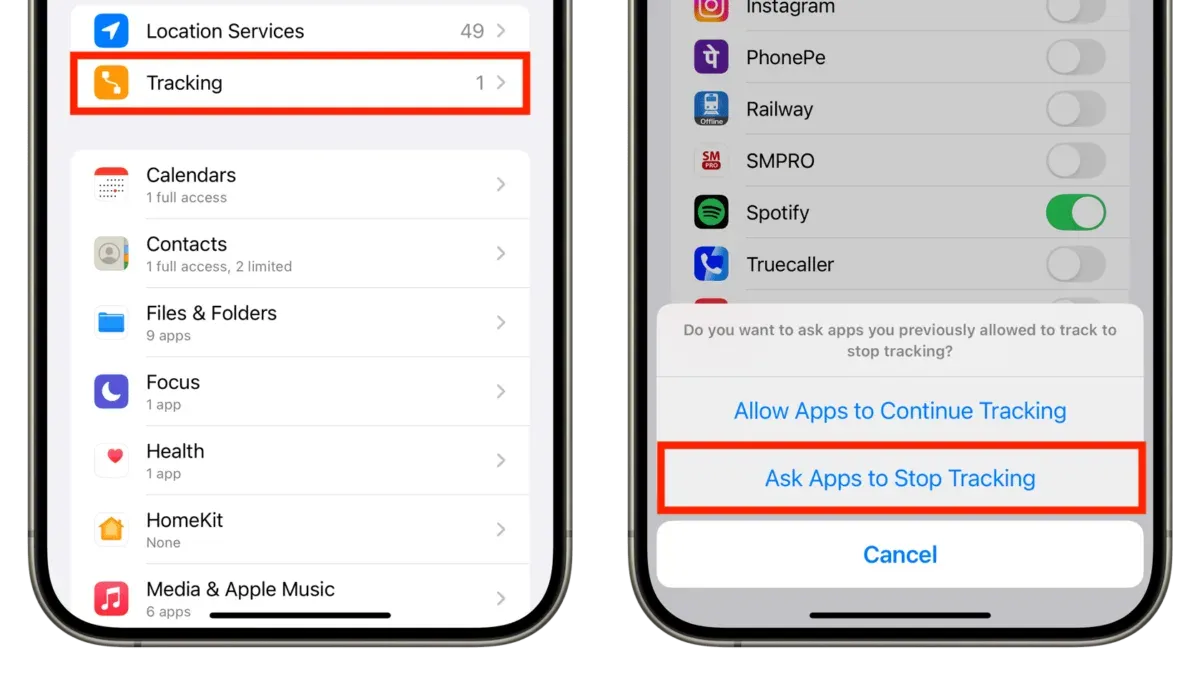
This article explains how to turn off App Tracking across iPhone, Android, and computers, providing clear, step-by-step instructions for each platform. App tracking allows apps and websites to collect data on user activities for advertising and analytics, but many users prefer to limit this to protect their privacy.
On iPhone, the "App Tracking Transparency" feature lets users control which apps can request permission to track. Android offers options through Google settings and device privacy controls, though tracking restrictions vary by manufacturer and Android version. Computers rely on browser settings and specific software preferences to manage tracking.
Understanding these differences helps users make informed choices about privacy and the trade-offs involved, such as limited ad personalization or reduced app functionality.
Before you start: what is needed to turn off app tracking
Successfully disabling app tracking requires access to device settings and a basic understanding of app permissions and privacy controls. This guide covers iPhone, Android phones, and computers, each with different interfaces and options for managing tracking.
Ensure the device runs the latest operating system version available. On iPhones, iOS 14.5 or later introduced App Tracking Transparency, which is essential for controlling tracking on apps. For Android phones, privacy settings have improved notably in recent versions such as Android 11 and later, but some manufacturers may offer different menus. Computers vary widely by platform and browser, with tracking controls often found in privacy or security settings.
Older OS versions may lack robust tracking control features, limiting the ability to fully disable tracking. Users should anticipate differences in menu names and locations depending on device model and OS version. A foundational understanding of app permissions—such as location, camera, and data access—is helpful, as tracking often depends on these permissions.
- Access the main settings app on the device: this is typically labeled "Settings" on phones and found in the system menu on computers. Successful access shows a list of system functions like network, privacy, and notifications.
- Locate the privacy or security section, where app permissions and tracking settings reside. Confirm that the device OS version supports granular tracking controls; if not, an update prompt may appear.
- Identify apps requesting tracking or permission to access data; this may be under "App Permissions," "Tracking," or "Privacy" depending on the platform.
- Verify that the device is connected to power or has sufficient battery, since some updates or setting changes require stable power.
Tip: Backing up important data before updating the OS or changing privacy settings can prevent unintended data loss.
How to turn off app tracking on iPhone
- Open the Settings app and scroll down to Privacy & Security. Tap to enter the privacy options.
- Tap Tracking near the top of the list. This section controls app tracking permissions across the device.
- Toggle off Allow Apps to Request to Track. This stops new apps from asking permission to track across other companies' apps and websites.
- Review the list of apps below. Any with tracking permission enabled will have their toggle switched on. Turn off any individual app's tracking permission as desired.
- Return to Privacy & Security and select Location Services. For additional privacy, disable location sharing for apps that do not require it, as location data can be used alongside tracking.
- Scroll down in Privacy & Security to Analytics & Improvements. Disable Share iPhone Analytics and Improve Siri & Dictation to reduce data sent to Apple that can indirectly aid tracking.
Tip: Disabling app tracking on iPhone can significantly reduce targeted ads, but some apps may limit functionality or require location access for features.
How to turn off phone tracking on Android
Android offers several ways to control app tracking, but options vary by device and OS version. Key controls include Google Play Services settings, app permissions, and privacy tools like the Privacy Dashboard available on newer versions.
- Open the Settings app and scroll to Google settings. Tap Ads, then enable Opt out of Ads Personalization. This stops apps from using your advertising ID for targeted ads.
- Return to the main Settings menu and select Privacy. Tap Privacy Dashboard if available. Here, review which apps accessed location, camera, microphone, or other sensitive data recently. Tap any app to adjust permissions or revoke access.
- Alternatively, go to Apps or Apps & notifications in Settings. Select an app, then tap Permissions to review and disable access to location, camera, microphone, and other tracking-related permissions individually.
- For broader activity controls, open the Google app or visit your Google account settings. Navigate to Data & privacy > Web & App Activity and disable it to limit data saved from app use across Google services.
Tip: The Privacy Dashboard provides a timeline view of app access, making it easier to spot unexpected tracking and revoke permissions.
Note that some tracking controls depend on the Android version and device manufacturer customizations, so availability and names of settings may differ.
How to turn off tracking on computer
Reducing app and web tracking on Windows and Mac computers involves adjusting system privacy settings, managing app permissions, and using browser tools to block trackers.
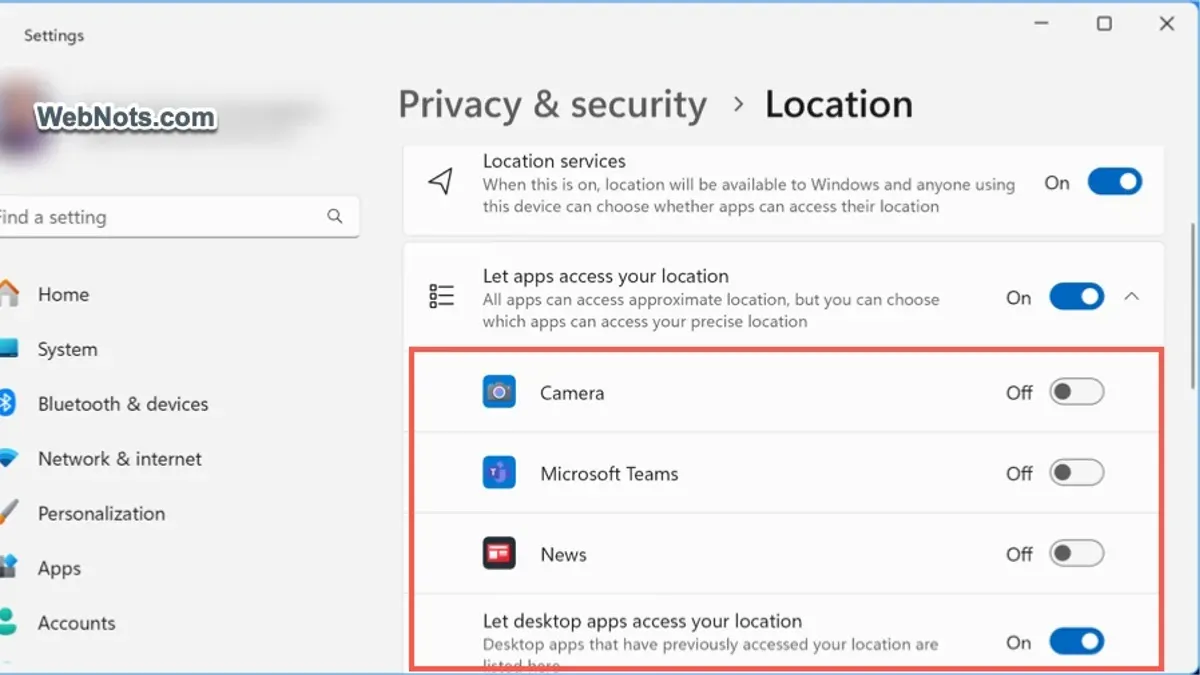
- Adjust privacy settings in Windows 10/11: Open Settings > Privacy & security. Review permissions for location, camera, microphone, and diagnostics. Turn off access for apps that do not require these features to reduce tracking. When done, apps with disabled permissions will no longer access those data points.
- Adjust privacy settings in macOS: Go to System Settings (or System Preferences) > Privacy & Security. Manage permissions for Location Services, Camera, Microphone, and Analytics & Improvements by toggling off or restricting access per app. Apps without permissions will be prevented from collecting related data.
- Use browser settings to limit trackers: In browsers like Safari, Chrome, or Firefox, enable built-in tracking prevention features. For example, Safari’s Prevent cross-site tracking setting blocks third-party trackers, while Firefox’s Enhanced Tracking Protection offers adjustable levels of blocking. Confirm active status via browser privacy or security menus.
- Install browser extensions: Add-ons like uBlock Origin or Privacy Badger block ads and trackers across sites. After installation, verify the extension icon indicates active blocking during browsing sessions.
Limitations: System-level controls on computers cannot fully prevent all forms of tracking, especially web trackers embedded in content or browser fingerprinting. Combining system settings with browser tools offers stronger protection but may impact website functionality.
Battery settings that matter for app tracking
Battery and background app refresh settings influence how frequently apps run processes that may collect and send tracking data. Disabling background app refresh can limit app activity when not actively used, reducing opportunities for tracking but potentially delaying notifications or updates.
On iPhone, disable background app refresh by going to Settings > General > Background App Refresh and toggling it off either globally or per app. When successful, apps will no longer update their content in the background.
Android users can manage battery optimization by navigating to Settings > Battery > Battery Optimization (or App Battery Usage) and setting apps to optimized mode. This restricts background activity, lowering data usage and tracking frequency but may affect app responsiveness.
These settings reduce background data exchanges that apps use for tracking but may cause some apps to refresh only upon opening, impacting real-time functionality. For example, disabling background refresh for a news app reduces its data usage and tracking but delays article updates until the app is opened.
Tip: Adjust battery and background refresh settings carefully, balancing privacy benefits with the need for timely app updates and notifications.
How to turn off tracking in Google apps and services
Google’s ecosystem tracks user activity across its apps and services to personalize ads and improve user experience. Users can limit this tracking by adjusting ad personalization, location history, and activity controls within their Google account.
- Open Google Account by visiting myaccount.google.com. The account dashboard should appear.
- Select Data & privacy from the left menu. The privacy control options will be displayed.
- Under Ad settings, click Ad personalization. If ad personalization is on, toggle it off to stop Google from tailoring ads based on activity across services. A confirmation page will appear explaining the change.
- Return to Data & privacy, scroll to History settings, and select Web & App Activity. Toggle off this setting to prevent Google from saving searches and app activity. A prompt will appear to confirm pausing this history.
- In the same section, select Location History and toggle it off to stop Google from recording location data from apps like Maps. Confirm the pause when prompted.
- Review app permissions individually in apps like Google Maps and YouTube by opening their settings, navigating to Permissions, and disabling access to location or other tracking-related data as preferred. Changes should take effect immediately.
Effectiveness and limits: While these controls reduce data collection and ad personalization, Google may still collect some data for essential service functions or legal reasons. Additionally, pausing activity history may reduce the personalization of search results and app recommendations.
Tip: Regularly reviewing Google account privacy settings helps maintain control over tracking as Google updates its services.
Allow tracking on apps: when and why it might be necessary
Allowing app tracking can enhance personalization, enabling apps to deliver tailored content, relevant advertisements, and improved recommendations. For instance, streaming services often use tracking data to suggest movies or music based on past preferences, improving user engagement.
Certain app features depend on tracking to function correctly. Location-based services, like navigation or weather apps, require permission to access location data, which involves tracking elements. Similarly, fitness apps may track activity data to provide accurate health insights.
The trade-off between privacy and convenience varies by user and app. Some users accept limited tracking to benefit from customized experiences, while others prioritize strict privacy. User feedback indicates that disabling tracking can sometimes degrade app functionality, such as less relevant ads or missing personalized notifications.
Tip: Consider selectively allowing tracking for apps where personalization or functionality outweigh privacy concerns, and disable it for others.
Troubleshooting common issues when turning off app tracking
Some apps may ignore tracking preferences or repeatedly prompt for permission despite settings being disabled. This often occurs with apps that rely heavily on advertising revenue or analytics, such as certain social media or free gaming apps.
App performance can be affected after disabling tracking, as some features depend on personalized data. To manage this, check if the app offers alternative settings for functionality without tracking, or consider if limited tracking might be acceptable for essential features.
Conflicting privacy settings across multiple devices or accounts can cause tracking controls to behave inconsistently. For example, disabling tracking on one iPhone may not affect the same apps on a paired iPad or Mac if settings are not synchronized through the user’s Apple ID or Google account.
To verify that tracking is actually disabled, follow these steps:
- Open the privacy or tracking settings on the device (e.g., "Privacy & Security" > "Tracking" on iPhone, or "Settings" > "Privacy" > "Permission Manager" on Android). Confirm the main tracking toggle is off.
- Within the device settings, review individual app permissions for location, camera, microphone, and ad personalization to ensure no unexpected access remains.
- Use the device’s privacy dashboard or app activity logs to check for recent tracking activity; for instance, Android’s Privacy Dashboard shows sensor and location access.
- Restart the device and reopen apps to confirm that permission prompts do not reappear and that apps respect the tracking settings.
- If issues persist, uninstall and reinstall the problematic app to reset permissions, then reconfigure tracking settings accordingly.
Tip: Regularly updating apps and operating systems can reduce bugs that cause tracking settings to be ignored.
Further reading
Frequently asked questions
How to turn off tracking on phone?
Turning off tracking on a phone generally involves adjusting privacy settings to limit data collection. On iPhone, this means disabling "Allow Apps to Request to Track" under Settings > Privacy > Tracking. On Android, users should explore Settings > Privacy > Permission Manager to restrict app permissions and disable ad personalization in Google settings.
How to stop tracking apps?
Stopping tracking by apps usually requires revoking permissions that allow access to personal data. This can be done by going to the app-specific settings on the phone and turning off location, camera, microphone, and other permissions that enable tracking. Additionally, enabling system-level options to limit ad tracking or reset advertising IDs helps reduce tracking.
How to stop apps from tracking you?
To prevent apps from tracking, disable tracking permissions and opt out of personalized ads. On iPhone, disable "Allow Apps to Request to Track" to stop cross-app tracking. On Android, limit app permissions and turn off ad personalization in Google settings. Clearing browser cookies and using privacy-focused browsers can also reduce tracking on computers.
How to stop app tracking on iphone?
On iPhone, open Settings > Privacy > Tracking and toggle off "Allow Apps to Request to Track." This prevents apps from asking permission to track across other companies’ apps and websites. It is also useful to review individual app permissions under Settings > Privacy to further restrict data access.
How to turn tracking off?
Turning tracking off involves adjusting privacy and permission settings across devices. On smartphones, disable tracking requests and revoke app permissions for sensitive data. On computers, adjust browser privacy settings, disable third-party cookies, and configure ad preferences. Be aware that some app functions may be limited when tracking is turned off.
Limits of turning off app tracking
Disabling app tracking does not guarantee complete privacy as some tracking may occur outside of app permissions or through aggregated device data. For example, trackers may use IP addresses or device fingerprinting methods that are not controlled via standard app settings.
Older devices or operating systems might lack the full range of tracking controls described here, limiting the effectiveness of these steps. Users with outdated software should consider updating their system or device for better privacy options.
Some apps may degrade in functionality when tracking is disabled, such as personalized recommendations or location-based features. Users should weigh the privacy benefits against potential usability trade-offs.
Next practical step for managing app tracking
Review the privacy and tracking settings within each frequently used app individually, as many apps offer their own controls beyond the system-level options. Checking app-specific permissions and settings can provide more granular control and help balance privacy preferences with app functionality.