How to Block Someone on Threads: Clear Steps and Key Tips
This guide explains how to block someone on Threads, detailing the app’s blocking features, privacy settings, and step-by-step instructions.

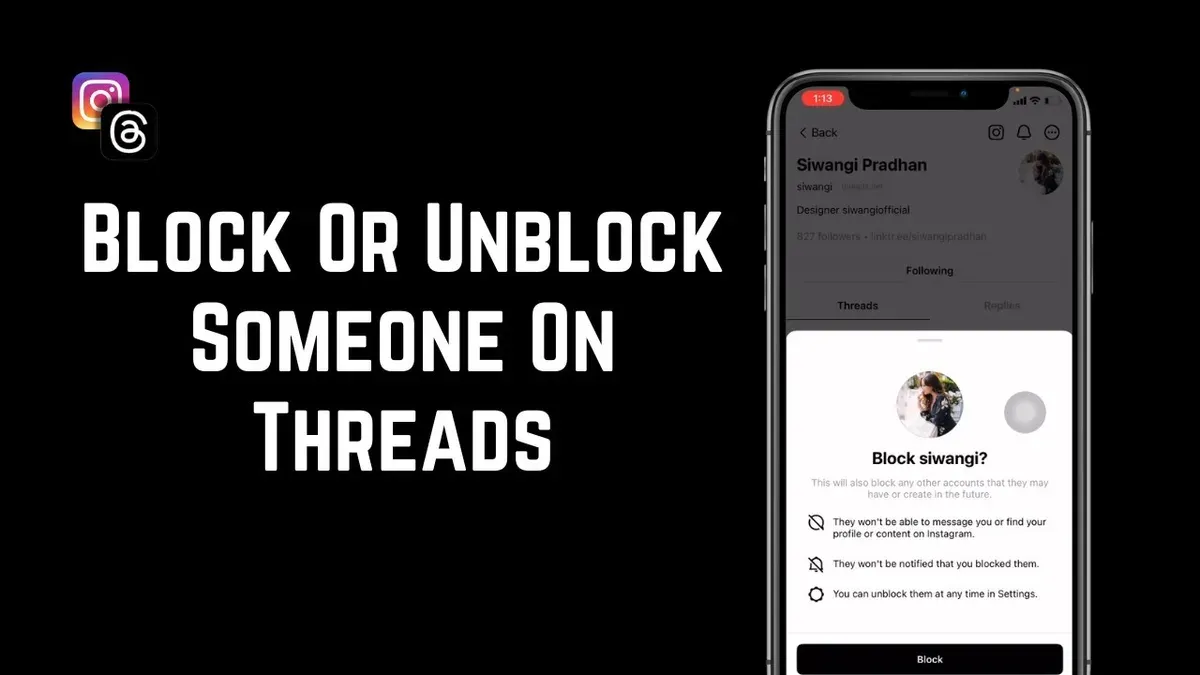
This article explains how to block someone on Threads, guiding users through the app’s specific blocking features and privacy settings.
Blocking on Threads differs in some key ways from other platforms, including Instagram, due to its integration within the Meta ecosystem but with distinct user controls. Understanding these differences helps users manage their experience effectively, whether the goal is to stop unwanted interactions or maintain discretion.
The process involves navigating the Threads app’s settings and user profiles to apply blocks, as well as knowing how to reverse them or deal with edge cases such as blocking users who have already blocked you. This guide addresses common misconceptions and clarifies what happens behind the scenes when a block is activated on Threads.
Before you start: What is needed to block someone on Threads
Blocking someone on Threads requires an active Threads account with the app installed on a compatible device. Users should have basic familiarity with the Threads interface, particularly how to navigate profiles and settings menus. It is essential to understand that blocking on Threads operates independently from Instagram; blocking someone on one platform does not automatically block them on the other.
Knowing the exact username or having access to the profile of the user to be blocked is necessary. Threads does not allow blocking by phone number or real name unless linked to the username. This precision helps avoid mistakenly blocking the wrong account.
The blocking option is generally found on the profile page of the user in question under the menu labeled with three dots (“More options”). Selecting this menu reveals options including "Block" and "Report." After blocking, the blocked user is restricted from interacting with the blocker’s posts and profile on Threads.
Comparison of blocking on Threads vs. Instagram
| Feature | Threads | |
|---|---|---|
| Blocking Scope | Only affects Threads interactions | Blocks across Instagram and Facebook |
| User Notification | No direct notification; user may infer | No direct notification; user may infer |
| Mutual Blocking | Possible, but separate from Instagram | Applies across Instagram and Facebook |
Tip: Confirm the username by visiting the user’s profile directly before blocking to ensure accuracy.
How to block someone on Threads step by step
- Open the Threads app and use the search function or your following list to find the profile of the user to block. The profile page displays their posts, bio, and follower count.
- On the user’s profile, tap the three-dot menu icon located in the top-right corner of the screen. This opens options related to the user.
- From the menu, select Block. A confirmation prompt will appear explaining the effects of blocking, such as preventing the user from interacting with your content.
- Confirm the block action by tapping Block in the prompt. Upon confirmation, the user is immediately blocked. They will no longer be able to see your Threads content or follow you.
- After blocking, the app returns to your feed or the previous screen, showing that the action was successful. The blocked user’s profile becomes inaccessible from your account.
Tip: Blocking someone on Threads does not automatically block them on Instagram, so manage each platform’s settings separately if needed.
How to unblock someone on Threads
Unblocking a user on Threads restores the ability to see their content and interact with them. This process is straightforward and reversible, allowing users to manage their connections flexibly.
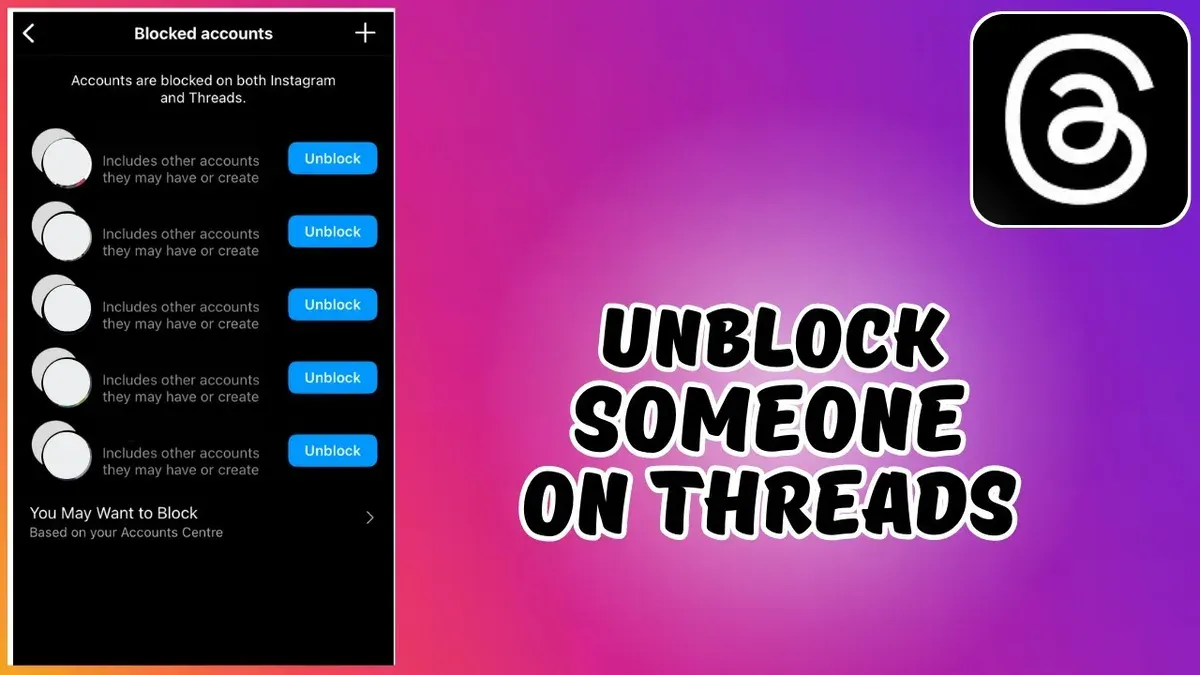
- Open the Threads app and tap the profile icon in the bottom-right corner to access the personal profile page.
- Tap the three horizontal lines (menu) in the top-right corner to open the settings menu.
- Select Settings from the menu options.
- Within Settings, choose Privacy and Safety, then tap Blocked Accounts. This opens a list of all users currently blocked on Threads.
- Scroll through the Blocked Accounts list to find the user to unblock.
- Tap the user’s name to open their profile within the blocked list.
- Tap the Unblock button visible on their profile page.
- A confirmation prompt will appear; confirm the unblock action.
- After unblocking, the user is removed from the blocked list, and communication can resume if both parties allow it.
Example scenario: If a user blocked someone temporarily during a disagreement but now wishes to restore communication, unblocking is the appropriate step.
Note: Unblocking on Threads does not automatically re-follow the user or restore any prior connections; these must be manually re-established.
Tip: If the unblock button does not appear, ensure the app is updated to the latest version as interface elements may vary.
How to block someone on Threads but not Instagram
Blocking on Threads operates independently from Instagram, meaning users can block someone on Threads without affecting their Instagram interactions. This separation allows selective blocking, useful for managing specific platform interactions while maintaining connections elsewhere.
- Open the Threads app and go to the profile of the user to be blocked. Upon loading their profile, the option to block will only apply within Threads.
- Tap the three-dot menu (usually at the top right) to access more options. This menu will present the block option exclusively for Threads.
- Select "Block" and confirm the action. The user is now blocked on Threads, preventing them from seeing your Threads content or interacting with you there, but they remain unblocked on Instagram.
- Verify the block by returning to the user's profile; it should indicate the block status within Threads, but their Instagram profile and interactions remain accessible.
Implications: Blocking on Threads alone stops the user from viewing or engaging with your Threads posts and messages, but they can still see your Instagram content, comment, and message you on Instagram unless separately blocked there.
| Feature | Block on Threads Only | Block on Instagram Only | Block on Both |
|---|---|---|---|
| View Threads posts | Blocked | Allowed | Blocked |
| Message on Threads | Blocked | Allowed | Blocked |
| View Instagram posts | Allowed | Blocked | Blocked |
| Message on Instagram | Allowed | Blocked | Blocked |
Example: A user may block a colleague on Threads to avoid seeing their posts or messages there while still following and interacting with them on Instagram. This flexibility supports nuanced social boundaries across platforms.
How to block someone on Threads without them knowing
Blocking on Threads does not send a direct notification to the blocked user, maintaining a level of discretion. However, the blocked person will no longer see the blocker’s Threads content or be able to interact with them, which can eventually reveal the block indirectly.
According to Meta’s privacy policy, blocking is designed to prevent contact without alerting the blocked user through notifications. Despite this, if the blocked user tries to visit the blocker’s profile or interact with their posts, they will notice restricted access, which can make the block evident.
To maintain privacy while minimizing potential awareness of blocking, consider alternative actions such as setting the account to private or restricting the user. These options limit what the other person can see or do without the complete cut-off that blocking entails.
- Open the profile of the user to be blocked.
- Tap the three-dot menu in the upper right corner.
- Select "Block" from the menu.
- Confirm the block when prompted; no notification will be sent to the blocked user.
Tip: Use the "Restrict" feature to limit interactions quietly, as this hides comments from the restricted user without blocking them entirely.
How to block someone that blocked you on Threads
On Threads, when someone blocks a user, it restricts most interactions between both parties, including viewing profiles and sending messages. This mutual blocking sets a barrier that generally prevents the blocked user from accessing the blocker’s profile or directly blocking them back through standard means.
To determine if someone has blocked a user, attempt to search for their profile or view recent interactions. If the profile does not appear or is inaccessible, it is likely a block is in place.
Blocking someone who already blocked a user is not directly possible through the usual profile interface since the blocker’s profile is hidden. However, Threads offers a workaround through Settings.
- Open the Threads app and go to Settings.
- Navigate to Privacy and Safety > Blocked Accounts.
- Use the search bar within Blocked Accounts to manually enter the username of the person suspected to have blocked the user.
- If the username appears, select it to block them despite the existing block.
- Confirm the block action. The user will now be blocked from the blocker’s account perspective as well, ensuring mutual blocking.
Blocking someone who has already blocked a user essentially reinforces the mutual block, preventing any accidental visibility or interactions if one party unblocks later.
Tip: If the username does not appear in Blocked Accounts search, mutual blocking might not be possible; consider adjusting other privacy settings to limit contact.
Threads official documentation clarifies that blocking is designed to be mutual in effect, but the ability to block back depends on profile accessibility. Users in community discussions note that blocking through Settings often works as a solution when the profile is hidden.
Troubleshooting common issues when blocking on Threads
Users may encounter problems such as failure to block a user, blocked profiles still appearing in searches, or confusion between blocking on Threads and email thread blocking. These issues can often be resolved with systematic checks and adjustments.
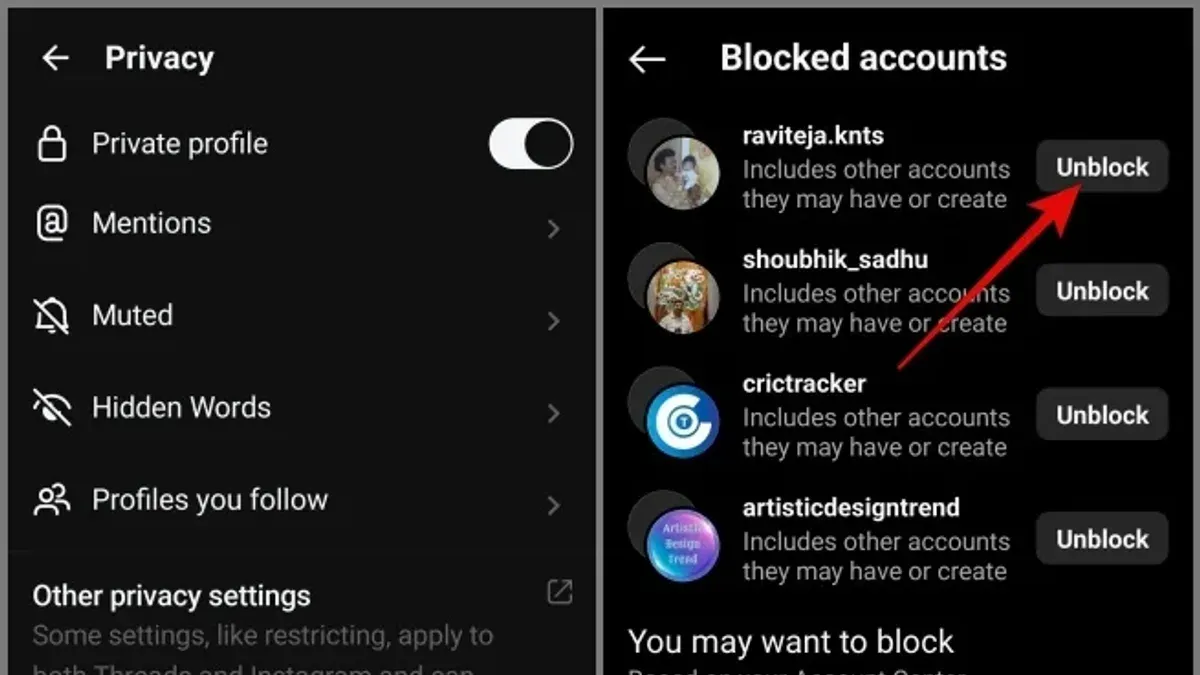
- Verify the block by revisiting the user’s profile or the Blocked Accounts list under Settings > Privacy and Safety. If the user remains listed, the block is in place.
- If the block fails, clearing the app cache or reinstalling Threads can resolve temporary glitches. After reinstalling, check the block status again.
- Understand that blocking a user on Threads only applies within the Threads app and does not affect email threads or external messaging. Blocking email threads requires settings adjustments in the email client, not Threads.
- If blocked users continue sending messages, confirm that blocking was successful and that messages are not coming from alternative accounts. Report persistent harassment through Threads’ support channels if necessary.
- Keep the Threads app updated to the latest version, as older versions may have bugs affecting blocking features.
Tip: Regularly review the Blocked Accounts list to ensure all intended users are blocked and no glitches have reversed previous actions.
| Issue | Common Cause | Resolution |
|---|---|---|
| Failure to block user | Temporary app glitch or network issue | Clear cache or reinstall app, then retry blocking |
| Blocked user still appears in search | Cache not refreshed or app outdated | Update app and restart to refresh data |
| Confusion with email thread blocking | Different platforms, separate settings | Adjust email client settings for email blocks |
| Blocked user sends messages | Multiple accounts or incomplete block | Verify block status and report abuse if needed |
Further reading
- How to Block Someone on YouTube: Step-by-Step Guide
- How to Block Someone on Telegram: Step-by-Step Guide
- How to Block Spam Calls on Verizon Phones: Practical Steps for Every Device
Frequently asked questions
How to block an email thread?
Blocking an email thread typically involves setting up filters in your email client to automatically move messages from that thread to spam or trash. Most email services offer options to filter by sender, subject, or keywords. This action prevents further emails in the thread from appearing in the main inbox.
How to stop threads?
Stopping threads depends on the platform. On messaging apps, it often means leaving the conversation or muting notifications. On social media, it may require blocking participants or adjusting privacy settings to prevent further interaction.
How to block someone completely?
To block someone completely, use the platform's dedicated block feature, which typically prevents the person from viewing your profile, sending messages, or interacting with your content. This action may require blocking on each platform individually since blocking on one app does not always extend to connected services.
Can you block someone on threads?
Yes, the Threads app provides a blocking feature that restricts a user's ability to see or interact with your content. Blocking someone on Threads only affects the Threads app and does not automatically block them on Instagram or other Meta platforms.
How to block someone on text?
Blocking someone on text messages usually involves using the phone’s built-in blocking feature accessible through the messaging or contacts app. This prevents the blocked contact from sending SMS or MMS messages and, depending on the device, may also block calls.
What blocking on Threads does not cover
Blocking someone on Threads stops direct interactions like messages or mentions within the app but does not prevent the blocked user from viewing public posts or comments. Since Threads is integrated with Instagram, blocking on Threads alone does not extend to Instagram; a separate block on Instagram is necessary to fully restrict interactions there. Users seeking to avoid all contact across platforms should manage blocks on both apps individually.
Also, blocking does not prevent the blocked user from seeing content shared through other social media or external links. For severe harassment or stalking, relying solely on blocking within Threads may be insufficient, and contacting platform support or legal authorities might be required.
To maintain control over interactions on Threads, the next useful step is to regularly review the block list via Profile > Settings > Privacy > Blocked Accounts. This ensures awareness of who is blocked and allows timely adjustments based on changing circumstances.