How to Change Your Temu Password: A Clear Step-by-Step Guide
This guide shows how to change your Temu password and manage account settings securely and efficiently.

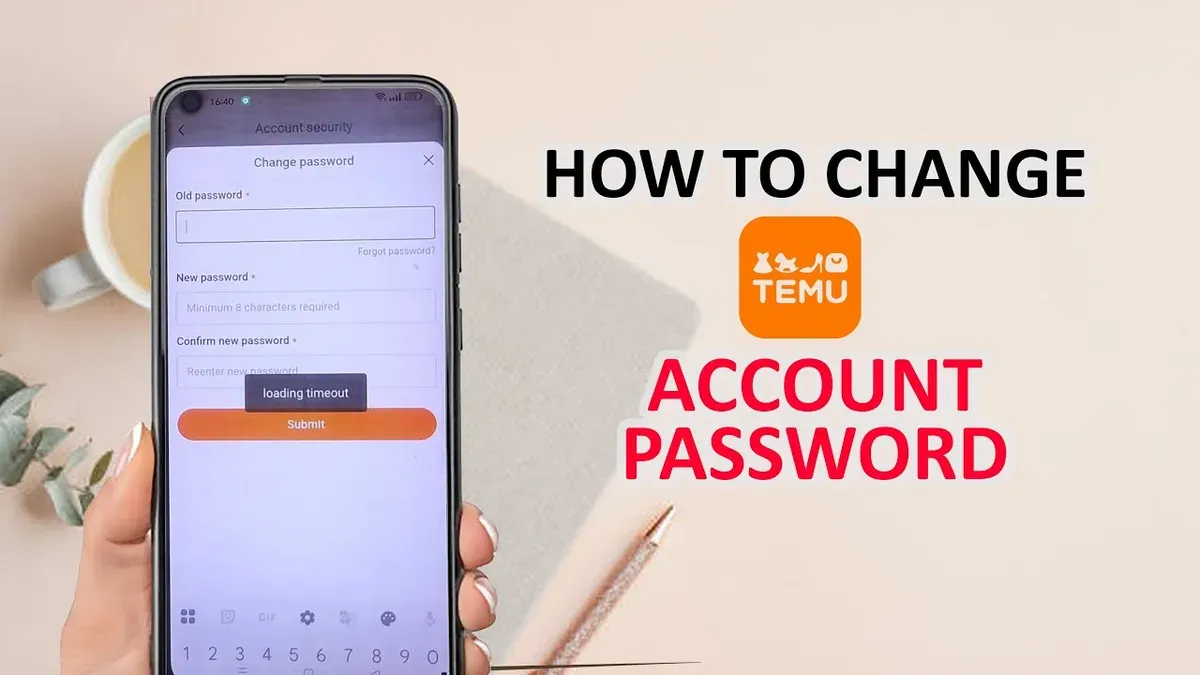
This guide explains how to change Temu password and manage related account settings efficiently on the Temu app and website. It covers password updates both when logged in and in case of forgotten credentials. The steps also include accessing the Temu account area, updating credit card information, and creating a new account from scratch.
Temu users can follow straightforward instructions to secure their accounts, navigate the settings menu, and avoid common pitfalls. Each section provides clear actions with exact menu paths and button names to minimize confusion. This approach ensures confident account management without needing to search for multiple resources.
Before you start: What is needed to change a Temu password
Changing a Temu password requires several prerequisites to ensure the process is smooth and secure. First, access to the Temu app or website is essential, along with a stable internet connection. Without a reliable connection, the password change process may fail or time out.
Next, have the current Temu account login credentials ready. This includes the email address or phone number linked to the account and the existing password if changing the password while logged in. For users resetting a forgotten password, access to the linked email or phone number is critical to receive verification codes or reset links.
Common errors occur when users do not have their login information or cannot access their verification methods. Attempting a password change without these will prevent progress and may require account recovery steps. Being prepared with these items avoids delays and frustration.
- Open the Temu app or visit the Temu website. The login screen should appear, indicating successful access.
- Confirm possession of the email address or phone number linked to the account. This is necessary to receive verification codes during password changes.
- Ensure the current password is known if changing the password while logged in. If forgotten, prepare to use the password reset option.
- Check internet connectivity by loading a different website or refreshing the Temu page. The page should load without errors.
How to change your password on Temu when logged in
- Open the Temu app or visit the Temu website and log in to the account.
- Navigate to the profile icon or account menu, usually located at the bottom right on the app or top right on the website.
- Select Account Settings or Settings from the menu options.
- Within Account Settings, find and tap on Password & Security or a similarly named section.
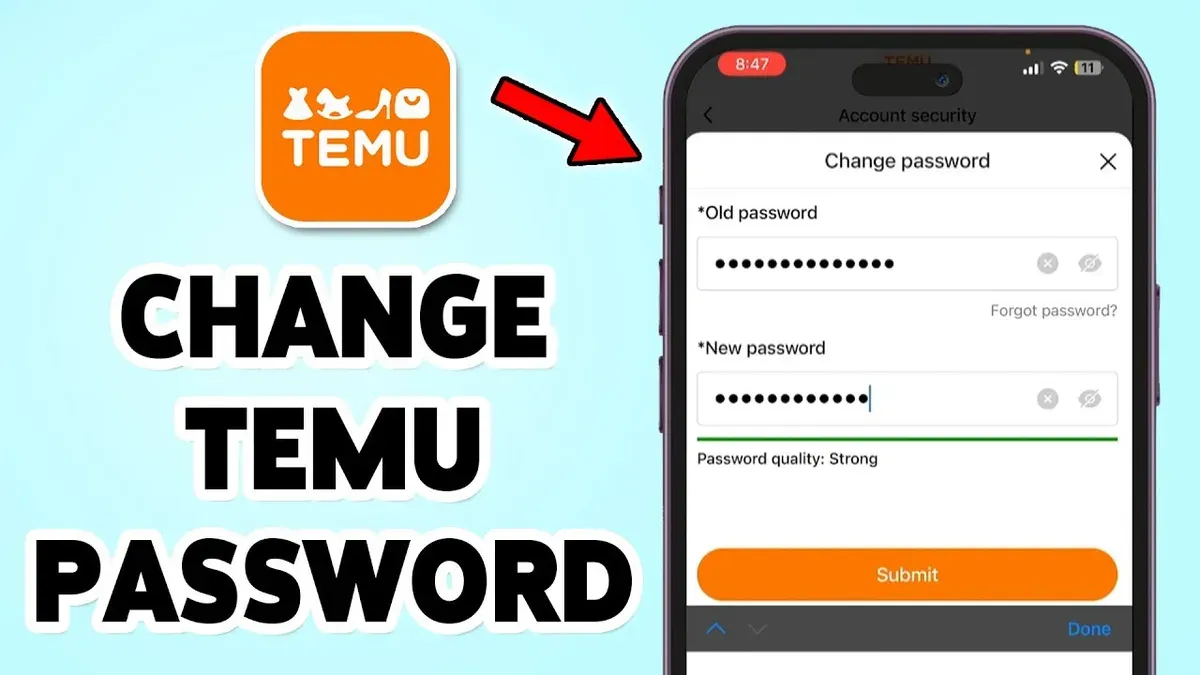
- Choose Change Password. A form will appear requesting the current password and the new password.
- Enter the current password correctly to verify identity.
- Type a new password that meets Temu’s criteria: at least 8 characters, including uppercase and lowercase letters, numbers, and symbols.
- Confirm the new password by entering it again exactly.
- Tap Save or Update Password. A confirmation message should appear indicating the password was successfully changed.
- Log out and log back in using the new password to verify it is active.
Tip: Use a password manager to generate and store a strong unique password, ensuring it meets the minimum complexity rules Temu requires.
How to reset your Temu password if you forgot it
When access to the Temu account is lost due to a forgotten password, the reset process starts at the login page. Locate and click the "Forgot Password?" link below the password entry field. This action opens the password recovery interface where the user must provide the registered email address or phone number associated with the account.
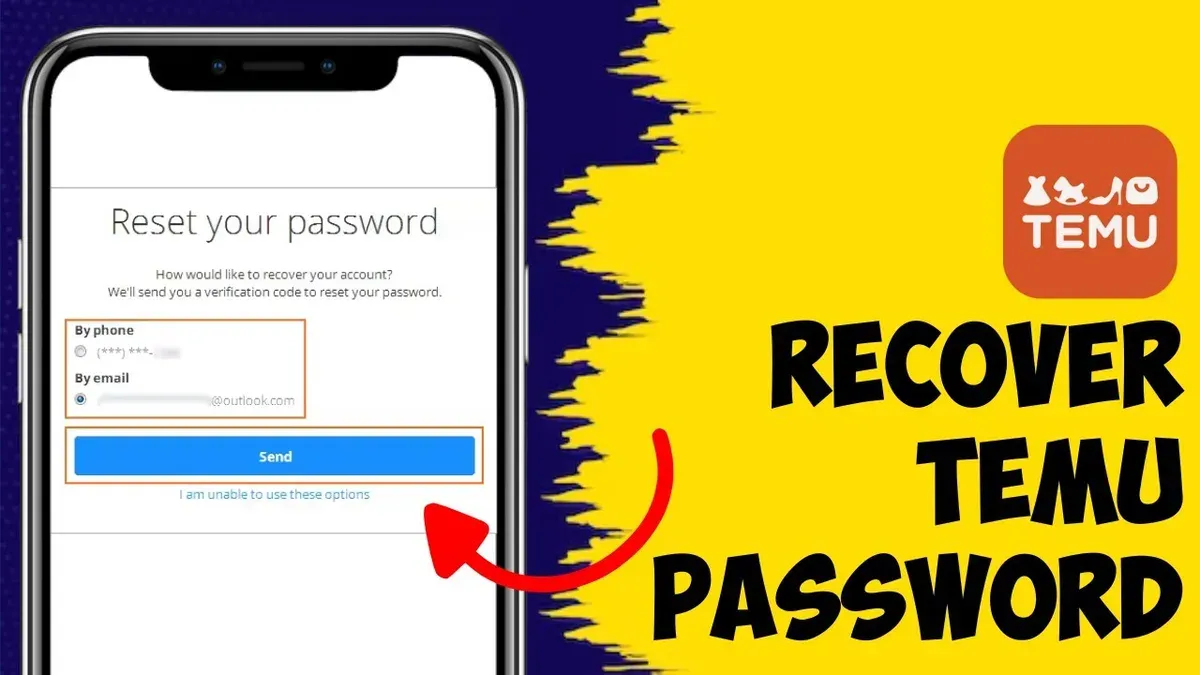
- Enter the linked email or phone number and submit the request. A password reset link or code will be sent via the chosen verification method, usually arriving within a few minutes.
- Check the email inbox or SMS messages for the reset communication. If the email is not found within 10 minutes, check the spam or junk folder as reset emails sometimes get filtered incorrectly.
- Click the reset link or enter the received verification code on Temu’s reset page. Successful verification leads to a page prompting the creation of a new password.
- Create a new password that meets Temu’s security requirements, typically including a minimum length and a mix of letters and numbers, and confirm it. Submit the form to finalize the password change.
- After submission, the account will be accessible with the new password. If errors occur, such as "invalid link" or "expired token," repeat the reset request as links often expire within an hour.
Tip: Avoid multiple reset requests in a short time to prevent temporary lockouts or delays in receiving emails.
How to login to Temu account
Access the Temu login page either through the app or the website homepage. On the app, tap the profile icon usually located at the bottom right; on the website, find the “Login” button at the top right corner of the page. Both lead to the login interface where credentials are entered.
- Enter the registered email address or phone number in the designated field. This is the primary identifier for the account.
- Input the password associated with the account. Ensure caps lock is off and the password is typed exactly.
- Tap or click the “Login” button. Successful login redirects to the user’s homepage or dashboard.
- If available, choose social media or third-party login options such as Google or Facebook by selecting the respective icon and following the prompts. This provides alternative access without entering email and password.
Common causes of login failure include mistyped credentials, account lockout after multiple failed attempts, or unverified email/phone. If login fails, verify the input carefully, reset the password if needed, or check for account status notifications. Persistent issues may require contacting Temu support.
Tip: Use the “Show Password” option to confirm password accuracy before submitting the login form.
How to go to my Temu account and manage settings
Accessing the Temu account dashboard is straightforward from either the app or the website. On the homepage or app main screen, locate and tap the profile icon, usually at the bottom right corner. This action opens the account dashboard, where various settings are grouped for easy navigation.
- Tap the profile icon on the app's main screen or click on the profile/avatar symbol on the website's top right corner to open the account dashboard. The dashboard displays personal information, order history, and settings options.
- Within the dashboard, find and select the "Account Settings" menu. This section houses password management, payment methods, and personal details.
- To update credit card information, click on "Payment Methods". Here, users can add new cards, remove old ones, or edit existing details. After inputting the new card details, save changes to update the account.
- For password changes, navigate to the "Security" tab under Account Settings, where password update options are available.
- Ensure all updates are confirmed by checking for success notifications or reviewing the updated data in the respective sections.
Tip: Managing account data via the app typically provides faster updates and smoother navigation compared to the website, though both methods are fully functional.
Users should maintain strong, unique passwords and regularly review payment methods to keep accounts secure. Avoid using public Wi-Fi when making sensitive changes.
How to change credit card on Temu
To update credit card details on Temu, navigate to the Account Settings section from the app or website dashboard. Within this area, locate the Payment Methods or Billing tab where current payment information is stored.
- Select Add Payment Method to enter a new credit card. A form will appear requesting card number, expiration date, CVV, and billing address. After submission, a confirmation message like “Payment method added successfully” should appear.
- To update an existing card, choose the card from the list and select Edit. Modify the necessary details and save changes. The system may require identity verification via a code sent to your linked email or phone.
- To remove a credit card, select the card and click Remove. Confirm the removal when prompted. Removing a card does not cancel pending orders but may affect future recurring payments.
- Once updated, Temu will automatically apply the new payment method to upcoming purchases. Pending orders will typically retain the original payment method unless manually changed before processing.
- If verification fails during updates, a message such as “Unable to verify card details, please try again” will appear. Retry with accurate information or contact support if issues persist.
Tip: Always double-check card expiration dates and billing addresses to avoid update failures.
How to make a new Temu account
Creating a new Temu account is straightforward and can be done via the Temu app or website. Locate the "Sign Up" button prominently displayed on the login screen. This opens the registration form where essential information must be entered to proceed.
- Open the Temu app or visit the Temu website and tap or click "Sign Up."
Expect to see the registration page with fields for email, phone number, and password. - Enter a valid email address or phone number for account identification.
The form will validate the format and prompt if adjustments are needed. - Create a strong password meeting Temu's security requirements, typically including a mix of letters, numbers, and symbols.
A password strength indicator confirms acceptability. - Submit the registration form. Temu will send a verification code via email or SMS to confirm the contact information.
Users should receive a prompt to enter the verification code. - Enter the received verification code to activate the new account.
Successful verification leads to the main account dashboard or welcome screen.
Tip: When managing multiple Temu accounts, use distinct email addresses or phone numbers for each to avoid login conflicts and ensure smooth verification.
Account creation is usually successful on the first attempt, but common pitfalls include using an already registered email or phone number and weak passwords. Double-check input accuracy before submission to minimize issues.
Troubleshooting common Temu password and login issues
If password reset emails do not arrive, first check the spam or junk folder. Ensure the email address entered is correct and matches the one linked to the Temu account. If emails still fail to appear after 10-15 minutes, try resending the reset link or use the phone number option if available.
Account lockouts or suspicious activity alerts occur after multiple failed login attempts or unusual sign-in locations. Wait at least 30 minutes before retrying, then log in from a familiar device and network. If locked out, Temu may require identity verification through email or phone before restoring access.
When email or phone number linked to the account is inaccessible, account recovery becomes complex. Use Temu’s support channels immediately to verify identity. Prepare details such as order history, payment methods, or previous account activity to expedite verification.
Contact Temu customer support if automated recovery options fail. Temu support typically responds within 24-48 hours. Most issues resolved include password resets, account verification, and unlocking accounts. Support is reachable via the app’s Help Center or official website contact form.
- Check spam/junk folders for reset emails; if found, follow the reset link to proceed.
- Confirm the correct email or phone number is entered when requesting password resets; expect a confirmation message.
- After multiple failed login attempts, wait 30 minutes to avoid lockout; then attempt login from a known device.
- If locked out, complete identity verification prompts sent to email or phone; successful verification grants access.
- If email/phone is inaccessible, collect account-related proof and contact Temu support via Help Center; await confirmation of identity and account recovery instructions.
Frequently asked questions
How to change my password on temu?
To change the password on Temu, first log in to the account. Navigate to the 'Account Settings' or 'Profile' section, then select 'Password' or 'Security Settings.' Enter the current password, followed by the new password twice for confirmation. Save the changes to update the password immediately.
How do i log in to temu?
Go to the Temu login page or open the Temu app. Enter the registered email address or phone number along with the current password. Click or tap 'Sign In' to access the account. If two-factor authentication is enabled, complete that step to finish logging in.
How to open temu account?
To open a new Temu account, visit the registration page or open the Temu app and choose 'Sign Up.' Provide a valid email address or phone number, create a strong password, and fill in any required personal details. Agree to the terms and conditions, then confirm the registration via email or SMS verification.
How do i access my temu account?
Access the Temu account by logging in with the registered credentials via the website or app. After signing in, the user will be directed to the account dashboard where order history, payment methods, and settings can be managed. If login credentials are forgotten, use the password reset option.
How to change the password of?
Changing the password requires logging into the Temu account first. Locate the 'Account Settings' and then the 'Password' or 'Security' section. Enter the current password, input the new one twice, and save the changes. If the current password is unknown, use the 'Forgot Password' link to reset it via email or SMS verification.
What This Guide Does Not Cover and When to Seek Further Help
This guide does not cover account recovery methods if the user has lost access to both their registered email and phone number, which requires direct support intervention from Temu customer service. It also assumes the user’s device is secure and free from malware; password changes alone cannot protect accounts if devices are compromised. For issues involving suspected hacking or unauthorized access, contacting Temu support immediately is advised. Users needing advanced security setups like two-factor authentication beyond the basic password change should consult official Temu resources or support.
For a secure and smooth account management experience, the single most useful next step is to regularly review account settings after logging in. Check the "Account Settings" section under the profile menu to verify personal information, update payment methods, and confirm security preferences. Staying proactive here reduces the risk of unauthorized access and keeps the Temu account aligned with current user needs.
See also: How to Change Your Target Password: Step-by-Step Instructions · How to Change Your Shein Password: Step-by-Step Instructions · How to Change Your Shopify Password: Complete Step-by-Step Guide · How to Change Your AliExpress Password: Clear Step-by-Step Guide