How to Change Your Shein Password: Step-by-Step Instructions
Clear, step-by-step instructions to change your Shein password and secure your account on both website and app.

This article provides clear, step-by-step instructions on how to change Shein password and manage related account security settings. It covers everything from updating passwords when logged in, to resetting forgotten passwords, and troubleshooting login issues. Additional guidance includes changing the registered email and payment methods to keep the account secure and current.
Managing a Shein account involves navigating both the website and mobile app, which have slight differences in layout and options. This guide clarifies those differences to reduce confusion. It also highlights common pitfalls, such as missing confirmation emails or incorrect password entry limits, ensuring users can resolve typical problems efficiently.
Before you start: What is needed to change a Shein password
Changing a Shein password requires prior preparation to avoid common errors and delays. First, access to the registered email address or phone number linked to the Shein account is essential. This contact information is used for verification and recovery during the password change process. Without verified contact details, account recovery options become limited or unavailable.
Secondly, if changing the password while logged in, the current password must be known. This confirms the account owner's identity and prevents unauthorized access. Users who do not remember their current password must use the password reset process instead.
Third, a device with internet access is necessary, along with either the Shein app or access to the Shein website. Both platforms support password changes but may have slight differences in navigation.
Finally, understanding basic account security best practices improves the safety of the password update. This includes choosing a strong, unique password and avoiding reuse of passwords from other sites. Awareness of common pitfalls such as mistyping the new password or neglecting to update recovery information reduces the chance of future login issues.
- Verify access to the email or phone number linked to the Shein account. Successful verification means the user can receive security codes or reset links.
- Confirm knowledge of the current password if logged in. Entering it correctly allows direct password changes.
- Ensure the device has an active internet connection and the Shein app installed or open the Shein website in a browser. The Shein login screen or account page should be accessible.
- Review basic password security principles, such as using a mix of letters, numbers, and symbols. This understanding supports creating a secure new password.
How do I change my password on Shein when logged in
- Log in to the Shein app or website and open the account dashboard. The dashboard typically shows order history and profile options.
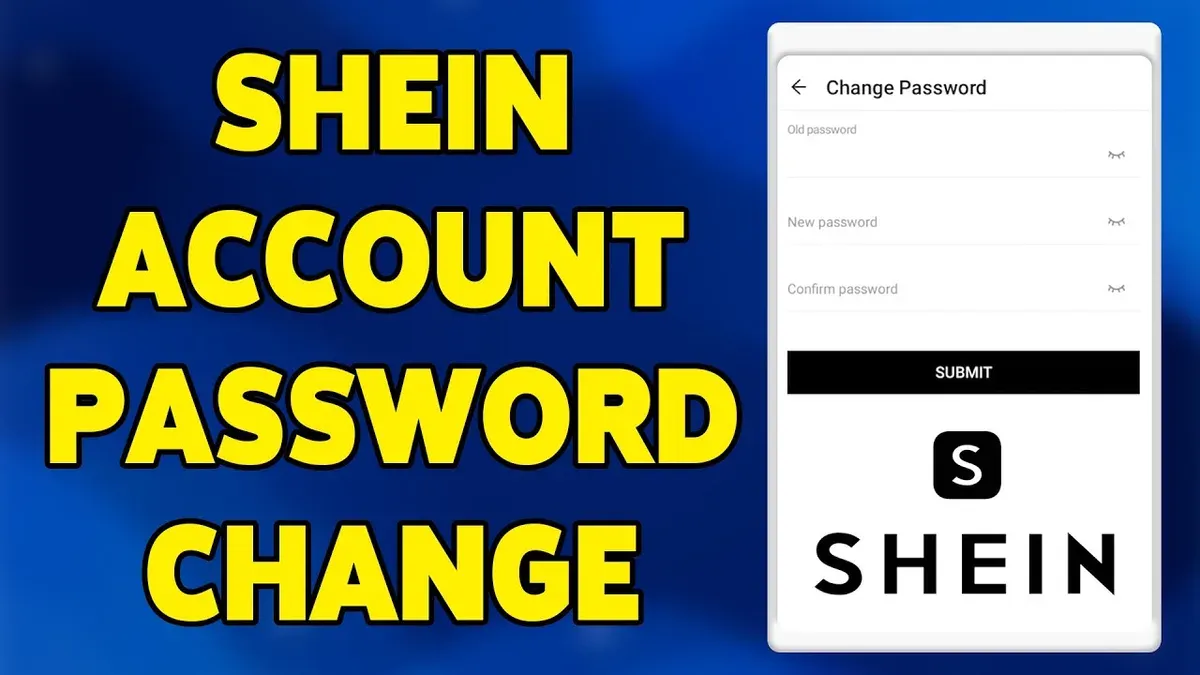
- Navigate to Account Settings or Profile section. On the app, tap the profile icon at the bottom right, then select Account Settings. On the website, click the user icon at the top right and choose Account Settings from the dropdown.
- Find and select the Password or Change Password option. This opens the password update form.
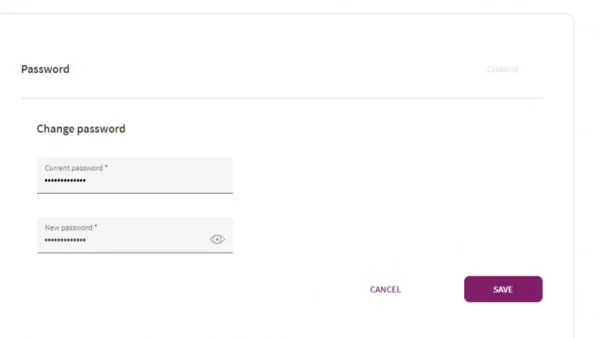
- Enter the current password in the designated field followed by the new password twice to confirm. The new password should be strong: at least 8 characters, combining uppercase and lowercase letters, numbers, and symbols. For example, a strong password is Gl0b@l$2026!, whereas a weak one is password123.
- Submit the change by tapping Save or Update Password. A confirmation message appears if successful.
Tip: Avoid using easily guessable information like birthdates or simple sequences in the new password. Use a password manager to generate and store complex passwords securely.
How to reset your password on Shein if you forgot it
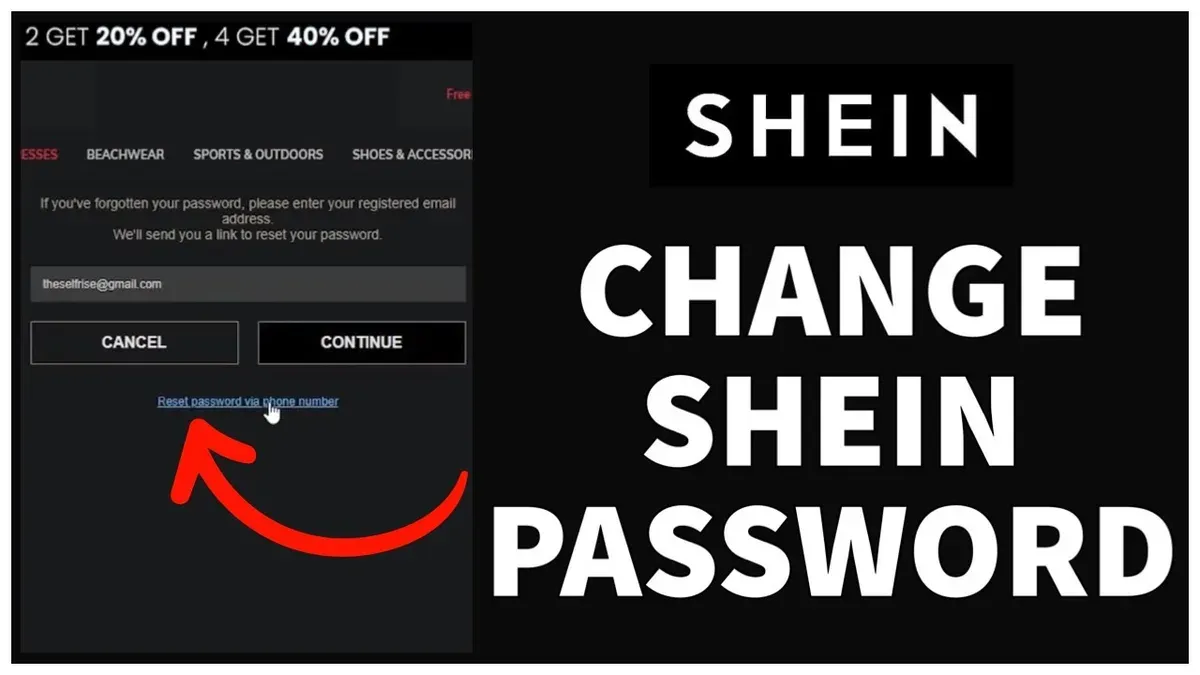
When the current password is unknown, use Shein’s password recovery process via the login page. Start by selecting the Forgot Password link below the password field. This initiates the reset flow, which requires verification of identity through a registered email address or phone number.
- Click Forgot Password on the login screen. A prompt appears asking for the email or phone number linked to the account.
- Enter the registered email or phone number and submit. Shein sends a verification code or password reset link to the chosen contact method.
- Retrieve the code or link from email inbox or SMS. Input the code in the provided field or click the link to open the reset page.
- Create a new password following Shein’s password criteria (usually minimum 8 characters, mix of letters and numbers). Confirm the new password and save changes.
- Upon successful reset, a confirmation message appears. Log in with the new password immediately to verify access.
Tip: Always verify the URL is shein.com and the site uses HTTPS before entering personal information to avoid phishing scams.
Typical user lockouts from forgotten passwords are common but most recover access within minutes using this flow. The email or SMS verification ensures only the account owner can reset the password, reducing unauthorized access risks.
How to change Shein password on app versus website: Differences explained
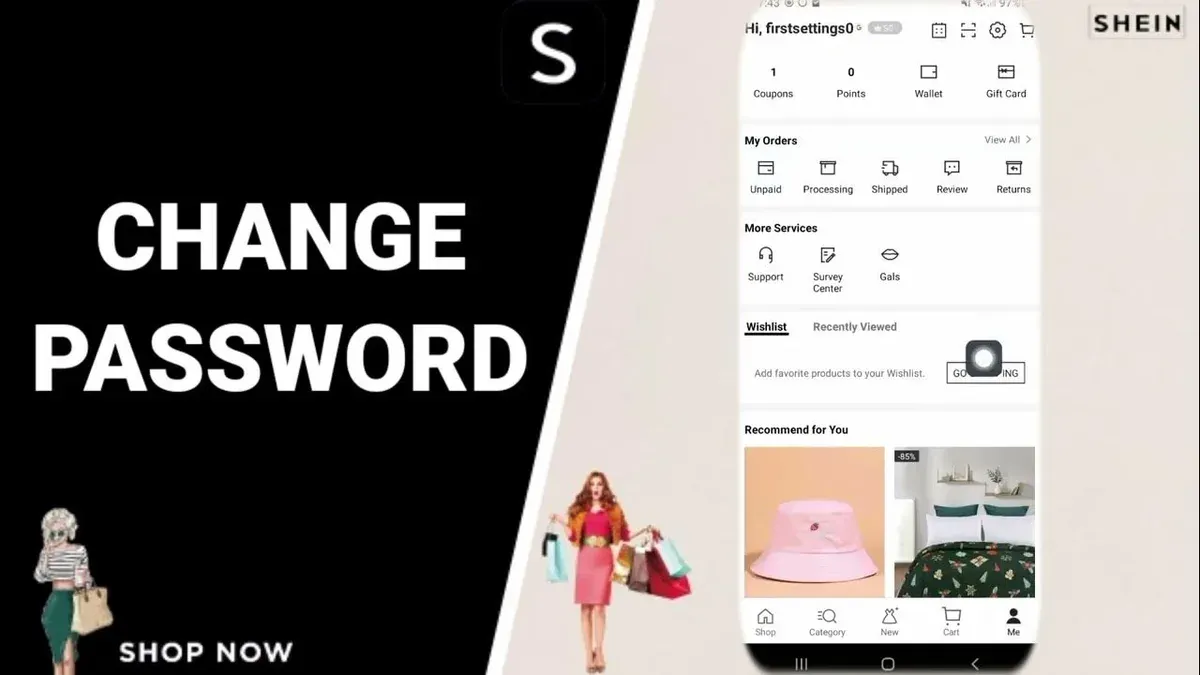
Changing the Shein password via the mobile app and desktop website involves similar steps but differs in navigation and interface layout. The app employs a compact, touch-optimized menu, while the website uses a broader sidebar and top navigation, making some options more accessible at once.
| Step | Mobile App | Desktop Website |
|---|---|---|
| 1. Access Account Settings | Tap Profile icon at the bottom right, then Settings | Click username at top right, then select Account Settings from dropdown |
| 2. Navigate to Password Section | Scroll down and tap Change Password under Security settings | Click Security tab on the left sidebar, then Change Password |
| 3. Enter Current and New Password | Input current password, create new password, confirm it | Same input fields for current and new password |
| 4. Save Changes | Tap Save button at the bottom | Click Save Changes button |
Tip: The app sometimes requires updating to the latest version for smooth access to security settings.
The app interface is more streamlined, which can speed up the process but may hide some sub-options that the website displays upfront. The website offers a more comprehensive view, useful for users managing multiple account details simultaneously. Users who shop mostly on mobile should prefer the app for quick changes, while desktop users gain from the full overview and easier multitasking.
How to log into Shein account if password reset isn’t working
If password reset attempts fail, start by verifying a stable internet connection and updating the Shein app to the latest version or clearing browser cache on the website. Incorrect email or phone number entry is a common cause; double-check that the credentials match those registered with the account.
Common error messages like "Verification code not received" or "Invalid email address" indicate input or network issues. Retry with a different network or device to rule out connectivity problems.
If self-service options do not resolve the issue, contact Shein customer support via the Help Center or live chat. Response times vary but generally expect a reply within 24 to 48 hours. Providing detailed information, including the error message and steps already taken, expedites assistance.
Perform security checks if login issues persist. Confirm that account activity matches known actions and verify no suspicious password change notifications were received. If compromised, report immediately to customer support to safeguard the account.
- Check internet connection and update the Shein app or clear browser cache; successful check means the app or website loads without errors.
- Ensure the email or phone number entered matches the registered account; the system should accept the input without error.
- Attempt password reset on a different device or network; receiving the reset email or SMS confirms network or device issues are resolved.
- Contact Shein customer support through official channels providing error details; receiving a support ticket or acknowledgment confirms the request was logged.
- Review recent account activity for signs of unauthorized access; no unexpected changes means the account is secure.
Tip: Save screenshots of error messages and correspondence with support to facilitate faster resolution.
How to change email on Shein account
Updating the registered email on a Shein account is essential for maintaining secure access and ensuring password recovery options remain functional. The process requires verification via the current email or phone number to confirm identity and prevent unauthorized changes.
- Log in to the Shein account on the app or website and navigate to Account Settings. The settings page will display personal information options.
- Select Email Address or Contact Information to edit the currently linked email. A field for entering a new email address should appear.
- Enter the new email address carefully, then submit the change. Shein will send a verification code or link to the new email.
- Access the new email inbox and retrieve the verification code or click the verification link. This confirms ownership of the new email.
- Enter the verification code back on Shein or confirm via the link. Once verified, the email on the account updates successfully.
Tip: Always use an email address that is secure and regularly accessed. An outdated or inaccessible email increases security risks because it prevents prompt password recovery and alerts.
If the email is not updated, password resets and account notifications will continue to go to the old email, potentially locking the user out or delaying important alerts. Keeping the email current safeguards against unauthorized access and ensures smooth account management.
How to change credit card on Shein
Updating credit card information on Shein ensures seamless checkout and accurate billing. Access the payment settings through the account dashboard by selecting "Payment Methods" or "Wallet". This section lists all saved cards and offers options to add, edit, or remove payment details.
- Log into the Shein account and navigate to the "Me" tab or account profile.
- Select "Payment Methods" under account settings; the saved cards will be displayed.
- To add a new card, tap or click "Add Payment Method" and enter the card number, expiration date, CVV, and billing address. A confirmation message or updated card list confirms success.
- To edit an existing card, choose the card and update the required fields; save changes to confirm.
- To remove a card, select the card and tap or click "Delete" or "Remove"; the card will disappear from the list.
Shein uses encryption and secure socket layer (SSL) protocols to protect payment information during transmission. Payment data is stored following industry standards, minimizing risk of unauthorized access.
Tip: Remove expired or unused cards promptly to reduce exposure to fraud and keep the payment list concise.
For added security, consider enabling two-factor authentication and regularly reviewing payment methods for unfamiliar entries.
Managing your Shein account settings for better security
Maintaining account security on Shein extends beyond password management. Enabling two-factor authentication (2FA), if available, adds a critical layer of protection by requiring a one-time code alongside the password. This can typically be found under Account Settings > Security > Two-Factor Authentication. When enabled, a prompt for a verification code during login confirms activation.
Regularly reviewing recent login activity helps detect unauthorized access early. Navigate to Account Settings > Security > Login History to view device names, IP addresses, and timestamps of recent sessions. Spotting unfamiliar entries should prompt immediate password changes and contacting support.
Update personal details such as phone numbers and recovery emails promptly within Account Settings > Personal Information. Accurate contact information ensures account recovery processes function correctly and prevents lockouts.
Phishing attacks targeting Shein users often arrive via emails or messages requesting login credentials or personal data. Always verify the sender's address and avoid clicking suspicious links. Shein never asks for passwords through email.
- Open Shein app or website and log into the account; confirm access to Account Settings is available.
- Go to Security settings; locate and enable Two-Factor Authentication; expect a confirmation message or prompt to set up via SMS or authenticator app.
- Access Login History; review recent sessions for unfamiliar activity; take action if any entries are suspicious by changing password and reporting.
- Navigate to Personal Information; update phone number and recovery email if changed; verify new contact details through confirmation codes.
- Be vigilant with received communications; do not provide credentials outside official Shein platforms; report suspicious messages to Shein support.
Tip: Set calendar reminders to review login history and personal details every few months to maintain ongoing security vigilance.
Frequently asked questions
How to change password on shein?
Log into the Shein account and go to the "Account Settings" section. Select "Security Settings" or "Password" and enter the current password followed by the new password twice. Save changes to update the password immediately.
How to reset myntra password?
On the Myntra login page, click "Forgot Password." Enter the registered email or mobile number to receive a password reset link or OTP. Follow the instructions in the message to create a new password.
How to change shein password if you forgot it?
Use the "Forgot Password" link on the Shein login page. Enter the registered email address to receive a password reset email. Follow the link in the email to set a new password.
How to change Shein password if you forgot it
This is the same process as resetting the password. Use the "Forgot Password" option, provide the registered email, and complete the reset through the received link.
My Shein account password reset is not working, what to do?
Check the spam or junk folder for the reset email. Ensure the email address entered matches the one registered with the account. If issues persist, contact Shein customer support directly for assistance with account recovery.
What This Advice Does Not Cover
This guide does not cover account recovery in cases of hacked or permanently locked accounts, which require direct Shein customer support intervention. It assumes access to the registered email address or phone number linked to the Shein account. Without access to these, resetting the password through standard methods is unlikely to succeed.
For accounts compromised by unauthorized access or those locked after multiple failed attempts, contacting Shein’s customer service via their official help center is essential. They can verify identity and assist with recovery steps that go beyond password or email changes.
Tip: Keep registered contact information current to avoid complications during password resets and account updates.
The single most useful next step is to regularly review and update account security settings, including passwords, email addresses, and payment methods, through Shein’s account settings menu. This proactive approach minimizes the risk of unauthorized access and ensures smooth account management.
See also: How to Change Your PayPal Password: Complete Step-by-Step Guide · How to Change Your AliExpress Password: Clear Step-by-Step Guide · How to Change Your Amazon Password: Clear Step-by-Step Guide · How to Change Your Etsy Password: Complete Step-by-Step Guide