How to Change Your Shopify Password: Complete Step-by-Step Guide
This guide explains how to change your Shopify password, covering both account login and storefront password settings to secure your store.

This article explains how to change Shopify password, covering both the login credentials and storefront password settings to secure the account and control visitor access.
Changing the Shopify account password protects the store from unauthorized access, while managing the storefront password controls who can view the store before it goes public. Both settings are found in separate sections of the Shopify admin, requiring different steps to update. This guide walks through resetting forgotten passwords, updating passwords on mobile devices, enabling and customizing storefront passwords, and removing storefront protection.
Understanding these procedures in one place helps store owners and managers maintain security and customize visitor experience efficiently without missing critical steps or settings.
Before you start: What is needed to change Shopify passwords
Changing Shopify passwords requires clear understanding of two distinct types: the account login password and the storefront password. The account login password protects access to the Shopify admin dashboard, while the storefront password restricts visitor access to the online store before it is publicly launched or during maintenance.
To change the login password, access to the current Shopify admin credentials (email and existing password) is mandatory. A secure device and a stable internet connection are essential to ensure the password change process is uninterrupted and protected from unauthorized access. The Shopify mobile app also supports password changes, allowing updates on the go.
| Password Type | Function | Who Uses It |
|---|---|---|
| Account Login Password | Secures access to Shopify admin dashboard | Store owners, managers, and staff with login rights |
| Storefront Password | Restricts visitor access to the store before launch or during downtime | Store visitors and customers |
- Ensure access to the Shopify admin email and current password. Successful login grants access to the admin dashboard.
- Verify device security and internet stability. Confirm connectivity by loading a trusted website or app.
- Decide if the password change will be done via desktop or the Shopify mobile app. Opening the app and signing in indicates readiness for mobile updates.
How to reset Shopify password when it is forgotten
- Go to the Shopify login page at https://www.shopify.com/login and click the Forgot password? link below the password field. A prompt will appear asking for the account email address.
- Enter the email address associated with the Shopify account and submit the form. Shopify will send a password reset email to that address if it is registered.
- Open the password reset email from Shopify in the inbox. Ensure the email sender is [email protected] to avoid phishing scams. Click the Reset password button or link within the email.
- On the password reset page, enter a new secure password twice and confirm the change. After submitting, a confirmation message will display that the password has been updated successfully.
- If the password reset email is not received within a few minutes, check the spam or junk folder. Ensure the email address entered is correct. If problems persist, contact Shopify Support directly through their official website to verify account status.
Tip: Always verify the sender email and the URL of the password reset page to protect against phishing attempts.
How to change Shopify password on phone and app
Changing the Shopify login password via mobile devices is straightforward using the Shopify app available on iOS and Android. The user interface varies slightly between platforms but follows similar navigation paths to update account settings securely.
- Open the Shopify app and log in if not already signed in. The home screen displays your store overview.
- Tap the Store tab at the bottom right (iOS) or open the menu via the three horizontal lines icon (Android).
- Select Settings from the options. This opens the settings menu with account and store options.
- Tap Account or Users and Permissions in the settings menu. This section contains login credentials.
- Choose Change Password. On iOS, this appears as a direct button; on Android, it may be under a submenu labeled Security.
- Enter the current password, then the new password twice to confirm. Password requirements typically include at least eight characters with mixed letters and numbers.
- Tap Save or Update. A confirmation message appears indicating the password was successfully changed.
Tip: Keep the Shopify app updated via the App Store or Google Play to avoid interface inconsistencies that may complicate navigation.
Using a mobile browser, the steps are similar but involve navigating to the Shopify admin site, signing in, and accessing account settings through the main menu. However, the app offers a more streamlined experience optimized for mobile devices.
How to add password to Shopify store and enable password protection
Shopify allows store owners to restrict visitor access by enabling a storefront password. This feature is useful during site development, private sales, or when limiting access to specific customers. The storefront password is set through the Shopify admin and blocks general visitors from browsing the store until the correct password is entered.
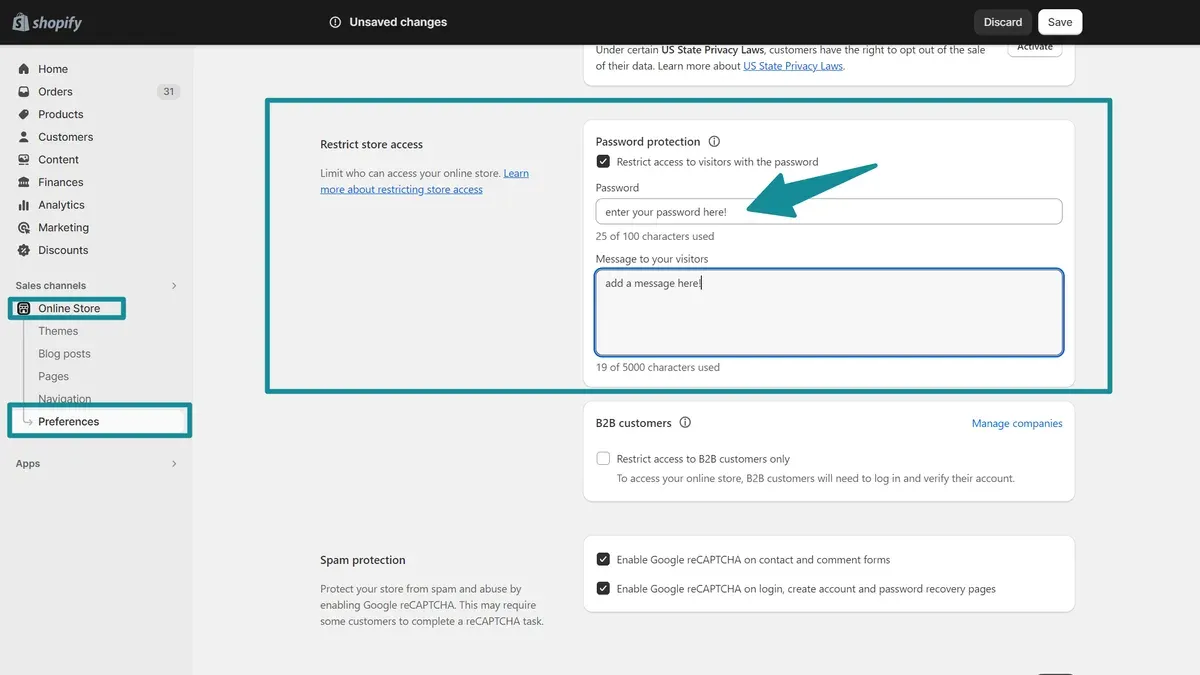
- Log in to Shopify admin and navigate to Online Store > Preferences. The Preferences page will display general settings for the storefront.
- Scroll down to the Password protection section. Here, check the box labeled Enable password. This action activates the password restriction feature for the storefront.
- Enter a desired password in the provided field. This password will be required for visitors to access the store.
- Optionally, add a message in the Password page message box to inform visitors why the store is locked or when it will be available. This message appears on the password entry page.
- Click Save at the top or bottom of the page to apply changes. After saving, visitors who attempt to access the storefront will be prompted to enter the password.
Storefront password protection applies across all Shopify plans but comes with different considerations. For example, the Basic plan supports password protection for development and limited access, but does not allow multiple storefront passwords or customer-specific access controls. Higher-tier plans provide more advanced customer segmentation and access features.
Tip: Use storefront password protection to prevent search engines from indexing the site during development by enabling the password before launch.
How to change Shopify password page background
Customizing the storefront password page background helps align the page with the store's brand identity. Shopify allows background changes either through the theme editor if supported or by editing the theme’s code directly. The options include setting a background image, altering background colors, and adjusting text styles to ensure readability.
To use the theme editor, navigate to Online Store > Themes, then click Customize on the active theme. From the dropdown menu at the top, select Password page. If the theme supports it, background settings such as image upload or color pickers will appear under sections like Background or Password page settings. Changes can be previewed live before publishing.
If the theme editor lacks these options, edit the theme code by going to Online Store > Themes > Actions > Edit code. Locate the password.liquid template or the relevant CSS file (often under Assets). Add or modify CSS rules to set the background. For example, add this CSS snippet to the theme.scss.liquid or password.css file:
This snippet sets a full-cover background image for the password page. Replace the URL with the desired image link. Preview changes via the theme editor preview before publishing to avoid disrupting visitor experience.
Note that customization extent depends on the Shopify theme. Some themes offer comprehensive password page settings, while others require manual CSS edits. Always back up theme files before editing code.
How to remove Shopify password and make the store public
Removing the storefront password opens the Shopify store to all visitors, making it fully accessible and indexable by search engines. This change increases online visibility and can improve SEO rankings, but it should only be done when the store is ready for public browsing and purchasing.
Before disabling the password, confirm that all content, products, and checkout settings are final and tested. Removing the password prematurely may expose incomplete pages or unfinished features to visitors.
- Log in to the Shopify admin panel and navigate to Online Store > Preferences. The Password protection section appears near the bottom.
- Uncheck the box labeled Enable password. This action disables the storefront password prompt.
- Click Save to apply the changes. Upon success, the password page will no longer appear for visitors.
- Open a new browser or use an incognito window to visit the store’s URL. The homepage should load directly without requesting a password.
- Verify that all public pages and products are accessible and display correctly. This confirms the store is fully public.
Tip: Perform a before/after visibility check by accessing the store URL in a private browser before and after removing the password to ensure the change took effect.
After removal, search engines will begin indexing the site if it was previously blocked by the password, enhancing organic search traffic over time.
How to find my Shopify password if it is saved or remembered
Shopify does not display saved login passwords within its platform to maintain security. To retrieve a saved Shopify password, use the password manager built into the web browser. These managers securely store passwords and allow users to view saved credentials after verifying identity, such as entering the device password.
Popular browsers have different steps to locate saved passwords:
- Google Chrome: Go to Settings > Autofill > Passwords. Find "shopify.com" in the list and click the eye icon next to the password. The system will prompt for the device password, then reveal the saved password.
- Mozilla Firefox: Navigate to Settings > Privacy & Security > Saved Logins. Search for "shopify.com" and click "Show Passwords" after confirming the device login.
- Microsoft Edge: Access Settings > Profiles > Passwords. Locate the Shopify entry and select the eye icon, then authenticate to display the password.
Tip: Always ensure the device is secure before viewing saved passwords to prevent unauthorized access.
Using third-party password recovery tools can pose security risks, including malware or data theft. If the password cannot be found safely via browser managers, it is safer to reset it through Shopify’s official password reset process.
How to change Shopify password page and login password: The full process
Shopify uses two distinct passwords: the login password for the admin account and the storefront password that controls visitor access to the store during restricted periods. Changing each requires different steps within the Shopify admin interface.
Changing the Shopify Login Password
- Log in to the Shopify admin panel at your-store.myshopify.com/admin. The admin dashboard should appear.
- Navigate to Settings > Users and permissions. The list of staff accounts will show.
- Select the account name to change the password. The account details page opens.
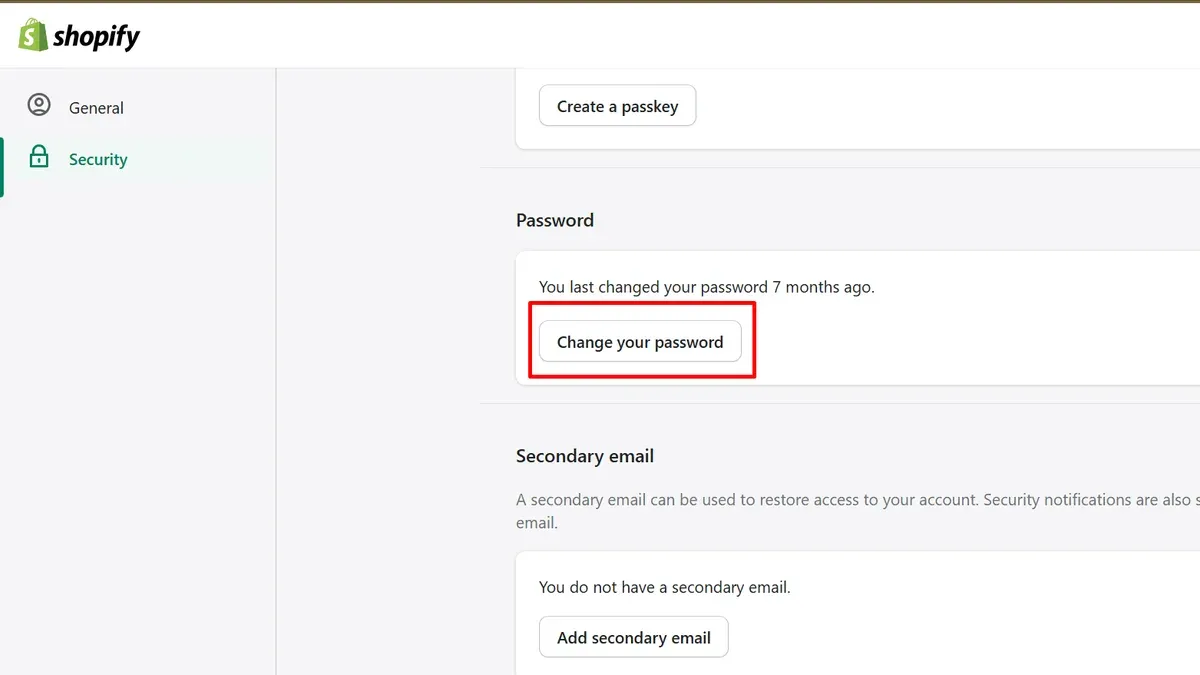
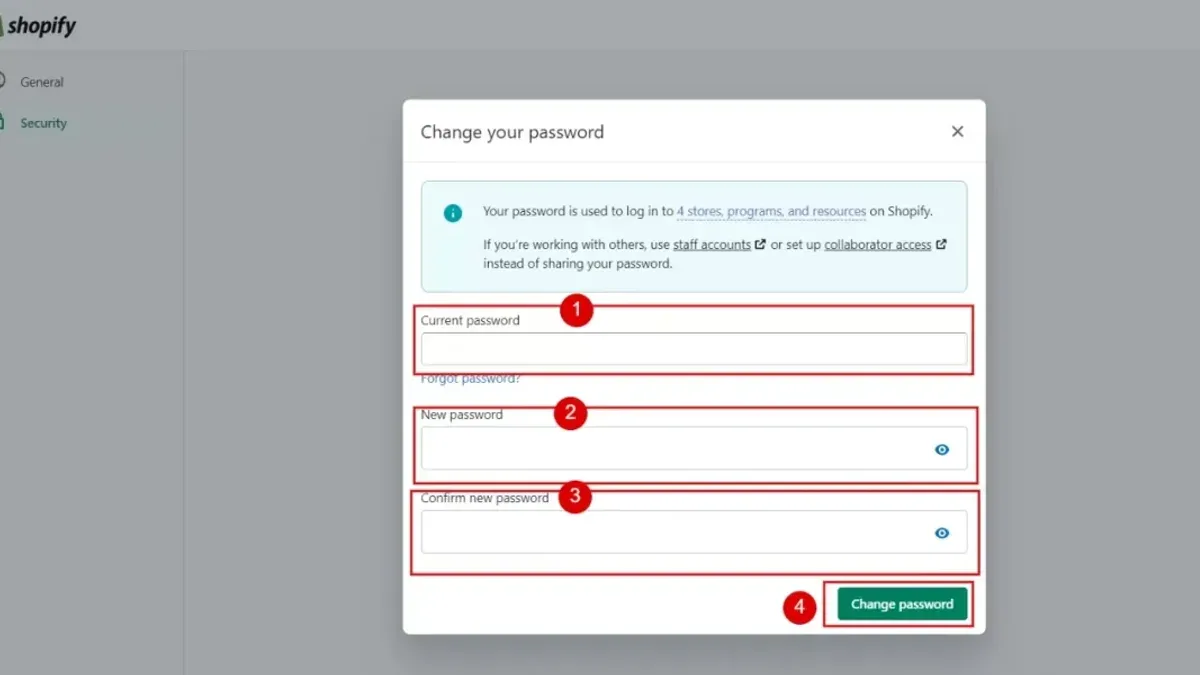
- Click Change password. A password update form appears.
- Enter the current password, then the new password twice for confirmation. The password must be strong, combining letters, numbers, and symbols.
- Click Save. A confirmation indicates the password has been updated successfully.
Updating the Storefront Password
- From the Shopify admin, go to Online Store > Preferences. The preferences panel loads.
- Scroll to the Password protection section.
- Enter the desired storefront password in the password field. This password controls visitor access when the store is password protected.
- Click Save. A message confirms the storefront password has been set or updated.
Tip: Use distinct passwords for login and storefront to enhance security and prevent unauthorized admin access.
| Step | Login Password Change | Storefront Password Change |
|---|---|---|
| 1 | Log in to Shopify admin | Log in to Shopify admin |
| 2 | Settings > Users and permissions | Online Store > Preferences |
| 3 | Select account > Change password | Scroll to Password protection section |
| 4 | Enter current and new passwords | Enter new storefront password |
| 5 | Save changes with confirmation | Save changes with confirmation |
Maintaining strong, unique passwords for both login and storefront access reduces risks of breaches and unauthorized store access.
Troubleshooting common Shopify password change issues
When password reset emails are delayed or not received, check spam or junk folders first. Ensure the email address entered is correct and associated with the Shopify account. If the email still does not arrive, wait 10-15 minutes before attempting another reset to avoid multiple requests triggering temporary blocks.
Errors during password changes on the Shopify mobile app often result from outdated app versions or connectivity problems. Update the app to the latest version via the App Store or Google Play. Restart the device and confirm a stable internet connection before retrying the password change.
Shopify admin access lockouts usually occur after repeated failed login attempts or security measures. To regain access, use the password reset feature or verify identity via two-factor authentication if enabled. Persistent lockouts may require clearing browser cache or using a different device.
Common error messages include “Invalid password format,” indicating password requirements are not met (minimum 8 characters, mixed case, numbers, symbols), and “Too many attempts,” signaling a temporary block after multiple failed tries. Resolving these involves adjusting the password to meet criteria or waiting before retrying.
When to contact Shopify support: If password reset emails never arrive despite correct inputs and spam checks, or if account lockouts persist beyond standard reset procedures, contacting Shopify support provides direct assistance to restore access securely.
Frequently asked questions
How to put password on shopify store?
To put a password on a Shopify store, go to the Shopify admin panel and navigate to Online Store > Preferences. Scroll to the Password protection section and check the Enable password option. Enter a password and save the changes to restrict visitor access to the storefront.
How to enable password on shopify store?
Enable password protection by signing into the Shopify admin, selecting Online Store, then Preferences. In the Password protection area, enable the feature by checking the box labeled “Enable password.” Set a password, optionally add a message for visitors, and save the settings to activate protection.
how to add password to shopify store
Adding a password requires accessing the Online Store > Preferences page in the Shopify admin. Under Password protection, activate the password by enabling the checkbox and entering the desired password. This action locks the store behind the password until it is removed.
how to put password on shopify store
Repeat the process of enabling password protection via Online Store > Preferences. Tick the Enable password box, type the password, and save. The storefront will then require visitors to enter the password to gain access.
how to reset shopify password
Reset a Shopify account password by going to the Shopify login page and clicking the “Forgot password?” link. Enter the registered email address to receive a password reset email. Follow the link in the email to set a new password securely.
What this guide does not cover
This guide does not cover Shopify staff account password management or multi-factor authentication setup, which require separate procedures and security considerations. Managing staff passwords involves different access controls and permissions that go beyond storefront and account password changes. For enhanced security, staff members should follow Shopify's official documentation on user roles and two-step authentication.
Tip: Use Shopify's built-in two-factor authentication to add an extra layer of security to staff accounts.
Next step
The most effective next step after managing storefront and login passwords is to regularly review and update password policies and storefront access settings. This includes periodically changing passwords, monitoring who has access to the store, and customizing the storefront password page to communicate clearly with visitors. Staying proactive ensures the store remains secure and accessible only to intended users.
See also: How to Change Your PayPal Password: Complete Step-by-Step Guide · How to Change Your ChatGPT Password: Step-by-Step Guide · How to Change Your Etsy Password: Complete Step-by-Step Guide · How to Change Your Coinbase Password: Clear Step-by-Step Instructions