How to Change Your ChatGPT Password: Step-by-Step Guide
This guide shows how to change your ChatGPT password on different devices and login methods to keep your account secure.

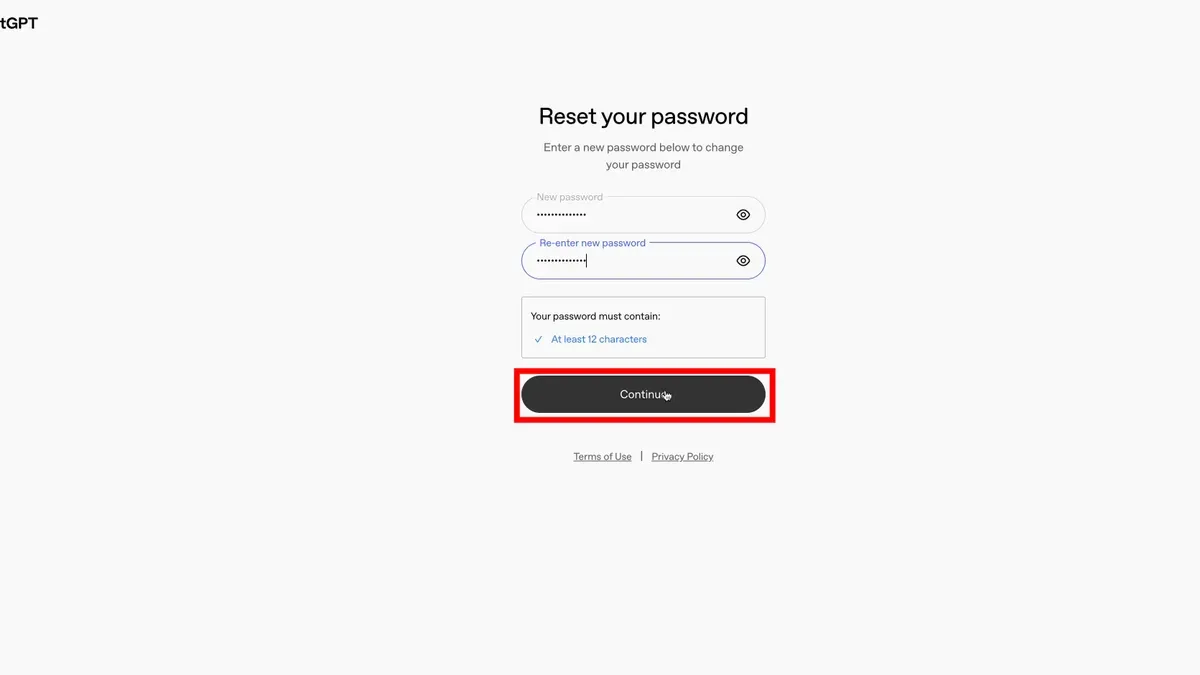
This guide explains how to change ChatGPT password across different devices and login methods, ensuring a smooth and secure update process. Changing a password is essential for maintaining account security, especially when accessing ChatGPT through the web, an iPhone app, or a Google-linked account.
Users often ask how to change ChatGPT password directly within the web interface or mobile app, including steps to follow when signed in via Google. This article covers each scenario with clear instructions and highlights key settings, common pitfalls, and troubleshooting tips to avoid lockouts.
Following these steps helps keep account credentials current and secure, reducing the risk of unauthorized access. The guide also provides security advice after changing passwords to enhance overall ChatGPT account protection.
Before you start: What is needed to change a ChatGPT password
Changing a ChatGPT password requires preparation to ensure a smooth process. First, confirm access to the email address linked to the ChatGPT account or have the current login credentials ready if already signed in. This access is crucial for receiving verification codes or completing the password update.
Next, have the device prepared. This can be an iPhone, Android phone, or a computer, all connected to the internet. A stable connection ensures the password change process does not get interrupted or fail due to connectivity issues.
Understand the type of login associated with the ChatGPT account. Standard accounts use an email and password, while some users sign in with third-party services like Google or Apple. Password changes for third-party logins require managing credentials through those respective services rather than directly through ChatGPT.
Finally, know that password changes are made through the OpenAI account settings portal, accessible via a web browser. This means the ChatGPT app itself does not provide password change options, regardless of the device used.
Checklist before starting:
- Confirm access to the registered email or current login credentials. Successful step: able to receive emails or log in without errors.
- Prepare a device (phone or computer) with a reliable internet connection. Successful step: able to load web pages without interruptions.
- Identify whether the account uses standard email/password login or a third-party service. Successful step: know if password reset must be done through OpenAI or the linked provider.
- Access the OpenAI account management page through a web browser. Successful step: the account dashboard or settings page loads correctly.
How to change ChatGPT password when logged in on the web
- Log in to the ChatGPT account via a web browser at chat.openai.com. The main chat interface appears.
- Click on the user profile icon in the bottom left corner to open the account menu. From the menu, select Settings. The settings panel appears.
- In the settings panel, navigate to the Security tab or section. This section contains password management options.
- Click Change Password. A form prompts for the current password and the new password entries.
- Enter the current password, then type the new password twice to confirm. The new password should meet security requirements such as minimum length and character variety.
- Click Save or Update Password. A confirmation message appears, indicating the password was successfully changed.
- Log out of the account and then log back in using the new password to verify the update took effect.
Tip: If the current password is forgotten, use the password reset option on the login page instead of this method.
How to change ChatGPT password on iPhone app
The ChatGPT iPhone app does not support changing the account password directly within the app interface. Instead, password updates must be done through the OpenAI website using a mobile browser on the iPhone. The app syncs with the OpenAI account password but relies on web-based account management for credential changes.
- Open Safari or any preferred mobile browser on the iPhone.
- Navigate to https://chat.openai.com and log in with the current credentials. After successful login, the main chat interface appears.
- Tap the menu icon (three horizontal lines) typically located in the top-left corner to open the sidebar.
- Select Settings from the sidebar menu. This opens the account options page.
- Within Settings, tap My Account. The browser will redirect to the OpenAI account management page.
- Look for the Password section and tap Change Password. A form to enter the current password and new password fields will appear.
- Enter the current password, then the new password twice to confirm, and submit the form.
- A confirmation message appears indicating the password has been updated successfully. The new password will now sync with the iPhone app.
Tip: Use the mobile browser's desktop mode if the account page does not display fully, as some elements may be hidden in mobile view.
How to change ChatGPT password when logged in with Google
Users who sign into ChatGPT using Google authentication do not have a separate ChatGPT password to change. The login relies on the Google account credentials, meaning password management occurs entirely within Google’s account settings. Attempting to change a ChatGPT password directly will not work because ChatGPT delegates authentication to Google.
To update the password for ChatGPT access, the Google account password must be changed through Google's security settings. This action secures all services linked to the Google account, including ChatGPT, Gmail, YouTube, and others. After changing the Google password, future ChatGPT logins via Google will require the new password.
For reference, direct ChatGPT login password changes happen at https://platform.openai.com/account/password, but Google login users manage their password at https://myaccount.google.com/security. This distinction is critical because ChatGPT itself does not store or manage the Google login password.
- Open a browser and navigate to https://myaccount.google.com/security. The Google Account security page should load.
- Under the "Signing in to Google" section, select "Password." A prompt to verify identity will appear.
- Complete the verification steps, such as entering the current Google password or using two-factor authentication. Once verified, a password change form appears.
- Enter a new strong password twice and submit. A confirmation message will display, indicating the password has been updated.
- After this, logging into ChatGPT via Google on any device will require the updated Google password, increasing overall account security.
Tip: Enabling two-factor authentication on the Google account further protects ChatGPT access linked via Google login.
How to change ChatGPT password on phone (general guidance)
Changing the ChatGPT password on any phone platform requires using a mobile web browser, as the ChatGPT apps do not support direct password changes. Open the preferred browser on the phone, such as Safari on iPhone or Chrome on Android, and navigate to the OpenAI account portal at https://auth.openai.com/. This portal provides the same password management options available on desktop.
- Open the mobile browser and go to the OpenAI sign-in page. The login screen should appear.
- Enter the current email and password to sign in. Successful login directs to the account dashboard.
- Navigate to the "Settings" or "Security" section within the account dashboard.
- Locate the password change option, usually labeled "Change Password," and select it.
- Enter the current password followed by the new password twice to confirm. Submit the change.
- A confirmation message or email confirms that the password has been updated.
If the current password is forgotten, use the "Forgot Password" link on the login page to receive a reset email. Follow the email instructions in the mobile browser to set a new password.
Tip: Bookmark the OpenAI account portal on the phone browser for quicker access to account settings in the future.
This method works consistently across Android, iPhone, and other smartphones, ensuring password changes without relying on the app. The critical limitation is that the ChatGPT app itself does not offer password management, making web access necessary.
Troubleshooting common issues when changing ChatGPT password
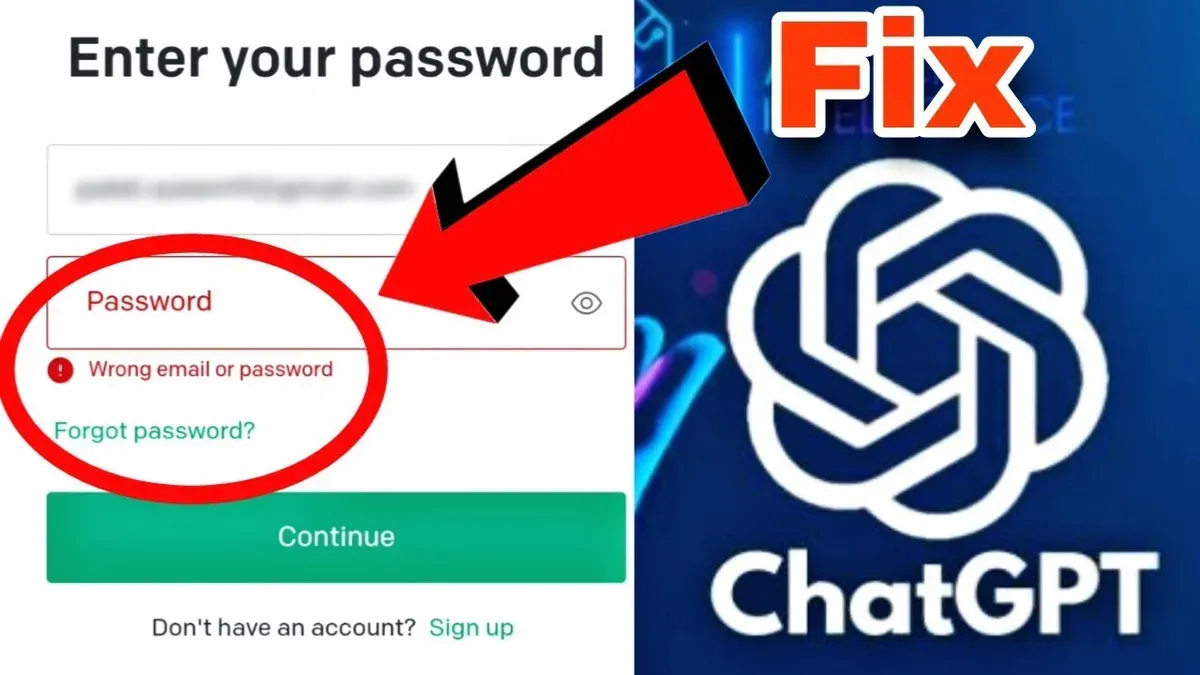
If the current password is forgotten, use the "Forgot password?" link on the ChatGPT login page to receive a password reset email. Follow the included link to create a new password. Ensure the new password meets the security criteria, such as minimum length and character variety, to avoid errors like "Password too weak."
When encountering server errors or timeouts during password updates, wait a few minutes before retrying. Persistent issues may indicate server maintenance or connectivity problems. Refreshing the browser or switching to a different network can help resolve these errors.
Google or Apple sign-in users cannot change their ChatGPT password through OpenAI settings because authentication is managed by the external provider. To update these passwords, users must go to their Google or Apple account security settings directly.
If password reset or confirmation emails are not received, first check the spam or junk folder. Confirm that the registered email address is correct in the account details. If emails still do not arrive after several minutes, try resending the reset request or verify that email filters or firewalls are not blocking OpenAI messages.
- Click "Forgot password?" on the ChatGPT login screen. The page should prompt for the registered email address.
- Enter the email and submit. A message confirming that a reset email has been sent should appear.
- Open the received email and click the password reset link. The browser should open a password reset form.
- Enter a new strong password that meets the criteria and confirm it. Submit the form successfully.
- Log in with the new password to confirm the change took effect.
Security tips after changing ChatGPT password
After updating the ChatGPT password, enabling two-factor authentication (2FA) adds a crucial layer of protection by requiring a second verification step during login. This option is found under Security settings in the OpenAI account dashboard. Activating 2FA helps prevent unauthorized access even if the password is compromised.
Use a strong, unique password that is not reused across multiple accounts. A password manager can securely generate and store complex passwords, reducing the risk of weak or repeated credentials. This practice aligns with cybersecurity standards advocated by leading authorities.
Regularly reviewing account activity is essential to detect suspicious logins early. The OpenAI account page provides a session and login history section where recent access times and devices are listed. Any unfamiliar activity should prompt immediate password resets and security checks.
Logging out of all devices after a password change ensures that previous sessions cannot remain active with the old credentials. This option is available under Security settings as Log out of all devices. It forces all devices to require the new password for access.
- Go to the OpenAI account dashboard and open the Security tab. The 2FA setup option should be visible. Select Enable two-factor authentication and complete the setup using an authenticator app or SMS. Successful activation is confirmed by a status message.
- Use the password manager of choice to generate a new password that meets complexity requirements (e.g., at least 12 characters with letters, numbers, and symbols). Save this password securely. The password manager will indicate when saving is successful.
- Navigate to the Account activity or Login history section on the OpenAI website. Verify recent login entries for any unfamiliar devices or locations. A clean log confirms no unauthorized access.
- In the Security settings, click on Log out of all devices. Confirm the action. A confirmation message will appear, and all sessions will require re-login with the new password.
Frequently asked questions
How to change password on chatgpt account?
Access the ChatGPT account settings either via the web or app. Navigate to the "Settings" menu, then select "Security" or "Password". Enter the current password followed by the new password, and confirm the change to update credentials.
How to change password for chatgpt account?
To change the password, log into the ChatGPT account and go to the account settings. Locate the password section, input the existing password, then create and confirm a new password. Save the changes to secure the account with the updated password.
How to change chatgpt password on iphone app?
Open the ChatGPT app on the iPhone and tap the profile or menu icon. Select "Settings," then "Account" followed by "Change Password." Input the current password, enter a new password, confirm it, and save the changes.
How to change chatgpt password when logged in?
While logged in, access the user profile or settings section. Find the password change option, provide the current password, and enter the new password twice. Confirm the update to finalize the password change.
How to change chatgpt password on web?
On the ChatGPT website, log into the account and click on the user icon or menu. Select "Settings," then "Security," and choose "Change Password." Enter the current password, type the new password twice, and submit to apply the new password.
What This Guide Does Not Cover
This guide addresses changing a ChatGPT password for users who can access their accounts through standard login methods. It does not cover account recovery for hacked, compromised, or permanently locked accounts. Users facing such issues must contact OpenAI support directly for specialized assistance and account restoration procedures. Additionally, this guide does not address multi-factor authentication setup or management beyond password changes.
Tip: Keep OpenAI's official support contact information handy in case account recovery becomes necessary.
The most useful next step after changing a ChatGPT password is to review connected devices and active sessions in the account settings. Logging out from old or unused devices helps prevent unauthorized access and ensures the new password secures all access points. Regularly updating passwords combined with session management strengthens account security over time.
See also: How to Change Your Charles Schwab Password: Clear Step-by-Step Guide · How to Change Your Cash App Password: Clear Step-by-Step Guide · How to Change Your Bybit Password: Clear Step-by-Step Guide · How to Change Your Binance Password: Clear Step-by-Step Guide