How to Change iCloud Password: Step-by-Step Guide for Every Device
This guide shows how to change your iCloud password on all devices, even without access to trusted phone numbers or devices.

This guide explains how to change iCloud password across all Apple devices and when access to a trusted phone number or device is unavailable. Changing the iCloud password is essential to secure the Apple ID and prevent unauthorized access to personal data, emails, and purchases.
The process varies slightly between iPhone, iPad, and Mac, but always begins in Settings or System Preferences under Apple ID. For users without their trusted phone number, alternative steps involving account recovery through Apple’s website are detailed here. Troubleshooting common issues and security recommendations after resetting the password complete this comprehensive how-to.
Before you start: What is needed to change an iCloud password
Changing an iCloud password requires certain preparations to ensure the process goes smoothly. The user must have their Apple ID and current password or access to recovery methods linked to the account. Apple’s security system often requires two-factor authentication (2FA), so knowing whether it is enabled is critical. This affects how verification is handled during the password change.
Device compatibility is essential. The device used must support the latest iOS, iPadOS, or macOS versions that allow password changes via Settings or System Preferences. Also, a stable internet connection is mandatory to communicate with Apple’s servers and update account details securely.
Having a trusted device or phone number registered with the Apple ID simplifies verification. Apple uses these to confirm identity before allowing password changes. Without access to these, users may face delays or need to complete account recovery, which can take several days.
- Confirm the Apple ID username and current password. Success looks like access to the Apple ID account page or device sign-in.
- Check if two-factor authentication is enabled by visiting appleid.apple.com or device settings. The presence of 2FA prompts additional security steps during password change.
- Verify the device runs a compatible operating system version and is connected to the internet. The ability to access account settings without errors indicates readiness.
- Ensure at least one trusted device or phone number is linked to the Apple ID for verification. Confirmation appears in Security settings under trusted devices or phone numbers.
Tip: Without access to trusted devices or phone numbers, prepare for possible account recovery delays before initiating a password change.
How to change iCloud password on iPhone
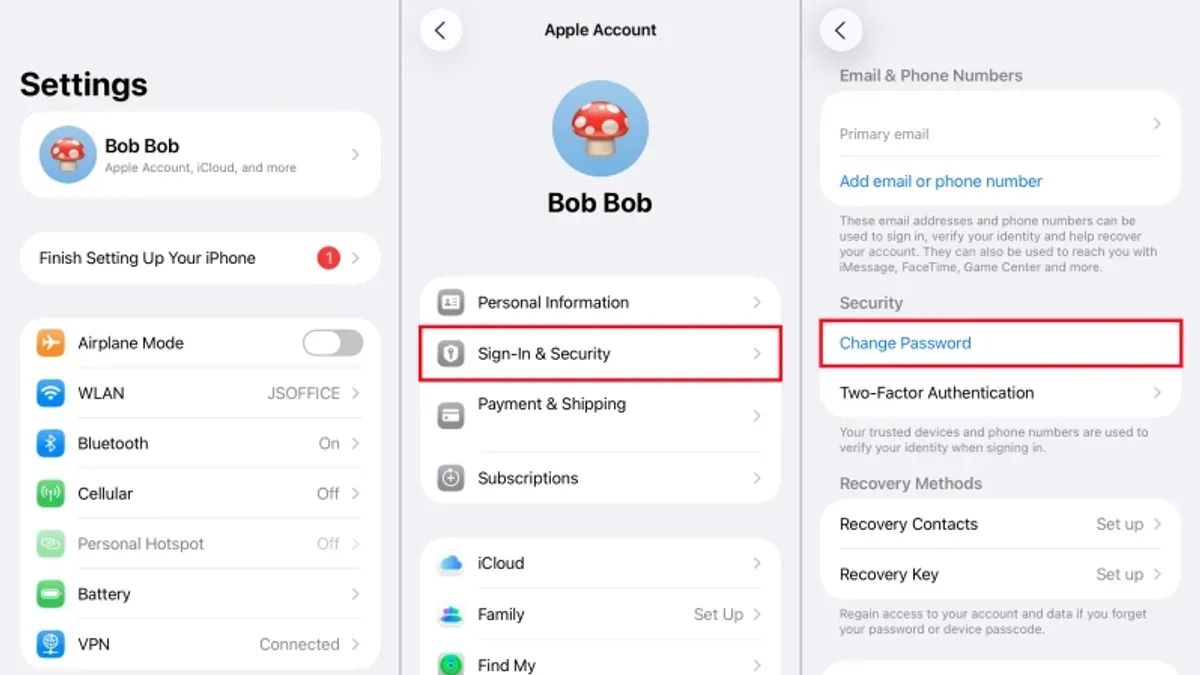
- Open the Settings app. The gear icon typically found on the home screen or in the app library should be tapped to proceed.
- Tap the Apple ID banner at the top of the Settings menu. This banner displays the user’s name and profile picture if set.
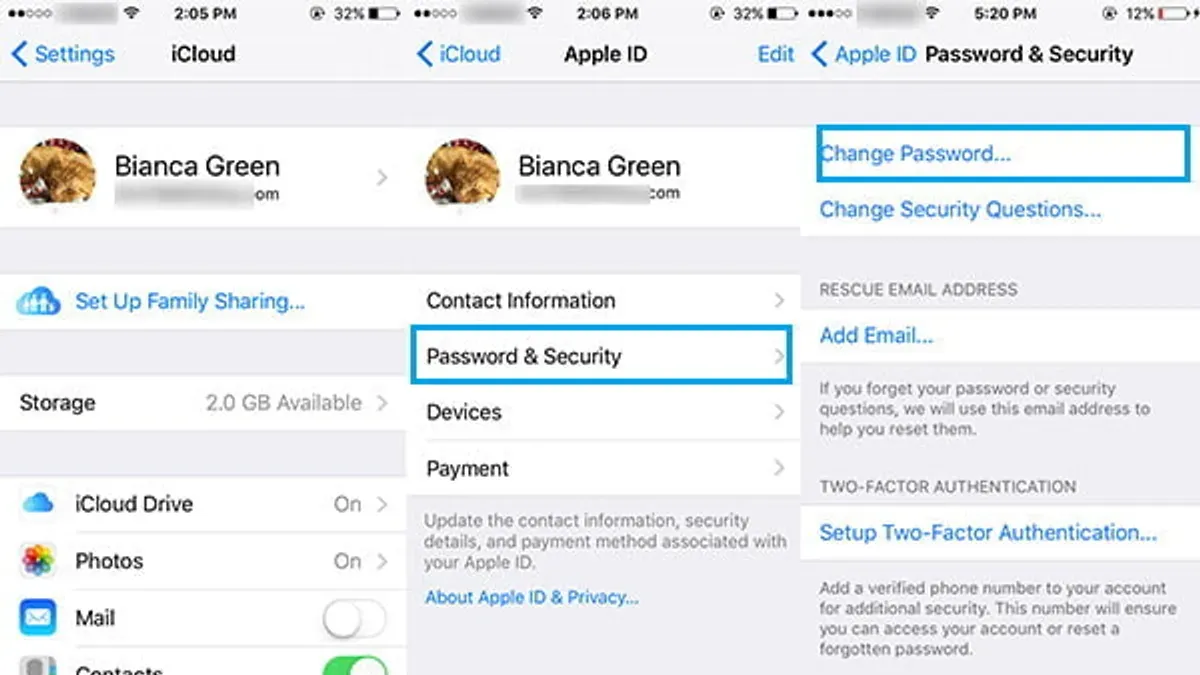
- Select Password & Security from the Apple ID options. This will open security settings related to the Apple ID.
- Tap Change Password. The device will prompt for authentication.
- Authenticate using Face ID, Touch ID, or the device passcode. Successful authentication unlocks the password change screen.
- Enter the new password twice as requested. The password must meet Apple’s security requirements, typically including at least eight characters with a mix of uppercase, lowercase, and numbers.
- Tap Change or Update to confirm. A confirmation message will appear indicating the password has been updated.
Tip: If the option to change the password is greyed out, check that the device is connected to the internet and the Apple ID is signed in correctly.
How to change iCloud password on iPad
- Open the Settings app on the iPad. The main settings menu should appear with your Apple ID banner at the top.
- Tap your name or Apple ID banner at the top of the Settings screen. This opens the Apple ID management page.
- Select Password & Security from the list of options displayed. This section handles password changes and security settings.
- Tap Change Password. The device will prompt for the current iPad passcode (not the Apple ID password) to verify identity.
- Enter the iPad passcode when requested. Once accepted, the screen will show fields to enter a new password and confirm it.
- Type the new password following Apple’s password requirements (at least 8 characters, a number, an uppercase letter, and a lowercase letter). Then re-enter it to confirm.
- Tap Change or Change Password to finalize the update. A confirmation message confirms the password change was successful.
The iPad interface closely mirrors the iPhone workflow but uses a larger screen layout, which may display some options side by side. The verification step requiring the device passcode is consistent across both devices. Unlike the iPhone, the iPad’s Settings app might display additional Apple ID details on a single page due to screen size.
Tip: If the change password option is greyed out, ensure the iPad is connected to the internet and signed in properly to the Apple ID.
How to change iCloud password on MacBook or Mac
Changing the iCloud password on a MacBook or Mac depends on the macOS version installed. On macOS Ventura and later, System Preferences is renamed to System Settings and has a different layout, while earlier versions retain the classic System Preferences interface. The process requires signing in with the current Apple ID password and verifying identity via the device password or two-factor authentication.
- Open System Preferences (pre-Ventura) or System Settings (Ventura and later) from the Apple menu.
- Click on the Apple ID icon, usually at the top right or in the sidebar.
- Select Password & Security in the sidebar.
- Click Change Password. If prompted, enter the Mac user account password to authenticate.
- Enter the new password, confirm it, then click Change. The system will update the iCloud password and prompt for it where necessary.
On macOS Monterey and earlier, System Preferences has a top-right Apple ID button, while Ventura uses a sidebar menu. Screenshots typically show the Apple ID page with Password & Security highlighted. Missing the authentication step often halts the process.
Tip: If the Change Password button is grayed out, ensure the Mac is connected to the internet and that the current Apple ID password is entered correctly when prompted.
How to change iCloud password without phone or phone number
Changing an iCloud password without access to a trusted phone or phone number involves using Apple's account recovery process. This typically requires verification through a trusted device or recovery email address instead. The process can take several days depending on the information available to Apple for verifying identity.
- Go to iforgot.apple.com and enter the Apple ID email address. A prompt to verify identity will appear.
- Select the option to receive account recovery information via email or a trusted device, if available. If neither option is accessible, proceed with account recovery.
- Follow the on-screen instructions to provide additional verification information, such as answering security questions or entering a recovery key if set up previously.
- Apple will begin the account recovery process, which may require waiting several days for verification. A confirmation email will notify when the account is ready for password reset.
- Once approved, return to iforgot.apple.com to create a new password. Successful reset will display a confirmation message.
Tip: Setting up a recovery key and multiple trusted contact methods in advance improves success rates and reduces recovery time when access to a trusted phone is unavailable.
Without a trusted phone number, recovery may be slower and less certain. Using a trusted device or recovery email is essential. Preparing multiple recovery options prevents lockout in such scenarios.
How to change iCloud password if you forgot it
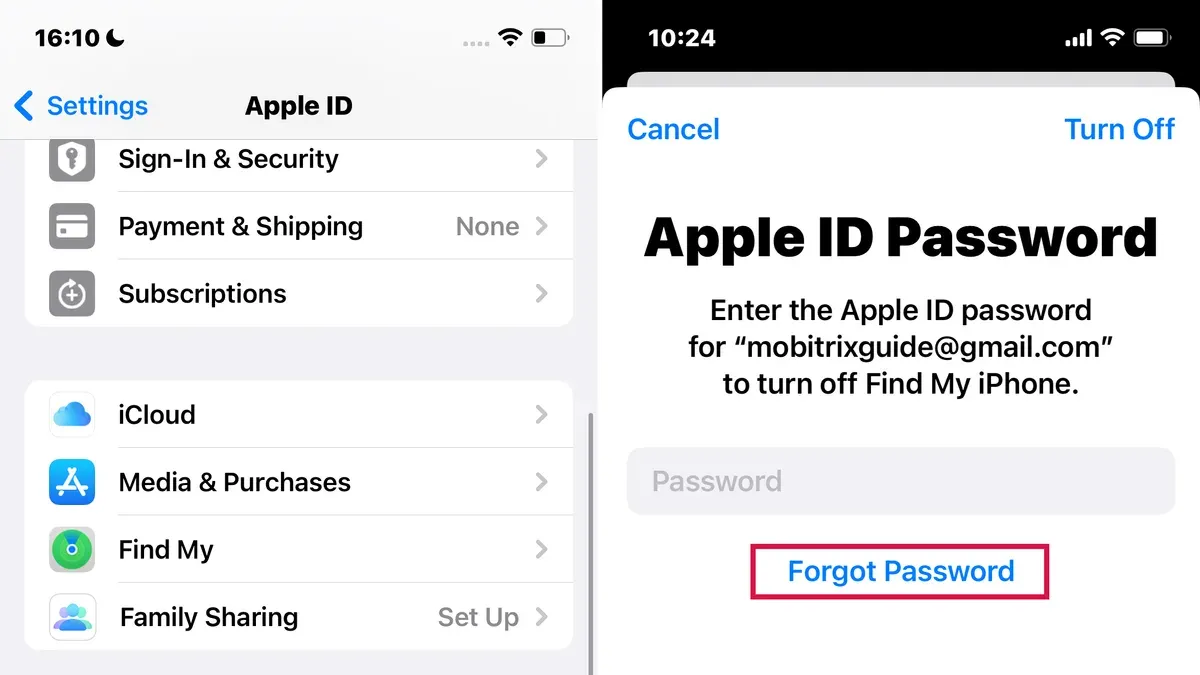
Resetting an iCloud password when it is forgotten involves using Apple's built-in recovery options. Begin by selecting the 'Forgot password?' link available on the sign-in screen of any Apple device or at the Apple ID website. This initiates a guided process to verify identity and set a new password without the current one.
- Go to the Apple ID sign-in page or open Settings on an Apple device and tap your Apple ID, then select 'Password & Security' and tap 'Change Password' followed by 'Forgot password?'. You should see a prompt to enter your Apple ID email address.
- Enter the Apple ID email associated with the account and proceed. A verification method will be requested—choose among receiving a recovery email, answering security questions, or using two-factor authentication if set up. The verification options depend on the account's security settings.
- Complete the chosen verification step. For recovery email, check the inbox for a reset link. For security questions, provide the correct answers. For two-factor authentication, use a trusted device or phone number if available.
- Create a new password following Apple’s requirements: at least eight characters, including uppercase, lowercase, and numbers. After submission, the system confirms the password update and prompts a re-login on devices.
- Sign back into all Apple services and devices with the new password to avoid account lockout. Keep recovery options updated to prevent delays in future resets.
Common mistake: Users often skip updating recovery options after a password reset, leading to longer recovery times if the password is forgotten again.
Tip: Use a password manager to store the new password securely and prevent repeated forgotten password issues.
Troubleshooting common issues when changing iCloud password
Not receiving verification codes is a frequent problem. First, ensure the trusted phone number or device is reachable and has network access. Check for any message filtering or blocking features on the device. If codes still don't arrive, try resending the code or select the option to receive it via a trusted email address if available.
For users who have forgotten or lost access to all trusted devices, recovery options become limited. In such cases, initiating account recovery through the Apple ID website is necessary, but this process can take several days. Maintaining updated recovery information can prevent this issue.
Error messages during the password change process vary. Common examples include "Verification Failed," indicating incorrect credentials or network problems, and "Account Locked for Security Reasons," which requires waiting 24 hours before retrying or contacting support. Another message, "Unable to Verify Identity," suggests incomplete two-factor authentication setup.
When to contact Apple Support: If repeated attempts to change the password fail despite following troubleshooting steps, or if account access is locked with no recovery options, contacting Apple Support is recommended. Apple Support agents can guide through advanced recovery or security verification steps. Success rates improve when users provide proof of purchase or identity verification.
- Verify network connectivity on the trusted device or phone number; successful connection allows receipt of verification codes promptly.
- Confirm trusted phone numbers and emails in Apple ID settings; correct entries prevent code delivery failures.
- If error messages appear, note the exact wording and follow Apple's recommended fixes, such as waiting periods or resetting network settings.
- Use Apple's account recovery at if locked out of all trusted devices; a confirmation email should follow initiating this process.
- Contact Apple Support via support.apple.com when all else fails; expect identity verification questions and next-step instructions.
Security tips after changing an iCloud password
Changing the iCloud password is just the first step in securing an Apple ID. To maintain comprehensive account protection, update the password across all Apple devices and services immediately. This prevents any device or app from using outdated credentials and potentially exposing the account.
- Sign out and back in with the new password on all Apple devices. Successful sign-in confirms the password is active and synced.
- Review and update trusted phone numbers and devices at Settings > [your name] > Password & Security. Ensure all contact methods are current to avoid recovery issues.
- Enable two-factor authentication (2FA) if not already active by navigating to Settings > [your name] > Password & Security > Two-Factor Authentication. A confirmation message appears when 2FA is successfully enabled.
- Regularly monitor account activity via the Apple ID website or device notifications. Look for unfamiliar sign-ins or changes. Immediate alerts indicate active account monitoring.
Tip: Neglecting to update trusted contacts or activate two-factor authentication significantly increases vulnerability to unauthorized access.
Following these steps significantly reduces the risk of account breaches by ensuring all access points use the updated password and are protected by additional verification layers.
Frequently asked questions
How to change my iCloud password on iPhone 13?
Open the Settings app and tap the user’s name at the top. Select "Password & Security," then tap "Change Password." Enter the device passcode when prompted, then input a new password that meets Apple’s criteria. Confirm the new password to complete the process.
How to change iCloud password on MacBook?
Click the Apple menu and open System Preferences. Select "Apple ID," then go to "Password & Security." Choose "Change Password," verify the Mac user password, and enter a new iCloud password. Confirm the new password to update it across the account.
How to change iCloud password without phone number?
Use the Apple ID account page on a web browser and select "Forgot Apple ID or password." Verify identity using security questions or a trusted device if available. If these options are not accessible, account recovery may be initiated, which can take several days. Patience is required during this process.
How to change iCloud password if I forgot it?
Visit iforgot.apple.com and enter the Apple ID. Follow steps to reset the password via email, security questions, or two-factor authentication. If two-factor authentication is enabled and trusted devices or phone numbers are unavailable, initiate account recovery to regain access.
What This Guide Does Not Cover
This guide does not cover changing the Apple ID email address, which requires a separate process through Apple ID account settings. Users without access to any trusted devices, trusted phone numbers, or recovery methods may not be able to regain account access solely through these steps and should contact Apple Support directly. The instructions assume devices are running recent versions of iOS, iPadOS, or macOS; interfaces and menu paths may differ on significantly older software versions.
After changing the iCloud password, the most useful next step is to review and update all devices and apps that use the Apple ID. This includes signing back into services like iMessage, FaceTime, and the App Store on every device to ensure continuous access and security. Regularly updating trusted phone numbers and enabling two-factor authentication will further protect the Apple ID from unauthorized access.
See also: How to Change Gmail Password Across Devices: Complete Step-by-Step Guide · How to Change Your Google Drive Password: Step-by-Step Guide · How to Secure, Access, and Manage a Dropbox Account Safely · Understanding and Recovering from a Hacked GitHub Account