
Understanding and Recovering from a Hacked GitHub Account
This guide explains what a GitHub account is and how to handle situations when your GitHub account is hacked.

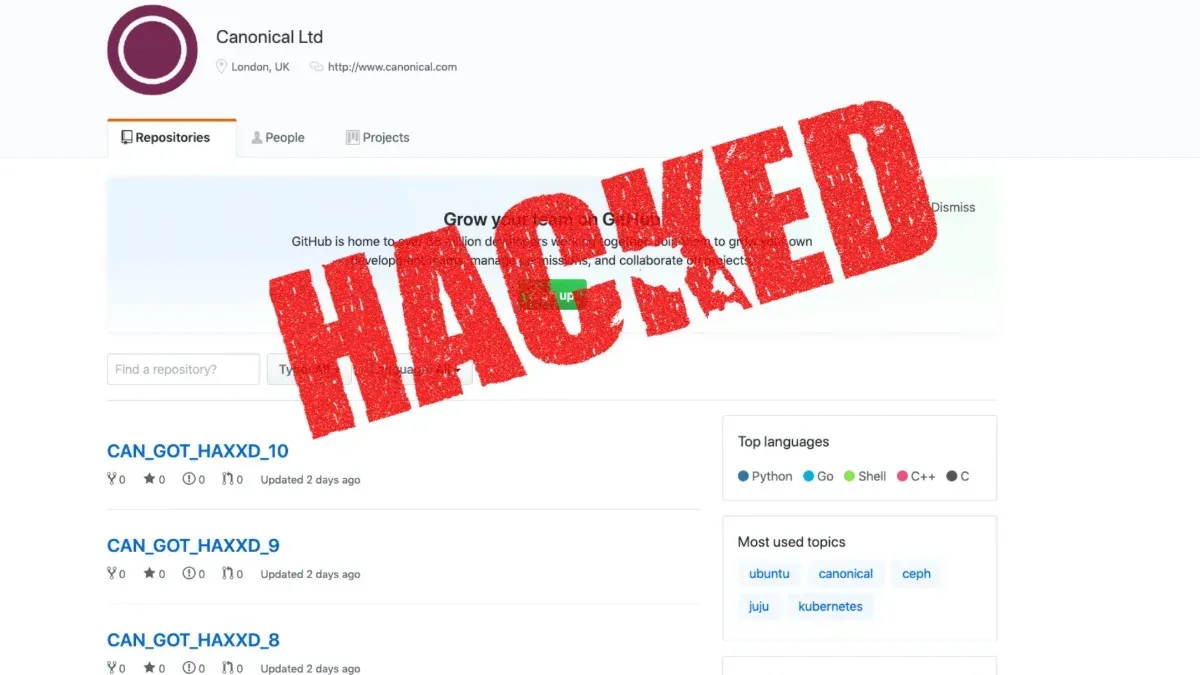
This guide explains what a GitHub account is, why it is essential for developers and hobbyists, and how to handle situations when a GitHub account hacked incident occurs.
GitHub accounts serve as personal or organizational gateways to host, share, and collaborate on code repositories. They integrate with development tools, track project changes, and manage contributions. However, account security issues remain a concern, especially when unauthorized access compromises sensitive projects or data.
Understanding the common causes of GitHub account hacks, the immediate consequences of such breaches, and the practical recovery steps can help mitigate risks. This article also clarifies misconceptions about GitHub’s security features and costs, providing a balanced view for users deciding how to protect their accounts and projects.
What is a GitHub account and why it matters
A GitHub account serves as a user identity on GitHub, a widely used platform for software development and version control. It allows individuals and teams to host, manage, and collaborate on code repositories, enabling streamlined project workflows and transparent tracking of changes.
GitHub supports millions of users and hosts a vast range of projects, from simple personal scripts to complex enterprise software. Developers use their accounts to contribute code, review pull requests, report issues, and integrate with various development tools.
Securing a GitHub account is crucial because it often contains access to private repositories, personal data, and credentials that could compromise entire projects if exposed. For example, a compromised account might allow unauthorized users to alter source code or leak sensitive information, affecting both individual developers and organizations.
There have been notable incidents where security breaches on GitHub led to disruptions in software delivery and intellectual property theft. Protecting the account with strong authentication and careful access management helps safeguard the integrity and confidentiality of development work.
Common issues when creating or accessing a GitHub account
Users often face challenges when setting up or logging into a GitHub account. A frequent problem during account creation is the unavailability of a desired username. GitHub usernames must be unique and may not contain certain special characters, which can cause confusion. For example, a developer attempting to register the username "code_master" may find it already taken, requiring an alternative choice.
Email-related issues also occur. GitHub requires a valid, unique email address not already associated with another account. Users sometimes enter an email linked to a previous account or mistype it, resulting in verification failures.
Accounts may become inaccessible if locked by GitHub due to security concerns or policy violations, such as suspicious activity or breach of terms. In these cases, the user typically receives an email with instructions to regain access, including identity verification steps through account settings or support contact.
It is a common misconception that a GitHub account is necessary to browse public repositories. Browsing and cloning public repositories can be done without an account; however, contributing, creating repositories, or accessing private content requires one.
Tip: When creating an account, double-check email accuracy and consider variations of a desired username to avoid delays.
How GitHub accounts get hacked and what happens next
GitHub accounts are vulnerable to several common attack methods that exploit user behavior and security gaps. Phishing attacks often trick users into entering credentials on fake login pages, capturing usernames and passwords. Credential stuffing leverages leaked passwords from other services, attempting to access GitHub accounts where users have reused passwords. Weak or reused passwords remain a significant risk, allowing attackers to gain entry through brute force or guessing.
Once compromised, attackers can steal proprietary code, inject malicious code into repositories, or expose sensitive data such as API keys and personal information. For example, a notable incident involved attackers gaining access to a developer's account via credential stuffing, then injecting malware into a widely used open-source project, impacting thousands of downstream users.
Signs of compromise include unexpected repository changes, unfamiliar collaborators or access logs showing logins from unusual locations, and notifications about password resets or security alerts that were not initiated by the user. Prompt detection and response are critical to limit damage and restore control.
Tip: Monitoring account activity regularly and enabling security notifications in GitHub settings helps identify suspicious behavior early.
Steps to recover a hacked GitHub account
Regaining control of a compromised GitHub account requires prompt and methodical action. Start by reporting the hack to GitHub through their official support page. This initiates a security review and helps protect the account from further unauthorized activity.
Next, reset the account password immediately by navigating to Settings > Password and authentication > Change password. Choose a strong, unique password not used elsewhere. Then, review and revoke any suspicious personal access tokens and SSH keys under Settings > Developer settings > Personal access tokens and Settings > SSH and GPG keys, as attackers often add these to maintain access.
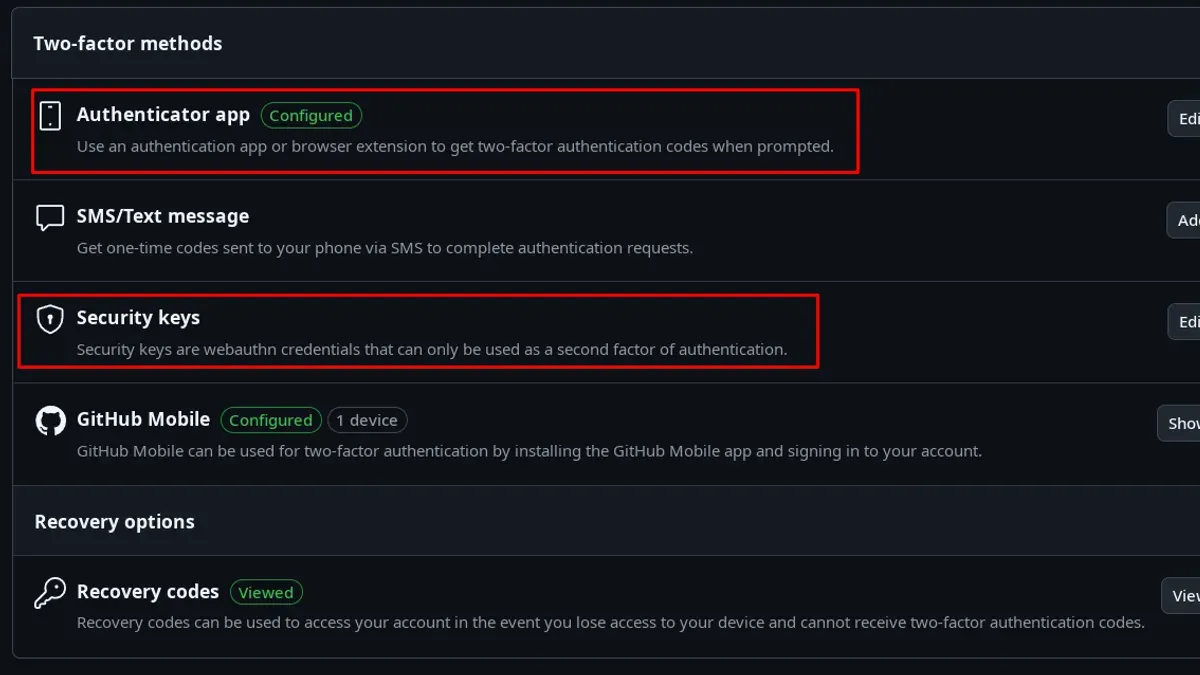
After regaining access, enable two-factor authentication (2FA) via Settings > Password and authentication > Two-factor authentication setup. This adds a critical second layer of security that requires a time-sensitive code or hardware key, significantly reducing the risk of future breaches.
For example, a developer who noticed unexpected repository changes first contacted GitHub Support to flag the issue. They then reset their password, revoked unknown SSH keys, and completed 2FA setup. Following GitHub’s official recovery protocols ensured the account was secured without loss of data or functionality.
Tip: Regularly review authorized devices and tokens to detect unauthorized access early.
How to secure a GitHub account against hacking
Securing a GitHub account begins with setting a strong, unique password that is not used on any other service. Password managers such as Bitwarden or 1Password help generate and securely store complex passwords, reducing the risk of credential reuse. GitHub’s own password strength requirements enforce a minimum standard, but users should go beyond the minimum by including a mix of letters, numbers, and symbols.
Enabling two-factor authentication (2FA) significantly reduces the likelihood of unauthorized access. GitHub supports 2FA via authenticator apps like Google Authenticator or hardware security keys such as YubiKey. Accounts with 2FA enabled are far less vulnerable to breaches, as attackers need both the password and the second factor to gain entry.
Regularly reviewing authorized OAuth applications and SSH keys is another important security step. In the GitHub settings under Settings > Applications and Settings > SSH and GPG keys, users can revoke access for applications or keys no longer in use or that seem suspicious. Neglecting this review can leave backdoors open for attackers.
For example, a developer who enabled 2FA and periodically removed old SSH keys reported no unauthorized access attempts despite working on public repositories with high visibility. This practice contrasts with accounts lacking 2FA, which are more frequently targeted and compromised.
Tip: Use GitHub’s security log under Settings > Security > Security log to monitor recent login activity and detect unusual access patterns early.
Understanding GitHub account features and costs
GitHub offers free accounts that provide essential features such as unlimited public and private repositories, collaboration tools, and basic issue tracking. Users seeking advanced capabilities can opt for paid plans like GitHub Pro or Team, which include enhanced code review tools, additional storage, and priority support. Enterprise plans cater to organizations requiring centralized management, compliance features, and advanced security controls, with costs varying based on user count and service level agreements.
A common misconception is that GitHub charges for basic account usage or that all advanced features require payment. In reality, many users find the free tier sufficient for personal or small-team projects. However, organizations with complex workflows often invest in premium tiers to access features like code owners, required reviewers, and security vulnerability alerts.
Another important consideration is the use of unauthorized third-party tools claiming to offer “GitHub cheats” or hacking capabilities. These tools often promise shortcuts to bypass account restrictions or gain unauthorized access but pose significant security risks, including malware infections or permanent account bans. GitHub explicitly warns against such tools and recommends relying on official security features and support channels.
For example, a developer tempted to use a script promising automated repository access may inadvertently expose their credentials or trigger GitHub’s automated defenses, leading to account suspension. Understanding official features and costs helps avoid these pitfalls while maximizing account security and productivity.
Managing multiple GitHub accounts and integration with development tools
Many users maintain separate GitHub accounts for work and personal projects to keep codebases distinct and access controls clear. Managing multiple accounts requires configuring development tools such as Visual Studio Code (VS Code) to switch seamlessly between identities.
In VS Code, users can add multiple GitHub accounts by navigating to the Accounts menu via the profile icon in the Activity Bar. Selecting "Sign in to GitHub" prompts authentication, after which another account can be added. To switch accounts, users click the profile icon and select the desired GitHub identity, which updates the source control and GitHub extension context accordingly.
A concrete example: a developer signs in to a personal GitHub account to push changes to a hobby project, then switches to a work account within VS Code to pull requests on a corporate repository. This avoids credential conflicts and maintains separate SSH keys and tokens.
The benefits include clear separation of repositories and permissions, reducing accidental commits to the wrong account. Challenges involve managing different SSH keys, configuring git user settings per repository, and ensuring correct token scopes in VS Code. Awareness of these details prevents authentication errors and streamlines workflows.
Tip: Configure SSH config files to associate each GitHub account with a distinct host alias, simplifying command-line and VS Code authentication.
Mistakes to avoid with GitHub account security
Reusing passwords across multiple platforms remains a major security flaw. If one site is compromised, attackers often try those credentials on GitHub, gaining unauthorized access. In fact, many breaches stem from credential stuffing attacks targeting reused passwords.
Ignoring security notifications sent by GitHub can delay crucial responses to suspicious activity. For example, bypassing emails about login attempts from unfamiliar devices or locations increases the risk of prolonged unauthorized access. Prompt attention to alerts allows quicker account lockout and recovery.
Using third-party "anti-hack" tools or software claiming to protect GitHub accounts without verifying their legitimacy can introduce malware or backdoors. These tools are often unvetted and may inadvertently expose account tokens or personal data. A concrete case is a developer who installed a popular but unofficial security extension, only to have their tokens leaked, resulting in repository tampering.
Tip: Always verify the source and reviews of security tools before installation and rely on GitHub’s built-in security features.
Further reading
- How to Recognize, Report, and Recover a Hacked YouTube Account
- How to Identify, Respond to, and Recover from a LinkedIn Account Hacked
- How to Secure, Recover, and Manage a Twitch Account After Hacking
- How to Protect and Recover Your Evernote Account from Hacking
Frequently asked questions
Can't make github account?
Account creation on GitHub can be blocked by issues such as using an already registered email, weak passwords, or failing CAPTCHA verification. Sometimes, regional restrictions or browser settings like disabled cookies interfere with the signup process. Ensuring a valid email, a strong password meeting GitHub's requirements, and enabling cookies often resolves most problems.
What happened to github?
GitHub occasionally experiences service interruptions or maintenance that may affect access or functionality. These events are typically brief and communicated via GitHub's status page or social media channels. Users should check official GitHub status updates to confirm current platform status.
What happen to github?
This phrasing suggests concern about GitHub's operational status; generally, GitHub continues to run as a major code hosting platform. Temporary outages or updates may occur but do not indicate permanent changes. Monitoring GitHub's official communication channels provides accurate information on any incidents.
How to get a github account?
To get a GitHub account, visit github.com and select 'Sign up'. Provide a unique username, valid email address, and a strong password. Follow the verification steps, including email confirmation, to activate the account and start using GitHub's services.
How to unlock github account?
If a GitHub account is locked due to suspicious activity or multiple failed login attempts, the user must follow the account recovery process. This often involves verifying identity via email or two-factor authentication. If standard recovery fails, contacting GitHub Support through their help portal is recommended for assistance.
Limits of this advice
This advice does not cover advanced incident response for organizations with enterprise GitHub accounts, which may require specialized security teams. The recovery steps outlined assume the user still has access to the email address associated with the GitHub account. No method guarantees 100% protection; users should remain vigilant against evolving cyber threats and update their security practices regularly.
The most useful next step for anyone concerned about GitHub account security is to enable two-factor authentication (2FA) immediately. This setting is found under Settings > Security > Two-factor authentication. Using 2FA significantly reduces the risk of unauthorized access even if passwords are compromised, providing a critical layer of defense for personal and project data.



