
How to Block and Manage Blocked Users on Pinterest
This article explains how to block someone on Pinterest and manage blocked accounts to maintain a personalized and disturbance-free experience.

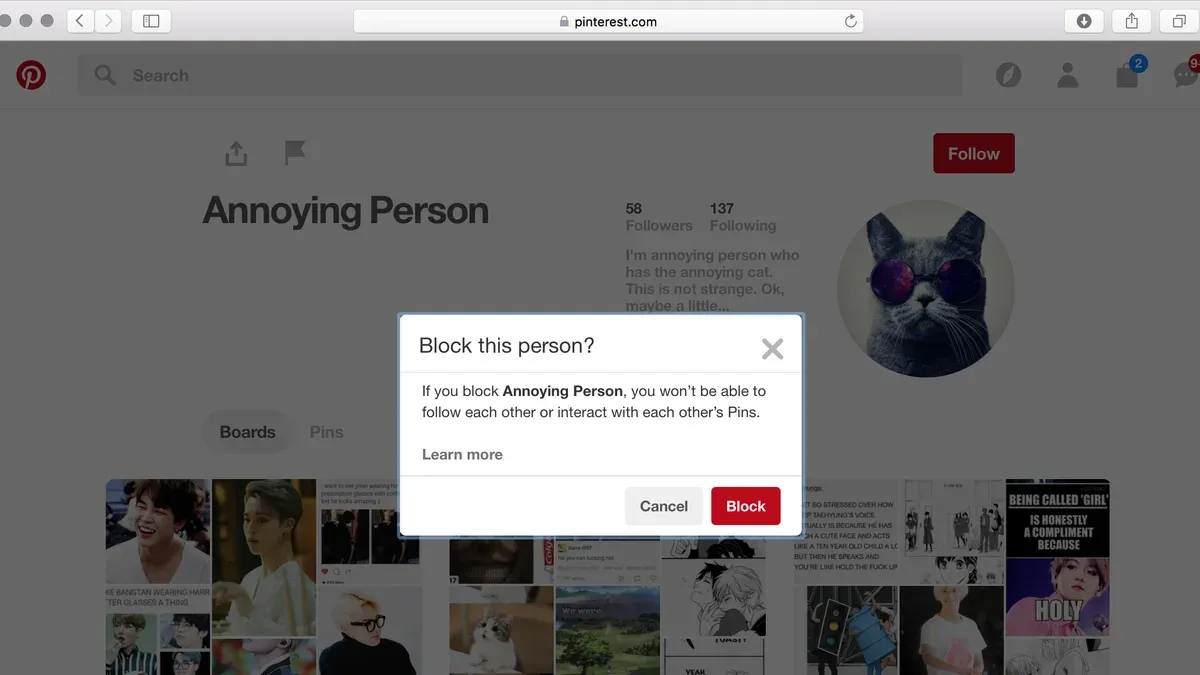
This article explains how to block someone on Pinterest and manage blocked accounts to maintain a personalized and disturbance-free experience. Blocking on Pinterest prevents specific users from interacting with pins, messaging, or following, offering a straightforward way to control unwanted contact.
Users can access blocking features via profile menus, but it is important to understand the platform’s current limitations, such as no option to block users in bulk or automatically filter content. Managing blocked accounts and adjusting email preferences also helps reduce unwanted notifications related to blocked users.
Following clear, step-by-step instructions empowers users to confidently use Pinterest’s blocking tools while recognizing when additional privacy measures might be necessary.
Before you start: what is needed to block someone on Pinterest
Blocking on Pinterest requires an active account and access to either the Pinterest app or desktop site. The blocking function differs from other social platforms by focusing on limiting direct interactions rather than completely severing all contact.
When a user is blocked, they cannot follow the blocker, see their profile or boards, message them directly, or comment on their Pins. However, blocking does not prevent all interactions; for example, both users can still contribute to the same group boards where content is shared collectively.
To adjust blocking settings, the device or browser must have the necessary permissions to access Pinterest’s account and privacy settings. This includes allowing the Pinterest app or website to load fully and managing notifications if blocking email communications is desired.
| Feature | Blocked User Cannot | Blocked User Can Still |
|---|---|---|
| Follow the blocker | Yes | No |
| See blocker's profile and boards | Yes | No |
| Send direct messages to blocker | Yes | No |
| Comment on blocker's Pins | Yes | No |
| Interact on shared group boards | No | Yes |
| See blocker's public activity outside of blocked context | No | Yes |
Can you block someone on Pinterest and how to do it step-by-step
Blocking a user on Pinterest is possible through both the mobile app and desktop browser, offering control over unwanted interactions. Blocking prevents the blocked user from following, messaging, or commenting, and hides their Pins and boards from view.
Blocking via the mobile app
- Open the Pinterest app and use the search bar or your feed to locate the user’s profile. The profile page will display their username and Pins.
- Tap the three-dot menu icon (usually near the top-right corner of the profile page). A menu with several options appears.
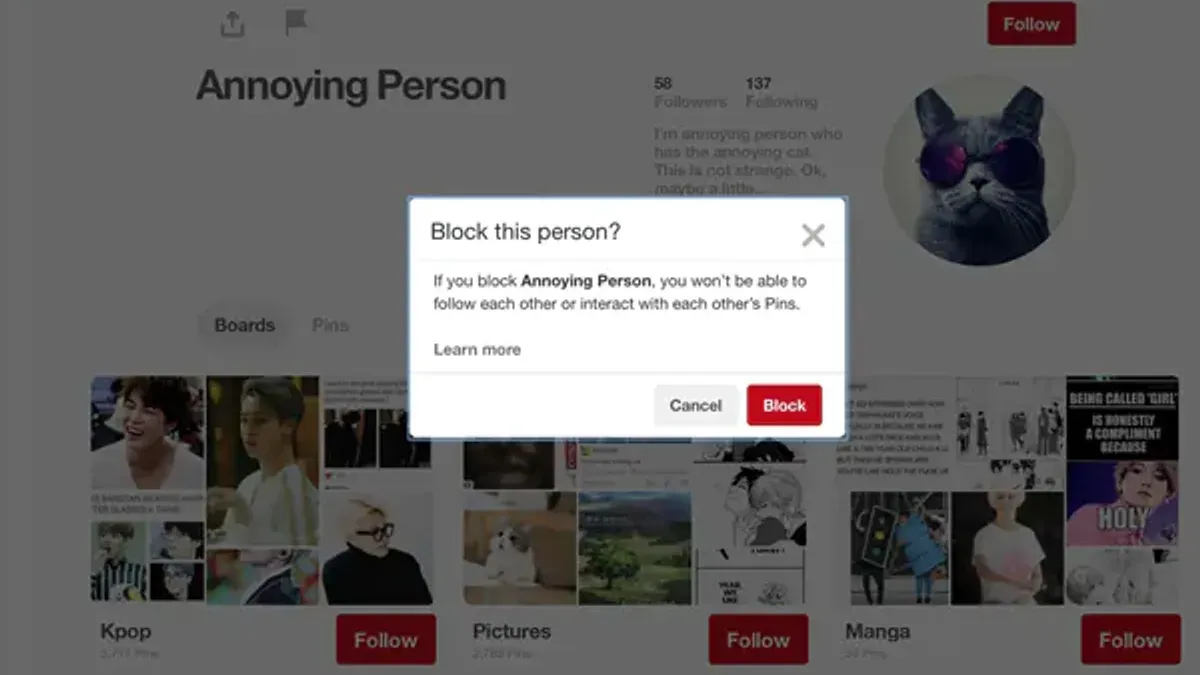
- Select Block from the menu. A confirmation prompt will appear asking to confirm blocking the user.
- Confirm the action. The user is immediately blocked, and their content becomes hidden from the blocker’s feed and profile.
Blocking via the desktop browser
- Navigate to the user’s profile by searching their name or clicking through content.
- On the profile page, click the three-dot icon next to the Follow button to open the options menu.
- Choose Block from the dropdown menu. A confirmation dialog appears.
- Confirm to block the user. Their Pins and boards will no longer be visible on the blocker’s account.
Note: Pinterest does not notify users when they are blocked. Blocking differs from unfollowing in that unfollowing simply stops updates from appearing in the feed, while blocking removes all direct interaction and visibility between accounts.
How to see blocked people on Pinterest
Reviewing the list of blocked users on Pinterest helps maintain control over account interactions and privacy. The list shows the usernames of accounts currently blocked but does not reveal any hidden activity or content previously shared by those users.
- Log in to the Pinterest account on a desktop or mobile device and click the profile icon in the top-right corner to access account settings. The profile icon usually appears as a circular image or silhouette.
- From the profile page, select the gear icon or "Settings" option to open the main account settings menu.
- Within settings, navigate to the "Privacy and Data" or similarly named section where blocking controls are located.
- Click on "Blocked accounts" to view the complete list of users that have been blocked. The list typically displays usernames and profile pictures, making it easier to identify blocked users.
The blocked users list provides a straightforward way to monitor who has been restricted from interacting with the account. However, it does not show any content or interactions that took place before blocking, nor does it provide details on any hidden activities by those users.
Tip: Regularly checking the blocked list can help ensure it reflects current preferences and prevent accidentally blocking accounts no longer considered problematic.
| Blocked User | Profile Picture | Option |
|---|---|---|
| @exampleuser1 | Unblock | |
| @exampleuser2 | Unblock |
How to unblock someone on Pinterest
Unblocking a user on Pinterest reverses the restrictions previously set, restoring their ability to view pins and interact with the account. The process is straightforward and similar on both mobile and desktop platforms.
Unblocking via the Pinterest app
- Open the Pinterest app and tap the profile icon at the bottom right to access the account.
- Tap the gear icon (Settings) at the top right, then select Privacy and data.
- Scroll to Blocked accounts and tap it to see the list of blocked users.
- Find the user to unblock and tap the Unblock button next to their name.
- Confirm the action if prompted; the user will be removed from the blocked list.
After unblocking, the user’s pins become visible again, and they can follow or message the account as before.
Unblocking on desktop
- Go to pinterest.com and log in.
- Click the profile picture at the top right, then select Settings.
- Choose Privacy and data from the left menu.
- Click Blocked accounts to view blocked users.
- Click Unblock beside the relevant user and confirm if asked.
Once unblocked, the user regains full interaction capabilities, including viewing pins and sending messages. If the block was accidental, this quick reversal restores normal communication immediately.
Warning: Unblocking a user means they can see the account’s public content again and may re-follow or interact as before, so consider this before proceeding.
How to block Pinterest emails to reduce unwanted notifications
Managing email notifications from Pinterest can help reduce clutter and unwanted communications. Blocking users on Pinterest prevents direct interactions with those accounts but does not stop Pinterest from sending email updates related to activity on the platform.
Common Pinterest email categories include notifications about new followers, comments, messages, recommended pins, and promotional content. Users can control these notifications via Pinterest's email settings.
- Log in to Pinterest and click the downward arrow icon in the top-right corner to open the account menu. Select Settings.
- In the left sidebar, click Notifications, then choose Email.
- Adjust the toggles for each type of email notification, such as Activity from people you follow, Messages, Recommendations, and Promotions. Turning off a toggle unsubscribes from that category.
- Scroll to the bottom and click Save settings to apply changes. A confirmation message should appear.
- If unwanted emails persist, use the unsubscribe link typically found at the bottom of Pinterest emails to opt out directly from that communication.
Tip: Email provider filters can be set up to automatically redirect or delete Pinterest emails, providing an additional layer of control beyond Pinterest's notification settings.
Blocking Pinterest emails differs from blocking users, as it targets the source of email communications rather than interaction with specific accounts. Combining both approaches can optimize the user experience on and off the platform.
Troubleshooting common issues when blocking or unblocking on Pinterest
Some users may notice that blocked accounts still appear in their feed or interactions shortly after blocking. This often results from synchronization delays across Pinterest's servers, which can take minutes to several hours. Patience is advised before assuming the block did not work.
In cases where the blocked users list cannot be found, verify navigation through Settings > Privacy > Blocked accounts. If the list is not accessible, updating the app or clearing browser cache may resolve the issue.
Error messages such as "Unable to complete request" or "Try again later" are common when network connectivity is unstable or Pinterest experiences temporary server issues. Retrying after a few minutes or switching from mobile data to Wi-Fi often helps.
- Check internet connection stability; a strong connection should allow the block/unblock action to proceed.
- Navigate to the profile of the user to block or unblock and attempt the action again; a confirmation message or change in the button label should appear.
- If errors persist, log out and log back into the Pinterest account, then retry the block or unblock step.
- Update the Pinterest app to the latest version if using a mobile device; this can fix bugs causing errors.
- Clear browser cache and cookies when using Pinterest on desktop to eliminate corrupted data interfering with blocking functions.
- If the problem remains unresolved after these steps, contact Pinterest Support via the Help Center, providing screenshots of error messages and a detailed description of the issue.
Tip: Keeping the Pinterest app updated and maintaining a stable internet connection reduces most blocking-related issues.
What blocking on Pinterest does not cover and when additional privacy steps are needed
Blocking a user on Pinterest restricts direct interactions and hides their profile and pins from the blocker. However, it does not extend to all areas of the platform. For example, users may still encounter pins or comments from blocked accounts in shared group boards, since group board content is visible to all members regardless of blocking. Additionally, blocked users' public pins can still appear in search results or category feeds.
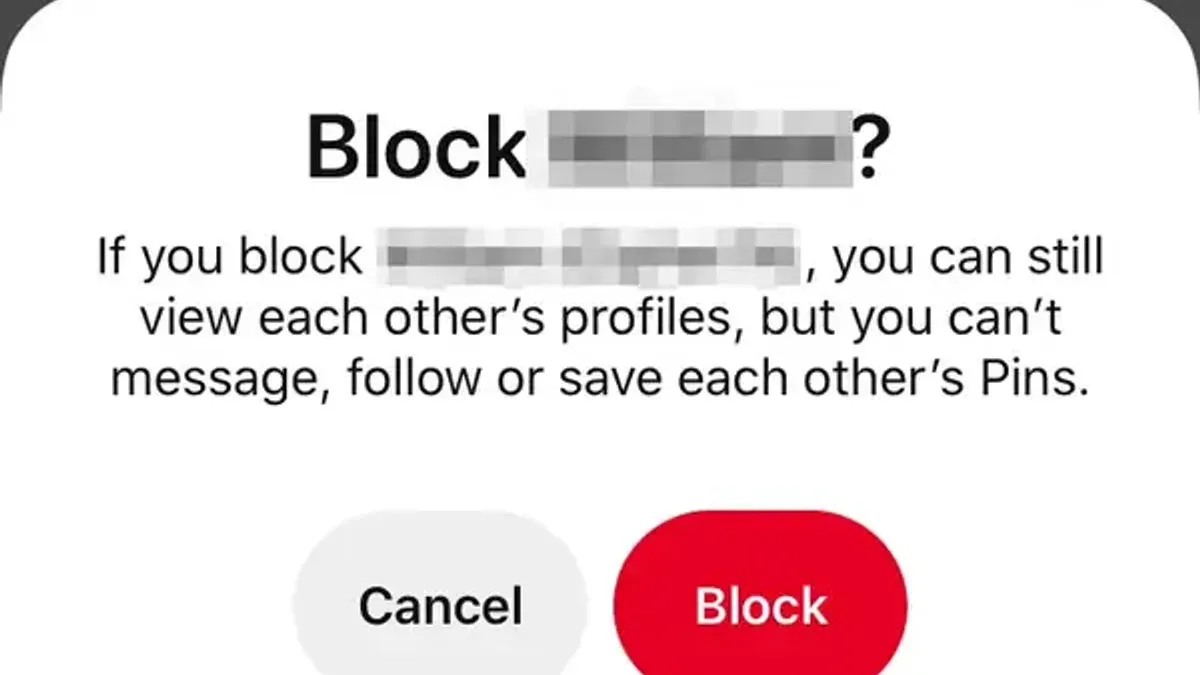
Because of these limitations, blocking does not guarantee complete invisibility or privacy. Users concerned about exposure in shared spaces should consider tightening account privacy settings by switching their boards to secret. Secret boards are hidden from all users except invited collaborators, providing greater control over who sees content.
When blocking does not sufficiently prevent harassment or unwanted contact, reporting the offending account to Pinterest through the Help Center is advisable. Pinterest reviews such reports and may take action that goes beyond individual blocking, such as account suspension.
Blocking also does not automatically stop all email notifications related to the blocked user, especially if emails come from Pinterest-wide activities or group boards. To reduce unwanted emails, notification settings should be adjusted independently, and email filters employed as needed.
Scenario comparison: Blocking stops a specific user from interacting directly or viewing your profile, but if you share a group board, that user can still see and comment on pins there. Similarly, public pins from the blocked user may still appear in your search or home feed.
Tip: For comprehensive privacy, combine blocking with secret boards, adjusted notification preferences, and use the reporting tools when necessary.
Further reading
- How to Block Someone on LinkedIn: Step-by-Step Privacy Control
- How to Block Someone on Discord: Step-by-Step Guide
- How to Block Someone on Bluesky: A Complete Step-by-Step Guide
Frequently asked questions
How to find blocked people on pinterest?
Blocked accounts can be found in the user's account settings under the "Privacy and data" section. Navigating to "Blocked accounts" displays a list of all users currently blocked. This is the centralized place to review and manage these restrictions.
How to see blocked users on pinterest?
To see blocked users, open the Pinterest app or website and go to your profile settings. Under "Privacy and data," select "Blocked accounts" to view all users who have been blocked. This list shows usernames and allows quick access to unblock if desired.
How to unblock people on pinterest?
Unblocking someone requires accessing the "Blocked accounts" list in the settings. Locate the user to be unblocked and click or tap the "Unblock" button next to their name. After unblocking, the user can again interact with the account unless other restrictions apply.
Can i block someone on pinterest?
Yes, Pinterest allows blocking specific users to prevent them from interacting or viewing content. Blocking is done through the user’s profile by selecting the menu (three dots) and choosing the "Block" option. This action restricts unwanted communication and visibility.
How to block on pinterest?
Blocking on Pinterest involves visiting the profile of the user to be blocked, clicking the three-dot menu on their page, and selecting "Block." Confirming this choice immediately restricts that user’s access and communication. Blocking works both on the mobile app and desktop versions.
What blocking on Pinterest does not cover and when additional privacy steps are needed
Blocking someone on Pinterest prevents them from following, commenting, or messaging directly, but it does not guarantee complete invisibility. Blocked users may still see public content, shared boards, or interactions in group spaces where content is visible to multiple people. For users facing harassment or abusive behavior, reporting the account through Pinterest's safety tools is necessary alongside blocking. Those seeking full privacy should consider adjusting profile visibility settings, removing themselves from group boards, or limiting personal information shared on the platform.
To maintain a controlled Pinterest experience, regularly reviewing and managing blocked accounts and notification preferences is essential. The most effective next step is to access the "Settings" menu, navigate to "Privacy and data," and customize both blocked users and communication preferences. This approach ensures users stay updated with Pinterest’s evolving tools and maintain a tailored, disturbance-free environment.



