
How to Handle a Hacked Pinterest Account: Prevention and Recovery
This guide covers how to recognize, recover, and prevent a Pinterest account hacked, focusing on security best practices and account safety.

This guide explains how to address a Pinterest account hacked situation, focusing on the specific challenges Pinterest users face and the best practices for recovery and prevention.
Accounts linked to Google or other platforms may be especially vulnerable due to cross-login risks, making it essential to understand these connections. Recognizing the signs of unauthorized access, such as unfamiliar pins, changes in settings, or login difficulties, is the first step.
Practical steps include reviewing connected apps in Pinterest's Settings under Security, resetting passwords securely, and verifying account email and phone details. Preventive measures target both Pinterest-specific vulnerabilities and broader account security habits.
What Happens When a Pinterest Account Is Hacked
When a Pinterest account is hacked, the user often notices unusual activity such as pins that were never saved, unexpected messages sent from their account, or profile changes like altered bio information or profile pictures. One common sign is unauthorized password or email changes that prevent the rightful owner from logging in.
Hackers typically exploit compromised Pinterest accounts to spread spam or scams, leveraging the account's network to increase visibility and credibility. This can include pinning misleading links or promotional content that can misdirect followers to malicious websites.
Account takeovers often result from broader phishing attacks or data breaches on connected platforms. For example, if a user uses their Google login to access Pinterest and their Google credentials are compromised elsewhere, the Pinterest account becomes vulnerable as well.
Reported incidents show that after a hack, many users find unfamiliar boards created or private boards made public, which can confuse followers and damage the user’s online presence. For instance, a user may wake up to find a new board filled with suspicious content or their contact email changed, locking them out.
Tip: Regularly review account activity under Settings > Security to spot unauthorized changes early.
Why Pinterest Might Deactivate an Account
Pinterest deactivates accounts primarily to enforce its Community Guidelines and maintain platform integrity. Automated systems often detect violations such as spam, copyright infringement, or the use of bots, leading to temporary or permanent account deactivation. For example, repeatedly posting unsolicited promotional content may trigger automated flags and result in account suspension.
Users can typically identify automated deactivation through an immediate email or notification from Pinterest citing specific guideline violations. The message may include instructions on appealing the decision. Manual deactivations, often reserved for severe or repeated offenses, may come after a review and sometimes without instant notification, requiring users to contact Pinterest support directly.
Common causes of deactivation include:
- Spamming activities such as mass unsolicited messages or pins
- Repeated copyright violations by pinning protected content without permission
- Use of bots or automated tools to artificially boost engagement
For instance, a user who frequently pins copyrighted images without attribution might receive a warning followed by deactivation if the behavior continues. In some cases, users report mistaken deactivations where legitimate content was flagged by automated filters.
If a user believes their account was deactivated in error, Pinterest’s appeal process can be accessed via the email notification or through the Help Center under the "My Account Was Disabled" section. Providing clear evidence of compliance with guidelines can improve the chances of reinstatement.
Tip: Regularly review Pinterest’s Community Guidelines found under Settings > Help > Community Guidelines to avoid unintentional violations that might lead to deactivation.
How to Unlock and Recover a Locked or Hacked Pinterest Account
To regain access to a locked or hacked Pinterest account, start by visiting the Pinterest login page and selecting the “Forgot your password?” option. Enter the email address or username associated with the account to receive a password reset link. Users who log in via Google should first verify their Google account’s security, as compromised Google credentials can affect Pinterest access.
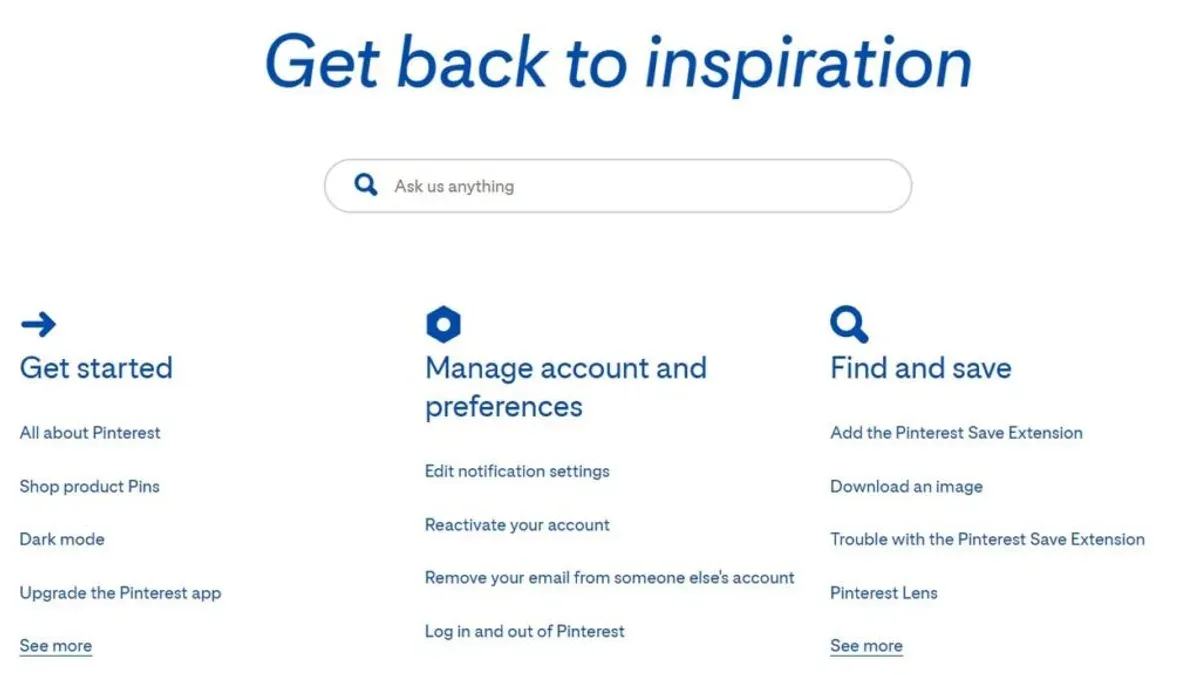
After receiving the reset email, follow the link promptly to create a new, strong password. If the reset email does not arrive, check spam folders or use Pinterest’s Help Center to request additional support. In cases where attackers have changed the account’s email or phone number, recovering the account requires verifying identity through Pinterest’s support channels.
To escalate recovery, visit Pinterest's Help Center and submit a request including the username, linked email addresses, and any proof of ownership such as screenshots or transaction details related to promoted pins. Pinterest’s response times vary, but self-service recovery options often succeed if the original email remains linked.
For example, a user who noticed suspicious activity but still controlled the linked Google account was able to reset the Pinterest password via the email link and secure both accounts by enabling two-factor authentication. In contrast, users without access to the original email or phone number must rely on Pinterest support, which may take longer and requires detailed information to confirm identity.
Tip: Regularly verify and update linked email and phone information within Pinterest settings to avoid recovery complications.
How to Unprivate a Pinterest Account
Pinterest users can control the visibility of their content through privacy settings that distinguish public boards from secret ones. Public boards are visible to anyone browsing Pinterest, while secret boards are only accessible to the board creator and invited collaborators.
To make a board public again, navigate to the Pinterest profile and select the board intended to be unprivated. Click the "Edit" button located near the board’s title. In the edit panel, locate the "Visibility" section where there is a toggle labeled "Keep this board secret." If this toggle is enabled (blue), the board is secret. Switching it off (gray) will make the board public.
For example, if a user has a recipe board marked secret but wants to share it with a wider audience, turning off this toggle will immediately make the recipes discoverable by other users and appear in Pinterest search results.
Making boards public can increase engagement and followers; however, it also means that anyone can view and potentially save the content. This wider visibility can raise security considerations, particularly if sensitive or personal information is pinned. It is advisable to review the content before changing privacy settings.
Privacy settings on Pinterest do not directly protect against account hacking, but secret boards limit exposure of specific content. Users should balance the benefits of sharing publicly with the risks of making content accessible to a broader audience.
Tip: Regularly review board privacy settings to ensure that only intended content is public, minimizing unintended data exposure.
How to Create and Get a Pinterest Account: A Secure Start
Creating a Pinterest account begins by visiting pinterest.com or downloading the Pinterest app. The sign-up process offers two main options: using an email address or signing up through a Google account. Both methods are free, but selecting email allows more control over credentials, while Google login may simplify access across platforms.
After entering an email, full name, age, and setting a password, the next critical step is email verification. Pinterest sends a confirmation link to the provided address; clicking it completes the verification process and activates the account. This step reduces the risk of unauthorized registrations using fake emails.
Setting a strong password is essential. Pinterest recommends a mix of at least 12 characters combining letters, numbers, and symbols. Avoid common phrases and reuse of passwords from other services to minimize compromise risks.
Enabling two-factor authentication (2FA) adds a robust security layer. Within account settings, navigate to Security > Two-factor authentication, then choose authentication via an app or SMS. Although 2FA adoption varies, it is a highly effective deterrent against unauthorized access.
For example, a user signing up with email might create a password like “P1nterest$ecure2026” and immediately enable 2FA through an authenticator app. This setup ensures that even if the password were exposed, access remains protected.
Tip: Opting for email sign-up rather than Google login can reduce exposure to cross-platform vulnerabilities often exploited in account hacks.
Common Pinterest Login Issues Including Google Account Problems
One frequent issue arises when users attempt to log in to Pinterest using their linked Google accounts but encounter authentication errors or login failures. This can happen if the Google account credentials have been changed or if Pinterest's access permissions to the Google account were revoked or expired. For example, a user might see an "Unable to authenticate" message after entering their Google email, even if the password is correct.
To troubleshoot, users should first verify that their Google account itself is accessible by signing in directly at accounts.google.com. Next, they should check the connected apps and sites section within Google Account settings to confirm Pinterest still has authorized access. If Pinterest is missing, reauthorizing the connection by logging in through the "Sign in with Google" button on Pinterest often resolves the issue.
Google account compromises can significantly impact Pinterest access since the linked login depends on Google credentials. If the Google account is hacked or suspected of breach, Pinterest users should consider disassociating the Google login method. This can be done by visiting Pinterest's account settings under "Apps and websites" and removing Google as a login option, then setting a dedicated Pinterest password to regain control.
Tip: If login problems persist, clearing browser cache or trying a different browser can help isolate the issue.
How to Remove a Pinterest Account Safely
Deleting a Pinterest account permanently removes all pins, boards, followers, and profile information. This action cannot be undone, and once deleted, the account cannot be recovered.
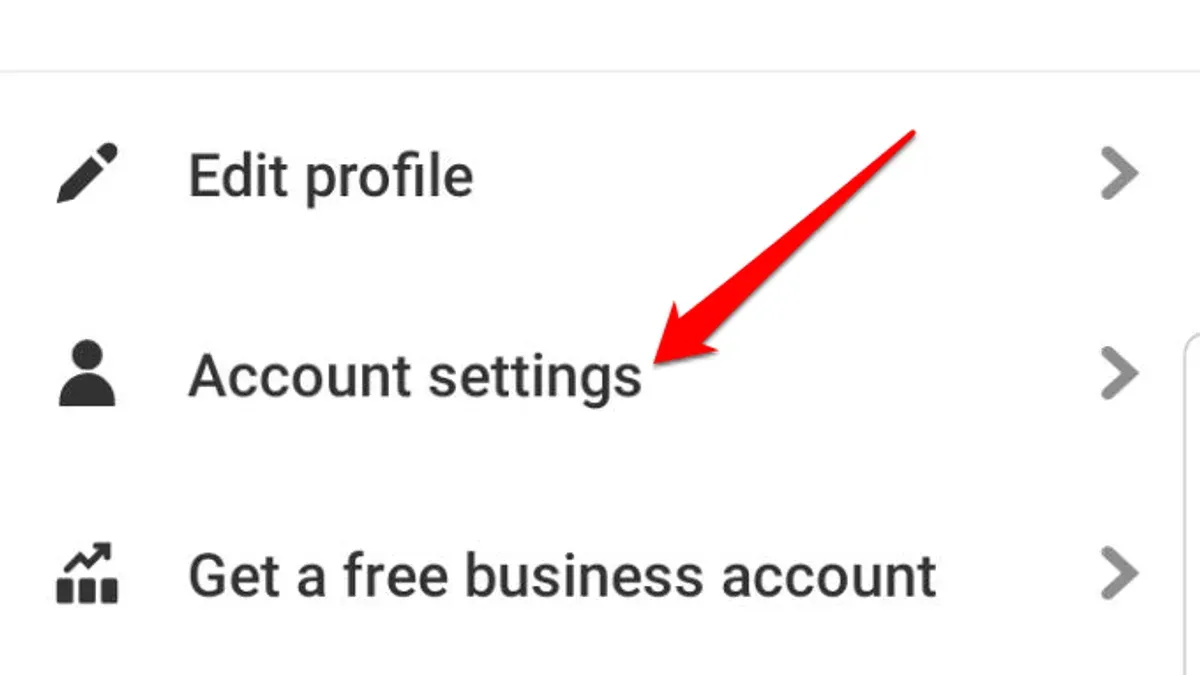
To delete an account, users should first log in and navigate to Settings > Account Settings > Account Changes. There, selecting Delete Account initiates the process. Pinterest typically places the account in a deactivation state for about 14 days before permanent deletion, allowing users time to reactivate if they change their mind.
During this waiting period, the account is not visible to others but data remains stored. After deletion, all content associated with the account is permanently lost, including boards, pins, comments, and messages. However, any content shared externally or saved by others remains outside Pinterest's control.
For example, a user who experienced a hack may choose deletion to prevent further unauthorized use. Before deletion, it is advisable to disconnect linked accounts such as Google or Facebook logins to avoid future access issues. Alternatively, deactivation offers a temporary pause without data loss, which some prefer if considering eventual return.
Tip: Back up any important pins or board information before deleting, as Pinterest does not provide a data export feature for account content.
Users report that the deletion process is straightforward but emphasize caution due to the irreversible nature of permanent removal. Taking steps to secure linked accounts and passwords beforehand enhances security when deleting after a compromise.
Common Mistakes to Avoid When Dealing with a Hacked Pinterest Account
Delaying action after noticing suspicious activity often leads to irreversible damage. For example, some users ignore strange pins appearing on their boards for weeks, allowing attackers to spread spam or malware to followers. Immediate password resets and account reviews are crucial to limit harm.
Using weak or reused passwords remains a major vulnerability. When a Pinterest account is compromised, attackers may try the same password on other linked services, increasing the scope of the breach. Security experts emphasize creating unique, complex passwords and updating them regularly.
Overlooking linked accounts such as Google or Facebook can undermine recovery efforts. A common scenario involves a user who resets their Pinterest password but neglects to revoke Pinterest's access in their Google account settings, allowing persistent unauthorized entry. Reviewing connected apps and permissions in Google Account settings under “Security” > “Third-party apps with account access” is vital.
Sharing personal information with unverified support sources can worsen the situation. Fake support sites or unsolicited contacts may request sensitive details under the guise of help, leading to further identity theft. Official Pinterest support should be accessed only via the verified help center or the app's support options.
Further reading
- How to Identify, Respond to, and Recover from an Instagram Account Hack
- How to Identify, Respond to, and Recover from a LinkedIn Account Hacked
- How to Protect and Recover from a Kik Account Hack
Frequently asked questions
What happened to my pinterest account?
Your Pinterest account may have been hacked, compromised, or deactivated due to suspicious activity or violations of Pinterest’s community guidelines. In some cases, unauthorized access can change login details or content, while deactivation often results from reported policy breaches or automated security measures.
Why would pinterest deactivated my account?
Pinterest may deactivate an account if it detects violations such as spam, inappropriate content, or repeated breaches of its terms of service. Deactivation can also occur if the account is suspected of being hacked or involved in fraudulent activity to protect other users.
Why was my pinterest account deactivated?
Account deactivation typically follows reports of misuse, violations of Pinterest’s policies, or detected suspicious behavior. Sometimes automated systems flag accounts for unusual login patterns or content that breaches rules, leading to temporary or permanent deactivation.
How to unlock your account on pinterest?
To regain access, users should follow the prompts on Pinterest’s login page, including verifying identity via email or phone. Resetting the password and reviewing connected accounts, such as Google login, can help. If the account is disabled, contacting Pinterest support through their help center with relevant details is necessary.
How to make pinterest account?
Creating a Pinterest account involves visiting pinterest.com or using the mobile app and signing up with an email address, Google account, or Facebook. Users should choose a strong password and verify their email to secure the account. Adding profile details and selecting interests helps personalize the experience.
Limits of this guidance and when to seek expert help
This advice focuses on practical steps for typical Pinterest account compromises and login issues, but it does not cover legal actions against hackers or deep forensic investigations into complex breaches. Users experiencing repeated unauthorized access, large-scale data exposure, or targeted attacks should consider consulting professional cybersecurity experts who can provide detailed assessments and tailored remediation.
For most users, the most effective next step is to immediately review and update all connected login credentials, especially the email and Google accounts linked to Pinterest. Ensuring these primary access points have strong, unique passwords and two-factor authentication enabled drastically reduces the risk of further unauthorized access.



