How to Delete LinkedIn Account Permanently: Clear Step-by-Step Guide
Clear, step-by-step guide on how to delete LinkedIn account permanently across devices, including data backup and troubleshooting tips.

This article provides a clear, step-by-step guide on how to delete LinkedIn account permanently across different devices and situations.
Deleting a LinkedIn account removes the profile, connections, endorsements, and recommendations, but some data may remain in backups for a limited period. The process differs slightly between laptops, iOS, and Android devices. Additionally, options exist for users who cannot access their accounts due to lost passwords or login issues. Understanding these methods ensures a smooth account closure without unintended consequences.
Readers will also learn the difference between permanently deleting and temporarily deactivating a LinkedIn account, common troubleshooting tips, and what happens to data after deletion. Practical advice is included for securing data before closing the account, making this a comprehensive resource on how to delete LinkedIn account permanently.
Before you start: What is needed to delete a LinkedIn account permanently
Deleting a LinkedIn account permanently requires access to the account's login credentials, typically the registered email address and password. This is essential to verify ownership and initiate the deletion process securely, as outlined in LinkedIn Help resources. Without these credentials, account deletion is generally not possible unless account recovery options are used.
Before proceeding with deletion, downloading a copy of personal data is strongly recommended. LinkedIn provides a data export feature that allows users to download connections, messages, and profile information. This step ensures important information is not lost, as permanent deletion removes access to all account content.
It is important to distinguish between permanent account deletion and account deactivation. Deactivation temporarily hides the profile and preserves data, allowing reactivation. Permanent deletion removes all data and profile visibility irreversibly after a short grace period.
Tip: Navigate to "Settings & Privacy" > "Data Privacy" > "Get a copy of your data" in LinkedIn to start the data download before deleting an account.
- Confirm possession of LinkedIn login credentials – successful login to the account confirms ownership.
- Download personal data via "Settings & Privacy" > "Data Privacy" > "Get a copy of your data"; receiving a confirmation email indicates the request was successful.
- Understand the difference between account deletion and deactivation by reviewing LinkedIn Help articles; this ensures the chosen action aligns with the intended outcome.
How to delete LinkedIn account permanently on a laptop
- Open a web browser and navigate to linkedin.com. Enter the login credentials to sign in. Successful login displays the LinkedIn homepage with the top navigation bar.
- Click the Me icon at the top right corner of the page, then select Settings & Privacy from the dropdown menu. This opens the account settings page.
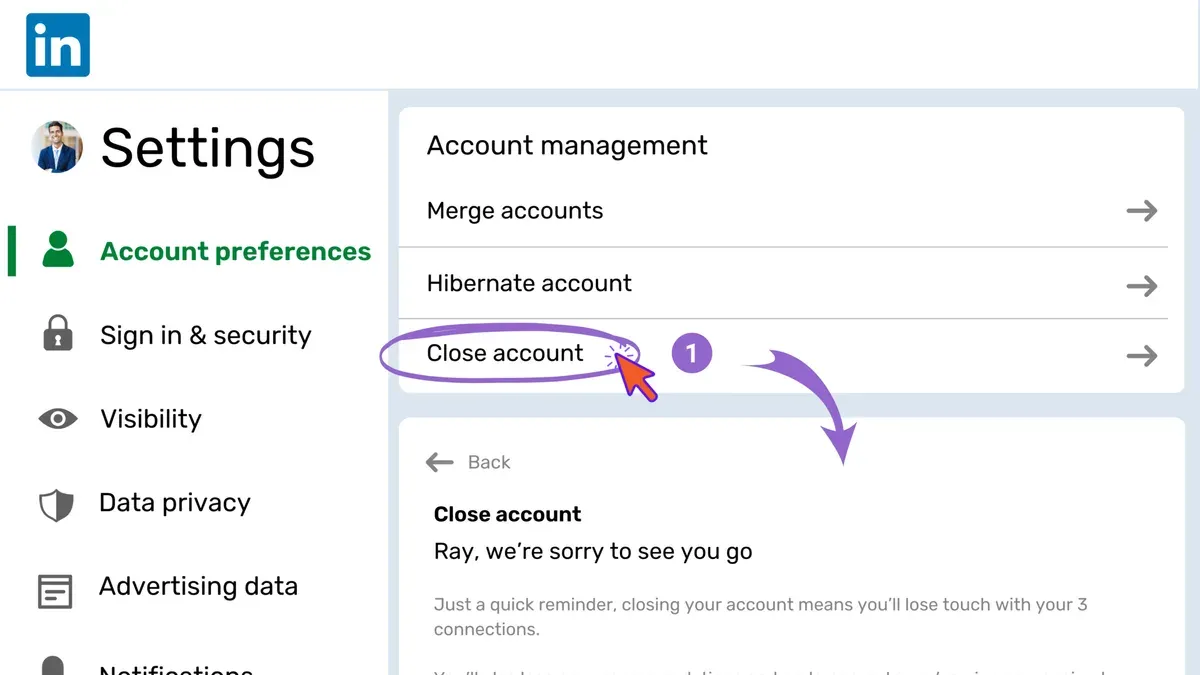
- In the left sidebar, click Account preferences. Scroll down to find the section labeled Account management.
- Click the Close account link within the Account management section. A popup window appears prompting for closure reasons.
- Select a reason for closing the account from the provided options. Additional feedback can be entered in the text box but is optional.
- Click Next. LinkedIn then requires confirmation of identity by entering the account password in the provided field.
- After entering the password, click Close account to finalize the permanent deletion request. A confirmation screen appears indicating the account closure process has started.
The desktop interface provides clear navigation paths and visible prompts, making the account deletion straightforward compared to the mobile app, where some settings may be nested deeper. The web browser method offers a comprehensive overview of account preferences, aiding users in understanding the process step-by-step.
Tip: If the Close account option is not immediately visible, use the search bar in settings by typing "close account" for quicker access.
How to delete LinkedIn account permanently on mobile devices
The LinkedIn mobile app for Android and iPhone allows account deletion through the account settings, though the interface varies slightly between platforms. The process involves accessing the privacy and account management options and confirming the closure request.
- Open the LinkedIn app on the mobile device and sign in if not already logged in. The home feed will appear.
- Tap the profile picture icon in the top-left corner (Android) or bottom-right corner (iPhone) to open the navigation menu. The menu with profile and settings options will be visible.
- Select "Settings" from the menu. The settings screen with multiple tabs will open.
- On Android, tap the "Account preferences" tab; on iPhone, scroll down to find "Account Preferences." Both lead to account management options.
- Scroll to locate and select "Close account" or "Account management" then "Close account." This will open the account closure flow.
- LinkedIn will ask for a reason for closing the account. Choose one from the list or specify "Other." A confirmation prompt appears after selection.
- Confirm the account deletion by tapping "Next" then enter the account password when prompted to verify identity. A final confirmation screen will appear.
- Tap "Close account" or "Confirm" to submit the deletion request. The app will notify that the account closure process has started.
App versions might show slight variations in label names or menu placement but generally follow this flow. Password entry is required to prevent unauthorized deletions.
Tip: Ensure the app is updated to the latest version for the smoothest navigation and the most current interface.
How to delete LinkedIn account permanently on mobile without password or without login
Users unable to access their LinkedIn account due to lost passwords or login details must first attempt account recovery before deletion. LinkedIn provides recovery options primarily through registered email addresses or phone numbers.
- Open the LinkedIn mobile app or visit the LinkedIn login page on a mobile browser.
- Tap or click on "Forgot password?" below the sign-in fields.
- Enter the email address or phone number associated with the account and submit the request.
- Check the email inbox or SMS messages for a password reset link or code from LinkedIn.
- Follow the link or enter the code to create a new password and regain access to the account.
Once access is restored, users can proceed with permanent account deletion through the standard settings. However, if recovery options are unavailable or unsuccessful, deletion without login credentials is generally not permitted due to security and privacy policies.
In such cases, contacting LinkedIn Customer Support is necessary. Users can submit a request explaining the situation through LinkedIn’s Help Center, providing proof of identity if required. Support may assist with account closure but typically cannot delete accounts without verifying ownership.
Limitations: LinkedIn’s official policy emphasizes account security, making deletion without login or password inaccessible to prevent unauthorized removal. User reports confirm that recovery attempts are mandatory before deletion requests are considered.
Tip: Keep recovery email addresses and phone numbers updated to facilitate account recovery and subsequent deletion if needed.
How to close LinkedIn account permanently vs how to deactivate it
Closing a LinkedIn account permanently means deleting the profile and all associated data from LinkedIn’s servers, which cannot be undone. Deactivating an account, however, is a temporary measure that hides the profile and suspends activity without deleting data.
When a LinkedIn account is permanently closed, all connections, endorsements, messages, and profile information are removed. According to LinkedIn’s privacy policy, some data may remain in backup systems for a limited period but is no longer accessible to others. This action is final and cannot be reversed.
In contrast, deactivation retains all data, allowing the user to reactivate the account later with full restoration of profile details and network. This option is useful for job seekers or recruiters who may want to pause their presence without losing contacts or recommendations.
| Feature | Permanent Deletion | Deactivation |
|---|---|---|
| Profile visibility | Removed from LinkedIn and search engines | Hidden from LinkedIn and public |
| Data retention | Deleted, some backups temporarily retained | Fully retained by LinkedIn |
| Account recovery | Not possible | Possible by logging in |
| Connections and endorsements | Deleted | Retained |
Steps to deactivate LinkedIn account:
- Log into the LinkedIn account and click the "Me" icon at the top right corner; the account menu will appear.
- Select "Settings & Privacy" from the dropdown; the settings page will open.
- Navigate to the "Account preferences" tab and click on "Account management."
- Choose "Temporarily deactivate account" and follow the prompts; upon success, the profile will be hidden but data retained.
Steps to close LinkedIn account permanently:
- Access the "Settings & Privacy" page via the "Me" icon.
- Go to "Account preferences" and then "Account management."
- Click on "Close account," select a reason, and confirm by entering the account password; the account will be scheduled for permanent deletion.
Troubleshooting common issues when deleting a LinkedIn account
Deletion attempts may encounter error messages such as "Unable to process request" or "Action not allowed." These often arise from unresolved account obligations or system glitches.
Handling subscription and payment issues
Active premium subscriptions or unpaid balances can block account deletion. Users must first cancel any subscriptions via Me > Access My Premium and ensure all payments are settled. Once cleared, the deletion process should proceed smoothly.
Linked accounts and business pages complications
Accounts managing LinkedIn Pages or linked to business services may face additional barriers. Removing admin rights or transferring page ownership under Admin Tools > Manage Admins is necessary before deletion is permitted.
Steps to resolve deletion not progressing
- Clear browser cache and cookies; successful when LinkedIn loads freshly without cached data.
- Log out and log back in; successful when access to account settings is restored.
- Attempt deletion from a different device or browser; successful if deletion confirmation appears.
- If errors persist, contact LinkedIn Help with detailed error messages; successful when support acknowledges the issue and provides guidance.
Tip: Checking LinkedIn's Help Forum and official bug reports can reveal if widespread technical issues are affecting deletion requests.
After deletion: What happens to LinkedIn data and profile visibility
Once a LinkedIn account is permanently deleted, the profile immediately becomes invisible to all other users. This means connections, endorsements, and any publicly displayed information linked to the account will no longer be accessible.
LinkedIn’s official policy states that account data is removed from public view immediately but may remain on LinkedIn’s servers for a limited period to comply with legal obligations and for security purposes. Typically, this retention period is brief but not precisely defined publicly.
Connections and endorsements tied to the deleted account do not transfer or remain visible to other users, effectively severing all network links. Any personal messages or shared content linked to the profile will also no longer be accessible through LinkedIn.
Data recovery after permanent deletion is generally impossible through standard user actions. Once the deletion process is complete, LinkedIn does not offer an option to restore the account or its data. Users seeking account restoration must rely on LinkedIn support, which typically cannot recover permanently deleted accounts.
Tip: Backing up important data before deletion is crucial, as recovery options are extremely limited once the process is finalized.
Tips for securing your LinkedIn data before deleting your account
Before deleting a LinkedIn account permanently, securing important personal information is essential. LinkedIn provides tools to download a copy of your data, which includes profile details, connections, messages, and more.
- Go to the LinkedIn homepage and click on the Me icon at the top right.
- Select Settings & Privacy from the dropdown menu. The Settings page should open.
- Navigate to the Data Privacy tab.
- Click on Get a copy of your data.
- Choose the data categories to download—select either the full archive or specific items like connections, messages, or profile information.
- Submit the request and wait for LinkedIn to prepare the download. An email with a download link will be sent once ready.
Tip: The data export process can take up to 24 hours depending on the volume requested.
Reviewing privacy settings and connected applications is also advisable. Under Data Privacy, check Permitted Services to revoke access of third-party apps that no longer need your data.
Backing up resumes, recommendations, and important messages manually ensures no critical documents are lost. Export or save these files separately if LinkedIn’s data export does not cover them fully.
Notifying professional contacts about the account closure can maintain network relationships. This step is optional but useful for ongoing collaborations or future contact.
Further reading
- How to Delete Messenger Account Permanently: Clear Step-by-Step Guide
- How to Delete an Instagram Account Permanently: Clear Steps for Every Device
- How to Delete a Facebook Account Permanently: Complete Step-by-Step Guide
Frequently asked questions
How to deactivate linkedin account permanently?
LinkedIn does not offer a permanent deactivation option; instead, users can either close their account permanently or temporarily hide their profile by adjusting privacy settings. To temporarily deactivate visibility, change profile viewing options to private and disable activity broadcasts, but the account remains active until closed.
How to delete my linkedin account permanently?
To delete a LinkedIn account permanently, sign in and go to 'Settings & Privacy' in the account menu. Under the 'Account preferences' tab, select 'Account management' and then 'Close account.' Follow the prompts to confirm the deletion. The account and associated data will be permanently removed after a short grace period.
How to remove linkedin account permanently?
Removing a LinkedIn account permanently follows the same process as deleting it. Access 'Settings & Privacy,' navigate to 'Account preferences,' then 'Account management,' and choose 'Close account.' Confirming this action will initiate permanent removal of the profile and data.
How to delete LinkedIn account permanently without password?
If the password is unknown, recovering access is necessary before deletion. Use the 'Forgot password?' link on the sign-in page to reset credentials via the registered email or phone number. Without login access, LinkedIn does not allow account deletion to protect user security.
How to deactivate LinkedIn account permanently?
Since permanent deactivation is not a LinkedIn feature, account closure is the alternative. Closing the account permanently deletes user data after confirmation. Users seeking a less permanent option should adjust privacy settings to limit profile visibility instead.
What this guide does not cover and who should take alternative steps
This guide does not cover recovering deleted LinkedIn accounts once the deletion process is complete; account recovery is not possible after permanent deletion. Users with paid LinkedIn subscriptions should cancel those separately through the LinkedIn Premium settings or their payment provider to avoid ongoing charges. Permanent deletion results in the loss of all LinkedIn data associated with the account, including connections, messages, endorsements, and profile content. Users should back up any important data before initiating deletion.
For those uncertain about permanently deleting their account, consider temporarily deactivating it instead to preserve data and connections. Additionally, if login credentials are lost and recovery attempts fail, contacting LinkedIn support directly may be necessary.
The most useful next step is to download a copy of LinkedIn data via the Settings & Privacy menu under "Data Privacy" before proceeding with deletion. This ensures important contacts and information are saved for future use.