How to Delete a Facebook Account Permanently: Complete Step-by-Step Guide
This guide explains how to delete a Facebook account permanently, including handling forgotten passwords, hacked accounts, and more.

This article provides a clear, step-by-step guide on how to delete Facebook account permanently, covering various scenarios including forgotten passwords, hacked accounts, and posthumous account management.
Deleting a Facebook account is a significant decision that results in the loss of all data, including photos, posts, and messages, with limited recovery options once the process is complete. Users must ensure access to their login credentials or have prepared account legacy contacts before proceeding. The standard deletion process involves a 30-day waiting period during which the account can be restored by logging back in.
Beyond the usual method, this guide addresses special cases such as recovering accounts without passwords, handling compromised accounts securely, and managing accounts after an individual's death. It also explains how to delete a Facebook business account and how to troubleshoot common issues encountered during deletion.
Before you start: What is needed to delete a Facebook account permanently
To permanently delete a Facebook account, the user must have access to the account's login credentials, including the associated email or phone number and password. Facebook requires this to verify identity before processing deletion requests.
Backing up data is highly recommended because account deletion removes access to all content, including photos, posts, and messages. Facebook provides an option to download a copy of this data through the Settings menu under "Your Facebook Information." Once deleted, this data cannot be recovered.
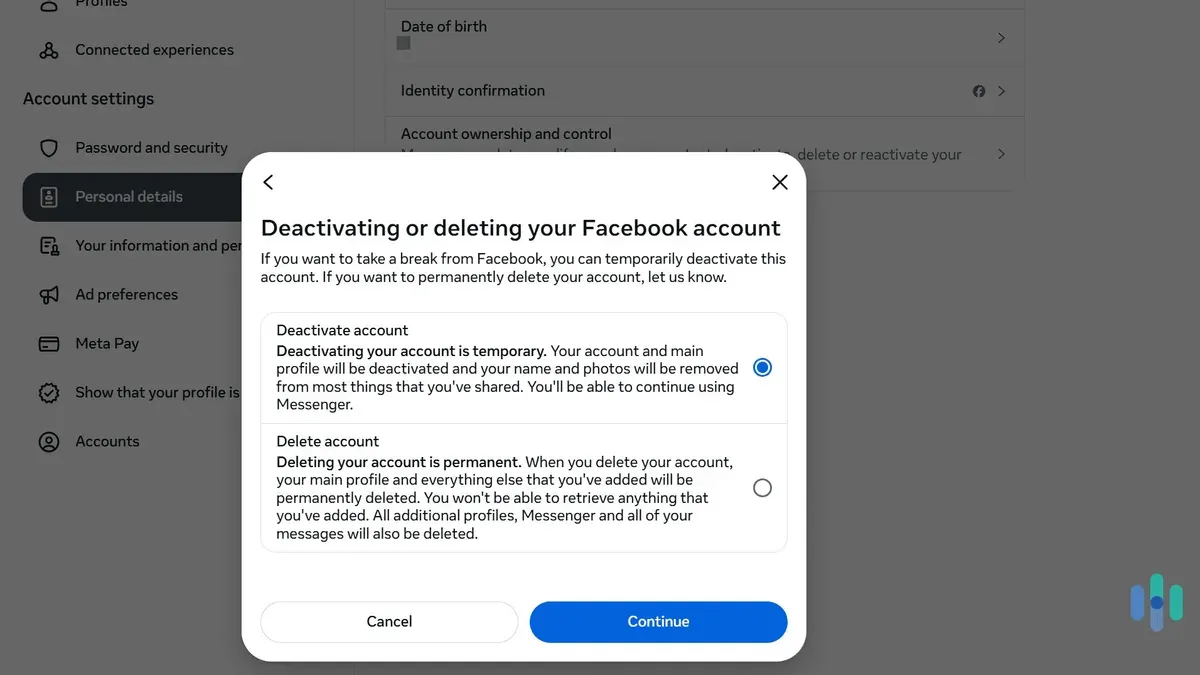
It is important to distinguish between deactivation and permanent deletion. Deactivation temporarily disables the account and allows reactivation anytime, whereas deletion begins the process of complete account removal.
Facebook applies a 30-day grace period after the deletion request during which the user can cancel the process by logging back in. After 30 days, the account and all associated data are permanently removed from Facebook's servers, although some information may remain in backup storage for a limited time as per Facebook's data retention policies.
- Verify access to the account by logging in successfully; a successful login will open the News Feed or profile page.
- Decide whether to download personal data via Settings > Your Facebook Information > Download Your Information; the user should see a confirmation when the file is ready.
- Understand the difference between deactivation and deletion by reviewing the options under Settings > Your Facebook Information > Deactivation and Deletion; the correct option is "Delete Account." Confirming this shows the 30-day grace period notice.
Tip: Downloading account data before deletion ensures important memories and information are preserved, as post-deletion recovery is not possible.
How to delete a Facebook account permanently on a PC
- Open a web browser and go to Facebook's official website at facebook.com. Log in with the account credentials to access the profile.
- Click the downward arrow icon in the top-right corner of the page to open the menu, then select Settings & privacy followed by Settings. This opens the main account settings page.
- In the left sidebar, click Your Facebook Information. Scroll to find and select Deactivation and Deletion.
- Choose Delete Account, then click Continue to Account Deletion. This directs to the final deletion page.
- Facebook prompts for password confirmation; enter the current password to verify identity. If two-factor authentication (2FA) is enabled, enter the code received via SMS or authenticator app to proceed.
- Review the information about data removal and the 30-day grace period. Optionally, download account data using the provided link before proceeding.
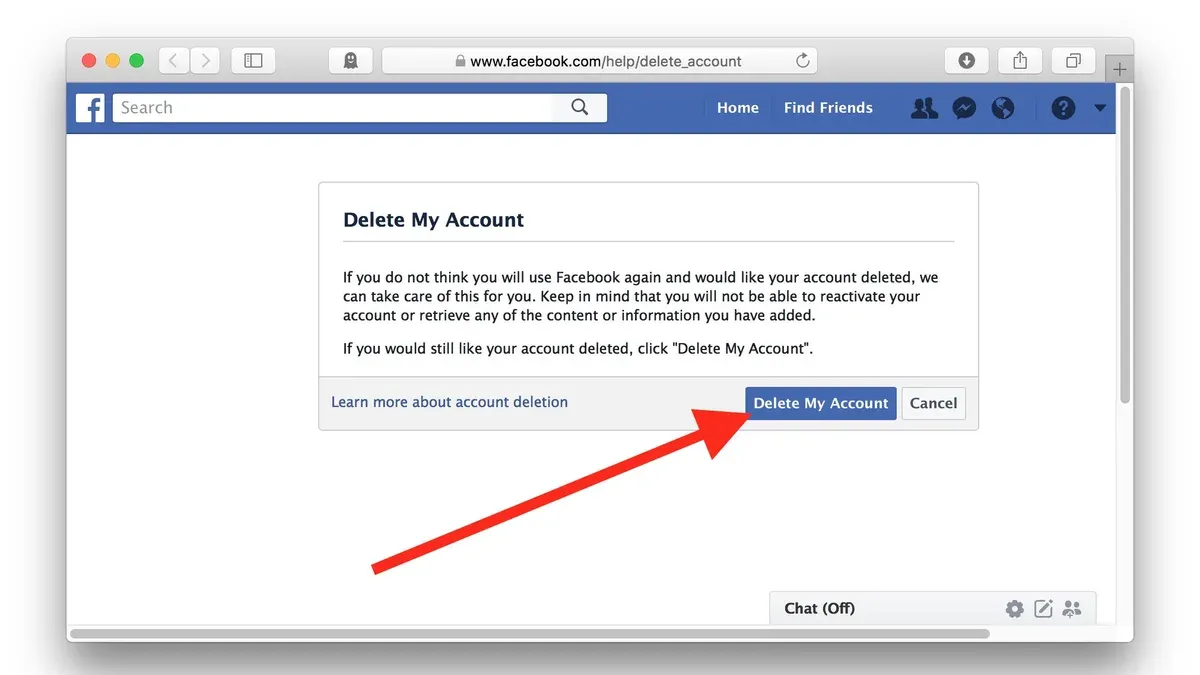
- Click Delete Account to initiate the permanent deletion process. A confirmation message appears stating the account will be deactivated immediately and deleted after 30 days, during which login cancels deletion.
Tip: If unsure about losing access, use Facebook’s data download tool before deletion to preserve photos, posts, and messages.
How to delete a Facebook account permanently on iPhone
Deleting a Facebook account permanently on an iPhone can be done through the Facebook app or a mobile browser, with slight differences in navigation and interface.
Using the Facebook iOS app:
- Open the Facebook app and tap the three horizontal lines (menu) at the bottom right; this opens the main menu.
- Scroll down and select Settings & Privacy, then tap Settings. The Settings page should appear.
- Under the Your Facebook Information section, tap Account Ownership and Control. This opens privacy and account options.
- Tap Deactivation and Deletion, then choose Delete Account and tap Continue to Account Deletion. The deletion confirmation page will appear.
- Follow prompts to confirm identity if requested, then finalize by tapping Delete Account. A confirmation message indicates the request is processed.
Using a mobile browser on iPhone:
- Open a browser and go to facebook.com, then log in if not already.
- Tap the menu icon (three horizontal lines) at the bottom right.
- Scroll down to Settings & Privacy, then Settings, similar to the app navigation.
- Find Your Facebook Information, then select Account Ownership and Control.
- Proceed to Deactivation and Deletion, select Delete Account, and follow prompts to confirm deletion.
The app provides a more streamlined experience with native interface elements, while the browser method mirrors the desktop site but optimized for mobile. Both methods require similar confirmation steps and show clear progress indicators.
Tip: Ensure the Facebook app is updated to the latest version for the smoothest deletion process and to avoid interface changes that might hide these options.
How to delete a Facebook account permanently without login or password
Deleting a Facebook account without access to the login credentials is a challenging process due to Facebook's security policies designed to protect user accounts from unauthorized access. Facebook requires identity verification before allowing account recovery or deletion when login information is lost.
To attempt account recovery:
- Go to the Facebook login page and select "Forgot Password?". A prompt to enter an email address, phone number, username, or full name associated with the account will appear.
- Follow the on-screen instructions to receive a password reset code via email or SMS. Successful receipt indicates Facebook recognizes the information provided.
- If the recovery options fail, use Facebook's identity verification process by providing a government-issued ID through the "Verify Your Identity" link, typically found during account recovery attempts.
- Upon successful verification, reset the password and log in to proceed with the account deletion steps.
Tip: Facebook’s identity verification process can take several days and is not guaranteed to succeed if submitted information does not match their records.
When recovery attempts are unsuccessful and login credentials remain inaccessible, Facebook does not permit permanent deletion of the account by the user. In such cases, contacting Facebook support is an option, though response times and outcomes vary.
Alternatively, if the account is inactive and cannot be accessed, it may eventually be disabled by Facebook under its inactivity policies, but this does not equate to permanent deletion.
How to delete a Facebook account permanently if hacked
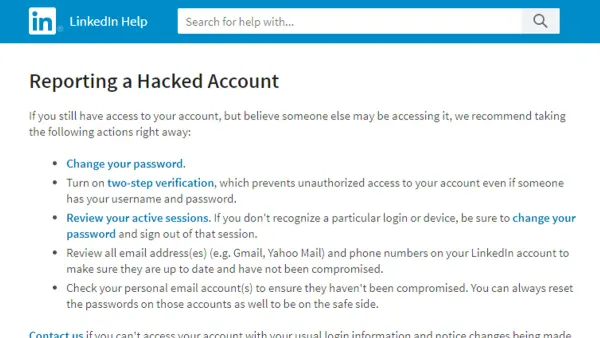
Hacked Facebook accounts pose a significant security risk and require immediate action to secure and delete the account safely. Facebook accounts can be targeted by hackers using phishing, malware, or compromised credentials, often resulting in unauthorized posts or data breaches.
- Go to Facebook's Hacked Account page. You should see a prompt to secure the account by changing the password and reviewing recent activity.
- Follow the guided steps to reset the password and log out of all devices. Once successful, the account dashboard will confirm that access is restored and suspicious sessions ended.
- Report the hacking incident to Facebook via the Help Center under "Report a Compromised Account". This notifies Facebook security teams to monitor the account and assist with recovery.
- If the hacker changed recovery information such as the email or phone number, use Facebook’s identity verification process by submitting a government-issued ID through the Help Center. Approval can take several days.
- After regaining control, navigate to Settings & Privacy > Settings > Your Facebook Information > Deactivation and Deletion, and select “Delete Account.” Confirm with your password and two-factor authentication if enabled. A confirmation screen will display the 30-day deletion period.
Tip: Promptly securing and reporting a hacked account improves the chances of full recovery and protects personal data before deletion.
How to delete a Facebook account permanently after death
Facebook offers two main options for handling the accounts of deceased users: memorialization and permanent deletion. Memorializing an account preserves it as a place for friends and family to gather and share memories, while permanent deletion removes the account entirely from Facebook's platform.
Only certain individuals can request the permanent deletion of a deceased person's Facebook account. Typically, this is a verified immediate family member or executor of the estate. The requester must provide official documentation such as a death certificate, proof of their relationship to the deceased, and a copy of their own government-issued ID.
To begin the deletion process, submit a request through Facebook’s dedicated Memorialization Request form or Deceased Person’s Account Removal form, accessible via Facebook's Help Center. Once submitted, Facebook reviews the documentation, which may take several days or longer depending on the case complexity.
Steps to request permanent deletion of a deceased user’s Facebook account:
- Go to Facebook’s “Special Request for Deceased Person’s Account” page and select the option to request account removal. A confirmation page indicating the start of the process should appear.
- Fill in the deceased user’s full name, Facebook profile URL, and the requester’s contact information accurately.
- Upload the required documents, including the death certificate and proof of relationship or executorship. Successful upload confirmation will be shown.
- Submit the request and wait for Facebook to review. An email confirmation of receipt will follow, with updates on the request status.
- After approval, Facebook permanently deletes the account, which is irreversible and removes all content and data associated with it.
Facebook does not provide a specific timeframe for completing deletion requests after death, as verification and review can vary. The process is irreversible, so families should be certain before proceeding. If an account is memorialized instead, it remains visible but locked from login and changes.
How to delete a Facebook business account permanently
Deleting a Facebook business account differs from deleting a personal account. The business account acts as an administrative umbrella for multiple assets such as Pages, ad accounts, and Instagram accounts. Simply deleting a Facebook Page does not delete the entire business account, and vice versa.
To delete a Facebook Page linked to the business account:
- Go to the Facebook Page you manage. The Page's settings panel should be visible.
- Click Settings in the bottom left of the Page.
- Choose General from the left menu.
- Scroll down to the Remove Page section and click Delete [Page Name]. A confirmation prompt appears.
- Confirm deletion by clicking Delete Page. The Page enters a 14-day deletion period before permanent removal.
Tip: Deleting a Page removes its content and followers, which cannot be recovered after the grace period.
To delete the entire Facebook Business Manager account, all assets within must be removed or transferred. This includes deleting or transferring Pages, ad accounts, and other business assets. Once no assets remain, the Business Manager account can be closed via Business Settings > Business Info > Permanently Delete Business. This option only appears when all assets are removed.
Deleting a business account impacts all advertising and marketing activities linked to it. Ad accounts will stop running campaigns, and any active billing will be halted. It is essential to download reports or data before deletion.
Facebook's Business Help Center advises careful review of all assets and permissions before proceeding, as deletion is irreversible and affects all collaborators.
How to delete a Facebook account permanently without waiting 30 days
Facebook enforces a 30-day grace period after a deletion request is made, during which the account remains recoverable. This policy is designed to prevent accidental deletions and to allow users to change their minds.
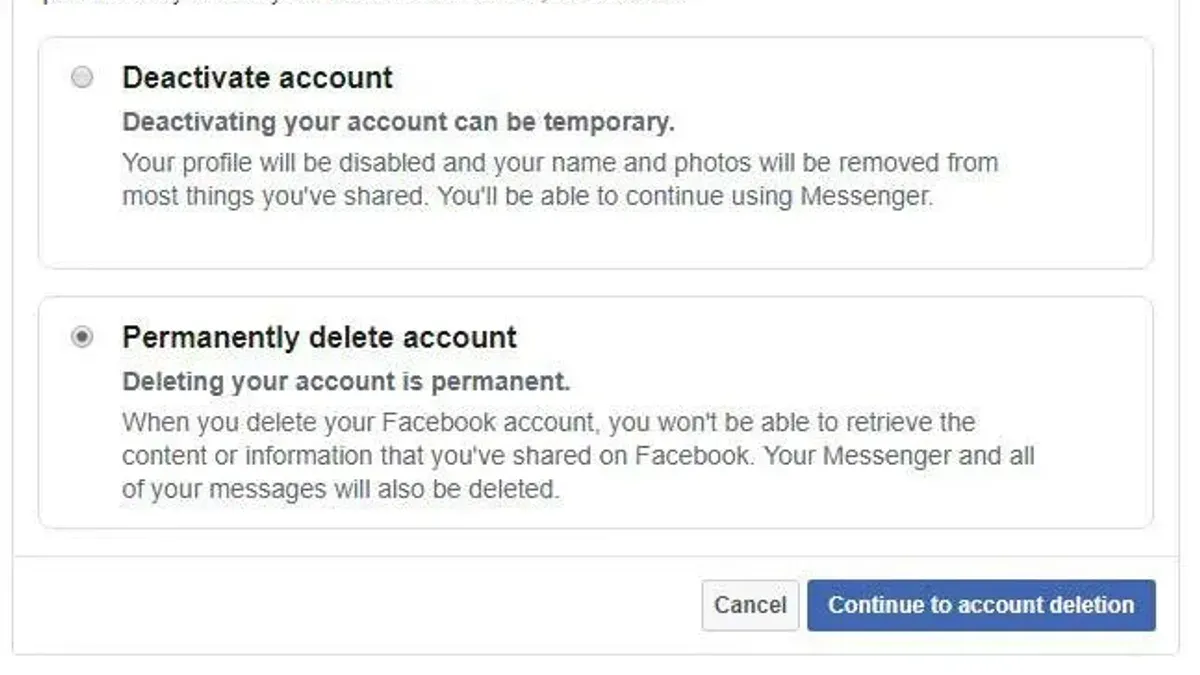
Attempting to bypass this waiting period is not supported by Facebook’s official processes and can pose risks such as incomplete data removal or security vulnerabilities. There is no legitimate method to skip or shorten the 30-day window.
If the account is accessed during this period, the deletion request is automatically canceled and the account remains active. This means logging in or using the account will stop the deletion.
Tip: Users seeking immediate account removal may consider manually deleting content and disconnecting linked apps before initiating deletion, but the full permanent deletion only completes after the 30-day period without account access.
Troubleshooting common issues when deleting a Facebook account permanently
Users often face difficulties during the deletion process, particularly with password resets, two-factor authentication (2FA), and account restrictions. Resolving these issues is crucial to complete account deletion.
Password reset and login failures
- Navigate to the Facebook login page and click "Forgot password?". This should open the account recovery options.
- Enter the email address or phone number linked to the account and follow the prompts to receive a reset code. Successful receipt indicates Facebook recognizes the contact method.
- Reset the password using the code, then attempt to log in again. If login succeeds, proceed to deletion steps.
If reset options are unavailable or unrecognized, recovery may not be possible, preventing deletion.
Problems with two-factor authentication
- Access the 2FA settings in Security and Login under Settings once logged in.
- Verify that the 2FA method (authentication app, SMS, or security key) is accessible and functioning.
- If the 2FA device is lost or inaccessible, use Facebook's recovery codes or contact support through the Help Center to regain access.
Without bypassing or recovering 2FA, account deletion cannot proceed.
Account locked or disabled
Accounts locked or disabled due to suspicious activity or policy violations cannot be deleted until restored. Users should submit appeals via Facebook’s "My Personal Facebook Account is Disabled" form and wait for review.
Contacting Facebook support effectively
Facebook’s direct support response times vary and are often slow. To improve chances of resolution:
- Use official Facebook Help Center forms specific to the issue.
- Provide clear, concise information including account details and proof of identity if requested.
- Follow up periodically but avoid multiple simultaneous requests that may delay handling.
Tip: Document all communication and confirmation messages during account recovery and deletion attempts for reference.
Further reading
- How to Delete a Discord Account Permanently: Step-by-Step Instructions
- How to Block Someone on Facebook: Step-by-Step Guide for Every Scenario
- Facebook Privacy Settings Explained: How to Control Your Account Security
- How to Stop Facebook from Tracking Your Activity and Browsing
Frequently asked questions
How to delete facebook account permanently without password?
Deleting a Facebook account without the password is only possible if the account holder has previously set up alternative recovery options like trusted contacts or a linked email address or phone number. Users can try the 'Forgot Password' feature to reset the password first. Without access to these recovery methods, it is not possible to delete the account directly.
How to delete facebook account permanently 2026?
To delete a Facebook account permanently, log in and navigate to Settings & Privacy > Settings > Your Facebook Information > Deactivation and Deletion. Select 'Delete Account' and follow the prompts. The account will be deactivated for 30 days before permanent deletion, during which the process can be canceled by logging back in.
How to delete facebook account permanently after death?
Facebook allows users to appoint a legacy contact to manage their account after death or request account deletion by submitting proof of death and relationship to Facebook. This is done through Facebook's Memorialization Request page, where the account can be memorialized or deleted permanently based on the request.
How to delete facebook account permanently without login?
Deleting a Facebook account without login credentials is generally not possible due to privacy and security policies. If the account is compromised or inaccessible, contacting Facebook support with identity verification may help regain access or initiate deletion, but deletion without login is restricted.
How to delete facebook account permanently pc?
On a PC, access Facebook, click the downward arrow on the top right, then select Settings & Privacy > Settings > Your Facebook Information. Choose 'Deactivation and Deletion,' select 'Delete Account,' and follow the instructions to confirm. The deletion process starts after a 30-day deactivation period.
Limits of this guide and when to seek further help
This guide does not cover recovering deleted accounts after the 30-day grace period, as Facebook does not allow reversals beyond that timeframe. Users without access to their login credentials may not be able to delete the account without completing Facebook’s identity verification, which can be difficult or impossible in some cases. Deleting a Facebook business account may have financial and legal implications not covered here; consulting a professional is advisable if needed.
The most practical next step is to review Facebook’s official Help Center for the latest changes and additional support options, ensuring all prerequisites are met before initiating permanent deletion.