How to Delete a Discord Account Permanently: Step-by-Step Instructions
This guide explains how to delete your Discord account permanently with step-by-step instructions and tips for a smooth process.

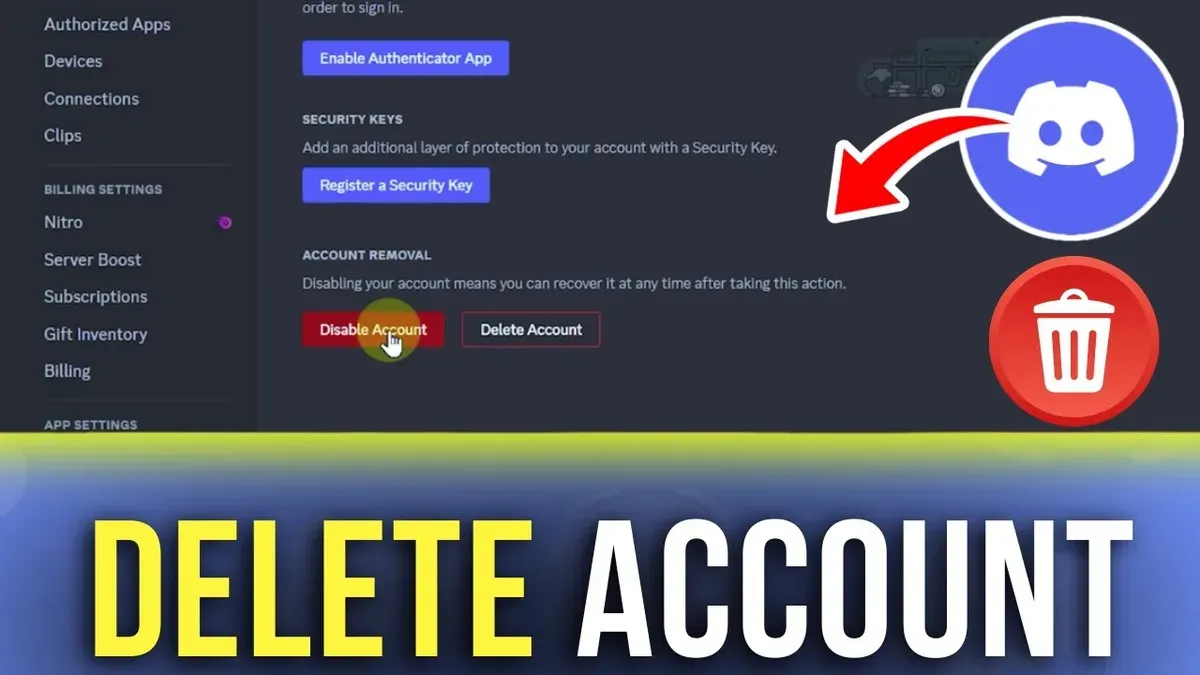
This article explains how to delete Discord account permanently, providing clear, step-by-step instructions tailored to different user needs.
Discord offers options to either disable or delete an account, with deletion being irreversible and removing all personal data after a grace period. Users may want to delete their account immediately, or may face challenges such as lack of password access. Understanding these scenarios ensures informed decisions and smoother account removal.
The guide covers essential preparations before deletion, ways to proceed without full account access, and troubleshooting common issues encountered during the process. It also clarifies the difference between disabling and deleting an account, helping users weigh their options carefully.
Before you start deleting a Discord account
Deleting a Discord account is a permanent action requiring careful preparation. Access to login credentials, including the email and password associated with the account, is necessary. If the password is forgotten, Discord’s account recovery options or alternative verification methods must be used before proceeding.
It is essential to understand the difference between disabling and deleting an account. Disabling suspends the account temporarily, allowing reactivation later, while deleting removes the account and all associated data irreversibly after a grace period.
Permanent deletion results in the loss of all messages, contacts, server memberships, and ownerships. Server ownerships must be transferred prior to deletion; otherwise, affected servers may become inaccessible or be deleted if there are no other admins. Discord documentation highlights that once deletion is finalized, recovery of data is impossible.
Backing up important messages, contacts, and data before deletion is advisable. Users often export chat histories or save key information externally to avoid irreversible data loss.
- Confirm access to the Discord account by logging in. Successful login shows the main Discord interface with servers listed on the left.
- Review any servers where the account holds ownership or administrative roles. These can be found under the server list; clicking each server name will show roles and settings.
- Transfer server ownership if necessary, via Server Settings > Members > select member > Transfer Ownership. Confirmation prompts will appear.
- Save or export any important conversations by copying messages or using third-party tools if allowed. Ensure critical contacts are noted externally.
- Decide whether to disable or delete the account based on the intended permanence of the action.
Tip: Verify all server ownership transfers before initiating deletion to avoid losing control over servers.
How to delete Discord account permanently
- Open the Discord app or navigate to the Discord website and log in to the account intended for deletion. Successful login is confirmed by access to the main Discord interface.
- Click on the gear icon labeled User Settings located at the bottom-left corner next to the username. This action opens the settings menu.
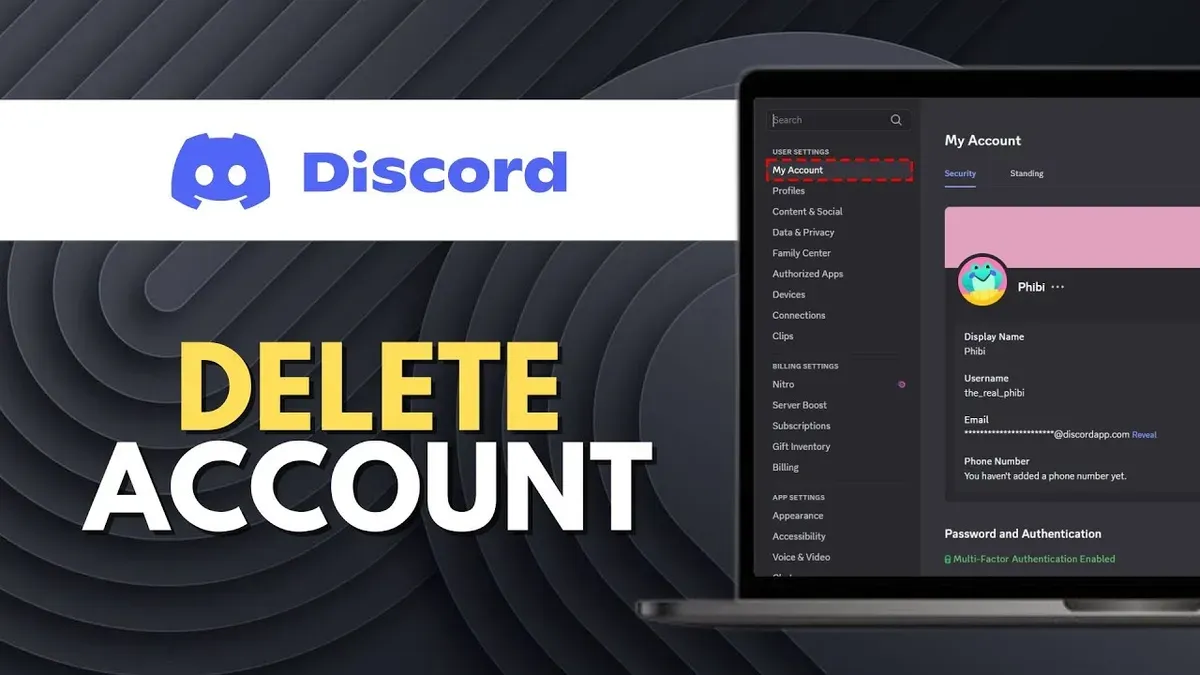
- In the User Settings menu, select the My Account tab from the sidebar. The account overview page will appear, displaying profile details, email, and password options.
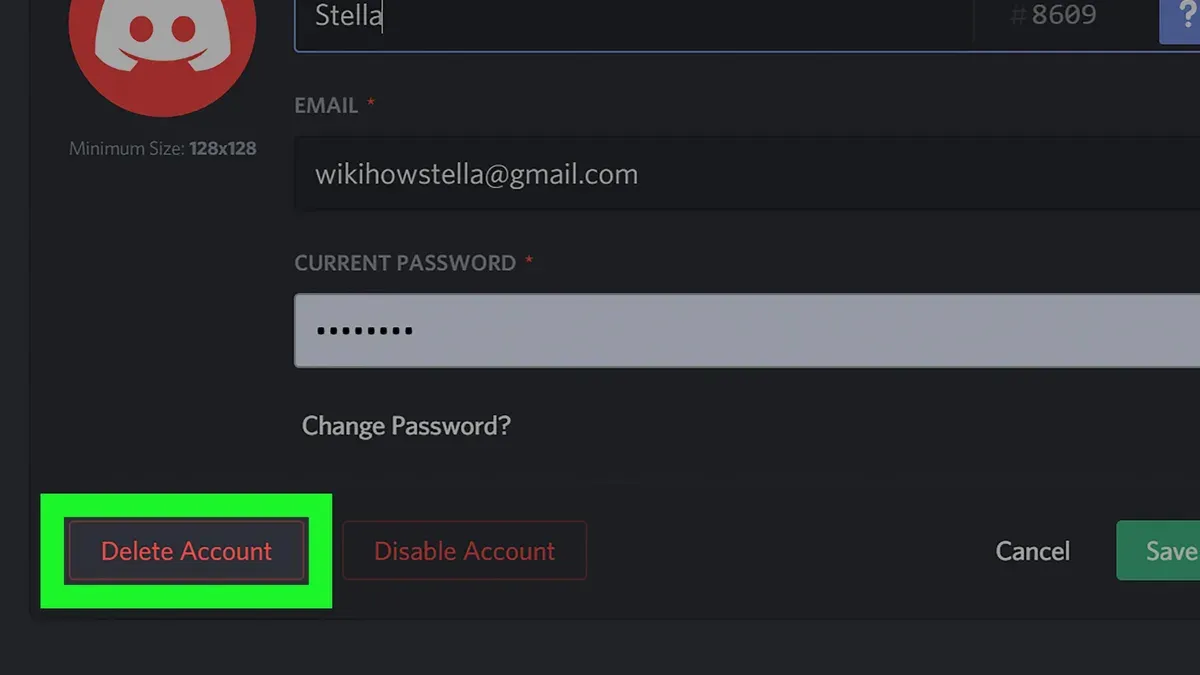
- Scroll down to find the Delete Account option highlighted in red beneath the Disable Account button. Clicking this will open the account deletion prompt.
- Enter the current account password when prompted. If Two-Factor Authentication (2FA) is enabled, enter the 2FA code from the authenticator app or SMS. This verification step is mandatory to confirm identity.
- Confirm the deletion by clicking the final Delete Account button. A confirmation message will appear, informing that the account is scheduled for permanent deletion.
Discord states that after initiating deletion, the account enters a grace period before permanent removal, during which the account can be recovered by logging in again. After this period, the account data is permanently erased.
Tip: Users should ensure all server ownerships are transferred and important data backed up before starting this process, as deletion is irreversible after the grace period.
How to delete Discord account permanently without password
Deleting a Discord account permanently without access to the password is challenging due to strict security policies designed to protect user accounts. Discord requires proper authentication, including password verification, before allowing account deletion to prevent unauthorized actions.
The primary method to regain access involves resetting the password via the email linked to the Discord account. This process initiates a password reset link that allows setting a new password, enabling login and subsequent deletion.
- Go to the Discord login page and click on Forgot your password? below the password field. When successful, an email with a password reset link will be received.
- Open the email and click the provided link. If the email is not in the inbox, check the spam or junk folder. Once clicked, a password reset page will appear.
- Enter a new password conforming to Discord's requirements and submit the form. A confirmation message states that the password has been changed.
- Return to Discord and log in using the new password. After successful login, follow the standard account deletion steps in User Settings.
If access to the registered email is lost, contacting Discord Support is the next step. Users can submit a request via the Discord Support page explaining the situation and providing proof of account ownership, such as previous billing information or linked phone numbers.
However, Discord’s official stance, as found in their support responses, emphasizes that account deletion without proper authentication is not possible for security reasons. This policy helps prevent malicious deletion requests.
Warning: Third-party services that claim to delete Discord accounts without passwords should be avoided. These services often violate Discord’s Terms of Service and may compromise personal data or attempt unauthorized access.
Tip: Maintaining access to the registered email and enabling two-factor authentication can prevent future access issues.
How to delete Discord account immediately
Initiating the deletion of a Discord account is the first step toward permanent removal, but users should understand that the process is not instantaneous. Discord enforces a grace period—typically 14 days—during which the account is disabled but not fully erased.
During this waiting period, the account becomes inactive and inaccessible, preventing any login or interaction. This disabled state acts as a safeguard, giving users time to reconsider their decision.
If the user changes their mind during the grace period, they can cancel the deletion by simply logging back into the account and confirming the cancellation prompt. This reinstates full account functionality as if deletion had never been initiated.
The grace period on Discord is similar to those on many popular platforms, such as Facebook and Instagram, which also offer a temporary window before permanent deletion. Discord’s official policy emphasizes this approach to protect users from accidental or impulsive deletions.
- Open Discord and go to User Settings by clicking the gear icon next to the username. You should see the settings menu load.
- Select My Account from the left sidebar, displaying account details.
- Scroll down and click Delete Account. A confirmation window will appear.
- Confirm the deletion by entering the account password and, if enabled, the two-factor authentication code. Upon success, the account status changes to disabled, signaling the start of the grace period.
Tip: To cancel deletion during the grace period, log back into the disabled account and follow the prompts to restore it.
Discord disable vs delete account
Disabling a Discord account is a temporary action that deactivates the account without removing user data. When disabled, the account cannot be accessed or used until reactivated by logging back in. This option is suitable for users seeking a break from Discord without losing their friends, servers, or messages.
Deleting a Discord account, in contrast, is permanent. It removes all user data after a grace period, including messages, friends, and server memberships. Once deleted, the account cannot be recovered, making this option appropriate for users who want to sever ties with Discord entirely.
Choosing between disabling and deleting depends on the user's intent. Disable when intending to return or pause usage; delete when committed to permanent removal. Discord’s official documentation clarifies that disabling is reversible, while deleting is final after a short window.
- To disable a Discord account, open User Settings by clicking the gear icon near the username.
- Navigate to "My Account" and scroll down to find the "Disable Account" button.
- Click "Disable Account," enter the account password for verification, and confirm the action.
- After disabling, the account will appear inactive, and login attempts will require reactivation.
- To delete an account, also go to "User Settings" > "My Account."
- Click "Delete Account," enter the password and two-factor authentication code if enabled, then confirm deletion.
- Deletion initiates a grace period (typically 14 days) during which the user can cancel by logging in.
Tip: When part of servers with ownership roles, transfer ownership before deletion to avoid disruptions.
Troubleshooting common issues when deleting a Discord account
Users frequently encounter obstacles when attempting to delete their Discord accounts. The most common problems involve password or two-factor authentication (2FA) verification failures, unresolved server ownership, and confusion about account status due to caching or grace periods.
Password and 2FA verification issues
When the deletion process halts at password or 2FA input, ensure the credentials are current and entered correctly. Re-enter the password carefully, paying attention to case sensitivity and special characters. For 2FA, verify the authentication app’s time synchronization or use backup codes if available. If verification repeatedly fails, reset the password through the official Discord password reset feature before retrying deletion.
Server ownership requirements
Discord prevents account deletion if the user owns any servers without transferring ownership. Check all servers under "Server Settings" > "Members" to confirm ownership status. Transfer ownership to another member or delete the server to proceed. Failure to resolve this leads to an error message indicating server ownership blocks deletion.
Account appears undeleted due to caching or grace period
After initiating deletion, the account may still appear active due to local caching or the standard 14-day grace period allowing cancellation. Clear browser or app cache and log out to verify the account’s actual status. Patience is required during the grace period, as full deletion occurs only after it expires.
Contacting Discord Support
If issues persist despite following these steps, contact Discord Support through their official help center. Provide detailed information including error messages and steps already attempted. Support can assist with problems like stuck deletion requests or account access complications.
- Confirm the password and 2FA codes are accurate and current; successful verification allows proceeding to the next step.
- Review all owned servers and transfer or delete them; resolving ownership issues eliminates related error messages.
- Clear app or browser cache and log out; observing account inactivity confirms deletion progress.
- If stuck, submit a support ticket with detailed information; receiving a response confirms the request is in process.
What happens after deleting a Discord account permanently
Once a Discord account is permanently deleted, the associated user data enters a removal process governed by Discord's data retention policies. Typically, user information is erased from active servers and databases after a grace period, although some residual metadata may persist temporarily for security and operational reasons.
Messages sent by the deleted account generally remain visible in servers unless manually removed by moderators or server owners. However, the username and profile details will no longer link to an active account, appearing as "Deleted User" or similar placeholders.
For servers where the deleted user was the owner, if ownership was not transferred prior to deletion, Discord may automatically assign ownership to another member or disable certain server functions to prevent management issues. Members remain part of servers unless explicitly removed or the server is deleted.
After deletion, the original username and the email address used for the account become available for reuse. Users who wish to reclaim these identifiers must create new accounts, as Discord does not reserve them post-deletion.
From a security and privacy standpoint, permanent deletion helps ensure that personal data is no longer accessible through the account. Nonetheless, some information like message content or logs may remain on Discord’s servers for a limited time to comply with legal obligations or for abuse prevention.
Tip: To minimize traces of a deleted account, consider manually deleting messages or content prior to account deletion and transferring server ownership to avoid disruptions.
Further reading
- Complete Guide to Discord Privacy Settings and Controls
- How to Delete Siri History Across All Apple Devices
- How to Delete Google Assistant Recordings and Manage Privacy Settings
Frequently asked questions
How to permanently delete discord account immediately?
To delete a Discord account immediately, users must first transfer ownership of any servers they manage. Then, within User Settings, navigate to "My Account" and select "Delete Account." The process includes a 14-day grace period during which the account can be recovered, so immediate irreversible deletion does not occur.
How to delete my discord account permanently?
Permanent deletion involves going to User Settings > My Account and selecting "Delete Account." If the account owns servers, ownership must be transferred before deletion is allowed. After confirming deletion, the account enters a deactivation period before permanent removal.
How delete a discord account?
Deleting a Discord account requires accessing User Settings, then "My Account," and choosing "Delete Account." The user will need to enter their password and, if two-factor authentication is enabled, the authentication code. Without these credentials, deletion cannot proceed through standard methods.
Can you permanently delete discord account?
Yes, Discord accounts can be permanently deleted by following the deletion process in User Settings. However, the account will remain in a disabled state for a 14-day period, during which recovery is possible. After this period, the account is permanently removed.
Can you delete a discord account?
Yes, Discord allows users to delete their accounts through the User Settings menu. The option is clearly labeled and requires entering account credentials. If the account owns any servers, ownership must be transferred before deletion is permitted.
What this guide does not cover
This guide does not cover recovery of deleted Discord accounts or methods to bypass Discord’s security protocols. Users seeking to regain access to a deleted account or circumvent password requirements for unauthorized deletion should refrain from following these instructions. Proceed only if fully committed to permanently removing the Discord account.
The next practical step is to carefully review all personal data, server ownerships, and linked services before initiating deletion. This ensures no unintended loss of access or content, especially if the account is tied to active communities or subscriptions.