How to Change Your YouTube Password on Any Device: Step-by-Step Guide
This guide explains how to securely change your YouTube password across devices by updating your Google account credentials.

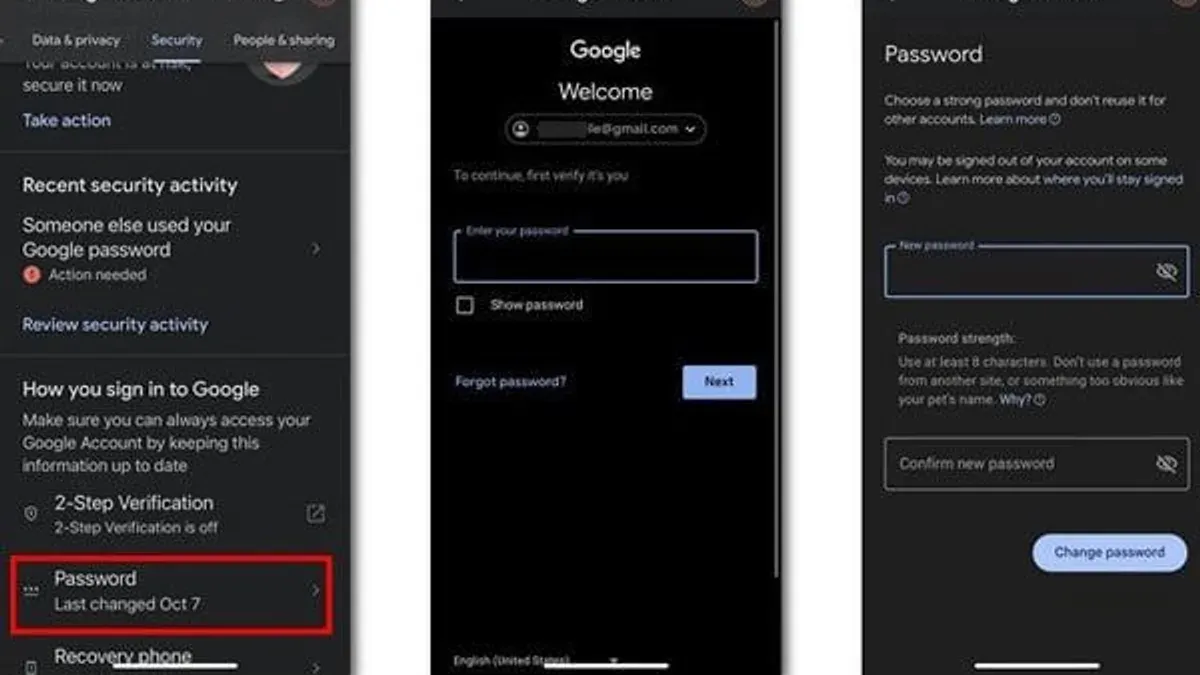
This article explains how to change YouTube password securely and efficiently across different devices by managing the Google account password that controls YouTube access.
Unlike many platforms, YouTube does not have a separate password; it relies on the Google account credentials. Understanding this indirect connection is essential for users seeking to update their password without disrupting access to other Google services like Gmail or Google Drive.
Instructions cover computers, smartphones, and smart TVs, highlighting device-specific steps and common pitfalls. Clarifying these nuances helps avoid confusion and ensures password changes are applied correctly.
Tip: Changing the Google account password affects all connected Google services, not just YouTube, so plan updates carefully to maintain uninterrupted access.
Before you start: What is needed to change a YouTube password
Changing a YouTube password is not a standalone process because YouTube uses the Google account password for authentication. Therefore, updating the YouTube password requires changing the password of the associated Google account.
To proceed, one must have access to the current Google account credentials, including the existing password and any two-factor authentication methods active on the account. Without these, it will not be possible to verify identity and complete the password update.
Ensuring the device used to perform the change is connected to the internet is essential since this process involves accessing Google account security settings online. The device can be a computer, smartphone, or tablet, but knowing which device will be used helps prepare for device-specific steps.
Google account security policies are designed to protect user data across all Google services, including YouTube. This means that changing the Google account password affects access to all connected services, emphasizing the importance of secure credential management.
- Open a web browser on the chosen device and navigate to the Google Account sign-in page. Successful access is indicated by the appearance of the login prompt or account dashboard if already signed in.
- Sign in using the current Google account email and password. Upon successful sign-in, the Google account homepage or security settings page should be visible.
- Locate and select the "Security" tab in the navigation menu. This will display security-related account options.
- Click on "Password" under the "Signing in to Google" section. The system will prompt for current password verification to confirm identity.
- Enter the current password again when requested. If correct, the interface will allow entry of a new password.
- Input the new password following Google's requirements (at least 8 characters, a mix of letters, numbers, and symbols) and confirm it. A confirmation message will appear indicating the password has been changed.
How to change YouTube password on computer or laptop
- Open a web browser such as Chrome, Firefox, or Edge and go to Google Account Security settings. The page should display various security options linked to the Google account.
- Sign in with the current Google credentials if not already signed in. Successful sign-in directs to the account overview or security page.
- Scroll to the section labeled Password and click on it. This action opens the password change interface.
- Verify identity by completing the required authentication step, which may include entering the current password again or responding to a two-factor authentication prompt. Verification confirms the user is authorized to make the change.
- Enter the new password following Google’s password requirements—typically at least 8 characters with a mix of letters, numbers, and symbols—and then confirm it by retyping. The interface will indicate if the new password meets the criteria.
- Click Change Password to save the update. A confirmation message or screen appears, indicating the password was successfully changed.
Tip: Use a strong, unique password and consider a password manager to securely store it.
Below the password section, users can review recent security events to ensure no unauthorized access occurred during the change.
Note that changing the password here updates the Google account password used across all Google services, including YouTube.
How to change YouTube password on phone or app
Changing the YouTube password on a mobile device requires updating the Google account password, as YouTube uses Google credentials for sign-in. The process varies slightly between Android and iPhone due to differences in app interfaces and device settings.
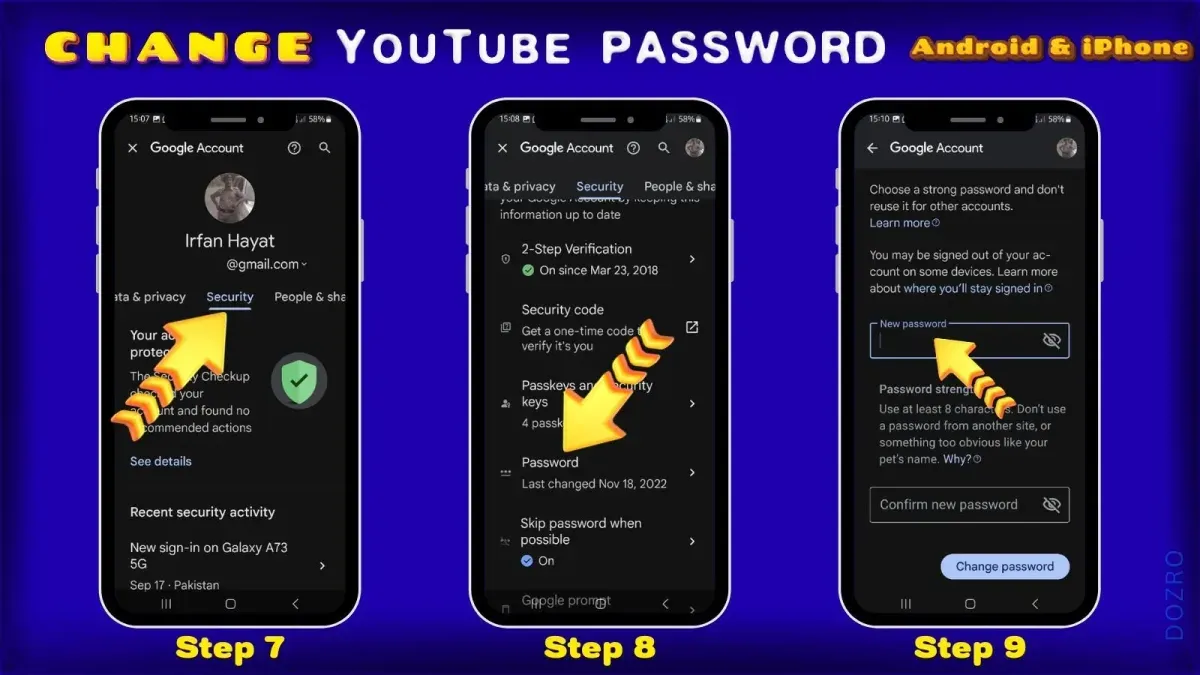
- Open the Google app on Android or iPhone. On Android, the Google app is typically pre-installed; on iPhone, it can be downloaded from the App Store. After launching, tap the profile icon in the top right corner to access account options.
- Select Manage your Google Account. This opens the Google Account settings screen where various account controls are available.
- Navigate to the Security tab. On Android, this appears as a horizontal menu near the top; on iPhone, it may be accessed via a vertical menu or by scrolling down.
- Tap Password under the "Signing in to Google" section. This will prompt a verification step to confirm identity.
- Complete the verification by entering the current password or using biometric verification such as fingerprint or Face ID, depending on device capabilities.
- Enter the new password, following Google’s password requirements, and confirm it by typing it again.
- Save the changes. A confirmation message will indicate the password update was successful.
Changing the password through this method updates the Google account password across all linked services, including YouTube, Gmail, and Google Drive. This unified password management enhances security but requires remembering that the change affects all Google apps on the device.
Tip: If the Google app is not available, the password can also be changed through the device’s Settings app by accessing Google account settings under Accounts or Passwords & Accounts, though menu labels vary.
How to change YouTube password on smart TVs (Samsung, LG, and other brands)
Smart TVs do not provide an option to change the Google account password directly within their YouTube app or system settings. Password updates must be managed on another device, such as a computer or smartphone, through Google account settings.
Once the Google account password is changed externally, it is necessary to sign out of the YouTube app on the smart TV and then sign back in using the updated credentials. This ensures continued access to YouTube and its related services on the TV.
- Open the YouTube app on the smart TV. On Samsung and LG TVs, this is usually found in the apps section of the home menu.
- Navigate to the left sidebar menu, scroll down to Settings, and select it.
- In Settings, find and select Sign out or Remove account. This will disconnect the current Google account from the YouTube app.
- After signing out, return to the YouTube app's main screen and select Sign in.
- Use the on-screen keyboard or the TV remote to enter the Google account email and the new password set on another device.
- Confirm the sign-in process; the YouTube app should now load the account with updated access.
Device-specific tips: Samsung smart TVs often allow signing out by pressing the Back button while in the YouTube app and selecting Sign out from the prompt. LG TVs may require accessing Account Settings from the app menu to remove the account.
For users with a YouTube TV subscription accessed via smart TVs, the password change process follows the same steps. After updating the password externally, signing out and back into the YouTube TV app on the smart TV is necessary to maintain uninterrupted service.
Tip: If the YouTube app does not prompt for sign-in after password change, uninstalling and reinstalling the app can force the login screen to appear.
How to manage YouTube password changes without affecting other Google services
YouTube does not have a separate password from the Google account it is linked to. Changing the YouTube password means updating the Google account password, which affects access to all Google services including Gmail and Google Drive. Google’s official support confirms that password management is centralized through the Google account settings.
This design prevents the possibility of changing the YouTube password independently. Users seeking to secure their YouTube account without altering the Google password can enable additional security features instead.
Two-factor authentication (2FA) is one such option. By activating 2FA via the Google Account Security settings, an extra verification step is required when signing into YouTube and other Google services, enhancing protection without password changes.
To manage YouTube-specific settings without changing the Google password, users can adjust their YouTube privacy controls, connected apps, and activity controls within the YouTube app or website. These do not impact the overall Google account password or security.
- Go to myaccount.google.com/security and sign in if prompted. This confirms access to Google’s security settings.
- Find the 2-Step Verification section and click Get Started. The page should guide through the setup of additional verification methods.
- Choose a preferred verification method such as text message codes, authenticator apps, or security keys and complete the enrollment process. You should see confirmation that 2FA is active.
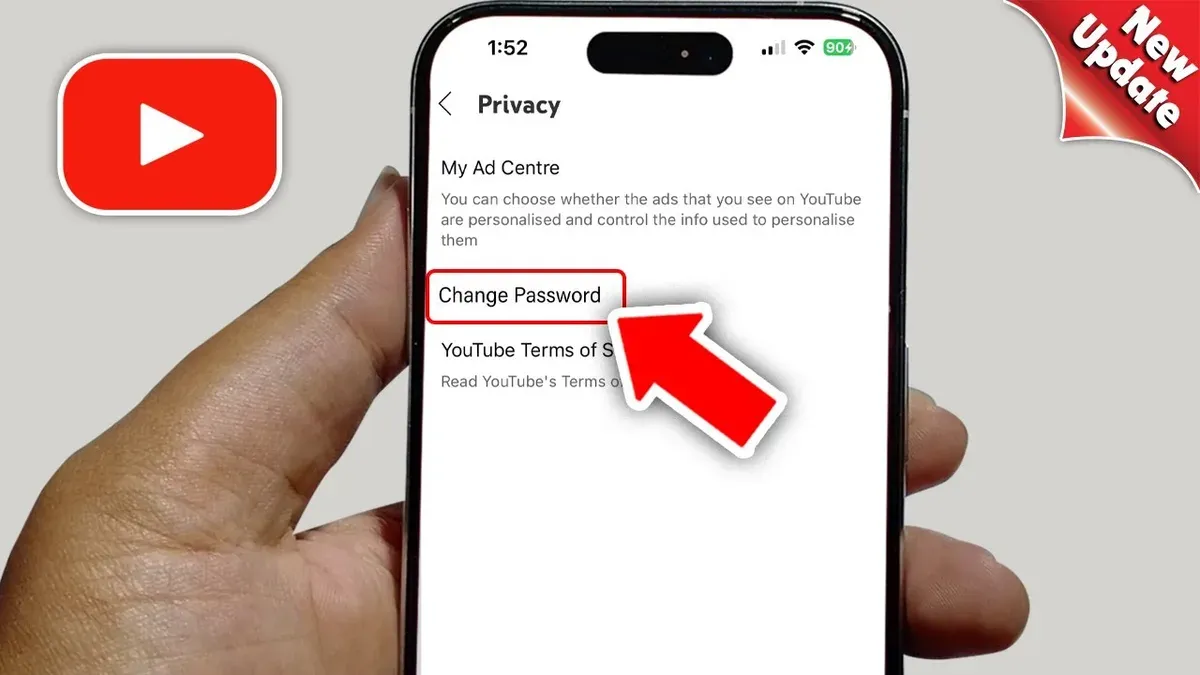
- Visit youtube.com/account_privacy or open YouTube app settings to review and adjust privacy and connected app permissions. Changes here affect YouTube use specifically without altering Google account credentials.
Tip: Regularly review connected devices and app permissions in both Google Account and YouTube to maintain security without needing frequent password changes.
Troubleshooting common issues when changing YouTube password
Changing a Google account password, which controls YouTube access, can sometimes face hurdles across devices. Addressing these issues systematically helps maintain account security and uninterrupted access.
Verification and two-factor authentication failures
Verification steps may fail due to outdated recovery information or temporary system errors. If two-factor authentication (2FA) codes are not received, ensure the connected phone or authenticator app is synchronized and has network access.
- Check recovery phone number and email in Google Account settings; update if outdated. Success is indicated by receiving verification codes promptly.
- Resynchronize the authenticator app by adjusting device time settings to automatic. A working 2FA code confirms resolution.
- Use backup codes if available when standard 2FA fails. Entering a backup code should allow password update.
Issues signing out and back in on smart TVs
After updating a password, smart TV apps may retain old credentials, causing sign-in errors.
- Sign out of the YouTube app on the TV via Settings > Account > Sign out. Confirmation appears when account name disappears.
- Restart the TV to clear cached login data. The YouTube app should prompt for sign-in on next launch.
- Sign in again with the updated Google account credentials. Successful login enables access to YouTube content.
Delayed or missing password reset emails
Emails for password reset can be delayed or filtered into spam.
- Check spam, promotions, and other email folders for Google password reset messages. Finding the email confirms delivery.
- Ensure the recovery email address is correct in Google Account recovery options.
- Resend the password reset email if not received within 10 minutes. Receiving the new email indicates success.
Forgotten current password and account lockouts
Forgotten passwords or account lockouts require account recovery procedures.
- Use Google's account recovery page and follow prompts to verify identity via recovery email, phone, or security questions. Successful verification allows password reset.
- If the account is locked due to suspicious activity, follow Google's instructions to confirm ownership, which may include answering security questions or entering recent passwords.
- Contact Google Support if automated recovery fails, providing necessary identification details as requested.
Tip: Regularly update recovery information and keep backup codes accessible to minimize issues during password changes.
Security tips after changing YouTube password
Changing the Google account password, which governs YouTube access, is a crucial first step but does not guarantee full account security. Several follow-up actions help maintain and enhance protection.
- Enable two-factor authentication (2FA): This adds a verification step beyond the password, such as a code sent to a phone or generated by an authenticator app. When set up correctly, users should see a confirmation message indicating 2FA is active in the Security section of their Google Account settings. Two-factor authentication has been shown to prevent common credential theft attacks, blocking unauthorized access even if a password is compromised.
- Review connected devices: Navigate to Security > Your devices in the Google Account dashboard to see all devices currently signed in. Removing any unfamiliar or unused devices will force those sessions to sign out. A successful removal will update the device list and show a confirmation that the device was signed out.
- Update password storage: If using a password manager, update the stored Google account password promptly to avoid login errors on any device. After updating, the password manager should autofill the new password smoothly when signing in to Google services.
- Regularly check account activity: In the Security > Recent security events section, users can review sign-ins and changes. Suspicious sign-in attempts or unknown location entries should be investigated immediately, with appropriate actions like password reset or device removal.
- Understand password change scope: Changing the Google account password secures access across all Google services including YouTube, Gmail, and Google Drive. However, it does not affect third-party apps connected via OAuth unless their permissions are manually revoked. Users should periodically review app permissions under Security > Third-party apps with account access.
Tip: Setting up 2FA and routinely monitoring device access significantly reduce the risk of unauthorized account breaches.
Further reading
- How to Change Your TikTok Password on Any Device: A Complete Guide
- How to Change Instagram Password: Step-by-Step Guide for All Devices
- How to Change Your Snapchat Password: Complete Steps and Troubleshooting
- How to Change WeChat Password: Complete Step-by-Step Instructions
Frequently asked questions
How to change YouTube password on iPhone?
Changing the YouTube password on an iPhone involves updating the Google account password since YouTube uses Google credentials. Open the Settings app, scroll to and tap "Passwords & Accounts" or "Mail, Contacts, Calendars" depending on iOS version, then visit accounts.google.com in a browser or the Google app to change the password. After updating, sign out and back into the YouTube app to refresh credentials.
How to change YouTube password on Samsung TV?
YouTube on Samsung TVs uses the Google account password, so the change must be made via a browser on another device. Once the Google password is updated, sign out of the YouTube app on the Samsung TV and sign back in with the new password. Samsung TV settings do not provide a direct option to change passwords.
How to change YouTube password on LG TV?
LG TVs do not offer a direct method to change a YouTube password. Instead, update the Google account password on a computer or mobile device. Then, on the LG TV YouTube app, sign out and sign back in to ensure the new password is used.
Can I change my YouTube password but not my Google account password?
No, YouTube passwords are managed through Google account credentials. Changing the YouTube password requires changing the Google account password, as they are the same. It is not possible to alter the YouTube password independently.
Limits of this advice
This advice does not cover recovering accounts without access to the current Google credentials or handling hacked accounts beyond password changes. Users who cannot sign in to their Google account or suspect their account has been compromised should use Google's account recovery process or contact Google's support channels directly.
For issues related to two-factor authentication setup, account verification, or managing multiple Google accounts, specialized guides or official Google resources may provide more comprehensive assistance.
The single most useful next step after changing the Google account password is to review and update recovery options under the Google Account Security settings. Ensuring that a current phone number and recovery email are set up helps maintain access and secures the account against potential lockouts.