How to Set Up Private DNS on Android for Better Privacy
This guide shows how to set up Private DNS on Android to improve online privacy by encrypting DNS queries and preventing tracking.

Enabling Private DNS on Android enhances your online privacy by encrypting DNS queries and preventing eavesdropping. This guide explains how to set it up effectively, focusing on selecting the right provider based on privacy policies and real-world considerations.
What is Private DNS on Android and Why Use It?
Private DNS, also known as DNS over TLS (DoT), encrypts the DNS requests your device sends, unlike traditional DNS that transmits data in plain text. This encryption prevents third parties from intercepting or modifying your DNS queries.
Using Private DNS improves security by blocking DNS spoofing attacks and helps protect user privacy by preventing ISPs and network operators from tracking your browsing through DNS lookups. Some providers also block trackers and malicious sites at the DNS level.
Android introduced native Private DNS support starting with Android 9 (Pie). Newer versions, including Android 12 and 13, have refined the integration, allowing configuration directly through system settings without additional apps.
This feature is particularly useful for users connecting to public Wi-Fi or those wanting to avoid ISP tracking of DNS traffic. Because DNS queries are often unencrypted on most networks, enabling Private DNS reduces exposure to privacy breaches and potential attacks.
Choosing a Private DNS Provider: Privacy Policies and Performance Compared
Not all Private DNS providers offer the same level of privacy or performance. When selecting one, carefully review their privacy policies, data retention practices, and compatibility with Android’s Private DNS feature.
Popular Android-compatible Private DNS providers include Cloudflare, Google Public DNS, Quad9, and NextDNS.
- Cloudflare (1dot1dot1dot1.cloudflare-dns.com): Offers minimal logging and DNS-based malware blocking options.
- Google (dns.google): Provides fast DNS but retains some usage data for performance and security.
- Quad9 (dns.quad9.net): Focuses on security by blocking malicious domains and commits to not storing personal data.
- NextDNS (dns.nextdns.io): Highly customizable with tracker blocking and detailed privacy controls; requires account setup.
Check each provider’s official documentation to confirm support for DNS over TLS and Android compatibility before configuring.
Step-by-Step Guide to Setting Up Private DNS on Android 2026
These instructions apply to Android 12 and 13. Manufacturer skins like Samsung’s One UI may use slightly different menu names.
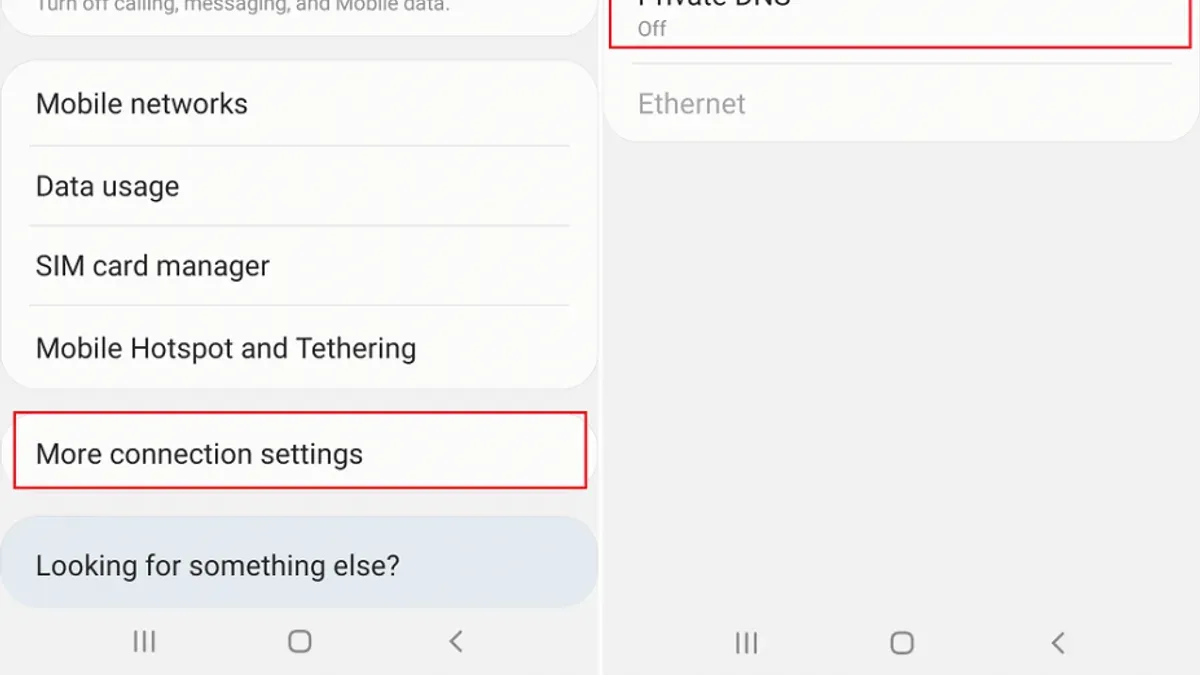
- Open Settings on your Android device.
- Go to Network & Internet (or Connections on some devices).
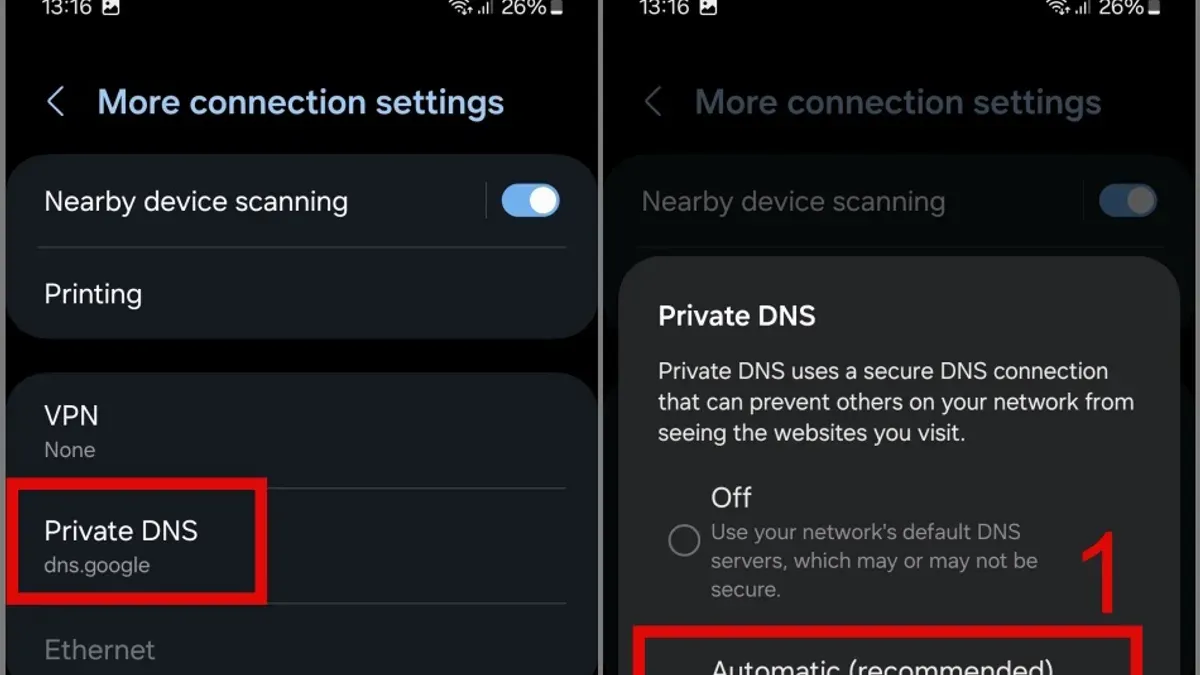
- Tap Private DNS. It may be under Advanced or More connection settings.
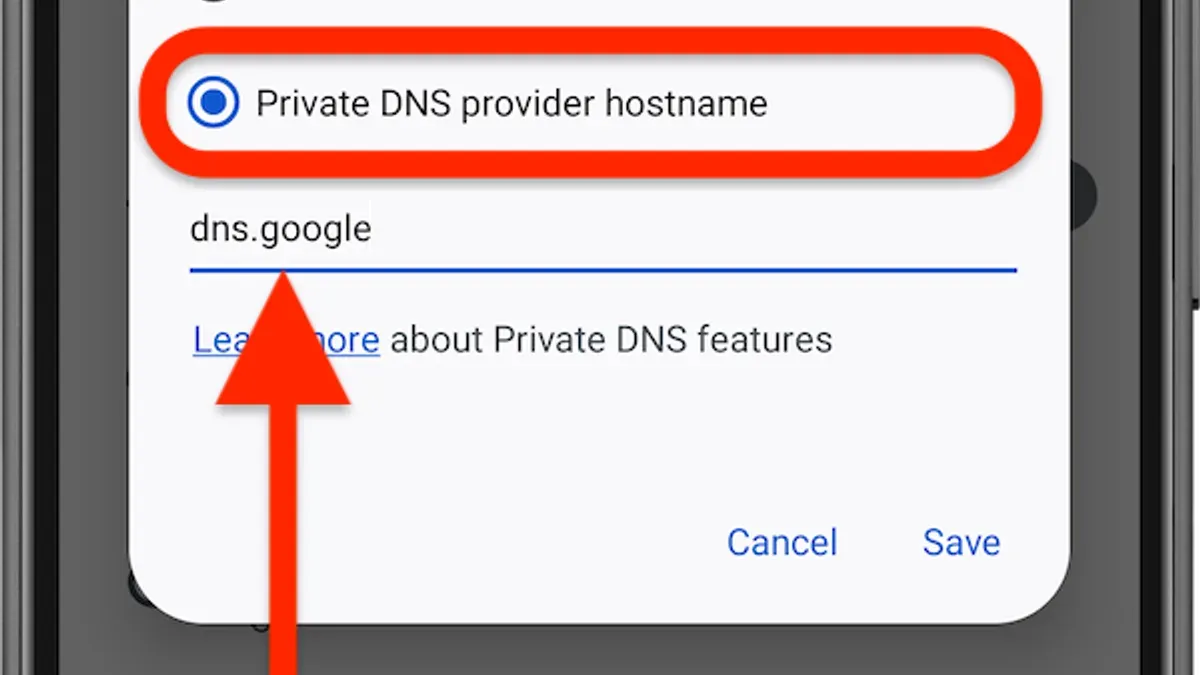
- Select Private DNS provider hostname.
- Enter the hostname for your provider:
- Cloudflare:
1dot1dot1dot1.cloudflare-dns.com - Google:
dns.google - Quad9:
dns.quad9.net - NextDNS: Your personalized hostname, e.g.,
xyz123.dns.nextdns.io
- Cloudflare:
- Tap Save or OK.
- Wait a moment for the connection to establish. A confirmation such as "Private DNS provider hostname set" should appear.
Important: A common step people miss is ensuring the hostname is typed exactly as specified by the provider; even small typos cause errors.
Verifying Setup: Return to the Private DNS settings. If the status reads "Private DNS active," your device is using encrypted DNS queries.
Troubleshooting:
- If you see an "Invalid hostname" error, double-check the hostname for typos.
- Restart your device if the connection does not establish immediately.
- Some networks block DNS over TLS; if so, Private DNS may not work properly.
Testing and Verifying Your Private DNS Setup
After setup, confirm your DNS queries are encrypted and no leaks occur.
- Use apps like DNS Checker or Network Info II from the Play Store to verify DNS encryption status.
- Visit DNS leak test websites (e.g., dnsleaktest.com) and run their standard and extended tests.
- Interpret results: If DNS queries resolve through your chosen Private DNS provider and no other servers appear, your setup is working.
- If your provider offers logs or dashboards (e.g., NextDNS), check query activity to ensure only expected requests are recorded and no personal data is logged.
- Regularly monitor DNS performance and privacy using these tools to maintain a secure setup.
When Private DNS Might Not Be Enough: Understanding Its Limits
Private DNS encrypts only DNS queries, not all internet traffic. It does not hide your IP address or encrypt content, so it does not replace VPNs or other privacy tools.
Some networks, especially enterprise-managed Wi-Fi, may block DNS over TLS or enforce specific DNS settings, making manual Private DNS configuration ineffective.
Enterprise users or those on managed devices should consult IT administrators before changing DNS settings, as it may conflict with network policies.
| Protection Scope | Private DNS | VPN | Full Device Encryption |
|---|---|---|---|
| Encrypts DNS Queries | Yes | Yes | No |
| Encrypts All Network Traffic | No | Yes | No |
| Hides IP Address | No | Yes | No |
| Protects Data at Rest | No | No | Yes |
Frequently asked questions
Can I use any DNS provider as Private DNS on Android?
Only providers that support DNS over TLS with a valid hostname compatible with Android’s Private DNS feature can be used. Always check the provider’s official documentation before entering their hostname.
Does enabling Private DNS slow down my internet connection?
The impact on speed is usually minimal. Some providers may have slightly higher latency due to encryption overhead, but most maintain fast and reliable servers to minimize delay.
How do I know if my DNS queries are really encrypted?
Use DNS leak test websites and diagnostic apps to verify that DNS queries go through your chosen provider and that no unencrypted queries leak through your ISP or other servers.
What should I do if Private DNS stops working after a system update?
Check that your Private DNS hostname is still correctly entered in settings. Restart your device. If issues persist, verify if network restrictions are in place or try switching to a different provider.
Important Caveats
- This guide applies to Android 9 and later; earlier Android versions lack native Private DNS support.
- Private DNS improves DNS query privacy but does not anonymize your IP address or encrypt all traffic.
- Some networks may restrict or block Private DNS, limiting its effectiveness in those environments.