How to Find Your BitLocker Recovery Key
Discover simple steps to locate your BitLocker recovery key and regain access to your locked encrypted drive efficiently.

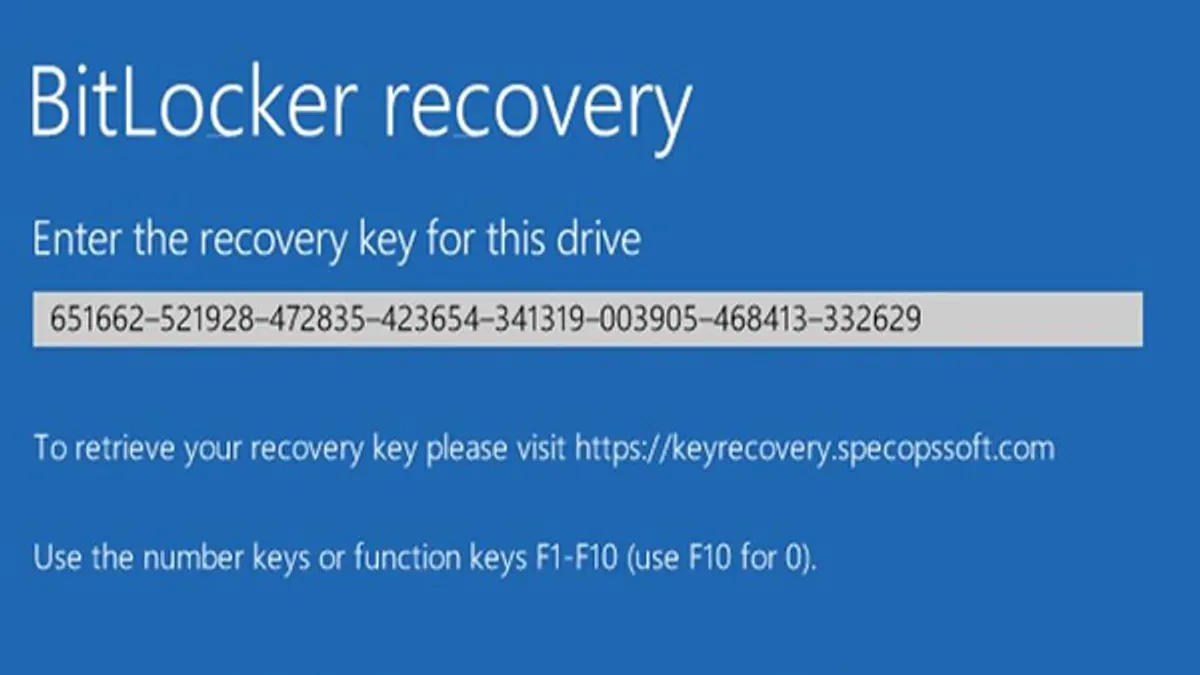
If your BitLocker-encrypted drive is locked and inaccessible, locating your BitLocker recovery key is crucial to regain access. This guide details precise steps to find your recovery key across common storage options, verify its authenticity, and outlines actions if the key is unavailable.
Understanding the BitLocker Recovery Key and Why You Need It
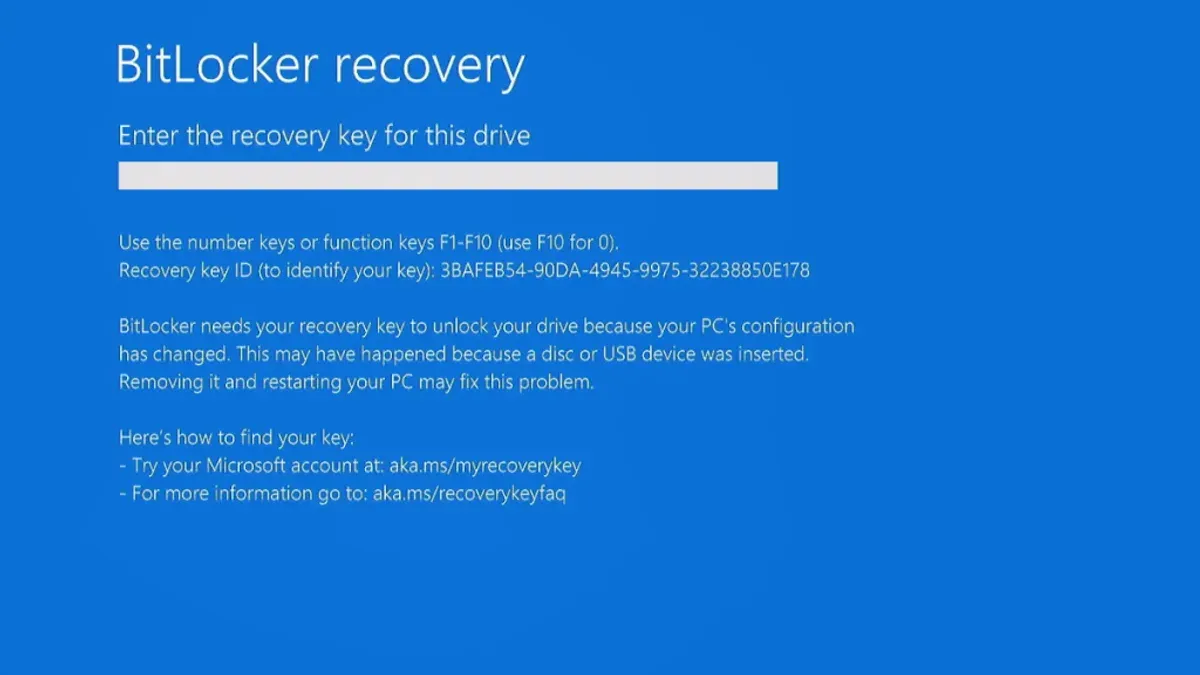
The BitLocker recovery key is a 48-digit numerical password used as a backup unlocking method for your encrypted drive. BitLocker requests this key when it detects significant changes in your system’s hardware or firmware—such as a motherboard replacement, BIOS update, or TPM reset—that might indicate unauthorized access.
Without the recovery key, access to the encrypted data is blocked. For instance, after replacing a hard drive controller, Windows may prompt for the recovery key to verify your identity before unlocking the drive.
Common Places to Find Your BitLocker Recovery Key
Depending on your backup habits or organizational policies, your recovery key may be stored in several locations. Here are the most frequent ones and how to locate the key in each:
Microsoft Account Online
- Visit https://account.microsoft.com/devices/recoverykey and sign in using the Microsoft account linked to your PC.
- Locate the section labeled “BitLocker recovery keys.”
- Match the key by verifying the device name and key ID displayed on your BitLocker prompt.
USB Flash Drives and External Storage Devices
Check any USB drives or external storage you may have used to save the recovery key file, typically a.txt file containing the 48-digit key. A common oversight is neglecting to check all connected drives or mislabeled files.
Printouts or Written Notes
Search for any printed documents or handwritten notes where you might have recorded the recovery key, especially if you followed BitLocker’s early setup prompts recommending physical backups.
Azure Active Directory or Organizational Account Portals
Enterprise users often have recovery keys stored in Azure AD or Intune portals. Access requires appropriate organizational permissions; contact your IT department or check your corporate device management portal.
Local PC or Network Drives (Less Common)
Some users save recovery keys on local or network drives. This is uncommon and can be overlooked, especially if backups are not regularly audited.
| Storage Location | How to Access | Pros | Cons |
|---|---|---|---|
| Microsoft Account Online | Account portal login | Easy access; linked to device | Requires account credentials |
| USB Flash Drive | Plug in and open.txt file | Offline and portable | Can be lost or damaged |
| Printouts / Notes | Physical location search | Always available if kept secure | Prone to physical loss |
| Azure AD / Org Account | IT department or portal | Centralized management | Requires organizational access |
| Local / Network Drives | File search on drives | Convenient if backed up | Less common; easy to overlook |
How to Verify Your BitLocker Recovery Key to Avoid Scams
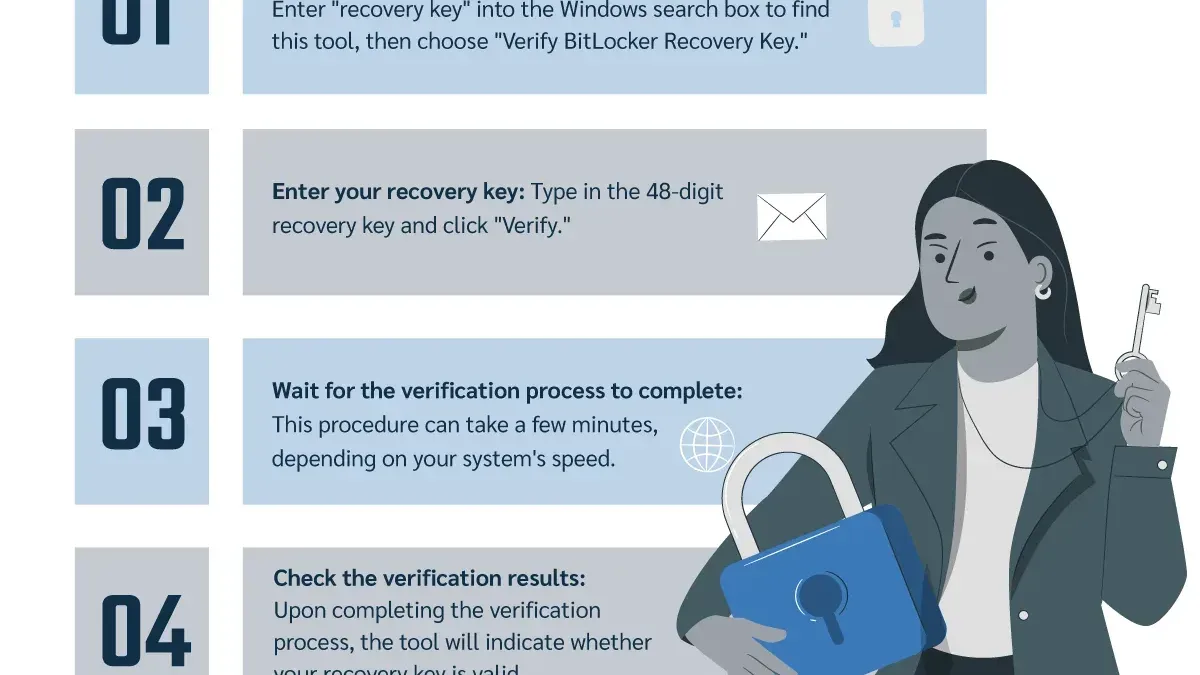
Only a correctly formatted and authentic key will unlock your drive. Scammers exploit locked users by offering fake keys or charging fees for invalid ones.
Recognizing a Valid BitLocker Recovery Key Format
A valid recovery key consists of eight groups of six digits separated by hyphens, totaling 48 digits, for example: 123456-789012-345678-901234-567890-123456-789012-345678. Any deviation from this format indicates the key is invalid.
Common Scam Tactics
- Fake websites charging for recovery keys
- Phishing emails requesting your recovery key
- Social engineering scams offering technical support
Safe Methods to Test Key Validity
The safest way to verify your recovery key is to enter it directly into the BitLocker recovery prompt on your locked device. Never share your key publicly or with unverified parties. Avoid third-party tools claiming to validate keys, as they may be malicious or ineffective.
What to Do If You Can’t Find Your BitLocker Recovery Key
If you cannot locate your recovery key, your options are limited:
- Recovery Limitations: BitLocker encryption cannot be bypassed without the key; encrypted data remains inaccessible.
- Data Recovery Services: Some professional services may attempt recovery, but success is unlikely without the key. These services can be costly and pose privacy concerns.
- Reinstalling Windows: Reinstalling the OS will erase all encrypted data on the drive.
- Preventive Measures: Use this experience to implement robust key management and backup routines.
Data loss due to missing recovery keys is often permanent. Evaluate the cost and risks of recovery services carefully before proceeding.
Tips to Safeguard Your BitLocker Recovery Key Going Forward
To prevent future lockouts, consider these best practices:
- Use Password Managers or Encrypted Vaults: Store your recovery key in a digital vault secured by strong encryption and multi-factor authentication.
- Back Up in Multiple Secure Locations: Maintain copies on secure USB drives, printed copies in locked storage, and in your Microsoft or organizational accounts.
- Update Recovery Information Regularly: After major system changes or policy updates, verify that your recovery key backups are current.
For example, creating a dedicated entry in a password manager for your BitLocker key and keeping a printed copy in a locked drawer establishes a reliable backup routine.
Important Caveats
This article does not address advanced forensic recovery or methods to bypass BitLocker encryption, which require professional expertise and legal authorization. Enterprise users should consult their IT department before attempting recovery.
Frequently Asked Questions
What is the BitLocker recovery key and why do I need it?
It is a 48-digit password that unlocks your encrypted drive when normal authentication fails, such as after hardware changes.
Where can I find my BitLocker recovery key if I used a Microsoft account?
Sign in at your Microsoft account’s recovery key page to locate keys linked to your devices.
Can someone else access my data if they get my recovery key?
Yes. The recovery key grants full access to your encrypted drive, so keep it secure and private.
What happens if I lose my BitLocker recovery key permanently?
You will lose access to your encrypted data unless you have other recovery options. Reinstalling the OS will erase the encrypted drive.