How to See Devices Connected to Your Netgear Router
Discover how to identify and manage devices connected to your Netgear router for enhanced security and network performance.

Knowing how to see devices connected to your Netgear router is essential for maintaining a secure and efficient home network. This guide explains how to identify devices on your network, interpret their information, and manage unknown connections using the latest tools and interfaces available.
Why Knowing Connected Devices on Your Netgear Router Matters
Monitoring connected devices helps protect your home network from unauthorized access and optimizes performance. Unknown devices can exploit vulnerabilities or consume bandwidth, affecting security and speed.
- Risks of unauthorized devices: Unknown devices may access your network without permission, potentially leading to security breaches.
- Impact on network speed: Multiple active devices can slow your connection, especially when streaming or gaming.
- Benefits of regular audits: Spotting unusual devices early helps maintain network health and performance.
Step-by-Step: How to Access Your Netgear Router’s Device List
You can view connected devices through the router’s web interface or the Netgear Nighthawk mobile app. Follow these steps carefully:
- Log in to the router admin panel: Open a browser and enter
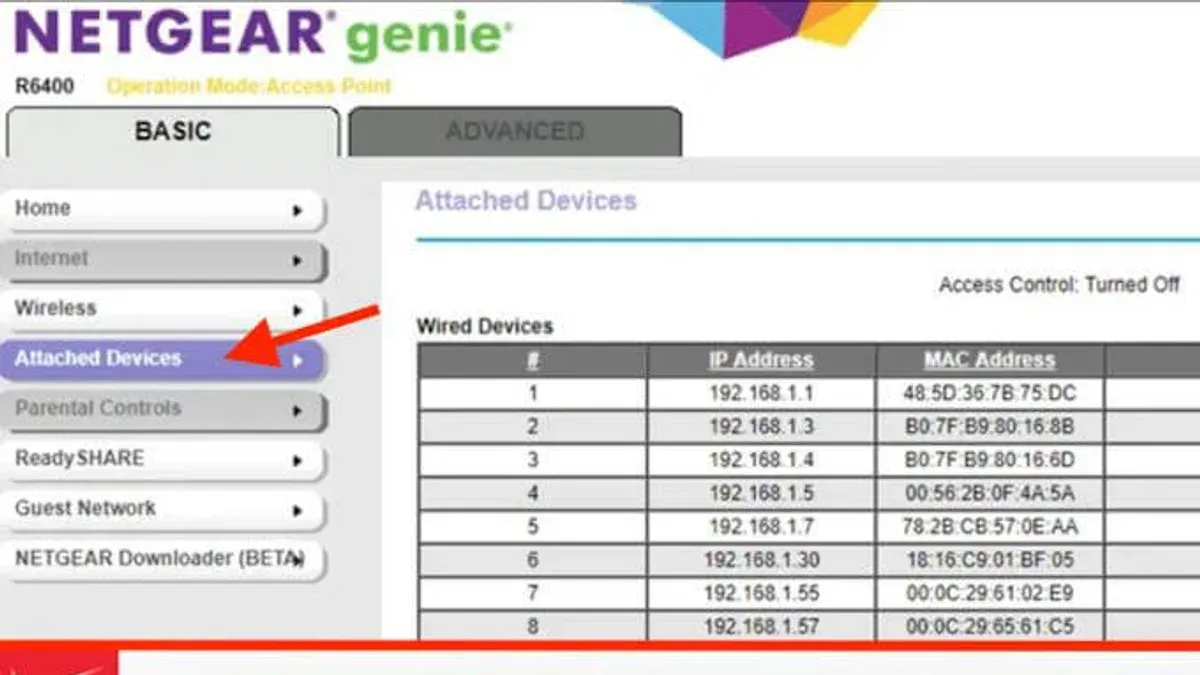
192.168.1.1orrouterlogin.net. Use your router’s admin username and password. Note that many users overlook changing default credentials, which is a security risk. - Navigate to connected devices: In the latest firmware UI, locate the section named Attached Devices or Connected Devices. This section lists all devices currently communicating with your router. Some firmware versions may label this differently or nest it under Advanced Settings > Device List.
- Use the Netgear Nighthawk app: Download the app on your smartphone, log in with your router credentials, and select the Connected Devices tab. Note that the app may update device lists less frequently than the web interface.
- Interpret device information: The list displays device names, IP addresses, and MAC addresses. Device names often reflect the gadget’s type but can be generic or blank. If a device name is unclear, check the MAC address prefix to identify the manufacturer.
Below is a sample device list with annotations for clarity:
| Device Name | IP Address | MAC Address | Device Type |
|---|---|---|---|
| John's iPhone | 192.168.1.5 | 00:1A:2B:3C:4D:5E | Smartphone |
| LivingRoom-TV | 192.168.1.10 | 00:1B:44:11:3A:B7 | Smart TV |
| Unknown | 192.168.1.20 | F4:5C:89:12:34:56 | Unknown |
How to Identify Unknown or Suspicious Devices on Your Network
After viewing the device list, unfamiliar entries require careful evaluation:
- Match device names to household gadgets: Confirm if family members recently connected new devices or renamed theirs. Some devices may appear with generic names if they don't broadcast friendly identifiers.
- Use MAC address lookup tools: The first six characters of a MAC address identify the manufacturer. Public databases like IEEE’s OUI lookup can help determine device origin.
- Recognize signs of unauthorized access: Devices with generic names, unknown manufacturers, or connections during unusual hours may warrant further investigation.
For example, a device with MAC address starting with F4:5C:89 can be checked against public MAC databases to identify its manufacturer, helping distinguish between a forgotten smart appliance and a potential intruder.
What to Do If You Find Unauthorized Devices Connected to Your Netgear Router
Prompt action is necessary to protect your network:
- Block or remove devices: Use the router’s device management settings to block unknown devices by MAC address. Some routers label this feature as Access Control or MAC Filtering. Note that MAC addresses can be spoofed, so blocking is not foolproof.
- Change Wi-Fi passwords: Update your Wi-Fi password with a strong, unique passphrase. Enable WPA3 encryption if supported; otherwise, use WPA2. Avoid outdated protocols like WEP.
- Set up guest networks: Create a separate guest network for visitors or temporary devices to isolate them from your main network and limit access.
- Enable security features: Configure device access scheduling to control when devices can connect. Enable notifications for new device connections if your router supports this.
Before blocking:
| Device Name | Status |
|---|---|
| UnknownDevice | Connected |
| KitchenTablet | Connected |
After blocking:
| Device Name | Status |
|---|---|
| UnknownDevice | Blocked |
| KitchenTablet | Connected |
Troubleshooting Common Issues When Viewing Connected Devices
Device lists may not always update as expected. Consider these points:
- Device list not updating: Refresh the page or reboot the router. Some devices may appear delayed due to caching or network inactivity.
- Firmware updates: Keep your router’s firmware current. Updates improve device detection accuracy and user interface features.
- App vs. web interface: The Netgear Nighthawk app may show fewer details or update less frequently than the web interface. For complete information, use the web panel.
Routers running firmware versions older than 2026 may lack detailed device descriptions or real-time refresh, which can cause confusion when identifying devices.
Important Caveats
This guide focuses on home Netgear routers and does not cover enterprise-grade monitoring tools or networks with multiple access points. Users with complex setups or advanced security needs may require professional assistance.
Frequently Asked Questions
Can I see the device manufacturer from the Netgear router interface?
Some Netgear router interfaces display the manufacturer based on the MAC address, but this depends on the firmware version and router model. External MAC lookup tools can provide more detailed manufacturer information.
How often should I check the connected devices on my router?
Review your connected devices at least once a month or whenever you notice slower network performance or suspicious activity.
What does it mean if a device shows up with a generic or unknown name?
Generic names often indicate devices that don’t broadcast a friendly name, such as some smart appliances or new gadgets. If you don’t recognize the MAC address, further investigation is advised.
Is it safe to block devices directly from the router interface?
Blocking devices by MAC address is a standard security measure. However, ensure you correctly identify the device to avoid disconnecting authorized equipment. Remember that MAC addresses can be spoofed, so blocking is one part of a broader security strategy.