Understanding and Managing Snapchat Privacy Settings Effectively
This article explains how to understand and manage Snapchat privacy settings to protect your data and control visibility on the platform.

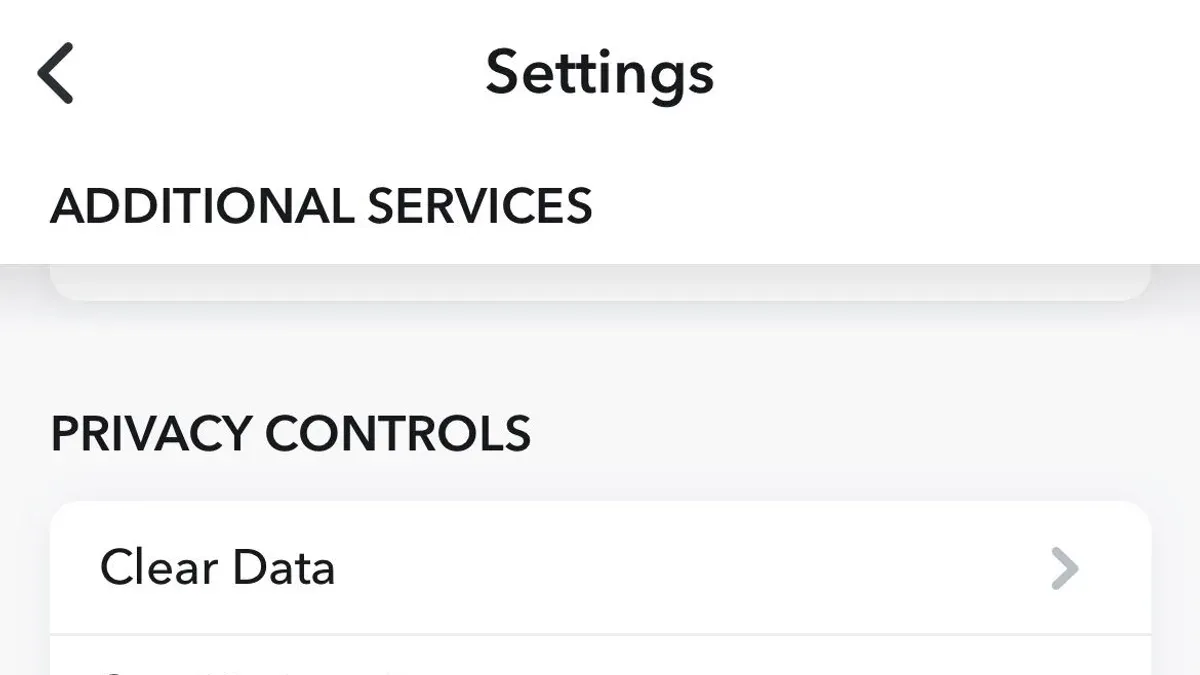
This article explains how to understand and manage Snapchat privacy settings effectively, offering both technical details and practical guidance.
Snapchat privacy settings control who can view a user's snaps, stories, and location, as well as manage communication permissions. These settings are crucial for protecting personal data and controlling visibility on the platform.
Users typically find these options under the profile icon, followed by the gear-shaped Settings menu, where sections like "Who Can..." allow adjustments to "Contact Me," "View My Story," and "See My Location." Understanding these controls helps balance sharing with privacy.
What are Snapchat privacy settings and why they matter
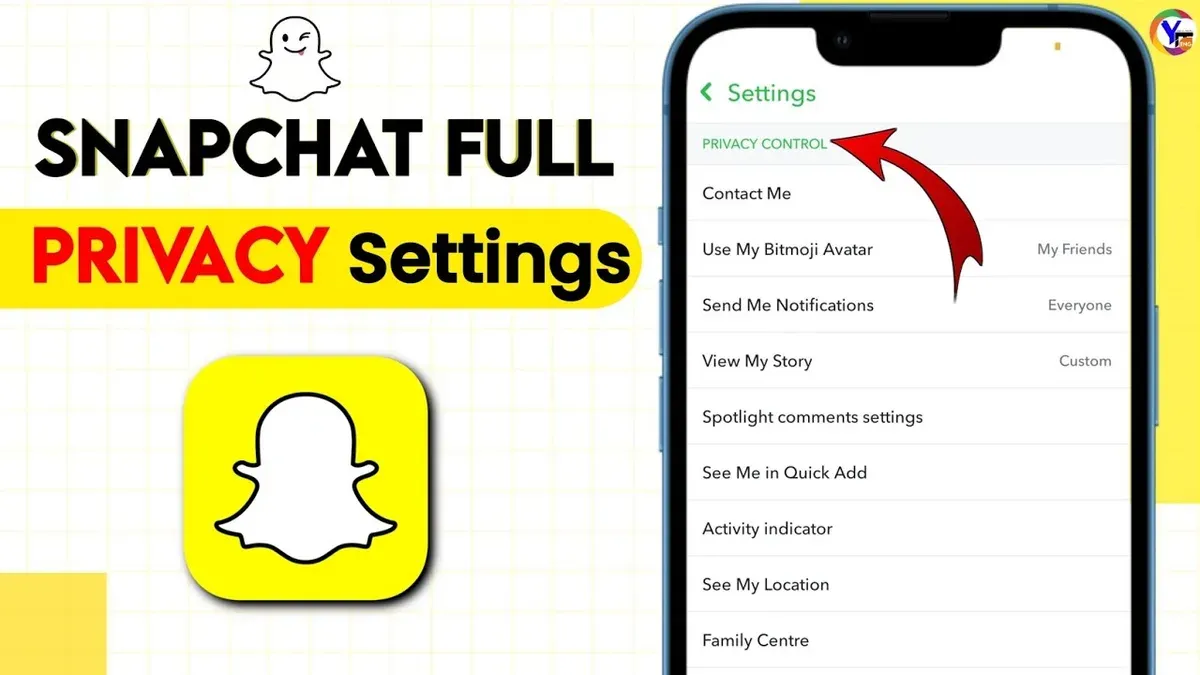
Snapchat privacy settings are tools within the app that allow users to control who can view their content, send them messages, or interact in other ways. These settings include options like "Who Can Contact Me," "Who Can View My Story," and "See My Location," typically found under the app's "Settings" menu in the "Privacy Control" section. Managing these controls is essential to prevent unwanted interactions, such as spam messages or exposure to strangers, and to maintain control over personal information shared through the platform.
Snapchat’s ephemeral messaging—where snaps disappear after being viewed—and unique features like Stories and Snap Map, create distinct privacy considerations. Although messages vanish, recipients can save or screenshot content, meaning users must carefully regulate visibility to avoid unintended sharing. For example, setting "Who Can View My Story" to "Friends Only" instead of "Everyone" helps restrict content to trusted contacts, reducing the risk of exposure.
Snapchat is predominantly popular among younger audiences, who may be more vulnerable to privacy risks such as unsolicited contact or data misuse. Compared to other social platforms like Instagram or Facebook, Snapchat’s emphasis on temporary content requires users to understand that privacy settings cannot fully prevent content capture or sharing beyond the app.
Tip: Regularly reviewing and adjusting privacy settings based on personal comfort and sharing habits can significantly enhance control over one’s Snapchat experience.
Does Snapchat have privacy settings and where to find them
Snapchat offers a range of privacy settings designed to give users control over their interactions and data visibility. These are accessible primarily through the mobile app, with more limited options available on the Snapchat website.
Finding privacy settings on the Snapchat mobile app
Within the Snapchat app, privacy settings can be found by tapping the user avatar or profile icon at the top left of the camera screen. Then, tap the gear icon labeled "Settings" in the upper right corner. Scroll down to the "Privacy" section, which includes options such as "Contact Me," "View My Story," and "See My Location." For example, under "Contact Me," users can select who is allowed to send them Snaps or chats—options typically include "Everyone," "My Friends," or "Custom." This granular control is a key privacy feature that many users overlook.
Privacy settings on Snapchat’s website
Snapchat’s web interface offers privacy controls primarily related to account management and data download requests rather than detailed message or story privacy. Users can log in at accounts.snapchat.com and access settings like password changes, login verification, and data download requests. However, settings controlling who views stories or sends Snaps are not available on the web, reflecting the app's focus on mobile-first privacy management.
Tip: To fully manage who interacts with a Snapchat account, users should use the mobile app’s privacy settings, as the web interface offers limited privacy control.
How to change privacy settings on Snapchat to keep your account private
To enhance privacy on Snapchat, users can adjust who can contact them, view their stories, and see their location. Start by opening Snapchat and tapping the profile icon at the top left, then select the gear icon for Settings. Under "Who Can…" settings, choose "Contact Me" and set it to "My Friends" instead of the default "Everyone" to restrict messages and calls to known contacts.
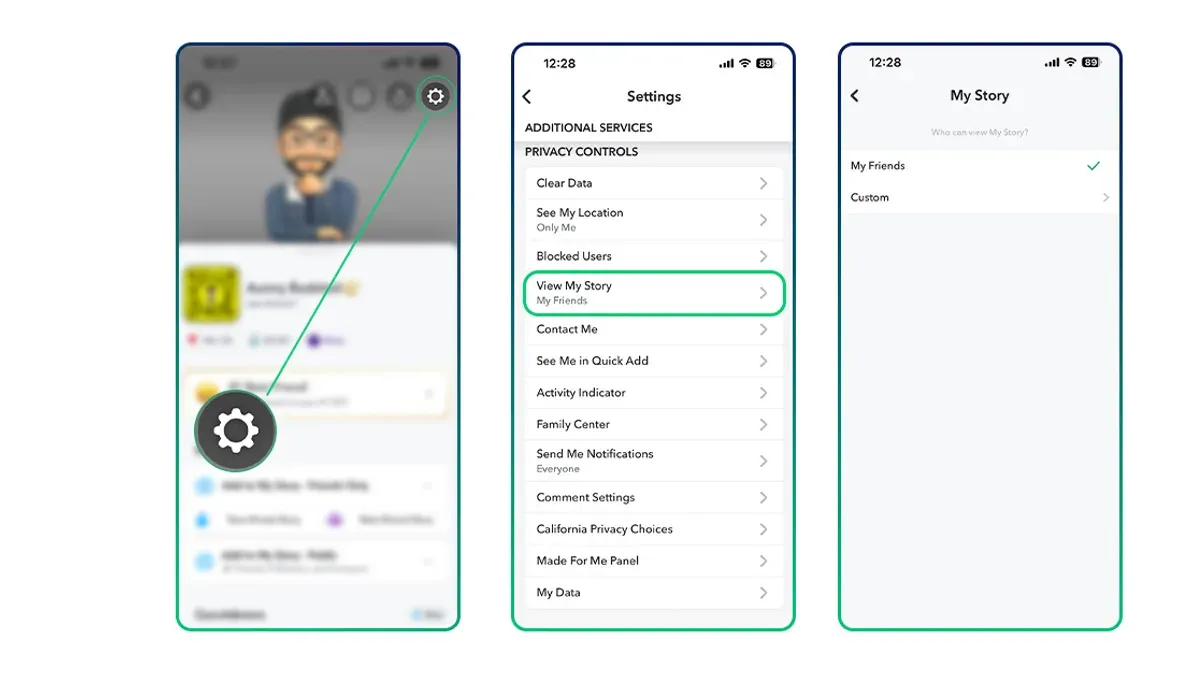
Next, navigate to "View My Story" and select "My Friends" or "Custom" to limit story visibility. For example, a user who wants only close friends to see their posts can remove acquaintances via "Custom." Stories set to "Everyone" expose content publicly, which may be undesirable for privacy.
Location sharing can be controlled under "See My Location" by enabling "Ghost Mode" or selecting specific friends who may view the Snap Map. Ghost Mode hides location entirely, increasing privacy but disabling location-based features.
When contributing to "Our Story," users can opt out by toggling off "Include My Stories in Our Story" to prevent public aggregation of snaps. This setting is often overlooked but crucial for controlling public exposure.
Snapchat Plus subscribers have additional privacy options, such as managing who can see their Snapchat Plus badge and custom app icons, which can be found under the Snapchat Plus section in Settings.
Two-factor authentication (2FA) adds a security layer by requiring a code during login. It is activated under "Login Verification" in Settings, enhancing account protection against unauthorized access.
Example: A user with default settings may have "Contact Me" and "View My Story" set to "Everyone," while recommended privacy settings change both to "My Friends," turn on Ghost Mode for location, and enable 2FA. This combination significantly reduces unwanted interactions and protects account access.
Tip: Regularly review privacy settings after app updates, as defaults can reset or new options may appear.
How to check Snapchat privacy settings to ensure your data is secure
Regularly auditing Snapchat privacy settings helps maintain control over data visibility and reduces risks from unintended exposure. To start, open Snapchat and tap the profile icon, then the gear icon to access Settings. Navigate to sections including "Who Can..." for contact permissions, "Privacy Control" for Story and Location settings, and "Two-Factor Authentication" under "Login Verification".
A checklist for review includes:
- Contact Permissions: Verify who can contact the account—ideally set to "My Friends" or "Custom" to limit unknown interactions.
- Story Visibility: Confirm stories are shared only with intended viewers, such as "Friends" or a specific group.
- Location Sharing: Check if "Ghost Mode" is enabled or if location is shared with select friends.
- Friend Requests: Review if "Who Can..." settings allow friend requests from "Everyone" or restricted to "Friends of Friends".
- Two-Factor Authentication: Ensure this is enabled for additional security.
Snapchat’s default settings tend to allow friend requests and messages from "Everyone," which can increase exposure risk. Users should assess if this aligns with their privacy preferences.
For example, a parent reviewing their child's Snapchat might find that friend requests are open to all users by default, leading to unexpected contacts. Adjusting this to "My Friends" reduces unsolicited interactions.
Tip: Use the "Blocked" list in Settings to review and remove any unknown or suspicious contacts that may have slipped through.
Being thorough during audits prevents common misconfigurations such as publicly visible stories or location sharing that users may not realize is active. A consistent review schedule, such as monthly, helps maintain intended privacy levels.
Snapchat’s privacy policy and data handling explained
Snapchat’s privacy policy outlines how the platform collects, uses, and shares user data to deliver its services while aiming to protect user privacy. It collects information such as account details, snaps and chats content, location data, device information, and usage patterns. This data is used primarily to operate and improve the app, personalize content, and provide targeted advertising.
The concept of “privacy by product” is central to Snapchat’s approach, meaning privacy considerations are embedded in the design of its features. For example, snaps are ephemeral by default, disappearing after being viewed, which limits data retention and exposure. However, certain features like Memories allow users to save content intentionally, which changes how data is handled.
Snapchat shares data with trusted service providers, partners, and advertisers under strict controls, and only when necessary. Users can control aspects of this sharing through settings such as ad preferences and location sharing.
Regional privacy laws impact Snapchat’s data handling, with specific provisions for jurisdictions like India where local regulations require additional transparency and data protection measures. Snapchat India users may notice tailored privacy settings, disclosures, and data processing practices to comply with Indian data protection laws.
Example: When a user enables location sharing on Snapchat, the app collects precise location data to provide geofilters and friend-finder features. This data is stored temporarily and used according to the privacy policy, but users can disable location services to limit data collection.
Compared to industry standards, Snapchat’s policy aligns with common practices regarding data minimization, user control, and transparency, though the unique ephemeral nature of its content provides a distinct privacy dimension.
Common mistakes to avoid when managing Snapchat privacy
One frequent error is leaving default settings unchanged. Snapchat’s initial configuration often allows broad access to content and contact permissions, which can expose users’ snaps and stories beyond intended audiences. For example, the default "Who Can View My Story" setting is typically set to "My Friends," but without reviewing the "Custom" option, users might inadvertently share with all contacts, including acquaintances or less trusted connections.
Another common slip is unintentionally sharing location and stories publicly. The Snap Map feature, set to "Ghost Mode" off by default, can reveal a user’s real-time location to friends or even a broader audience if settings are altered. Users have reported privacy concerns after unintentionally broadcasting their whereabouts, leading to unwelcome attention or security risks.
Ignoring app updates is a less obvious but impactful mistake. Snapchat frequently modifies privacy and security features through updates, sometimes adding new controls or changing default behaviors. Without updating the app, users may miss improved privacy protections or continue using outdated settings vulnerable to exposure.
Misunderstanding Snapchat Plus privacy features can also cause problems. Snapchat Plus subscribers have access to experimental features that may collect additional data or change visibility options. Users unfamiliar with these nuances might inadvertently opt into settings that increase data sharing or reduce privacy without clear awareness.
Tip: Regularly review all privacy-related settings after updates and before enabling new features to ensure they align with personal comfort levels.
Snapchat privacy settings considerations for parents
Snapchat’s popularity among teenagers presents unique challenges for parents aiming to protect their children’s privacy. While Snapchat offers tools such as "Who Can Contact Me" and "Who Can View My Story" under Settings > Privacy Controls, these require active management and communication.
Parents should encourage open conversations about digital boundaries, explaining why settings like "Ghost Mode" in Snap Map or disabling location sharing matter. For example, a parent might help a teen set "Who Can See My Location" to "Only Me," reducing exposure to strangers while maintaining app functionality.
However, Snapchat’s architecture limits traditional parental controls. Unlike some platforms, it does not provide robust third-party supervision or detailed activity reports. Experts often advise that fostering trust and digital literacy is more effective than relying solely on technical restrictions.
Careful review of friends lists and enabling two-factor authentication can further safeguard accounts, but parents should be aware that ephemeral messaging and screenshot notifications do not prevent all data sharing or risks. Monitoring app usage combined with guidance on privacy settings creates a balanced approach.
Tip: Regularly revisit privacy settings together to adapt to new features or changes in the child’s social circle, maintaining ongoing awareness and control.
Further reading
- How to Block Someone on Snapchat: Complete Steps for All Devices
- Facebook Privacy Settings Explained: How to Control Your Account Security
Frequently asked questions
Can you set privacy settings on snapchat?
Yes, Snapchat offers a range of privacy settings that allow users to control who can contact them, view their stories, and see their location. These settings are accessible within the app under the "Settings" menu, typically under "Privacy Controls" or "Who Can..." sections. Adjusting these settings helps tailor the account's visibility and interaction preferences.
How to keep snapchat private?
Keeping Snapchat private involves limiting who can contact the user and view their content. Users should set options like "Contact Me" and "View My Story" to "My Friends" or a custom list to restrict access. Disabling the "Quick Add" feature also reduces exposure to unknown users.
How to set snapchat to private?
To set Snapchat to private, navigate to Settings > Privacy Controls, then adjust "Contact Me" and "View My Story" to "My Friends" or "Custom". Additionally, turning off "See Me in Quick Add" will prevent the account from appearing in suggestions. These steps collectively restrict access and make the account more private.
What is snapchat's privacy policy?
Snapchat's privacy policy outlines how it collects, uses, and shares user data, including content sent through the app, location information, and device data. The policy explains data handling practices, retention periods, and user rights. It also details third-party sharing and security measures implemented by Snapchat.
Where is snapchat privacy settings?
Snapchat privacy settings are found by tapping the profile icon, then the gear-shaped "Settings" icon in the top right. Within Settings, the "Privacy Controls" section includes options like "Contact Me," "View My Story," "See My Location," and "Quick Add". These settings allow users to customize their privacy preferences.
Limitations of this guide and when to seek expert help
This guide focuses on understanding and managing Snapchat’s built-in privacy settings and does not cover advanced security threats such as account hacking or phishing attacks. It also does not address the broader legal implications of data sharing or how Snapchat data may be accessed through third-party apps or law enforcement requests. Users with high-risk profiles, such as public figures or those handling sensitive information, should consult specialized security resources or cybersecurity professionals for tailored advice.
The most actionable next step is to regularly review the "Who Can…" section under Snapchat’s Settings menu, specifically "Contact Me," "View My Story," and "See My Location," to ensure these align with personal privacy preferences. This ongoing check helps maintain control over account visibility and data sharing as Snapchat updates its features and policies.