Can You Get a Virus from a Word Document? What You Should Know
Learn how Word documents can carry viruses and how modern security features protect you when opening them.

Many users wonder, can you get a virus from a Word document? The answer depends on the file type, its contents, and your actions when opening it. While Word documents can carry malware, modern security features significantly reduce these risks.
How Word Documents Can Carry Malware: Beyond Simple Viruses
Word documents can carry malware primarily through macros—scripts embedded in the document that automate tasks but can also execute harmful code. Unlike classical viruses that spread automatically, modern malware often relies on macros or embedded executable code.
There is an important distinction between macro viruses, embedded executables within objects, and exploits targeting vulnerabilities in Word's software. For example:
- Macro viruses: Code written in VBA (Visual Basic for Applications) that runs when macros are enabled. Users often miss that macros remain disabled by default under the Trust Center settings, specifically under "Macro Settings," where the default is "Disable all macros with notification." Enabling macros without verifying the source is a common mistake.
- Embedded executables: Malicious files embedded as OLE objects inside the document, which may be extracted and run separately.
- Exploits: Attacks leveraging security flaws in Word to execute code without user consent, though these are rare and typically patched promptly by Microsoft.
Plain text or basic .docx files without macros are generally safe as they contain no executable code. Attackers rely heavily on social engineering to convince users to enable macros, often by instructing them to "Enable Editing" or "Enable Content" to activate malicious payloads.
Macro-based threats have decreased due to improved defenses, but obfuscated macro code designed to download additional malware remains a concern when macros are enabled.
Modern Security Features That Help Protect You When Opening Word Documents
Microsoft Word and modern operating systems include several protections to reduce infection risks. A key feature is Protected View, which opens documents downloaded from the internet or email attachments in a read-only, sandboxed mode. This isolation prevents macros and other potentially harmful content from running automatically.
Antivirus software scans Word files before opening, using heuristic analysis to detect suspicious code patterns. Cloud-based services like Microsoft Defender SmartScreen check downloaded documents against threat databases to block malicious files early.
Protected View significantly reduces infection risk by preventing automatic macro execution. Before its introduction, simply opening a malicious Word file could trigger infection. Now, users receive clear warnings and must explicitly enable editing or macros, providing an important security checkpoint.
Practical Steps to Safely Handle Word Documents and Avoid Infection
To handle Word documents safely, users should:
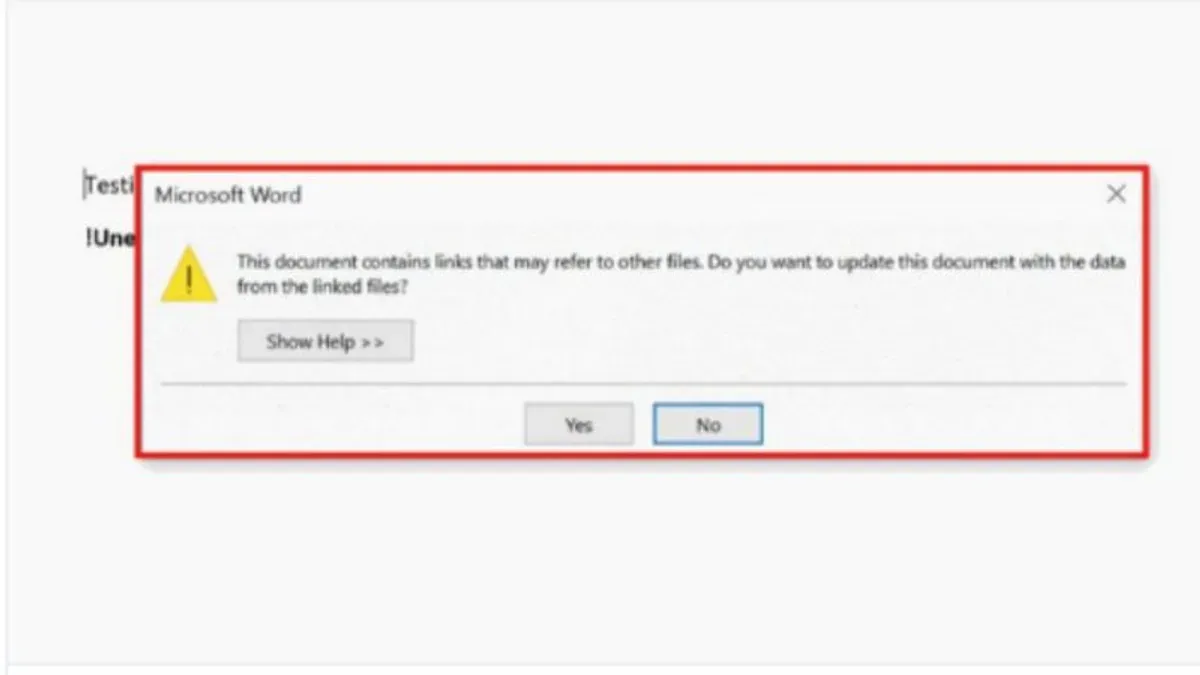
- Never enable macros unless you trust the sender and understand the macro’s purpose. The Trust Center settings in Word control macro behavior; by default, macros are disabled with notification. Users often overlook this setting or ignore warnings.
- Use online document viewers or sandboxed environments to open suspicious files. These prevent any code from affecting your main system.
- Verify sources before opening attachments. Confirm with the sender if you receive unexpected documents, especially from unknown contacts.
- Scan all attachments with updated antivirus software before opening.
Worked Example
Consider an email with an attached Word document claiming to be an invoice:
- You download and open the file; Protected View opens it in a restricted window.
- The document asks you to "Enable Content" to view details, which would run macros.
- You refuse to enable macros and instead scan the file with your antivirus.
- The antivirus flags the document as suspicious, so you delete it, avoiding infection.
If macros had been enabled, the embedded code might have executed, potentially downloading ransomware or other malware. Refusing to enable macros and scanning the file prevented infection.
What This Advice Does Not Cover: Advanced Threats and Enterprise Protections
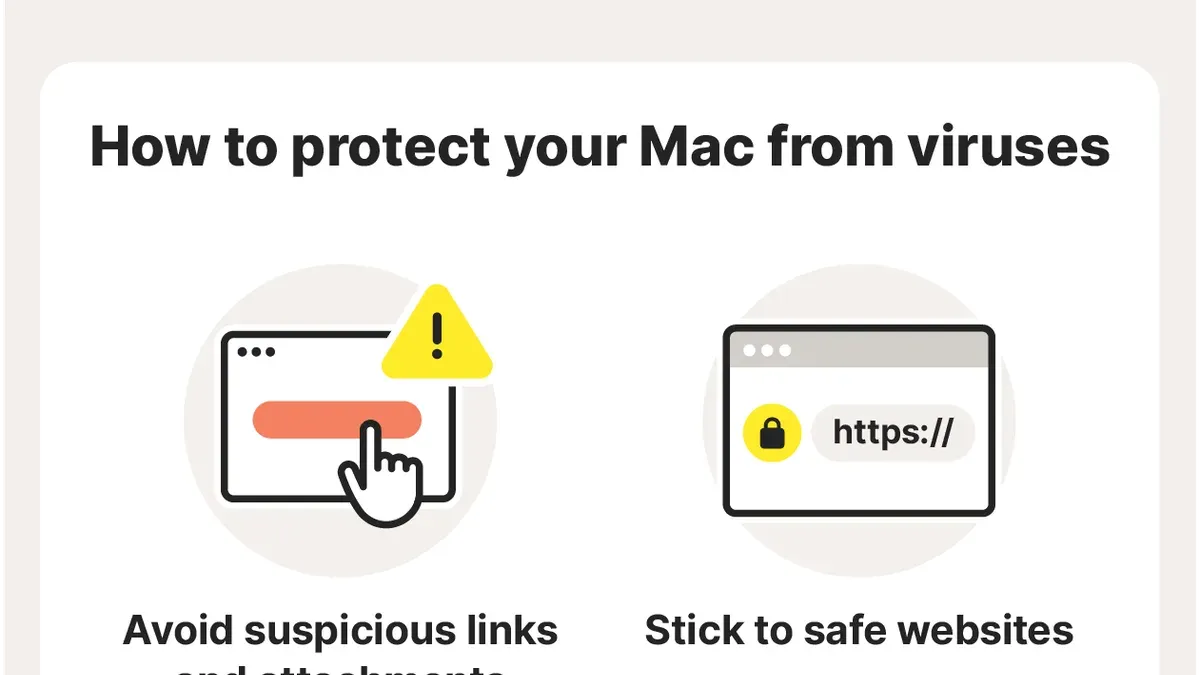
This article focuses on typical user risks and does not cover targeted spear-phishing campaigns using custom-built malware. It also does not replace enterprise-grade endpoint detection and response tools used in corporate environments. Additionally, the discussion centers on Windows and macOS platforms and may not fully apply to other operating systems.
Important Caveats
This advice is primarily for typical users and does not guarantee protection against sophisticated or targeted malware attacks that require enterprise-grade defenses.
Frequently Asked Questions
Can a Word document infect my computer just by opening it without enabling macros?
Generally, no. Modern Word versions open documents in Protected View, which isolates the file. Without enabling macros or exploiting a vulnerability, merely opening a document is unlikely to cause infection.
Are all macros dangerous or only those from unknown sources?
Not all macros are dangerous. Many automate legitimate tasks. However, macros from unknown or untrusted sources pose a risk and should be treated with caution.
How does Protected View in Word help prevent malware infections?
Protected View opens documents in a read-only mode that restricts execution of macros and code, preventing malicious actions unless the user explicitly enables editing or content.
What should I do if I accidentally enabled macros in a suspicious Word document?
Immediately disconnect from the internet and run a full antivirus and antimalware scan. If you suspect compromise, seek professional IT assistance to assess and clean your system.
Related reading
- Can You Get a Virus from a PDF? What You Need to KnowLearn how viruses can hide in PDFs and what steps you can take to protect your device from infection in 2026.