How to Change Your Bluesky Password and Manage Your Account
This guide explains how to change your Bluesky password and manage your account settings securely and efficiently.

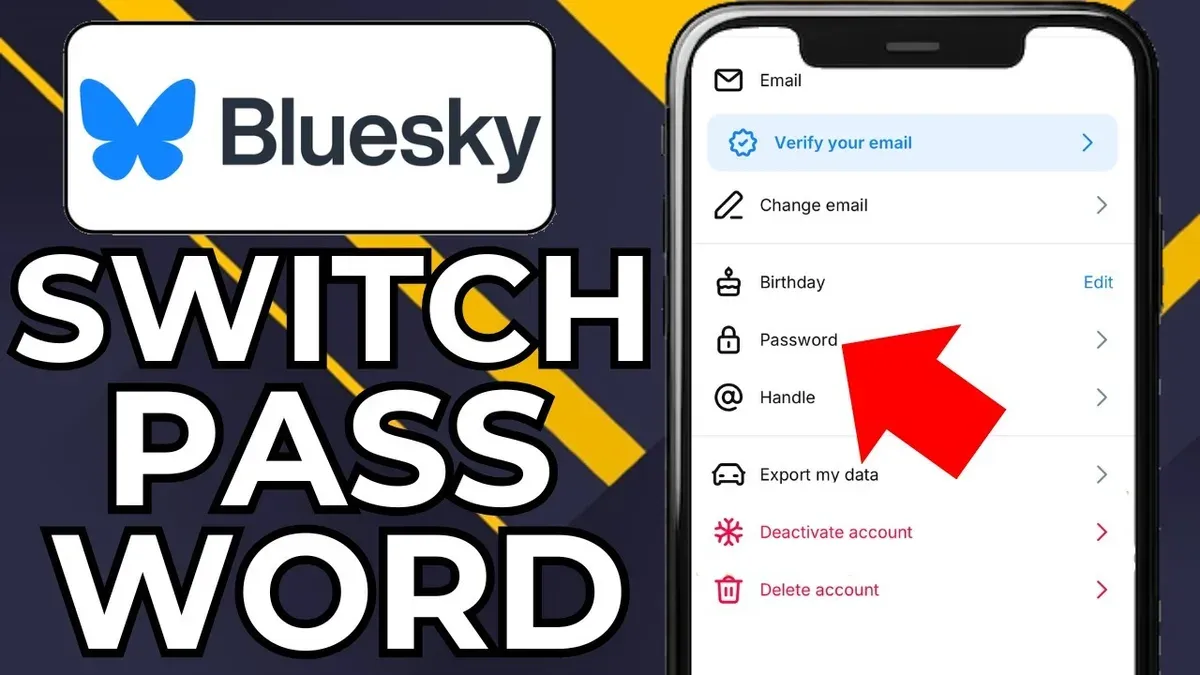
This article explains how to change Bluesky password and provides clear instructions for managing various aspects of a Bluesky account. It covers essential steps from creating an account to adjusting password settings and handling account cancellation or reactivation.
Bluesky users, whether new or experienced, often need straightforward guidance on account security. The process of changing a password involves navigating to the Settings menu, selecting the Security tab, and entering the current password before setting a new one. Alongside password management, understanding how to cancel or reactivate an account is crucial for maintaining control over personal data and online presence.
Following this step-by-step guide ensures that users can confidently manage their Bluesky accounts without confusion or risk, addressing common login issues and account lifecycle concerns in one comprehensive resource.
Before you start: What is needed to manage a Bluesky account
Managing a Bluesky account requires certain prerequisites to ensure smooth access and secure handling of settings. First, access to the Bluesky app or the official website is necessary, along with a stable internet connection to avoid interruptions during account changes.
Knowing the current login credentials, such as the email address or username and password, is essential for authentication. Without these, password changes or account management cannot proceed.
Verification often involves confirming identity through the email or phone number linked to the account. Having access to these contact methods is crucial for receiving security codes or recovery links during sensitive operations.
Basic familiarity with the Bluesky user interface helps navigate account menus and settings efficiently. Being able to locate profile options, security settings, and verification prompts reduces the risk of errors or delays.
- Open the Bluesky app or navigate to the Bluesky website. The login screen should appear, prompting for username/email and password.
- Enter the current login credentials and proceed. Upon successful login, the main dashboard or home feed should load.
- Locate the profile icon or menu, typically found in the upper corner, and select it to open account settings.
- Within account settings, find sections labeled "Security" or "Password" to prepare for password changes or other management tasks.
- If prompted for verification, check the linked email inbox or phone messages for confirmation codes to complete the process.
Tip: Ensure the email or phone number linked to the account is up to date before attempting password changes to avoid verification issues.
How to make a Bluesky account
- Open the Bluesky official website at blueskyweb.xyz or download the Bluesky app from the Apple App Store or Google Play Store. The home page or app launch screen will display options to sign up or log in.
- Select the "Sign Up" button. This directs to the account creation form requesting personal information.
- Enter a valid email address in the provided field. This email will be used for verification and account recovery.
- Choose a unique username adhering to Bluesky’s guidelines, typically allowing letters, numbers, and underscores without spaces. The system will notify if the username is already taken.
- Create a secure password following recommended criteria—usually at least eight characters, mixing uppercase and lowercase letters, numbers, and symbols. A password strength indicator often appears to assist in selecting a strong password.
- Review the terms of service and privacy policy, then check the box to agree. This step is mandatory to proceed.
- Submit the registration form by clicking the "Create Account" or equivalent button. The system will send a confirmation email to the address provided.
- Open the email inbox and locate the Bluesky confirmation message. Click the verification link within to activate the new account.
- Once verified, return to the Bluesky website or app and log in using the newly created username and password. A welcome message or dashboard screen confirms successful account creation.
Tip: Use a password manager to generate and store a complex password securely during sign-up.
How to sign up for Bluesky
Bluesky offers multiple sign-up methods depending on the platform used. The process varies slightly between iOS, Android, and the web, but all aim to quickly establish an account with security and usability in mind.
Signing up on iOS and Android
- Download the Bluesky app from the Apple App Store or Google Play Store. Once installed, open the app to begin.
- Tap "Sign Up" on the welcome screen. A form will appear requesting a username, email address, and password.
- Choose a username that is unique and easy to remember; Bluesky will check availability immediately. For passwords, ensure it meets the minimum security requirements—usually at least 8 characters including uppercase, lowercase, numbers, and symbols.
- Complete the email verification step by entering the code sent to the provided email address. Successful verification will lead to the home screen, confirming the account is active.
Signing up on the web
- Visit the official Bluesky website and click the "Sign Up" button at the top-right corner.
- Fill out the registration form with a desired username, valid email, and a secure password following the same criteria as the mobile app.
- Submit the form and check the email inbox for a verification link. Clicking this link finalizes the account creation and redirects to the Bluesky dashboard.
Tip: Selecting a username that reflects personal or brand identity helps in easy recognition, while a strong password protects the account from unauthorized access.
How to log in to Bluesky and find the account sign-in page
To access a Bluesky account, first locate the sign-in page, which is available on both the Bluesky app and the official website. On mobile devices, open the Bluesky app; the sign-in screen appears immediately if not already logged in. On desktop, visit blueskyweb.xyz and click the "Log in" button at the top-right corner to reach the sign-in page.
Enter the registered username or email address along with the account password. Accurate entry of credentials is essential; username and email are not interchangeable, so use the one registered. Passwords are case sensitive, so verify capitalization.
If credentials are lost, use the "Forgot password?" link on the sign-in page. This initiates a password reset process via the linked email, allowing account recovery.
- Open the Bluesky app or navigate to the Bluesky website and click "Log in." The sign-in page with username/email and password fields appears.
- Type the correct username or email and password, then press "Sign in." A successful login redirects to the user’s Bluesky home feed.
- If an error appears, such as "Incorrect username or password," verify typing accuracy or use "Forgot password?" to reset.
- In case of "Account not found," confirm the username/email is correct or create a new account if necessary.
- Multiple unsuccessful login attempts may temporarily lock the account; wait or follow instructions sent by Bluesky to regain access.
Tip: Avoid using autofill for passwords if frequent login errors occur; manual entry reduces mistakes.
How to change Bluesky password
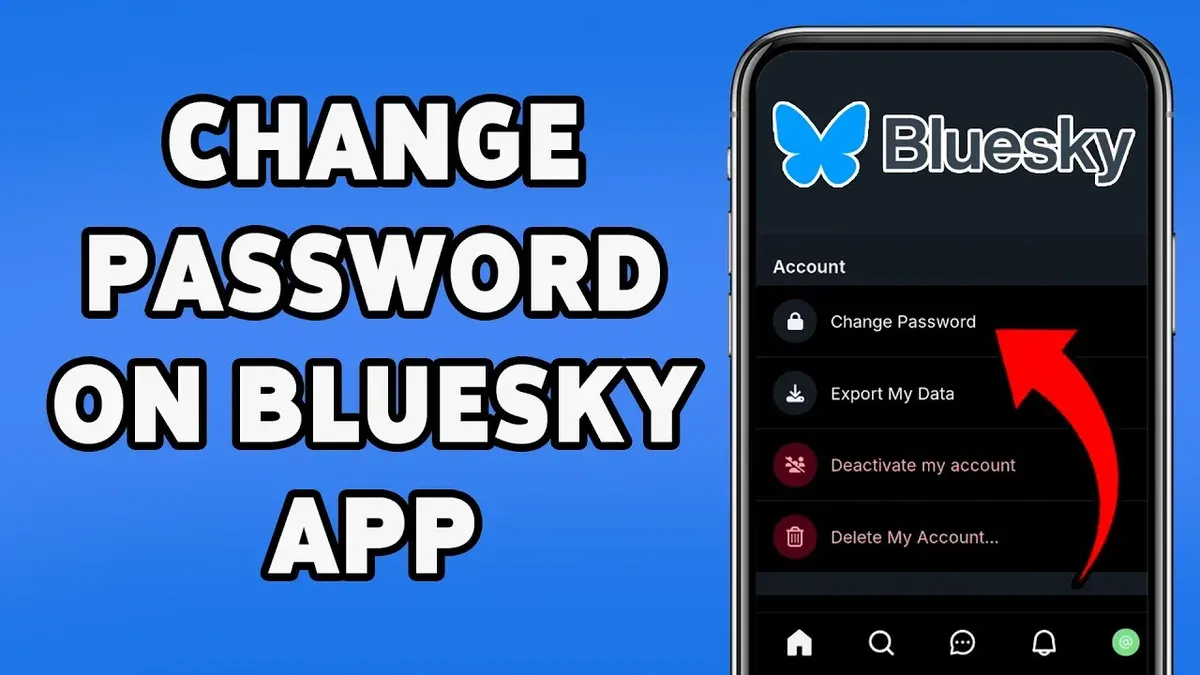
- Open the Bluesky app or visit the Bluesky website and log in with the current account credentials. Once logged in, navigate to the profile icon typically located in the top-right corner and select Settings from the dropdown menu. This action opens the account settings page.
- Within the settings menu, find and click on Security or Account Security. This section contains options related to password changes and authentication methods.
- Locate the Change Password option and select it. The interface will prompt for the current password to verify identity. Enter the current password exactly as used to proceed.
- After verification, input the new password in the designated field. Ensure the new password is strong—typically a mix of uppercase and lowercase letters, numbers, and symbols. Re-enter the new password in the confirmation field to avoid typos.
- Click Save or Update Password to confirm the change. A confirmation message such as "Password successfully updated" should appear, indicating the process was successful.
- Log out and then log back in using the new password to verify it works correctly and to avoid future access issues.
Tip: Use a reputable password manager to generate and securely store complex passwords, reducing the risk of reuse or weak password choices.


How to cancel, delete, or reactivate a Bluesky account
Bluesky offers options to manage account status based on user needs: temporary cancellation (deactivation), permanent deletion, and reactivation. Understanding these options helps choose the appropriate action for privacy and access.
Canceling or deactivating a Bluesky account
Deactivation temporarily suspends the account without erasing data. The account becomes inaccessible until reactivated, but user content and settings remain stored on Bluesky servers.
- Open the Bluesky app or website and log in.
- Navigate to Settings > Account > Deactivate Account.
- Confirm the deactivation request when prompted.
- Observe a confirmation message indicating the account is deactivated.
While deactivated, the account is hidden from others but can be restored by logging back in.
Deleting a Bluesky account permanently
Permanent deletion removes all user data from Bluesky’s servers after a grace period, making recovery impossible. This process deletes profile information, posts, followers, and settings.
- Access Settings > Account > Delete Account after logging in.
- Follow on-screen instructions to confirm permanent deletion.
- Note that Bluesky may retain some data for a short period (typically up to 30 days) before complete removal.
- Receive confirmation of the deletion request.
Tip: Ensure to back up any important content before deleting, as this action is irreversible.
Reactivating a Bluesky account
Reactivation is possible only if the account was deactivated, not deleted. Logging in with original credentials restores full access and data.
- Open Bluesky and enter the original username and password.
- Complete any additional verification if requested.
- Confirm that the account dashboard and content are accessible again.
If an account was deleted, creating a new one with the same credentials is necessary since data cannot be restored.
| Account Status | Access | Data Retention | Recovery Possible |
|---|---|---|---|
| Deactivated (Canceled) | Locked until reactivation | Data retained indefinitely | Yes, by logging in |
| Deleted (Permanent) | No access | Data removed after a grace period (~30 days) | No |
Troubleshooting common issues with Bluesky login and password changes
If password reset emails do not arrive, first check the spam or junk folder. Ensure the email address linked to the account is correct and active. If the email still does not arrive after a few minutes, try resending the reset request or use an alternative contact method if available.
Account lockouts or suspicious activity alerts occur when multiple failed login attempts or unusual behavior is detected. Wait for the lockout period to expire, which typically lasts several minutes to an hour. If the lockout persists, reset the password or verify identity through Bluesky’s security prompts.
For forgotten usernames or loss of access to the registered email, use the account recovery options on the Bluesky login page. This may involve providing linked phone numbers or other verification details. If these options are unavailable, proceed to contact Bluesky support.
Contacting Bluesky support is necessary when self-service recovery methods fail. Support can be reached through the Help or Contact Us section on the Bluesky website or app. Provide clear details about the issue, including the username, email address, and any error messages encountered.
- Attempt password reset and check spam/junk folder for the reset email. Success looks like receiving the email within minutes.
- If locked out, wait 15-60 minutes then try logging in again. Success means access is restored without error.
- Use account recovery options for forgotten username or lost email access. Success is confirming identity and regaining login capability.
- If all else fails, submit a support request via Bluesky’s official support channels. Success is receiving a response and resolution guidance.
Tip: Keep contact information up to date in account settings to streamline recovery processes.
Further reading
- How to Change Your BeReal Password: A Clear Step-by-Step Guide
- Can Hackers Steal Passwords Saved in Chrome? What You Should Know
Frequently asked questions
How to set up bluesky account?
Setting up a Bluesky account requires downloading the official app or visiting the website, then tapping or clicking the sign-up option. Users must provide a valid email address, create a username, and set a secure password. Verification via email or phone may be necessary to complete the setup process.
How to set up bluesky?
To set up Bluesky, start by installing the app or accessing the platform online. Follow the prompts to create an account by entering required details such as email, username, and password. After verification, users can customize their profile and privacy settings to suit their preferences.
How to create a bluesky account?
Creating a Bluesky account involves selecting the sign-up option on the app or website, entering a valid email address, choosing a unique username, and setting a password. Confirming the email address through a verification link finalizes account creation, allowing access to all features.
How to change password on bluesky?
To change a Bluesky password, log into the account and navigate to the Settings menu, then select Security or Account settings. Choose the option to update the password, enter the current password, and then type a new, strong password twice for confirmation. Save changes to secure the account with the new password.
How to cancel bluesky account?
Cancelling a Bluesky account is done through the Account or Privacy settings by selecting the option to deactivate or delete the account. The platform may require password confirmation and provide information about data retention before finalizing cancellation. Reactivation is sometimes possible within a limited timeframe after cancellation.
What this advice does not cover
This article does not cover password recovery methods when the linked email or phone number is inaccessible; users in such cases should contact Bluesky support directly for assistance. It also does not include detailed instructions on two-factor authentication setup or advanced security settings, which require navigating additional menus within the account settings.
For account deletion, note that once the process is complete, recovery is not guaranteed. Users considering account cancellation should review Bluesky’s official policies to understand the timeline and effects on their data.
Next steps include regularly reviewing and updating security settings within the account menu, particularly the password and linked contact information, to maintain control and protect the account effectively.