How to Change Your Snapchat Password: Complete Steps and Troubleshooting
This guide provides clear steps and solutions for changing your Snapchat password and recovering your account without email or phone access.

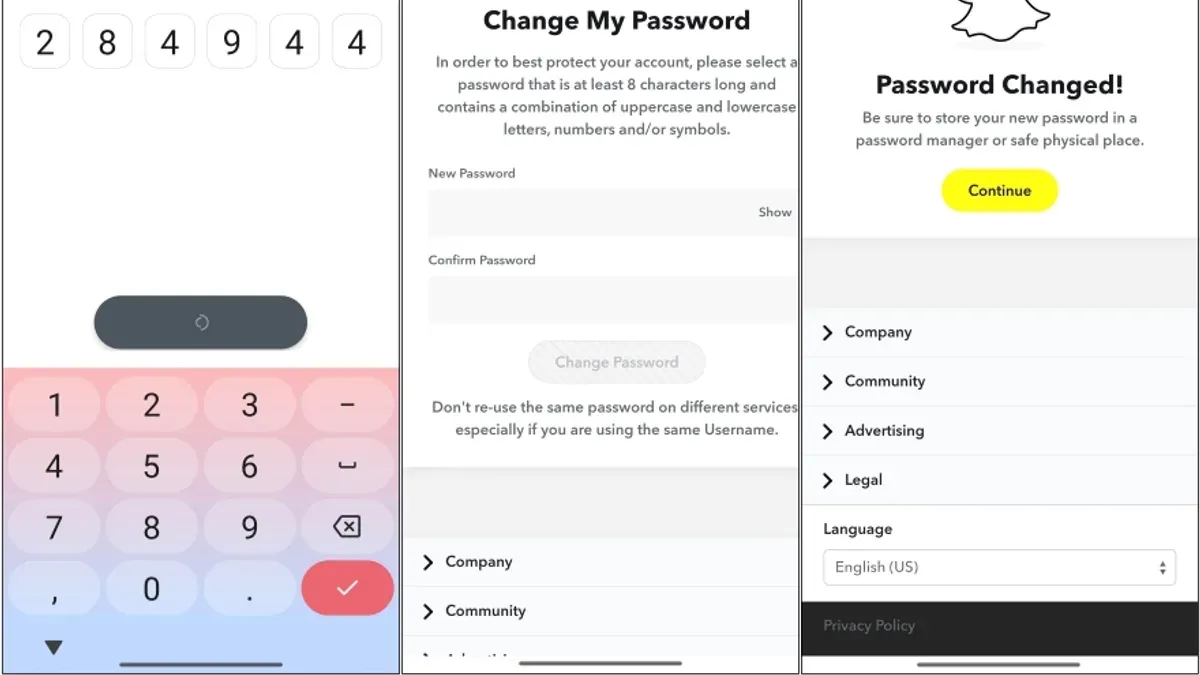
This article provides clear, step-by-step instructions on how to change Snapchat password across different platforms, including solutions for common problems and recovery options without email or phone access.
Changing a Snapchat password is essential for maintaining account security, and the process varies slightly depending on the device and account status. Whether using the Snapchat mobile app, a computer, or the web, users can navigate specific settings such as Profile > Settings > Password to update credentials. For those who have forgotten their password or lost access to their registered email and phone number, alternative recovery methods exist to regain control. This guide addresses these scenarios, ensuring that account holders can secure their Snapchat accounts effectively.
Before you start: What is needed to change a Snapchat password
Changing a Snapchat password requires specific prerequisites to ensure a smooth process and avoid complications. The fundamental requirement is access to the Snapchat account, which means having the login credentials or being able to sign in. Without access, password changes will rely on recovery options that may be limited.
Access to a device with an internet connection is essential. This can be a mobile device or a computer, as Snapchat supports password changes through both its app and web platforms.
Ideally, a registered email address or phone number linked to the Snapchat account should be available. These are the primary recovery methods for resetting forgotten passwords. However, many users lose access to these recovery options, which significantly reduces the chances of straightforward account recovery.
Knowing the current password simplifies the process, allowing users to change it directly in their account settings without needing recovery steps.
Statistics indicate that a considerable portion of social media users lose access to their linked email or phone number over time, which complicates account recovery. This highlights the importance of verifying recovery information before attempting a password change.
- Confirm the ability to log in to the Snapchat account; successful login indicates access to account settings.
- Ensure a stable internet connection via mobile data or Wi-Fi; the password change interface should load without errors.
- Check that the registered email or phone number is current and accessible; this is verified by the ability to receive a verification code or reset link.
- Have the current password available if planning to change it directly; entering it correctly will allow navigation to the password change screen.
How to change Snapchat password on laptop or computer via the web
- Open a web browser and go to the official Snapchat login page at https://accounts.snapchat.com. The page will display fields to enter a username and password.
- Sign in by entering the current Snapchat username or email and the existing password. Upon successful login, the account management dashboard will appear.
- Locate and click on the "Password" option in the left-hand menu or under the account settings section. This will open the password change form.
- In the form, enter the current password in the designated field to verify identity.
- Enter the new password twice: once in the "New Password" field and again in the "Confirm New Password" field. The password must be at least 8 characters and include a combination of letters, numbers, and symbols to meet Snapchat’s security criteria.
- Click the "Save" or "Update Password" button to submit the changes. A confirmation message should appear indicating the password was successfully updated.
- To verify, log out and attempt to sign in again using the new password. If login is successful, the change was properly applied.
Tip: Use a strong, unique password and consider a password manager to keep it secure and accessible.
How to change Snapchat password if forgotten
If the current Snapchat password is forgotten, resetting it through the login screen is the standard recovery method. Snapchat offers two main options: recovery via email or SMS verification code. Both methods involve verifying identity before resetting the password.
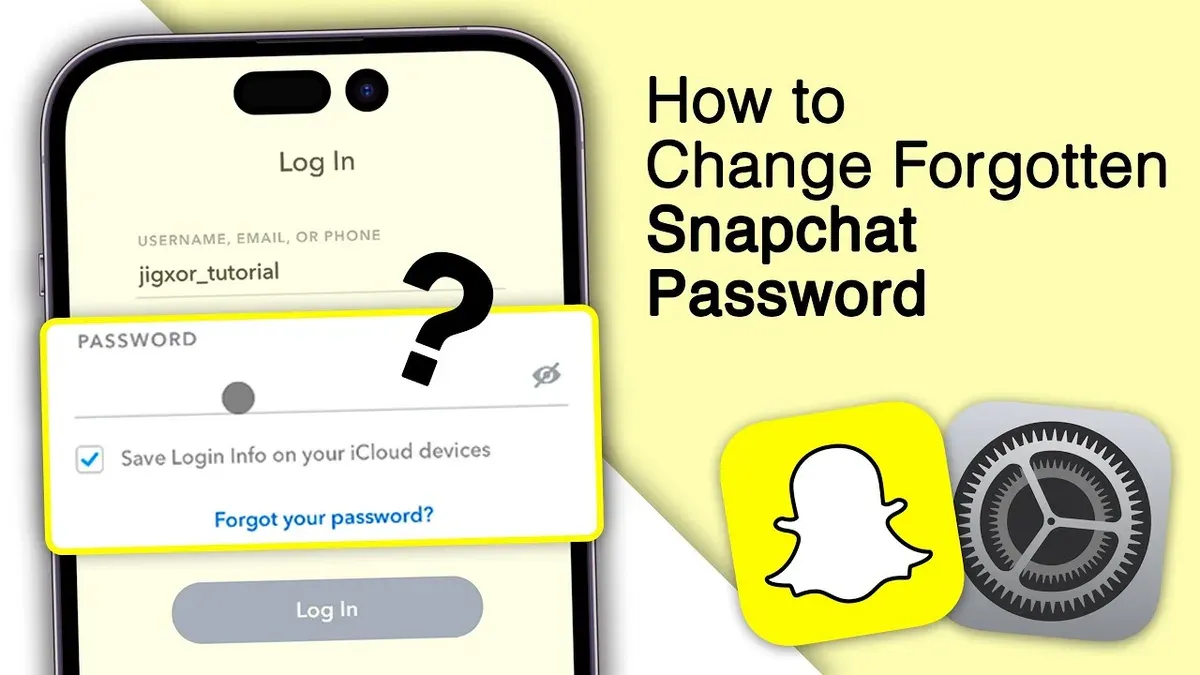
- Open the Snapchat app or visit the Snapchat login page on a web browser. Locate and select the Forgot password? link below the login fields. A prompt to choose a recovery method appears.
- Choose via Email to receive a password reset link in the registered email inbox. Snapchat sends an email with instructions and a secure link to reset the password. Check the inbox and spam folders for this email.
- Alternatively, select via Phone to receive a verification code via SMS. Enter the phone number linked to the Snapchat account. Upon receiving the numeric code, input it in the app or website to verify identity.
- After verification through either method, create a new password. The new password must be at least eight characters, combining uppercase, lowercase letters, numbers, and symbols for strength.
- Confirm the new password and complete the reset process. Snapchat will notify successful password change and allow logging in with the updated credentials.
Comparison of recovery methods: SMS verification generally provides faster access since the code arrives quickly on the phone. Email recovery can be slower due to email delivery delays or spam filtering but is useful when phone access is unavailable. Users should choose the method that best suits their current access and security preferences.
Tip: Choose a unique password that is not used on other accounts to enhance overall security.
How to change Snapchat password without email and phone
When both the registered email and phone number are inaccessible, recovering or changing a Snapchat password becomes challenging but not impossible. Snapchat requires identity verification to protect accounts from unauthorized access, so alternative methods focus on proving account ownership directly to Snapchat support.
Users should start by visiting the Snapchat Support website and submitting a recovery request under the “Login & Account Access” category. The form will ask for the username, last known password, and other identifying details such as account creation date, frequently contacted friends, and device information.
Verification often involves answering security questions or providing screenshots of the account profile or Snap history to demonstrate control. Snapchat support may take several days to respond, and successful recovery depends on the quality and accuracy of the information submitted.
One documented case involved a user who lost access to both email and phone after a device reset. They provided detailed account creation data and evidence of recent Snap activity through screenshots. Snapchat support responded within a week, allowing password reset via a secure link sent to a new email address verified during the process.
Limitations include: the possibility of permanent account loss if verification fails and the absence of immediate password reset options. Users should be prepared for potentially lengthy communication and multiple verification steps.
Preventive measures include linking multiple recovery options, regularly updating contact information within Snapchat settings, and enabling two-factor authentication to reduce the risk of losing account access.
- Go to Snapchat Support at support.snapchat.com and select “I can’t access my account.” The page should display recovery options.
- Choose “Contact Us” and then “Login & Account Access” followed by “I can’t access my email or phone.” A form will appear to provide account details.
- Fill out the form with username, last password remembered, approximate account creation date, and any additional requested information. Submit the form and await a response.
- Check the email provided in the form (preferably a new accessible email) for instructions or verification requests from Snapchat support.
- Follow any further steps provided by Snapchat support, such as sending screenshots or confirming account activity, until password reset instructions are received.
Tip: Maintaining updated recovery information and periodically reviewing account security settings can prevent the need for complex recovery procedures.
How to change Snapchat password on mobile app
- Open the Snapchat app on an iOS or Android device. The camera screen should appear as the default home view.
- Tap the profile icon or Bitmoji in the top-left corner to access the profile page.
- Tap the gear icon in the top-right corner to open Settings.
- Scroll down and select Password under the "Account Actions" section.
- Enter the current password when prompted; this verifies identity before allowing a change.
- Type the new password, ensuring it meets Snapchat’s criteria—typically at least 8 characters, including letters and numbers.
- Re-enter the new password to confirm accuracy and avoid typos.
- Tap Save or Change Password to apply the update.
- After saving, Snapchat may prompt to log out of other active sessions to secure the account across devices; choose accordingly.
- A confirmation message appears indicating the password has been updated successfully.
On iOS and Android, the interface and steps are nearly identical, with only minor visual differences such as icon style or font. Both platforms require the current password to authorize changes.
Tip: If the new password is rejected, check for common issues like insufficient length or missing numbers and letters.
Troubleshooting common issues when changing Snapchat password
Many users encounter errors such as “Something went wrong” or inability to update their password despite following correct procedures. These issues often stem from temporary server problems, network connectivity, or app-related glitches.
Common rejections occur if the new password does not meet Snapchat’s security criteria, such as minimum length or complexity, or if the current password entered is incorrect. In these cases, error messages usually specify the problem, guiding users to adjust their input accordingly.
Connectivity problems can interfere with password changes. If the app or web interface cannot communicate with Snapchat’s servers, users may see failure notifications or timeouts. Checking internet connections and switching between Wi-Fi and mobile data can help determine if the network is the cause.
Cache buildup or outdated app versions are frequent culprits behind glitches. Clearing the Snapchat app cache or updating to the latest version often resolves such issues. To clear cache on mobile, navigate to Settings > Apps > Snapchat > Storage > Clear Cache (Android) or delete and reinstall the app on iOS.
Tip: Restarting the device before retrying can fix minor temporary errors.
If problems persist after these steps, escalating to Snapchat support is advisable. Providing detailed descriptions of the error messages, device type, app version, and troubleshooting attempts increases the chance of effective assistance.
- Verify the new password meets Snapchat’s requirements; when accepted, the input fields clear or a confirmation appears.
- Check internet connectivity by opening a webpage or another app; if loading succeeds, network is likely fine.
- Clear app cache or update Snapchat; the app should open without lag or crashes afterward.
- Restart the device; Snapchat should launch normally and allow password changes.
- If errors remain, contact Snapchat support via the app or website; expect a response with further instructions.
How to secure 'My Eyes Only' content when changing Snapchat password
My Eyes Only is a Snapchat feature designed to protect private Snaps and Stories with an additional passcode, separate from the main account password. This means that changing the Snapchat account password does not directly affect access to My Eyes Only content, as it relies on its own PIN for protection.
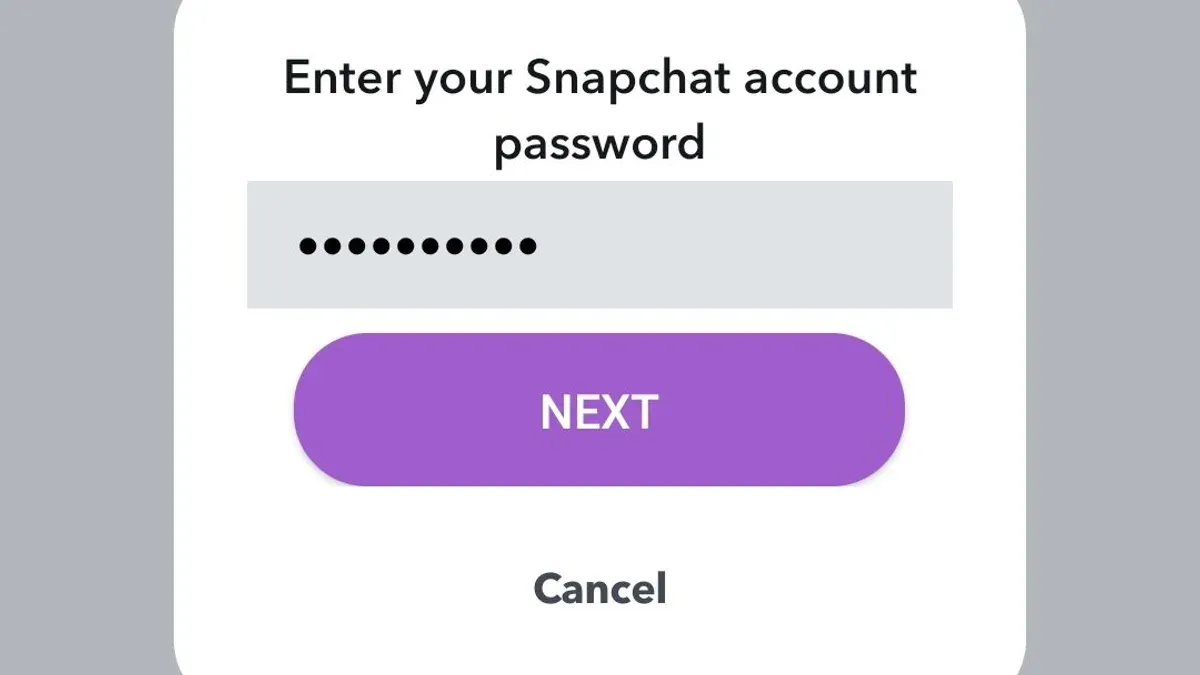
However, users should be cautious when changing passwords to ensure overall account security and to avoid accidental lockouts. Losing access to the My Eyes Only PIN cannot be recovered through password resets, so safeguarding the PIN is crucial.
To keep My Eyes Only content secure during password updates, consider backing up any important Snaps externally if possible, as the PIN-protected content remains encrypted on Snapchat’s servers and only accessible through the app.
- Open Snapchat and swipe up to access Memories.
- Tap the “My Eyes Only” tab and enter the current PIN to view the content.
- If uncertain about the PIN, reset it by tapping the settings gear within My Eyes Only, but note this will delete all locked content.
- Before changing the Snapchat password, ensure the My Eyes Only PIN is remembered or securely stored elsewhere.
- Proceed with changing the Snapchat password as desired; this process will not alter access to My Eyes Only.
- After updating the password, verify that the My Eyes Only content remains accessible by entering the PIN again.
Tip: Because My Eyes Only content cannot be recovered without the PIN, avoid resetting it unless prepared to lose the locked Snaps.
Frequently asked questions
Can't change snapchat password?
Difficulty changing a Snapchat password often results from poor internet connection, incorrect current password entry, or account restrictions due to suspicious activity. Ensuring a stable network and double-checking login credentials can help. If the problem persists, contacting Snapchat support may be necessary to resolve account-specific issues.
how to change snapchat password on laptop
To change a Snapchat password on a laptop, visit the Snapchat web portal and log in. Navigate to the settings by clicking the profile icon, then select 'Password' under the account section. Enter the current password, then the new password twice to confirm and save the changes.
how to change snapchat password without email
If the registered email is inaccessible, password changes can still proceed using the mobile app or web interface by selecting 'Forgot your password?' and choosing to verify identity via phone number or other recovery options linked to the account. Without email access, verification through phone or Snapchat support is essential.
how to change snapchat password without email and phone
Changing a Snapchat password without access to both email and phone requires account recovery through Snapchat support. Verification may involve answering security questions or providing proof of identity. This process can be time-consuming and does not guarantee success, emphasizing the importance of keeping recovery information updated.
can't change snapchat password
Repeated failures to change a Snapchat password may indicate account security holds or technical issues on Snapchat's side. Clearing the app cache, updating the app, or trying a different device can resolve some problems. Persistent issues should be reported to Snapchat support for assistance.
Limits of this advice
This article focuses strictly on password changes and recovery methods within Snapchat's provided options. It does not cover full account hacking recovery beyond resetting the password or any legal steps required if the account is compromised through unauthorized access. Users who cannot verify their identity through Snapchat's support channels—especially if they lack access to their registered email, phone number, or linked accounts—may face permanent loss of access to their Snapchat account.
To maintain account security, the single most effective next step after changing a password is to enable two-factor authentication (2FA) within Snapchat’s settings under Settings > Two-Factor Authentication. This adds an extra layer of protection by requiring a verification code in addition to the password during login attempts, significantly reducing the risk of unauthorized access.